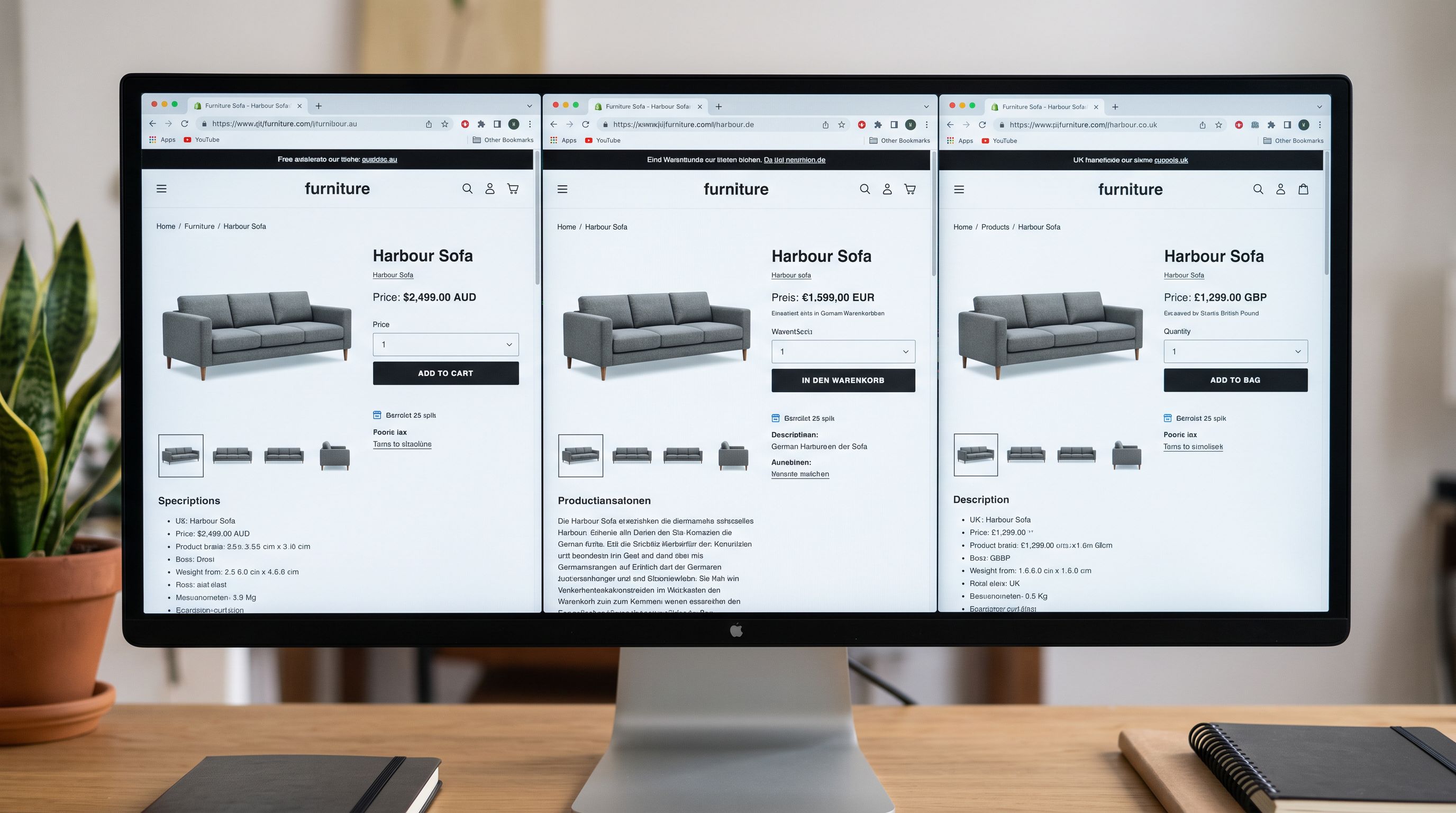
Shopify PDF Product Import: From Supplier Catalogue to Live

On this page
A wholesale homeware buyer receives the spring/summer catalogue from their supplier: 48 pages, 220 products, full-colour layout with product photography, names, codes, and prices. The problem is not the content; it is the format. The file is a PDF.
Shopify's native importer accepts CSV files. A PDF catalogue is not a CSV. The product data is embedded in the document's layout: some products in tables, some in grouped image grids, some in prose descriptions running alongside photography. There is no column for "title" and no row per product the way a spreadsheet has.
The traditional path is to open the PDF on a second monitor and type each product into Shopify manually. At 3-5 minutes per product, 220 products takes 11-18 hours. A shopify pdf product import using Importier's PDF reader handles those 220 products in a single upload, no retyping required.
Why Shopify Cannot Import a PDF Directly
Shopify's native product import expects a CSV file with specific column headers: Title, Body, Vendor, Type, Tags, and so on. Each row is one product. The importer reads columns by name and maps values to the corresponding Shopify product field.
A PDF has none of this structure. There are no column headers and no row-per-product schema. There is only a formatted document where the layout was designed for a reader's eye, not for a data parser.
Why PDF Catalogues Are the Default Format for Supplier Documents
Suppliers send PDFs because PDFs are the standard format for professional documents that need to look good on screen and in print. A catalogue sent as a PDF looks identical to the printed version. The layout is preserved, the branding is intact, and the supplier controls exactly how the document appears.
Adobe's overview of the PDF format explains why the format became the universal standard for business documents: it preserves layout and typography identically across every device and printer. Unlike a spreadsheet, a PDF is not designed for data interchange; it is designed for presentation.
This creates the import gap. Shopify needs structured data. The supplier sends a presentation document. The buyer is left to bridge the two formats manually, which is exactly what most merchants do until they find a better path.
What Importier's PDF Import Extracts
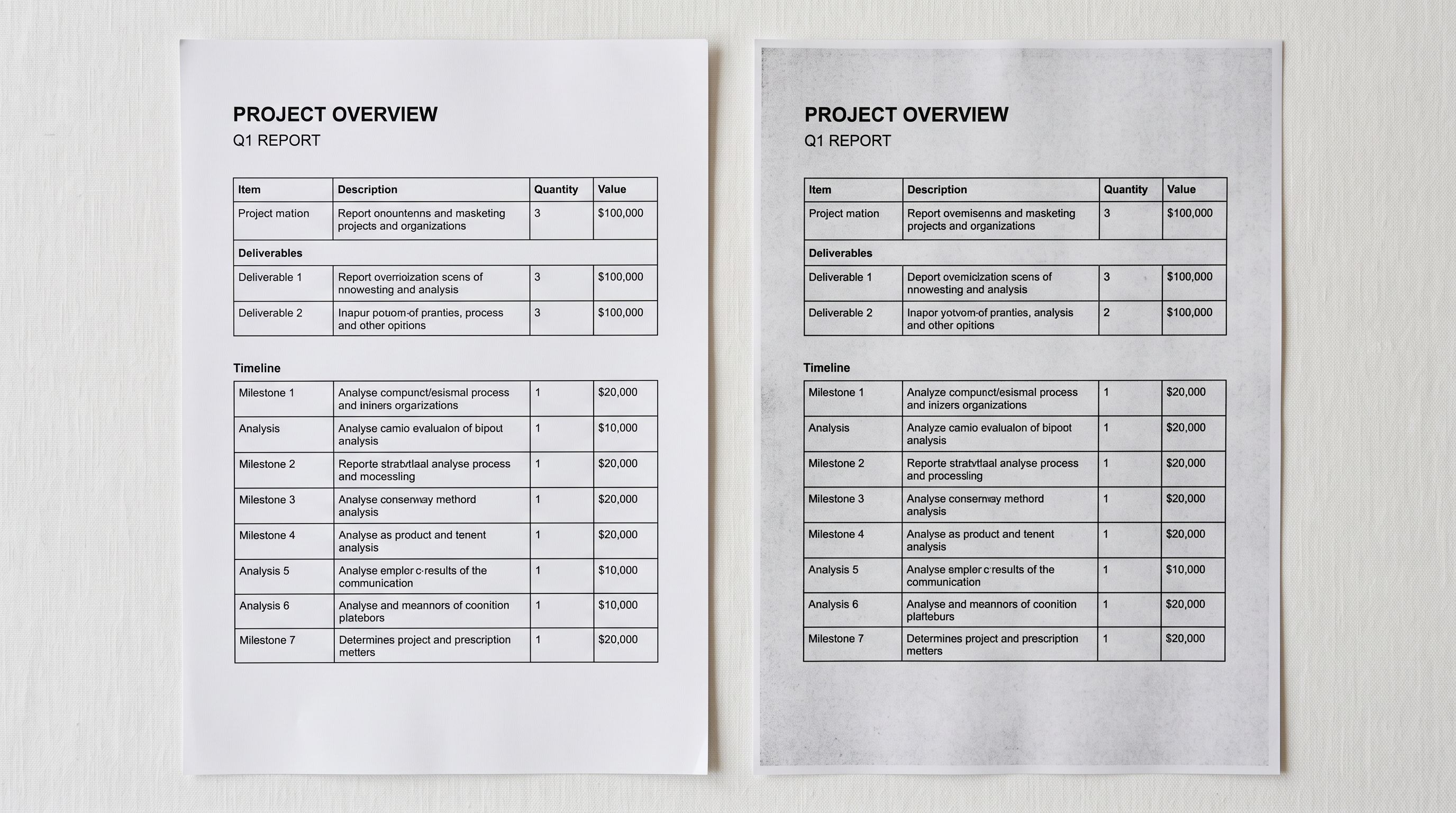
When a merchant uploads a supplier PDF to Importier, the AI reads the document structure and identifies product boundaries. Unlike a CSV where column headers make the structure explicit, a PDF requires the AI to infer which text belongs to which product.
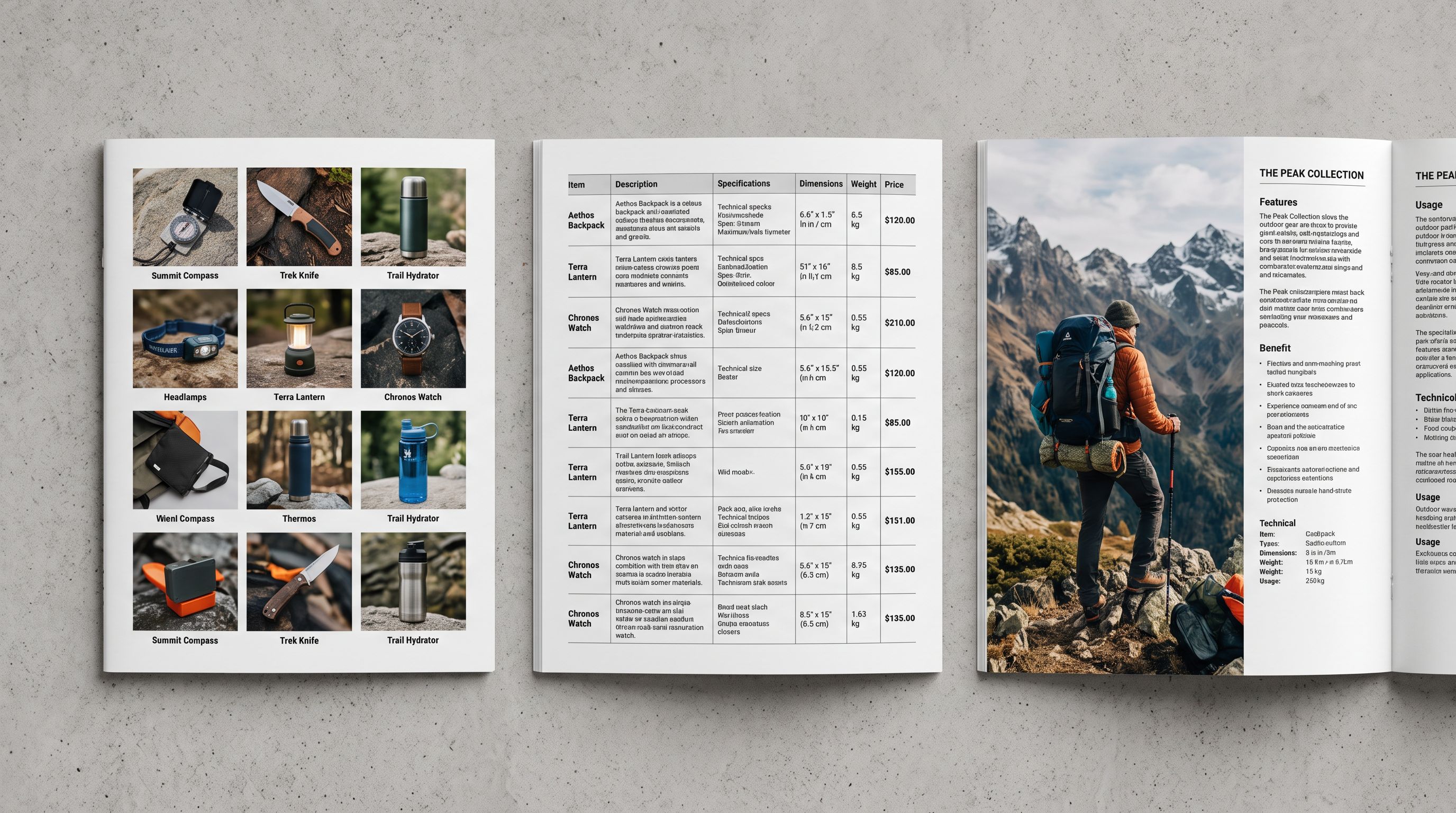
For a table-format catalogue where each row is a product with columns for code, name, and price, the AI reads row by row. For a catalogue where each product occupies a block with a photo, a title, and a description beneath it, the AI identifies the block boundaries. For a mixed-format catalogue where some pages use tables and others use descriptive layouts, the AI adapts per page.
What gets extracted:
Product title and name. The product name is the highest-confidence extraction: it is almost always visually prominent (larger font, bold, or a heading in its block). Match rate for product names is high across all PDF formats.
SKU and product code. Supplier codes are usually in a consistent format (alphanumeric, specific length) which makes them recognisable even when embedded in mixed text. The AI identifies patterns that look like product identifiers.
Price. Currency amounts follow predictable patterns. The AI identifies price values and associates them with the correct product.
Description. If the catalogue includes product descriptions (not all do; some show only name, code, and price), these are extracted as the starting point for Shopify descriptions. Short catalogue descriptions are usually enriched by AI description generation after the extraction step.
Weight and dimensions. Physical dimensions and weights, when listed in the PDF, are extracted and mapped to Shopify's weight and dimensions fields.
Images. Product photographs embedded directly in the PDF are extracted as images. Not all PDFs embed high-resolution images; some use low-resolution preview images that are not suitable for product listing. Importier flags low-resolution extractions in the Import Review step.
What does not extract well
Limitations of PDF Extraction
No AI extraction is perfect, and understanding the limitations helps merchants prepare their PDFs for better results.
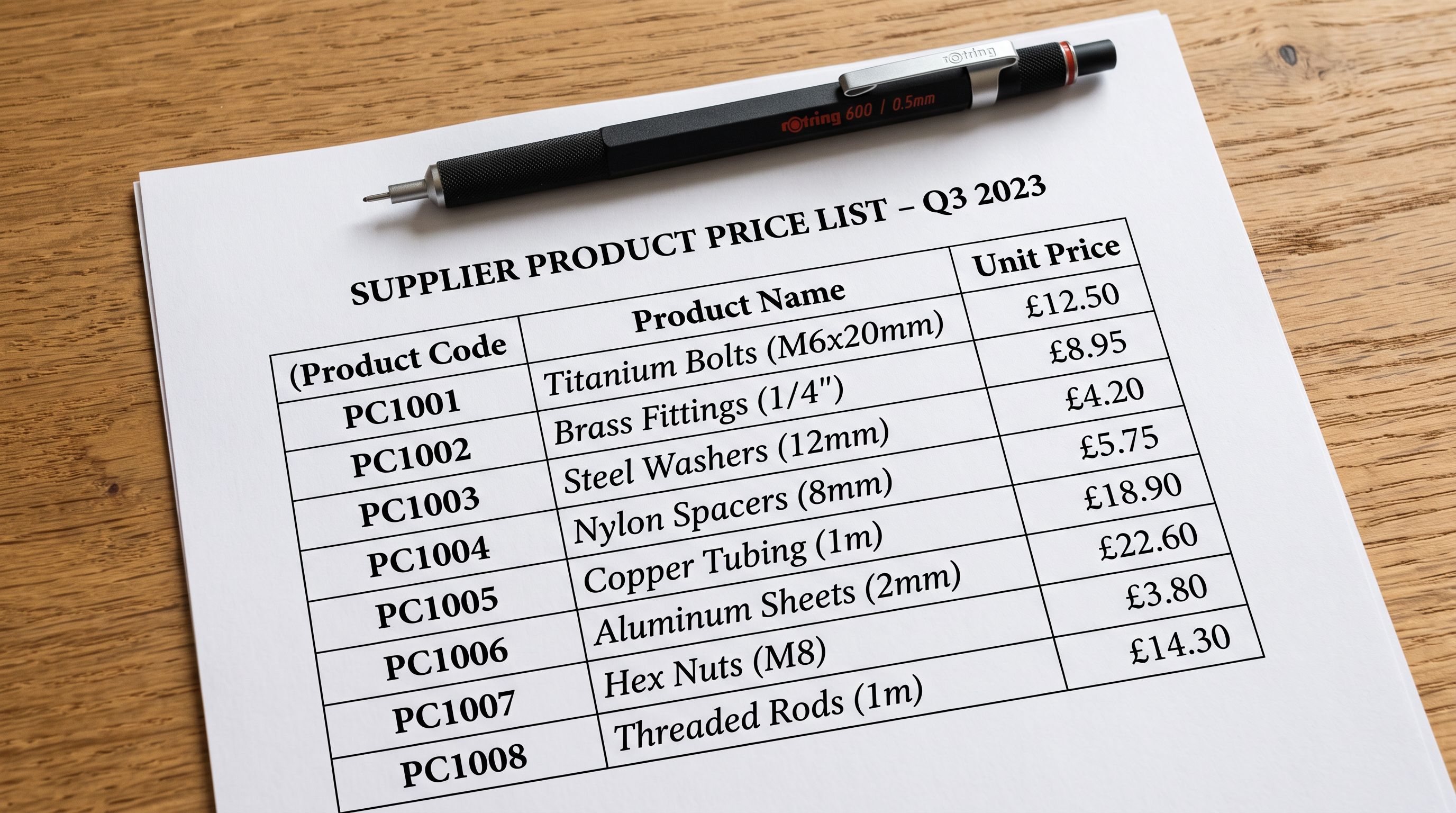
Scanned catalogues with poor scan quality. A scanned PDF where the original was printed on coloured paper, photographed at an angle, or scanned at low DPI will have lower text extraction accuracy. If your supplier can send a native (digitally-generated) PDF instead of a scanned version, ask for it; the extraction quality difference is significant.
Overlapping visual elements. Some catalogue layouts use text that overlaps images or decorative elements where the AI cannot reliably determine which text belongs to which product. Clean grid layouts extract better than complex editorial designs.
Products spanning page breaks. If a product description begins on one page and continues on the next, page-break handling can split or merge content incorrectly. Suppliers who use page-aligned product layouts (each product contained on one page or in a clear block) produce better extractions.
Handwritten additions. Some suppliers add handwritten notes to printed catalogues before scanning. Handwritten text is not reliably extracted.
Images linked externally. Some PDFs reference images stored externally rather than embedding them. These images do not extract because the file does not contain the image data.
A well-structured supplier PDF (native, table-formatted, with product images embedded) can extract with 85-95% field accuracy across a 200-product catalogue. A scanned brochure-format catalogue may require more correction in the Import Review step, but still saves hours compared to full manual entry.
The Import Review Step Before Shopify
Shopify never receives an unreviewed extraction. After uploading the PDF and running the AI extraction pass, Importier shows every extracted product in the Import Review step before anything is pushed to Shopify.
The review step lets merchants:
- Correct titles that extracted incorrectly (common with stylised typography)
- Remove products that should not be listed (out of stock, discontinued, not for this market)
- Adjust prices where the AI picked up a retail price instead of a cost price
- Fill in fields that were not in the PDF (for example, category or product type)
- Review extracted images and replace any low-resolution extractions with better versions
For a 220-product catalogue, reviewing in Importier's bulk interface typically takes 30-45 minutes. Compared to 11-18 hours of full manual entry, the review step is the savings, not a cost.
- 01Upload the PDF to Importier's import wizard by dragging the file onto the upload area or selecting it from your file browser. Importier accepts standard PDF files up to the plan's size limit. For very large catalogues (80+ pages), splitting the PDF into sections of 30-40 pages per file can improve extraction accuracy and lets you review in batches.
- 02Wait for the AI extraction pass to complete. Importier reads the document structure, identifies product boundaries, and extracts the fields it can recognise. The extraction time depends on the number of pages and the PDF complexitya clean 30-page native PDF typically extracts in under 90 seconds.
- 03Review the extracted products in the Import Review step. Importier shows each product with a confidence score per fieldhigh-confidence extractions appear in full; lower-confidence extractions are highlighted for your attention. Edit any field that extracted incorrectly. Remove products that should not be imported.
- 04Run AI description generation for products where the catalogue description is short or missing. Importier uses the extracted title, category, and any available description as context. For thin extractions (name and price only), add a line in the enrichment context field describing your customer and the product range so the AI has enough context to produce useful descriptions.
- 05Push the reviewed products to Shopify. Importier sends only the products you approved in the review step. Any product you removed in review does not get pushed. After pushing, Shopify assigns handles, publication status, and collection membership according to your import settings.
When Your Supplier Sends a New Catalogue Each Season
A shopify pdf product import is not a one-time task for most merchants who use it. Suppliers release seasonal catalogues: spring/summer and autumn/winter for fashion, quarterly for homewares, annually for industrial supplies. Each release contains new products, updated prices, and discontinued items.
With a manual transcription workflow, each new catalogue is a week of data entry work. With PDF import, the new catalogue uploads, extracts, and reviews in a fraction of the time. Prices update, new products import, discontinued products are removed in the Import Review step rather than being pushed to Shopify.
For merchants on Importier Scale and Enterprise plans, Scheduled Imports automates this further: when the supplier sends the new PDF, the import can be configured to run at a set time so the catalogue update happens without manual initiation.
Read more about filling missing product data after PDF extraction for the enrichment workflow that fills weight, country of origin, HS codes, and other fields the catalogue PDF does not include.
- Open PDF on second monitor, type each product into Shopify manually
- 3-5 minutes per product: 11-18 hours for a 200-product catalogue
- Transcription errors in SKUs, prices, and specifications
- Images downloaded manually and re-uploaded one by one
- Process repeats from scratch every new catalogue season
- No review interface: errors discovered after products are live
- Upload PDF to Importier, AI extracts all products in one pass
- Review and correct in bulk interface: 30-45 minutes for 200 products
- AI identifies SKUs, prices, and specifications from document structure
- Embedded images extracted automatically and attached to products
- New catalogue upload re-uses the same workflow; changed products update
- Import Review step catches errors before anything reaches Shopify

Key Takeaways
A shopify pdf product import replaces full manual transcription with an AI extraction and review workflow. The time saving on a 200-product catalogue is 90-95% compared to manual entry.
- Shopify's native CSV importer does not accept PDF files: the format gap is why PDF catalogues require a separate import path. Importier's AI reads the PDF structure and extracts product data regardless of catalogue layout.
- Native (digitally-generated) PDFs produce better extractions than scanned PDFs: if your supplier can send a native PDF, ask for it. The extraction accuracy difference is meaningful for large catalogues.
- The Import Review step is part of the workflow, not a penalty: reviewing AI-extracted products before pushing to Shopify takes 30-45 minutes for 200 products and catches extraction errors before they become live listing errors.
- Thin catalogue data (name and price only) is enriched by AI description generation: add a note in the enrichment context field so the AI has audience and product positioning context to work with.
- Seasonal catalogue releases use the same workflow each time: PDF import is not a one-time migration task. Each supplier catalogue season is a fresh upload, extraction, and review cycle.
Import your supplier's PDF catalogue at importier.app.
Set up your first import in under five minutes.
Importier brings products into Shopify with AI descriptions, category metafields, and data enrichment on every run.