Shopify Import Audit Log: Track Changes and Failures
On this page
Shopify Import Audit Log: How to Track What Changed, What Failed, and What Succeeded in a Bulk Product Import
A bulk import touches hundreds of products in minutes. When something is wrong six hours later, the question is never "what happened" but "which import caused it, what exactly changed, and how do we fix it without breaking something else." A Shopify import audit log answers all three questions before you start clicking.
This article covers what to record at every stage of a bulk import, how Importier's built-in logging handles the work you should not do manually, and how compliance-sensitive merchants build an audit trail that holds up under external review.
Why Every Bulk Import Needs a Shopify Import Audit Log
The case for an import audit log is not about catching errors as they happen. It is about being able to reconstruct what happened when the error surfaces days later.
Consider a wholesale homewares merchant managing 1,200 products across 14 suppliers. After an inventory update import on a Tuesday afternoon, the buying team notices Thursday morning that compare-at prices on 80 products are wrong. Without a log, the investigation involves asking who ran the import, hunting for the source file, and trying to recall which product range was affected. With a log, the answer is a two-minute lookup: batch reference, file name, operator, and a downloadable CSV showing exactly what changed.
Three reasons a bulk import needs documentation beyond what Shopify records natively:
Accountability. Shopify's admin records who logged in and when, but it does not record which file was imported, which column mapping was applied, or how many products were created versus updated. That context lives in your import tool unless you document it explicitly.
Rollback. To reverse a bulk change selectively, you need to know exactly what changed. A log with a product count and a batch reference lets you scope a rollback to the affected batch rather than guessing.
Compliance. Food merchants, medical device sellers, and children's toy retailers often face external product audits. The auditor does not want to see your Shopify admin. They want a document trail showing when each product listing changed and why.
What to Record in Your Import Log
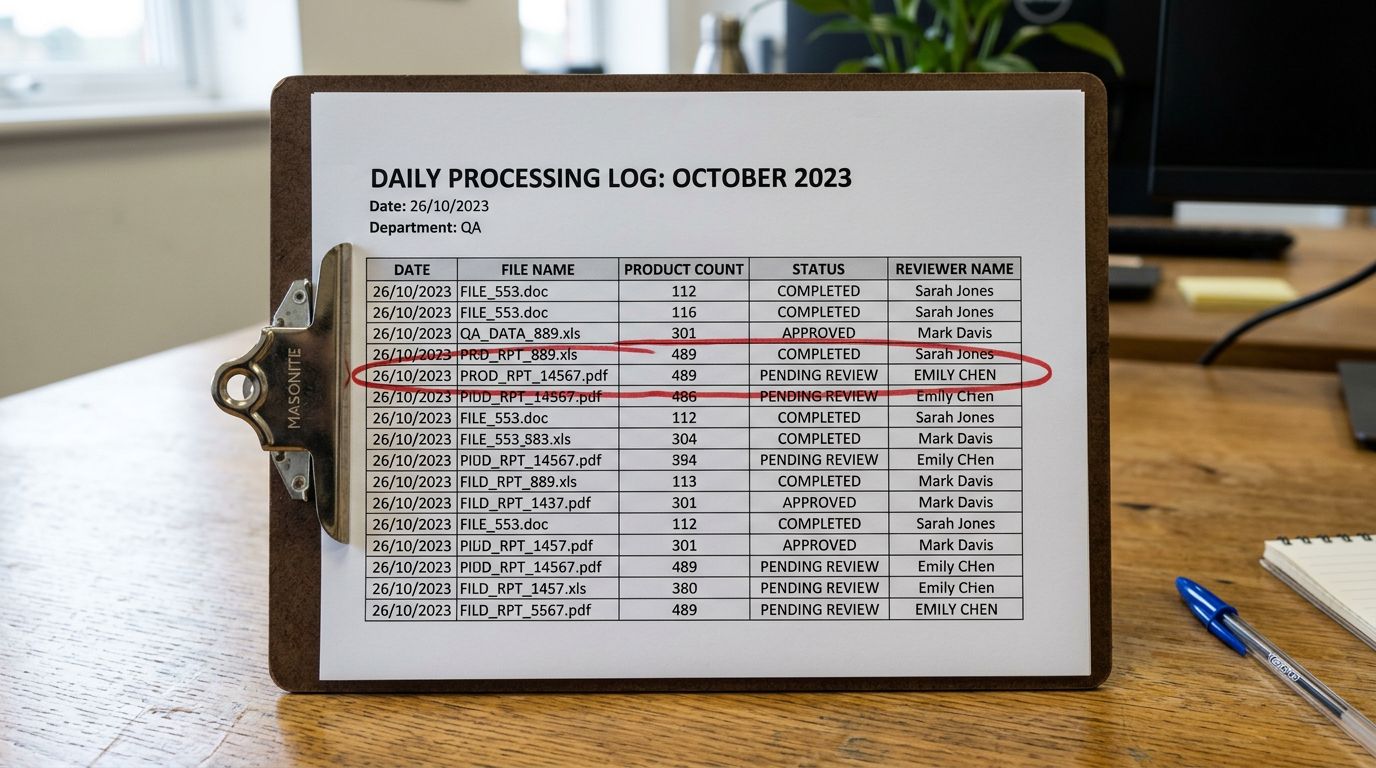
The fields below represent the minimum for a useful Shopify import audit log. Missing any of them will slow down a retrospective investigation.
- 01Date and timeUse ISO format (YYYY-MM-DDTHH:MM) with your local timezone noted. Shopify's activity log timestamps in UTC, so aligning formats matters when cross-referencing.
- 02File name and versionRecord the supplier's file name exactly as received. If you rename files for clarity, record both the original and renamed version.
- 03Import typeNote whether this was a new product import, a description update, a pricing update, an inventory update, or a deletion batch.
- 04OperatorRecord who ran the import. In a multi-staff environment, this is essential for isolating scope when a problem is reported later.
- 05Product countsRecord products created, products updated, products failed, and products skipped. Importier shows all four counts on the import confirmation screen.
- 06Action on failuresNote what happened to any rows that failed validation, whether you corrected and re-imported them, left them out of the batch, or escalated them to the supplier.
The six fields above take under two minutes to fill in after each import. A shared spreadsheet or a Notion database both work as the container.
One field often overlooked is the import profile name. If you use saved column mappings in Importier, recording which profile was active makes it straightforward to audit whether a misconfigured mapping caused the issue. According to Shopify's product import documentation, the column mapping step is where the majority of data entry errors originate, and a named profile reference in your log gives you a direct path back to the configuration.
Importier's Import Preview as Your First Audit Gate
Before any product is pushed to Shopify, Importier shows a preview of exactly what will change. Treating this screen as a formal audit step, rather than a quick scroll-and-confirm, prevents a category of errors that only surface after the batch is already committed.
The preview maps each column in your file to a Shopify field and shows sample values from the first several rows. Review three things before confirming:
First, verify the import mode. Importing as "new products" when you meant "update existing" creates duplicate product handles and doubles your product count in Shopify.
Second, check the product count. If you uploaded a 200-row file and the preview shows 197, three rows failed pre-import validation. Find them before confirming.
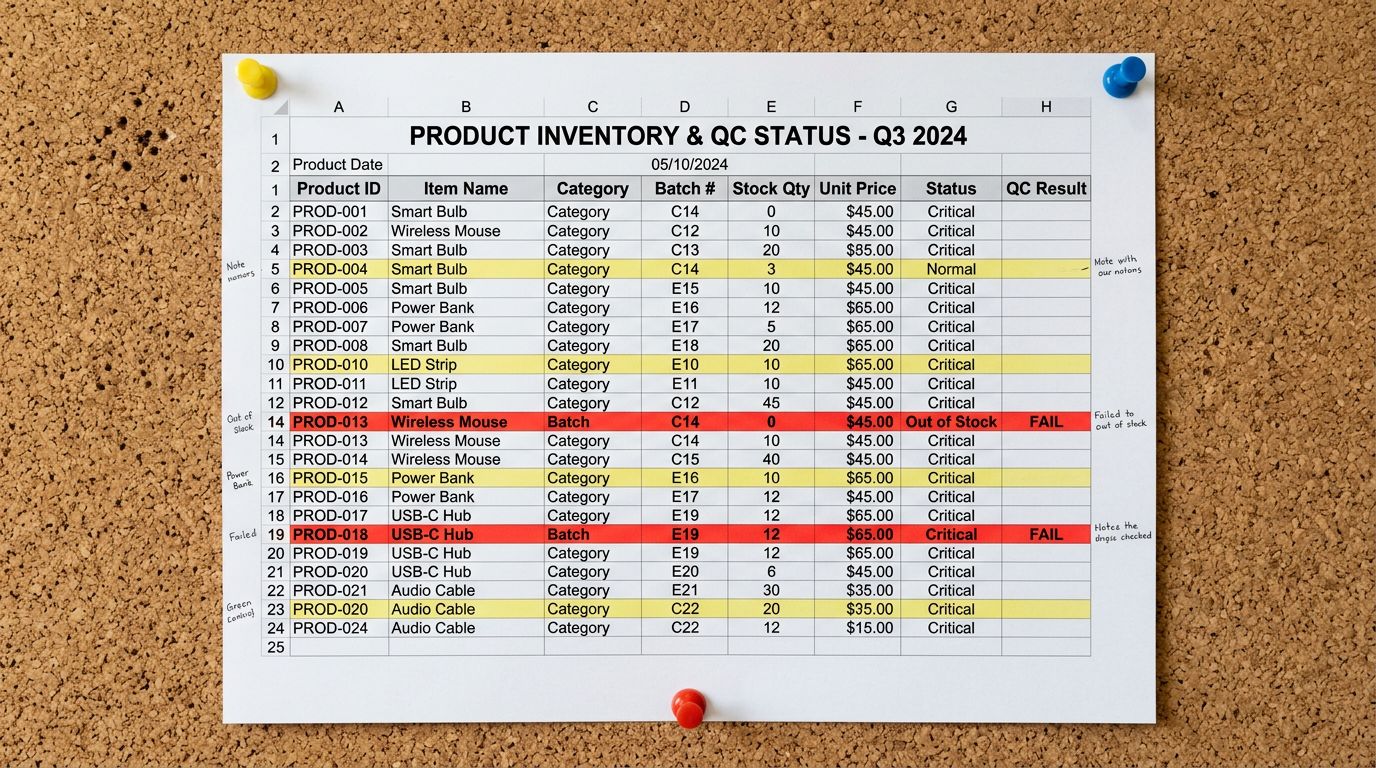
Third, examine the mapping for pricing and inventory columns. A cost-price column accidentally mapped to Compare At Price is among the most common causes of systematic pricing errors across an entire batch.
- Import mode errors discovered after 200 products are changed
- Pricing column errors affect the entire batch undetected
- Failed row count unknown until customers report problems
- Import mode confirmed before a single product changes
- Column mapping verified against sample data before committing
- Failed row count visible before you push the batch
Import History: The Permanent Shopify Import Audit Trail
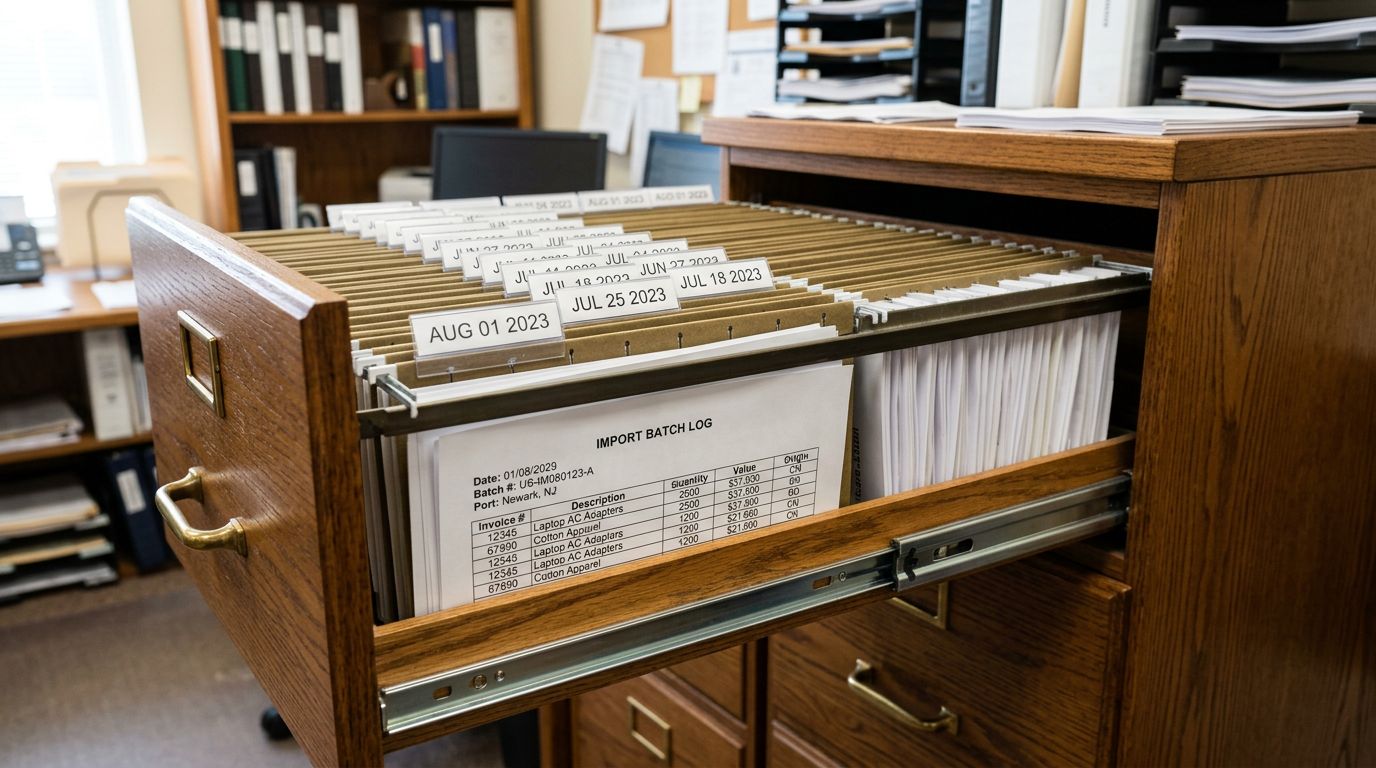
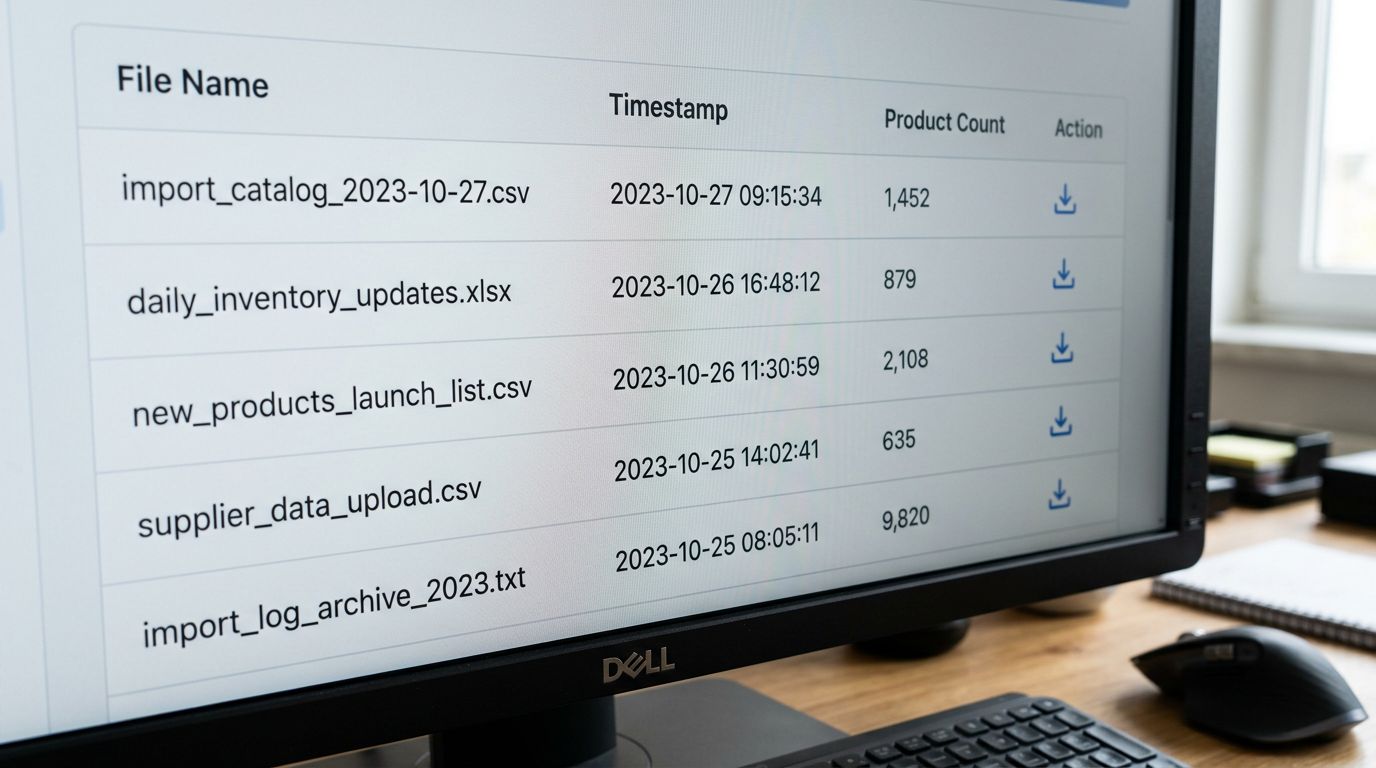
Importier's Import History is the Shopify import audit log you do not need to build yourself. Every import and export is logged automatically with the date, time, file name, and product count. Each entry includes a 60-day downloadable CSV showing the batch as Importier processed it.
The CSV download serves two purposes. First, it is the point-in-time record of exactly what changed in that batch, which is the primary input for any retroactive audit. Second, it is the file you give a compliance auditor who asks for documentation of a specific update.
Import Undo extends the log into a reversal capability. One action reverts all products from a batch to their pre-import state. Importier retains up to 20 snapshots, which covers three to four weeks of daily importing for most merchants. For the full workflow on using Import History for batch management and recovery, see Shopify Import History: Audit and Reverse Product Batches.
The import log you need six months from now is being created automatically with every batch you run today.
One practical note: the 60-day link expiry on batch CSVs means compliance-sensitive merchants should export and archive each CSV immediately after importing rather than relying on the window being open when they need it.
When Standard Logging Is Not Enough
Compliance-Grade Import Logs for Regulated Industries
Standard import logging covers most Shopify merchants. Food sellers, medical device retailers, and children's toy merchants face a further obligation: their product data changes must be traceable back to a regulatory submission, a supplier certification, or a specific production lot.
Food and Beverage Merchants
Food merchants operating under the US FDA, the Australian Food Standards Code, or EU food law must demonstrate when a product listing was changed and what triggered the change. A bulk import that updates ingredient descriptions, allergen information, or country-of-origin fields touches data that may be subject to regulatory scrutiny.
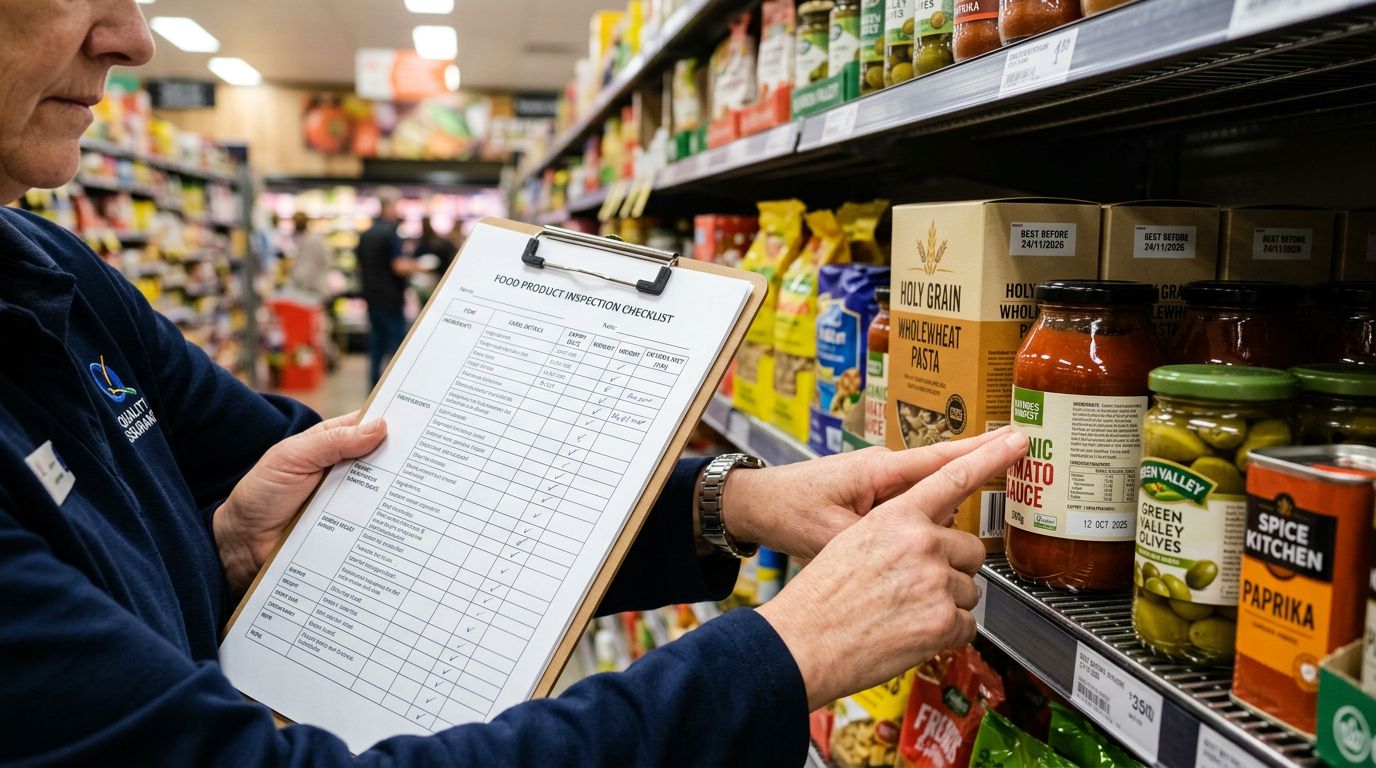
The minimum compliance log for food merchants extends beyond what Importier records automatically. Include the supplier's lot or batch reference alongside the import file name so any product listing change can be traced back to a specific delivery. The US FDA's requirements around food labelling accuracy and product records mean any listing update that touches a regulated field should be timestamped and referenced in your import record at the time it occurs.
A homewares food merchant importing 300 SKUs weekly from three different suppliers will have different batch references across those three suppliers even when running all three imports in the same session. Keeping the supplier's lot reference in the log entry separates them in a way that Importier's file name alone does not.
Children's Toys and Safety-Regulated Products
Products sold in the US, EU, and Australia that require safety certification carry specific documentation obligations. The US Consumer Product Safety Commission requires tracking labels on children's products that identify the manufacturer, production location, and date of production. When these fields are updated in a bulk import, the update should reference the certification document that authorised the change.
A compliance-grade import log for toy merchants adds two fields to the standard six: the certification document reference, such as a third-party test report number, and the effective date of the regulatory change. The CPSC's guidance on product safety requirements for manufacturers and importers describes what product information must be maintained, and your import log should map directly to those fields rather than relying on Importier's log to carry that context.
Medical Devices and Supplements
Medical device merchants and supplement sellers under the TGA (Australia) or FDA oversight treat product descriptions as regulated content. A bulk import that changes a product description, even an AI description refresh, requires a record of what changed, when, and under whose authorisation.
Add a reason-for-change field to your import log that references the internal approval or regulatory event that triggered the update. A product manager approving a description refresh for a quarterly catalogue update is a different audit entry from a compliance team updating safety warnings after a product reformulation.
Post-Import Verification Using Shopify's Activity Log
Importier's Import History records what your import tool processed. Shopify's built-in activity log records what happened in your Shopify admin. Using both together gives a complete picture of a bulk import session.
Shopify's activity log is accessible from Settings in your admin. It records login events, product changes, order changes, and API activity, each timestamped to the second. After a bulk import, filter the activity log to the relevant time window and look for product update events that fall outside the expected batch scope.
The activity log shows that a product changed, but not which fields changed. For field-level audit, Importier's batch CSV download is the authoritative reference.
Retrospective Audit: When Something Goes Wrong
A customer reports a wrong price. A Google Shopping feed gets flagged for a description mismatch. A supplier contacts you about a product listing that does not match their latest specification. These are the situations where a Shopify import audit log pays for itself within the hour.
The investigation follows the same four steps every time:
Step 1: Identify the affected products. Use Importier's export presets to pull the current values for the fields in question across the affected product range. The Pricing export preset retrieves variant prices and compare-at prices for every product in a single export.
Step 2: Locate the responsible import batch. Check Import History for batches that overlap with the first time the error could have been introduced. Download the batch CSV and compare it against the current product data for the affected SKUs.
Step 3: Verify the column mapping. For pricing errors, review whether the import profile active at the time mapped the correct columns to Variant Price and Compare At Price. A saved import profile that has drifted from its original configuration is the most frequent cause of systematic pricing errors across an entire batch.
Step 4: Reverse or correct. If the batch can be fully reversed, Import Undo is the fastest path. If you need to correct a subset of products, Importier supports re-importing a filtered file to update only the affected SKUs without touching the rest of the catalogue.
Key Takeaways
- Record six fields per import: date and time, file name, import type, operator, product counts, and action on failures
- Importier's Import History handles automated logging for every batch, with 60-day batch CSVs and one-click undo for up to 20 snapshots
- The import preview is the first audit gate: verify import mode, product count, and column mapping before confirming any batch

- Compliance-sensitive merchants in food, medical, and toy categories should extend the standard log with certification references and a reason-for-change field
- When an error surfaces, start with Import History to locate the responsible batch, then cross-reference with Shopify's activity log for the full event timeline
Try Importier free at importier.app
Set up your first import in under five minutes.
Importier brings products into Shopify with AI descriptions, category metafields, and data enrichment on every run.