Shopify Google Shopping Campaigns: Product Data Checklist
On this page
Shopify Google Shopping Campaigns: Fix Your Product Data Before You Bid
Most merchants who launch Google Shopping campaigns and see poor results reach for the same levers: adjust bids, refine audiences, increase budget. In most cases, those levers are not the problem.
The real bottleneck is the product catalogue. Google scores every product for eligibility before it enters the auction at all. A product with missing GTINs, an unsupported category path, or a supplier-formatted title gets a reduced impression share regardless of what you bid. You are competing for placements with incomplete product data, and no amount of bidding fixes that.
This is a pre-campaign checklist for merchants planning to launch or relaunch Shopify Google Shopping campaigns. Fix these four things before your first dollar of ad spend.
Why Product Data Controls Your Google Shopping Performance
Google Shopping is not a keyword auction in the traditional sense. When a shopper searches "blue running shoes", Google does not just look at which advertisers are bidding the most on that query. It first scores every eligible product in the feed against the search terms, using structured product attributes to decide which products are relevant enough to enter the auction.
The implication: two merchants selling the same product with the same bid can see dramatically different impression shares based purely on data quality. The merchant with valid GTINs, a correct taxonomy path, and a well-formatted title enters more auctions. The other is quietly excluded, and they will never see that exclusion in their Google Ads dashboard.
Google's product data specification for Shopping ads lists the attributes that determine eligibility. GTIN, product category, title, and description are not optional extras. They are the variables Google uses to match your products to search queries. Thin or missing data produces fewer matches, fewer impressions, and expensive clicks because you only show when the signal is strong enough to enter.
This is the lesson most merchants learn the hard way: your product data determines your Shopify Google Shopping performance far more than your bidding strategy.
The Google Shopping Pre-Campaign Data Checklist
Four data quality gates must pass before your campaigns launch. Each one has a measurable impact on impression share.
Gate 1: GTINs (Barcodes)
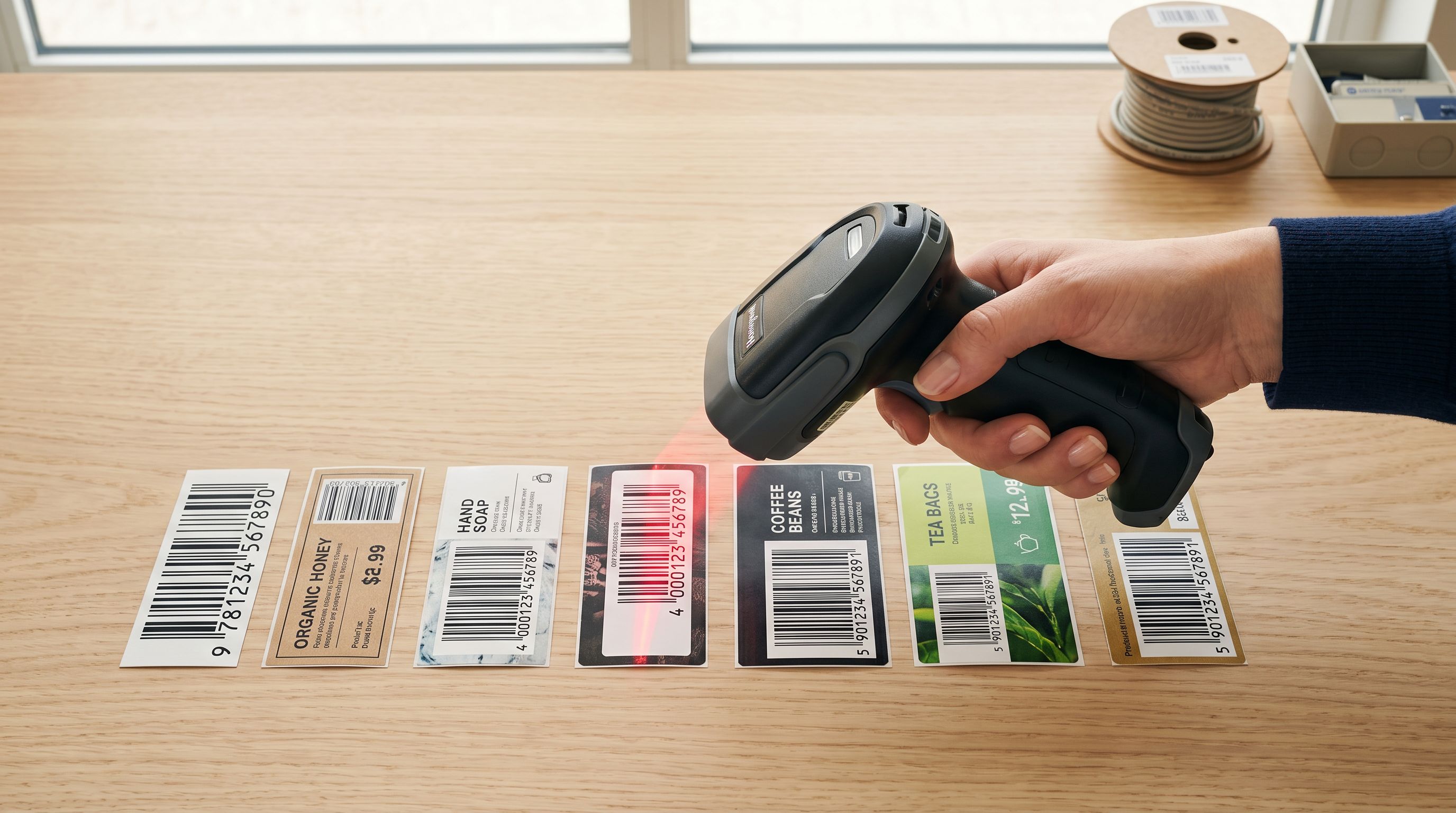
A GTIN (Global Trade Item Number) is how Google verifies that the product you are selling is the specific product the shopper is searching for. For most branded goods, this means a valid EAN-13 or UPC-A barcode.
Without a valid GTIN, Google classifies your product as "identifier exists: no" and limits its auction participation. You may still serve some impressions, but reach is significantly reduced compared to a fully identified product. Merchant Centre flags this as "limited performance due to missing identifier."
The hidden problem in imported catalogues: supplier internal codes like "BLT-0042" or "WH-PRO-500-BLK" occupy the Shopify Barcode field but fail GTIN validation. The field appears populated, so the gap is invisible in a quick audit. Products that look compliant in Shopify admin are flagged in Merchant Centre. Our guide to adding GTINs to Shopify products in bulk covers how to identify and resolve this specific pattern.
Gate 2: Category Taxonomy
Google's taxonomy for Shopping is not the same as Shopify product types. Where a merchant might tag products as "Clothing" or "Electronics", Google requires multi-level paths: "Apparel & Accessories > Clothing > Tops & T-Shirts" or "Electronics > Audio > Headphones".
A product assigned to the wrong taxonomy level may serve impressions but will match fewer relevant queries. More critically, category-specific attribute requirements apply at the taxonomy level. Apparel products need size, colour, and gender attributes populated. If those attributes are absent in the correct taxonomy branch, the product underperforms even if the category path is right.
Shopify's Standard Product Taxonomy aligns with Google's structure, but you need category metafields populated correctly for that signal to pass through your feed. The full explanation of how Shopify category metafields connect to Google Shopping covers the connection between these two systems.
Gate 3: Title Formatting
Google Shopping titles have a 150-character display limit and strict structural recommendations. Google's product title specification recommends leading with brand and product type, followed by distinguishing attributes: colour, size, material. Keywords buried at the end of a title receive less weight in auction matching.
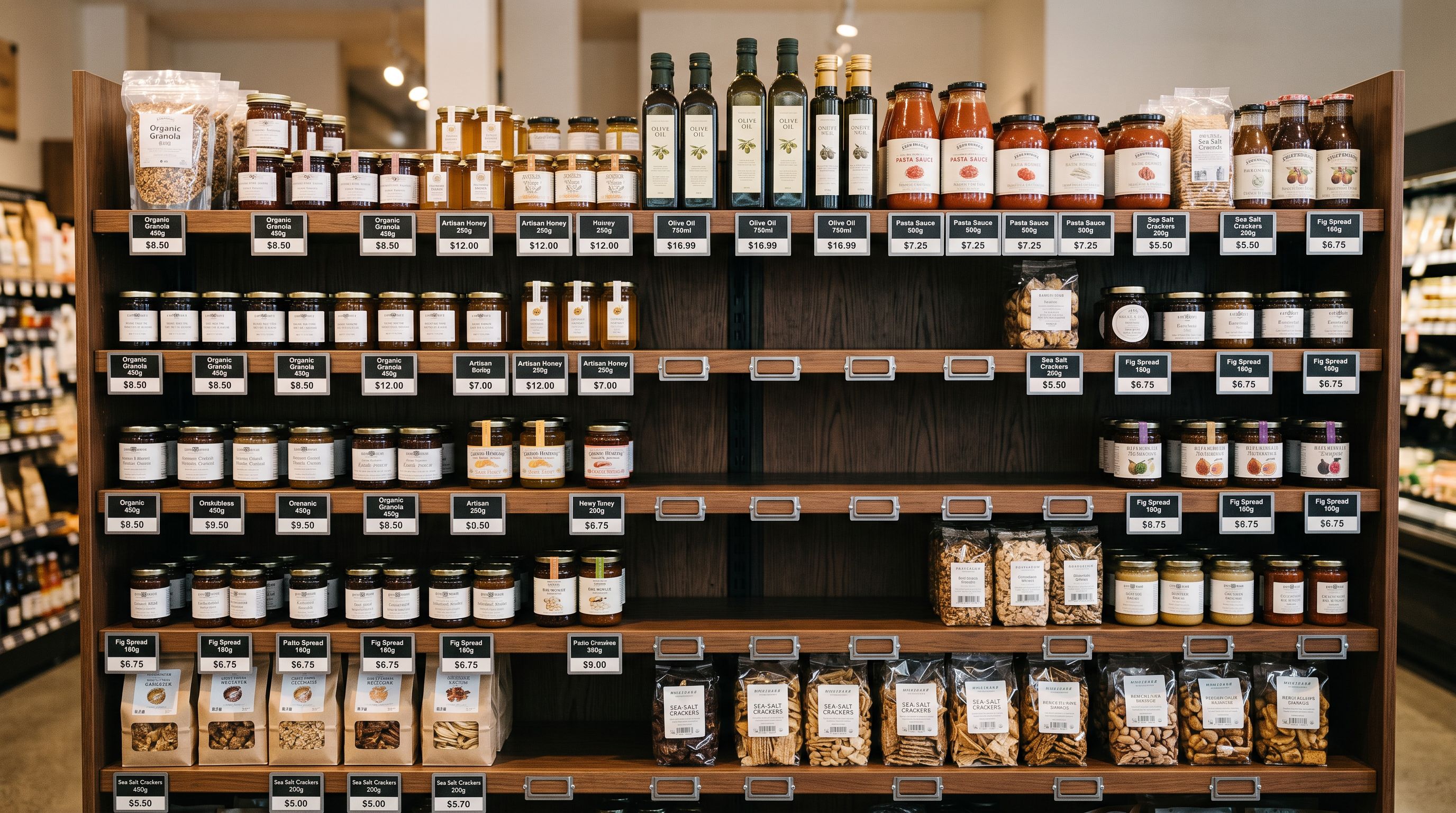
Two problems appear repeatedly in imported catalogues. First, ALL CAPS from supplier data: Google's quality guidelines flag this, and Merchant Centre includes title formatting in its quality scoring. Second, truncation at 70 characters in mobile placements, which cuts off the attributes that differentiate your listing from a competitor's.
Take a title like "BLUE COTTON TSHIRT MENS ROUND NECK CASUAL SIZE L". It fails on both counts. The correctly formatted version, "Men's Blue Cotton Round Neck T-Shirt, Size L", matches more queries and displays fully on mobile. The Shopify product title optimisation guide covers the full set of formatting fixes for Shopping compliance.
Gate 4: Description Quality
Google uses your Shopping description to match products to long-tail queries that do not appear in the title. A 30-word supplier spec sheet does this poorly. A useful description is at least 70 words of readable, specific content explaining what the product is, who it is for, and what distinguishes it.
Consider a fashion accessories merchant importing 300 SKUs from a wholesale supplier. The supplier descriptions are two-sentence spec sheets shared with every other retailer who buys from them. Google Shopping does not penalise duplicate content the way organic search does, but it cannot use shared text to differentiate one store's listing from another. Those descriptions match fewer long-tail queries, and every click has to fight for fewer impressions.
The Fix Workflow
How to Fix All Four in One Importier Session
These four fixes can be completed in a single Importier session, in this order.
- 01Step 1Audit with SEO Audit export. Run the SEO Audit export preset from the Importier export panel. The output is a CSV mapping every product against description presence, meta title, meta description, and category metafield status. This two-minute audit shows exactly where your feed gaps are before you start fixing.
- 02Step 2GTIN lookup. Run data enrichment across products with blank or non-GTIN barcodes. Importier's AI enrichment searches registered product databases by title, type, and vendor to find valid GTINs for each product. For 300 products, this takes minutes compared to 15-25 hours of manual research.
- 03Step 3Category metafields. Apply Importier's category metafield matching using the 22 industry packs covering 3,758 attribute types. Two-phase matching identifies the correct taxonomy path for each product, using text matching first and AI matching for ambiguous cases. Products end up with multi-level category paths aligned to Google's taxonomy.
- 04Step 4Titles and descriptions. Run the Title Optimizer with the GMC preset (150-character limit) across your catalogue. This applies case transformations, removes extra spaces, and flags compliance issues. Then run Store Scanner in Replace mode to generate AI descriptions across 7 description styles, 156 expert personas, and 25 AI models.

The sequence matters. Enriching GTINs first gives the AI description generation richer product data to work with, which produces better output in step 4. Running the Title Optimizer before descriptions ensures the title data that feeds into Google Merchant Centre compliance mode is already clean.
For a detailed walkthrough of this workflow with a specific merchant scenario, see Shopify Google Shopping product data: fix the gaps, the second article in this cluster.
Fixing product data before your campaigns launch changes your impression share within 7 to 14 days. Adjusting bids on incomplete data changes nothing.
Verify Readiness Before You Spend a Dollar
After the four fixes, two checks confirm readiness before campaign activation.
In Google Merchant Centre: Open the Products panel and filter by "Item Issues". Merchant Centre categorises issues by severity: errors block products from serving entirely, warnings reduce reach, and notifications are informational only. Work through errors first, then warnings. Products showing "eligible" with no issues are ready. Products showing "eligible (limited)" have outstanding data quality flags and are serving at reduced reach.
In Importier: Re-run the SEO Audit export preset. The updated CSV should show description presence across the catalogue, populated meta titles, and category metafields. Cross-reference this against the Merchant Centre item issue report to confirm that the changes have propagated through the feed.
One check that most merchants skip: confirm that your Shopify products are set to "Active" status and are visible in the relevant sales channel. Products imported from CSV can arrive as drafts if the Published column was missing or set to FALSE. This produces a catalogue that looks complete in Shopify admin but has zero Shopping coverage. We recommend verifying publication status in Shopify admin before activating any campaign.
The feed sync between Shopify and Google Merchant Centre takes up to 24 hours. Check Merchant Centre the day after making changes, not the same day.
What to Expect After Fixing Your Data
Product data changes for Google Shopping campaigns have a two-phase impact.
Phase 1: Feed propagation (24-72 hours). Merchant Centre re-evaluates your product feed on its standard sync schedule. Within 24-72 hours of the fix, item issues tied to corrected data should clear. If an issue persists after 72 hours, check whether the data change reached Shopify. Importier's Import History panel records every change with a timestamp, so you can confirm what ran and when.
Phase 2: Impression share improvement (7-14 days). Once products become fully eligible, Google's algorithm begins entering them in more auctions. This does not happen overnight. The algorithm needs several days of eligibility data before it scales impression share for newly compliant products. In our experience, merchants who fix all four gates before launch see meaningful impression share improvement within 7-14 days without any bid changes.
The inverse is equally predictable: merchants who launch campaigns on unoptimised data and fix mid-campaign face the same 7-14 day lag. Fixing before launch avoids spending budget during that lag period.
After the first two weeks, monitor impression share in Google Ads using the "Impression Share" and "Search Lost IS (Quality)" columns. If impression share is below 50% and the constraint is Quality, product data is still the limiting factor. If the constraint is Budget, the data problem is solved and you have a much simpler dial to turn.
- Products excluded from auctions due to missing or invalid GTINs
- Incorrect taxonomy reduces query matching at category level
- Supplier-formatted titles truncate on mobile placements
- Shared supplier descriptions match fewer long-tail queries
- Valid GTINs enable full auction eligibility and impression share
- Correct multi-level taxonomy paths match category-specific queries
- GMC-formatted titles display fully on all placements
- Unique AI descriptions match long-tail buyer queries
If you have encountered disapprovals at any stage of this process, the complete guide to why Shopify products get disapproved in Google Merchant Centre maps each disapproval category to its fix.
Key Takeaways
- Google Shopping scores products for eligibility before auction entry. Product data quality, not bid level, controls impression share for products with data gaps.
- The four pre-campaign gates are GTINs, category taxonomy, title formatting, and description quality. All four affect auction eligibility or query matching.
- Importier's four-fix workflow (barcode lookup, category metafields with 22 packs and 3,758 attributes, Title Optimizer GMC preset at 150 chars, and Store Scanner AI descriptions across 7 styles, 156 personas, and 25 AI models) addresses all four gaps in a single session.
- Verify readiness by re-running the SEO Audit export and checking Merchant Centre item issues before activating campaigns.
- Feed propagation takes 24-72 hours. Impression share improvement takes 7-14 days. Fixing data before launch avoids spending ad budget during the lag period.

See how Importier handles this at importier.app.
Set up your first import in under five minutes.
Importier brings products into Shopify with AI descriptions, category metafields, and data enrichment on every run.