Shopify Wholesale Pricing Sheet Import: Supplier Price Tiers

On this page
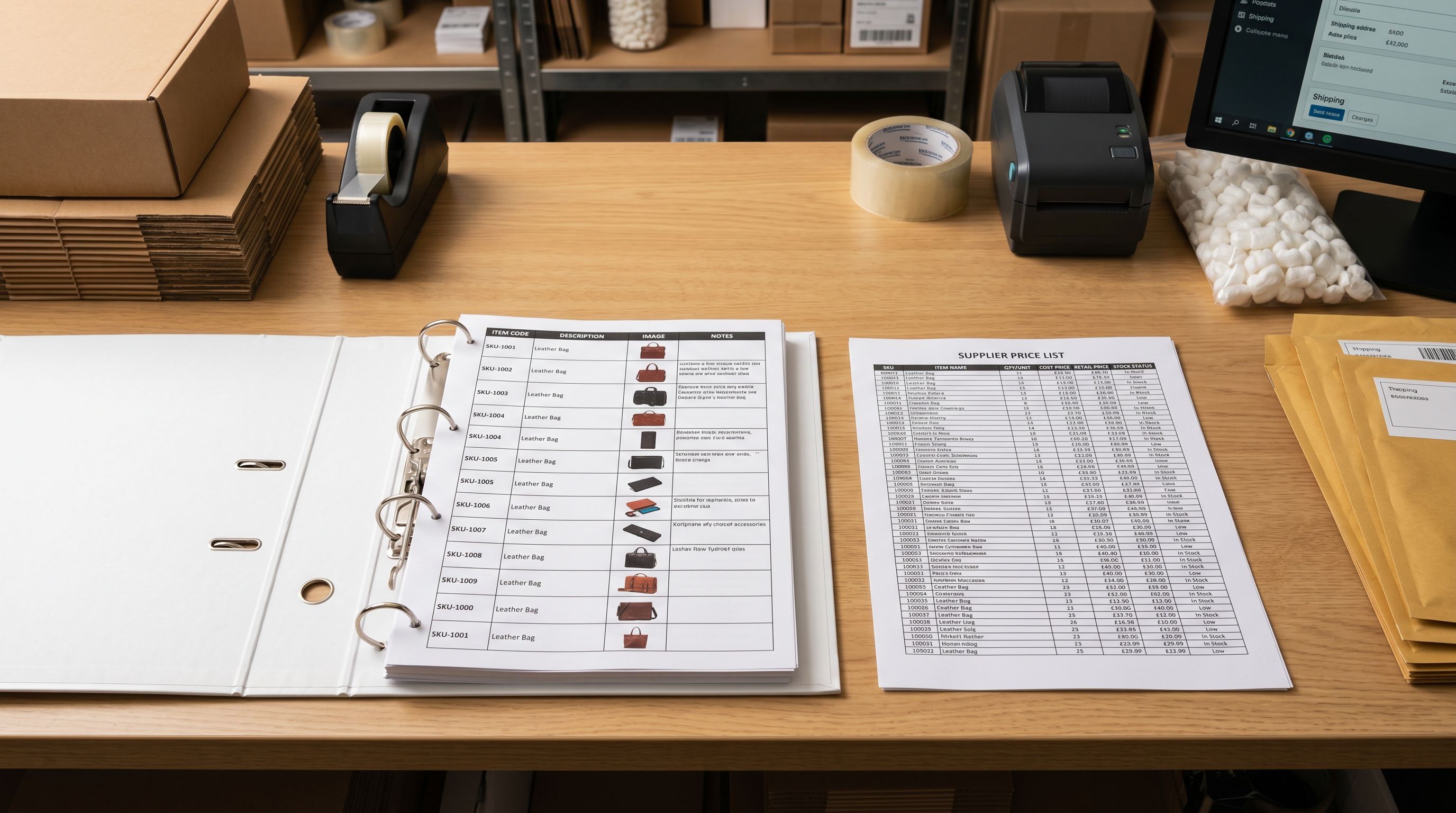
A hardware and industrial supplies distributor receives their main supplier's monthly price update as an Excel spreadsheet. The file has 400 rows and nine columns: Supplier SKU, Product Description, Unit, Wholesale Ex-GST, Trade Price Inc-GST, RRP Inc-GST, MSRP, 5+ Unit Price, and 20+ Unit Price. The shopify wholesale pricing sheet import supplier price tiers problem starts here: Shopify has two customer-facing price fields per product variant, and the supplier sheet has nine price columns to account for.
That mismatch is where every price import decision becomes consequential. Choosing the wrong column for the Variant Price field means 400 products launch with a price that contradicts the supplier's own recommendation. Choosing the wrong column for the Compare At Price field means the discount display is misleading or absent. And if the Wholesale Ex-GST column is not imported to the Cost Per Item field, the merchant loses the ability to calculate product margins from Shopify's built-in reports.
This article covers how to map a supplier's pricing sheet to Shopify's three price fields, what to do with the columns that have no direct Shopify equivalent, and how to structure recurring price update imports so that monthly supplier price changes do not overwrite product descriptions.
What Supplier Pricing Sheets Contain
A wholesale pricing sheet is a structured document that captures every price in the supply chain for a product. Most suppliers with 50 or more active products distribute these as Excel files on a monthly or quarterly cycle. The typical columns:
Wholesale Cost (ex-tax): the distributor's unit price from the supplier. Sometimes labelled "Net Cost", "Buy Price", or "Your Cost". This is the merchant's cost of goods: it belongs in Shopify's Cost Per Item field, not in any customer-facing price field.
Trade Price: the price at which the supplier recommends selling to trade accounts, contractors, or wholesale buyers. Trade Price is typically lower than the RRP and higher than the Wholesale Cost. Shopify has no native trade price field; this column either maps to a product metafield for B2B display or is not imported.
RRP (Recommended Retail Price): the supplier's suggestion for the retail-facing selling price. RRP is tax-inclusive in Australian and UK markets. In Shopify imports, RRP most often maps to the Variant Compare At Price, providing the reference price that Shopify displays with a strikethrough when the merchant sells below it.
MSRP (Manufacturer's Suggested Retail Price): common in markets where the distributor is not the manufacturer. MSRP and RRP often carry the same value. When they differ, the import profile uses one consistently as the Compare At Price reference and discards the other.
Volume break prices: prices that apply when a buyer orders above a minimum quantity (5 units, 20 units, pallet quantities). Shopify's standard product model has no native volume pricing field. Volume breaks require either a Shopify Plus B2B pricing configuration, a third-party pricing app, or storage as custom metafields for display purposes.

Shopify's Three Price Fields for Wholesale Pricing Sheet Import
Shopify provides three price-related fields per product variant. These three fields cover what the merchant pays, what the market suggests the customer should pay, and what the merchant actually charges.
Variant Price: the customer-facing selling price. Shopify displays this on the product page and uses it in cart calculations. For a trade or wholesale merchant, the Variant Price is the merchant's chosen selling price (not the Trade Price from the supplier sheet, and not the RRP). The merchant calculates this from their intended margin above the Wholesale Cost.
Variant Compare At Price: an optional reference price shown crossed out beside the Variant Price when it is higher. Shopify treats any product where the Variant Price is lower than the Variant Compare At Price as on sale. According to Shopify's product pricing documentation, the Compare At Price is designed for showing the original price of a discounted item. The RRP column from the supplier's pricing sheet is the correct source for this field.
Cost Per Item (Variant Cost): the merchant's internal unit cost. This field does not appear on the product page. It drives Shopify's profit margin calculations in Analytics reports and can trigger Shopify Flow automation rules based on product margin thresholds. The Wholesale Ex-GST column from the supplier sheet belongs here.
The Mapping Decision: Which Column Goes Where
For a nine-column supplier pricing sheet, three columns have direct Shopify equivalents. The remaining columns require either a choice between them or storage as metafields.
The three direct mappings:
- Wholesale Ex-GST maps to Cost Per Item. The merchant's unit cost. Not customer-facing. Drives margin reports and Flow automation.
- RRP Inc-GST maps to Variant Compare At Price. The retail reference price. Shopify displays this crossed out when Variant Price is lower.
- Merchant's calculated selling price maps to Variant Price. This is not a column from the supplier sheet; the merchant calculates it from the Wholesale Cost plus their target margin, or as a percentage discount from RRP.
The columns that do not map directly:
- Trade Price: map to a product metafield (for example,
pricing.trade_price) if the store serves trade accounts who need to see trade pricing on the product page. Skip if the store serves retail customers only. - MSRP: use only if the MSRP value differs from the RRP. If both values are the same, use one and discard the other. Shopify accepts one Compare At Price per variant, not two.
- 5+ Unit Price and 20+ Unit Price: store as metafields (
pricing.volume_5andpricing.volume_20) for theme display. Shopify's standard product model cannot apply these prices at checkout without a pricing app or Shopify Plus B2B configuration.

From supplier price sheet to Shopify product record
Applying the Shopify Wholesale Pricing Sheet Import with Importier
Importier's column mapping step in the 14-step import wizard handles the supplier price sheet complexity in a single configuration pass. Each supplier column maps to its Shopify field destination, and that mapping saves to the import profile for every future update from that supplier.
- 01Upload the supplier Excel file in Importier's import wizard. Importier's column auto-mapping recognises common price column headers (RRP, MSRP, Wholesale, Cost, Trade) and pre-maps them to the closest Shopify field. Review and correct any auto-mapping errors before proceeding; especially confirm that Wholesale Cost is mapped to Cost Per Item, not to Variant Price
- 02Map the Wholesale Ex-GST column to the Cost Per Item field, available in the column mapping step under Variant fields. This field does not appear on the product page but drives margin calculations in Shopify Analytics
- 03Map the RRP Inc-GST column to the Variant Compare At Price field. Verify that Shopify's tax display settings match whether the RRP value is tax-inclusive or tax-exclusive before confirming, so the strikethrough price displays correctly
- 04For volume break price columns (5+ Unit Price, 20+ Unit Price), map each to a custom metafield. In the column mapping step, select Custom Metafield as the field type, enter the metafield key (pricing.volume_5, pricing.volume_20), and select number_decimal as the type
- 05Save two separate import profiles for this supplierone for the full product import (all columns mapped) and one for monthly price updates (only the price columns mapped). The price-update profile refreshes prices without touching descriptions, titles, images, or tags on the monthly cycle
The import profile saves the full column mapping for this supplier. When the same supplier sends a monthly price update in the same format, re-running the import with the profile pre-fills every mapping. The monthly price update process reduces to a file upload and a confirm, not a full re-configuration.

Volume Break Prices and the Metafield Approach
Shopify's standard product model has one Variant Price and one Variant Compare At Price per variant. Volume pricing (where a buyer who orders 20 units pays a different price than a buyer who orders one) has no native Shopify field outside of Shopify Plus. The available approaches for merchants on standard Shopify plans:
Metafield storage for display: import volume break prices as product metafields. The theme displays these as a pricing table on the product page. The actual checkout price does not change based on quantity; the customer sees the volume pricing reference and contacts the merchant for trade orders. This works for trade catalogues where customers understand the ordering process.
Separate product variants for quantity packs: create variants for each quantity tier (Single, 5-Pack, 20-Pack) rather than using volume breaks. The Variant Price for each quantity variant reflects the per-unit cost at that tier multiplied by the pack size. This approach works well for office supplies and consumables where fixed quantity packs are standard.
B2B pricing (Shopify Plus): Shopify Plus includes a B2B pricing feature that allows different price lists per customer company. According to Shopify's B2B price list documentation, price lists can be assigned per customer company contact, applying the correct volume or trade price automatically at checkout. Volume break prices from the supplier sheet map to a B2B price list rather than a product-level field.
The Wholesale Cost column in a supplier pricing sheet is the most valuable data in the file. Every other price column shows what others charge. This one shows what the merchant actually pays: the number that determines whether selling at RRP is profitable.
Re-importing for Monthly Price Updates
Supplier pricing sheets are not one-off imports. Most suppliers update their price lists monthly or quarterly, and the merchant needs to push those updates to Shopify without overwriting descriptions, images, titles, or product data that has been edited since the initial import.
Importier's update-existing import mode matches on SKU or handle and updates only the fields mapped in the import profile. A monthly price update import configured to map only the price columns (Variant Price, Compare At Price, Cost Per Item) and the volume break metafields touches nothing else. Descriptions, titles, tags, and images stay unchanged.
The price-update import profile is saved separately from the full product import profile. The full profile maps every column in the supplier sheet. The price-update profile maps only the price columns. Using the wrong profile on a price update run overwrites product descriptions with unedited supplier data; this is the most common data loss event in recurring import workflows.
For a distributor running monthly price updates across 400 products from one supplier, the workflow is: download the supplier's price sheet, open the saved price-update import profile in Importier, upload the file, confirm the mapping, and push. The entire process takes less than five minutes once the profile is saved correctly.

AI Descriptions That Work With the Pricing Structure
AI descriptions generated at import time can incorporate the value context from the supplier pricing sheet without referencing price figures directly. Prices change; a description that states "normally $89" becomes incorrect the moment the price changes.
For trade and B2B catalogues, the AI context field in Importier's description settings accepts pricing framing that shapes all descriptions in the batch. For the hardware distributor's catalogue, the context might read: "These are trade-grade tools and hardware for professional tradespeople and commercial contractors. Descriptions should emphasise durability, professional applications, load ratings, and material specifications. Do not mention price or discount positioning."
This framing produces descriptions that support a pricing structure where the merchant sells at or near RRP while offering trade accounts volume discounts through a separate channel. The descriptions communicate product quality and professional suitability without being undermined by price references that may not reflect the trade pricing the customer actually pays.
The shopify-wholesale-product-import guide covers the broader B2B wholesale import workflow, including variant setup for trade catalogue products and collection routing for trade-only product ranges. The shopify-supplier-data-standardisation workflow for normalising supplier SKUs, titles, and product types across multiple supplier formats applies before the price column mapping step: clean product data is the prerequisite for accurate price column mapping.

- RRP column mapped to Variant Price: products launch at the supplier's retail recommendation rather than the merchant's calculated margin, eliminating price control
- Wholesale Cost not imported to Cost Per Item: no profit margin data in Shopify Analytics; margin tracking requires manual spreadsheet calculation after every sale
- Volume break prices not imported: trade customers cannot see volume pricing on the product page and must contact support for volume quotes
- Trade Price used as Variant Price: customer-facing price is above RRP in some markets; pricing looks wrong against other stockists
- Monthly price update imports run with the full profile: supplier data overwrites edited product descriptions and titles on every price cycle
- RRP mapped to Compare At Price, merchant's margin-based price to Variant Price: correct product page display with accurate discount percentage shown
- Wholesale Cost mapped to Cost Per Item: Shopify Analytics shows profit margin per product and per order without manual data entry
- Volume breaks stored as pricing.volume_5 and pricing.volume_20 metafields: theme displays a volume pricing table on the product page for trade reference
- Correct column mapping with saved import profile: price display is consistent with the supplier's pricing structure and the merchant's margin targets
- Separate price-update import profile: monthly supplier price changes refresh only price fields; descriptions, images, and tags remain unchanged

Key Takeaways
- A supplier pricing sheet typically has six or more price columns; Shopify has three price fields per variant. The mapping decision determines how prices display to customers and whether margin data flows into Shopify Analytics.
- Wholesale Cost belongs in the Cost Per Item field, not in the Variant Price field. It drives profit margin calculations in Shopify Analytics and is not visible to customers.
- RRP maps to Compare At Price, not to Variant Price. The Variant Price is the merchant's calculated selling price, derived from their intended margin above Wholesale Cost, not taken directly from the supplier sheet.
- Volume break prices have no native Shopify field outside of Shopify Plus. Store them as product metafields for theme display, or use Shopify Plus B2B price lists for checkout-level volume pricing per customer company.
- Save two import profiles per supplier: one for the initial full product import, one for monthly price updates. The price-update profile maps only price columns, leaving descriptions, titles, and images untouched when the supplier's next price sheet arrives.
Import your supplier pricing sheet and map every price column correctly at importier.app.
Set up your first import in under five minutes.
Importier brings products into Shopify with AI descriptions, category metafields, and data enrichment on every run.