Importing Shopify Products from TSV Files: When Tab-Separated Beats CSV
On this page
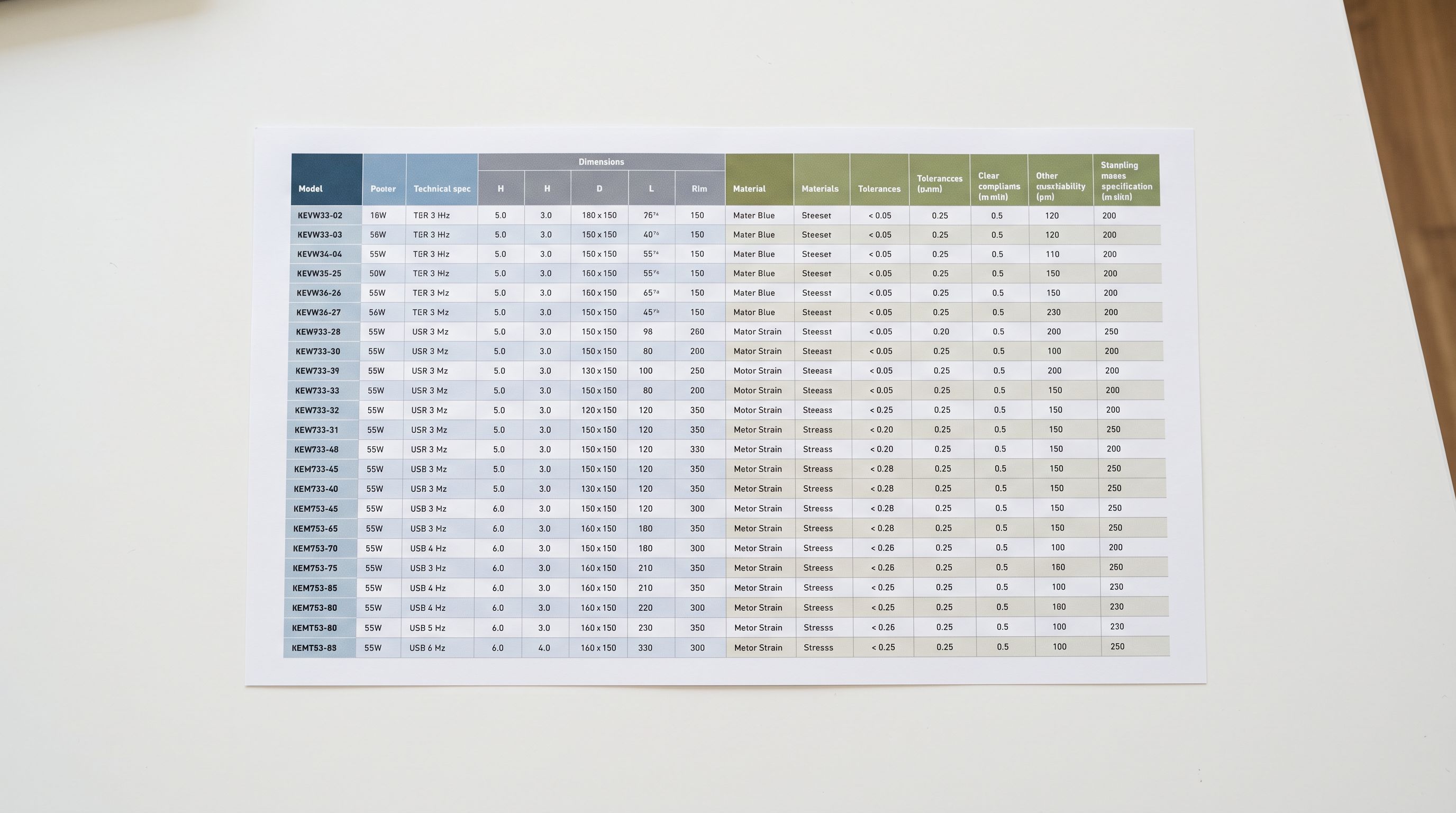
A lighting wholesaler's warehouse management system generates a weekly export of incoming stock. The export produces a TSV file: product codes, descriptions, dimensions, weights, pack quantities, and supplier pricing across 38 columns. The merchant downloads the file, opens it in Excel, and saves it as a CSV to match what they believe Importier expects. On upload, the first 12 products map correctly. From row 13 onwards, the category column contains pricing data, the pricing column contains supplier notes, and the variant colour column is blank for six products. The import pushes to Shopify and the merchant spends two hours working out why product 13's weight says "$47.50".
What happened: product 13's description field said "Available in matte and gloss finishes, includes mounting hardware." Two commas in an unquoted field. When Excel saved the file as CSV, the parser counted those commas as column delimiters and shifted every field after the second comma by two positions for the rest of that row. The wholesale product data was valid data in the wrong columns, and nothing reported an error.
What TSV Files Are and Why Supplier Systems Produce Them
TSV stands for Tab-Separated Values. It is the same concept as a CSV file but uses a tab character as the column delimiter instead of a comma.
The reason supplier systems often export TSV rather than CSV comes down to what cannot appear in product data. Tab characters do not occur in product descriptions, supplier notes, SKU codes, pricing comments, or any other content a product database stores. Commas appear constantly: "available in red, blue, and green", "fragile, handle with care", "includes power cable, mounting hardware, and documentation". A format that uses tabs as delimiters avoids the escaping and quoting complexity that CSV requires to handle commas within field values.
Many enterprise resource planning systems export to TSV by default. SAP's standard product export, NetSuite's inventory reports, and Dynamics 365 product lists frequently produce tab-delimited files. Warehouse management systems use TSV for the same reason. Google Sheets exports to TSV when the merchant selects "Tab-separated values (.tsv)" from the Download menu. All of these produce files where commas inside cells are not a structural problem; they are just characters in a value.
Shopify's native CSV importer expects comma-separated files in a specific column order. When a merchant receives a TSV file and tries to import it to Shopify directly, Shopify reads the entire row as a single column because it is looking for commas and finds none. The product data appears as one long field value. Importier accepts TSV files directly, handling the delimiter detection automatically.
The Comma Problem That CSV Does Not Solve Cleanly
The CSV format specification (documented in RFC 4180 from the Internet Engineering Task Force) defines the correct way to handle commas within field values: enclose the entire field in double-quotes. A description containing a comma becomes "Available in matte and gloss finishes, includes mounting hardware" in the raw CSV, quoted so the parser knows the comma is part of the value rather than a delimiter.
The problem is that ERP systems, warehouse software, and spreadsheet applications do not always follow RFC 4180 precisely. Excel's "Save As CSV" behaviour varies by locale and version; in some configurations it quotes fields containing commas correctly, in others it does not. SAP and NetSuite CSV exports frequently omit quoting for string fields that happen to contain commas, treating the comma as text rather than a structural character. The resulting file is not RFC 4180-compliant CSV, but it is also not labelled as such. It is a file with a .csv extension that parsers attempt to read as if it were standard.
When an RFC 4180-compliant parser encounters an unquoted comma inside a field that should be a single value, it splits the field at the comma and counts everything after it as the next column. For one row with two extra commas, every subsequent column in that row shifts two positions to the right. Column 15 becomes what should have been column 13. The weight field contains what should have been the category field. Nothing reports this as an error because the parser has no way to know that column 15 should not contain that value; it just reads what is there.
A TSV file eliminates this failure mode entirely. Tab characters do not appear in product content. The parser has no ambiguity about where one column ends and the next begins. A supplier file that would shift columns as a CSV imports correctly as a TSV with no conversion, no quoting, and no reformatting.
How Importier Handles TSV Files
Importier's import wizard accepts CSV, Excel (.xlsx and .xls), TSV, and PDF files. When a TSV file is uploaded at the first step of the wizard, Importier auto-detects the tab delimiter from the file structure and parses it correctly. The merchant does not need to rename the file extension, convert the file, or adjust any settings before upload.
After detection, the workflow is identical to a CSV import:
- 01Upload the TSV file at the first step of the import wizard. Importier reads the file, detects the tab delimiter, and displays a preview of the parsed columns and row data.
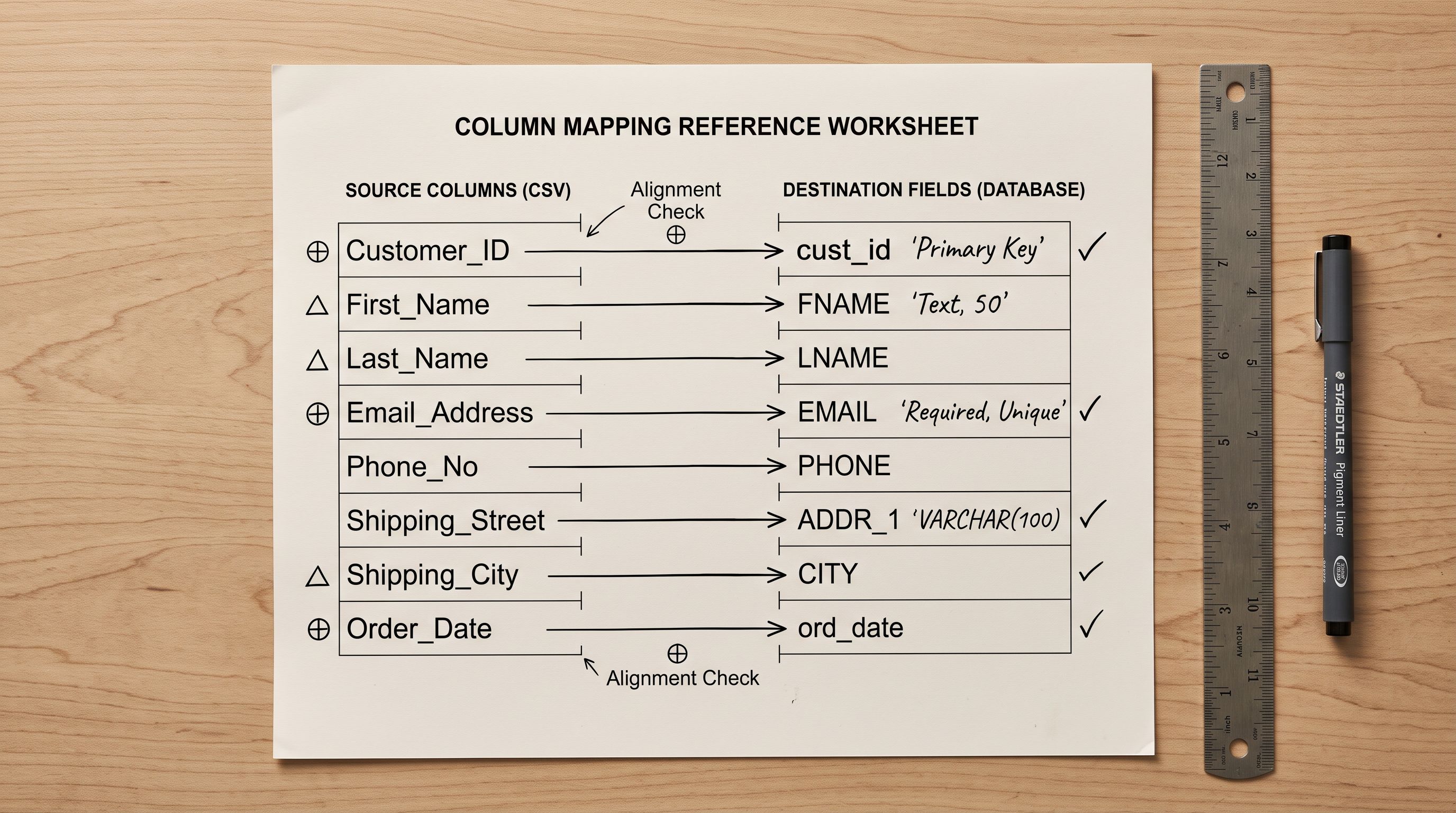
- 02Map the TSV columns to Shopify fields using the column mapping screen. Importier displays the header name from the TSV alongside the target Shopify field. Map by selecting the target field for each column. Skip columns that do not correspond to Shopify fields (internal supplier codes, cost pricing, warehouse location codes).
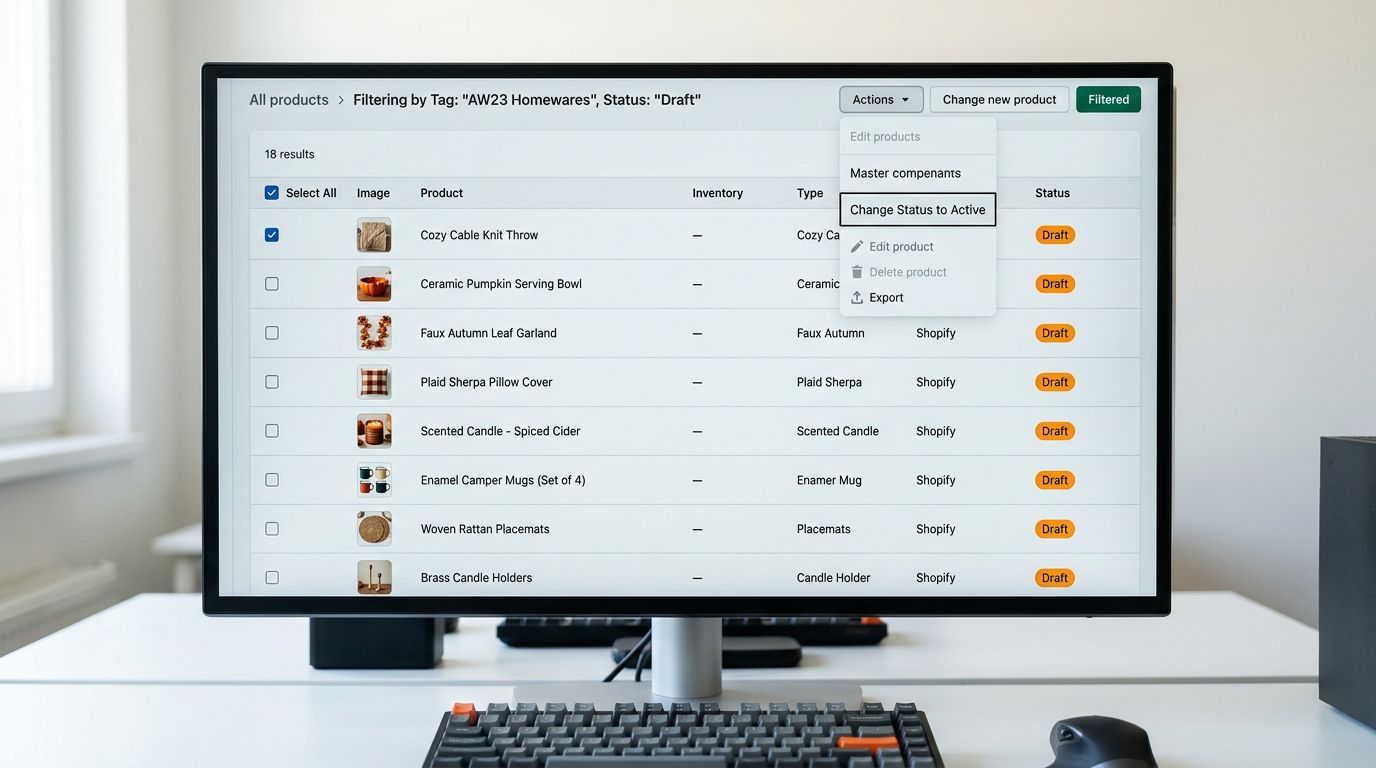
- 03Review the parsed product data in the Import Review step. This is the pre-push preview where the merchant verifies that column mapping produced the expected data in each field. Any column-mapping error appears here, before anything reaches Shopify.
- 04Run AI description generation for products whose descriptions are insufficient. Supplier TSV files frequently include descriptions that are too thin for SEO purposes. The AI description step runs on the imported data after column mapping and before the final push to Shopify.
- 05Push the approved products to Shopify. Importier sends the mapped, reviewed, and optionally description-enriched products to the merchant's Shopify store.
The Import Review step is where the TSV advantage becomes visible. For a correctly formatted TSV, the preview shows each field containing the right data: descriptions in the description column, SKUs in the SKU column, weights in the weight column. For a CSV that experienced column-shift corruption, the preview would show weight values in the category column and pricing in the weight column. Catching this in the preview prevents corrupted data from reaching the live store.
Column Header Mapping for ERP-Generated TSV Files
Supplier ERP exports use column headers that reflect the supplier's internal data model, not Shopify's field names. A common export from a large wholesaler might have columns named ITEM_CODE, ITEM_DESC, UNIT_PRICE_EXCL, PACK_QTY, SHIP_WEIGHT_KG, COUNTRY_MFG, BARCODE_EAN. These do not correspond to Shopify's Variant SKU, Body HTML, Variant Price, and so on.
Importier's column mapping interface displays the source column name from the TSV alongside a dropdown for the target Shopify field. ITEM_CODE maps to Variant SKU. ITEM_DESC maps to Body HTML. UNIT_PRICE_EXCL maps to Variant Price. BARCODE_EAN maps to Variant Barcode. Columns with no Shopify equivalent (PACK_QTY for supplier minimum order quantities, COUNTRY_MFG for internal compliance tracking) are left unmapped and excluded from the import.
The mapping is saved per source and can be reused on subsequent uploads from the same supplier. A merchant who imports weekly TSV updates from the same warehouse system maps the columns once and applies the saved mapping to each new file, reducing the weekly import to an upload and a review step.
When to use TSV instead of converting to CSV
Why Converting TSV to CSV Introduces Risk
The most common mistake with supplier TSV files is converting them to CSV before upload. The reasoning is understandable: the merchant assumes the import tool expects CSV and reformats accordingly. The conversion step is precisely where column-shift corruption occurs.
Excel's "Save As .csv" does not reliably quote fields containing commas in every locale and version combination. On an Excel installation using a locale where the semicolon is the default list separator, the CSV export may use semicolons as delimiters and commas unquoted, producing a file that a standard CSV parser cannot read correctly. On a standard English-locale Excel, the comma-as-delimiter export is correct but fields containing commas within values may or may not be quoted depending on Excel's version and whether the field contained a newline character.
The correct approach is to upload the original TSV file directly. If the file was delivered as TSV by the supplier system, it was produced in a format that handles the comma problem correctly. Converting it to CSV adds a processing step that can introduce the exact corruption the TSV format was designed to prevent.
For merchants who receive files with a .txt extension rather than .tsv, the process is the same: upload the file, and Importier's delimiter detection identifies the tab-delimited format from the file structure regardless of the extension.
TSV Files From Specific Supplier Sources
Google Sheets exports: when a product list is maintained in a Google Sheet and exported using File > Download > Tab-separated values (.tsv), the resulting file is reliably tab-delimited with no quoting ambiguity. This is one of the cleanest TSV sources because Google Sheets generates the file from structured cell data without any CSV-conversion step.
SAP product exports: SAP's standard product list reports default to tab-delimited output in most configurations, even when the export is labelled as "CSV". Upload SAP exports as-is rather than converting. The column headers will use SAP's internal field names (MATNR for material number, MAKTX for material description) and will need custom column mapping.
Shopify's own product exports: Shopify's Product Export produces a true comma-separated CSV file in Shopify's specific column format. This should be imported as CSV, not TSV. The Shopify export format includes the Handle column and expects columns in Shopify's order. It is a different use case from a supplier data file.
WooCommerce migration exports: WooCommerce's product export produces XML or CSV, not TSV. If migrating a WooCommerce catalogue, the CSV format is the appropriate upload type rather than TSV.
A supplier TSV file imports to Shopify with the column data that the supplier intended. Converting it to CSV before upload introduces a step where commas in product descriptions can silently shift every subsequent column in affected rows.

Generating AI Descriptions After TSV Import
Supplier TSV files frequently include product descriptions that were written for internal B2B use. These descriptions are often too technical for consumer-facing Shopify pages ("UNIT: EA, MIN ORDER: 12, EAN: 5012345678901"), too brief ("LED strip light 5m IP65 warm white"), or non-existent for products where the supplier relies on the barcode to identify them.
After the column mapping step in the import wizard, Importier's AI description generation step runs on the imported products. The merchant selects which products need generated descriptions, chooses a description style appropriate to the product category, and adds enrichment context if the product type benefits from additional guidance.
For TSV imports from wholesale suppliers, the enrichment context field is particularly useful. A TSV from a lighting wholesaler contains products for both retail and commercial buyers, and the AI description output should reflect which segment each product targets. Adding "retail consumer audience, home installation, Australian electrical standards" as enrichment context for the residential lighting products and "commercial specification audience, licensed electrician installation, commercial building applications" for the commercial fittings produces appropriate descriptions for each segment from the same import batch.

According to Shopify's product import documentation, the Body HTML column in a Shopify product import expects the description content that will display on the product page. When a supplier TSV lacks adequate descriptions, generating AI content after import fills this field with SEO-appropriate, brand-voice-consistent copy rather than the supplier's internal notation.
Key Takeaways for Shopify TSV Import
TSV is a legitimate file format that supplier ERP systems, warehouse management software, and Google Sheets produce because it avoids the structural ambiguity that commas create in CSV files. Importing TSV files natively, without a CSV conversion step, is the correct approach.
- Upload TSV files directly to Importier: the import wizard auto-detects the tab delimiter from the file structure. No conversion to CSV, no extension renaming, and no settings adjustment is required before upload.
- Avoid converting TSV to CSV before import: the conversion step introduces risk. Excel's CSV export behaviour varies by locale and version. Fields containing commas may or may not be quoted, producing column-shift errors that import without error messages but put data in the wrong Shopify fields.
- Use the Import Review step to verify column mapping: TSV files from ERP and warehouse systems use supplier column names, not Shopify field names. The preview in the Import Review step shows each field's content before anything reaches Shopify. A correctly mapped TSV shows the right data in each field at this stage.
- Save column mappings for recurring supplier uploads: ERP exports from the same source use the same column structure each time. Mapping once and applying the saved mapping to subsequent uploads reduces routine TSV imports to a file upload and a review check.
- Run AI description generation after TSV import for supplier files: supplier TSV descriptions are written for B2B use and are typically too thin for consumer-facing Shopify pages. The AI description step after column mapping fills or replaces these with SEO-appropriate, brand-voice-consistent copy before the products are pushed to Shopify.
Import your supplier TSV files directly at importier.app.
Set up your first import in under five minutes.
Importier brings products into Shopify with AI descriptions, category metafields, and data enrichment on every run.