Shopify December Image Import: Add Christmas Photography Without Overwriting

On this page
Shopify December Image Import: Add Christmas Photography Without Overwriting Year-Round Images
Christmas-styled product photography converts better for gift buyers. A scarf photographed against a gift-wrap backdrop with a ribbon performs differently in December than the same scarf on a neutral studio surface. The seasonal context signals gift-appropriateness to a buyer who is not shopping for themselves.
The standard approach to adding this photography is to replace the featured product image for December and restore the original in January. That approach creates two full image management projects: one to add 200 Christmas shots in November, and one to restore 200 original images in January. If the original image URLs are not tracked carefully, the January restoration becomes a re-upload project, not just a revert.
The two-session approach treats seasonal images as additions, not replacements. Christmas shots sit in gallery position 2 or higher, while the year-round featured image stays in position 1 untouched. In January, one import pass removes the seasonal images. No tracking of original URLs needed, because they were never changed.
Why Not Replace Featured Images
Why Featured Image Replacement Creates Problems in December
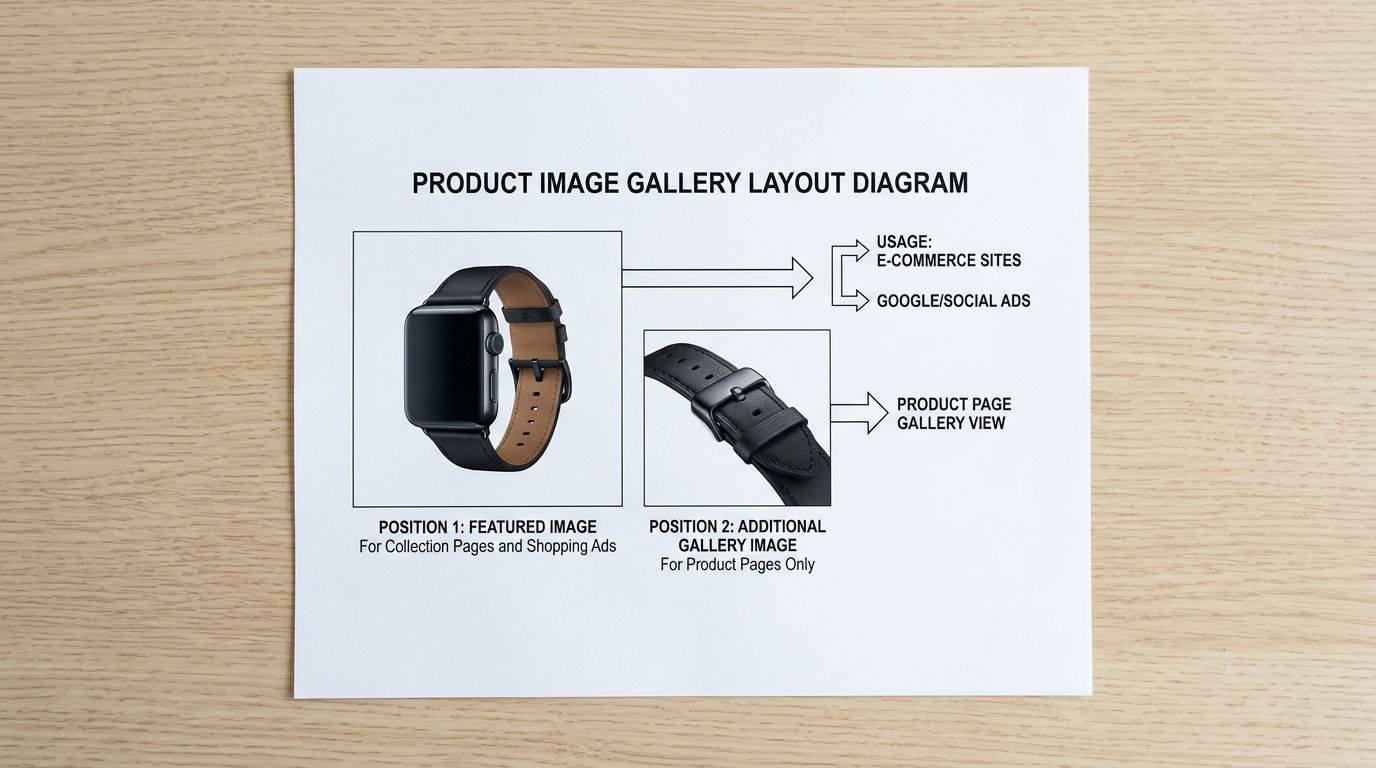
Shopify products store images in a gallery with a defined position order. Position 1 is the featured image. It is the image that appears on collection pages, in search result thumbnails, in social sharing previews, and in Google Shopping ads.
According to Google Merchant Centre's image requirements, the primary product image in a Shopping campaign is the image at position 1 in the product's image gallery. When this image changes, GMC re-reviews the product image for policy compliance. Some product types go through a brief disapproval window while the new image is reviewed. During this window, the product may be paused from Shopping ads — an outcome most merchants do not want during December's highest-traffic week.
Replacing the featured image also requires tracking the original URL for January restoration. If the original images are hosted on Shopify's CDN, the URL changes when you re-upload them. Product records that reference old image URLs will show broken images in any external system that cached the previous URL: email marketing platforms, price comparison feeds, affiliate networks.
The replacement approach also means two separate scheduling events: a November image swap, and a January image restoration. Each has risk. The January restoration in particular is frequently deprioritised during the post-peak period when staff are on leave.
Adding Christmas Images at Gallery Position 2
Shopify's product image gallery supports multiple images per product. A product can have a featured image (position 1) and additional images (position 2 onwards) that appear in the product page image gallery for buyers who click through to see more.
For seasonal photography, the workflow is to add the Christmas shot as an additional image at position 2, leaving position 1 unchanged. Buyers who arrive at the product page see both images in the gallery. The Christmas-styled shot at position 2 gives gift context for December buyers. The standard year-round shot at position 1 remains the image used for collection thumbnails, Shopping campaigns, and social shares.
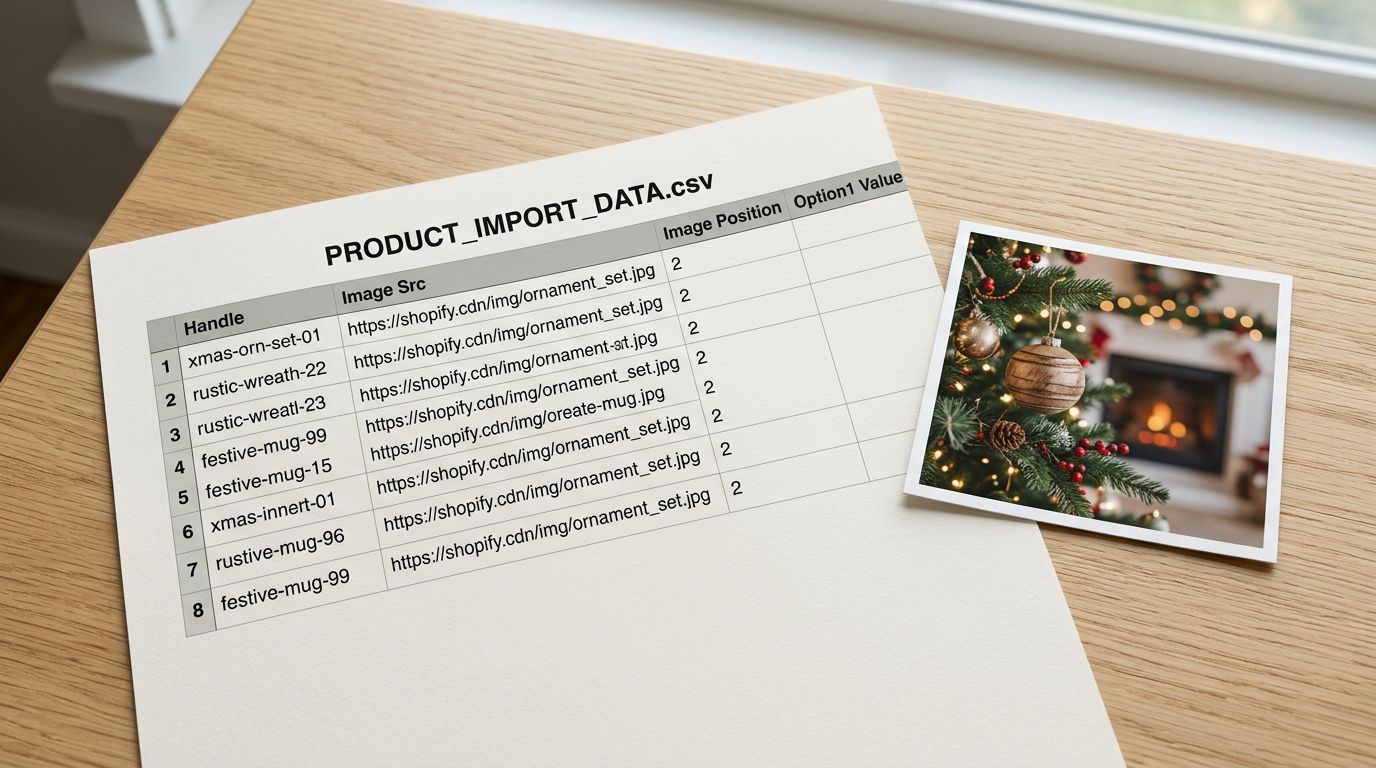
This requires an import file that adds image rows without touching the existing position 1 image. In Shopify's product import format, additional images are added as separate rows with the same Handle, an Image Src value, and an Image Position number higher than 1. The row for the Christmas shot looks like:
Handle, Image Src, Image Position
blue-wool-scarf, https://[image-url]/blue-wool-scarf-xmas.jpg, 2
This row adds the Christmas shot to the blue-wool-scarf product at gallery position 2. It does not touch the existing image at position 1. The year-round featured image remains unchanged.
For 200 products, this import file has 200 rows: one per product, with the Handle column and the Image Src column pointing to the Christmas shot for each product, plus the Image Position set to 2.
Importing Christmas Images from Google Drive or Dropbox
The slowest part of a 200-product seasonal image import is not the import itself. It is building the import file: finding the correct image URL for each product, verifying each URL is accessible, and mapping each URL to the correct Handle row. For images stored in a cloud folder, this means opening the folder, copying each image URL, and pasting it into the spreadsheet 200 times.
Importier's Google Drive image import from shared folders replaces this manual step. During the import wizard, you point to the shared Google Drive folder containing the Christmas shots. Importier reads the folder contents and matches each image file to the correct product based on the filename.
The file naming convention determines the match. A Christmas shot named blue-wool-scarf.jpg matches the product with Handle blue-wool-scarf. A shot named BWS-001-xmas.jpg matches a product with the SKU BWS-001. The convention must be consistent across the full set for automatic matching to work.
Dropbox folder image import works via the same mechanism. If the photographer already delivers assets to Dropbox, there is no need to migrate to Google Drive. Both cloud storage platforms work in the same import pass.
- 01Agree a filename naming convention with the photographer before the shootFilenames must match product Handles or SKUs for automatic matching. Decide the convention before the photographer delivers (e.g., handle-xmas.jpg). Changing filenames after delivery adds manual work.
- 02Create a shared Google Drive or Dropbox folder and add it to the briefThe photographer delivers all Christmas shots to this folder. Set sharing permissions so anyone with the link can view. The folder link is what you paste into Importier during import setup.
- 03Build the import file with Handle, Image Src, and Image Position columnsFor the Image Src column, use placeholder values during setup — Importier will replace them with matched folder image URLs. Set Image Position to 2 for all rows so position 1 (featured image) is never overwritten.
- 04In Importier's import wizard, map the Image Src column to the Google Drive or Dropbox folder linkImportier reads the folder contents and matches each image to the correct product row based on filename. Products without a matching filename are skipped, not broken.
- 05Run the import and confirm position 1 images are unchangedAfter the import completes, spot-check 5 products in Shopify admin to confirm the year-round featured image is still at position 1 and the Christmas shot appears at position 2.
- 06Save the import file for January cleanupKeep a copy of the Handle list from this import. The January cleanup uses the same Handle list to run a targeted image removal pass.

The January Cleanup
Running the January Cleanup Import
The January cleanup removes Christmas shots from the gallery without touching the year-round featured image. The mechanism is an import pass that overwrites the gallery position 2 image for each affected product.
The cleanup import file has the same structure as the December add: Handle, Image Src, Image Position columns. For the cleanup pass, the Image Src column is left empty for each row. When Importier processes an import row with an empty Image Src and an Image Position value, it removes the image at that position from the product's gallery.
This means the cleanup is as mechanical as the original add. Build the Handle list (the same 200 handles used in December), set Image Src to empty, set Image Position to 2, and run the import. All 200 products lose their position 2 image. Position 1 is untouched.
The cleanup can run any time in January without affecting the year-round featured image. There is no need to track original URLs, re-upload files, or coordinate with the photographer. The year-round photography was never modified.
Two 30-minute import sessions replace what would otherwise be a multi-day manual project: one session in November to add Christmas shots, one in January to remove them.

Product Types That Benefit Most From This Workflow
Not every product category gains equally from Christmas-styled photography. The workflow is worth the effort when the seasonal context meaningfully changes purchase intent.
High-value applications:
- Homeware products photographed with gift wrapping, ribbon, and festive table settings
- Jewellery and accessories photographed on styled Christmas gift tables
- Candles and fragrance products photographed in Christmas ambience (pine, baubles, warm lighting)
- Food and beverage products photographed in hamper or gifting context
- Stationery and books photographed as wrapped gifts
Lower-value applications:
- Commodity or utility products where gift context is not relevant
- Products bought primarily for self-use rather than gifting
- Products where the year-round image already shows the product in a neutral but appealing way
According to Shopify's guide to product photography, contextual lifestyle shots reduce the mental effort buyers need to imagine the product in their own context. For gift buyers, that context is not "in my home" but "as a gift being given". The Christmas styling does that work directly.

For a homewares retailer with 300 products, running the full workflow on every product is not necessary. Filter to the top 50 to 80 products by November to December revenue, run the Christmas image import on those, and leave the rest unchanged. The majority of gift revenue comes from a small percentage of SKUs.
What This Workflow Cannot Do
The position 2 approach places the Christmas shot in the gallery, not in the featured image slot that appears on collection pages and in Shopping ads. If your goal is to change the collection page thumbnail to a Christmas-styled image for December, the position 2 approach does not achieve that — position 1 is the collection thumbnail.
Swapping collection page thumbnails requires replacing position 1, which brings back the January restoration problem. Some merchants address this with a Shopify theme modification that lets them manually assign a collection thumbnail image independent of the product's featured image, but that is a development task outside the scope of an import workflow.
For most December use cases — product page gallery, gifting context for buyers who click through, supplemental photography for email campaigns that pull from the gallery — position 2 is sufficient. The goal is to give gift researchers more context when they arrive at the product page. The collection page thumbnail drives clicks to the page; the gallery images drive the purchase decision once the buyer arrives.
- Download year-round images for each product and store separately before replacing
- Replace featured image for each product one at a time in Shopify admin
- Track original image URLs in a separate spreadsheet for January restoration
- In January: re-upload each original image individually and check gallery position
- 200 products at 5 minutes each for each pass is 30+ hours of manual image work
- Featured image at position 1 is never touched, so no originals need to be tracked or stored
- Christmas shots imported as position 2 images in a single import pass using Google Drive or Dropbox folder matching
- January cleanup: one import pass with empty Image Src for position 2 removes all seasonal images
- No re-upload required in January because year-round images were never changed
- 200 products handled in two 30-minute import sessions, one in November and one in January
Key Takeaways
- Adding Christmas-styled photography to gallery position 2 preserves the year-round featured image at position 1. Collection page thumbnails, Google Shopping creatives, and social share previews all use position 1 and are unaffected.
- Google Merchant Centre re-reviews products when the featured image changes. Keeping position 1 unchanged avoids triggering a review window during the December high-traffic period.
- Importier's Google Drive and Dropbox folder import matches image files to products by filename. Agree the naming convention with the photographer before the shoot so matching is automatic.
- The import file for adding Christmas images has three columns: Handle, Image Src (pointing to the cloud folder), and Image Position set to 2. The same file structure with an empty Image Src column performs the January cleanup.
- Filter the seasonal image import to your top-revenue December SKUs rather than running the full catalogue. The majority of gift revenue comes from a small percentage of products.
Manage your seasonal image imports at importier.app.
Related Articles
Set up your first import in under five minutes.
Importier brings products into Shopify with AI descriptions, category metafields, and data enrichment on every run.
Free for your first 10 products. No credit card needed.