Fixing Shopify Imports After a Supplier Format Change
On this page
Fixing Shopify Imports After a Supplier Format Change
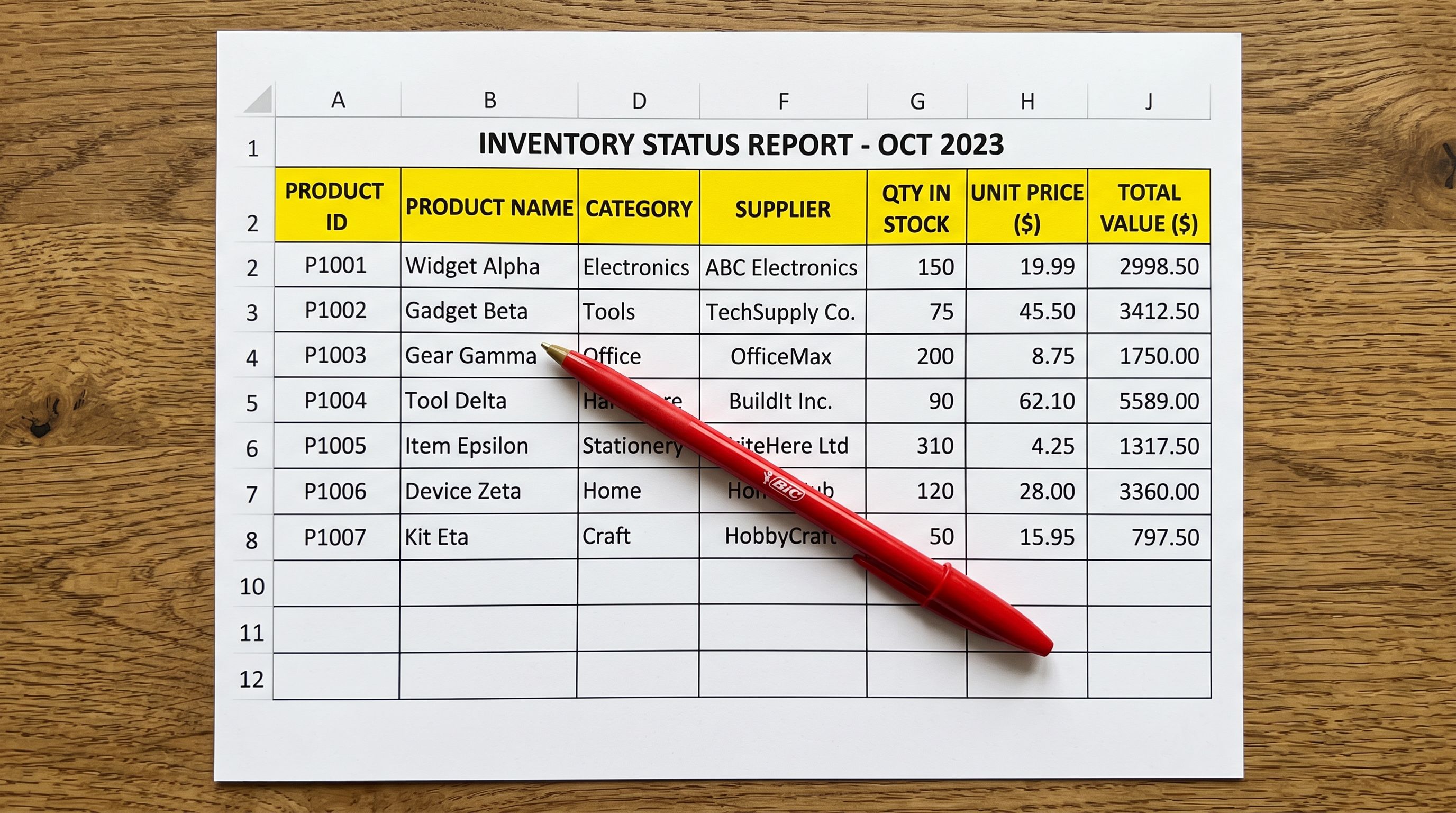
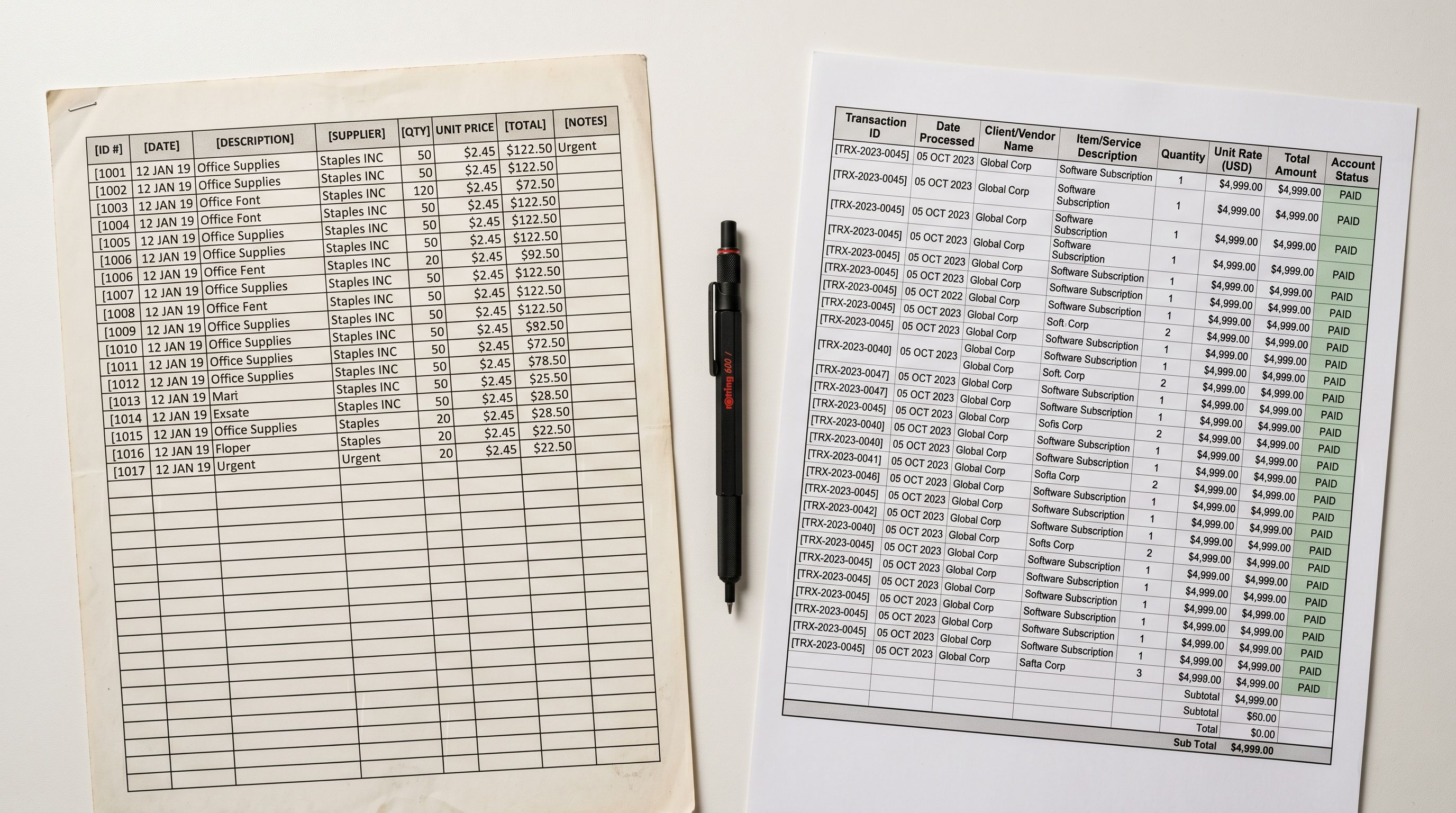
A supplier format change feels catastrophic. You have a working import setup, the supplier sends the monthly update, and the file looks different. New column names. An extra sheet. The variant rows are structured differently. The import that ran cleanly last month now either errors on load or maps everything to the wrong fields.
The instinct is to start from scratch: re-map every column, re-test the variant detection, re-verify the output. This takes hours. The actual fix usually takes under ten minutes.
Supplier file formats change for predictable reasons, and the changes that break imports are almost always incremental. A new ERP system changes the export column names but keeps the same data. A new template adds a column for a field the supplier did not previously export. A change in how variants are listed restructures the rows without changing the underlying product data. In each case, the existing mapping profile is mostly correct and needs a targeted update, not a replacement.
Why Supplier File Formats Change
Suppliers change their export formats for a handful of reasons, most of which affect the structure but not the content:
ERP migration. A supplier moves from one inventory management or ERP system to another. The new system exports the same product data under different column names. Product Name becomes Item Description. RRP becomes Unit Price (AUD). SKU becomes Product Code. The data is identical; the labels changed.
Template update. The supplier's warehouse, sales team, or operations manager updated the standard export template. They added columns for new fields (certifications, compliance codes, updated imagery) or removed columns that their team stopped maintaining. The core columns (title, price, SKU, barcode) are still present; the surrounding structure expanded or contracted.
Variant structure change. The supplier previously listed one row per product and included variant options as separate columns (Colour, Size, Material). They have moved to one row per variant, or vice versa. This is the most disruptive change for an import workflow because it affects how Importier's Smart Variant Detection groups rows into Shopify products.
File format change. The supplier moved from CSV to Excel, or began sending a multi-sheet Excel workbook where previously they sent a single-tab file. The data is the same but Importier now reads it from a different source.

What a Saved Mapping Profile Stores
When you run an import in Importier and confirm the column mapping, the app saves the confirmed mapping as a profile tied to that supplier configuration. The profile records:
- Which column in the supplier file maps to which Shopify field (Title, Vendor, Variant Price, Variant SKU, Images, etc.)
- The AI model, description style, and persona selected for that import
- The Brand Voice and any custom section configuration
- Smart Variant Detection settings (whether it is enabled, which detection patterns to prioritise)
- Any field transformations applied (price adjustments, currency conversion, text cleaning rules)
On the next import run, Importier loads the saved profile and applies it to the new file automatically. If the new file has the same column names as the previous file, the import runs without any manual intervention. If the column names have changed, Importier flags the unmatched columns so you can remap just those fields.
For a detailed breakdown of how column mapping works and how to set up profiles for new suppliers, the Shopify import column mapping guide covers the auto-mapper behaviour and how to save and apply profiles.
Diagnosing What Changed
Before opening the mapping editor, spend two minutes comparing the new file to the previous one. The goal is to identify the category of change, because that determines how much of the profile needs updating.
Open the new file alongside the previous supplier file (or the saved mapping profile if you still have the previous file). Compare:
-
Column headers row. Are the column names identical? If yes, the mapping profile loads cleanly and the issue is elsewhere. If some columns changed names, note which ones and what they are now called.
-
Row structure. Is there still one row per variant (or one row per product) as before? If the row structure changed (from one-per-product to one-per-variant, or vice versa), Smart Variant Detection settings may need adjustment.
-
New columns. Did new columns appear that the previous file did not include? New columns do not break the existing mapping (Importier ignores unmapped columns), but you may want to map them if the new data is useful.

- Missing columns. Did a column that was previously mapped disappear? Missing previously-mapped columns will leave that Shopify field empty unless you remap to the replacement column or remove the mapping.
The fix for most supplier format changes is two steps: update the renamed column in the mapping profile, then run a 10-product test import to verify the output before committing the full batch.
Updating the Mapping Profile
Once you know which columns changed, open the saved profile in Importier and update only the affected mappings:
Renamed columns: find the mapping that pointed to the old column name. The auto-mapper will flag it as unmatched because the column it was mapped to no longer exists. Select the new column name from the dropdown for that Shopify field. Save the profile.
New columns: if the supplier added a column that corresponds to a useful Shopify field (a new barcode column, a new image URL column, a certification attribute), add a new mapping entry for it. If the new column is not relevant to Shopify, leave it unmapped.
Missing columns: if a column the profile relied on no longer exists in the file, decide whether another column contains the equivalent data. If so, remap. If the data is genuinely gone, remove the mapping for that Shopify field and decide whether to leave those fields empty or generate values using AI.
Row structure changes: if the supplier switched from one-row-per-product to one-row-per-variant, review the Smart Variant Detection settings. With one-row-per-variant files, Smart Variant Detection needs to group rows into products by identifying shared product identifiers across variant rows. If the previous file was already per-variant, this setting is already configured correctly and the change is a non-issue.
- Re-map all 20-30 columns from the new file
- Re-configure AI model, style, and persona settings
- Re-test Smart Variant Detection across the full catalogue
- Re-enter Brand Voice and custom section configuration
- 2-4 hours per supplier for a full rebuild
- Risk of inconsistency with previous import configuration
- Load existing profile: all unchanged mappings are pre-filled
- Identify and update only the renamed or missing columns (usually 2-5)
- Verify Smart Variant Detection still groups variants correctly
- AI model, Brand Voice, and persona settings carry forward unchanged
- 10-30 minutes per supplier for a profile update
- Consistent configuration across all imports from this supplier
Test Before You Commit
The 10-Product Test Import
After updating the mapping profile, do not run the full import immediately. Use Importier's import preview to run a test batch of 10 products before committing the full catalogue.

The test import checks:
- Whether the updated column mappings produce the correct field values in Shopify (title mapped to the right column, price values in the correct format, SKUs preserved)
- Whether Smart Variant Detection groups variants correctly under the new row structure
- Whether the AI description generation runs correctly with the updated product data
If the test import produces correct output for 10 products, the full import will produce correct output for the full catalogue. If something is still wrong (a price field populated with a description value, variants grouped incorrectly), the problem is visible in 10 rows, not 500, and easier to diagnose and fix.
- 01Open the new supplier file and the previous file side by side. Identify which column names changed, which new columns were added, and whether the row structure (one-per-product or one-per-variant) is the same as before. This takes 2-5 minutes and tells you the exact scope of the update.
- 02Load the saved mapping profile in Importier. The auto-mapper flags any column in the profile that no longer matches a column in the new file. These are the only mappings that need updating. Columns that match automatically carry forward without intervention.
- 03Update the flagged mappings. For each unmatched field, select the new column name from the supplier file. If a supplier column disappeared entirely, decide whether to remap to a substitute or leave the Shopify field empty. Add mappings for any new supplier columns that correspond to useful Shopify fields.
- 04Check Smart Variant Detection if the row structure changed. If the supplier moved from one-row-per-product to one-row-per-variant (or vice versa), review the detection settings to ensure the grouping logic matches the new file structure. Run a manual check on 5-10 rows to verify the proposed groupings before proceeding.
- 05Run a 10-product test import using the updated profile. Review the outputcorrect titles, prices, SKUs, variant groupings, and AI-generated descriptions. If the test output is correct, proceed with the full import. If something is wrong, adjust the profile and re-test before committing the full batch.
- 06Save the updated profile under the same supplier name. The next import from this supplier will load the updated profile automatically, so the format change only requires this one-time update.
For merchants managing multiple supplier relationships with different file formats, the how to import from multiple suppliers guide covers how to maintain separate mapping profiles per supplier. For a pre-import checklist that covers common issues before any import runs, not just format-change scenarios, and the Shopify product import checklist is a useful reference. For the foundational setup of column mapping on a first import from any supplier, the Shopify CSV import guide covers the auto-mapper and how Importier handles supplier files that do not conform to Shopify's native CSV format.

Shopify's product CSV format documentation explains the exact column names Shopify's native importer requires and why most supplier files need remapping before they can be imported. Google Sheets' IMPORTRANGE and column-matching formulas are sometimes used by merchants to pre-process supplier files before import. Understanding the manual approach makes the saved-profile method's time savings concrete.
Try Importier free at importier.app
Set up your first import in under five minutes.
Importier brings products into Shopify with AI descriptions, category metafields, and data enrichment on every run.