Shopify Search and Discovery: How Import Data Affects Search
On this page
A cookware merchant imports 240 products from their main supplier. The import completes without errors. Every product is live. Direct searches by product name work. A customer who types "cast iron skillet 28cm" finds the product. But a customer who types "cast iron" finds nothing. A customer who types "skillet" finds nothing. Every category-level search returns zero results.
The import did not break anything. Every product is there, correctly priced, with images and descriptions. But the shopify search and discovery product data that powers autocomplete is blank for every imported product: the product_type and vendor fields were never populated, because the supplier's export file did not include those columns and the import wizard auto-mapped only what it recognised.
Shopify's site search is not a full-text search engine. It uses a weighted index where certain fields carry more relevance weight than others. When the high-weight fields are empty, category searches fail even when the products exist.
How Shopify Search and Discovery Uses Imported Product Data
Shopify's Search and Discovery app indexes six product fields for search and autocomplete: product title, product type, vendor, tags, SKU, and body (the description). These fields are not weighted equally.
Product type is the highest-weight field for category-level autocomplete. When a customer types "dining chair", the autocomplete suggestions draw primarily from product_type values in the catalogue. A store where product_type is set to "Dining Chair" for relevant products shows that suggestion in the autocomplete dropdown. A store where product_type is blank or set to "General" for those same products returns no autocomplete suggestion for "dining chair", even if every product title contains those words.
Vendor is the primary signal for brand search autocomplete. A customer typing a brand name expects to see that brand's products in the suggestion list. When vendor is blank after import, brand searches return no autocomplete and the customer must complete a full search query manually.
Tags provide the additional qualifying layer: after product type surfaces the category, tags narrow to specific attributes. This field interaction is covered in detail in Shopify product tag strategy at import and Shopify filter navigation and product tags.
Body (description) is full-text indexed. A 300-word AI-generated description that mentions materials, dimensions, use cases, and compatible products matches more search queries than a 40-word supplier description that lists specifications only. The body field is where the keyword surface area of a product expands or contracts.
Why Supplier Files Leave product_type Blank
Most supplier product export files are structured around the supplier's own data model, not Shopify's field schema. A supplier who manages their catalogue in their own ERP system exports product data in columns that make sense to them: Item Number, Description, Retail Price, Category Code, Brand, UOM, Weight.
"Category Code" is not "Product Type". "Brand" is close to "Vendor" but uses different terminology. The import wizard maps columns by name: it finds "Price" and maps it to Variant Price, it finds "Description" and maps it to Body HTML, it finds "SKU" and maps it to Variant SKU. It cannot map "Category Code" to Product Type automatically because the column name does not match Shopify's field label.
When the column name does not match, the field is left unmapped and Product Type remains blank for every product in the batch. The import completes successfully. The products are created. The Product Type field shows nothing.
This is not a mapping error in the log. It is a field that was never assigned. Shopify treats a blank Product Type as a valid state for a product. The search indexing consequence is invisible until a customer searches by category and finds nothing.
- 01Step 1Before importing a supplier file, open it and identify the column that contains product category information. It may be labelled Category, Category Code, Type, Item Type, Product Group, or Department. This column is the source for Shopify's Product Type field.
- 02Step 2In the column mapping step, find the Product Type field in the destination column list. Map the supplier's category column to Product Type. If the supplier's category values use codes or abbreviations that do not match your store's product type naming convention, translate them in the source file before importing.
- 03Step 3Identify the column that contains the brand or manufacturer name. This is the source for Shopify's Vendor field. Map it to Vendor.
- 04Step 4In the Review step, check five rows across different product categories. Confirm that Product Type shows a meaningful category value (not blank, not 'General', not a numeric code). Confirm that Vendor shows the brand name. If either field is wrong, return to column mapping before confirming the import.
- 05Step 5After the import, open Shopify admin and search for a category term that should match your imported products. If autocomplete shows the correct product type in the suggestions, the fields are indexed. If nothing appears, wait 15-30 minutes for indexing and retest. Persistent failure indicates the Product Type field is still blank.
Normalising product_type Values Across Import Batches
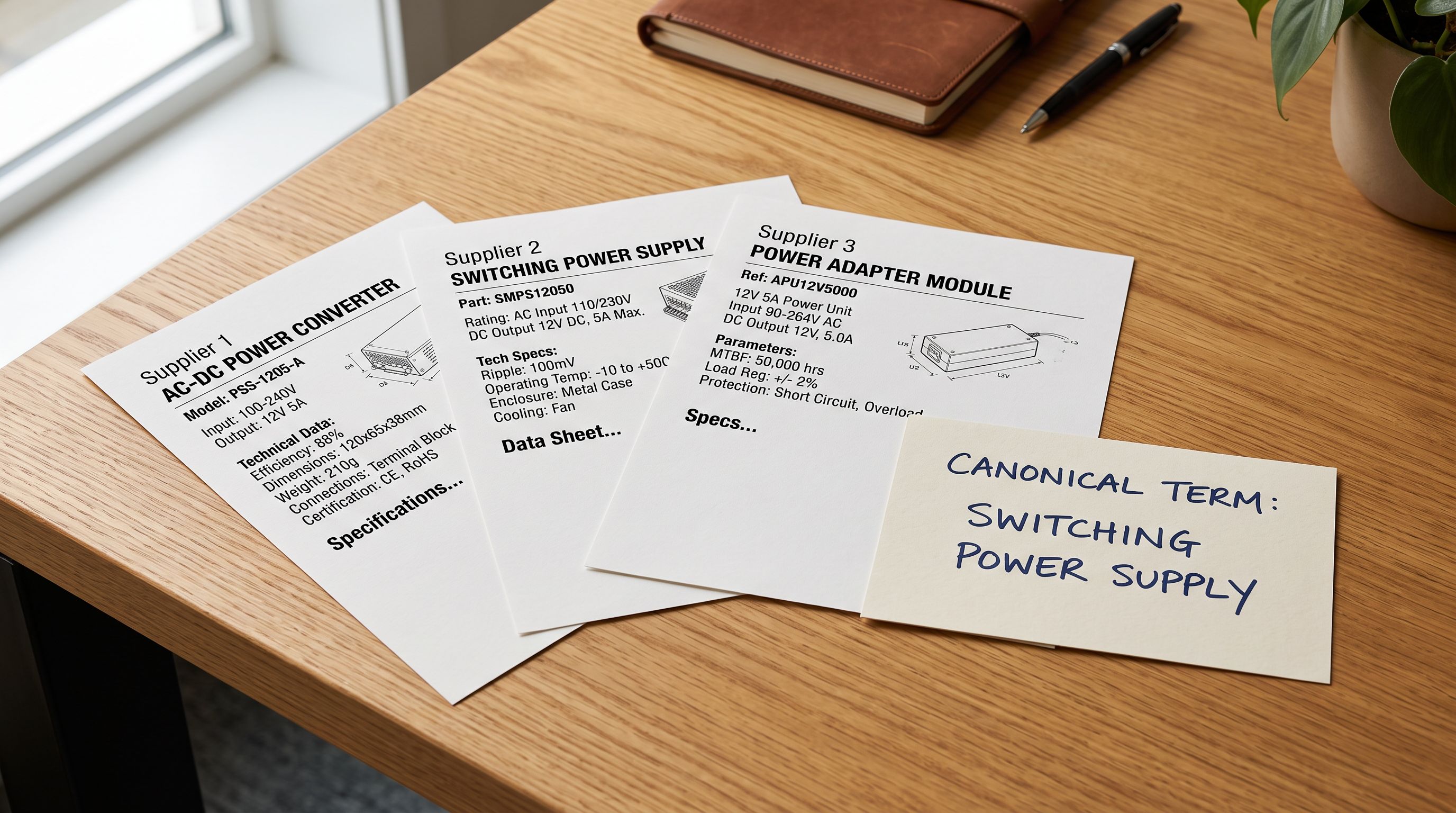
A store that imports from multiple suppliers faces a compounding problem: each supplier uses their own category terminology. Supplier A calls a product category "Pots & Pans". Supplier B calls the same category "Cookware". Supplier C calls it "Cooking Equipment". After three import batches, Shopify has three separate Product Type values for the same category of products. The autocomplete index shows three separate suggestions instead of one.
The normalisation task is the same as tag taxonomy design: pick one allowed value per category before the first import and apply it consistently. "Cookware" is the canonical product type. Supplier A's "Pots & Pans" column value is translated to "Cookware" in the source file before the import runs. Supplier C's "Cooking Equipment" is also translated to "Cookware".
Importier's column mapping step supports this. Before mapping the supplier's category column to Product Type, add a find-replace column in the source file that converts supplier-specific values to your canonical list. Map the converted column to Product Type. The Review step confirms that all rows show the expected canonical value before the import commits.

For an operation importing from four or five suppliers, the canonical product type list becomes part of the same reference document as the tag taxonomy. Both are defined before the first import from each supplier and applied consistently to every batch from that supplier.
Site search autocomplete is a data quality problem, not a configuration problem. The configuration is correct. The fields are empty.
How AI Descriptions Expand Keyword Coverage
The body field is full-text indexed by Shopify search. A product that has a 300-word description containing the words "cast iron", "induction compatible", "oven safe to 260°C", "suitable for camping", and "pairs with glass lid" matches all of those search queries. The same product with a 40-word supplier description that reads "28cm skillet. Cast iron. Black." matches four search terms instead of twenty.
This is where Importier's AI description generation directly affects search performance. A description generated against a specific persona and description style for a cookware product will include the material name, the cooking method, the compatible heat sources, the dimensions in multiple units, the cleaning method, and the use cases: all terms that a customer might search for individually. The AI output expands the keyword surface area of each product page without requiring the merchant to manually write search-optimised descriptions.
According to Shopify's Search and Discovery documentation, product description is one of the indexed fields for search results. A description that uses natural language to describe the product across multiple use cases matches more queries than a specification-only description.
The description expansion is passive. No separate SEO task is needed. Generating descriptions at import time means every imported product starts with keyword coverage that a bare-bones supplier description would not provide.
From import fields to search performance
Testing Shopify Search and Discovery After Bulk Import
After every bulk import, five test queries confirm whether the shopify search and discovery product data is functioning correctly for the newly imported batch.
Category search. Type the product type value you mapped during import. "Dining Chair", "Cookware", "Running Shoe". If autocomplete shows the product type and the search results include your newly imported products, the product_type field is indexed correctly.
Vendor search. Type the brand or manufacturer name. The vendor autocomplete should appear and the brand's products should populate the results. If nothing appears, the Vendor field is blank or indexed incorrectly.
Material or attribute search. Type a material keyword from the product descriptions: "cast iron", "solid oak", "recycled cotton". These terms are in the body field and full-text indexed. Results should include products whose descriptions contain these terms.
Negative test. Search for a category that you did NOT import in this batch. Confirm that the newly imported products do not appear in unrelated category results. A product imported with product_type "Cookware" should not appear in a search for "Lighting".
Autocomplete timing. Shopify's search indexing for large batches can take up to 24 hours to complete. If category autocomplete is absent immediately after import but appears the next morning, this is normal indexing lag, not a data problem. The field is correctly mapped. The index needs time to rebuild. More on post-import indexing timing and what to expect is covered in the filter navigation import guide.
Retroactively Fixing Empty product_type Fields
For stores that have already imported products with blank Product Type fields, the fix is a selective re-import: a file with Handle and the corrected Product Type value for each product, mapped with Handle as the match key and only Product Type assigned. All other fields are left unmapped. The import updates the Product Type field on each matched product and triggers search reindexing.
- Category searches return no autocomplete and no results
- Brand searches return no autocomplete
- Products exist in admin but are invisible to browse-style queries
- Fixing the problem requires a second import with a corrective file
- Customers who do not know exact product names cannot find your catalogue
- AI descriptions add no search benefit because the category context is absent from the index
- Autocomplete shows category suggestions immediately as the customer types
- Brand name searches surface the correct product range
- Customers can browse by category, material, and attribute without knowing exact product names
- No corrective import needed, fields are correct at creation time
- AI descriptions expand keyword coverage across materials, use cases, and dimensions from day one
- Shopify's search index has the structured signals it needs to return relevant results
The retroactive fix follows the same selective import principle described in Shopify import without overwriting inventory: map only the field that needs to change, leave everything else untouched. For a catalogue of 300 products with blank Product Type fields, the correction file has two columns: Handle and Product Type. The import updates only those fields and Shopify reindexes.
According to Shopify's product import documentation, Handle is the match key for updating existing products without creating new ones. The same Handle that identifies a product at creation identifies it in the correction import.
Key Takeaways
Shopify search and discovery product data quality is determined at import time. The Product Type and Vendor fields that autocomplete draws from are populated during the import, or left blank if the mapping is not configured.
- Product type is the primary autocomplete signal. When it is blank, category searches return nothing for those products. The import log shows no errors. The field was simply never mapped.
- Supplier category columns need explicit mapping. Supplier files rarely use Shopify's exact field labels. "Category Code" will not auto-map to Product Type. Find the supplier's category column and map it manually before the first import from each supplier.
- Normalise product type values across suppliers. If two suppliers use different terms for the same category, translate both to your canonical value before importing. The autocomplete index shows one suggestion per distinct product_type value. Fragmented values mean fragmented results.
- AI descriptions expand keyword coverage passively. A generated description of 300 words matches more queries than a 40-word specification list. Generating descriptions at import time means keyword coverage is in place from the first day the products are live.
- Run five test queries after every bulk import. Category, vendor, material, a negative test, and an autocomplete timing check confirm whether the import data is functioning correctly in search. Autocomplete lag of up to 24 hours after a large import is normal.
- Retroactive fixes are selective Handle-based imports. Map only the Product Type field, leave everything else untouched. The correction import updates the field and triggers reindexing without touching descriptions, images, or inventory.
Set up correct product field mapping for Shopify search from your first import at importier.app.
Set up your first import in under five minutes.
Importier brings products into Shopify with AI descriptions, category metafields, and data enrichment on every run.