Shopify Products Not in Collection After Import
On this page
A home goods merchant imports 280 products from a new supplier. The import completes without errors. Every product shows Active status in the Shopify admin. Titles, descriptions, prices, and images are correct. They preview the storefront and find the shop looks identical to before the import. No new products appear anywhere in the navigation. The Living Room Furniture collection still shows 62 products, the same 62 as before. The Outdoor Collection still shows 38. The import succeeded, but customers cannot find any of the new products.
This is not a failed import. It is a collection assignment problem, and it is one of the most common reasons merchants cannot find correctly imported products in their storefront.
Shopify's import function creates and updates products. It does not automatically place products into collections. That step is separate, and for most stores it requires an explicit action after the import completes.
Why Imported Products Don't Appear in Collections
Shopify's product record and collection membership are two separate things. A product being Active in Shopify means it is available on sales channels and can be purchased. It does not mean it appears in any collection.
Collections are how most Shopify storefronts organise products for navigation. Customers browsing a store click through collections: a menu item points to a collection URL, the collection displays the products inside it, and customers find what they are looking for. A product that exists in Shopify but belongs to no collection is only reachable via direct URL or storefront search. For most stores, that means it is effectively invisible.
Shopify's native CSV import tool does not include a collection assignment column. There is no "Collection" field in Shopify's standard import format. Importing products via CSV creates the products, but collection membership must be managed separately. Many merchants discover this the first time they run a bulk import and cannot find the new products anywhere in their store navigation.
How Collection Types Determine What Happens After Import
Shopify has two fundamentally different collection types. Understanding which type a collection is determines whether newly imported products appear in it automatically or require manual assignment.
Automated collections use conditions to include products automatically. A merchant creates a rule: "include all products where Tag equals home-decor". Every product that has the tag home-decor appears in that collection, regardless of when it was imported. A bulk import that sets the correct tags will populate automated collections immediately, with no second step required.
Manual collections contain only products the merchant explicitly adds. There are no conditions. The merchant goes into the collection and selects which products belong in it. An import that creates 280 new products adds zero of them to a manual collection, because the collection has no rules to match against. The products simply do not appear until a merchant or operator manually adds them.
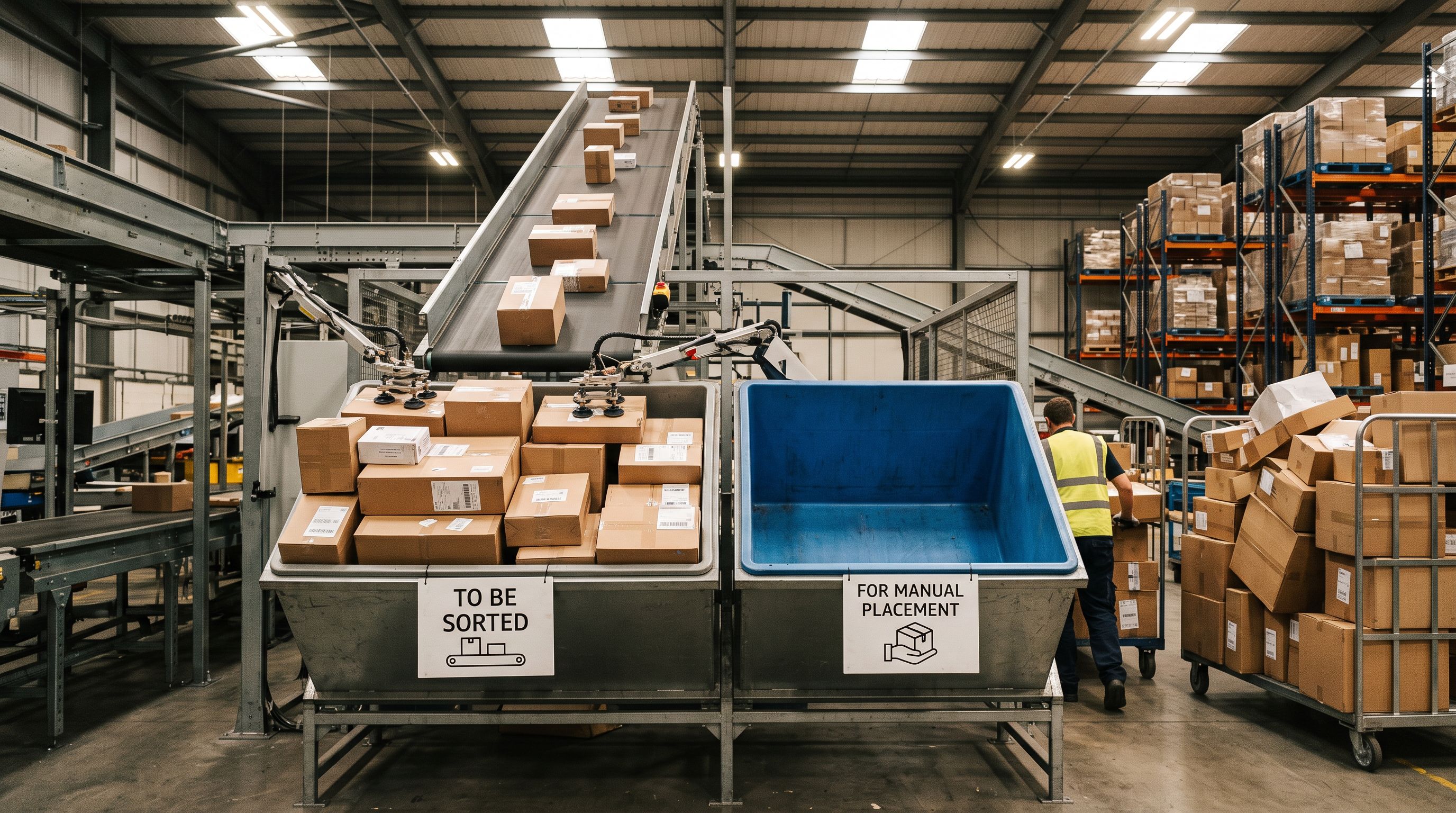
Most Shopify stores use a mix of both types. A store might have automated "Sale Items" and "New Arrivals" collections (tag-based) alongside manual "Featured Products" and "Staff Picks" collections. A merchant who imports products and expects them to appear everywhere will be confused when automated collections update but manual ones do not.
- 01Open a collection in Shopify admin. Look for a Conditions section under the product list. If conditions are listed (Tag is equal to, Product type is, Vendor is, etc.), this is an automated collection; products with matching attributes appear automatically.
- 02If there is no Conditions section and you see only a product list with an Add products button, this is a manual collection. Products never appear here unless explicitly added.
- 03Check your three or four most important storefront collections and note their type. This determines which post-import method you needtag-setting during import for automated collections, or explicit assignment for manual ones.
Checking Which Products Are Missing
Before fixing collection membership, identify which products need to be assigned. The export-and-compare method works regardless of store size.
Export your full product catalogue from Shopify admin. Open the CSV and filter by the date imported column. Products from today's import will have today's date. That filtered list is the set of products needing collection assignment.
Alternatively, the Store Scanner in Importier filters products by import batch. An import batch that ran today can be filtered by the Import History entry, showing all products from that run. This avoids manually filtering a large export file.
- Products are Active and correct in admin. No collection assignment has happened. Storefront collections are unchanged. No new products appear.
- Merchant must manually identify imported products, then add them to collections one by one or via bulk action. For 280 products across 5 collections, this is hours of work.
- Tag assignment during import can populate automated collections immediately; products with matching tags appear in automated collections as soon as the import completes.
- Manual collections can be assigned at the end of the import wizard in the collection assignment step. All products in the batch are added to selected collections in the same operation.
Three Methods to Assign Products to Collections After Import
Method 1: Shopify admin bulk action
For small batches (under 50 products), Shopify admin bulk actions work. In the Products section, filter by the date created, select all products from the import, and use the Add to collection action. This works for manual collections.
The limitation: Shopify's bulk action adds all selected products to one collection at a time. If the imported batch needs to go into five collections, the merchant repeats the bulk action five times. For 280 products across multiple collections, this is time-consuming but manageable.
Method 2: Tag-based automation
The most scalable method for ongoing imports is to use automated collections and assign tags during import. If the products belong in the Outdoor Collection, add the tag outdoor-furniture to every product in the batch. The automated collection picks them up immediately.
This requires setting up automated collections before the import workflow becomes routine. A merchant who runs weekly supplier imports and wants products to appear in the correct collections automatically should convert their manual collections to automated ones using tag conditions. This is a one-time setup that makes every future import collection-aware.
Method 3: Re-import with collection assignment
Importier's import workflow includes a collection assignment step. On the batch review screen, before the import runs, the merchant selects which collections the entire batch should be added to. After the import completes, every product in the batch is assigned to the selected collections in the same operation. This applies to both manual and automated collections.
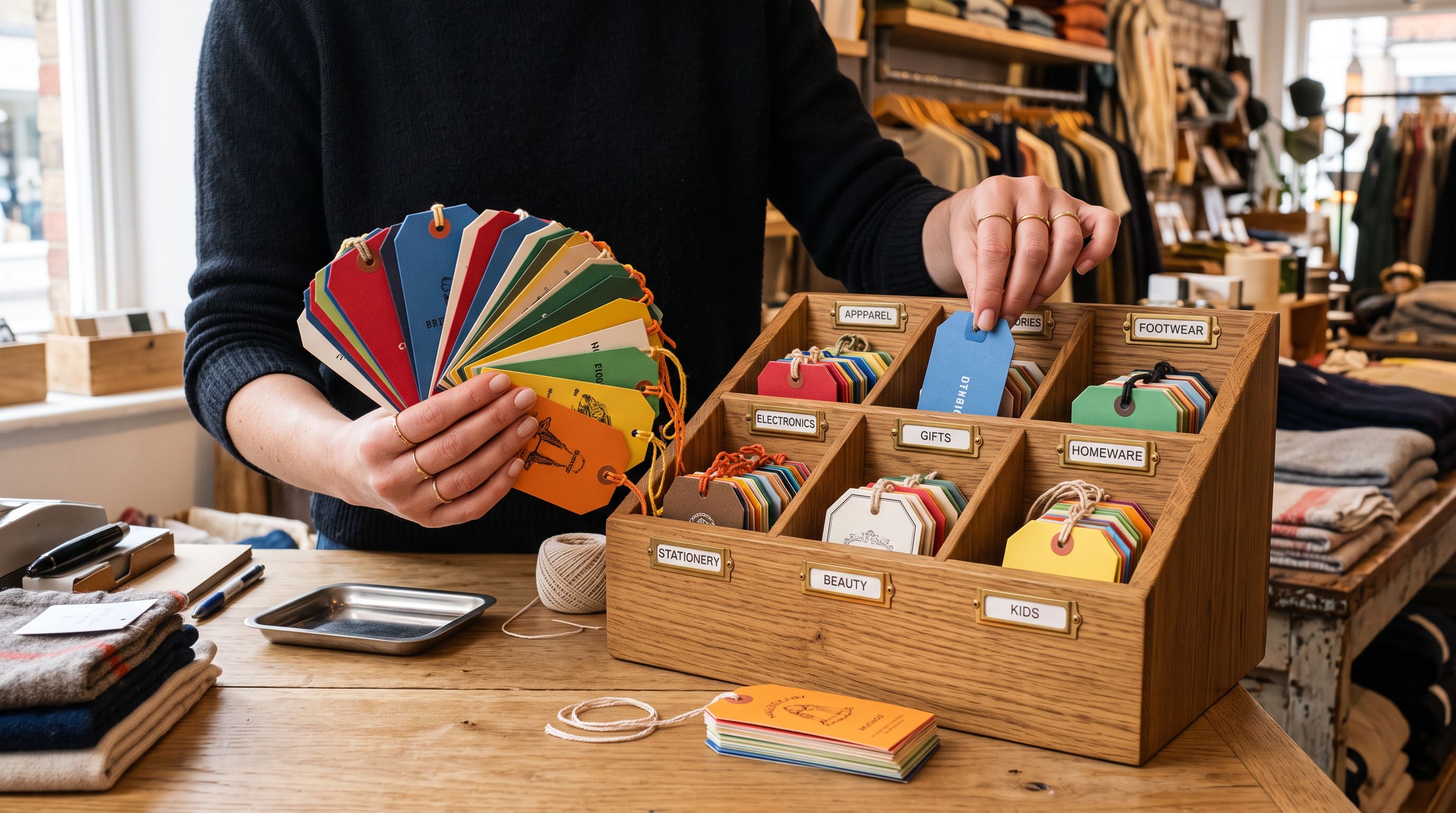
For a merchant who has just run a standard Shopify CSV import and discovered the collection assignment problem, the re-import method works by exporting the imported products, then running them through Importier's wizard with the collection assignment step completed. This adds the collection membership without affecting descriptions, images, or prices (the field mapper maps only the Handle field, and Importier matches to existing products rather than creating duplicates).
The fastest fix for a missed collection assignment is a tag-based approach: add the right tags to the batch, then switch your manual collection to an automated condition. One step, done for all future imports too.
According to Shopify's collection documentation, automated collection rules update within a few minutes of a product being created or updated. A product that matches an automated collection's conditions will appear in that collection within minutes of import completion.
Preventing the problem at import time
Tags Are the Key to Import-Ready Collection Organisation
The scalable solution to post-import collection membership is to treat tags as the routing mechanism. Every product going into a collection gets a tag that matches the collection's condition. The import sets the tag; the automated collection handles the rest.
This requires a one-time collection structure decision:
- Identify which collections products need to be in.
- For each collection, decide on a tag that will be the routing signal (e.g., outdoor-furniture, home-office, kids-toys).
- Convert manual collections to automated collections with a condition matching the tag.
- During every future import, include the tag in the import batch.
For a supplier CSV that does not include collection tags, Importier's import wizard includes a tag assignment step where a tag can be applied to every product in the batch. The tag assignment takes one step and applies to all 280 products simultaneously.
According to Shopify's automated collection documentation, automated collection conditions update when products are created, updated, or when collection conditions change. This means the update is not immediate for very large stores, but typically completes within a few minutes for standard catalogue sizes.
The shopify-products-imported-blank-title guide covers another silent import visibility problem: products that import successfully but are unfindable in search because their title field is blank. The shopify-smart-collections-missing-products guide covers a related scenario: products that have the correct tags but still do not appear in automated collections. That article addresses why the condition matching sometimes fails (product type vs tag conditions, case sensitivity in tag values, maximum product limits per collection). If products have been correctly tagged during import but are still not appearing in automated collections, the smart collections article covers the diagnostic steps.
Key Takeaways
-
Shopify import does not assign products to collections. Collection membership is a separate step. Active products with no collection assignment are navigable only via direct URL or storefront search.
-
Automated collections update automatically. Manual collections do not. A product imported with the correct tags appears in automated collections within minutes. A product imported today will never appear in a manual collection until it is explicitly added.
-
Tags are the routing mechanism. Setting the correct tag during import populates automated collections immediately. This is the most scalable approach for merchants running regular imports.
-
Importier's collection assignment step covers both types. During the import wizard, the merchant selects which collections the batch should be added to. The assignment runs with the import; no second step needed.
-
Three post-import fixes: Shopify admin bulk action (small batches, one collection at a time), tag-based automation (one-time setup, permanent for future imports), or re-import via Importier with the collection assignment step.
-
Check collection type before troubleshooting. Automated collections use a Conditions section in admin. Manual collections show only an Add products button. The type determines which fix applies.
Start importing products with automatic collection assignment at importier.app.
Set up your first import in under five minutes.
Importier brings products into Shopify with AI descriptions, category metafields, and data enrichment on every run.