Shopify POS-Only Product Import: Set Channel at Import Time
On this page
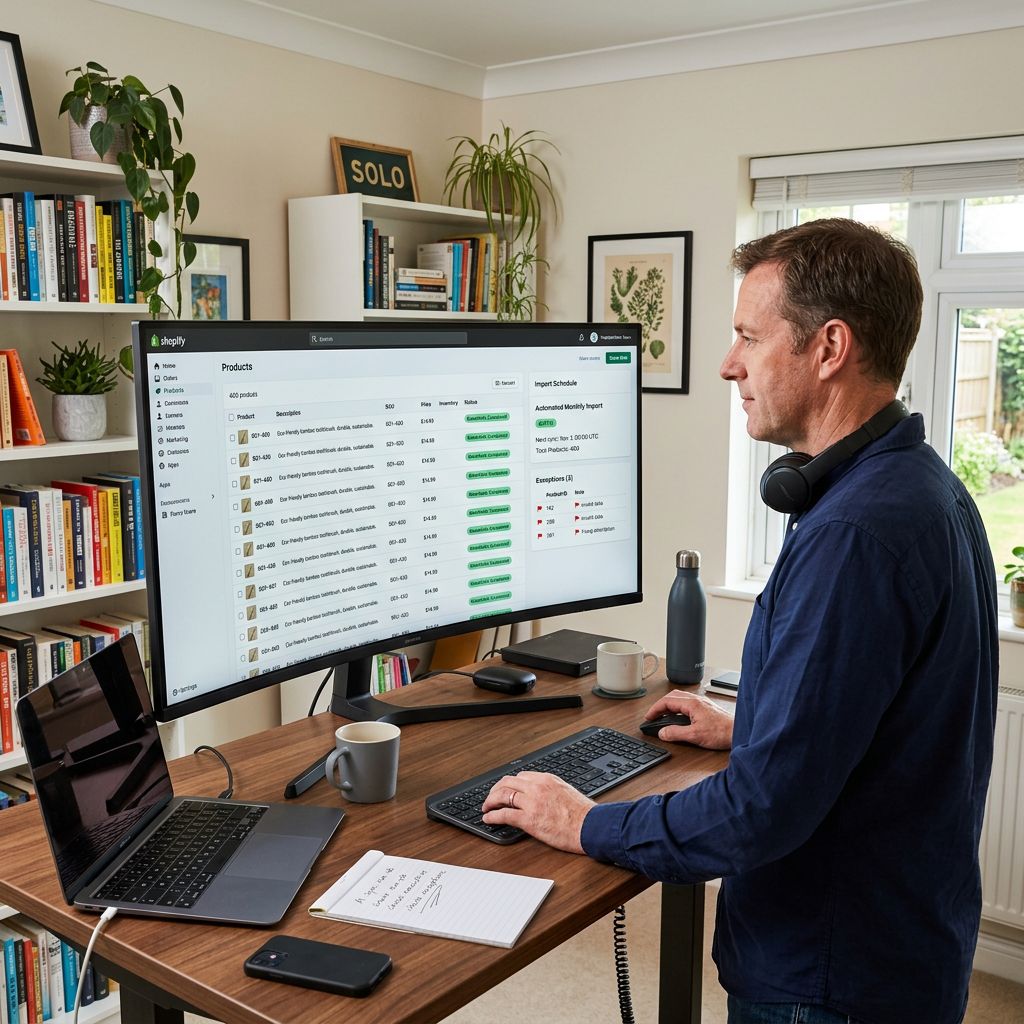
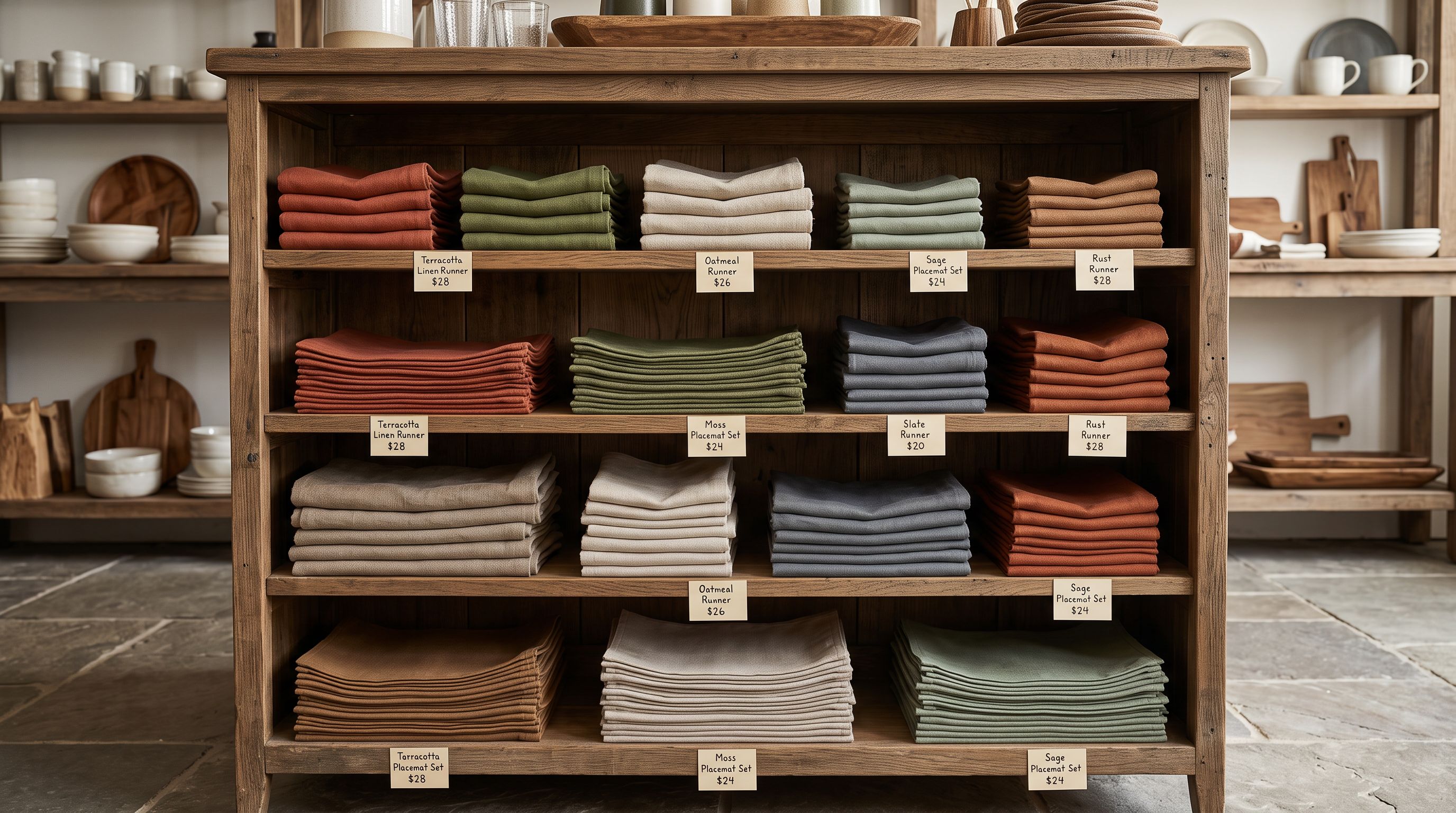
A homeware retailer with two physical stores and an online shop imports 80 new seasonal items: table runners, placemats, napkin rings. The items are fragile, heavy, and not suitable for shipping. The plan is to sell them in-store only. The import runs without errors. An hour later, a customer emails asking about the table runners they saw on Instagram. The retailer checks and finds all 80 items are live on the Online Store, submitted to Google Shopping, and showing in the Facebook catalogue. None of this was intended. The products are in-store only.
This is a channel assignment problem, and it is one of the least understood aspects of Shopify's import system. Attempting a Shopify POS-only product import via the native CSV tool is not possible: every product imported via CSV publishes to the Online Store by default, with no option to restrict it to the Point of Sale channel at the time of import. Correcting channel assignment after the fact is a per-product manual process.
What Shopify Sales Channel Publication Actually Controls
Shopify separates product status from channel publication. A product can be Active (available for purchase) and still be restricted to specific sales channels. When a product is Active and published to the Online Store channel, it is visible on the storefront and submitted to connected feeds (Google Shopping, Facebook/Instagram catalogue). When a product is Active and published only to the Point of Sale channel, it is available to staff at physical locations but invisible on the website and excluded from all connected feed submissions.
This distinction matters enormously for omnichannel retailers. A product that belongs in-store only should never touch the Online Store channel. But Shopify's CSV import has no mechanism to specify channel publication at import time. The Published column in Shopify's native CSV format controls whether a product is Active or Draft. It does not control which channels it appears on. Setting Published to TRUE adds the product to the Online Store. Setting it to FALSE creates a draft excluded from every channel.
The Manual Channel Correction Problem at Scale
For a small batch of 5 products, manual channel correction is inconvenient. A merchant clicks into each product, opens the Sales channels section in the product settings, deselects Online Store, selects Point of Sale, and saves. Four clicks, a page load, a save. Five products takes under five minutes.
For 80 products, this is 320 clicks and 80 page loads. For a merchant who imports new in-store inventory every month: a clothing boutique receiving a new season from their supplier, a gift shop receiving Christmas stock. This correction runs every single import cycle, regardless of how well the import itself went.
The problem compounds because Shopify does not batch-update channel assignment through its standard admin bulk actions. The Products bulk action in Shopify admin can set products to Active or Draft, add tags, add to collections, or update status. It cannot change sales channel assignment for a selected set of products. Channel assignment is a per-product action in the standard Shopify admin flow.
According to Shopify's product availability documentation, sales channel availability is managed per product through the product details page. There is no documented bulk-update path through the standard admin UI for channel reassignment.
- 01Import 80 products via Shopify native CSV with Published=TRUE. All 80 appear on Online Store, Google Shopping, and Facebook catalogue immediately.
- 02Open each product in Shopify admin and locate the Sales channels section. Deselect Online Store. Select Point of Sale. Save. Repeat for all 80 products.
- 03Verify none of the 80 appear in the Online Store storefront and that Google Shopping and Facebook have stopped showing them (de-publication from feeds can take 24-48 hours).
How Importier's Channel Selector Works
Importier's import wizard includes a channel assignment step. After mapping columns, configuring AI settings, and reviewing the batch, the merchant reaches the publication settings step. Here, two things are configured together: product status (Active or Draft) and channel assignment.
The channel assignment UI presents the available Shopify sales channels connected to the store. A standard Shopify store might show: Online Store, Point of Sale, Google, Facebook/Instagram, Amazon, and any other apps that have added a sales channel. The merchant selects which channels the entire import batch should be published to. This selection applies to every product in the batch; a batch of 80 products gets the same channel assignment in one step.
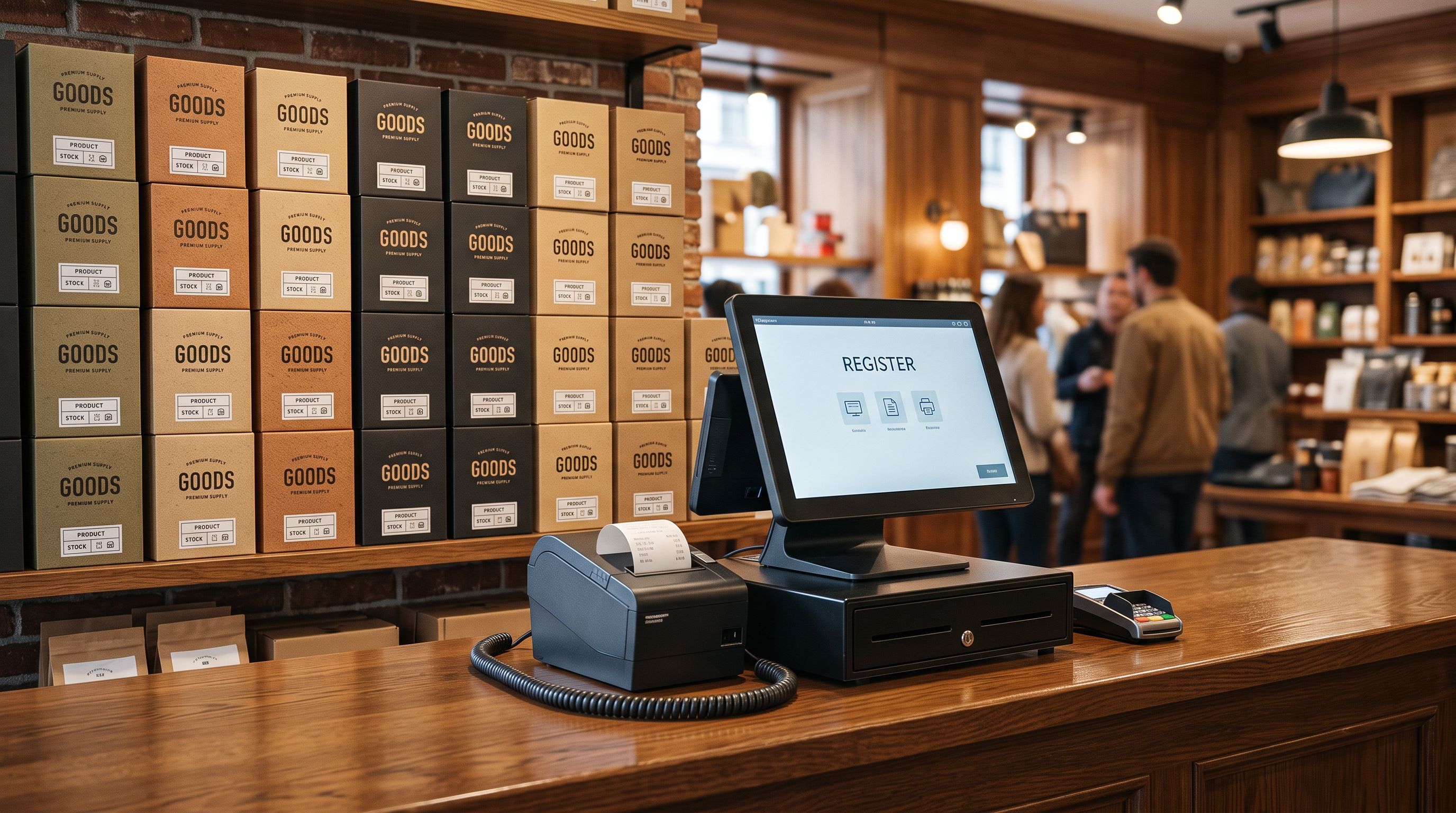
For the homeware retailer's 80 in-store items: select Active, deselect Online Store, select Point of Sale. All 80 products import directly to the POS channel without ever touching the Online Store, Google Shopping feed, or Facebook catalogue.
- Published=TRUE publishes every product to Online Store automatically. No channel selection available at import time.
- Channel correction requires visiting each product in admin: 80 products means 80 individual edits. De-publication from Google Shopping and Facebook takes 24-48 hours after correction.
- Channel selector step presents all connected Shopify sales channels before the import runs. Select POS-only, Online Store-only, both, or any combination for the entire batch in one step.
- Products import directly to the correct channels. No post-import correction needed. Google Shopping and Facebook never receive a submission for POS-only products.
Three Channel Scenarios for Omnichannel Merchants
The channel assignment step covers scenarios beyond POS-only import. Understanding the three common configurations helps merchants set the right selection for each batch.
POS-only batch: Products intended exclusively for in-store sale: fragile items, local-pickup-only stock, in-store clearance. Deselect Online Store. Select Point of Sale. Products appear in the Shopify POS app at physical locations, are available to staff for checkout, and are invisible on the website and all connected feeds. Staff can search them by title, SKU, or barcode.
Online Store-only batch: Products available for online purchase only: digital goods shipped from a single location, products not yet available in stores, pre-orders not in physical stock. Select Online Store. Deselect Point of Sale. Products appear on the website and submit to Google Shopping and Facebook but are not findable in POS checkout.
Both channels: Standard product import where products should be available everywhere. Select Online Store and Point of Sale. Products appear on the website, in POS, and submit to connected feeds. This is the equivalent of Shopify's Published=TRUE default, but explicitly chosen.
A single channel selector step at import time eliminates the post-import correction cycle that omnichannel merchants run on every batch they receive from suppliers.
According to Shopify's Point of Sale documentation, products published to the POS channel appear in the Shopify POS app's product catalogue and can be sold in-person. A product not published to POS cannot be selected during an in-person sale, even if it is Active and available on the Online Store. The channel assignment in Importier's channel selector controls this correctly for both directions.
Import profiles and recurring batches
Saving Channel Assignment as a Default for Recurring Imports
An omnichannel retailer who imports a monthly in-store replenishment batch faces the same channel selection every month. Importier's import profiles save the complete import configuration, including column mappings, AI settings, publication status, and channel assignment.
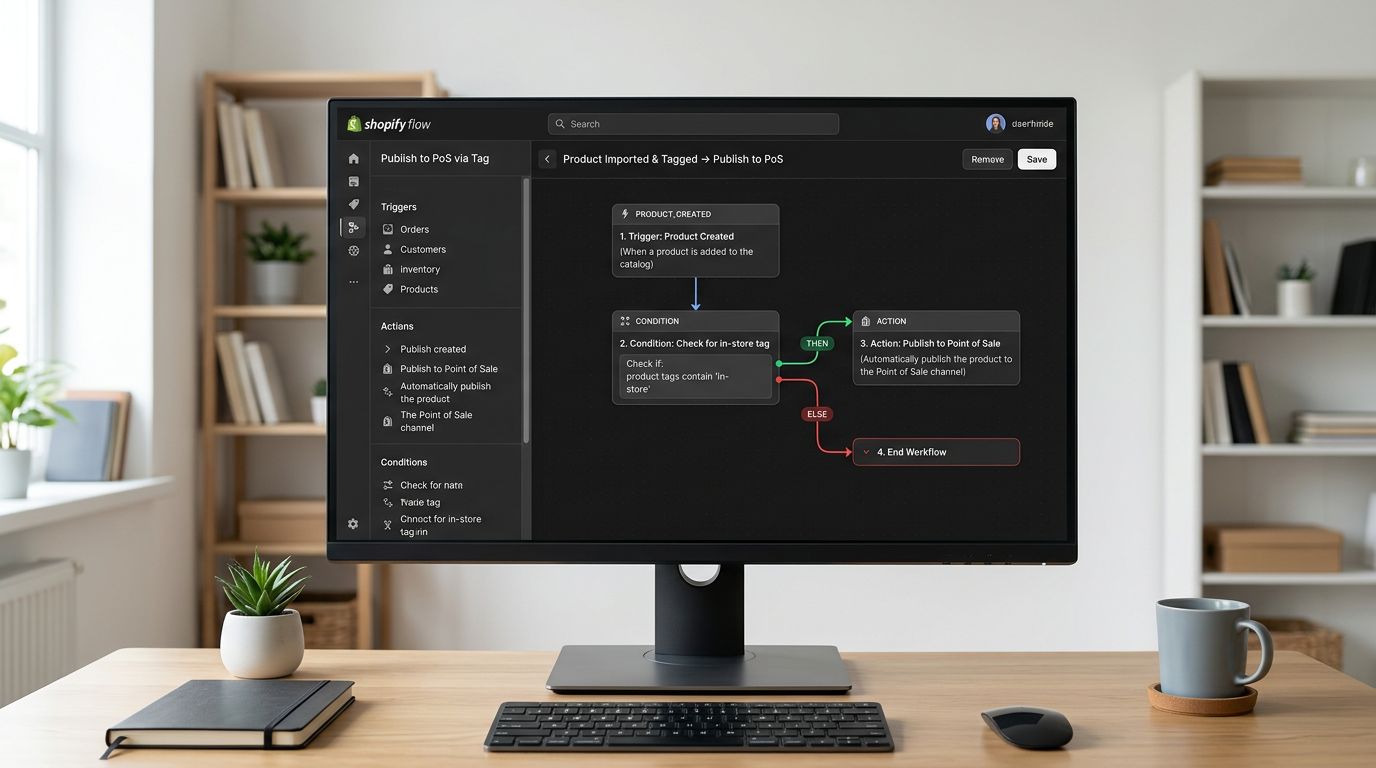
A profile named "Monthly in-store replenishment (POS only)" saves the POS-only channel selection alongside the supplier's CSV column mapping and any AI description settings. Next month, loading the same profile pre-fills all settings including channel assignment. The merchant confirms the batch and runs it; the channel selection is applied automatically from the saved profile.
This matters for merchants who receive stock from multiple suppliers on different channel strategies. A merchant might have:
- A supplier who provides online-only products (imported via the "Online supplier" profile)
- A supplier who provides in-store-only fragile goods (imported via the "In-store supplier" profile)
- A seasonal supplier who provides stock for both (imported via the default configuration)
Each supplier's import runs with the correct channel assignment without the merchant reconfiguring it each time. The shopify-pos-product-import-in-store-catalogue-sync guide covers the related scenario of adding existing Online Store products to the POS catalogue, a different flow from new product import covered separately.
Why Draft Is Not a Workaround for POS-Only Import
Some merchants use Draft status as a channel workaround: import the batch as Draft, then manually publish only to POS. This creates two problems.
The first is that Draft status excludes all channels simultaneously. A product imported as Draft is not available on the Online Store or POS. Staff at a physical location cannot sell a Draft product; it does not appear in POS search results. The merchant who intends to sell in-store only will find POS staff cannot find the product during a transaction.
The second is the manual step still exists. After importing as Draft, the merchant must still visit each product and publish it to the POS channel. The Draft workaround eliminates the Online Store exposure problem but does not eliminate the per-product channel assignment work. It trades one problem for another.
The shopify-products-imported-as-drafts guide covers draft status in detail, including why draft removes products from all channels simultaneously, a behaviour that makes Draft unsuitable as a POS-only workaround.
Key Takeaways
-
Shopify's native CSV import has no channel selector. Published=TRUE adds every product to the Online Store. There is no POS-only option at import time in the native tool.
-
Channel assignment requires per-product action in standard Shopify admin. The bulk action tools do not include channel reassignment. For 80 products, that is 80 individual edits.
-
Importier's channel selector runs at import time, before products touch Shopify. Select Online Store, POS, both, or any connected channel combination for the entire batch in one step. Products import directly to the correct channels.
-
Three common configurations: POS-only (in-store fragile or local-only stock), Online Store-only (shipped-only products), or both channels (standard omnichannel stock).
-
Draft is not a POS-only workaround. Draft excludes POS as well as Online Store. POS staff cannot sell Draft products. The per-product correction step remains.
-
Import profiles save channel assignment. A profile for each supplier or stock type eliminates reconfiguration on recurring imports.
Import your next batch with the correct channel assignment from the start at importier.app.
Set up your first import in under five minutes.
Importier brings products into Shopify with AI descriptions, category metafields, and data enrichment on every run.