Shopify Product Type Import: Fix Wrong Types at the Source
On this page
The shopify product type import failure is quiet: 400 electronics products push without errors, then an hour later a customer messages to say the headphones collection is empty. The merchant checks Shopify admin and finds every imported product has the product type "ELEC > AUDIO > BT-HEADPHONES": the supplier's internal category taxonomy, not Shopify's product type field. The automated collection rule that populates the headphones section fires at save time: a product saved with type "Headphones" joins it, but a product saved with type "ELEC > AUDIO > BT-HEADPHONES" does not. 400 products, zero in collections.
This is the shopify product type import problem. It happens because supplier CSVs use the supplier's own category taxonomy, not Shopify's. The product type field in Shopify's import maps directly to whatever value is in the column, with no validation and no warning. Products enter the catalogue with the wrong type and collections break immediately.
Why Product Type Matters More Than Most Fields
Shopify's Product Type field is deceptively important. Most merchants treat it as an organisational label. In practice it controls three things:
- Automated collections: a collection with the rule "Product type equals Headphones" adds every product with exactly that type value. One character difference ("Headphone" vs "Headphones") means the product never joins the collection.
- Navigation menus and filters: storefront themes that filter by product type render correctly only if the type values are consistent. A catalogue with 15 different variations of "Headphones" (HEADPHONES, headphones, Audio Headphones, BT Headphones, ELEC > AUDIO) breaks type-based faceted navigation.
- Google Merchant Centre category mapping: GMC's product_type attribute (distinct from google_product_category) uses product type values to help categorise products for Shopping. Inconsistent or supplier-internal type values weaken the category signal.
The problem compounds for merchants who import from multiple suppliers. Each supplier uses their own taxonomy. After three suppliers, the product type field in a single Shopify store can contain 40 distinct values when it should contain 5. Every automated collection that relies on product type fails silently for products that arrived with a non-standard value.
How the problem happens at import time
Where Supplier CSVs Go Wrong
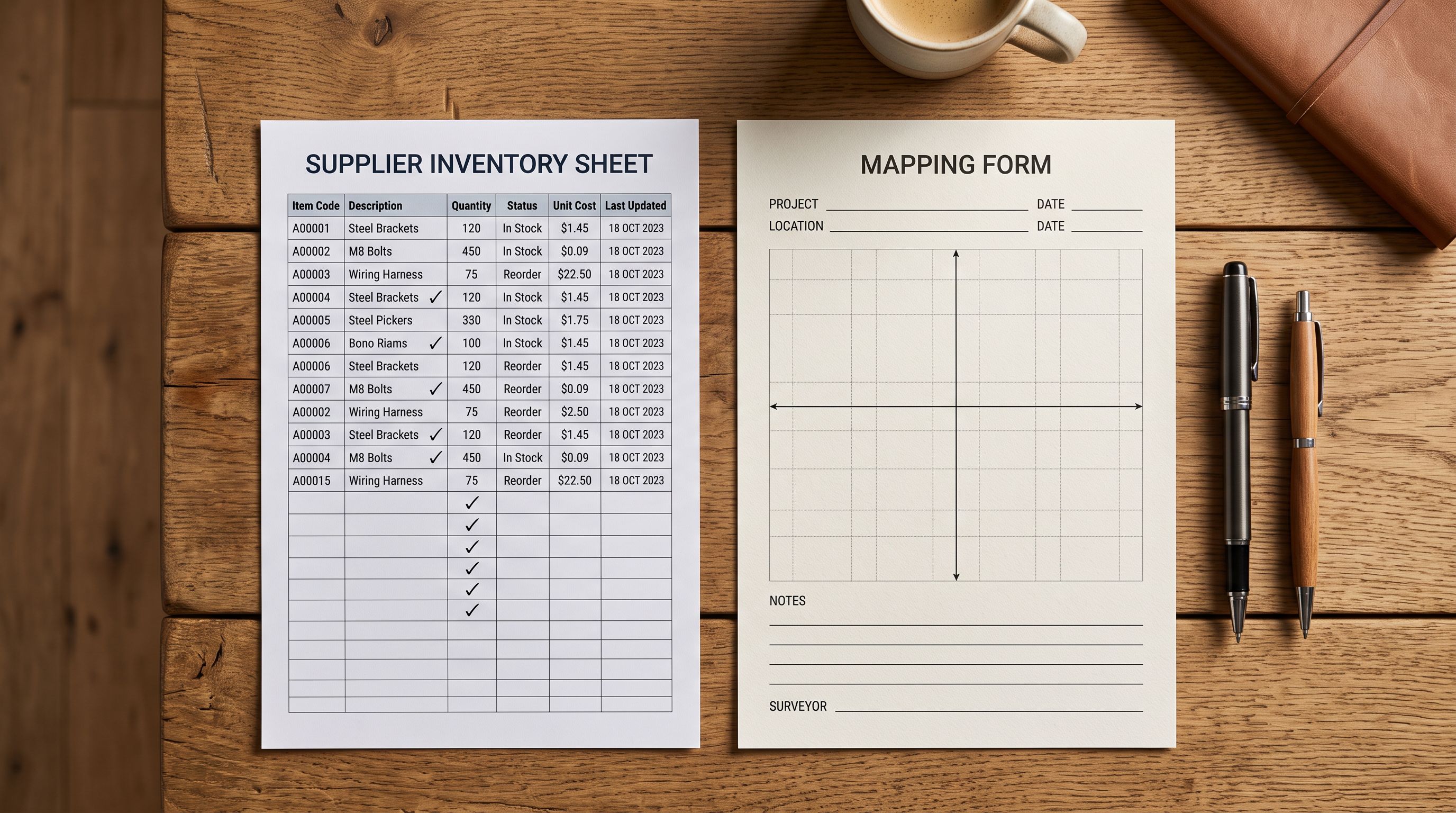
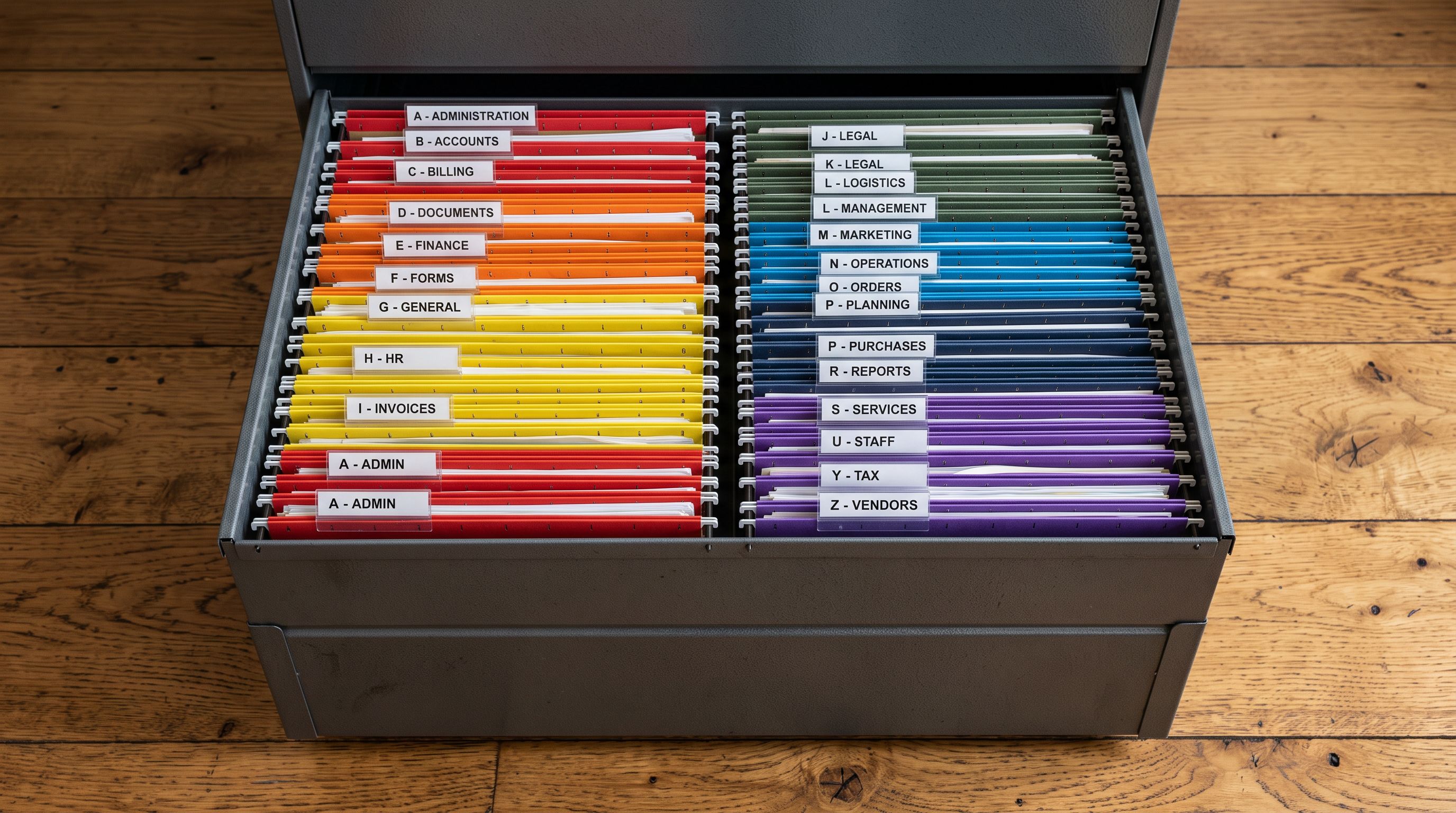
Supplier CSV files are built for the supplier's warehouse management system, not for Shopify. The column that maps closest to Shopify's Product Type is usually called something like "Category", "Product Category", "Department", "Item Class", or in some cases "Taxonomy" or "SKU Class". The values in that column reflect the supplier's internal organisation.
The three most common forms this takes:
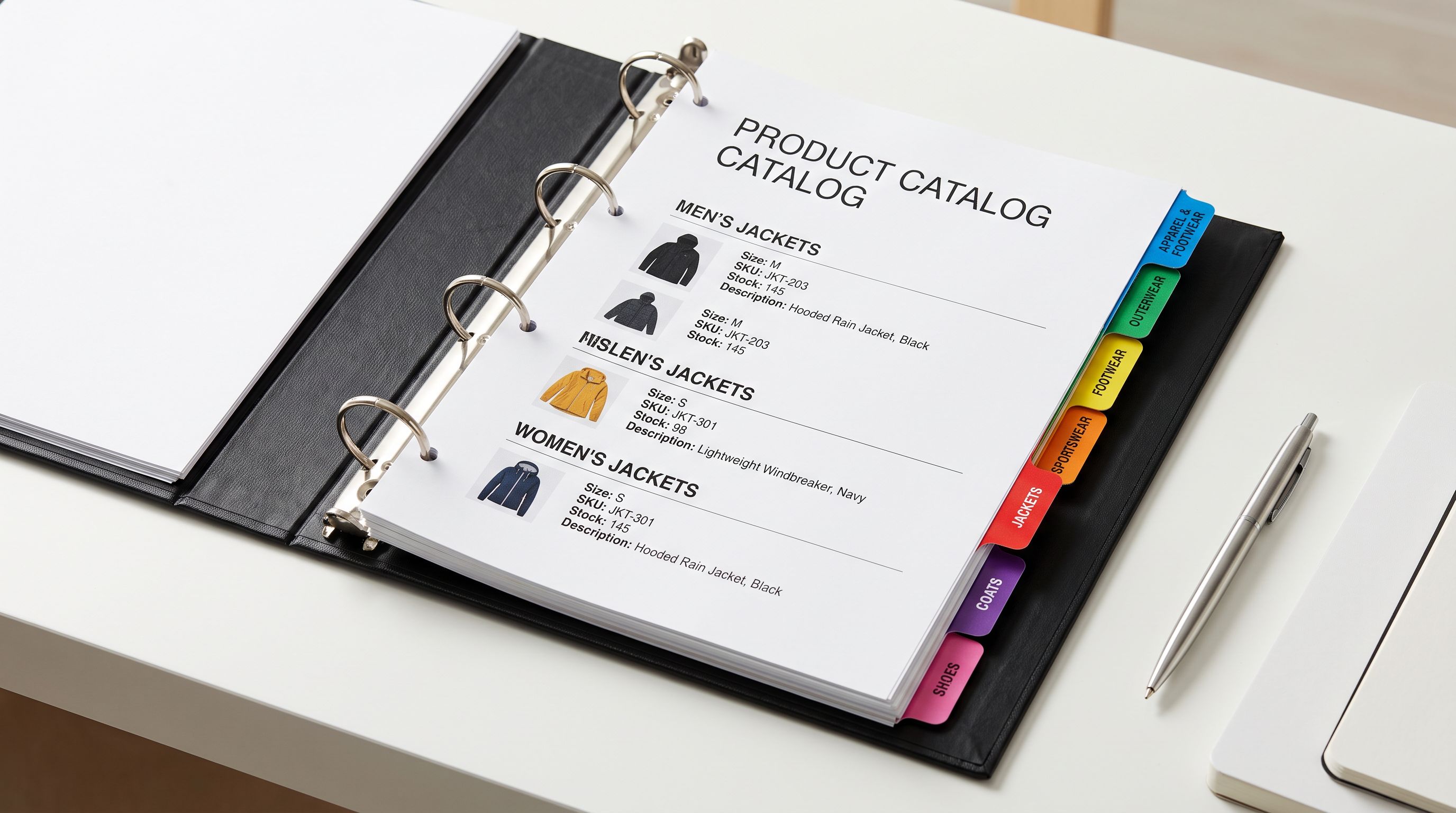
Hierarchical taxonomy strings: Electronics > Audio > Headphones > Bluetooth, Clothing > Tops > T-Shirts > Men's. These are the supplier's full category path, not Shopify product types.
SKU prefix codes: ELEC-AUDIO-BT, CLO-TOP-MTS. Some suppliers encode their category into the SKU and add it as a separate column. Without transformation, this lands in Shopify's product type field as-is.
Missing entirely: many supplier CSVs simply do not include a category or type column. When the column is missing, Shopify's native import leaves the product type blank. Blank product type means the product never matches any type-based collection rule.
- 01Step 1Map the supplier's category column correctly. During column mapping, Importier shows all columns in the supplier CSV alongside the Shopify fields they map to. The supplier's category column, whatever it is named, defaults to the closest match. Review this mapping: if the supplier's 'Department' column contains hierarchical taxonomy strings, it should not map directly to Shopify's Product Type.
- 02Step 2Set a fixed product type for the batch. If the entire import batch belongs to one Shopify product type (all headphones, all T-shirts, all gardening tools), set the Product Type field to a fixed value in the column mapping step. This overrides whatever is in the supplier's category column and assigns every product in the batch the correct Shopify type.
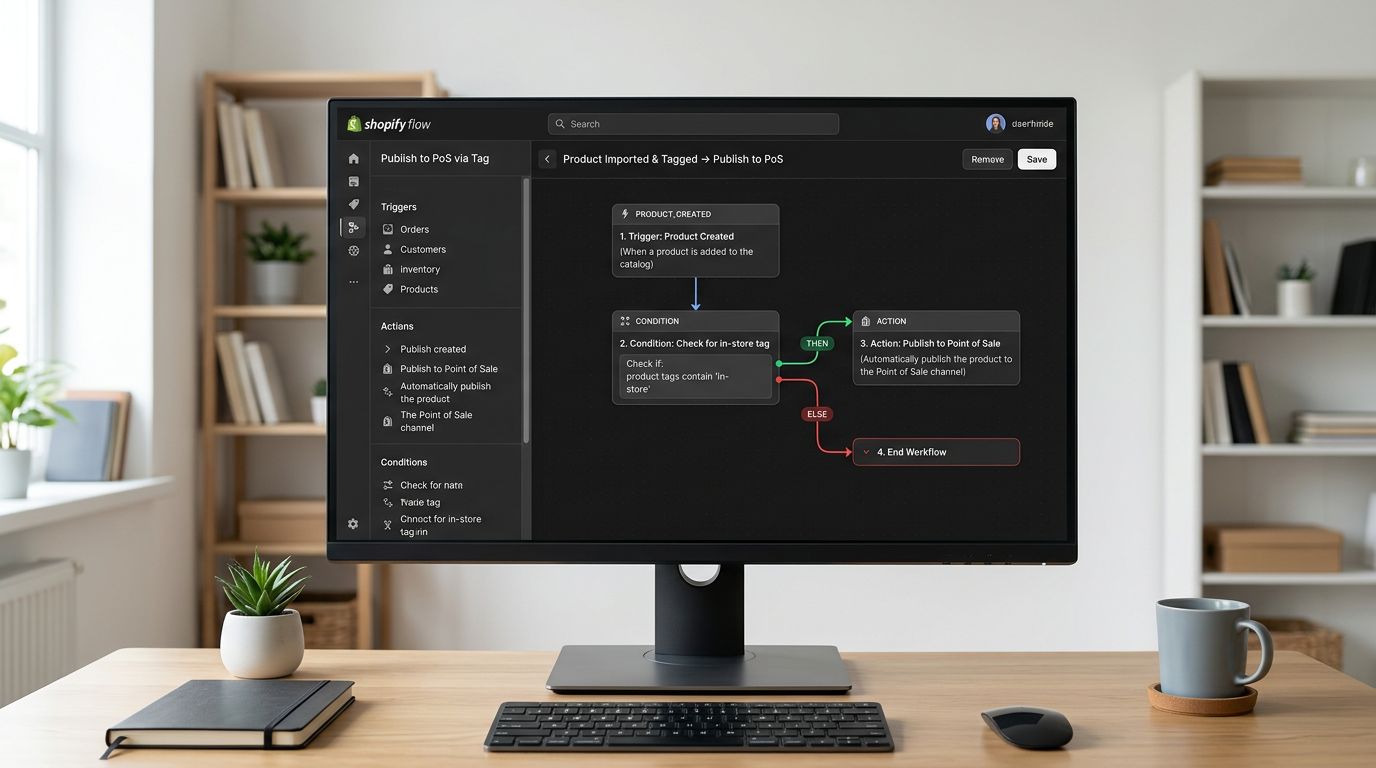
- 03Step 3Use column transformation for mixed-type batches. If the import contains multiple product types, the column transformation step maps supplier category values to Shopify type values. Supplier's 'BT-HEADPHONES' maps to Shopify's 'Headphones'. Supplier's 'WIRED-HEADPHONES' also maps to 'Headphones'. Supplier's 'PORTABLE-SPEAKERS' maps to 'Speakers'. The transformation is set once per import template and reused on subsequent imports from the same supplier.
- 04Step 4Review the type values in the pre-push summary. Before any products are pushed to Shopify, the import wizard shows a sample of products with their assigned field values. Confirm the Product Type column shows the correct Shopify type values, not the supplier's internal codes.
- 05Step 5Push with confidence. Products arrive in Shopify with the correct type values. Automated collection rules fire at save time, pulling products into the right collections immediately on push.
Fixing Wrong Product Types on Existing Products
If the import has already been pushed and products are in Shopify with the wrong type, there are two approaches.
Using Import History and Import Undo: if the import happened recently (within the last 20 batches), Import History shows the batch entry. Triggering Import Undo removes all products from that batch. After undo, the merchant re-imports from the original file with the correct product type mapping, and products arrive with the right type.
Using Store Scanner for batch correction: if the products need to stay in Shopify (they have orders, reviews, or other data attached that would be lost on deletion and re-import), Store Scanner can correct the product type in-place.
Store Scanner filters by collection, SKU pattern, vendor, or tag. For products that came in with the wrong type, filtering by the specific wrong type value ("ELEC > AUDIO > BT-HEADPHONES") isolates exactly the affected products. The Replace mode applies the correct Shopify product type value to all of them in a single operation. Shopify re-evaluates collection membership at the point each product is saved: products join the correct automated collections within seconds of the type correction.
- Products push with supplier's internal taxonomy
- Automated collections fire but products don't match
- Customer-facing collections appear empty
- Requires Store Scanner correction pass or Import Undo
- GMC product_type signal is weakened by inconsistent values
- Product type mapped or overridden before any product is pushed
- Automated collections populate immediately on push
- No post-import correction step needed
- Import template saves the mapping for reuse on next supplier import
- Consistent type values support collection filters and GMC categorisation
Preventing Taxonomy Drift Across Multiple Suppliers
For merchants importing from three or more suppliers, the risk is not a single bad import but cumulative drift. Each supplier introduces their own type values. Over six months, a Shopify store's product type field can accumulate dozens of distinct values that were never intended to coexist.
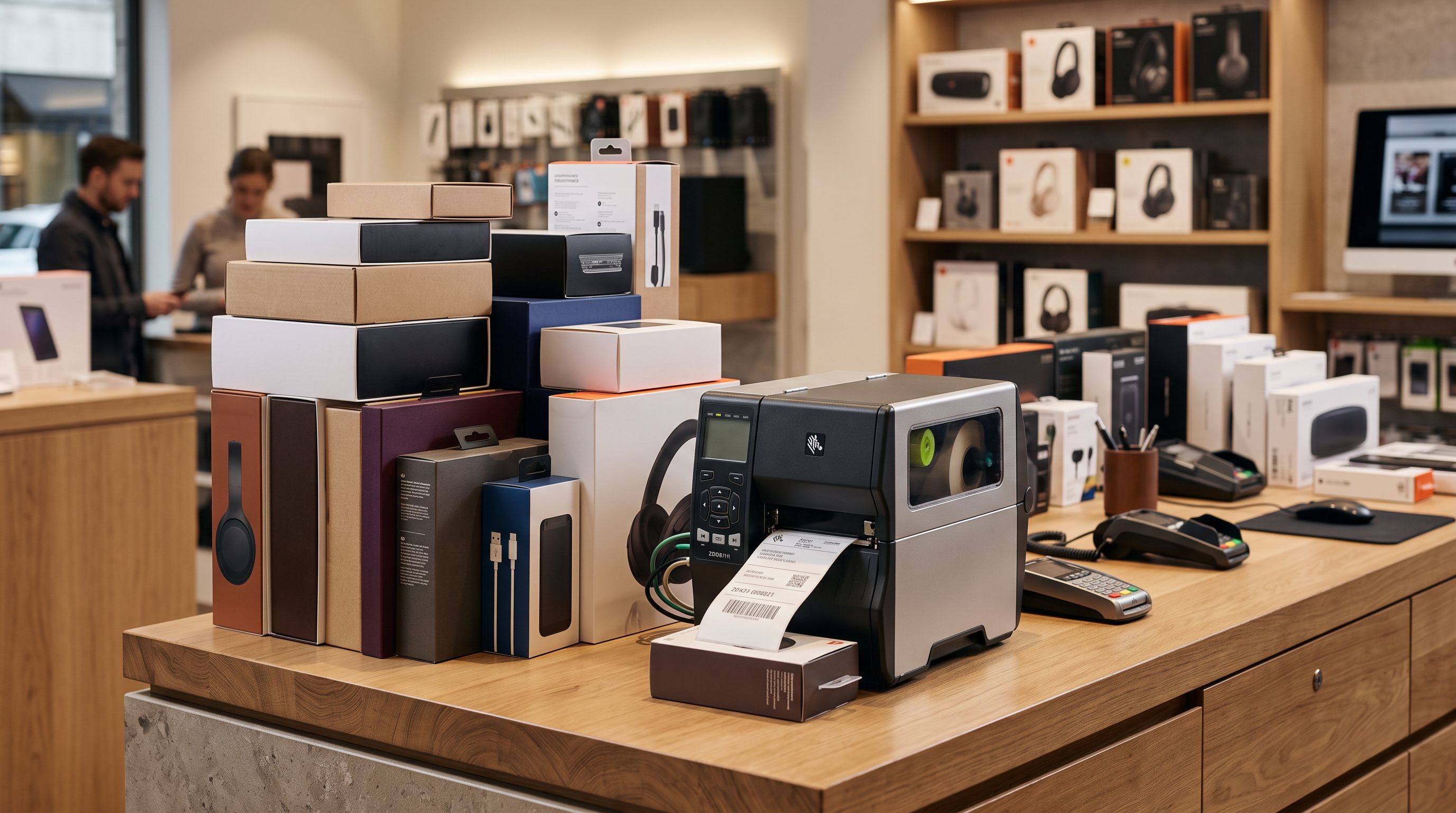
The fix is import templates. Importier saves the column mapping and transformation rules for each supplier as a reusable template. The template records: which column maps to Product Type, and what transformation rules convert supplier values to Shopify values. On the next import from the same supplier, the template applies automatically. New supplier values that don't match an existing transformation rule surface as warnings, not silent passes, so drift is caught at import time rather than discovered when a collection breaks.
A product type value set incorrectly at import does not need a code fix. It needs one correct import, and a template so the next import from the same supplier arrives right the first time.
According to Shopify's product type documentation, a product type is a category you create to organise products. Shopify recommends keeping types consistent across your catalogue because they power filtering and automated collections. The documentation does not warn about import-time type overwriting. That gap is where supplier taxonomy drift enters.
For merchants managing Google Shopping, Google's product data specification distinguishes between product_type (merchant-defined, maps from Shopify's Product Type field) and google_product_category (Google's taxonomy, mapped separately). Inconsistent product_type values do not directly cause GMC disapprovals, but they reduce Shopping ad relevance because Google uses the merchant-defined type as an additional categorisation signal. Consistent Shopify product types that match the merchant's actual product organisation strengthen this signal.
Shopify Product Type Import: Key Takeaways
Wrong product types after a Shopify import do not surface as errors; they surface as empty collections and broken navigation, often hours after the import completes.
- Supplier CSVs use the supplier's internal taxonomy, not Shopify product types. The field maps directly to whatever value is in the column, with no validation.
- Automated collections evaluate product type at save time. A product with the wrong type never joins a type-based collection, regardless of how many other rules it matches.
- At import time, Importier's column mapping step lets a merchant set a fixed Product Type for an entire batch (all products = same type) or apply transformation rules that convert supplier values to Shopify values.
- For wrong types already in Shopify: Import Undo + re-import works when the batch is recent. Store Scanner's Replace mode works when the products need to stay.
- Import templates save the mapping and transformation rules for each supplier. Subsequent imports from the same supplier apply the same type mapping automatically, preventing drift across multiple import cycles.
Fix product type at import time with importier.app. The column mapping and transformation step is available on all paid plans.
Set up your first import in under five minutes.
Importier brings products into Shopify with AI descriptions, category metafields, and data enrichment on every run.