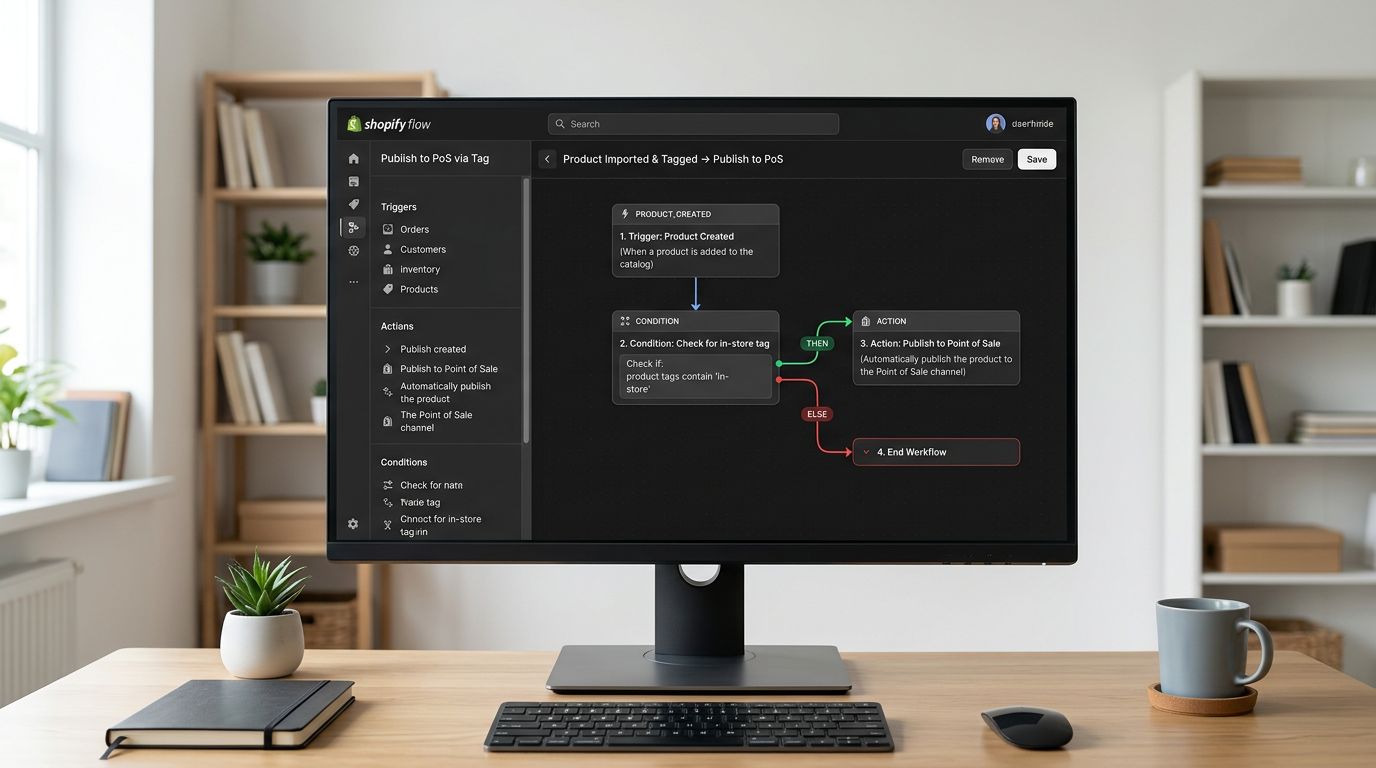
Shopify Import Stops Halfway: Recover Without Duplicates
On this page
A wholesale footwear merchant's shopify import stops halfway through a 500-product batch. The progress bar was moving steadily. At 347 products it stopped. No error. No warning. The import wizard showed the session as completed. The merchant opens Shopify admin and finds 347 products in the catalogue where there should be 500. The other 153 are missing and there is no record of which ones made it and which ones did not.
This is the shopify import stops halfway problem. It has three distinct failure modes, each with a different recovery path, and all of them share the same first step: find out exactly what landed before doing anything else.
Why a Shopify Import Stops Mid-Batch
A Shopify import that stops partway through typically fails for one of three reasons.
Session timeout. Large imports can exceed the timeout limit of the browser session or the underlying API connection. Products are pushed to Shopify one by one or in small groups; when the connection drops, processing stops at whatever product was in progress. Products already pushed remain in Shopify; those not yet reached do not.
Shopify API rate limits. Shopify's Admin API imposes rate limits on how many product creation requests can be made per second. An import tool that pushes too many requests simultaneously will receive rate-limit errors. Some tools handle these gracefully (retry after a delay); others stop. If your import tool stopped without showing an error, a rate-limit collision at the API level is a likely cause.
File format errors mid-batch. A CSV or Excel file that is valid for the first 347 rows and then encounters a malformed row (an unmatched quote, a multi-line cell with a line break inside it, a row with more columns than the header) will cause processing to stop at that row. Products before the error row are already in Shopify; products from the error row onwards are not.
Knowing the failure mode changes the recovery path. A timeout or rate-limit failure means the original file is intact and re-importing the missing portion is the fix. A file format error means the original file has a problem that must be found and fixed before any re-import attempt, or the import will stop at the same row again.
Step one: find the gap
Using Import History to Find What Landed
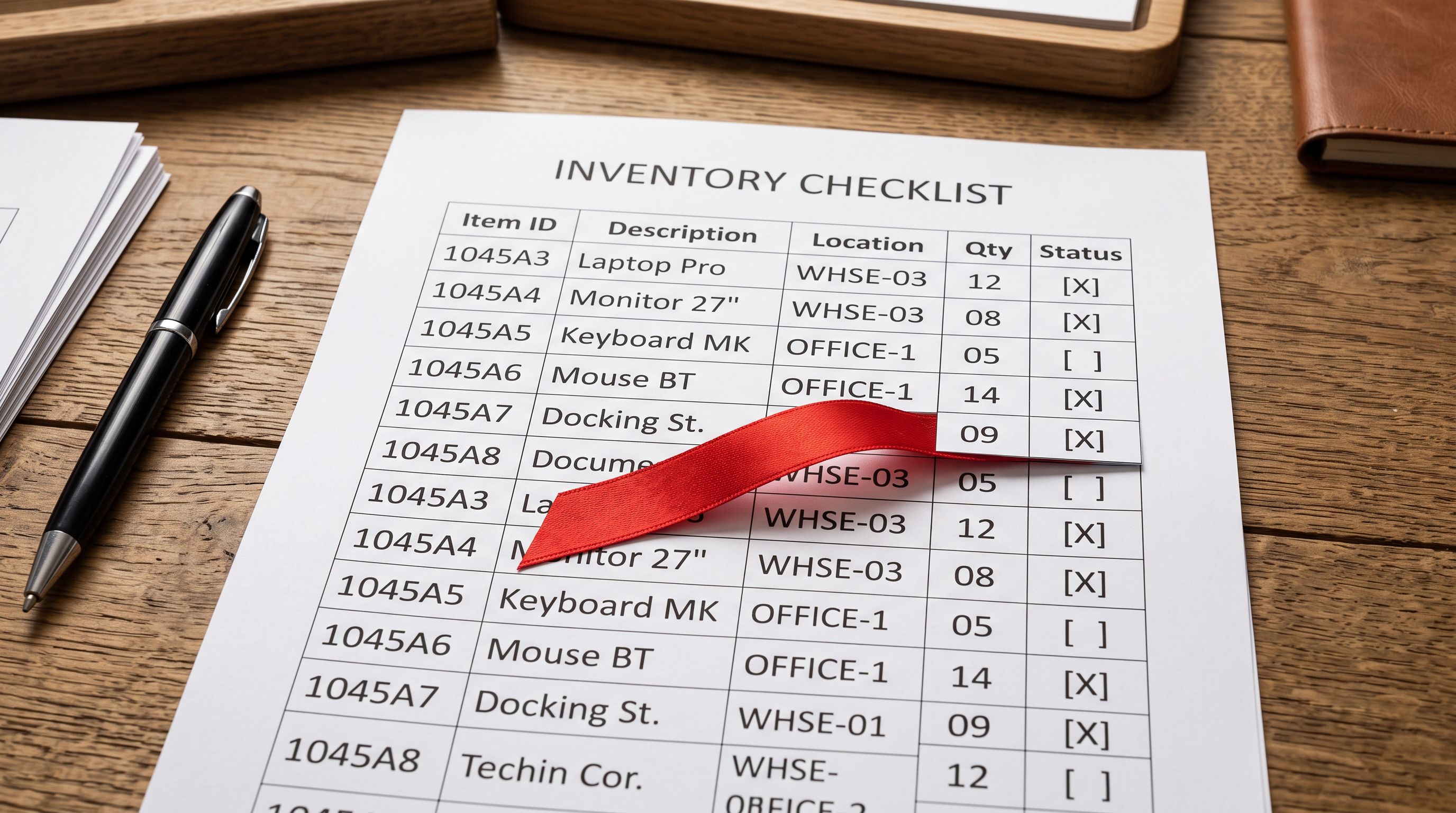
Importier logs every import batch in Import History. When an import stops partway, the log entry records the actual number of products that were processed, not the number in the original file. The footwear merchant's entry shows: "500-products.csv: 347 products, 2026-07-18 11:23."
That log entry is the starting point for recovery. From it:
- The batch CSV download (available for 60 days) contains the rows from the original import file. Combined with the Shopify product export, it provides the material to identify the 153 missing products.
- The Import Undo option for that batch is available if the recovery strategy requires removing the 347 and starting fresh.
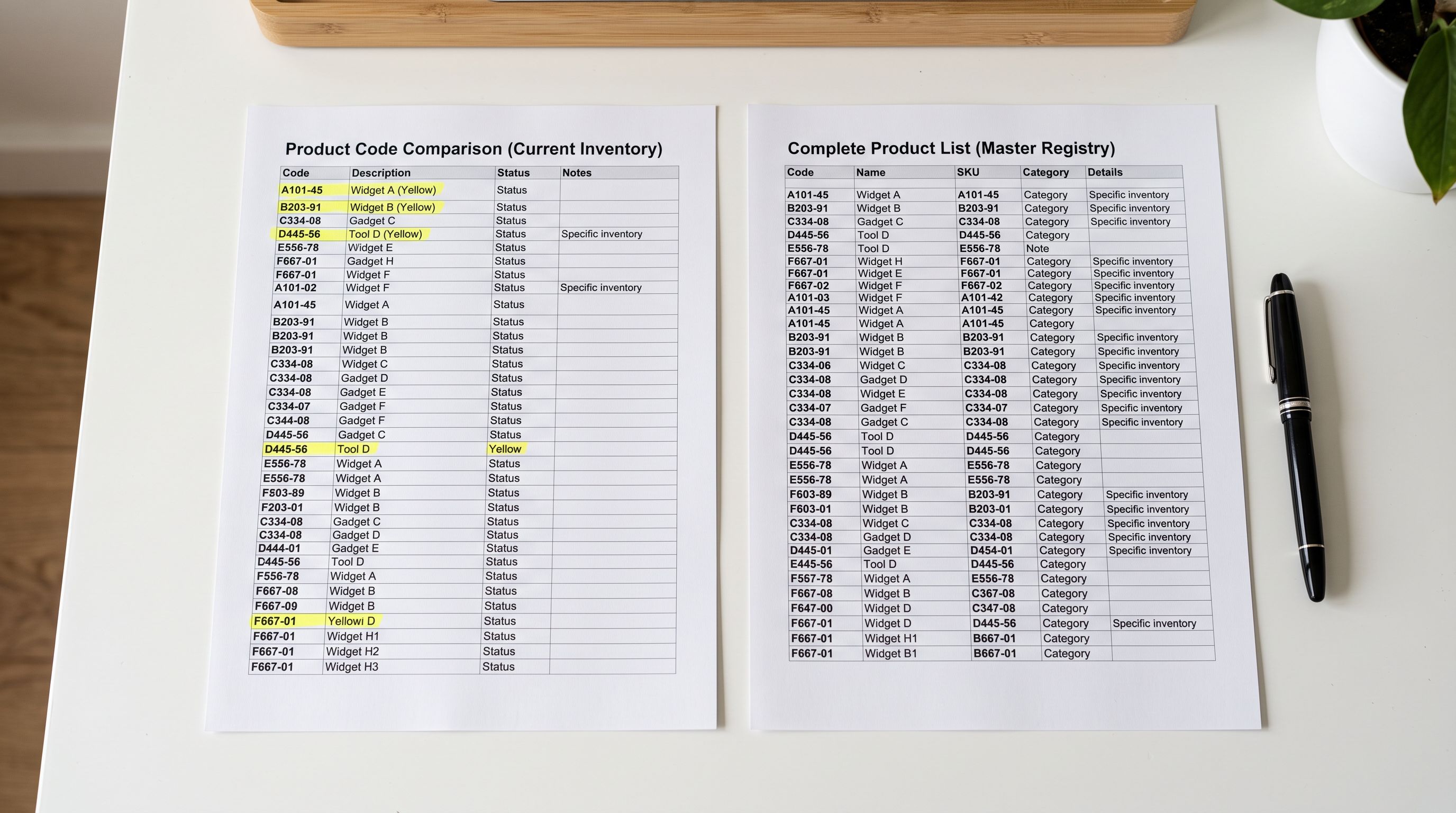
To identify which products are missing, the cross-reference method is: export the current Shopify catalogue (Products > Export > All products, CSV), then compare SKUs in the export against SKUs in the original import file. Every SKU in the import file that does not appear in the Shopify export is a missing product. For 500 products, this comparison typically takes 10 minutes in a spreadsheet using a VLOOKUP or MATCH formula across the two files.
The result is a filtered list of the 153 missing products. That filtered list becomes the import file for the recovery run.
- 01Step 1Open Import History and locate the partial batch. The entry shows the file name, timestamp, and product count (347 for a 500-product import that stopped). Note the batch ID.
- 02Step 2Download the batch CSV. This is available for 60 days from the import date. Even though the batch stopped early, the CSV contains the rows from the original file for cross-referencing.
- 03Step 3Export your current Shopify catalogue. In Shopify admin, go to Products > Export > All products > Export products (CSV). This gives you the definitive list of what is actually in your store.
- 04Step 4Cross-reference by SKU or barcode. In a spreadsheet, paste the original import file rows and the Shopify export. Use a lookup formula to flag every row in the import file that does not have a matching SKU in the Shopify export. These are the missing products.
- 05Step 5Save the missing rows as a new CSV. Filter to the flagged rows only and save as a separate file. This is the recovery import file: it contains only the products that did not make it into Shopify.

Recovery Path A: Import Undo and Full Re-import
If none of the 347 products that landed have been subsequently ordered, reviewed, or manually edited in Shopify, the most straightforward recovery is Import Undo followed by a complete re-import.
Import Undo removes all products from the partial batch in one operation. After the undo, the Shopify catalogue is back to its state before the import started. The merchant re-imports the full original file, watching for any file format errors this time. If the original failure was a timeout, importing in smaller batches (200 products at a time rather than 500) reduces the likelihood of the same failure recurring.
The advantage of this approach: no cross-referencing needed, no partial-import state to track. The disadvantage: if the 347 products that landed have already had any activity (a draft order created, a customer saved a wishlist link), Import Undo removes them and those references break.
For imports completed the same day with no orders placed against the affected products, Import Undo plus re-import is the right choice.
Recovery Path B: Re-import Only the Missing Products
If the 347 products that landed have already been viewed by customers, added to carts, or included in draft orders, removing them with Import Undo creates more problems than it solves. The recovery in this case is to import only the 153 missing products without touching the 347 that are already correctly in Shopify.
Using the cross-reference filtered file from Step 5 above, the recovery import contains only the missing rows. Importier's import wizard runs the same column mapping, AI enrichment, and channel assignment as the original import, but for the 153 products only.
The risk to manage with this approach is duplicate creation. Before running the recovery import, verify that none of the 153 products have somehow partially appeared in Shopify under a different SKU or handle. Store Scanner's SKU filter can confirm this: search for the SKU patterns from the missing products and confirm zero results appear in the existing catalogue.
- 153 missing products get added as new entries
- 347 products that landed get re-pushed, creating 347 duplicates
- Duplicate removal takes hours of manual work
- Original product handles may be overwritten
- Customer links to existing products may break
- Missing products identified by SKU cross-reference before any import action
- Recovery import file contains only the 153 missing rows
- Zero duplicates created
- Existing 347 products are untouched
- Import History logs the recovery run as a separate batch entry
When the File Itself Has an Error
If the import stopped because of a malformed row in the original file, re-importing the full file will stop at the same row again. The fix requires finding and correcting the error row before any re-import.
Common file errors that stop an import mid-batch:
Line breaks inside a cell: a supplier CSV where the description field contains a newline character (common in Excel exports that include paragraph breaks). The CSV parser reads the line break as a new row and loses alignment with the header columns from that point onwards.
Unmatched quotation marks: a description that contains a double-quote character without the correct escaping. In CSV format, a field containing a double-quote must be wrapped in double-quotes with internal quotes escaped as "". A supplier file that does not follow this convention will break parsing at that row.
Extra or missing columns in a row: a row with 23 columns when the header has 22. This can happen when a supplier manually adds a column to some rows but not others.
To find the error row, open the original file in a spreadsheet application and sort by row count (most spreadsheet tools will flag import errors when you open a CSV with structural problems). Alternatively, import the original file into a CSV linting tool that shows which rows fail validation. Once found, fix the row and test the corrected file with a small subset import before running the full batch.
A partial import is not a disaster. It is an inventory gap with a known size. The batch CSV tells you what was in the file; the Shopify export tells you what landed. The difference is the recovery list.

According to Shopify's product import documentation, products are imported one at a time during a CSV import run. This means a session timeout or API interruption stops processing at a discrete product boundary, not mid-product. Every product that completed its write to Shopify before the interruption is safe; no partial product records are created.
For merchants running large imports on a regular schedule, Shopify's API rate limit documentation explains how the leaky-bucket rate limiting algorithm works. Understanding this limit helps with choosing batch sizes that stay within the throughput ceiling (typically 2 product creation calls per second on standard plans).
Preventing Mid-Import Stops on Large Catalogues
Most mid-import stops on large catalogues are preventable with a few adjustments to the import strategy.
Split large files. A 500-product CSV has a higher probability of triggering a timeout than two 250-product CSVs. If a supplier delivers a single large file, split it in your spreadsheet before importing. Each split file becomes its own Import History batch entry, making partial-import recovery easier if one batch fails.
Check for file format errors before importing. Opening a CSV in Excel or Google Sheets and re-saving it does not always produce a valid UTF-8 CSV. Use a dedicated CSV validation step before uploading, especially for supplier files that arrive from international sources (where character encoding differences are common).
Import during off-peak hours. On Shopify's shared infrastructure, API rate limits are the same at all hours, but background processing queues move faster outside peak usage times. For very large imports (1,000+ products), running outside of 09:00-17:00 in the main merchant time zone reduces incidental slowdowns.
For merchants importing from the same supplier on a recurring schedule, Importier's Scheduled Imports on Scale and Enterprise plans run automatically at a configured time and retry on temporary failures, removing the risk of a manual import session timing out.
Shopify Import Stops Halfway: Key Takeaways
When a shopify import stops halfway, the batch is partial but recoverable. The path forward depends on the failure mode and whether the products that landed have had any activity since the import stopped.
- Import History records how many products actually processed before the stop. That count is the authoritative measure of the gap, not what the import UI showed.
- Cross-reference the original import file against the Shopify product export by SKU to identify exactly which products are missing. That filtered list is the recovery import file.
- Import Undo plus full re-import is the fastest recovery when no orders or edits have touched the partial batch.
- Re-importing only the missing products avoids duplicates when the products that landed are already active in the store.
- If the original file has a format error, find and fix the error row before any recovery import. The same row will stop the import again otherwise.
- Splitting large supplier files into smaller batches before importing reduces the probability of a mid-session timeout on future runs.
Recover partial imports and prevent them recurring at importier.app. Import History and Import Undo are available on all plans; Scheduled Imports with automatic retry are available on Scale and Enterprise.
Set up your first import in under five minutes.
Importier brings products into Shopify with AI descriptions, category metafields, and data enrichment on every run.