Custom Sections in Shopify Product Descriptions
On this page
Most AI description tools generate one block of prose: a flowing paragraph that describes the product and closes with a call to action. That format works for some products, but it fails for any category where buyers expect to find specific information in a named section. An electronics buyer checking product compatibility wants a "Compatibility" section they can scan, not a paragraph that mentions compatibility somewhere in the middle. A clothing buyer looking for washing instructions wants "Care Instructions" at the end of the page, not embedded in a sentence about the fabric quality. A supplement buyer checking dosage wants "How to Use" clearly labelled, not folded into a benefits paragraph.
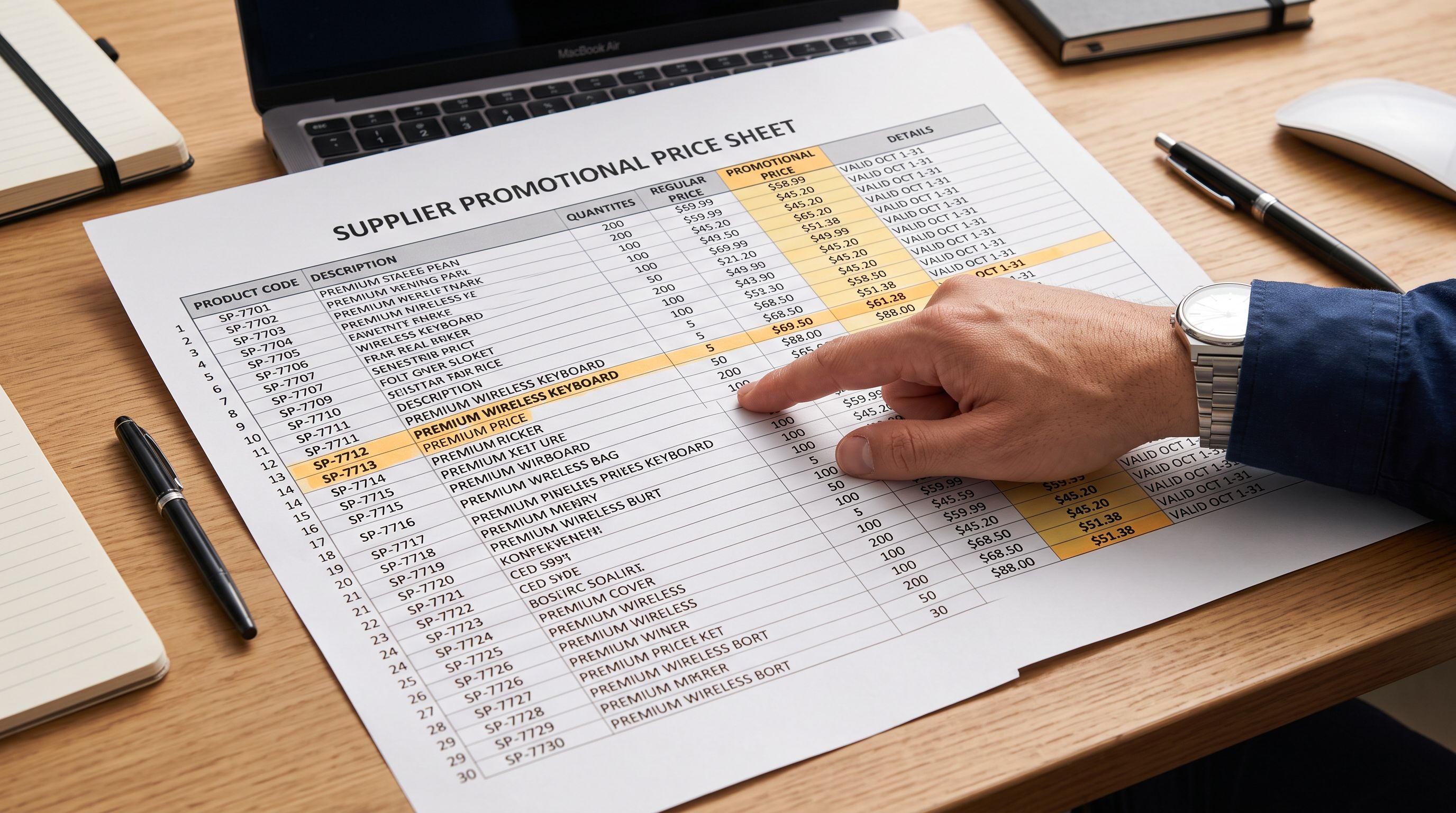
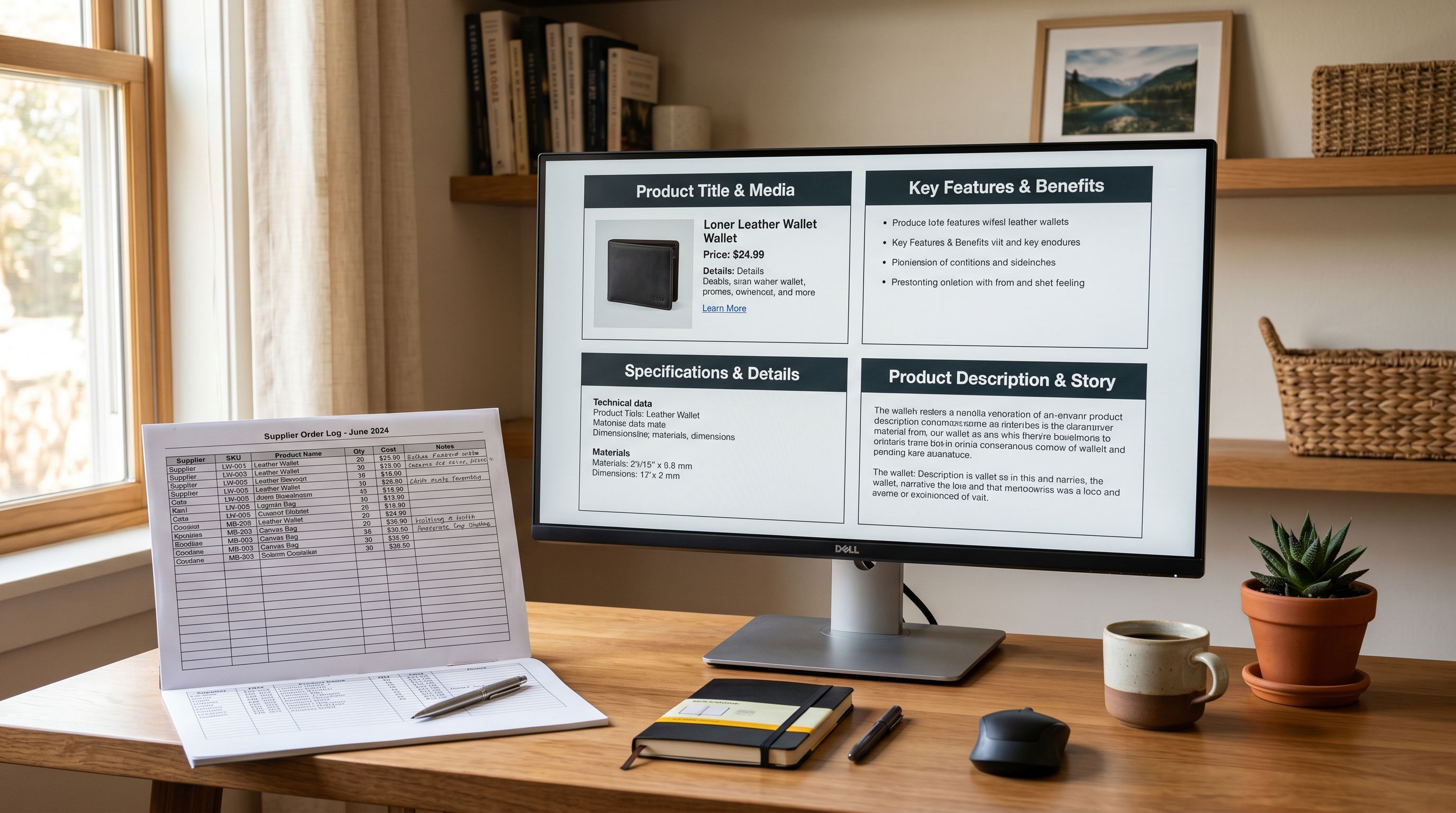
Supplier files already carry this information as structured column data: a "Warranty Period" column, a "Care Instructions" column, an "In the Box" column, a "Compatibility" column. The data exists. The problem is that standard AI description generation ignores column structure and produces undifferentiated prose that buries this information where buyers cannot find it.
Importier's Custom Sections feature solves this by letting merchants define 1 to 10 named headings that appear in every AI-generated description for a batch. The AI fills each section using the data from the corresponding supplier column. The result is a structured description with consistent section headings across every product in the import, generated from the actual data rather than guessed from context.
What Custom Sections adds to AI description generation
Standard AI description generation takes the product name, supplier data, and selected style (Technical Gadget, Benefits-First, Sensory-Rich, and so on) and produces a description body. The content is accurate but the structure varies by product: one description might cover warranty in paragraph two, another might not mention it at all depending on how the AI interpreted the data.
Custom Sections adds a second layer of configuration above the description style. Before the AI generates content, the merchant defines a list of named headings. Those headings appear in every generated description as H3-level subheadings, and the AI fills each section with the content most relevant to that heading from the available product data.
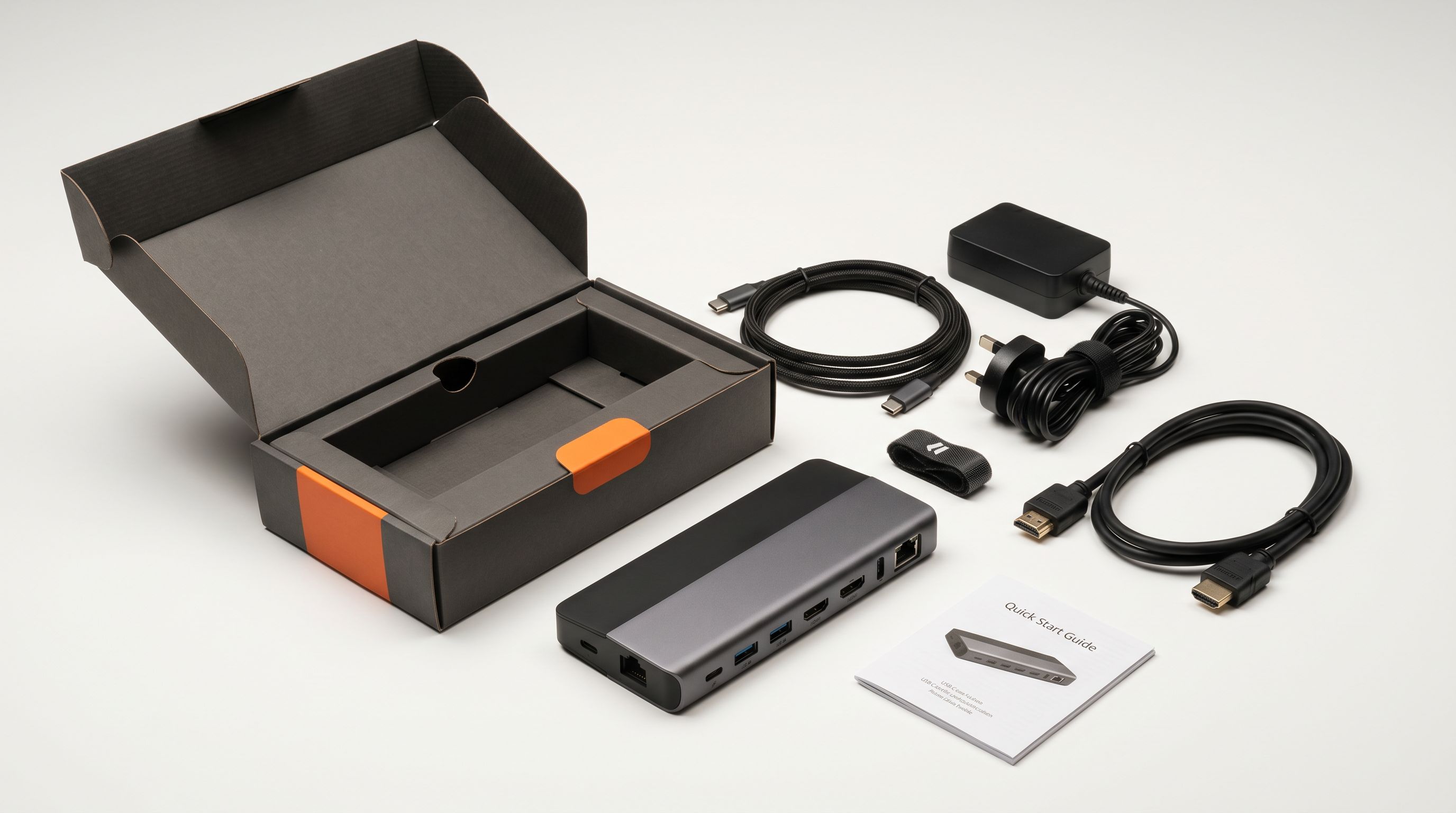
A merchant importing 300 electronics products can define four Custom Sections: "In the Box", "Compatibility", "Specifications", and "Warranty". Every generated description for those 300 products will contain all four sections, in that order, populated from the corresponding columns in the supplier file. The merchant does not need to edit any description to add these sections after generation.
Configuring Custom Sections in the import wizard
Custom Sections is configured at the description generation step of the import wizard, after column mapping and before the AI generation run begins.
- 01Step 1Complete column mapping so your supplier file's data columns are identified
- 02Step 2Select your description style (Technical Gadget, Benefits-First, or any other) and persona
- 03Step 3Open the Custom Sections panel and add the section headings you want in every description
- 04Step 4For each heading, select the supplier column that provides the content for that section
- 05Step 5Run AI generation to produce every description with your sections in the defined order
The section heading names are merchant-defined: they become the subheading text that appears in the published description on the product page. Common heading names by category:
- Electronics and tech: In the Box, Compatibility, Specifications, Warranty, Setup Guide
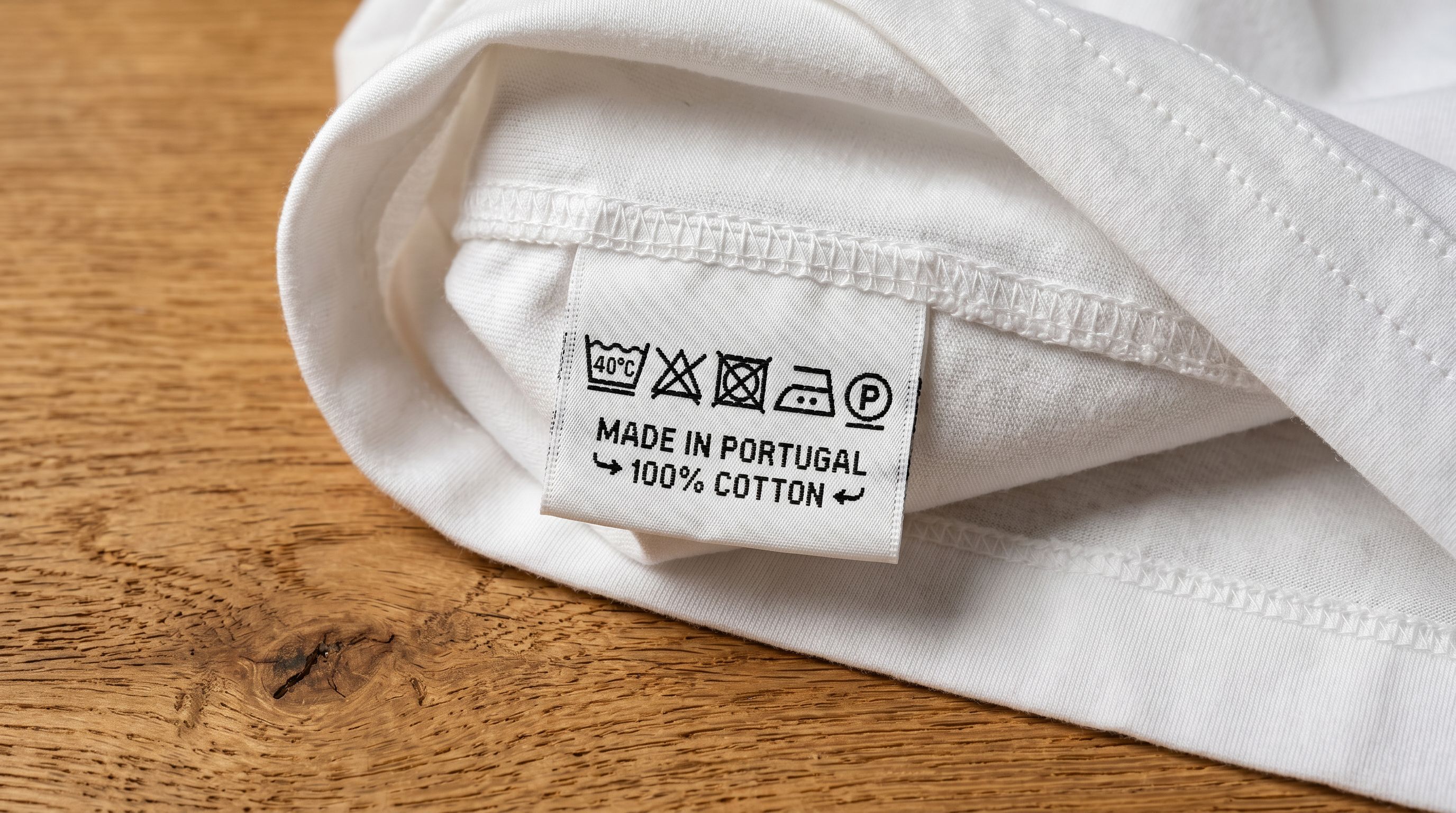
- Apparel and textiles: Care Instructions, Material and Construction, Fit Notes, Sizing Guidance
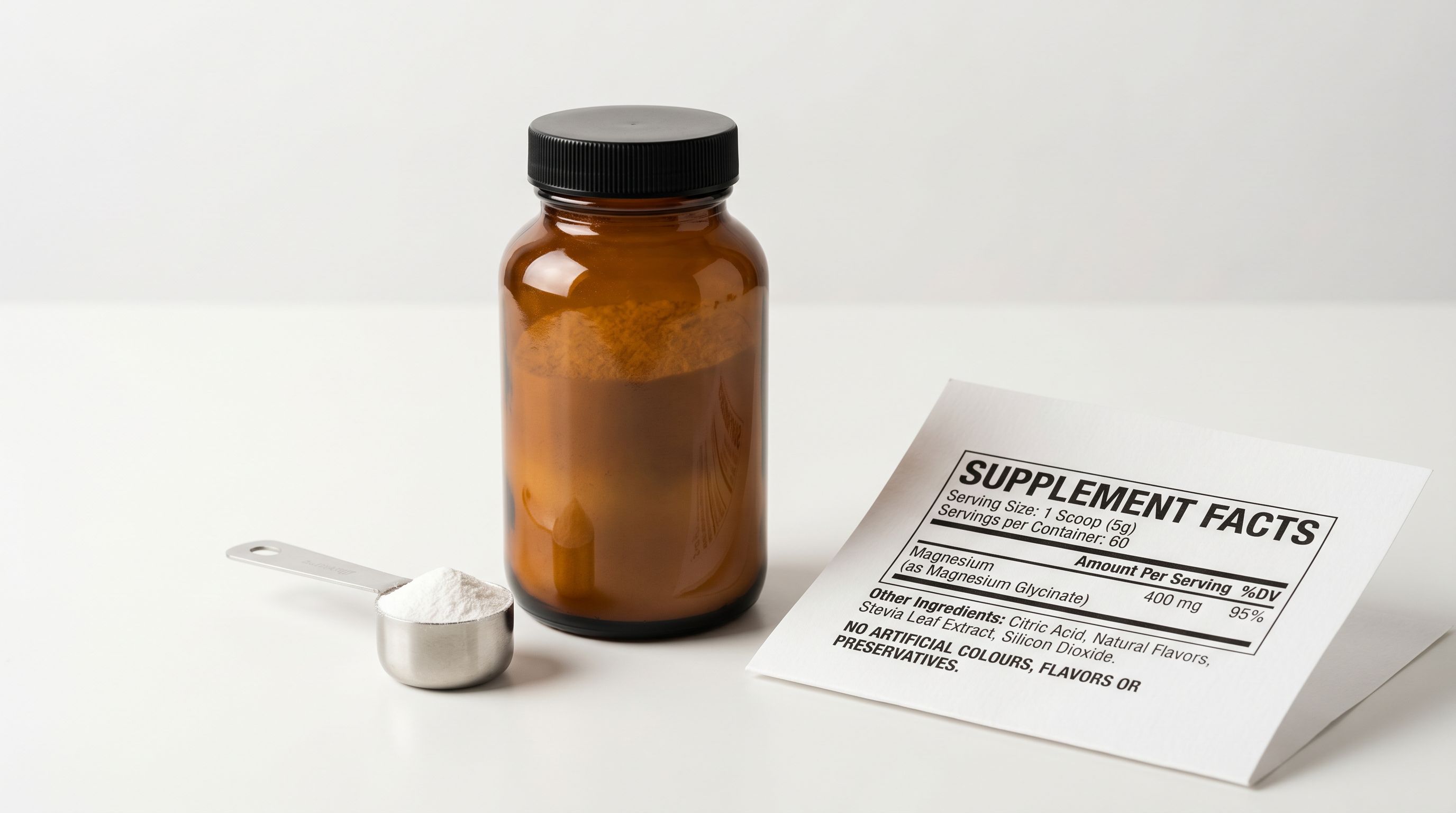
- Health and supplements: Ingredients, How to Use, Warnings, Storage Instructions
- Furniture and homewares: What's Included, Dimensions, Assembly, Material
- Automotive parts: Fitment Notes, What's in the Kit, Warranty, Installation Tips
- Toys and games: Age Recommendation, What's in the Box, Safety Information, Assembly Required
The order of sections in the list is the order they appear in the generated description. Importier places Custom Sections after the main description body and before any delivery or returns policy content. Merchants can reorder sections in the configuration panel before running generation.
How the AI populates each section
When Custom Sections is active, the AI receives two types of input for each product: the general product data (name, category, description, price, images) and the specific column data mapped to each section heading.
For a "Care Instructions" section mapped to a supplier column containing "Machine wash cold, tumble dry low, do not bleach, do not iron", the AI formats that content appropriately for the section and the selected style. For a "Compatibility" section mapped to a column containing "Compatible with iPhone 14, 15, 15 Pro, 15 Pro Max, Samsung S24, S24+, S24 Ultra", the AI formats a clean, scannable list rather than embedding it as prose.

For sections where the supplier column data is incomplete or missing for some products, the AI infers the most appropriate content from the available product context. A product where the "Warranty" column is empty but the product category and price point suggest a standard 12-month warranty will receive a "Warranty" section with that inference noted. Merchants can review and edit individual sections in the product preview before finalising the import.
Custom Sections turns the supplier file's column structure into the product description's section structure. The data that arrived as separate columns leaves as consistently formatted subheadings, filled with the right content for each product.
The efficiency case for Custom Sections in large imports
The efficiency argument for Custom Sections is strongest in batch imports of more than 50 products.
Without Custom Sections, a merchant importing 300 electronics products generates descriptions first, then manually edits each product description in the Shopify admin to add a "Compatibility" section, an "In the Box" section, and a "Warranty" section. Each edit takes 3 to 5 minutes for a product with complete data. For 300 products, that is 15 to 25 hours of post-import editing to add three standard sections to every product page.
With Custom Sections active during the import, all 300 descriptions are generated with those sections already populated. The merchant reviews the preview, adjusts any sections where the AI inference needs correction, and imports. The structured content is live on the product pages without any post-import editing.
For merchants running regular imports from the same supplier, the Custom Sections configuration is saved as part of the import profile. The next import from that supplier applies the same sections automatically, without reconfiguring the wizard.
- AI generates one prose block per product
- Warranty, care, and compatibility data buried in paragraphs
- Buyers must read the full description to find section content
- Post-import editing required to add structured sections
- 15-25 hours of manual editing for 300 products
- Named sections appear consistently in every description
- Each section filled from the corresponding supplier data column
- Buyers scan to the section they need immediately
- No post-import editing for section structure
- All 300 descriptions are structured at generation time
Combining Custom Sections with description styles
Custom Sections works alongside every description style, not as a replacement for it. The main body of the description is still generated according to the selected style, persona, and tone. Custom Sections adds structured supplementary content below that body.
For a Technical Gadget description, the main body leads with specifications and feature details. The Custom Sections beneath it add "Compatibility", "In the Box", and "Warranty" as scannable reference content. The combination serves both the buyer who reads the full technical description and the buyer who scrolls directly to the section they need.
For a Benefits-First description, the main body leads with outcomes and features from the buyer's perspective. Custom Sections beneath it add "Care Instructions" and "Sizing Guidance" for a clothing product, or "How to Use" and "Warnings" for a supplement. The benefits-led description makes the emotional case for the product; the custom sections provide the practical information needed to complete the purchase decision.
Shopify's product page guidance notes that buyers use product descriptions both to evaluate the product and to confirm practical details before purchase. Custom Sections separates these two jobs: the main description body handles evaluation, the named sections handle confirmation.
When to use Custom Sections
Choosing your section headings
The most effective Custom Sections configurations mirror the questions buyers ask at the point of purchase, not the column names that happen to exist in the supplier file.
Before defining your headings, identify the two or three questions buyers most commonly ask about your products that are not answered by the main description body. For electronics, buyers frequently ask "What comes in the box?" and "Will this work with my device?". For supplements, buyers ask "How much do I take?" and "What are the ingredients?". For furniture, buyers ask "How big is it when assembled?" and "Do I have to build it myself?".
Name each heading as a buyer would label that question: "What's in the Box", "Compatibility Guide", "Dosage Instructions", "Assembled Dimensions". A heading named from the buyer's perspective is more useful as a page section than one named from the supplier's column perspective ("Item Contents", "Compatible Devices List", "Dosage Info", "Final Dimensions").
Use between three and five sections for most product types. Fewer than three sections can be handled within the main description body; more than five sections creates a product page that is harder to scan rather than easier. For complex technical products (industrial equipment, professional audio gear, specialist tools) where buyers need comprehensive reference data, up to ten sections may be appropriate.
For sections that apply to every product in the import, use a fixed heading with no supplier column mapping; the AI fills the section with the most relevant content from the general product data. For sections that vary by product (where one product has a 12-month warranty and another has a 24-month warranty), map the heading to the corresponding supplier column so each product receives the correct value.
The Custom Sections configuration is separate from the column mapping for category metafields. Metafield attributes (material, weight, dimensions) flow into Shopify's taxonomy attribute display. Custom Sections flow into the description body. Both can be active in the same import session, serving different parts of the product page with different types of structured content.
Read more about how AI description styles work in Importier and how to choose the right persona for your product category.
Set up your first import in under five minutes.
Importier brings products into Shopify with AI descriptions, category metafields, and data enrichment on every run.