Shopify Performance Max: Fix Your Product Data First

On this page
Shopify Performance Max: The Product Data Checklist Before You Launch
Most guides to Google Performance Max campaigns start inside the Google Ads interface. They cover asset groups, audience signals, and bidding strategies. They skip the step that determines whether your products appear in the campaign at all.
Google Performance Max pulls your inventory from Google Merchant Centre, not directly from your Shopify admin. Before a single impression is served, Merchant Centre evaluates every product against four eligibility gates. Products that fail those gates get reduced reach or are excluded from the campaign entirely. No bid adjustment fixes a product that never enters the auction.
This checklist covers what to fix before you launch your Shopify Performance Max campaign.
How Performance Max Selects Products and Why Data Controls Reach
Performance Max is Google's fully automated campaign type, serving ads across Search, Shopping, Display, YouTube, Gmail, and Discover from a single campaign. The automation is powerful, but it relies entirely on the product data you have provided.
Google's Performance Max documentation describes how the campaign automatically generates asset combinations and product groups from your feed. When product data is incomplete, the automation has less structured input. Missing GTINs reduce auction eligibility. Missing category taxonomy produces undifferentiated product groups. Thin descriptions reduce placement quality scores.
The four gates below are evaluated inside Merchant Centre before your campaign budget is ever touched.
Gate 1: GTINs and Barcodes
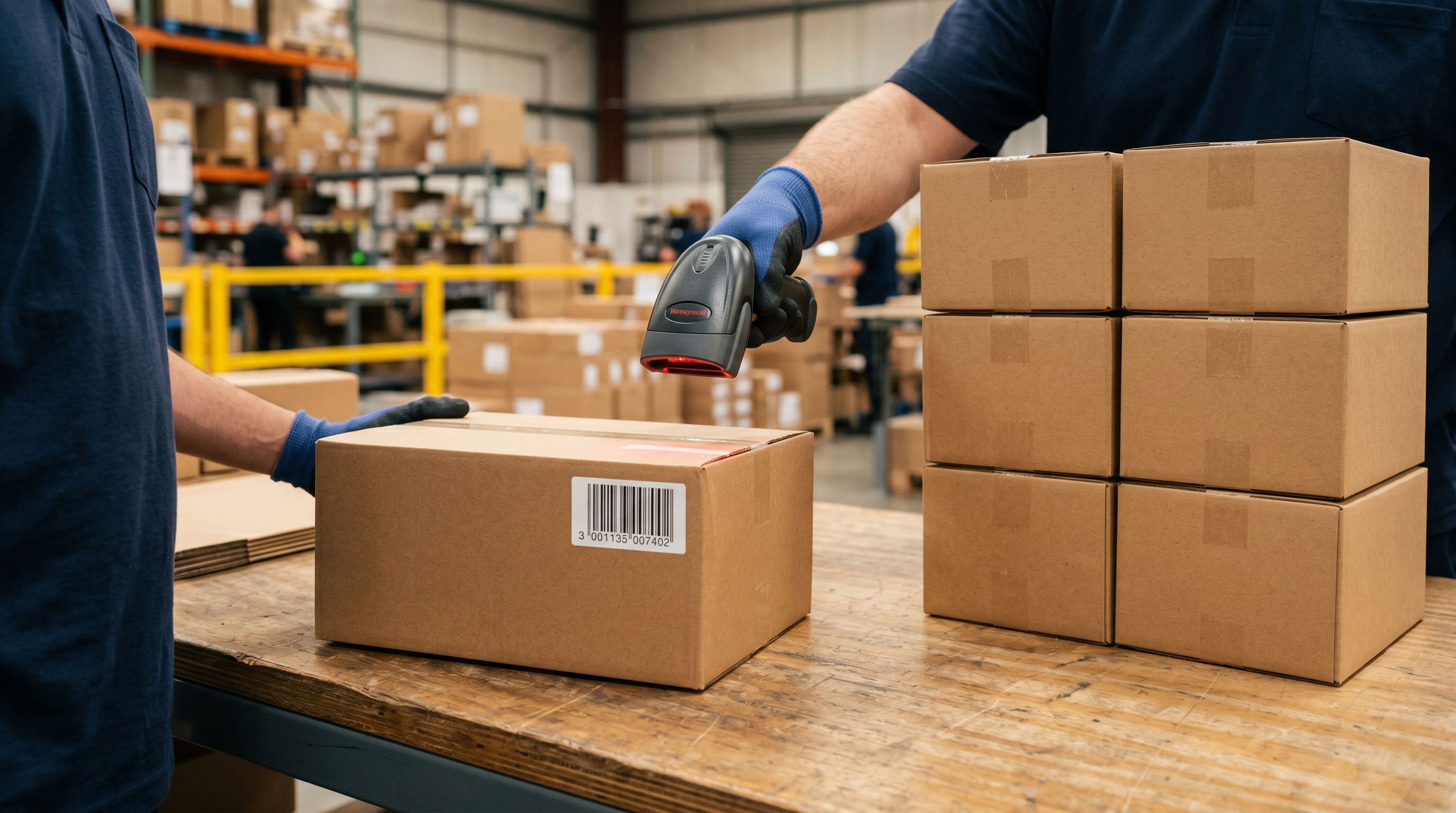
GTINs (Global Trade Item Numbers, covering EAN-13, UPC-A, and ISBN formats) tell Google that your product is a specific, uniquely identified item. Merchant Centre uses GTINs to match your listing against its product knowledge graph. Products without valid GTINs receive a "Limited performance due to missing identifier" status, which reduces their reach in Shopping placements.
The problem most merchants encounter is not a missing Barcode field. It is a populated but invalid one. Supplier catalogues commonly include internal stock codes in the Barcode column: values like "BLT-0042" or "WALLET-M-BRN".
These pass Shopify's CSV import without error because Shopify does not validate barcode format. Merchant Centre does, and every one of those internal codes fails GTIN validation.
To check your catalogue, open Merchant Centre Diagnostics and filter Item issues for "Incorrect identifier [gtin]" or "Invalid value [gtin]". If you see more than a handful of affected products, your catalogue has the internal code problem.
Importier's barcode lookup searches GTIN databases per product using the product title, type, and vendor as search inputs. It fills only confirmed barcodes and leaves the field blank when no match is found. Running it across an existing catalogue takes minutes for work that would otherwise require 15 to 25 hours of manual research across 300 products.
For products with no registered GTIN (private label, custom-manufactured, handmade goods), Google's identifier exemption policy lets you mark those products as identifier_exists: false rather than leaving the Barcode field blank or populating it with an internal code.
Gate 2: Category Taxonomy and Performance Max Product Groups
This is the gate that most Shopify Performance Max guides do not cover. It is also the most consequential one for long-term campaign structure.
PMax automatically segments your inventory into product groups to optimise bids and asset combinations across channels. That segmentation relies on structured taxonomy data, specifically whether your products have category metafields that map to Google's Standard Product Taxonomy.
Without category metafields, PMax has no structured way to distinguish a $12 phone case from a $180 leather wallet. It defaults to grouping products by price tier or by best-guess matches from title text. The result is a single undifferentiated product group where completely different product categories compete for the same budget allocation.
With category metafields aligned to Google's taxonomy, PMax creates distinct product groups per category. A fashion accessories merchant with belts, wallets, phone cases, and jewellery gets four product groups with separate performance signals, separate ROAS trends, and separate optimisation paths.
The campaign can determine that wallets convert at a higher order value and phone cases generate more volume, and adjust accordingly. That is not possible from a single undifferentiated group.
Importier assigns category metafields using 22 industry packs covering 3,758 attribute types. The matching runs in two phases: text matching for straightforward cases, AI matching for ambiguous ones. It can run retroactively on existing products via Store Scanner, so merchants who have been importing without metafields can fix their entire catalogue without re-importing.
Gate 3: Title Formatting
PMax Shopping placements use product titles as the primary signal for query matching. A title that exceeds the character limit, uses incorrect casing, or buries the product type reduces the number of relevant search queries your product can match.

Merchant Centre's title character limit is 150 characters. Titles that exceed this are truncated in Shopping placements at exactly the 150th character, not at a word boundary.
Supplier CSV titles have three common failure patterns. The first is ALL CAPS formatting, which reduces click-through in Shopping carousels compared to Title Case equivalents. The second is trailing internal codes that consume character budget: "LEATHER WALLET M BRN SKU-0042" wastes 12 characters on a code that provides nothing to the shopper. The third is front-loaded irrelevant text that pushes the product type past the visible truncation point.
Importier's Title Optimizer includes a GMC preset that enforces the 150-character limit, applies case transformations (Title Case, Sentence case, UPPER, or lower), removes trailing codes, and includes a compliance checker that flags titles at risk of truncation. Keyword front-loading moves the product type and brand to the start of the title, where PMax's query matching weighs them most heavily.
No bid adjustment fixes a product that never enters the auction.
Gate 4: Description Quality
Merchant Centre does not flag thin or duplicate descriptions as disapprovals. The effect appears in campaign competitiveness rather than Diagnostics, which makes it harder to diagnose but no less damaging.
Google's Shopping algorithm evaluates description quality as a signal for placement ranking within PMax campaigns. Products with descriptions copied verbatim from supplier catalogues appear identically across dozens of competing stores. Google's system sees no differentiation signal and assigns lower placement priority compared to products with unique, substantive content.
Consider two stores selling the same product with the same GTIN, same category, and same title. One has a 280-word supplier description shared verbatim across 40 other stores. One has a 320-word original description written for their specific audience. Over time, the original builds stronger quality signals in the Shopping feed.
- Identical text across 40+ competing stores
- No differentiation signal for Google Shopping
- Lower placement priority accumulates over time
- 125-250 hours to rewrite 500 products manually
- Unique content per product
- Differentiated quality signal for Shopping
- Placement quality improves as data accumulates
- 500 products rewritten in minutes with 25 AI models
Importier's Store Scanner in Replace mode rewrites existing descriptions using 7 description styles, 156 expert personas across 43 industries, and 25 AI models. For fashion, Benefits-First or Emotional Storytelling tend to outperform Standard. For electronics, Technical Gadget. For food and wellness, Sensory-Rich.

The four-fix workflow is covered in more detail in Google Shopping campaigns: fix your product data before you bid.
The Checklist
The Pre-Campaign Checklist
Run these fixes before creating your PMax campaign in Google Ads. The sequence matters: the SEO Audit export in Step 1 tells you the scale of the problem across all four data fields before you start fixing anything.
- 01Export the SEO Audit preset in Importiergenerates a CSV mapping every product against description length, SEO meta fields, and data gaps in two minutes
- 02Run barcode lookup for missing or invalid GTINscheck Merchant Centre Diagnostics for GTIN errors first, then run the lookup across existing products in minutes
- 03Assign category metafields to all productsselect the industry packs that match your catalogue and run retroactively via Store Scanner
- 04Apply the GMC preset in Title Optimizerrun the compliance checker to flag titles that would truncate at 150 characters and apply case transforms
- 05Run Store Scanner in Replace mode for thin or supplier-copied descriptionsprioritise products with descriptions under 150 words
- 06Verify Merchant Centre Diagnosticswait 24 to 72 hours for re-crawl and confirm GTIN errors, missing category warnings, and title truncation issues have cleared
- 07Create your PMax campaign in Google Adsthe product data layer is now clean and the campaign automation has structured input to work with
For a complete framework covering the five product data fields and their downstream effects, see Shopify product data quality: the five fields that determine outcomes.
How Long Do Fixes Take to Appear in Google Ads?
Changes made in Importier push back to Shopify in real time. Google's crawl cadence adds a delay.
Merchant Centre re-crawls your product feed within 24 to 72 hours of a Shopify product update. PMax refreshes its product inventory within 24 hours of a Merchant Centre update. Impression share improvement is measurable within 7 to 14 days of campaign launch on clean data.
GTIN validation clearing in Merchant Centre is typically the longest step. Allow 48 hours after the barcode fix before checking Diagnostics again.
These fixes address the product data layer. Campaign performance also depends on asset quality (images, headlines, and descriptions in the campaign asset groups), budget, and bidding strategy. However, none of those variables compensate for products that are excluded from the auction before bidding begins.

For a full breakdown of Merchant Centre disapproval reasons and how to resolve them, see why Shopify products get disapproved in Google Merchant Centre.
Key Takeaways
- PMax eligibility is determined in Merchant Centre before your campaign budget is touched. Bidding strategy cannot compensate for data failures upstream.
- The hidden GTIN trap: supplier internal codes populate the Barcode field in Shopify but fail Merchant Centre GTIN validation. Check Diagnostics for "Invalid value [gtin]" before launch.
- PMax product groups require category taxonomy to segment your inventory effectively. Without category metafields, all products land in a single undifferentiated group with no per-category optimisation.
- Title Optimizer's GMC preset enforces the 150-character limit and removes ALL CAPS formatting that suppresses click-through in Shopping carousels.
- The four fixes take under an hour in Importier for a 300-product catalogue. Manually, the same work takes the better part of a working week.
See how Importier handles this at importier.app.
Set up your first import in under five minutes.
Importier brings products into Shopify with AI descriptions, category metafields, and data enrichment on every run.