Shopify Bulk Update Product Descriptions by SKU: One Supplier at a Time
On this page
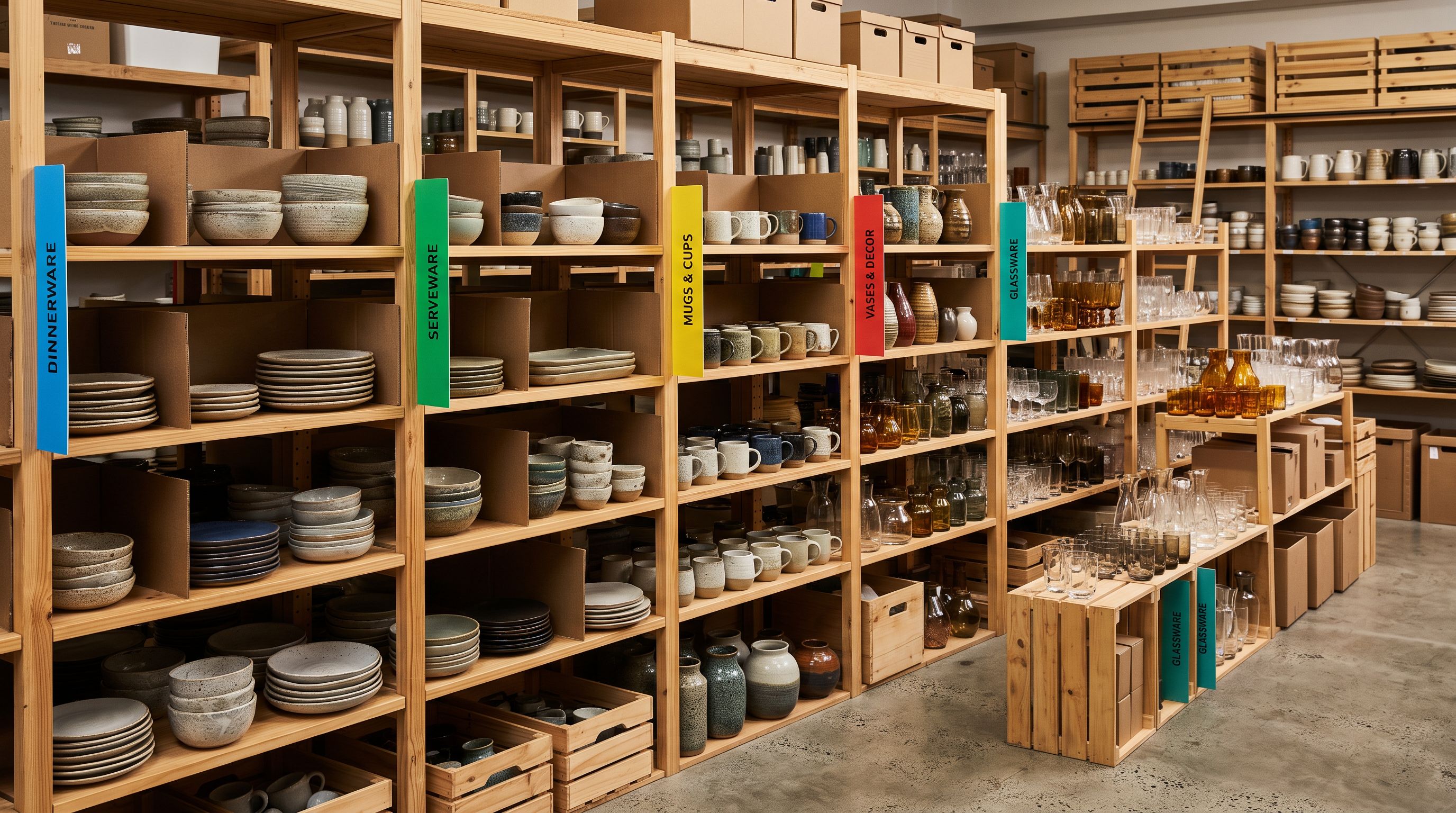
A homewares retailer carries 500 products from six different suppliers. In August, one supplier rebrands. New product names, new materials, new brand tone. The supplier sends updated product data for 80 of their products. The merchant needs to regenerate descriptions for those 80 SKUs, specifically the ones prefixed with "OREG-", without touching the other 420 products from the remaining five suppliers. There is no button in Shopify admin that says "update descriptions for this supplier." The question is how to target just one supplier's catalogue for a bulk description update.
The answer depends on what identifying information links a set of Shopify products to a specific supplier. Most merchants who deal with multiple suppliers have one of two consistent identifiers in their product data: either a vendor name in the Vendor field or a supplier prefix embedded in the SKU. Importier's Store Scanner accepts both as filter inputs, but the SKU pattern filter is often more precise for identifying supplier origin than the Vendor field alone.
Why Shopify Has No Native "Update by Supplier" Function
Shopify's product management treats the supplier as an implicit concept. The Vendor field (which appears as "Brand" on product pages in most themes) is a free-text field that merchants use inconsistently. According to Shopify's product vendor documentation, the vendor field is intended to represent the product manufacturer or brand, not the fulfilment source, not the import origin, not the wholesale supplier. For merchants using a dropship model with multiple suppliers, the same vendor name might appear across dozens of suppliers' catalogues, or one supplier might provide products under multiple vendor names.
The SKU, by contrast, typically encodes supplier identity directly. A supplier who codes all their products as "OREG-MUG-WH-350" and "OREG-BOWL-BK-250" is embedding their supplier prefix ("OREG-") in every product they provide. When this merchant's catalogue includes 80 OREG- products alongside 120 "BKWD-" products and 200 "SLTE-" products, the SKU prefix is the most reliable way to identify which products came from which supplier.
Shopify admin does not let you filter the product list by SKU prefix. You can search for a specific SKU, but there is no bulk-select-by-SKU-pattern in the admin product grid. The approaches merchants typically try to solve this without a dedicated tool are slow and error-prone.
The problem with manual approaches
Three Manual Approaches and Their Costs
Manual collection creation. The merchant creates a temporary Smart Collection with an SKU starts-with condition set to "OREG-". Shopify auto-populates this collection with all matching products. The merchant then enters the Store Scanner or description tool and filters by this collection. After the update is complete, the collection is deleted. This works but requires creating and deleting a temporary collection every time a supplier's catalogue needs updating, which adds overhead and leaves collection debris if the deletion is forgotten.
Export, filter, reimport. The merchant exports the full product catalogue as a CSV, opens it in Excel, filters by SKU prefix, regenerates descriptions using an external tool or manually writes them, then reimports. This approach breaks down when the product count is high (800-row CSVs in Excel are manageable; 8,000-row CSVs are not) and requires the merchant to trust that their manual description work matches the brand voice for the new supplier positioning.
Shopify admin bulk edit. Shopify's bulk editor allows editing multiple products at once, but only for a limited set of fields. Descriptions are not directly regenerated by AI in the bulk editor. The merchant would need to edit each description manually, one at a time or via the bulk editor text field, which offers no AI generation.
All three approaches achieve the goal but add steps and time that compound across every future supplier update. A retailer with six suppliers running quarterly brand refreshes is managing this problem eight times per year per supplier.
How Store Scanner's SKU Pattern Filter Works
Importier's Store Scanner scans the existing Shopify product catalogue and filters which products to target for description generation. The filter options are:
- By collection: update only products in a specific collection
- By SKU pattern: update only products whose SKU matches a specified pattern
- By barcode pattern: update only products whose barcode matches a specified pattern
- No filter: scan all products in the catalogue
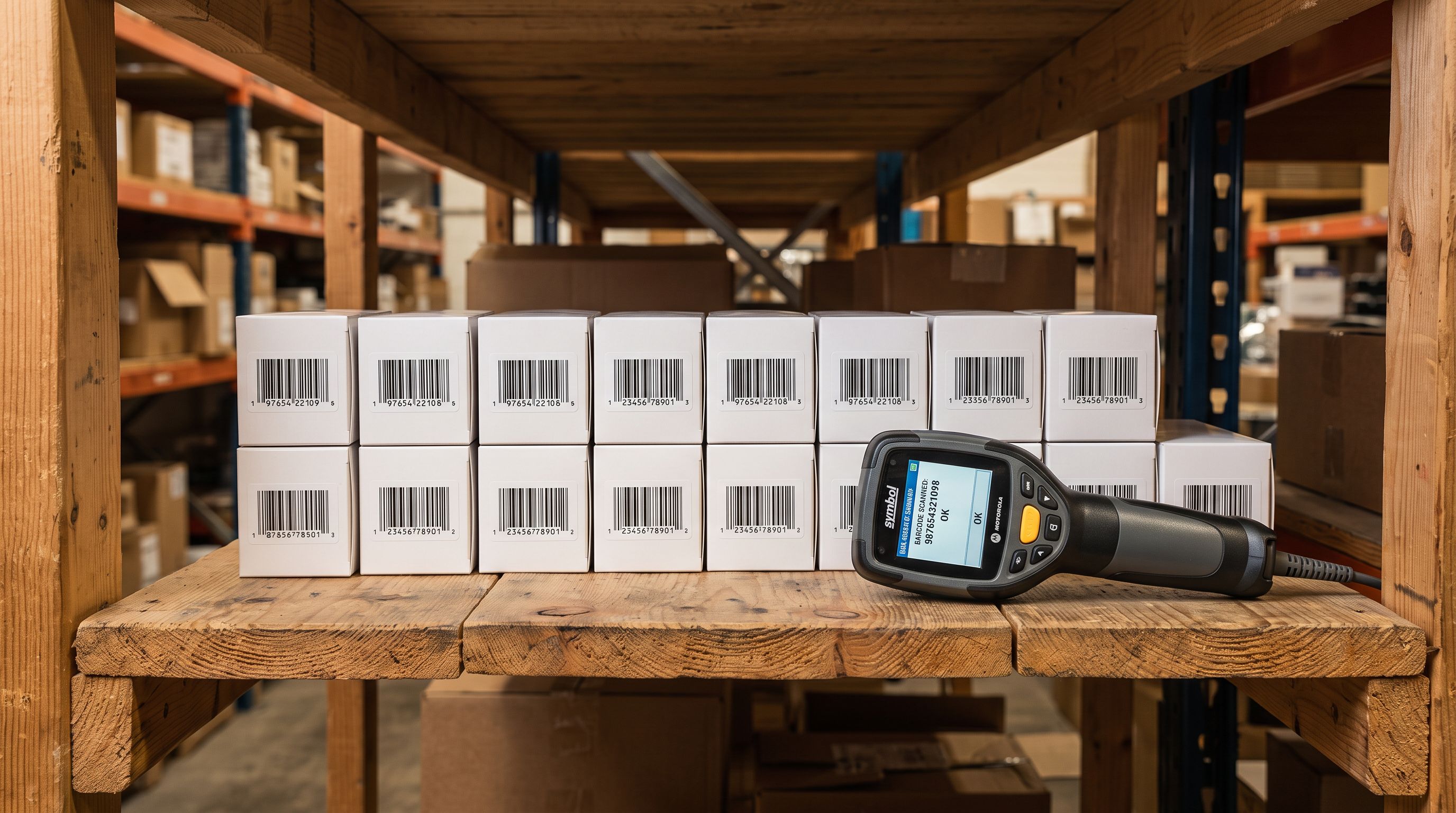
The SKU pattern filter accepts a text string and matches all products whose SKU contains or starts with that string. For the OREG- supplier scenario, entering "OREG-" as the SKU pattern filter returns all 80 matching products and excludes the remaining 420 from the update scope. The Store Scanner shows the filtered count before any description generation begins, so the merchant can verify the targeting before committing.
This matters because the alternative (no filter) generates descriptions for all 500 products. The merchant pays for 500 descriptions when they only needed 80 updated. At scale, this is significant: a 2,000-product catalogue with 300 products from one supplier would generate 1,700 unnecessary descriptions (consuming monthly product allowance) if the filter is not used.
- 01Open Store Scanner in Importier. The scanner loads your Shopify product catalogue and displays total product count.
- 02Set the SKU pattern filterenter the supplier's SKU prefix (e.g. 'OREG-') in the SKU pattern field. The scanner updates the matched product count in real time. Verify the count matches your expected number of products from that supplier before continuing.
- 03Set the description modechoose Replace to overwrite existing descriptions with fresh AI-generated copy, or Append to add new content after the existing description. For a supplier rebrand scenario where all copy needs to change, Replace is correct. For adding a new section (delivery policy, care instructions) to existing descriptions, Append is correct.
- 04Enter enrichment context for the new brand directionin the context field, describe the supplier's new positioning (e.g. 'organic home accessories, natural materials, earthy tones, slow-living audience'). The AI uses this context to orient descriptions toward the new brand voice without you needing to edit each product individually.
- 05Select the AI model and description stylefor homewares, Emotional Storytelling or Sensory-Rich performs well for consumer audiences. For trade-catalogue products, Technical Specification is more appropriate.
- 06Review a sample of the generated descriptions before pushingStore Scanner shows generated descriptions before committing them to Shopify. Check 3-5 products from different SKU types (mugs, bowls, platters) to verify the new brand voice is consistent. If any generation is off-target, adjust the enrichment context and regenerate before pushing.
- 07Push to Shopifycommit the regenerated descriptions to the matched products. Import History logs this batch with the SKU pattern filter, date, and product count so the update is traceable.
Enrichment Context for Supplier Rebrands
The SKU pattern filter solves the targeting problem. The enrichment context field solves the voice problem. When a supplier rebrands, the change is not just cosmetic: the material positioning, the customer segment, the tone, and the key claims often change alongside the brand name. A supplier moving from "mass market homewares" to "artisan-crafted slow living" needs descriptions that reflect that shift, not AI-generated copy that uses the old positioning.

Importier's enrichment context field accepts free-text instructions that the AI uses when generating descriptions. For a supplier rebrand, the merchant enters the new positioning as enrichment context: target customer profile, key material claims, brand tone, and any phrases to include or avoid. The AI treats this as a brief for the batch, applying the same directional context to all 80 OREG- products in the update run.
The filter targets the right products. The enrichment context makes sure the AI generates the right tone for them. Together they solve both dimensions of a supplier update in one run.
This is different from using a global Brand Voice setting in Importier, which applies to all generated descriptions across all suppliers in the account. The enrichment context in the Store Scanner run is specific to this batch. After the batch completes, other suppliers' products generated in future runs will use the global Brand Voice settings, not this run's specific context.
According to Shopify's guide to managing products in bulk, Shopify's built-in bulk editor lets merchants edit product titles, prices, inventory, and weights across multiple products simultaneously, but it does not support AI-generated description content. The bulk editor is for direct field edits, not content generation. For description regeneration at scale, a dedicated tool outside of Shopify admin is required.
Barcode Pattern as an Alternative Filter
For some supplier catalogue updates, the barcode prefix is a more reliable identifier than the SKU. This happens when:
- The merchant's own SKU system does not embed supplier identity (they use their own sequential SKU numbering)
- The supplier's barcodes follow a consistent GS1 prefix that identifies the supplier's GS1 company prefix
- The import source was a marketplace (AliExpress, eBay) where SKUs were auto-generated and carry no supplier signal
Importier's Store Scanner accepts a barcode pattern filter using the same text-prefix logic as the SKU filter. A merchant who knows their Oregon Designs supplier uses barcodes starting with "0849" can enter "0849" as the barcode pattern filter and target all matching products without needing an SKU prefix.
The barcode and SKU filters cannot be combined in a single scan (one or the other applies per run), but they cover the two most common cases where supplier identity is embedded in existing product data. The shopify-store-scanner-collection-filter approach remains the best option for merchants who have organised their products into supplier-specific collections, or whose SKU and barcode conventions do not embed supplier identity at all.
- Create temporary Smart Collection with SKU condition, update descriptions, delete collection
- Export 500-product CSV, filter in Excel, regenerate externally, reimport
- All products processed if no targeting: consumes allowance for 500 products to update 80
- No enrichment context: each product needs manual tone adjustment
- No audit trail: cannot trace which products were updated in this batch
- Enter 'OREG-' as SKU pattern filter: 80 products targeted instantly
- No export, no collection, no Excel: scan runs on the live catalogue
- Only 80 products consume allowance: precision targeting prevents unnecessary count
- Enrichment context ('organic home accessories, natural materials, slow-living') applied to all 80 products uniformly
- Import History records this batch: SKU pattern, date, count, fully traceable
Key Takeaways for Shopify Bulk Description Updates by SKU
Targeting one supplier's catalogue for a description update requires a filter that maps to supplier identity. The SKU prefix is the most commonly available supplier identifier in multi-brand Shopify catalogues.
- SKU pattern filter targets products by supplier code: entering a supplier's SKU prefix (e.g. "OREG-") targets only matching products, leaving all other suppliers' products unchanged. Verify the matched product count before generating.
- Barcode pattern is the alternative when SKU has no supplier signal: GS1 barcode prefixes encode the supplier's registered company prefix and can serve as a reliable filter for marketplace-sourced or auto-SKU catalogues.
- Enrichment context applies the new brand voice to the batch: describe the supplier's new positioning, tone, and key claims in the context field. This is per-run context, not a global Brand Voice setting; future batches will not inherit it.
- Replace mode overwrites existing descriptions; Append mode adds to them: for a full supplier rebrand, Replace is correct. For adding a new section (returns policy, care guide) to existing descriptions, Append preserves what is there.
- Import History records each SKU-filter batch: the scan run is logged with the filter pattern, date, and product count, providing an audit trail for catalogue updates across suppliers.
Update a specific supplier's product descriptions without touching the rest of your catalogue at importier.app.
Set up your first import in under five minutes.
Importier brings products into Shopify with AI descriptions, category metafields, and data enrichment on every run.