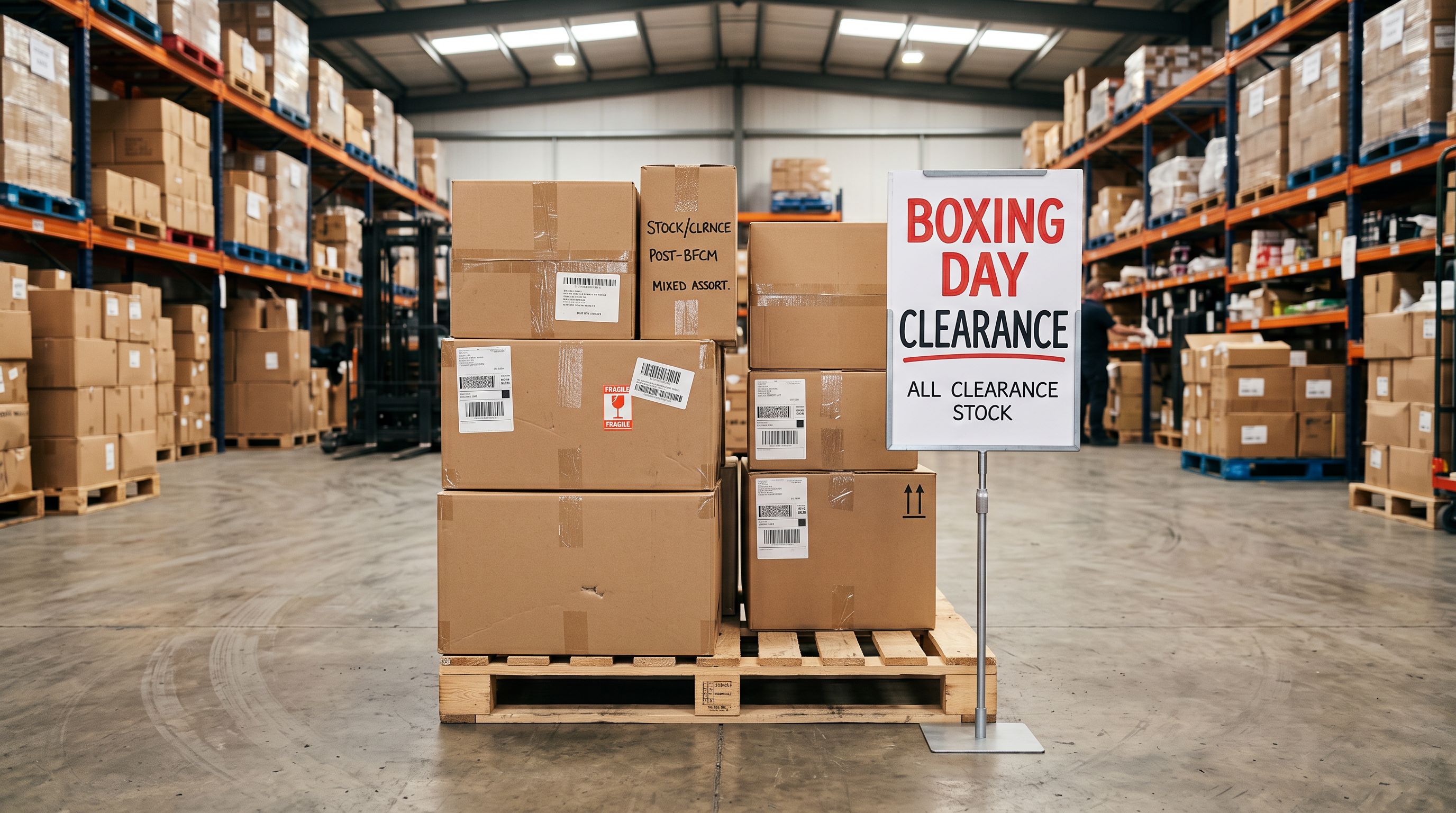
Shopify BFCM Restock Import: Update Inventory During the Sale

On this page
A footwear merchant running a Black Friday sale hits a situation at 11am on Friday: their most popular sneaker colourway in sizes 9 and 10 has just sold out. The supplier has 40 more pairs arriving at the warehouse that afternoon. By 4pm those units are physically on the shelf, but the product still shows as sold out on the Shopify store because the inventory count has not been updated.
Every hour that colourway shows out-of-stock is lost revenue. The restock import needs to happen fast, with the minimum possible risk to the live sale.
This is a different kind of import from pre-BFCM catalogue preparation. When you are updating inventory on live products mid-sale, the rules change: you do not want to regenerate descriptions, change prices, or alter any other product data. You want one operation: update the inventory quantity on specific variants, and nothing else.
Why Mid-Sale Imports Are Riskier Than Normal Imports
A pre-BFCM import runs on products that are not yet live or not yet in a sale state. If something goes wrong, you catch it in a staging check before the sale opens.
A mid-sale import runs on products that are live, priced, promoted, and driving revenue. The stakes are different:
- Compare At Price fields are set for BFCM sale badging. Any import that touches the price columns resets them.
- Descriptions are optimised for the BFCM context. Regenerating them mid-sale rewrites copy that is already converting.
- Collection membership may have been manually adjusted for the sale event. Import-triggered tag changes can remove products from sale collections.
- Inventory policy (track vs don't track) must remain unchanged; an accidental reset to
denyon out-of-stock stops purchases even when stock arrives.
The minimum-column import avoids all of these risks. Three columns. No regeneration. No ancillary fields.
Building the Three-Column Restock Import File
The restock import file contains only the fields needed to identify the variant and set its new quantity:
| Handle | Variant SKU | Variant Inventory Qty |
|---|---|---|
| nike-air-max-restock-black | NAM-BLK-09 | 18 |
| nike-air-max-restock-black | NAM-BLK-10 | 22 |
| adidas-ultraboost-white | AUB-WHT-10 | 14 |
Handle identifies the parent product. Variant SKU identifies the specific variant within that product. Variant Inventory Qty is the new quantity to set: an absolute value, not an increment. If you currently have 0 units and 40 arrive, the import value is 40, not +40.
Do not include:
- Title (not needed; Importier matches by Handle)
- Variant Price or Compare At Price (would overwrite live BFCM pricing)
- Description body (triggers regeneration)
- Tags (overwrites current tag set)
- Status (do not change active products mid-sale)
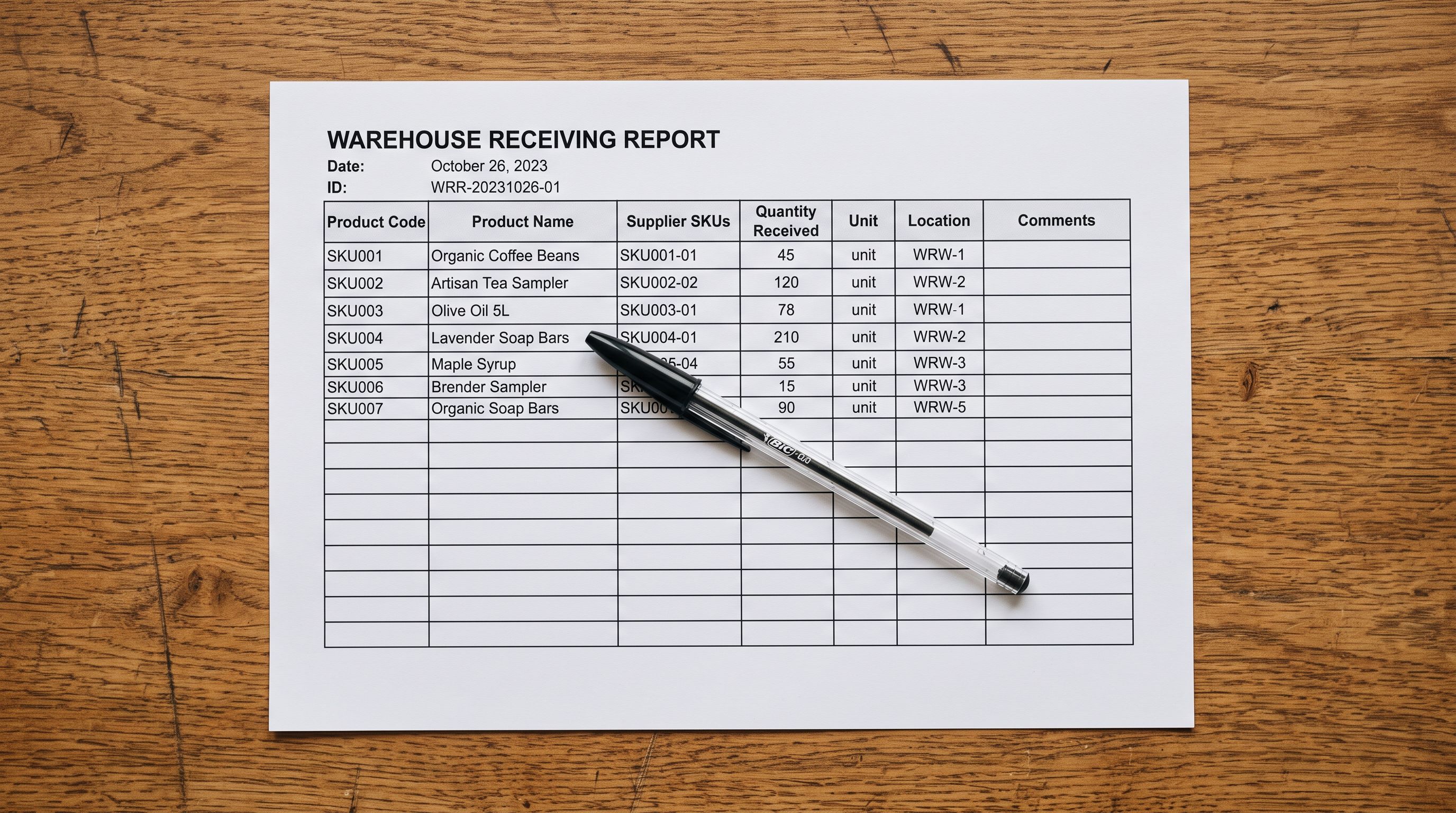
The file can be built in under five minutes from the warehouse receiving report. A receiving report lists the SKU and quantity for each item received. Map SKU to Variant SKU, quantity received to Variant Inventory Qty, and add the product Handle column from your Shopify export.
Running the Restock Import
Configuring the Import for Inventory-Only Updates
In Importier, when you upload the three-column file:
- Column mapping: map Handle to Product Handle, Variant SKU to Variant SKU, and Variant Inventory Qty to Variant Inventory Qty. Leave every other destination field unmapped.
- Update mode: set to "Update existing products only." This prevents any new product creation if a Handle does not match; it protects against typos in the import file creating unintended product records.
- AI generation: OFF. With no description columns in the file, generation does not trigger. Confirm this in the import settings panel before pushing.
- Preview: before pushing, review the preview table. Confirm that only inventory values are changing. If the preview shows any price or description changes, stop and check the file for extra columns.
- Push: push to Shopify. For 20-30 variant rows, the update completes within seconds.
The update mode distinction matters. In "Update existing" mode, Importier matches each row to an existing Shopify product by Handle and updates only the mapped columns. If a Handle is missing from Shopify (a typo, a recently deleted product), the row is skipped rather than creating a new product. For mid-sale imports, skipping is the safer outcome.
For a broader review of Shopify variant and inventory import strategy outside the sale event, the Shopify product variants and inventory import guide covers how update-mode imports interact with Shopify's inventory tracking and location settings.
Timing the Restock: When to Push
The question during a live sale is not just what to import, but when.
Shopify processes inventory updates near-instantly via the API. The practical limit is not Shopify's response time but your store's traffic level. During a peak sale hour, the product page is being served to hundreds of concurrent visitors. An inventory update mid-peak is safe (Shopify handles concurrent inventory deductions correctly) but you will want to confirm the update landed by checking the product in Shopify Admin before announcing the restock.
The restock announcement (email, social post, SMS) should follow the inventory update by at least 5 minutes. That gives the CDN time to reflect the updated availability status on cached product pages and prevents a scenario where customers arrive to a product page still showing out-of-stock before Shopify's cache has cleared.
- 01Receive the warehouse confirmationget the SKU list and quantities from the receiving report or warehouse management system.
- 02Build the three-column fileHandle, Variant SKU, Variant Inventory Qty. Use absolute quantities, not increments. Keep the file under 100 rows where possible; large files take longer to review quickly.
- 03Upload to Importierselect Update existing only mode. Map the three columns. Confirm AI generation is OFF.
- 04Previewcheck the preview table shows only inventory changes. No prices, no descriptions, no tags.
- 05Pushexecute the import. Wait for the completion confirmation.
- 06Verify in Shopify Adminopen one of the restocked products in Admin. Confirm the variant inventory count matches what you pushed.
- 07Announcesend the restock notification at least 5 minutes after the import confirmation.
Multi-Location Inventory Restocks
If your Shopify store uses multiple locations (a warehouse, a retail location, a fulfilment partner), the inventory update applies to the default import location unless specified.
For merchants restocking a single primary warehouse, the default location is correct. For merchants with multiple active locations, the import file needs an additional column: Variant Inventory Location. This column takes the location name exactly as it appears in Shopify Admin under Settings > Locations.
| Handle | Variant SKU | Variant Inventory Qty | Variant Inventory Location |
|---|---|---|---|
| nike-air-max-restock-black | NAM-BLK-09 | 18 | Sydney Warehouse |
| nike-air-max-restock-black | NAM-BLK-10 | 22 | Sydney Warehouse |
Shopify's inventory management documentation covers how inventory is tracked per location and how adjustments apply when multiple locations are active.
If you are unsure which location holds the restocked inventory, check the warehouse receiving record. Routing units to the wrong location creates an inventory imbalance that takes days to reconcile.
What to Do When Variants Are Fully New (Not Just Restocked)
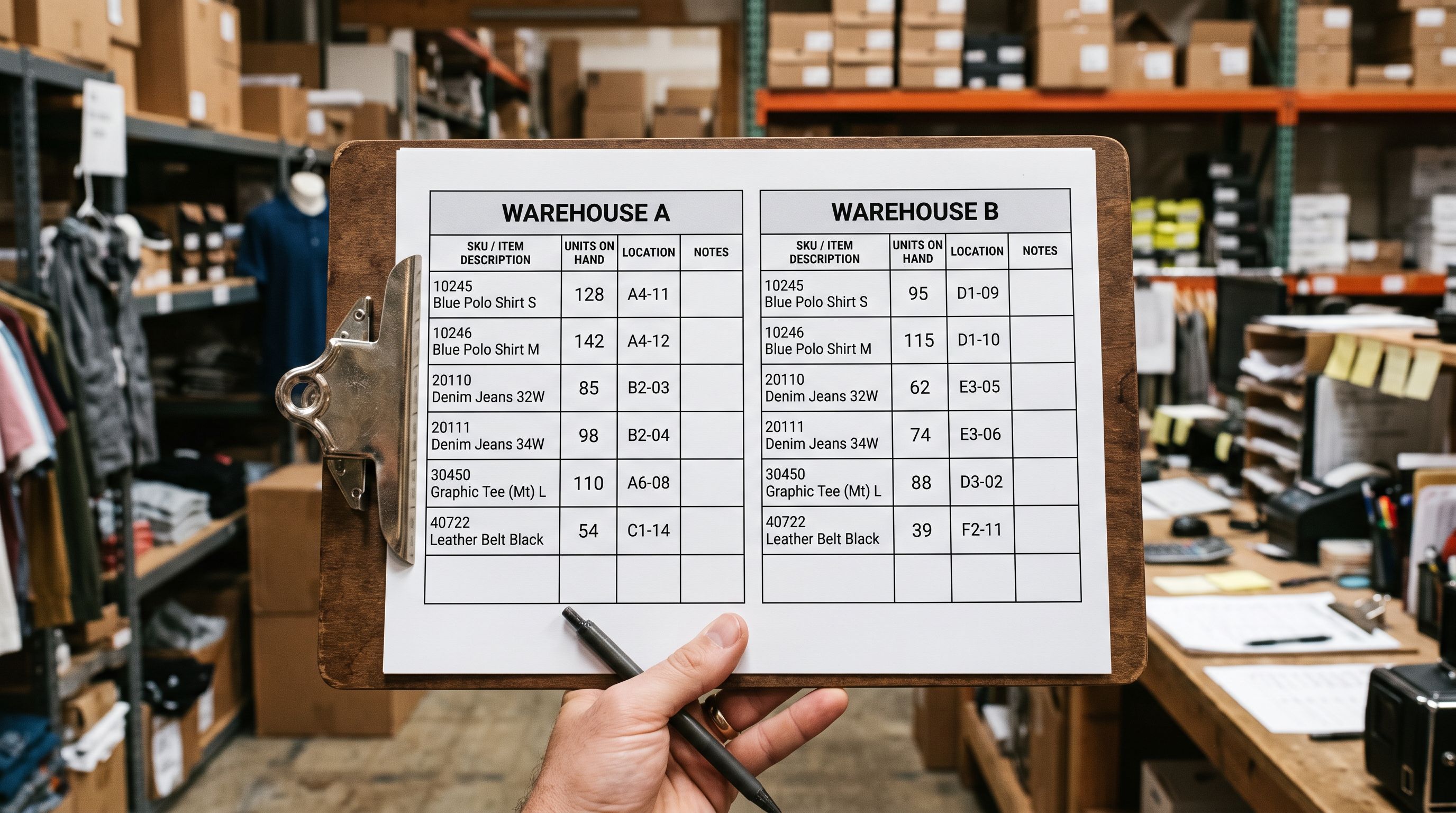
Occasionally a mid-BFCM situation involves a supplier shipping a size or colourway that was not in the original product listing. A size 11 listed as out-of-stock from launch with no confirmed quantity because the initial shipment did not include it is one example.
This is a different problem. Adding a new variant to an existing product is not an inventory update; it is a product modification. For this case:
- Do not use the three-column restock file. A new variant requires Variant Option1 (or Option2, Option3) to identify where in the variant structure it belongs.
- Add the variant to the product manually in Shopify Admin if it is a one-off.
- If you are adding multiple new variants across multiple products, use a separate import pass with the variant option columns included, keeping it distinct from the inventory-only restock pass.
The key principle is to avoid mixing inventory updates with structural product changes in the same import file. Separating them keeps the mid-sale risk contained.
- Each restocked variant updated one at a time in Shopify Admin; 20 variants takes 30+ minutes
- Risk of accidentally changing price or status while in the product edit screen
- No audit trail of which variants were updated and when
- Requires Admin access during the peak sale window, adding cognitive load mid-event
- Restock announcement delayed by manual update time
- 20 restocked variants updated in a single import pass in under 2 minutes
- Three-column file contains no price or status columns; no risk of overwriting live sale data
- Import log shows exact timestamp and variant rows updated for post-event review
- File can be prepared by warehouse staff and pushed by one person; Admin access needed only to verify
- Restock announcement can be queued for 5 minutes after push confirmation
During a live sale, the most dangerous import is a thorough one. A three-column file touching only inventory is the right tool for a mid-event restock.
The BFCM catalogue emergency fixes guide covers the broader set of bulk catalogue changes you may need to make in the days before Black Friday. The restock import is a different scenario: it runs during the event itself, on products that are already live and selling.
After BFCM, running a full inventory reconciliation import brings all Shopify inventory counts back into alignment with physical stock across locations. This is particularly important after a high-velocity sale event where counts may have drifted if orders exceeded available inventory before Shopify's tracking caught up. That post-event reconciliation is a separate, more comprehensive import and should not be attempted mid-sale.
Try Importier free at importier.app.
Set up your first import in under five minutes.
Importier brings products into Shopify with AI descriptions, category metafields, and data enrichment on every run.