3dcart to Shopify Migration: Move Your Product Catalogue Without Losing Data

On this page
3dcart to Shopify Migration: Move Your Product Catalogue Without Losing Data
3dcart rebranded as Shift4Shop in 2021 following its acquisition by Shift4 Payments. The platform persists under both names depending on when a merchant joined: older accounts still show the 3dcart branding while newer ones show Shift4Shop. Whatever the label, merchants on this platform face the same situation: a product catalogue in a format that does not map cleanly to Shopify.
The 3dcart/Shift4Shop export produces a CSV with its own column conventions. Category data comes out as numeric IDs rather than category names. Product options use a format that bundles variant information in ways Shopify does not expect. Descriptions that were written for the old platform reflect an older era of product copy, and the SEO field content often targets keywords that are no longer relevant.
This article covers the migration path for product catalogues from 3dcart or Shift4Shop to Shopify: exporting the data, remapping the columns, handling the category ID problem, refreshing the descriptions, and getting products live with correct taxonomy assigned.
What 3dcart and Shift4Shop Export
To export your product catalogue from Shift4Shop, go to Products in the admin dashboard and use the Export function. The default export is a CSV file containing all products.
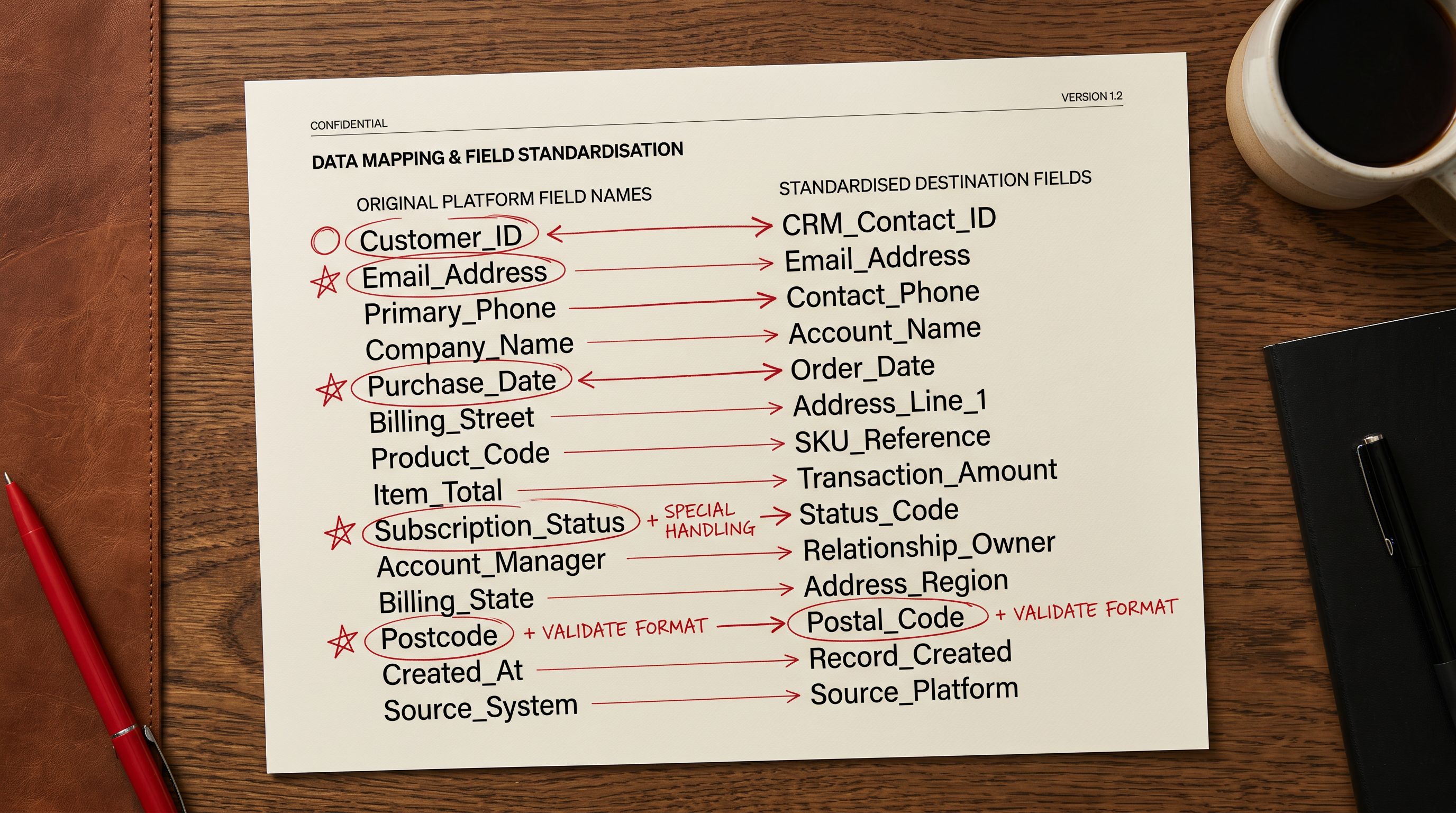
The export includes the standard product data but in 3dcart's naming conventions: "ProductName" (not "Title"), "Description" (correct), "Price" (correct), "MFGID" for the manufacturer's product identifier, "SKUInfo" for variant data in a bundled format, "ProdClass" for the category assignment, and image data as relative paths rather than full URLs.
The key problem fields are:
ProdClass (category): 3dcart stores products in categories identified by numeric IDs, not category names. The export column contains the numeric ID (for example, 47) rather than the category name (for example, "Men's Footwear"). Without a cross-reference to the 3dcart category list, these IDs are meaningless in Shopify.
SKUInfo (variants): 3dcart bundles variant information into a single column using a pipe-delimited format: Size:Small|Medium|Large:Price:0|0|5. This is not the row-per-variant format that Shopify expects.
Image paths: 3dcart exports image references as relative paths to the store's own CDN (for example, /assets/images/product-photo.jpg). These paths are not accessible to Shopify's importer without the full URL of the 3dcart store prepended.
ProductName vs Title: Shopify expects "Title", not "ProductName". Minor naming differences like this appear throughout the export and must be remapped before the import.
Solving the Category ID Problem
The category ID problem is specific to 3dcart/Shift4Shop and does not appear in most other platform migrations. Where a WooCommerce or PrestaShop export includes category names that can be remapped to Shopify product types, 3dcart exports a numeric ID that has no meaning outside the 3dcart database.
There are two ways to handle this:
Option 1: Export the category list separately. In Shift4Shop admin, go to Products > Categories and export the category list. This produces a separate CSV mapping category IDs to category names. Cross-reference the product export against this list in a spreadsheet to replace the IDs with names before importing.
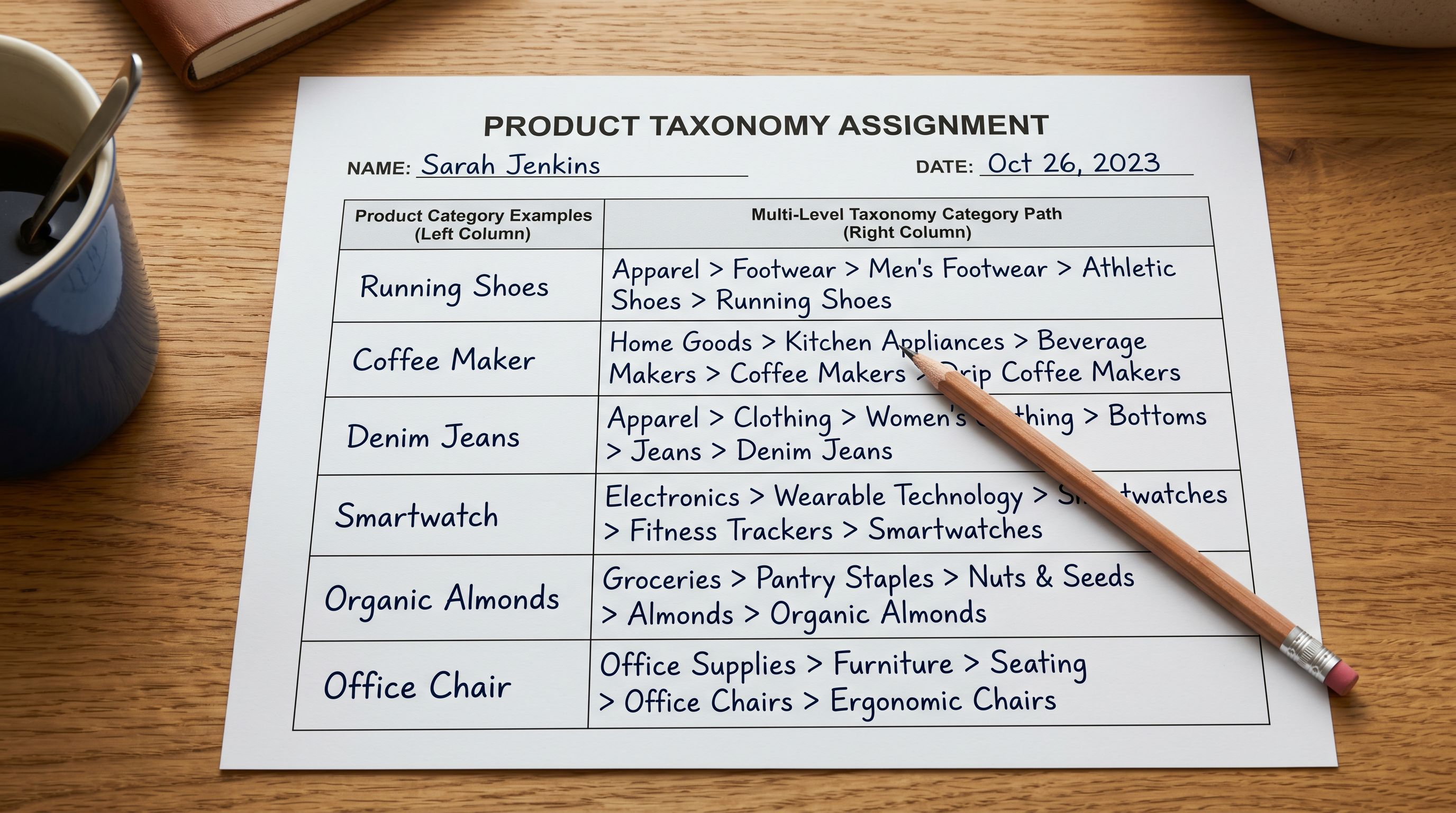
Option 2: Use Importier's category metafield assignment. Rather than trying to recreate 3dcart's category structure in Shopify, use the migration as an opportunity to assign Shopify Standard Product Taxonomy categories directly. Importier's Industry Packs assign correct Shopify taxonomy categories based on the product title, description, and product type data, bypassing the 3dcart category system entirely. The products arrive in Shopify with the correct Google Product Category rather than a 3dcart-specific categorisation.
Option 2 is recommended for most migrations. 3dcart's category structure was built for 3dcart's navigation, which is different from Shopify's. Recreating the old structure in Shopify often produces a navigation and collection architecture that is not optimal for the new platform. Using the migration as an opportunity to assign proper Shopify taxonomy produces better results for both store navigation and Google Shopping.
- ProductName column (Shopify rejects)
- ProdClass as numeric category IDs
- SKUInfo bundled variant format
- Relative image paths (not fetchable)
- Outdated product descriptions from original listing
- Title column correctly mapped
- Shopify Standard Taxonomy assigned via Industry Packs
- Importier's variant detection unpacks SKUInfo rows
- Full image URLs resolved and re-hosted
- AI descriptions rewritten for current SEO and buyer intent
Column Remapping in Importier
When the 3dcart CSV is uploaded to Importier, the column mapping step handles the naming translation. Importier's auto-detection recognises "ProductName" as the title field, "Price" as the variant price, "Description" as the body, and "MFGID" as a candidate for the barcode or metafield.
The SKUInfo column requires special handling. Importier's variant parser reads the pipe-delimited 3dcart format and converts it into the row-per-variant structure Shopify expects. A product with three size variants in 3dcart becomes three rows in the Shopify import, grouped by the product title handle.
For image paths, add the base URL of the 3dcart store as a prefix to each image path value in the CSV before uploading. A path of /assets/images/product-photo.jpg becomes https://www.yourstore.3dcart.com/assets/images/product-photo.jpg. This makes the image URLs accessible to Importier's image fetching step.
For the full column mapping workflow including how to handle edge cases in supplier exports, the Shopify import column mapping guide covers the mapping interface in detail.
- 01Export your product catalogue from Shift4Shop. Go to Products in the admin dashboard and use the Export function. Save the CSV.
- 02Export your category list separately from Products > Categories. Use this to replace category ID values in the ProdClass column with category names, either via a VLOOKUP in a spreadsheet or by using Importier's category assignment to bypass the old structure entirely.
- 03Prepend the full store URL to all image path values in the export so the paths become fetchable URLs.
- 04Upload the modified CSV to Importier. Review the auto-suggested column mapping, paying attention to SKUInfo (variant data), ProdClass (category), and MFGID (manufacturer identifier).
- 05In the AI description step, select a description style appropriate to your product categories and run a batch refresh across all migrated products.
- 06Confirm the import and verify five representative products in Shopify admin before launching the store.
Refreshing Descriptions from a 3dcart Store
Product descriptions written for a 3dcart store have several characteristics that make them poor starting points for a Shopify launch.
3dcart's default rich-text editor encouraged description formats with heavy HTML formatting: nested tables, font tags, and span elements that do not render correctly in Shopify's product templates. Importing this HTML into Shopify's Body (HTML) field often produces broken layouts.
The descriptions themselves reflect a different era of SEO thinking. Keyword stuffing, exact-match keyword repetition, and thin descriptions padded with specification lists were common practices on 3dcart stores in the 2010s. These patterns now actively harm search rankings.
Importier's AI description generation replaces the 3dcart HTML with clean, structured prose using the product title, category, and any specification data present in the export as inputs. The 7 description styles allow the output to match the product category: Benefits-First for lifestyle and general retail products, Technical Gadget for tools and electronics, Sensory-Rich for home goods and beauty.
A 3dcart migration is the fastest path to both a new platform and a new content strategy. Refreshing descriptions during the import costs the same as importing raw copy, but produces products that are ready to rank from day one rather than products carrying a decade of accumulated SEO debt.

Variants and Taxonomy
Variant Detection for 3dcart Products
3dcart's variant format bundles option names and values into the SKUInfo column. Importier's variant detection reads this format and converts it to Shopify's expected structure: one row per variant, with option names and values in separate columns.
For a product with size and colour options, the 3dcart export might contain:
SKUInfo: Size:Small|Medium|Large:Colour:Red|Blue
Importier's parser expands this to six variant rows (Small/Red, Small/Blue, Medium/Red, Medium/Blue, Large/Red, Large/Blue) with the correct Shopify option structure. The import preview shows the expanded variant structure before products reach Shopify, allowing you to confirm the expansion is correct before confirming the import.
For products with no variant data in the SKUInfo column, the product imports as a single-variant product, which is the Shopify standard for products with no options.
Shopify Taxonomy for Migrated Products
3dcart's category system uses numeric IDs that reference its own internal taxonomy, not a standardised product classification system. Products that arrive in Shopify with category IDs in the product type field are not connected to Shopify's Standard Product Taxonomy.
Shopify Standard Taxonomy determines eligibility for Google Shopping surfaces, powers the Shopify Markets product filtering, and increasingly influences AI shopping agent visibility. Products without taxonomy assigned are less visible on these surfaces than products with correct taxonomy.
Importier's 22 Industry Packs assign Shopify taxonomy categories during the import based on the product title, description, and type data. A 3dcart store selling footwear, activewear, and accessories receives correct taxonomy paths for each product type: Apparel & Accessories > Shoes for footwear, Apparel & Accessories > Clothing > Activewear for sportswear, and so on down to the specific attribute fields for each category.
For a deeper look at how category metafields affect Google Shopping and AI agent visibility after migration, the PrestaShop to Shopify migration guide covers the same taxonomy assignment step in the context of PrestaShop's own category system.
Post-Migration Checklist
After the product catalogue has been imported, verify the following before launching the Shopify store:
Product records: check five to ten products across different categories to confirm title, description, price, variants, and images are correctly populated. Pay particular attention to products that had variant data in the SKUInfo column.
Images: verify that product images have loaded correctly and are visible in Shopify admin. If image paths were not fully resolved before the import, affected products will have empty image galleries.
Category taxonomy: confirm that products have Shopify taxonomy categories assigned. In Shopify admin, filter products by Taxonomy and check for "No category assigned" to identify any products that need taxonomy added.
Collections: recreate any automated collections from your 3dcart store as Shopify Smart Collections. 3dcart's category pages become Shopify collections; the collection conditions (product type, tags, or taxonomy) need to be set to match the products imported.
URLs and redirects: if the 3dcart store had SEO value in its existing URLs, set up 301 redirects from the old URL structure to the new Shopify URL structure. Shopify's URL Redirects feature handles this from the admin dashboard.
For the common errors that appear during platform migrations and how to avoid them, the WooCommerce to Shopify migration guide and the Magento to Shopify migration guide cover platform-specific variations on the same post-migration checklist. Shopify's own migration documentation covers the store configuration steps beyond the product catalogue, including payment gateway setup, theme configuration, and domain transfer.

Completing the Migration Cluster
This article covers the final platform in the major migration cluster: WooCommerce, BigCommerce, Squarespace, Wix, PrestaShop, OpenCart, Magento, Volusion, and 3dcart/Shift4Shop. Each platform's export has its own quirks, but the workflow is consistent across all of them. The column names change, the variant format differs, the category structures vary, but the steps remain the same: export, remap, refresh descriptions, assign taxonomy, import, verify.
For merchants who migrated from any of these platforms and found gaps in their product data after the import, the OpenCart to Shopify migration guide covers the post-migration data cleanup workflow that applies across all platform migrations.

Try Importier free at importier.app
Set up your first import in under five minutes.
Importier brings products into Shopify with AI descriptions, category metafields, and data enrichment on every run.