Shopify Seasonal Product Catalogue: Archive and Import

On this page
Shopify seasonal products management follows a predictable cycle for fashion, outdoor, and holiday gift merchants: end-of-season products need to be archived, clearance pricing applied, and new-season lines imported and published before the next buying period begins. Most merchants run this cycle two to four times a year.
The problem is not knowing what to do. Merchants who have run one or two seasons know the steps. The problem is that each cycle takes far longer than it should, because the process is manual at every stage: archiving products one by one, updating prices individually, building the new season's product data from scratch, and writing AI-generated descriptions that have to be reconfigured for each new supplier file format.
This article covers the full seasonal cycle as a repeatable workflow, from end-of-season archive through clearance pricing to new-season import, and shows how each stage can be systematised so the second cycle takes less time than the first.
End of Season: Three Options for Your Outgoing Products
When a season ends, active Shopify products that are out of stock or being discontinued sit in three states depending on what the merchant does:
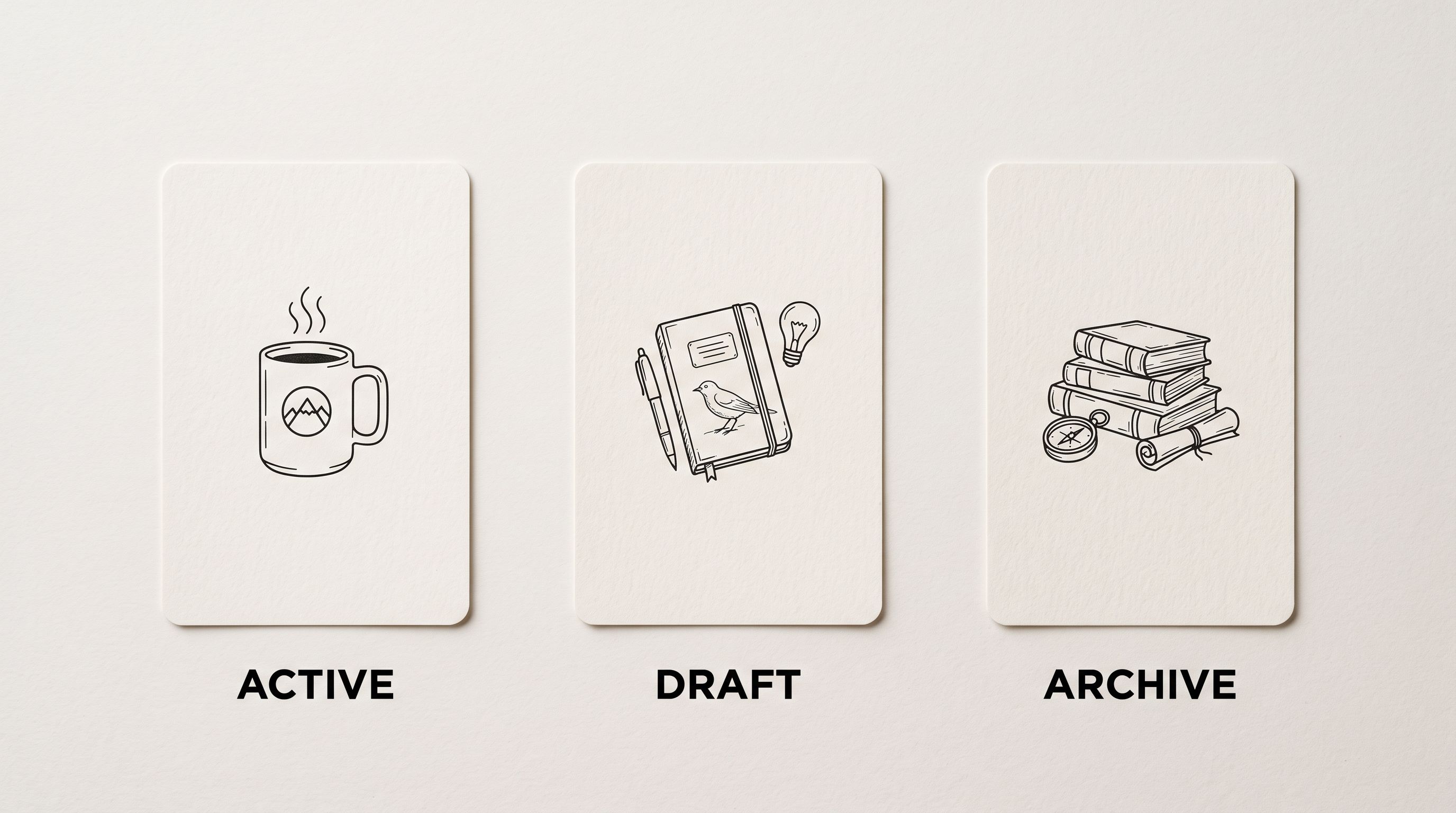
Leave active: the product page stays live, showing out-of-stock status. Google Shopping continues to receive the product in the feed; the listing shows as unavailable. For products with strong search history, this preserves the URL and any accumulated organic rankings. For products being permanently discontinued, it wastes catalogue space.
Set to Draft: the product becomes invisible to all sales channels simultaneously, including the storefront, Google Shopping, Facebook catalogue, and point-of-sale. This is the right approach for products that will not return and should not take up feed capacity. It is also the correct approach when the product will be reactivated next season under the same handle and you want to preserve its URL, cross-links, and historical data.
Archive: Shopify's archive function is specifically designed for this use case. An archived product is hidden from all sales channels and removed from active collection counts, but it is preserved in admin and can be unarchived without losing its data. For seasonal products that return annually, archiving is preferable to deleting, because deletion permanently removes the product handle, URL history, and any accumulated review or metafield data.
The scale challenge: a fashion merchant ending the autumn/winter season may have 300-500 products to archive simultaneously. Shopify admin's bulk actions support bulk status changes: select all products in a collection, apply Draft or Archive to the batch. For collections structured by season (Autumn 2026, Winter 2026), the bulk action takes minutes rather than hours.
Clearance Pricing Before Archive
Before archiving end-of-season products, most merchants run a clearance window where prices are reduced. Shopify's Compare At Price field displays the original price alongside the reduced price, showing buyers the discount without requiring a separate discount code. Shopify's pricing documentation explains how Compare At Price appears on the product page and in collections.

The clearance pricing update is a two-field operation per product: lower the Price field, set the original price as the Compare At Price. For a 400-product end-of-season clearance, doing this manually in Shopify admin takes several hours. The bulk Compare At Price guide covers how to apply clearance pricing across a collection in batch using Importier's export and reimport workflow: export the collection to CSV with the Pricing preset, update Price and Compare At Price columns in the spreadsheet, and reimport to apply across the collection.
Importing the New Season
New season products typically arrive as supplier files: a CSV or Excel spreadsheet with product titles, descriptions, prices, and SKUs for the new range. The import challenge is the same every cycle, because supplier files change between seasons: new columns appear, column names shift, description quality varies, and pricing structures change. Each new season's file requires the same setup work unless that work is saved.
- Re-map supplier columns to Shopify fields manually each season
- Reconfigure AI settings (model, persona, description style) from scratch
- Rewrite Brand Voice keywords for each new season's products
- No record of which products came from which seasonal import
- New season setup takes as long as the first season
- Saved column mapping profile remembers the supplier's file format between seasons
- AI settings saved per import configuration: same persona, same style, same Brand Voice
- Import History tags each batch with date, file name, and product count for seasonal audit
- New season setup loads the saved configuration in minutes
- Column mapping handles minor format changes with quick field adjustments
The import configuration for a seasonal supplier is worth saving. In Importier, column mapping profiles store how the supplier's column names map to Shopify fields, so a supplier who uses "Product Name" instead of "Title" and "Retail Price" instead of "Price" does not require remapping every season. Load the saved profile, review for any new columns added this season, adjust if needed, and run.
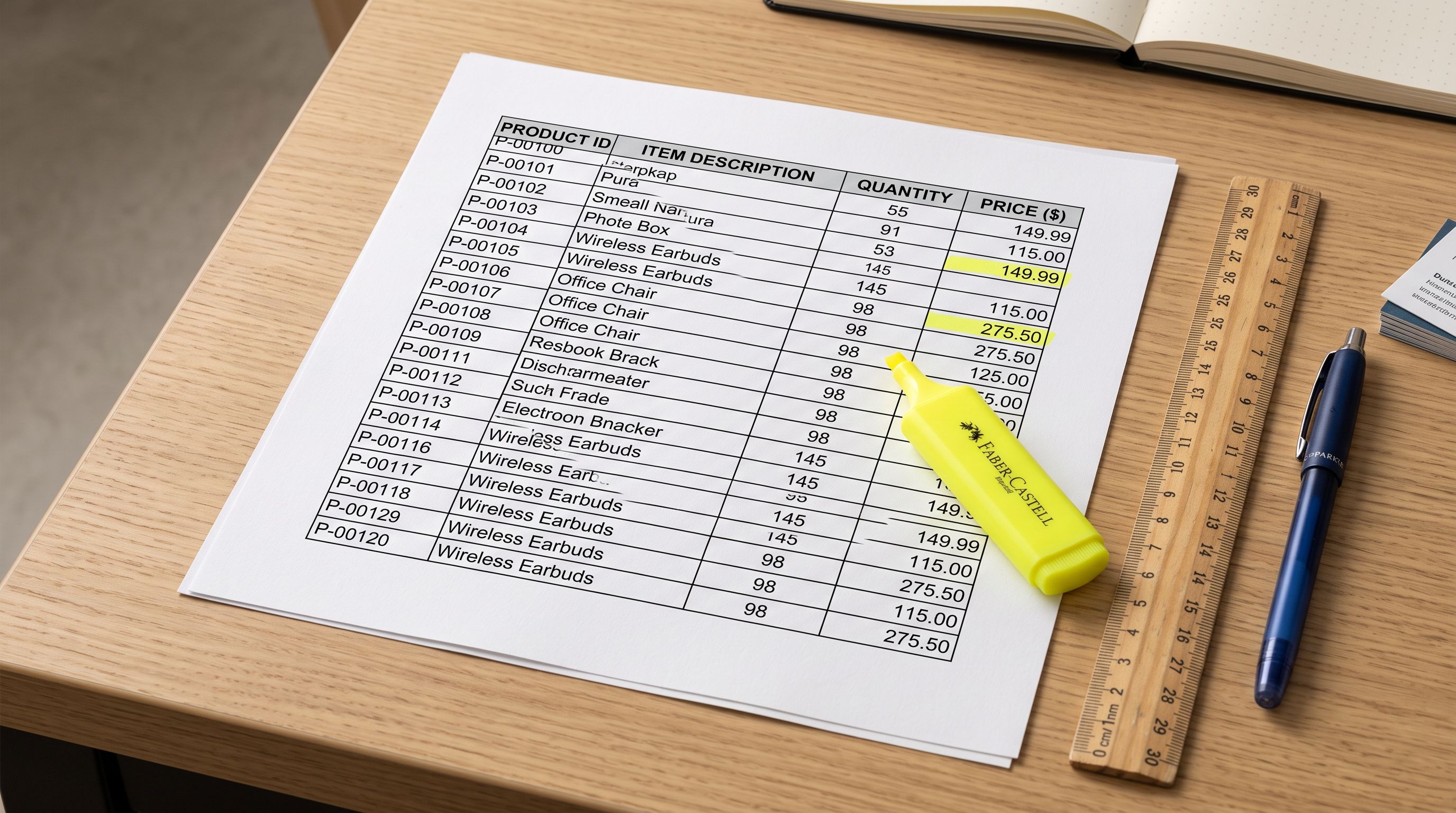
The first season import takes the longest because the configuration does not exist yet. Every subsequent season import should be faster because the saved configuration carries forward everything that does not change.
AI descriptions for new season products
New season products need new descriptions. Supplier descriptions are written for trade buyers, not retail customers, and they describe the products in the context of the outgoing season ("designed for autumn layering") rather than the incoming one. Importier's AI Description Generator runs during the import wizard and produces retail-ready descriptions using the product's own data: title, category, supplier description, and any Brand Voice configuration the merchant has set.
For fashion merchants, the description style selection matters by season. A summer collection might use Sensory-Rich or Emotional Storytelling style. A technical outerwear winter collection might use Benefits-First or Technical Gadget. The description style is set once per import batch and applies consistently across all products in the run, producing a coherent catalogue voice rather than a mix of styles from individual rewrites.
The AI Description Generator processes the entire new season's file in one run. For a 400-product new season import, descriptions, meta descriptions, SEO titles, and alt text for all images are generated as part of the same pass. The CSV import guide covers the standard import file format for reference.
Import History as Seasonal Audit Trail
After each seasonal import, Importier's Import History logs the batch: date, time, file name, and product count. For a merchant running four seasons per year across two supplier relationships, the Import History gives a clear record of which products came from which file and when.
This record matters for the next season's archive step. If a merchant wants to archive all products from the Autumn 2025 supplier file, the Import History shows exactly which batch those products came from, making it straightforward to identify and bulk-archive them as a group.
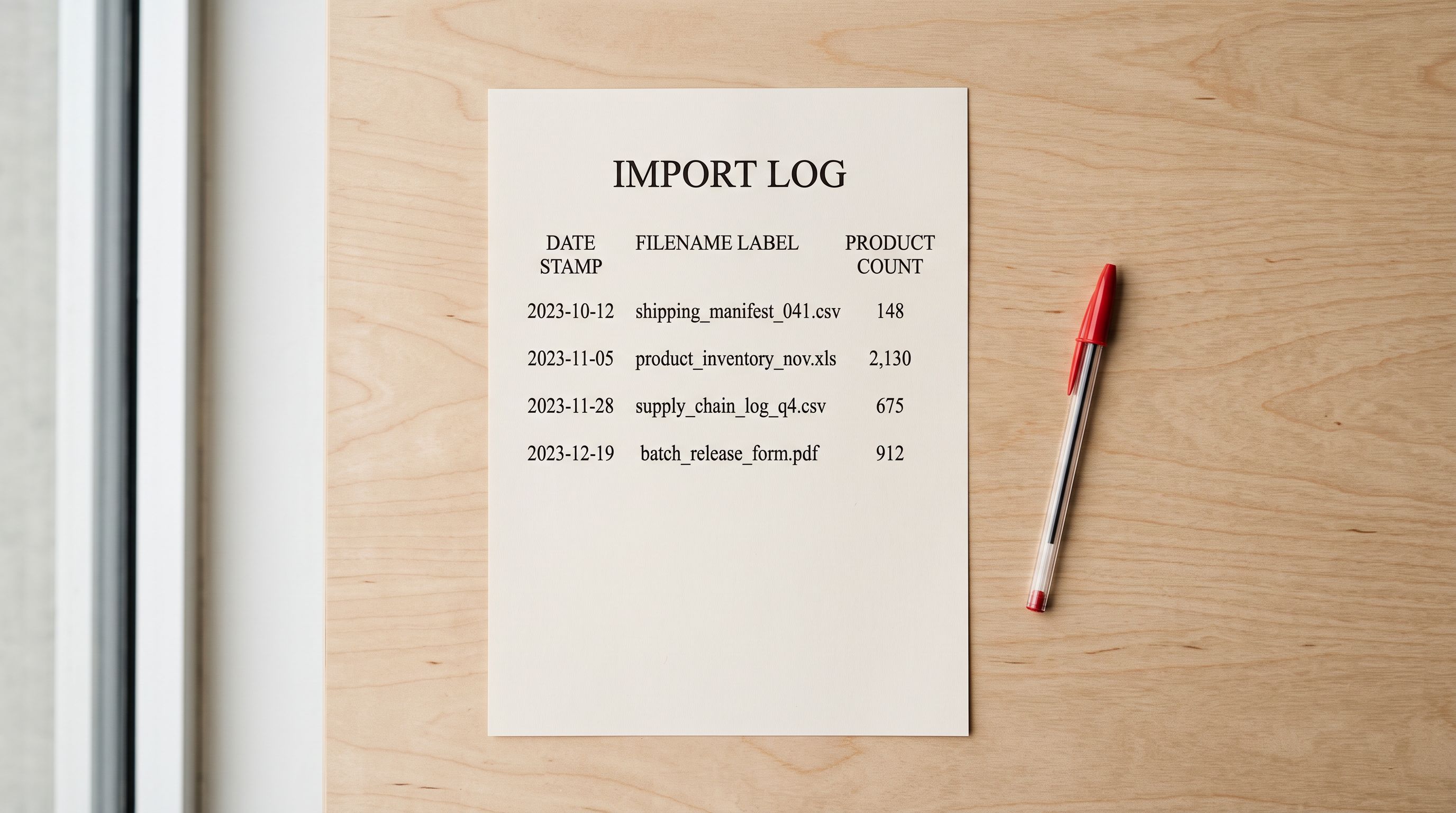
Import History also supports undo: if a new season import produces incorrect results (wrong status, wrong category, wrong Brand Voice applied), Import Undo reverts all products in the batch to their pre-import state. For a 300-product import where the wrong column mapping was applied, one undo operation reverts the batch rather than requiring 300 individual product edits. The import overwrite guide covers what happens when a reimport updates existing products, which is relevant when a supplier sends a corrected file after the initial import.
Automating the cycle
Scheduled Imports for Recurring Supplier Drops
Some supplier relationships operate on a continuous drop schedule rather than a single seasonal file. A fashion wholesaler who adds new styles weekly, or a holiday gift supplier who releases new products monthly, sends files on a recurring schedule rather than once per season.
- 01Step 1Set up the scheduled import from Importier's Scheduled Imports section. Upload the initial supplier file to establish the column mapping and AI settings for this supplier relationship. Configure the import frequency (weekly, fortnightly, or monthly) and the 24-hour delivery time.
- 02Step 2Save the supplier's column mapping profile and AI configuration. The scheduled import runs unattended, so the configuration must be complete before the first automated run. Set the Brand Voice, description style, and persona that apply to this supplier's product category.
- 03Step 3Set the publication status for auto-imported products. Decide whether new products from this supplier import as Active (live immediately) or Draft (require manual review before going live). For a trusted supplier relationship, Active is appropriate. For a new supplier whose product quality varies, Draft lets the merchant review before publishing.
- 04Step 4Monitor Import History after each scheduled run. The Import History entry for each automated run shows the file name, product count, and timestamp. For any run where the product count is significantly different from the expected range, review the file manually before the next run.
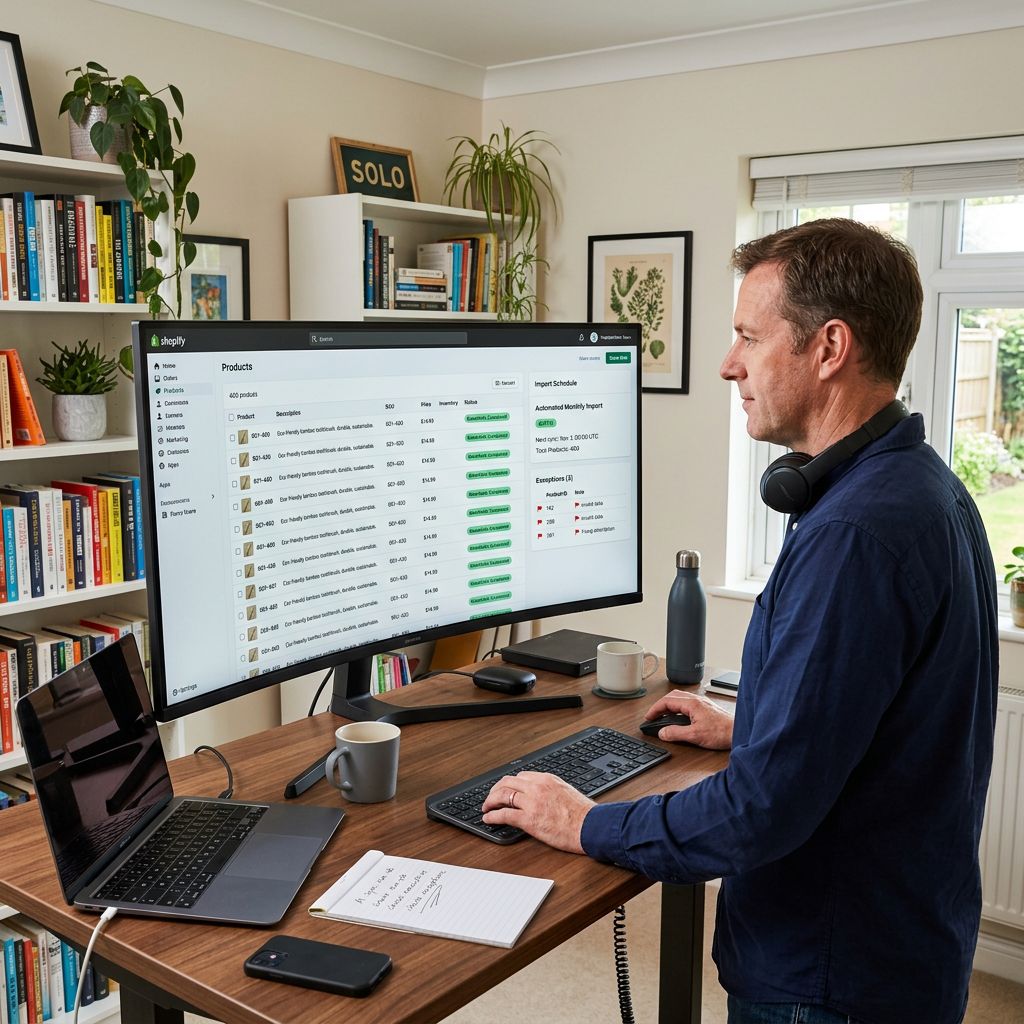
Scale plan supports 2 Scheduled Imports; Enterprise supports 10. For a merchant with three seasonal supplier relationships, the three supplier import schedules run independently with independent configurations. A supplier of performance outerwear uses a different column mapping, persona, and description style than a supplier of accessories. Each schedule retains its own configuration. The Scheduled Imports guide covers the full configuration workflow.
The Seasonal Workflow Summary
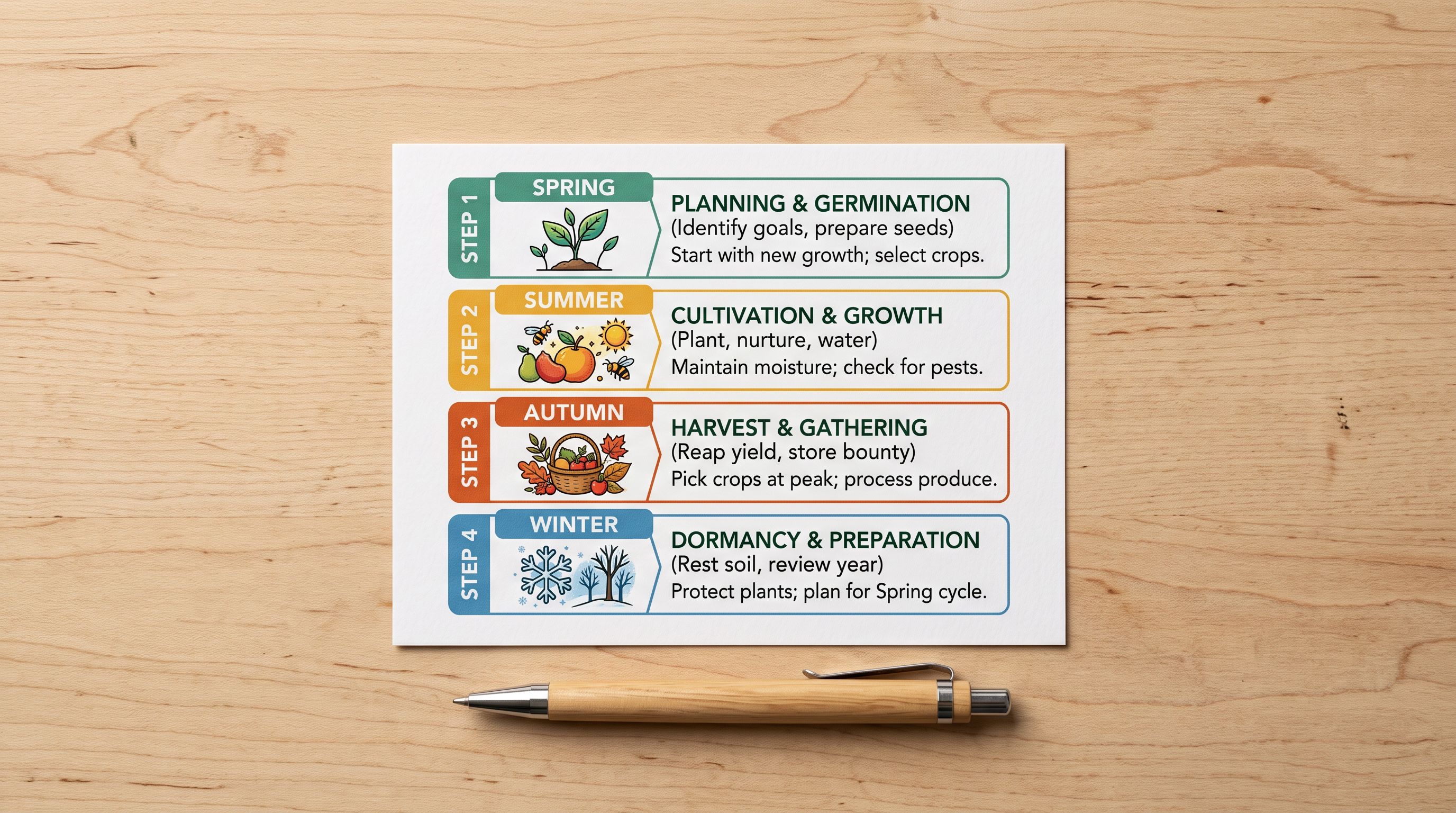
For a fashion merchant running two seasons per year, the repeatable workflow looks like this:
End of season (6-8 weeks before new season launch): export the outgoing season's products, apply clearance pricing via the Pricing export preset, reimport to update prices in bulk, run the clearance window, then bulk-archive the products after the clearance period ends.
New season preparation (3-4 weeks before launch): receive the supplier's new season file, run the Importier import wizard using the saved column mapping for this supplier, generate descriptions using the appropriate style and persona for the new season's category, review a sample, push to Shopify as Draft.
New season launch (launch date): bulk-activate the Draft products, confirm they appear in Google Shopping feed within 24-72 hours, check Import History to confirm the batch count matches the expected product count.
The supplier price update guide covers how to handle mid-season price changes from a supplier, a slightly different workflow from the end-of-season clearance covered here, because mid-season updates preserve the current description rather than regenerating it.
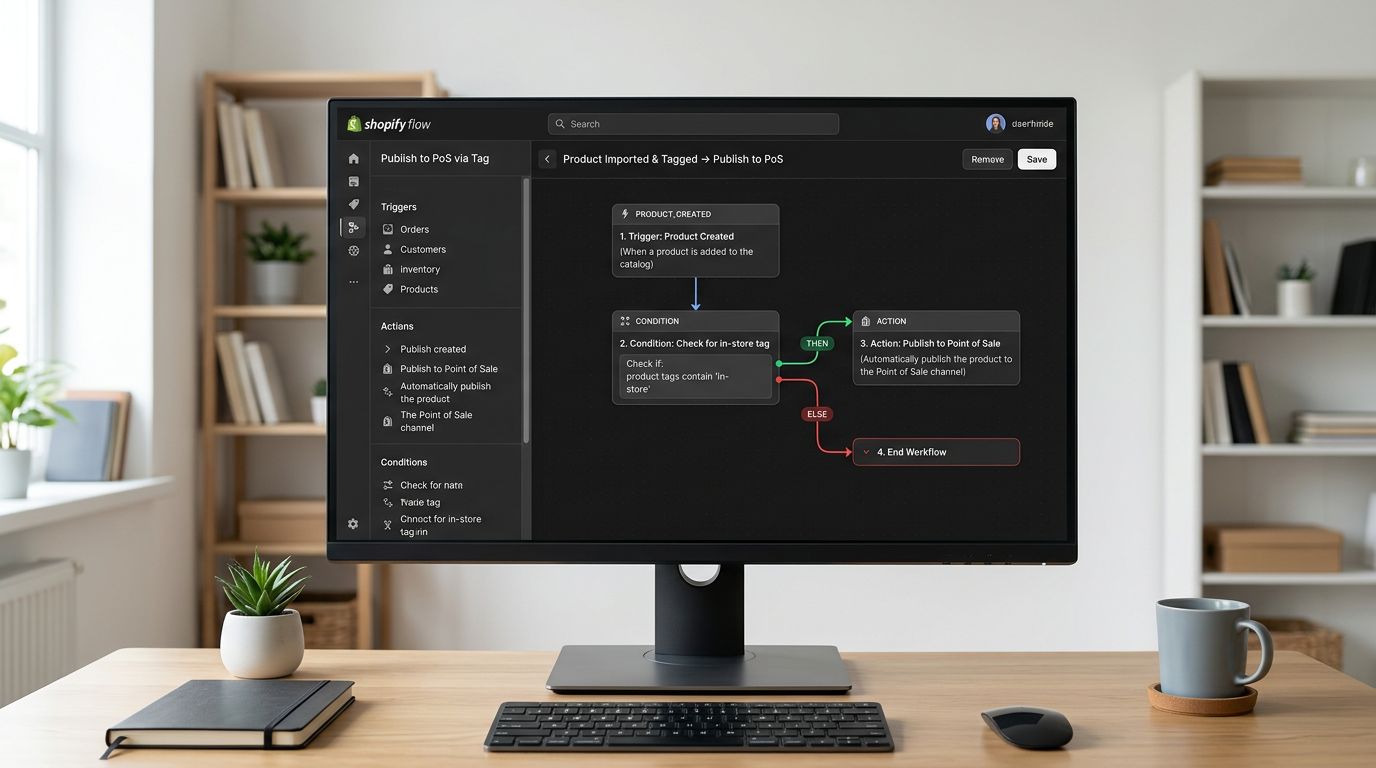
For merchants whose products imported as Draft status unexpectedly, the products imported as drafts guide covers how to identify and bulk-activate affected products after any import run.
Key Takeaways
Seasonal Shopify products management is a repeatable cycle. The setup work done in the first season should carry forward to every subsequent season with only minor adjustments.
Key points:
- Archive (not Delete) end-of-season products that will return next year. Archived products preserve their URL, handle, and metafield data. Deleted products lose all of this permanently.
- Apply clearance pricing using Compare At Price before archiving. The bulk pricing workflow via Importier's Pricing export preset updates Price and Compare At Price across a full collection in one CSV operation.
- Save the column mapping profile for each supplier's file format. A saved profile eliminates the remapping step in every subsequent season for that supplier.
- AI description generation runs once per import batch and applies consistently across all new season products. Choosing the right description style and persona before the batch run produces a coherent catalogue voice without per-product editing.
- Import History gives a seasonal audit trail: each batch is logged with date, file, and product count, making it straightforward to identify which products came from which season's import.
- Scheduled Imports (Scale: 2 schedules, Enterprise: 10) automate weekly or monthly supplier drops without manual intervention for each run.
Start building the repeatable seasonal import workflow at importier.app. Column mapping, AI description generation, and Import History are available on the Starter plan and above; Scheduled Imports require Scale or Enterprise.
Set up your first import in under five minutes.
Importier brings products into Shopify with AI descriptions, category metafields, and data enrichment on every run.