Shopify Products Imported as Drafts: Causes and Fix

On this page
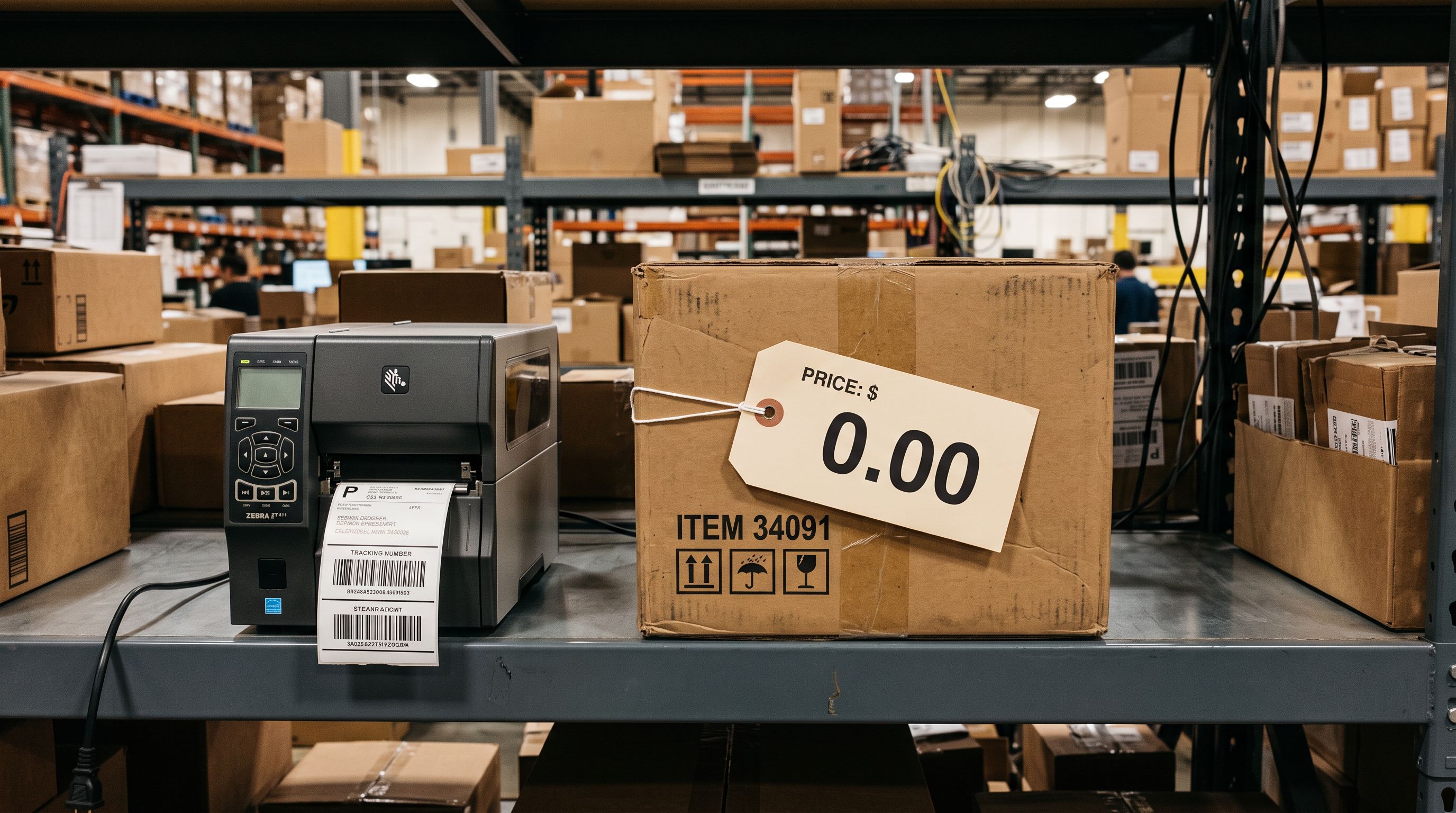
A wholesale accessories merchant imports 400 products from a supplier CSV. The import runs without errors. Shopify confirms every product is now in the store. Two days later, a customer emails asking why the website shows no products.
The merchant opens Shopify admin, goes to Products, and finds 400 products, all showing "Draft" status. None are live. None appear on the Online Store.
None have been submitted to any sales channel. The import succeeded in every technical sense and produced zero visible inventory.
This is the silent outcome of shopify products imported as drafts: no error message, no warning, just a completed import that goes nowhere.
What "draft" status actually means in Shopify
Draft is not "hidden from the Online Store". In Shopify, a product in Draft status is excluded from every sales channel simultaneously.
A draft product is absent from the Online Store storefront. It is not submitted to the Google Shopping feed. It is not included in the Facebook or Instagram product catalogue.
It does not appear in Shopify POS inventory for in-store sales. It does not show up in email marketing segment filters because the product has never been live to be viewed.
For a merchant who has just imported 400 products as drafts, the effective result is zero sellable inventory across every channel at once, not just one.
There are three product states in Shopify: Active, Draft, and Archived. Active products are live and available. Archived products have been removed from sale but retain their data.
Draft products have never been published. Only Active products appear in channel feeds, storefront search, and POS inventory counts.
Why Shopify CSV imports default to draft
Shopify's CSV import documentation describes a "Published" column that accepts TRUE or FALSE. When this column is present and set to TRUE, products import as Active. When the column is absent or blank, Shopify defaults new products to Draft.
Supplier CSVs do not include a "Published" column. That field has no meaning in a supplier's system. A supplier database tracks SKUs, wholesale prices, product descriptions, and stock quantities: all of which apply to every retailer ordering from that supplier.

Whether a product should be published on a specific Shopify store is a decision the merchant makes, not the supplier. So the column is consistently absent.
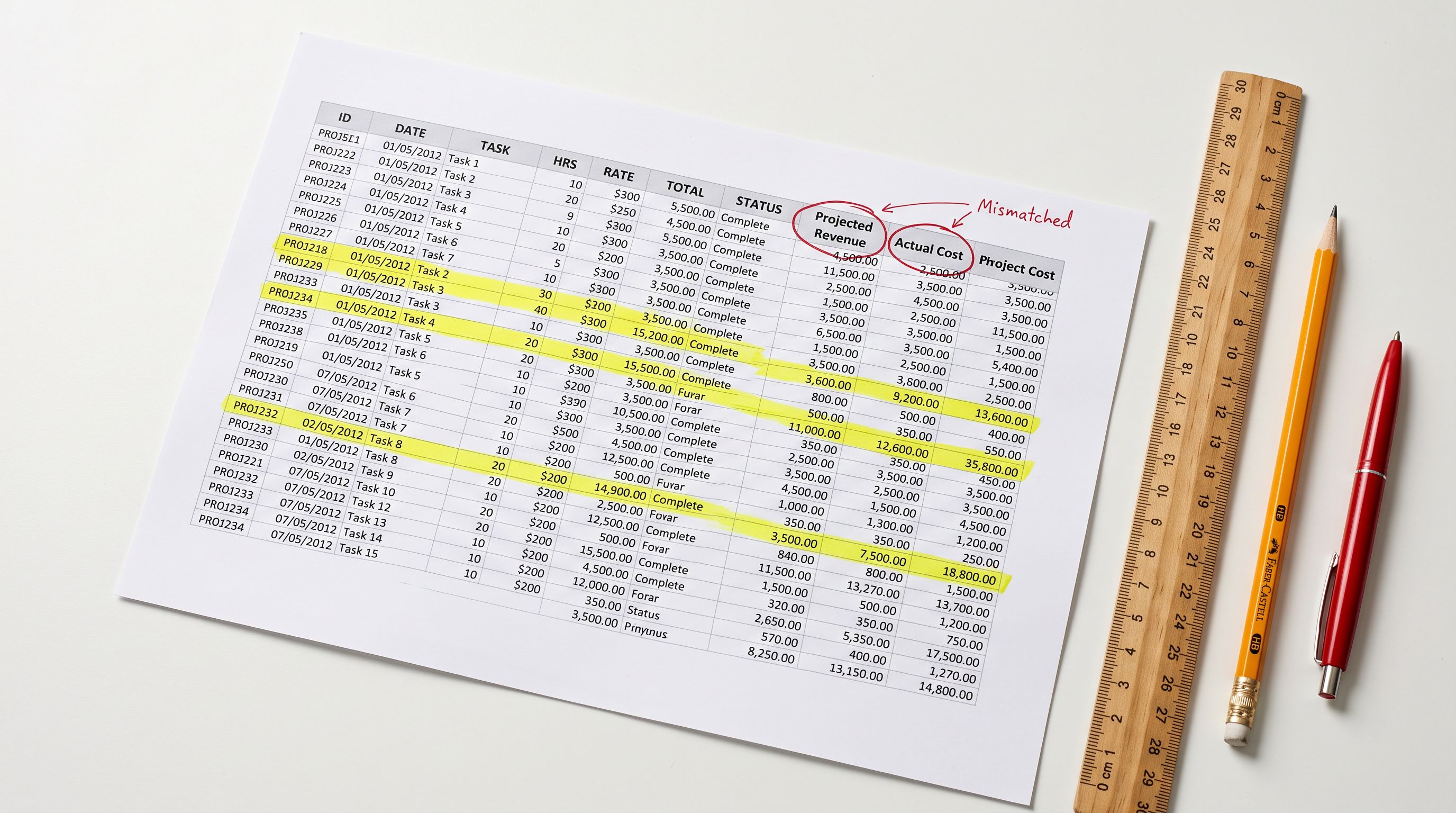
A typical supplier CSV includes columns like: Product Name, SKU, Description, Wholesale Price, Weight, Category, Barcode, and Quantity Available. None of these map to Shopify's publication status. The import reads the file, processes each row correctly, and writes "Draft" for publication status because that is Shopify's default when the column is missing.
Some third-party import tools also default to draft as a deliberate safety measure. The reasoning is that importing 400 products as drafts lets the merchant review before going live. The problem is that the merchant is often unaware this default has been applied, and the import confirmation screen does not surface the publication status of the batch.
- Reads Published column from file (absent = draft)
- No pre-import prompt for publication status
- Import confirmation screen does not show publication state
- Discovering the draft default requires checking individual products
- Bulk-fixing requires a separate step after the import completes
- Explicit publication status setting before products are pushed to Shopify
- Merchant chooses Active or Draft for the entire batch as a named configuration step
- Import History records the publication state of each completed batch
- Removes the dependency on a column supplier files never include
- Re-run with correct settings if a batch was published incorrectly
How to identify which products are affected
Open Shopify admin, go to Products, and use the Status filter. Select "Draft" to display only draft products. The count shown is how many products are not yet live.
If you have run multiple imports, this view shows all drafts from every import, not just the most recent batch. Use the "Created" date column or product tags applied at import time to isolate the products from a specific batch. The Importier Import History records each batch with its settings, making it straightforward to identify which run produced the draft products.
Check also whether your store had existing draft products before the import. A product list filtered to Draft that shows substantially more products than you expected to import indicates multiple batches have accumulated in draft status.
Three approaches to fix existing draft products
- 01Approach 1Shopify admin bulk actions. Filter by Status: Draft in the Products list. Select all products on the page using the checkbox at the top of the list. Use the Actions dropdown to choose 'Set as active'. Shopify processes the bulk action for the products selected on the current page only. With Shopify's default of 50 products per page, a 400-product batch requires 8 separate bulk operations: select page, set active, move to next page, repeat. This works but becomes time-consuming at scale
- 02Approach 2CSV export and re-import. Export the draft products from Shopify admin as a CSV. Open the CSV, add a 'Published' column, and set every row to TRUE. Re-import the CSV via Shopify's native importer. This approach works correctly only if the exported CSV retains the Shopify Product ID column, which a Shopify admin export always includes. Do not remove this column. Without the Product ID, re-importing the CSV creates duplicates instead of updating the existing draft products
- 03Approach 3Importier Import Undo and re-import. If the batch was imported via Importier, locate the batch in Import History. Use Import Undo to revert the batch cleanly, removing all draft products from Shopify. Then re-run the import from the original file with the publication status set to Active. This approach avoids the pagination repetition of approach 1 and eliminates the Product ID risk of approach 2
Preventing the problem at import time
The root cause of shopify products imported as drafts is a missing configuration step, not a Shopify bug. Shopify's defaulting to draft is a reasonable response to a missing column. The fix is making publication status an explicit decision before the import runs rather than an inferred outcome.
Importier's 14-step guided import wizard moves the publication decision upstream. The wizard walks through product configuration before pushing products to Shopify, which means the merchant sets publication status as part of the structured workflow rather than discovering a default applied to a missing file column. The outcome is determined by a deliberate choice, not by what a supplier's CSV happens to include.
For merchants running scheduled imports, this distinction matters more. A weekly supplier catalogue import that defaults to draft produces a growing collection of draft products in Shopify admin: correctly priced, correctly described, correctly structured, but never live. A scheduled import with a saved publication setting of Active publishes each batch as it runs. Read more about how to build a repeatable import workflow for wholesale supplier catalogues.

400 products in draft status is not lost data. It is correctly imported, correctly priced product data with one field set incorrectly.
After activation: what to expect on each channel
Channel publication vs product status
Setting a product from Draft to Active makes it live on the Shopify Online Store within seconds. The storefront change is immediate.
Sales channels that use product feeds behave differently. Google Merchant Centre, Facebook Catalogue, and similar feed-based channels receive product data through a submission and review process. New products submitted to Merchant Centre typically take 24 to 72 hours to be reviewed and approved before appearing in Google Shopping. Shopify's guidance on connecting Google Merchant Centre to your store outlines this review process in the context of syncing products from a Shopify store.
For a merchant who activates 400 draft products simultaneously, the practical implication is specific: those 400 products are live on the Shopify storefront immediately, but they will not appear in Google Shopping for one to three days while Google processes 400 new feed submissions in sequence. A merchant who checks Google Shopping within hours of activating the batch will find nothing there and may incorrectly conclude the activation did not work.
This delay is expected and consistent. It is not a sign that the activation failed. The Shopify storefront and Google's feed-based channels operate on different timelines. The storefront updates are near-instant; feed-channel changes are processed on Google's schedule.
There is also a distinction between product status and channel publication worth noting. Setting a product to Active publishes it to the Shopify Online Store. Other channels (Google Shopping, Facebook, Instagram, Pinterest) require separate channel publication settings configured at the store level.
A product can be Active on the Online Store and not yet connected to any external channel if those channel integrations have not been set up. Channel configuration is a one-time store setup task, not a per-import setting, but it is worth confirming before a first large import.
Read more about how product data structure affects Shopify smart collections after import.
Read more about how to prevent Shopify imports from overwriting descriptions on existing products.
Read more about why product filters return no results after a bulk import.

What to take away from this
Products imported as drafts are recoverable. The data is intact; the import succeeded. Only one field is set incorrectly. The approaches in this article (bulk actions in admin, CSV re-import with the Published column, or Importier's Import Undo) each get those products live.
The structural issue is that any importer which infers publication status from a file column that supplier CSVs never include will produce draft products on every import. Discovering the default requires checking individual products rather than reading a pre-import warning.
Key points:
- Draft status excludes products from every sales channel at once: Online Store, Google Shopping, Facebook, Instagram, POS, and email marketing segments.
- Shopify's CSV import defaults to Draft when the Published column is absent. Supplier files never include this column.
- Shopify admin bulk actions work for small batches; for 400+ products, CSV re-import with the Product ID column or Importier's Import Undo handles the fix more efficiently.
- After bulk activation, the Online Store updates immediately. Google Shopping takes 24 to 72 hours to process and approve the new feed submissions.
- Product status (Active/Draft) and channel publication are separate settings. Being Active does not automatically enrol a product in every sales channel; channel integrations must be configured at the store level.
Try Importier free at importier.app: the guided import wizard moves publication decisions to before products reach your store.
Set up your first import in under five minutes.
Importier brings products into Shopify with AI descriptions, category metafields, and data enrichment on every run.