Shopify Product Metafields vs Category Metafields Explained
On this page
Understanding the difference between Shopify product metafields vs category metafields is one of the most common data gaps merchants encounter as their catalogue grows. A sporting goods merchant creates three custom metafields on their Shopify store: "Sport", "Recommended Age", and "Material". Their developer builds a product page template that displays all three fields under a specifications heading. The store looks great. Then the merchant installs Importier to assign category attributes to 600 products at scale. Importier populates a different set of fields: "Sport/Activity", "Age Group", and "Material" from a dropdown of standardised values.
The merchant now has two "Material" fields on some products, two things called "Sport", and two systems that look similar but work completely differently. Welcome to the Shopify product metafields vs category metafields confusion that affects nearly every merchant who builds beyond a basic store.
This is not a niche developer problem. Misunderstanding which metafield system to use costs merchants Google Shopping performance, filter functionality, and hours of rework.
What are Shopify product metafields?
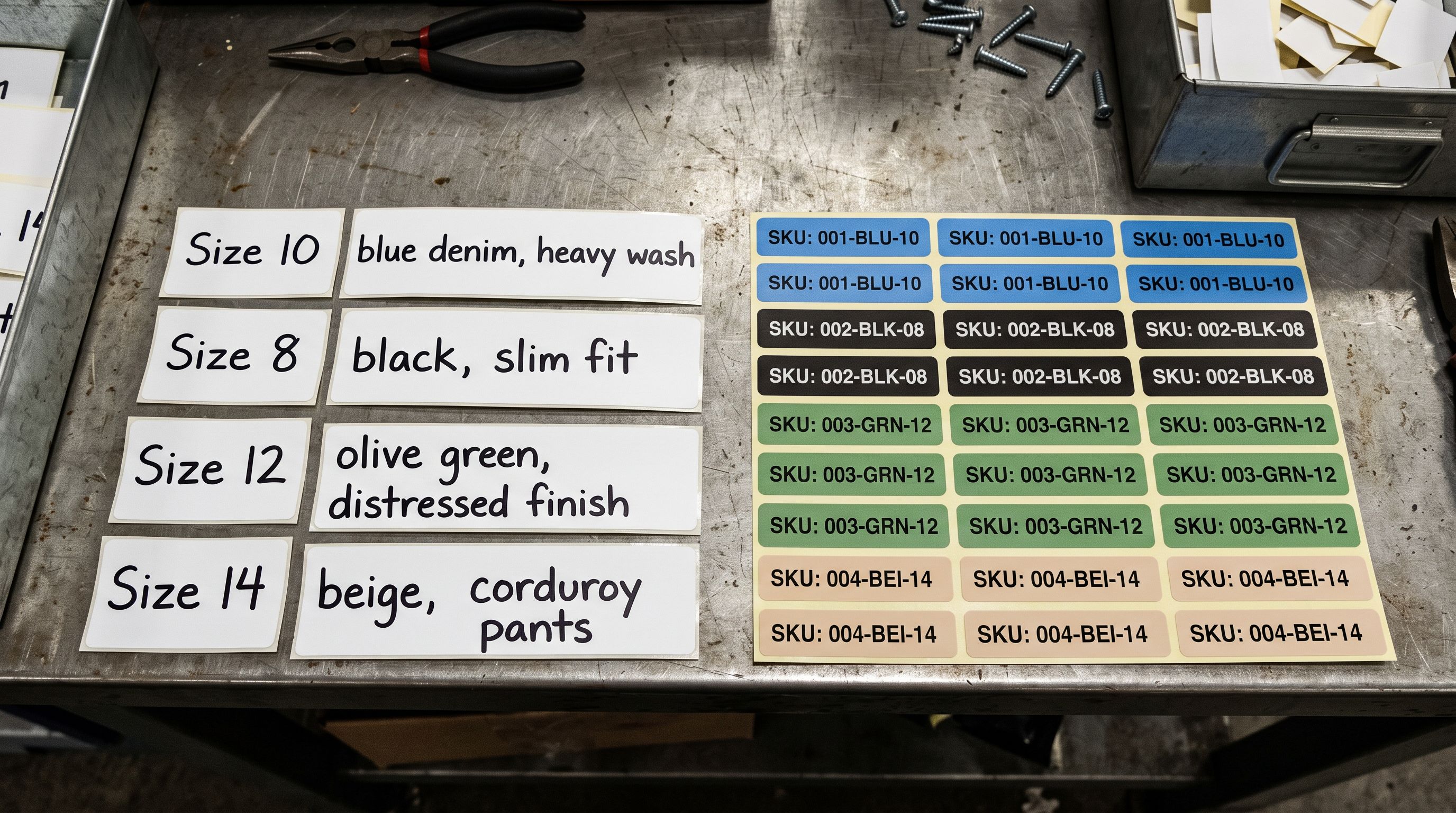
Shopify product metafields are fields you define yourself. You choose the namespace, the key, the value type (text, number, date, file, boolean, URL, colour, or a multi-line text block), and the name that appears in the admin. Your Shopify store owns these definitions entirely.
Merchants add custom metafields for store-specific data that Shopify's standard product fields do not cover. Common examples include warranty terms, care instructions, size guide URLs, manufacturer part numbers in a proprietary format, country-specific compliance notes, and cross-sell SKU lists. If you need a field that no other Shopify store needs in quite the same way, custom metafields are the right tool.
Shopify Online Store 2.0 themes can display custom metafields anywhere on the product page. The Theme Editor lets you drag metafield blocks into sections, so no code is required to surface them on the storefront. Once you define a metafield in Settings > Custom data > Products, it appears as a fillable field on every product edit page.
Custom metafields are stored at the individual product or variant level and are specific to your store. Another Shopify store cannot read your custom metafields. Google Shopping cannot read them directly. They are your data, structured the way your business needs.
What are Shopify category metafields?
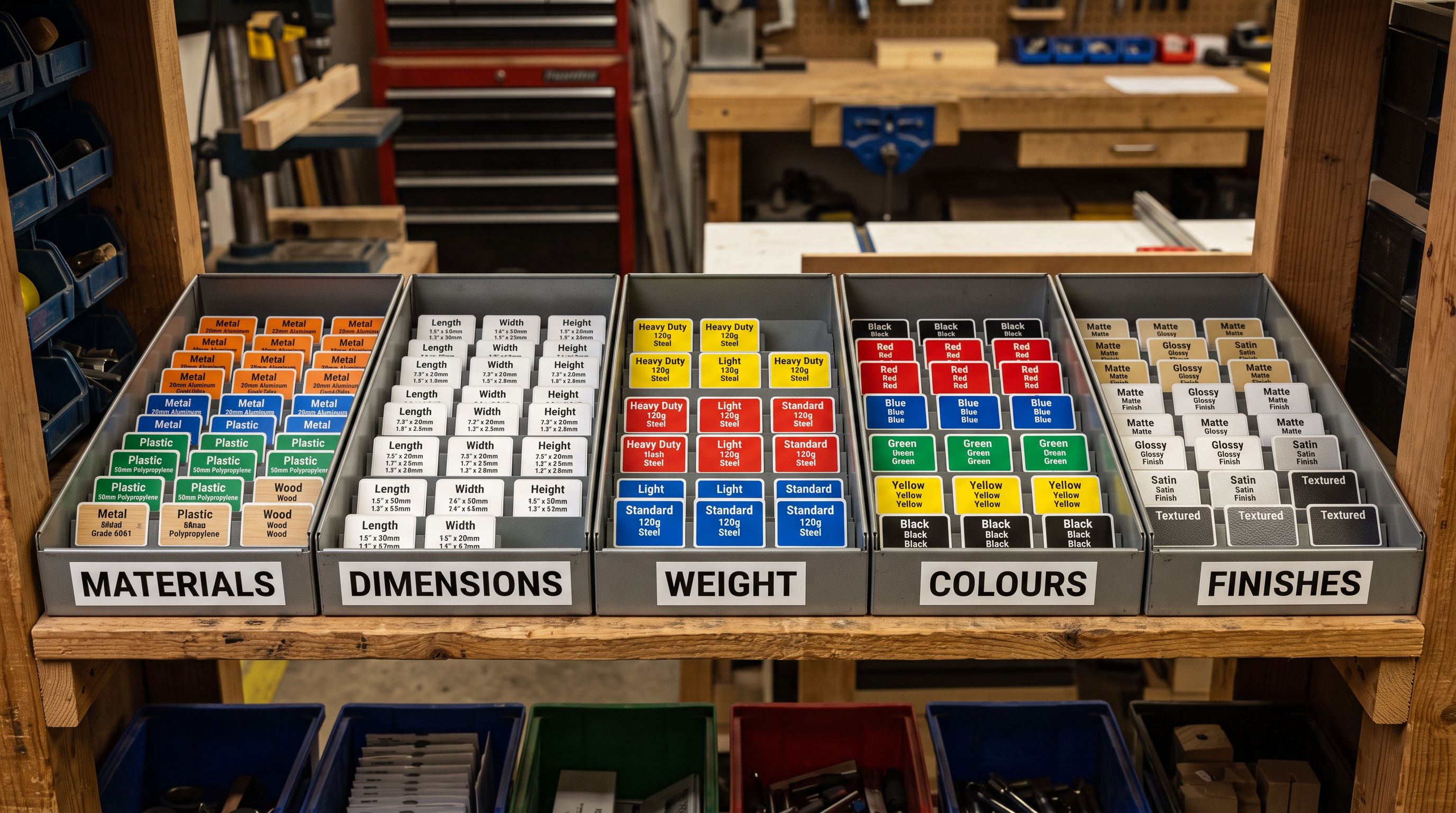
Category metafields are part of Shopify's Standard Product Taxonomy, a structured catalogue of product types and their associated attributes. Every product category in the taxonomy comes with a fixed set of attribute fields. Sporting Goods has different attributes than Power Tools. Kitchen Appliances has different attributes than Clothing.
The critical difference from custom metafields is that category metafield values come from a controlled vocabulary. When you assign the attribute "Material" to a leather jacket under the Clothing taxonomy, you do not type "leather" as a free-form string. You select from Shopify's pre-defined list of material values: "Genuine Leather", "Full-Grain Leather", "Suede", and so on. The AI populating category metafields must pick from these approved values; it cannot invent new ones.
This controlled vocabulary is why category metafields power shopping channels in a way custom metafields cannot. Google Merchant Centre uses Shopify's category metafields to populate product attributes in Google Shopping: condition, material, age group, colour, size, sport, and dozens of other filterable dimensions. Facebook and Instagram catalogues read the same fields. Shopify's own search and filtering features increasingly use the standard taxonomy to provide accurate category-level filters.
Category metafields are assigned per product via the "Product category" field in the product editor. Setting the category gives the product access to that category's attribute set. Filling those attributes requires either the Admin API, the Shopify GraphQL API, or a compliant app. Shopify's native product editor shows the category selector but does not yet expose the full attribute form in a straightforward way for merchants managing hundreds of products.
The key differences
- Defined by the merchant (any namespace, any key)
- Free-form values: any text, number, or format
- Displayed on the storefront via theme editor
- Store-specific: only your store sees them
- Not read by Google Shopping directly
- Defined by Shopify's Standard Product Taxonomy
- Controlled vocabulary: AI must pick from approved values
- Primarily used by shopping channels (Google, Facebook)
- Cross-store consistent: same fields, same values everywhere
- Read directly by Google Merchant Centre and Facebook catalogue
The practical implication: a custom metafield named "Material" with the value "chrome vanadium steel" is your data, displayed to your storefront visitors. A category metafield "Material" with the taxonomy value "Chrome Vanadium Steel" is data Google Shopping can filter products by when someone searches "chrome vanadium tool set". Both fields may be visible on your product page. Only one feeds the shopping channel.
Where the confusion starts
Where merchants commonly confuse the two
The most common mistake is creating a custom metafield named "Color" or "Colour" and filling it with colour values, then wondering why Google Shopping is not applying colour filters to their products. The reason is that Google Shopping reads the category metafield "Color" (with a controlled taxonomy value), not a custom metafield named "Color" regardless of what value it holds.
This happens because the field names are identical. Both show up in Shopify admin. Both can appear on the product page. From a merchant's perspective they look like the same thing. From Google's perspective they are completely different data structures.
A second common confusion is filling category metafields with free-form text. Merchants who manually set category attributes sometimes type values that do not match the taxonomy vocabulary. "Genuine leather" (lowercase, different from the taxonomy's "Genuine Leather") may not be recognised as a valid value. "Hand-stitched" as a material value will not match any taxonomy entry. Values outside the controlled vocabulary are stored but do not trigger the shopping channel benefits the fields are designed to provide.
The third confusion is scope. Custom metafields can hold almost anything: a paragraph of text, a date, a file URL, a JSON object, a list of related SKUs. Category metafields are purpose-built for specific product attributes and cannot be repurposed for general store data.
How Importier populates both at import time
Importier handles both metafield systems during the import wizard, which is where the distinction pays off in practice.
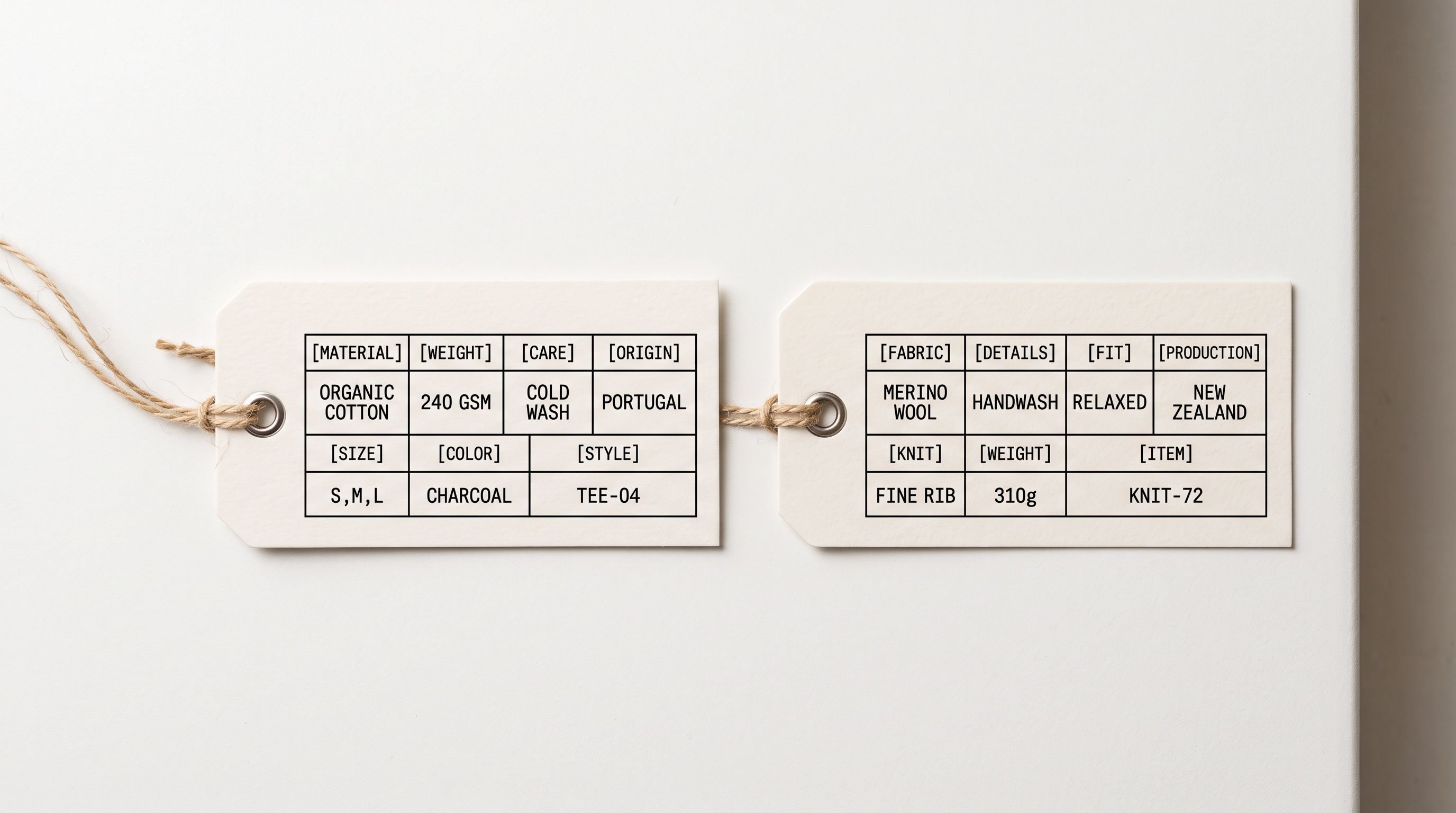
For category metafields, Importier's 22 Industry Packs cover 3,758 attribute types across Shopify's Standard Product Taxonomy. When a merchant imports 500 sporting goods products, Importier assigns category attributes using a two-phase matching process: text matching on recognisable values, then AI matching for ambiguous cases. In both phases, the AI selects only from approved taxonomy values. It does not invent categories or values. A product that does not clearly fit a taxonomy value is left unassigned rather than assigned incorrectly.
For custom metafields, Importier reads the merchant's existing custom metafield definitions from Shopify and presents them as mappable fields in the column mapping step. A supplier CSV column called "Max Load Capacity" can be mapped to the merchant's custom metafield "max_load_kg". The column mapping guide covers this step in full, including how saved import profiles remember the mapping for future imports from the same supplier.
- 01In Importier's import wizard, upload the supplier file
- 02In the column mapping step, map supplier columns to both Shopify standard fields AND your existing custom metafields
- 03In the Settings step, enable category metafield assignment and select the relevant Industry Pack
- 04In the Review step, inspect both custom metafield values (from your column mapping) and category metafield assignments (from Importier's taxonomy matching) before pushing any product to Shopify
- 05After import, check a sample of products in Shopify admin to confirm both field types have been populated correctly

The Review step is where the distinction between the two metafield types becomes visible in a useful way. Custom metafield values are sourced directly from the supplier file via column mapping and reflect exactly what the supplier provided. Category metafield values are sourced from Importier's taxonomy matching and reflect standardised values from Shopify's vocabulary. A merchant can see both sets of values side by side and correct any mismatches before the import runs.
For custom metafields that contain specification data (dimensions, compatibility codes, part numbers), the product specifications auto-fill capability fills values from the product title and description when no supplier column contains the data. This is useful for technical product categories where specification values are embedded in titles rather than stored in dedicated columns.
Category metafields tell Google what your products are. Custom metafields tell your customers what your products do. Both are necessary, but they serve different audiences and must be populated through different processes.

Which to use when
Use category metafields for any attribute that appears in Shopify's Standard Product Taxonomy: colour, size, material, age group, gender, sport/activity, care instructions (where taxonomy-defined), compatibility, item type, and similar. These fields directly improve Google Shopping performance, Shopify search filtering, and shopping channel integration.
Use custom metafields for business-specific data that no taxonomy covers: your warranty terms, your size guide URL, your proprietary compatibility codes, regulatory certification identifiers, internal SKU mappings, or cross-sell relationships. These fields serve your storefront and your operational needs, not shopping channels.
Most merchants with catalogues larger than 200 products need both systems. The category metafields guide covers the taxonomy assignment side in detail, including which Industry Pack maps to which product type. Custom metafields require a separate setup in Shopify Settings > Custom data > Products before Importier can map to them at import time.
Key takeaways
- Custom metafields are merchant-defined and free-form. Any namespace, any key, any value type. Displayed on your storefront. Specific to your store. Not directly read by Google Shopping.
- Category metafields use Shopify's Standard Product Taxonomy. Fixed attribute sets per category. Controlled vocabulary of approved values. Read directly by Google Merchant Centre and Facebook catalogue.
- The most common mistake is creating a custom metafield named "Color" and expecting Google Shopping to read it. Google Shopping reads the taxonomy category metafield, not the free-form custom field, regardless of the name.
- Importier populates both types during import. Category metafields via 22 Industry Packs and two-phase taxonomy matching. Custom metafields via column mapping from the supplier file to your existing custom metafield definitions.
- The controlled vocabulary is non-negotiable for category metafields. An AI that invents values outside the taxonomy produces data that shopping channels ignore. Importier selects only from approved values and leaves fields blank rather than assigning incorrect ones.
See how Importier handles this at importier.app.
Set up your first import in under five minutes.
Importier brings products into Shopify with AI descriptions, category metafields, and data enrichment on every run.