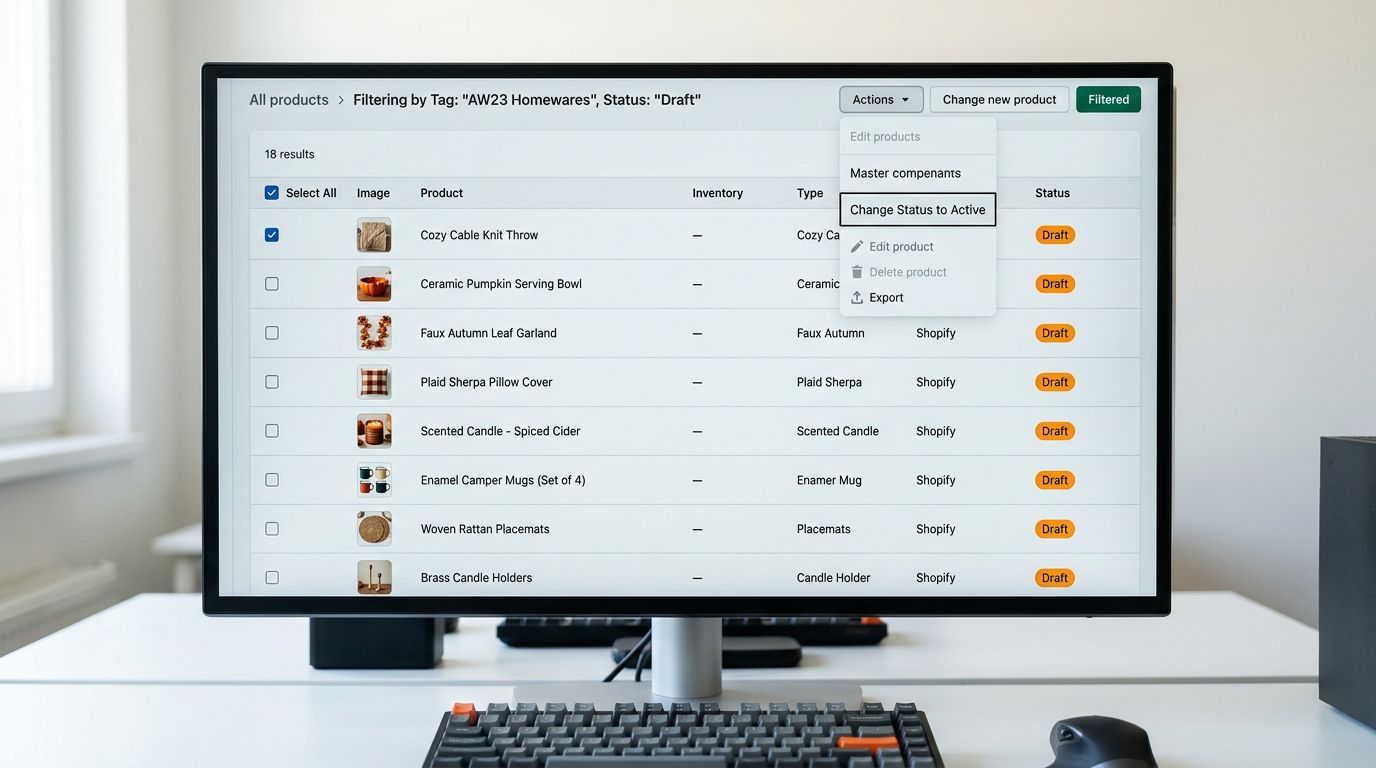
Shopify Product Description Formatting Lost After Import
On this page
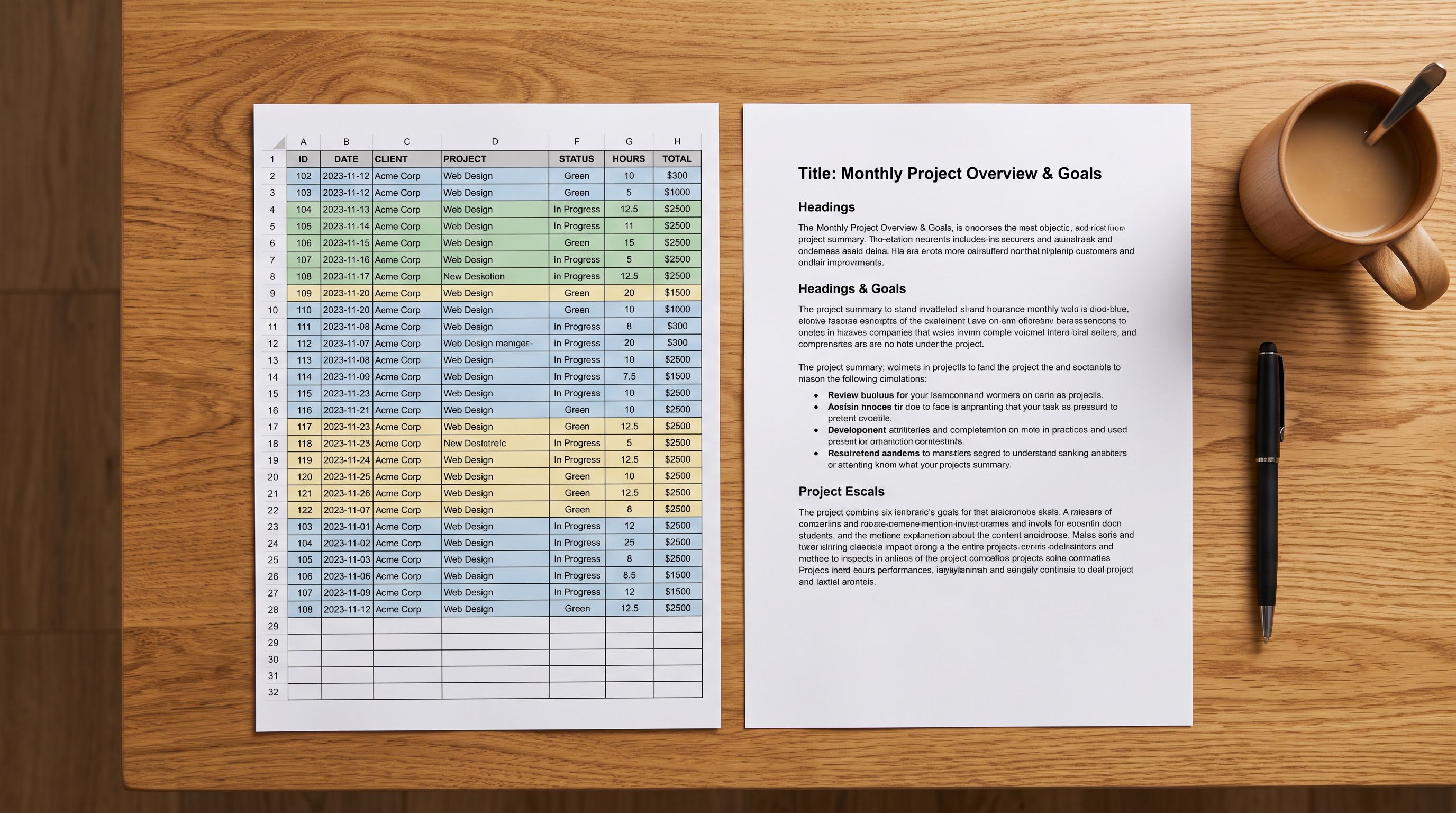
A homeware merchant spends six months building their supplier catalogue in Excel. Each product description is carefully laid out: a bold product name, a bullet list of features, a paragraph of care instructions, and a specifications table. The cells look exactly as the product pages should look.
They import the Excel file to Shopify. Every description arrives as a single, unbroken block of text. The bullet points are gone. The bold text is gone. The line breaks that separated features from care instructions do not exist. Four hundred products have descriptions that read like a run-on sentence.
This is one of the most common surprises in shopify product description formatting import: the descriptions looked correct in the source file and arrive broken in Shopify. Understanding why it happens determines the right fix.
Why Excel formatting does not survive the import
Shopify stores product descriptions as HTML. When a product description displays bullet points, bold text, and paragraph breaks on the storefront, those visual elements are produced by HTML tags inside the description field: <ul><li>...</li></ul> for bullet lists, <strong>...</strong> for bold text, <p>...</p> for paragraph breaks.
Excel does not store cell content as HTML. Excel stores text with its own internal formatting layer (Rich Text Format, or RTF), which is entirely separate from HTML. When you bold a word in an Excel cell, Excel records the formatting in its own binary format. That formatting exists inside Excel, not inside the text itself.
When Excel exports to CSV for Shopify import, the CSV format has no concept of formatting. It is plain text separated by commas. Every cell's content is written as plain text with all formatting stripped. The boldface, the bullet characters, the paragraph indentations: all of these disappear at the CSV export step, before Shopify ever sees the file.
The same problem applies to line breaks within Excel cells. When a cell contains multiple lines (created with Alt+Enter in Excel), those line breaks export to CSV as either literal newline characters (which Shopify ignores in the description field) or as a space (which merges lines into one). Neither produces a visible paragraph break in Shopify.
What the description field actually requires
The Shopify CSV import column for product descriptions is labelled Body (HTML). The column name is explicit: the content must be HTML, not plain text.
Shopify's product import documentation specifies that the Body (HTML) column accepts HTML markup. A description with a bullet list must be written as <ul><li>Feature one</li><li>Feature two</li></ul> in the CSV cell for it to render as a bullet list in Shopify.
A merchant importing from a supplier Excel file receives plain text. A merchant who manually builds descriptions in Excel writes plain text. Both arrive in Shopify without formatting because neither source produces HTML.
Read more about what the opposite problem looks like when HTML tags appear as raw code in Shopify product descriptions - this happens when HTML is double-encoded or pasted from a source that escapes the tags.
Which sources produce this problem
- 01Step 1Excel or Google Sheets with rich-text cells. Any spreadsheet that uses the native formatting tools (bold, bullet list, paragraph spacing) exports those formatting choices as plain text when saved to CSV. The visual formatting exists only inside the spreadsheet application.
- 02Step 2Supplier CSVs written in plain text. Most supplier-provided CSV files contain descriptions written as flowing prose or simple lists with bullet characters. Suppliers write for their own systems, not for Shopify's HTML requirement.
- 03Step 3PDF invoice imports with extracted text. When Importier imports from a supplier PDF using AI extraction, the AI receives the plain text content of the PDF - formatting marks (bullet characters, tab indentation, header text) arrive as text strings, not as structural HTML.
- 04Step 4Copy-paste from word processors. Descriptions written in Microsoft Word or Google Docs and pasted into a CSV cell lose their formatting at the paste step. The clipboard contains either rich text (which CSV ignores) or plain text (which is what arrives in the cell).
- 05Step 5Descriptions scraped from supplier websites. When a supplier website displays a formatted description, the HTML that produces that formatting is embedded in the page source. Scraped plain-text versions strip the HTML. Only a direct import from the URL (which reads the HTML source) preserves the structure.
The two ways to fix existing unformatted descriptions

Once unformatted descriptions are in Shopify, there are two paths to fix them.
Path 1: Re-generate with AI. The fastest path for large catalogues is to use Importier's Store Scanner to scan all products with short or unformatted descriptions and generate new structured descriptions using AI. The AI receives the plain text content (which Shopify has stored) and produces HTML descriptions with proper structure: paragraph breaks as <p> tags, feature lists as <ul><li> elements, and bold specifications as <strong> text.
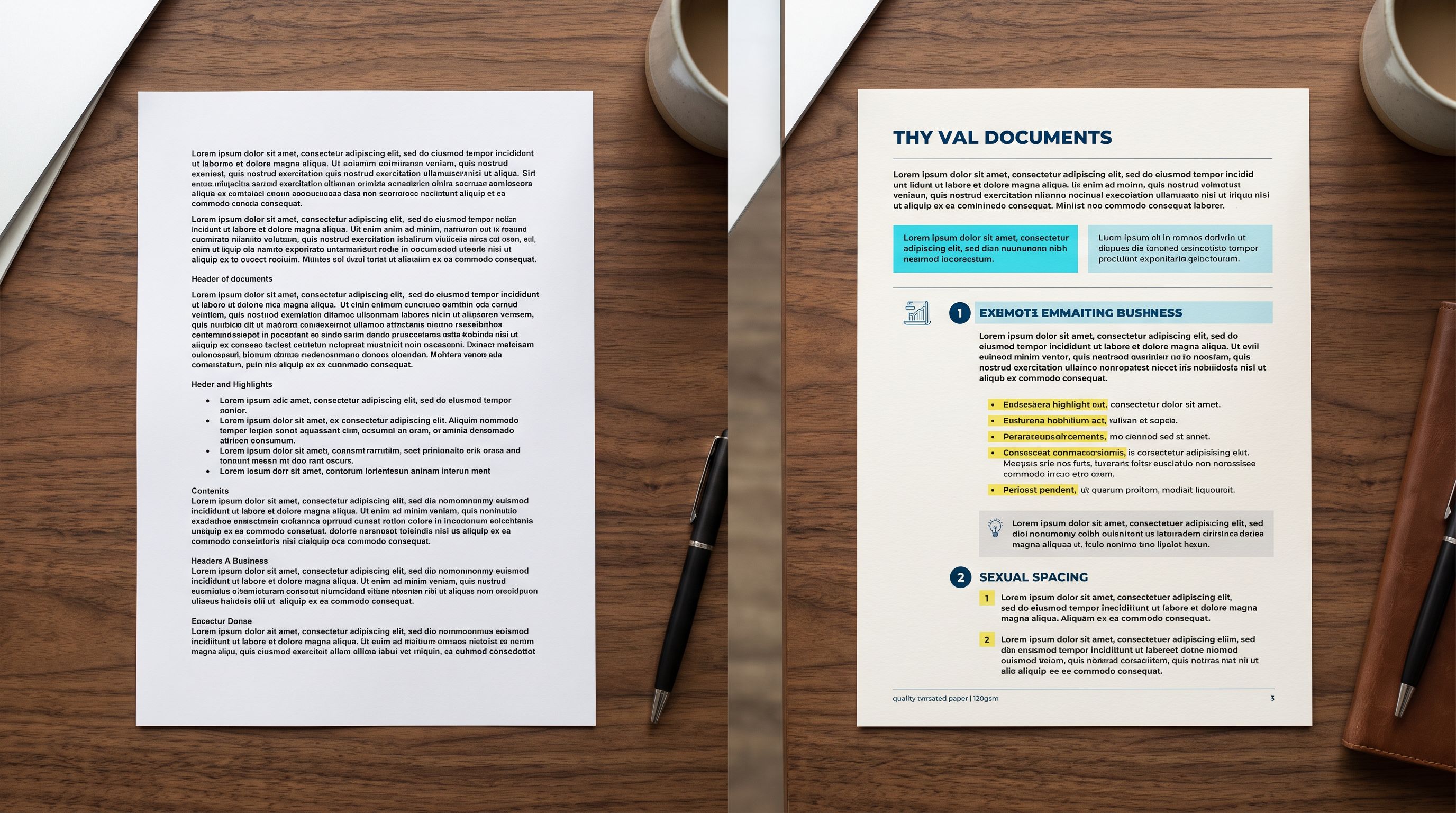
The output is not a reformatted version of the original text - it is a newly written description using the product data as input. This means the AI description may differ in phrasing from the original. For most merchants, this is acceptable or preferable: the original supplier description is commodity text that other resellers also use. An AI-generated description is unique to the merchant's store. Read more about what replacing supplier descriptions with AI-generated alternatives does for SEO.
- No paragraph breaks visible
- Bullet characters show as dots in flowing text
- Bold text absent - all content same weight
- Single wall of text across all features, specs, care instructions
- Identical to other resellers using the same supplier text
- <p> tags create paragraph breaks on the storefront
- <ul><li> elements render as actual bullet lists
- Key specifications marked as <strong> stand out visually
- Logical sections: features, specifications, care, materials
- Unique to the merchant's store
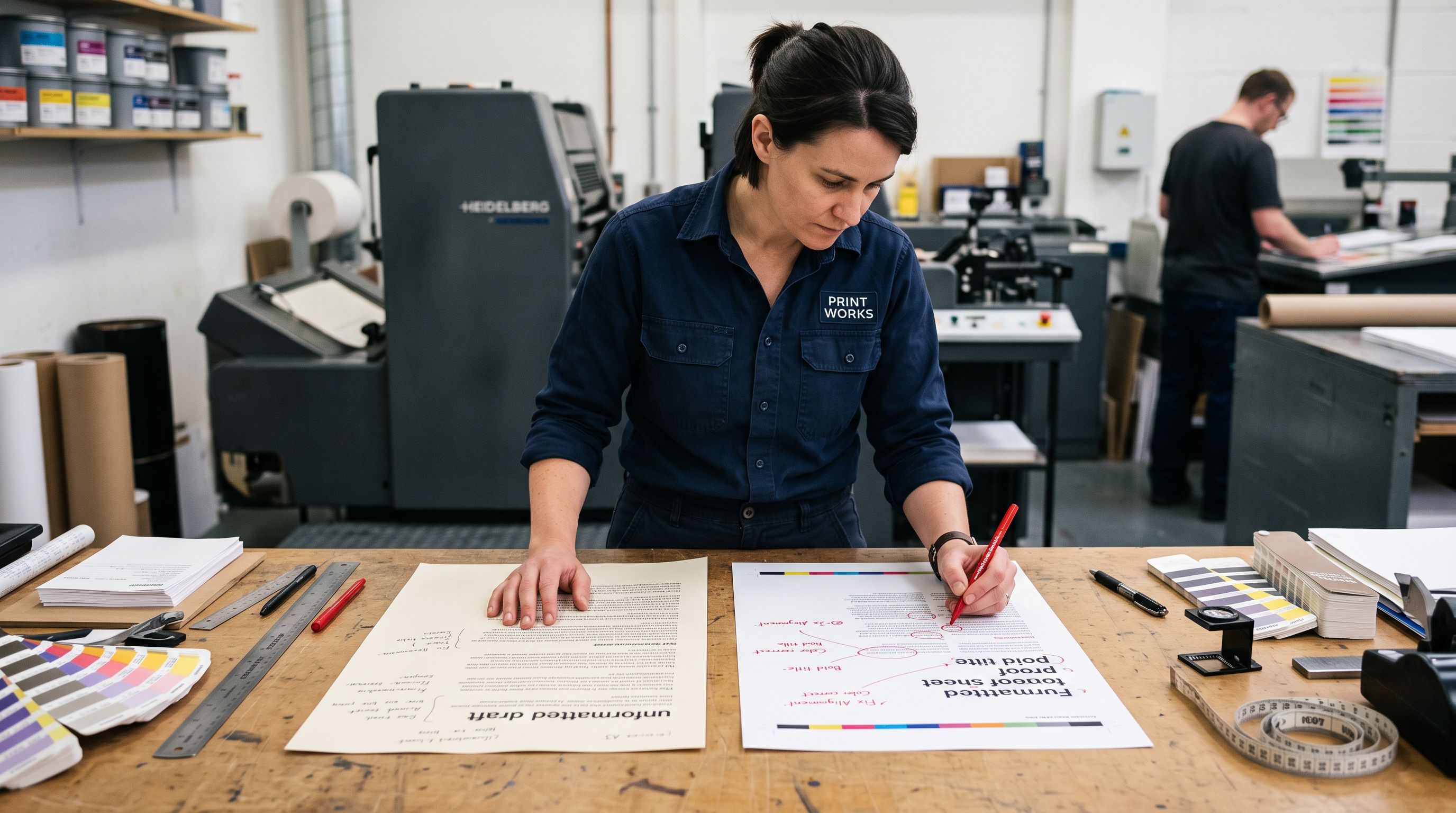
Path 2: Pre-format descriptions in the CSV before import. For merchants who need to preserve the exact wording of the original descriptions, the fix is to convert the plain text to HTML before the import runs. This is done by replacing line breaks with <br> or <p> tags, replacing bullet characters with <ul><li> structures, and replacing bold-intended text with <strong> tags.
This can be done manually for small catalogues. For large catalogues, it requires a scripted conversion. The challenge: the original plain text has no reliable markers to identify where a "heading" ends and "body text" begins, or which lines were intended as list items versus paragraphs. The conversion is ambiguous. AI re-generation sidesteps this ambiguity by interpreting the content and applying structure based on what the text means rather than what it looked like in Excel.
The body_html column in Shopify's CSV expects HTML. A plain text description in that column is not formatted incorrectly - it is correctly stored, just as plain text. Shopify renders what it receives.
Preventing formatting loss on future imports
The fix for future imports depends on the source.
For supplier CSV files, the reliable prevention is to not rely on description formatting from the supplier file at all. Instead, use the supplier CSV for product data (title, SKU, price, weight, variants) and generate descriptions separately using Importier's AI. This completely sidesteps the formatting problem by never carrying supplier plain-text descriptions into Shopify.
Read more about how re-importing from a supplier CSV can overwrite descriptions that were already correctly formatted. The description overwrite risk during re-import and the formatting loss during first import are related problems: both stem from relying on the CSV's Body (HTML) column for description quality.
For merchants building descriptions in spreadsheets, the prevention is to write HTML directly in the Excel or Google Sheets cells. This requires typing tags by hand (<p>Feature one.</p><p>Feature two.</p>) but produces exactly what Shopify's import expects. HTML list elements - when the cell contains valid HTML markup and that cell exports to CSV, the HTML is preserved because it is part of the text string, not a formatting attribute.
When the Importier import wizard preserves formatting
Importier's import wizard has one path where description formatting is preserved automatically: the Marketplace Import (URL-based import).
When a product is imported from a supplier's website URL, Importier reads the HTML source of the page, not the rendered plain text. The description section on the supplier's product page typically contains structured HTML: <ul>, <p>, <strong>. Importier extracts this HTML directly and writes it into the Shopify description field as HTML.
This means a product imported from a supplier website URL arrives with its formatting intact. The same product imported from the supplier's CSV arrives as plain text. The URL import path is the only automatic path that preserves original formatting - all other import sources (CSV, Excel, PDF) deliver plain text that requires AI re-generation or manual HTML conversion to display correctly.
Checking description quality after import
How to identify which products need attention
After an import from a plain-text source, the fastest way to identify unformatted descriptions is to export using Importier's Descriptions Only preset. This produces a CSV with product ID, title, and description. Descriptions with no HTML tags (no <, no >) are plain text and need attention.
A description that contains <p> or <ul> was already formatted. A description that is one long string without any angle brackets arrived as plain text.
For a 400-product catalogue, this check takes seconds: open the Descriptions Only export in Excel, filter the description column to rows that do not contain <p>, and the list of products needing reformatted descriptions is visible immediately.
Those products can then be passed to Importier's Store Scanner with the Replace mode selected. The Store Scanner re-generates descriptions for exactly those products and writes structured HTML back to Shopify.
What to take away
Shopify's description field stores and renders HTML. Plain text arrives intact but displays without formatting. Excel formatting, bullet characters, and line breaks do not survive the CSV export step because CSV is a plain-text format with no formatting layer.
Key points:
- The
Body (HTML)column in Shopify's CSV import requires HTML, not plain text. Any formatting added in Excel or a word processor is stripped during CSV export. - Bullet characters (•) in descriptions display as dots in a paragraph on the Shopify storefront. They are not rendered as bullet list items. Only
<ul><li>produces actual bullets. - Line breaks from Excel cells (Alt+Enter) do not produce visible paragraph breaks in Shopify. Only
<p>tags separate paragraphs. - The fastest fix for large catalogues is to use Importier's Store Scanner to re-generate descriptions as structured HTML. The AI interprets the plain text content and produces formatted output.
- The only import path that automatically preserves formatting is the URL-based Marketplace Import, which reads HTML directly from the supplier's product page.
Try Importier free at importier.app: Store Scanner re-generates plain-text descriptions as structured HTML at catalogue scale, and the Marketplace Import preserves supplier page formatting automatically.
Set up your first import in under five minutes.
Importier brings products into Shopify with AI descriptions, category metafields, and data enrichment on every run.