Shopify FAQ Generator: Filter Products by Vendor Name
On this page
A pet supplies merchant sources from three suppliers. EcoMutt produces organic, certification-heavy products: grain-free kibble, natural flea treatments, biodegradable waste bags. PremiumPaws manufactures high-end accessories: hand-stitched leather leads, memory foam beds, stainless steel bowls. ValuePet supplies budget basics: standard collars, nylon leads, plastic feeding sets. All three suppliers' products sit in the same Shopify catalogue, and each group needs a different approach when using the Shopify FAQ generator by vendor.
The EcoMutt products need FAQs about certifications, ingredient sourcing, and whether the product is suitable for dogs with allergies. PremiumPaws products need FAQs about craftsmanship, material quality, and care instructions for premium finishes. ValuePet products need FAQs about durability and suitability for multiple pets. Generating a single FAQ batch across all 180 products would average out the questions, producing content that does not fully serve any of the three buyer types.
Importier's FAQ Generator vendor filter solves this by letting the merchant run three separate FAQ batches: one per supplier, each targeting products by the vendor field in Shopify.
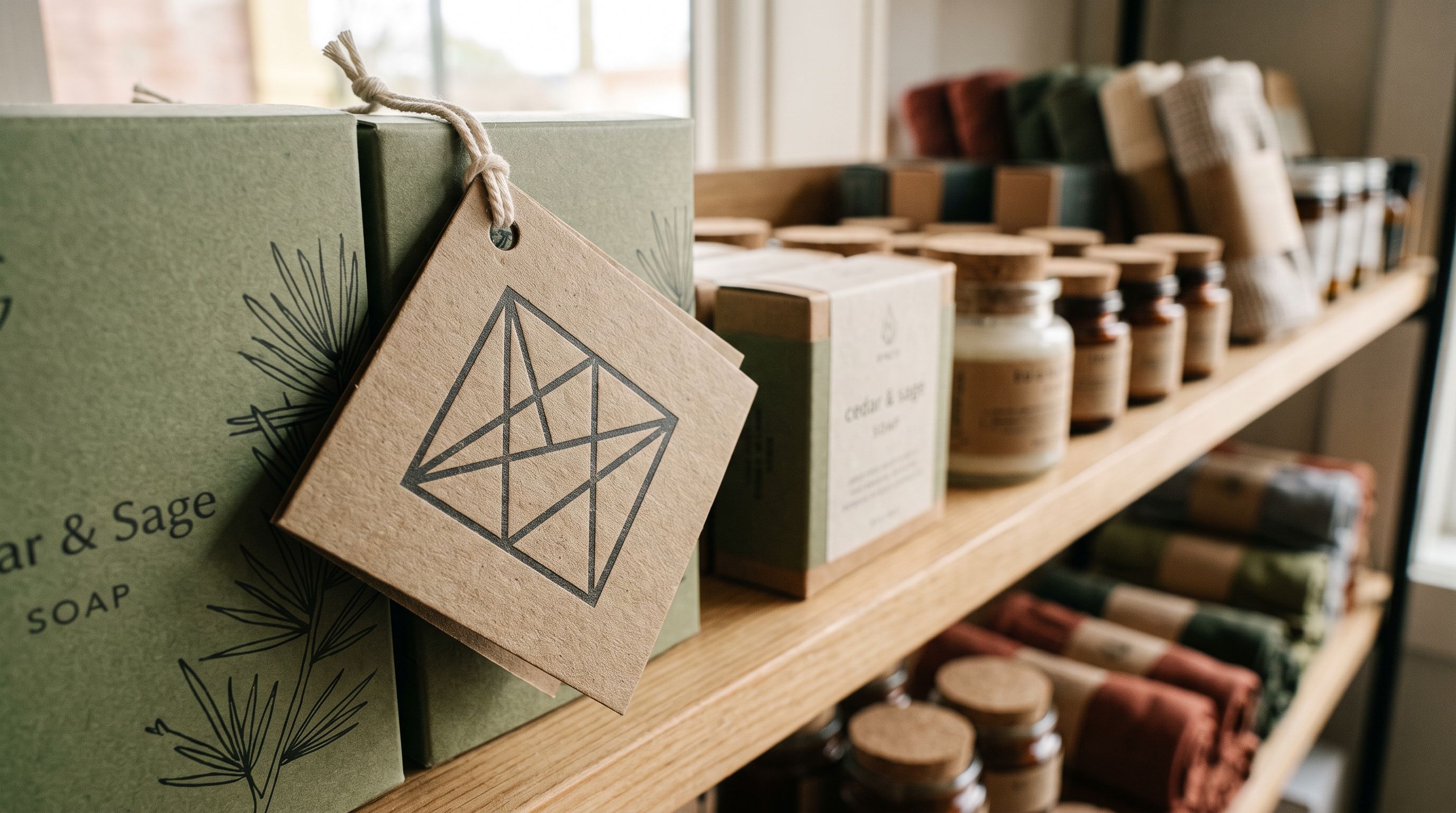
What the Vendor Field Is and Where It Comes From
Shopify's vendor field is a product attribute that records the product's manufacturer, brand, or supplier name. According to Shopify's product details documentation, the vendor field appears on product pages by default in some themes and is indexed in Shopify admin search. It is also one of the criteria Shopify uses for automatic collection membership rules.
The vendor field is not always populated after an import. If the supplier CSV does not include a vendor or brand column, or if the column is not mapped during import, Shopify sets the vendor field to the store name as a default. Products imported from marketplace URLs (Amazon, AliExpress, or a supplier website) generally populate the vendor field from the product's brand or manufacturer data in the source listing.
The practical check before using the vendor filter: open any product in Shopify admin and look at the Organisation section. If the Vendor field shows a consistent supplier or brand name across the product group you want to target, the vendor filter will work. If the Vendor field shows the store name or is blank, the filter will return no products or the wrong product group.
How the FAQ Generator Vendor Filter Works
The FAQ Generator in Importier includes a vendor input field in the filter settings, alongside collection and SKU pattern filters. Entering a vendor name scopes the FAQ generation run to only those products where the Shopify vendor field matches that name.
The match is exact on the vendor name, not a partial search. "EcoMutt" matches products with vendor set to "EcoMutt" but not products with vendor set to "ecomutt" or "EcoMutt Organics." This means the vendor names in Shopify need to be consistent for the filter to work reliably. If the same supplier has products with vendor set to "EcoMutt" in some records and "Eco Mutt" in others, a single vendor filter run will only catch one of the two variations.
- 01Check vendor field consistency before runningexport your catalogue or filter in Shopify admin by vendor name. Confirm the exact vendor string used and whether there are any variations across the product group. Fix inconsistencies in Shopify admin bulk edit before generating FAQs.
- 02Set the vendor filter in the FAQ Generator to the exact vendor name. Choose the FAQ count for this supplier's product type2-3 FAQs for straightforward products, 5-8 for technical or certification-heavy products where buyers have more pre-purchase questions.
- 03Run a sample review before committing the full batch. The FAQ Generator shows a preview for a subset of products. Check that the generated questions reflect this supplier's product characteristics, not generic questions that would fit any product in the catalogue.
- 04Decide on Append or Replace mode. If the products already have FAQ content from a previous run, Replace overwrites it. Append adds the new FAQs to existing ones. For a first run on a supplier group, either mode produces the same result. For re-runs after supplier product changes, Replace is generally the right choice.
- 05Commit the batch for this vendor, then repeat the process for the next vendor with its own settings.
Setting FAQ Count Per Vendor Group
The vendor filter's value comes partly from allowing different FAQ counts per supplier group. The FAQ Generator accepts between 2 and 10 FAQs per product. This setting applies to the full batch.

For the EcoMutt organic products, 6-8 FAQs per product is appropriate. Buyers purchasing organic pet food typically have questions about ingredient sourcing, country of origin, whether the product is suitable for specific dietary needs, storage requirements, and certification validity. Each question targets a distinct buyer concern.
For the ValuePet basics range, 2-3 FAQs is more suitable. A standard nylon collar has fewer meaningful pre-purchase questions. Generating 8 FAQs for a basic collar produces repeated or superficial content that does not help the buyer and adds little to the page's value.
Running separate vendor batches with different FAQ counts produces content that actually matches what buyers ask about each product type, rather than a one-size-fits-all average that serves none of them fully.
This matches the guidance from Google's FAQ structured data documentation: FAQ content should represent genuine questions buyers have about the specific product. Content that lists questions no buyer would actually ask does not qualify for FAQ rich results and reduces the page's relevance signal.
Vendor Filter vs Collection Filter
The FAQ Generator also supports filtering by Shopify collection. The collection filter and vendor filter target different organisational structures.
- Targets products by their merchandising structure (which collections they belong to). Requires products to be added to collections before the FAQ run. Works for multi-vendor collections (e.g., 'Leads' contains products from three suppliers).
- A stronger fit when FAQ strategy follows product category, not supplier origin.
- Targets products by supplier or brand name. Requires the vendor field to be populated consistently. Works across collections (all EcoMutt products across Leads, Bowls, Treats collections in one run).
- A stronger fit when FAQ strategy follows supplier type, compliance requirements, or brand voice that differs by supplier regardless of product category.
The vendor filter is the right choice when:
- FAQ content needs to reflect supplier-specific certifications, compliance language, or brand positioning
- A single supplier's products span multiple collections (EcoMutt makes both food and accessories)
- The merchandising collection structure was not built with supplier segmentation in mind
The collection filter is the right choice when:
- FAQ content should follow product category conventions rather than supplier identity
- Products in a category come from many suppliers but share buyer questions (all dog beds get the same set of comfort and washability questions regardless of brand)
For the pet supplies merchant, the vendor filter is the better tool because the supplier identity drives the FAQ content requirements. EcoMutt's organic certification questions apply across all EcoMutt products, whether they are food, treats, or accessories.
Running multiple vendor batches
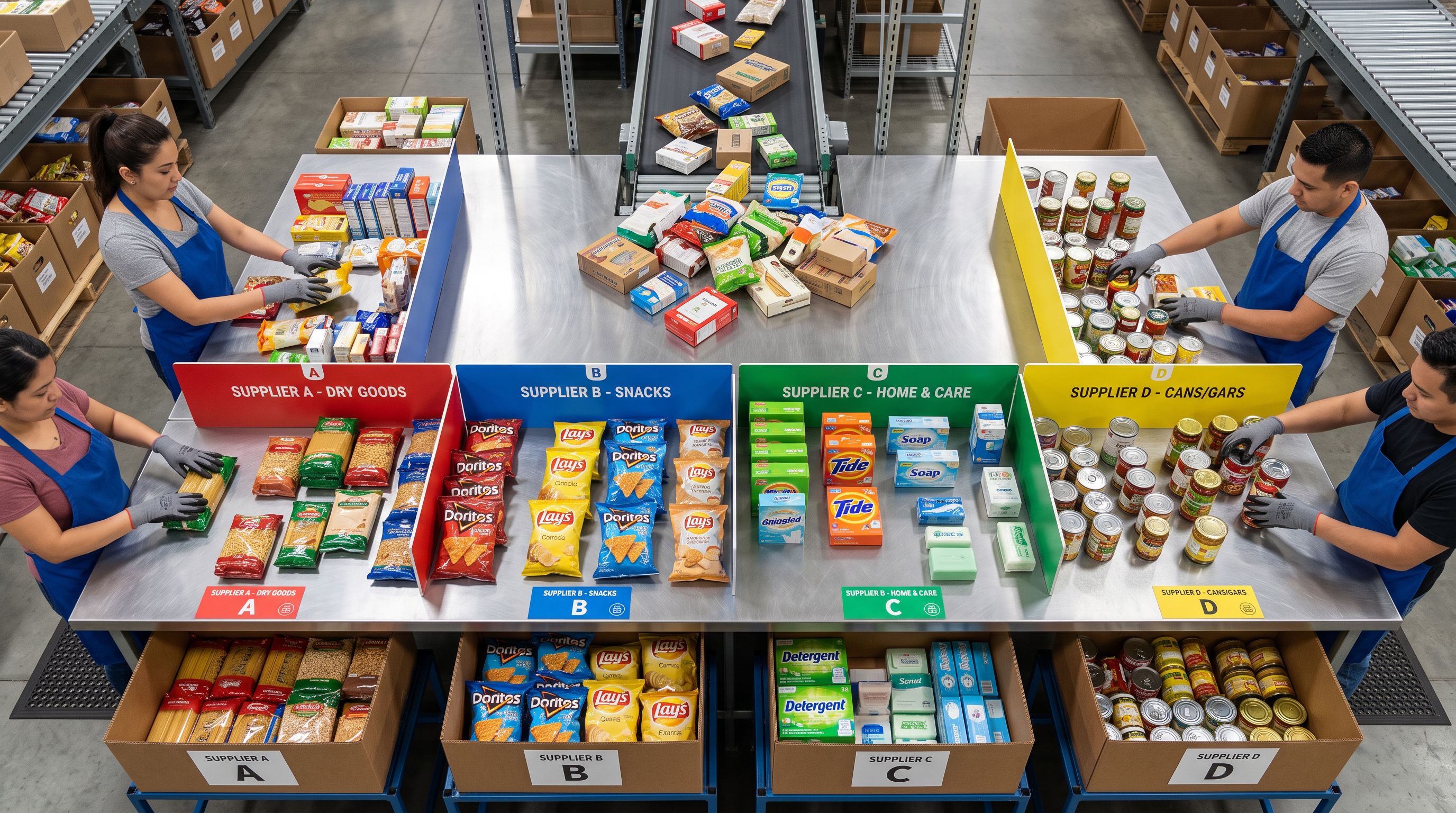
Running Three Vendor Batches in Sequence
The FAQ Generator runs one batch at a time. For three suppliers, the workflow is three sequential runs:
- Filter by EcoMutt, set count to 7, run in Replace mode (first run, no existing FAQs), review sample, commit.
- Filter by PremiumPaws, set count to 5, run in Replace mode, review sample, commit.
- Filter by ValuePet, set count to 3, run in Replace mode, review sample, commit.
Each batch commits before the next begins. There is no batch queuing across vendor filters. This is sequential work, but each run is unattended after the sample review step: the merchant reviews the sample, approves or adjusts, and commits. The batch then processes in the background.
For 180 products split 60/70/50 across the three vendors, the three sequential runs take roughly 15-20 minutes end to end. The result is 180 products with vendor-appropriate FAQs: 7 each for EcoMutt products, 5 each for PremiumPaws, 3 each for ValuePet.
Combining Vendor and SKU Filters
The FAQ Generator does not support combining vendor and SKU filters in the same run. The filter fields are independent. If a merchant needs to target a specific SKU subset within a vendor, the practical approach is to run the vendor batch first (covering all vendor products), then run a second pass with the SKU filter set to the specific product group in Replace mode.
The SKU filter approach is covered in detail in Shopify FAQ Generator: Filter Products by SKU Pattern. The collection filter approach is covered in Shopify FAQ Generator: Target Products by Collection.
Keeping Vendor FAQs Current After Supplier Changes
When a supplier updates their product range, adds a certification, or changes their brand positioning, the FAQs generated from the previous batch become stale. The vendor filter makes re-running the batch straightforward: filter by vendor, set to Replace mode, run.
Replace mode overwrites all existing FAQ content for the matched products. It does not merge with existing FAQs. If the previous batch generated 7 FAQs per product and the re-run is set to 5, each product ends up with 5 FAQs after the re-run.
For suppliers with stable product ranges, an annual re-run is usually sufficient. For suppliers who update certifications, add new compliance requirements, or change product formulations, a re-run after each major supplier update keeps the FAQ content aligned with the current product.
Key Takeaways
- The FAQ Generator vendor filter targets products by the Shopify vendor field, which records the product's manufacturer, brand, or supplier name.
- The vendor field must be consistently populated for the filter to work. Check vendor field values in Shopify admin before running.
- The vendor filter is most useful when suppliers have different product characteristics, compliance requirements, or brand positioning that should be reflected in FAQ content.
- Running separate vendor batches lets merchants set different FAQ counts per supplier group: technical or certification-heavy products typically warrant more FAQs than basic commodity items.
- The vendor filter works across collections, making it useful when the same supplier's products span multiple merchandising categories.
- Replace mode is the right choice when re-running batches after supplier changes. It overwrites the previous FAQ set rather than appending duplicate questions.
Manage FAQ generation by vendor at importier.app.
Set up your first import in under five minutes.
Importier brings products into Shopify with AI descriptions, category metafields, and data enrichment on every run.