Importing Shopify Products with Three Variant Dimensions
On this page
A clothing brand sells a t-shirt in 5 sizes, 8 colours, and 3 printed designs. That is 120 variant combinations. The supplier provides a CSV with 120 rows: one per size-colour-design combination. A merchant imports this file using Shopify's native CSV import and receives no error. The result is 120 separate product listings, each with a single size, colour, and design in the title. The product catalogue has 120 entries where it should have three, or one.
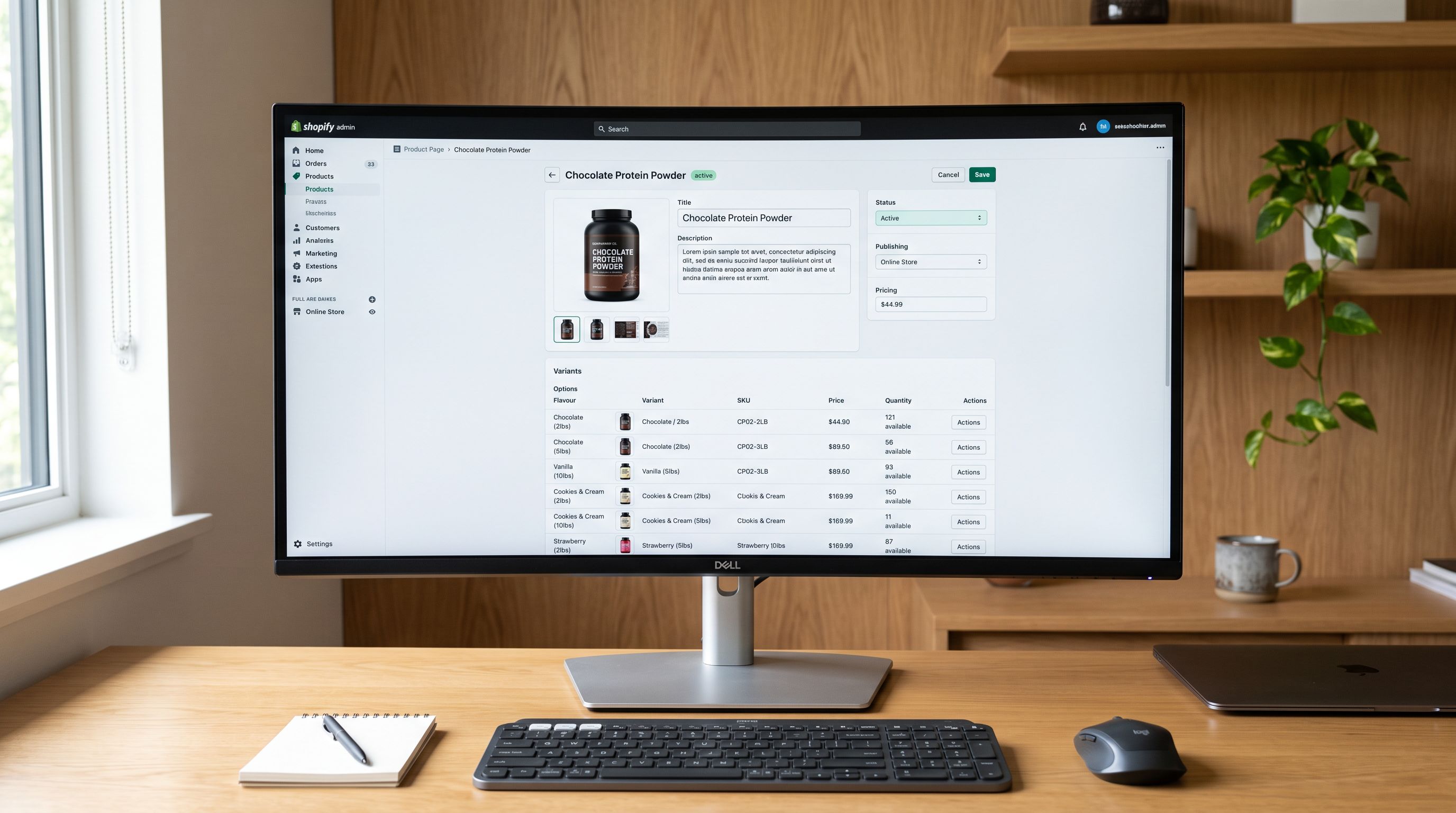
The shopify complex variants import problem does not appear as an import error. It appears as a bloated catalogue where customers cannot browse sizes and colours on the product page because there are no variant selectors, just 120 products, each with one option each.
Three Variant Dimensions Versus Three Variant Rows
The most common 3-dimension import failure comes from confusing variant dimensions with variant rows.
A product with 3 variant dimensions has 3 option columns in Shopify: Option1 (Size), Option2 (Colour), Option3 (Design). Each option is a dimension; each dimension can have many values. A t-shirt with 5 sizes, 8 colours, and 3 designs has:
- 3 option dimensions (Size, Colour, Design)
- 16 distinct option values across those three dimensions (5 + 8 + 3)
- 5 × 8 × 3 = 120 variant combinations, each representing a unique purchasable version of the product
In a supplier CSV, that product appears as 120 rows, one per combination. The rows represent the full variant matrix. They are not 120 products.
The import failure happens when the tool treats each row as a separate product rather than reading the 120 rows as a single product's variant matrix. The result is 120 separate Shopify products, each with no selectable options, just a concatenated title.
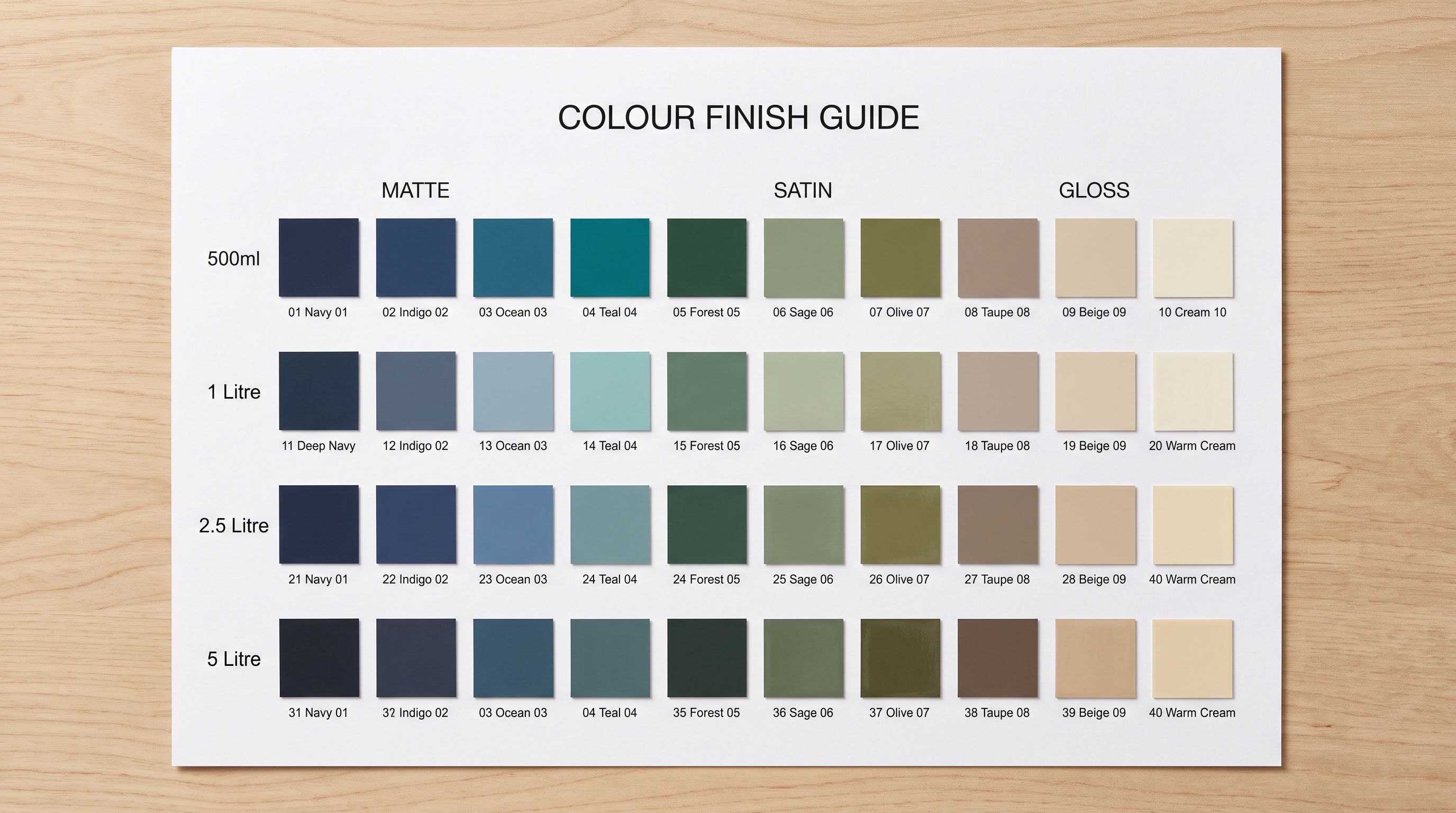
The same confusion appears across other product categories. A paint range with 40 colours × 3 finishes × 4 sizes has 480 rows but 3 option dimensions. A coffee brand with 6 origins × 3 roast levels × 4 grind options has 72 rows but 3 option dimensions. The row count is always the product of the dimension value counts, not the product count.
Shopify's Three-Option Limit and What It Means for Imports
Shopify's product model allows up to three variant options per product. Each option is a dimension with a label and multiple values. The 3-option ceiling applies to dimensions, not to the number of variants a product can have. A product with 3 options can have many individual variant combinations.
Shopify's ProductVariant API object reflects this: each variant record specifies a value for up to three option fields (selectedOptions). A product's variant matrix is the full set of combinations across those option values.
This structure maps cleanly to many product categories:
- Apparel: Size × Colour × Print or Material
- Paint: Colour × Finish (matte/satin/gloss/eggshell) × Volume (500ml/1L/2.5L/5L)
- Coffee: Origin × Roast Level × Grind (whole bean/coarse/medium/espresso)
- Footwear: Size × Colour × Width (standard/wide/narrow)
- Supplements: Flavour × Size × Format (powder/capsule/liquid)
The import implication: when a supplier CSV contains three option columns, each row must specify a value for every option dimension. A row missing an Option3 value in a 3-dimension product creates an incomplete variant. The import engine either rejects it or creates a variant with a blank option, neither of which produces a usable product page.
shopify complex variants import: Column Mapping for Three Dimensions
The column mapping step for a 3-dimension import requires explicit mapping for six option-related columns: Option1 Name, Option1 Value, Option2 Name, Option2 Value, Option3 Name, and Option3 Value, plus the product handle column that groups rows into one product.
The product handle column is the grouping key. Every row belonging to the same product must share the same handle. Importier's auto column mapper identifies the handle column by looking for a consistent string pattern that repeats across groups of rows, the value that stays constant across all 120 rows of the "Classic Tee" while Size, Colour, and Design values cycle through their combinations.
- 120 rows imported as 120 separate products
- No variant selectors on any product page
- Titles like 'Classic Tee / XS / Black / Mountain Print' with no searchable grouping
- Option columns misidentified or ignored
- Fixing 120 separate products in Shopify admin after failed import
- Auto column mapper identifies handle, Option1, Option2, Option3 columns by pattern
- 120 rows grouped into the correct number of products (1 or 3 depending on design structure)
- Variant selectors for Size, Colour, and Design appear on each product page
- Import preview shows grouped variant count before any product reaches Shopify
- Review step confirms 120 variants across the correct product structure
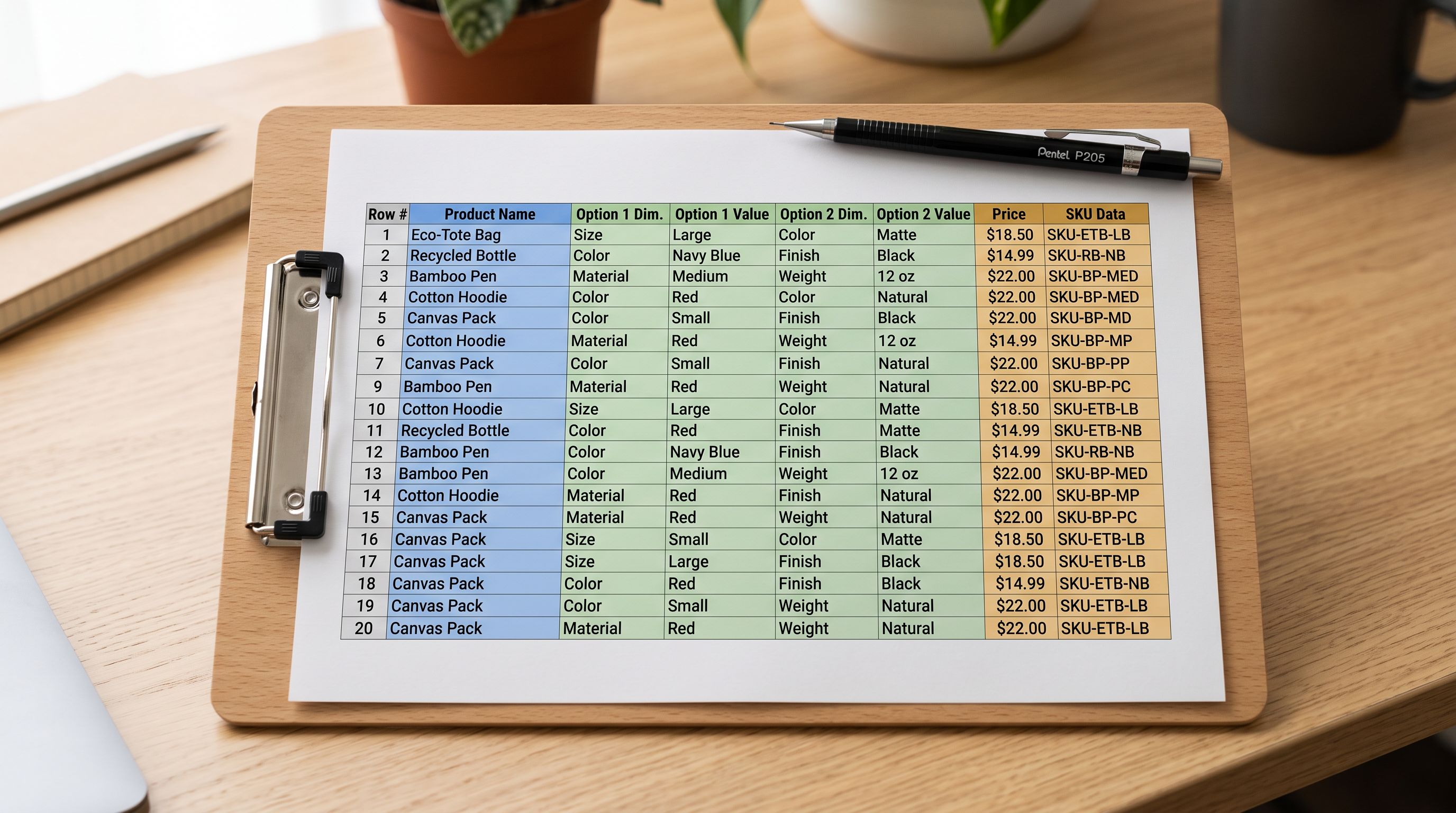
For a supplier CSV that includes option names in the column header (common in Faire, Printful, and direct-brand exports), the mapper reads "Size" as the Option1 Name and maps the corresponding value column to Option1 Value. If the supplier uses numeric columns without descriptive headers ("Column_D", "Column_E", "Column_F"), the mapper uses data pattern analysis to identify size strings, colour names, and design identifiers.
Smart Variant Detection for Complex Products
Grouping 120 rows into one product
When the supplier CSV does not include an explicit handle or product grouping column, Smart Variant Detection constructs the grouping from the available data.
Importier's 150+ variant detection patterns cover the option value types most commonly found in 3-dimension product CSVs. For the t-shirt example:
- Size detection identifies "XS", "S", "M", "L", "XL" (and numeric equivalents: 6, 8, 10, 12, 14 for AU/UK sizing; 2, 4, 6, 8, 10 for US) as size values
- Colour detection identifies standard English colour names, hex codes, and common colour-naming conventions across apparel and homeware categories
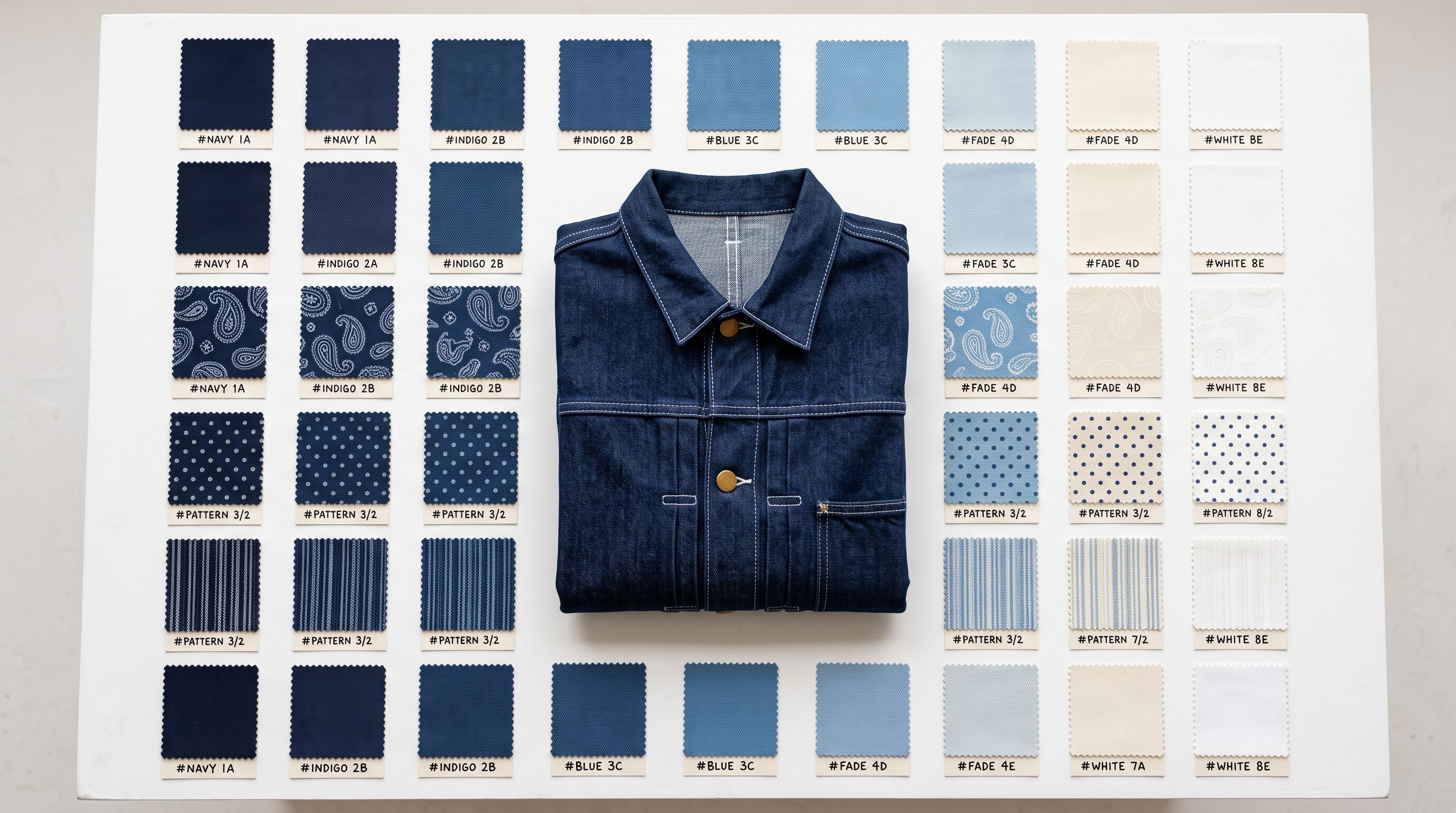
- Design or pattern detection identifies strings that do not match size or colour patterns (phrases like "Mountain Print", "Geometric", "Floral", "Minimalist") and groups them as the third option dimension
The detection runs across all rows, building a frequency table of repeating value combinations. Rows that share a base product title and have values consistent with a size-colour-design matrix are grouped into one product. The grouping result appears in the import preview step: the merchant sees a summary like "Classic Tee: 3 option dimensions, 120 variants" before any product is pushed to Shopify.
The import preview step shows the grouped variant structure before any product reaches Shopify. Confirm each product shows the expected variant count before any product reaches Shopify. Reviewing the grouping takes less than a minute and prevents a catalogue cleanup that takes hours.
For products where the design or pattern dimension contains ambiguous strings (values that could be colour names or design names depending on the brand's naming conventions), Importier's AI variant analysis resolves the ambiguity. It reads the full set of values in the column and determines whether they represent a separate dimension or a subset of an existing option.
When Products Have Four or More Dimensions
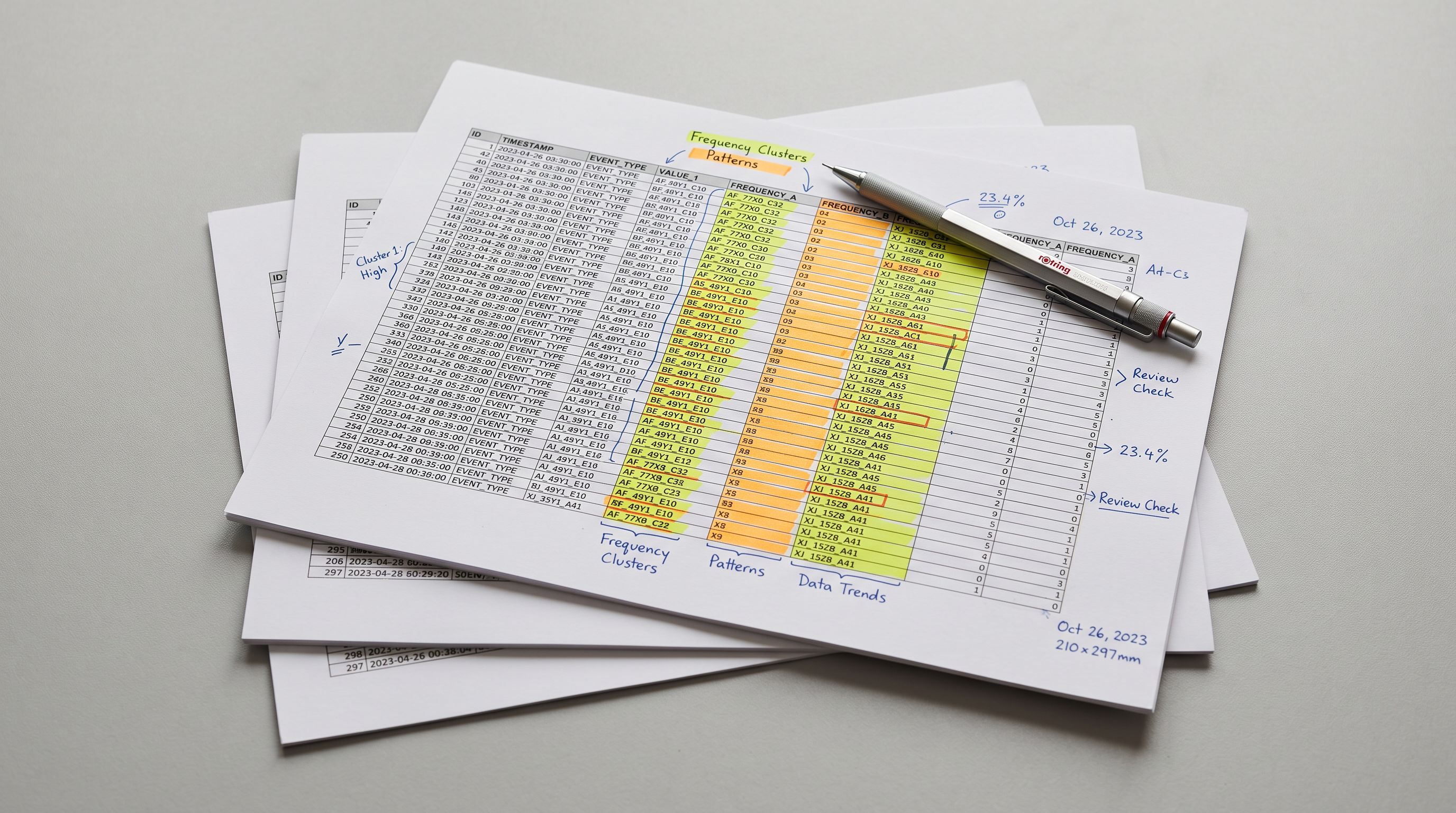
Some products genuinely require more than three variant dimensions. A custom-printed mug might have: size (10oz/12oz/15oz) × colour (white/black/navy) × handle style (standard/no-handle) × print side (left/right/both). That is four dimensions. Shopify's 3-option limit means a direct mapping is not possible.
Shopify's product merchandising documentation explains the product model constraints. The practical workarounds for 4-dimension products:
Combine two dimensions into one option. If two dimensions are closely related , such as "Colour" and "Finish" (matte black, gloss black, matte white, gloss white) can be combined into a single compound option value. This keeps the product structure within the 3-option limit at the cost of slightly longer option labels.
Use product tags for the fourth dimension. Tags are filterable on most Shopify themes and by collections. If the fourth dimension is a modifier that customers use for filtering (e.g., "Left Handle" vs "Right Handle") rather than a core purchase decision, tags handle this without requiring a separate variant dimension.
Split into separate products per fourth dimension value. If the fourth dimension has 2-3 values and each represents a meaningfully different product experience, separate products with cross-links are cleaner than compound option labels. This approach works when the fourth dimension is something like "Material" (ceramic vs stainless steel), where the products are genuinely different enough to warrant separate listings.
Importier's import wizard supports all three approaches. The column mapping step allows compound option values by concatenating two columns. Tags can be set during import from a dedicated column or from the product title pattern. Separate product splits are handled by adjusting the handle column mapping to create distinct handle values per fourth-dimension value.
- 01Step 1Export the supplier CSV and identify the variant structure. Count how many option dimensions the product has. Tally the distinct values per dimension. Multiply the value counts together to verify the row count matches the expected variant matrix. If a product with 3 dimensions and 120 expected variants has 118 rows, two combinations are missing from the supplier's stock.
- 02Step 2Upload to Importier and let the auto column mapper suggest field mappings. Review the Option1, Option2, and Option3 column assignments. Confirm the handle column is correctly identified as the grouping key. If the supplier CSV uses a non-standard header, manually assign the handle mapping before proceeding.
- 03Step 3Run Smart Variant Detection to group rows into products. Review the import preview: confirm each product shows the expected number of variants and the correct option dimensions. A product showing 120 variants with 3 options (5 + 8 + 3 values) is grouped correctly. A product showing 1 variant with no options means a grouping failure.
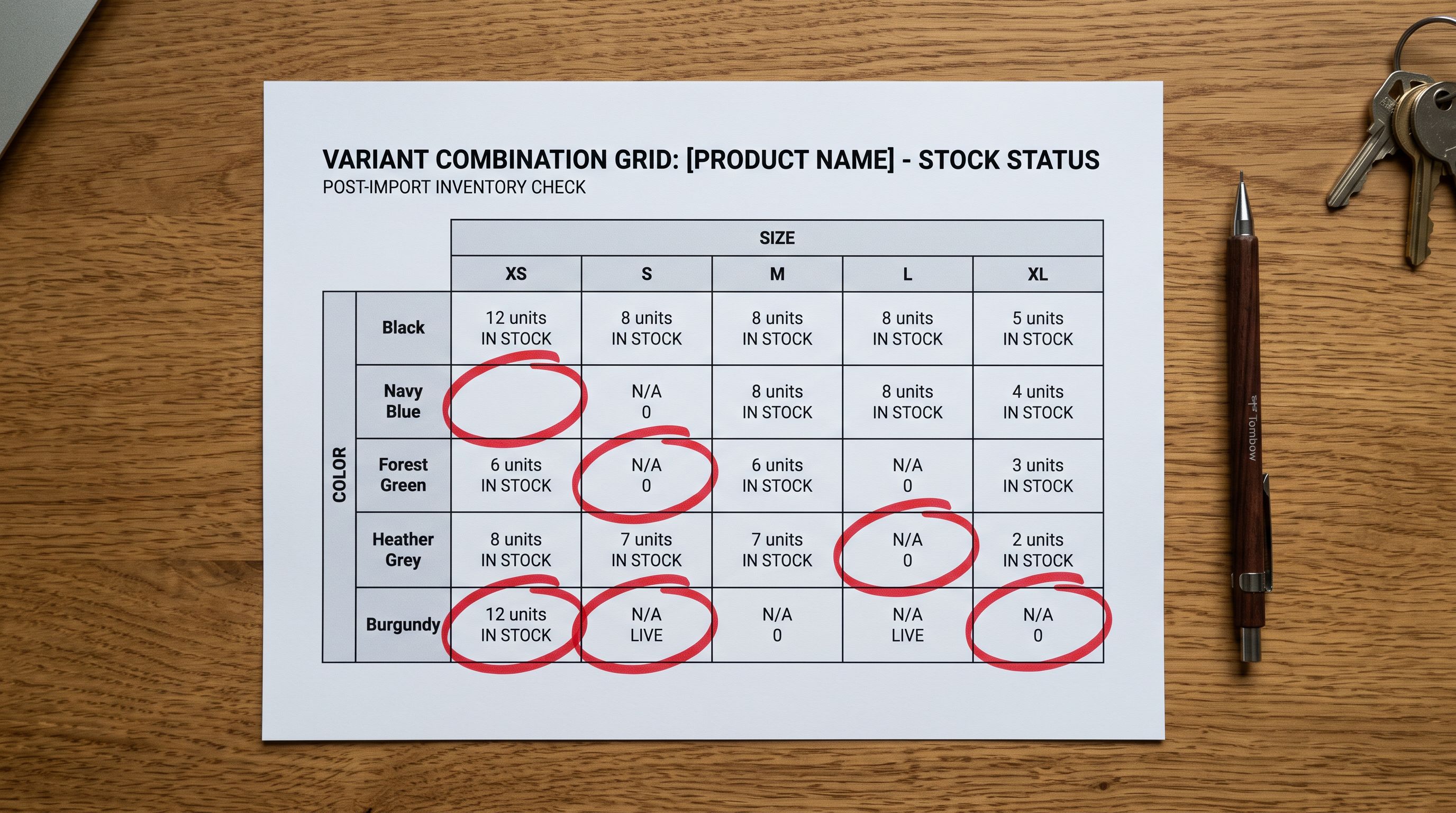
- 04Step 4Check for missing variant combinations. The import preview flags variant matrices with gaps, specifically combinations implied by the option values that do not appear in the CSV. Missing combinations typically mean the supplier does not stock that combination. Decide whether to create placeholder variants (out of stock) or leave them absent from the Shopify product.
- 05Step 5Configure AI description generation. For 3-dimension products, AI descriptions operate at the product level and optionally at the variant level. Product-level descriptions cover the shared attributes (materials, construction, use case). Variant-level descriptions can add design-specific copy for each print or pattern variant if the designs are distinct enough to warrant separate marketing copy.
- 06Step 6Review Import History after the push to Shopify. The history entry shows product count and total variant count. For a 3-product import (one per print design, each with 40 size-colour variants), the history should show 3 products and 120 variants. If it shows 120 products and 120 variants, the grouping failed and the import needs to be undone using Import History before re-running with corrected column mapping.

Key Takeaways
The shopify complex variants import challenge is structural: a 3-dimension product with many values per dimension generates a large number of variant rows in a supplier CSV, and import tools that treat rows as products rather than as variant entries create catalogue problems that are invisible until a customer tries to select a size.
Key points:
- Three variant dimensions means three Shopify Option columns (Option1, Option2, Option3). The variant row count is the product of the values in each dimension: 5 sizes × 8 colours × 3 designs = 120 rows, 3 dimensions, one product.
- The most common failure is treating row count as product count. A 120-row CSV for a single product creates 120 separate Shopify products when the handle grouping is missing or incorrect. The error does not appear as an import failure , it appears as a bloated catalogue.
- The handle column is the grouping key. Every row belonging to the same product must share the same handle value. If the supplier CSV does not include an explicit handle, Smart Variant Detection constructs the grouping from repeating title and option value patterns.
- The import preview step shows the grouped variant structure before any product reaches Shopify. Confirm the product count and variant count before pushing. A product showing 1 variant instead of 120 is a grouping failure visible at preview time, not after the fact.
- Shopify's 3-option limit applies to dimensions, not to variant combinations. Products with four variant dimensions need a workaround: compound option values, tags for the fourth dimension, or separate products per fourth-dimension value.
- Import History records product count and total variant count for every batch. Use it to verify that a 3-product import created 120 variants, not 120 products with 1 variant each.
For the underlying import mechanics, the Shopify product variants import guide covers how variant grouping works from a CSV structure perspective. The CSV import guide covers the full Shopify CSV field specification including option columns. For stores that need to avoid duplicate products when re-importing updated variant matrices, the safe product import guide covers the Import Undo workflow.
Start importing complex variant products at importier.app. Smart Variant Detection and 3-dimension variant grouping are available on the Growth plan and above.
Set up your first import in under five minutes.
Importier brings products into Shopify with AI descriptions, category metafields, and data enrichment on every run.