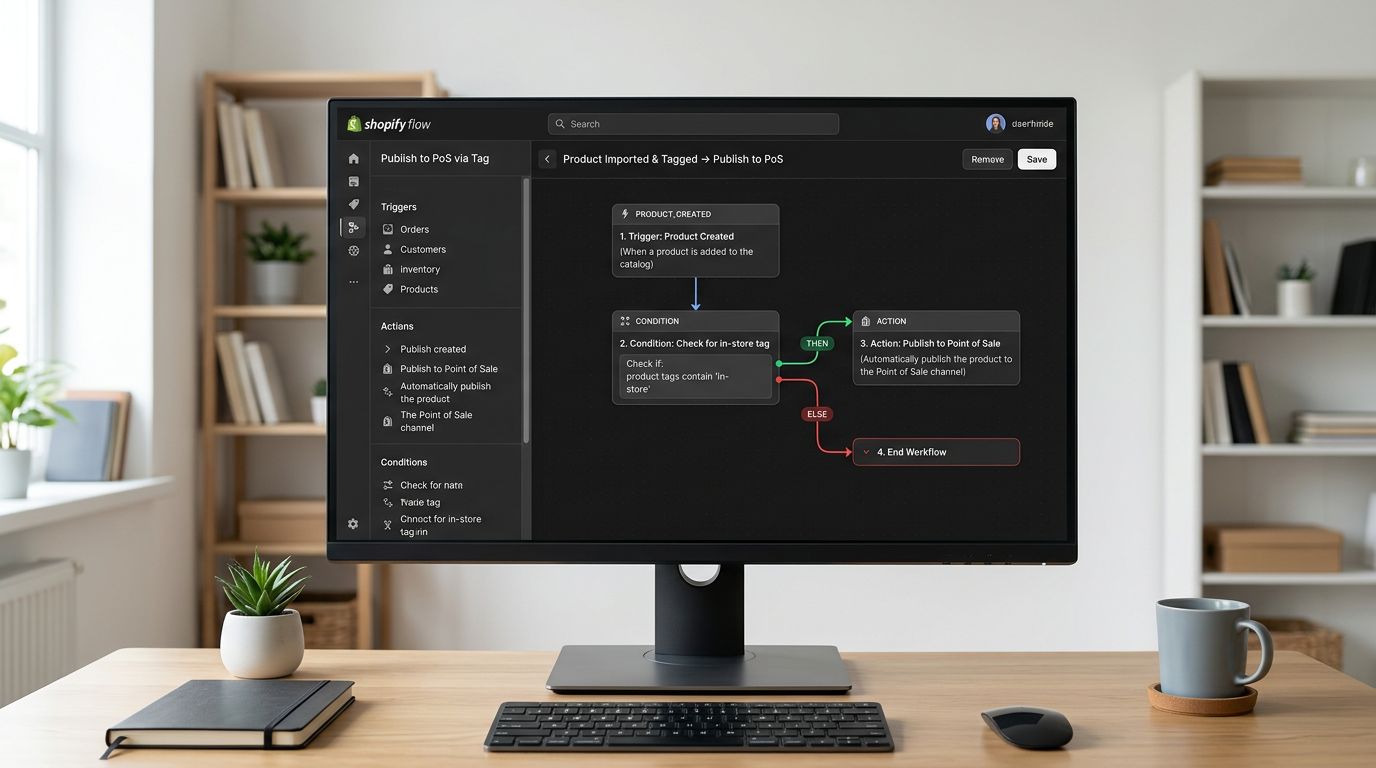
Add Barcodes to Shopify Products in Bulk: Full Guide

On this page
How to Add Barcodes to Shopify Products in Bulk
Most Shopify stores accumulate barcode gaps the same way they accumulate description gaps: quietly, through ordinary operations. A supplier CSV arrives with no Barcode column. A marketplace import fills in a SKU but not a GTIN. A platform migration completes successfully, but the barcodes lived in the old ERP system and never made it across.
The problem surfaces later. Google Shopping rejects products with "Limited performance due to missing value: GTIN", or a physical stocktake fails because the barcode scanner returns nothing. By then, the catalogue has hundreds of affected products, and the question becomes how to add barcodes to Shopify products at scale without spending a week on manual entry.
Why Shopify Products End Up Without Valid Barcodes
Missing barcodes come from three distinct sources, each requiring a slightly different fix.
The first is the supplier CSV with no barcode column. Many wholesale suppliers format their catalogues for internal use rather than retail distribution. The spreadsheet contains item codes, internal SKUs, and model numbers but no EAN-13 or UPC-A values. When you import that file, the Barcode field stays blank.
The second source is the internal code trap. This one is more damaging because it is invisible. A supplier CSV includes a column labelled "Barcode" or "Product Code", and the import wizard maps it correctly. The import succeeds and every product shows a value in the Barcode field. The values look like codes ("BELT-001", "ACC-SM-BLK-24") but they are internal references, not valid GTINs. Shopify accepts them without complaint. Google Merchant Centre rejects them.
The third is the platform migration gap. A store migrating from WooCommerce, BigCommerce, or a custom system often uses a two-step approach: migrate the products first, then sort out the supplementary data. The barcode field is frequently in the "sort out later" pile because it was stored in a separate ERP, POS, or WMS. Later arrives months after the migration, by which point the catalogue has grown further and the gap is harder to audit.
What Missing Barcodes Actually Cost
The most immediate consequence of missing barcodes is Google Merchant Centre disapprovals. GMC flags products without valid GTINs with "Limited performance due to missing value: GTIN", which caps their visibility in the Shopping tab and in Performance Max campaigns.
For merchants running paid Shopping campaigns, this directly reduces ad reach. For organic Shopping placements, it reduces the chances of appearing at all. A catalogue with 40% of products missing GTINs has 40% of its Shopping potential limited before a single bid is placed.
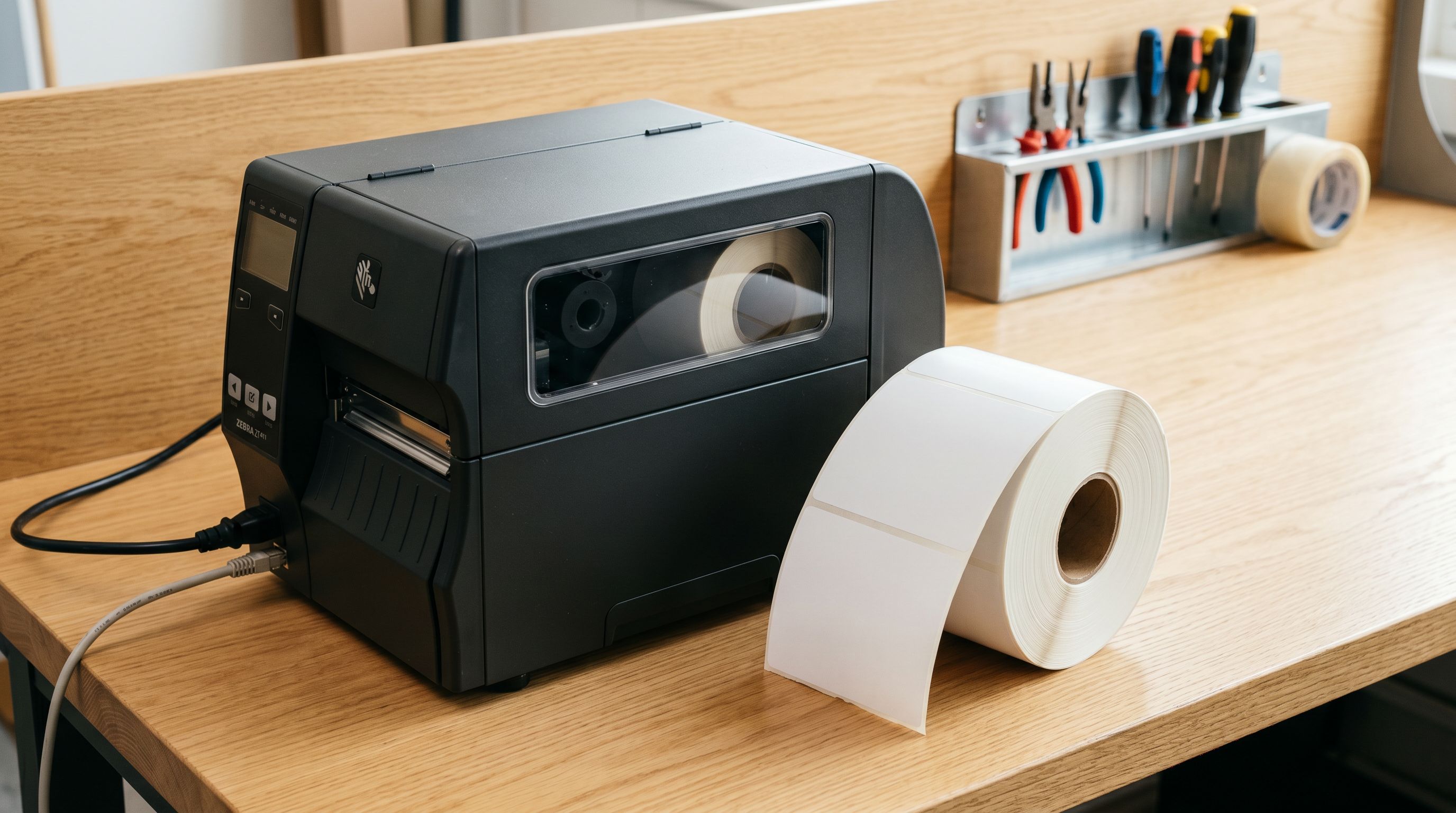
The second cost is POS and inventory management. Shopify's POS uses the Barcode field for scanning. Products without valid barcodes cannot be scanned at checkout or during a stocktake. Warehouse teams default to manual search by title, which is slower and more error-prone.
The third cost is scale. Five hundred products with missing barcodes, looked up and entered manually at three minutes per product, takes over 25 hours of work before a single barcode is in the system. That estimate assumes every lookup is successful. In practice, GS1 searches return nothing for unbranded goods and manufacturer sites require account registration.
Why Adding Barcodes Manually Doesn't Scale
The manual approach to filling barcodes in Shopify has three steps, each of which introduces friction.
First, you need to find the GTIN. Valid GTINs come from the GS1 registry, the manufacturer's product catalogue, or a retailer portal where the brand publishes their product data. Each product requires a separate lookup. There is no shortcut that works across suppliers: a strategy that finds barcodes for electronics will not help with apparel or food.
Second, you need to get the data into Shopify. The bulk editor in Shopify admin shows a list of products and lets you edit fields, but the Barcode field is not searchable by length or format. You cannot filter to products with blank barcodes. You can see the field for each product, but you cannot identify the gap without opening each row.
The CSV re-import approach works but adds complexity. You export your current product list, filter to rows with blank or invalid barcodes, find the GTINs, paste them into the correct column, and re-import. Name the column exactly "Variant Barcode" for Shopify to accept it. If the Handle column values have drifted since the original import (which happens when Shopify auto-modifies handles on edit), the re-import creates duplicates instead of updates.
The Automated Approach
How Importier Fills Barcodes During Import
The data enrichment step solves the barcode gap at the point of import, before products reach Shopify.
During the 14-step import wizard, Importier's data enrichment checks each incoming product and looks up the GTIN using the product title, type, and vendor data you provide. When a match is found, it populates the Barcode field automatically. When no match is found, the field stays blank rather than being filled with guessed data.
For wholesale CSV imports where supplier files typically carry internal codes instead of GTINs, the enrichment step identifies and skips the internal references rather than mapping them through as-is. The result is a Barcode field that either contains a valid GTIN or is left empty for a targeted follow-up pass.
Variant detection runs in the same batch. If a product has three sizes, each variant gets its own barcode lookup. This matters because EAN-13 values are variant-specific: a medium blue T-shirt and a large blue T-shirt have different GTINs, and a single lookup for the parent product would return incorrect data.
- Look up each GTIN manually from GS1 or manufacturer sites
- Paste values one by one into Shopify admin or via CSV re-import
- 500 products takes 25+ hours before a single barcode is confirmed
- Internal codes remain unless you identify and replace them individually
- Barcode lookup runs automatically during import for each product
- Fills valid GTINs directly into the Barcode field before products hit Shopify
- Skips products where no match is found rather than inserting bad data
- Handles each variant separately so size and colour variants get individual GTINs
How to Fill Barcodes on Products Already in Your Store
For products already in Shopify, the retroactive enrichment workflow uses Store Scanner as the targeting layer.
Store Scanner lets you filter your existing catalogue by barcode pattern. You can scope a scan to products with no barcode at all, or to products whose Barcode field matches a specific prefix pattern. A merchant who knows their supplier used "BELT-" prefixed internal codes can filter to exactly those products, run barcode enrichment in Replace mode, and overwrite the internal codes with valid GTINs in one batch.
The two-pass approach handles both flavours of the problem: blank barcodes and internal codes that look valid but are not.
The two-pass strategy works consistently. The first pass targets products with no Barcode value at all. The second pass filters to the known internal code patterns using the SKU prefix filter: any product whose barcode starts with the supplier's internal naming convention becomes a target for replacement.
This mirrors exactly how missing descriptions get addressed via Store Scanner: targeted campaigns on specific catalogue slices, each reviewable and reversible. Import Undo covers every Store Scanner run. If the barcode enrichment batch produces unexpected results, you revert it without touching anything else in the catalogue.
When Data Enrichment Cannot Find a Barcode
Not every product has a discoverable GTIN, and it is worth knowing in advance which categories will return no match.
Unbranded or private-label products have no GS1 registration unless the merchant has applied for one. Custom-made items, handmade goods, and wholesale-exclusive products manufactured for a single retailer typically fall into this category. For these products, no barcode lookup will succeed because there is no global record to find.
Google's GMC policy explicitly exempts these products from the GTIN requirement. For products in categories where GTINs are not universally assigned, or where the brand does not have a registered GS1 prefix, you can set the identifier_exists attribute to "no" in your GMC feed. Shopify's Google channel passes this through automatically when the Barcode field is blank and the product matches certain category signals.
Private label merchants who want their own GTINs can register a barcode block with GS1. A GS1 Company Prefix covers a set of product numbers you assign yourself. This is the correct path for own-label ranges that will be distributed through multiple retail channels.
The enrichment report in Importier shows which products returned a match and which did not. The no-match list becomes a clean workload for one of the above paths: GMC exemption, GS1 registration, or manual supplier lookup for the subset that genuinely needs it.
Step-by-Step: How to Add Barcodes to Shopify Products
During a new import:
- 01Open the import wizard in ImportierFrom your Shopify admin, open Importier and select One-off Import or Scheduled Import. Upload your supplier CSV, Excel, or PDF file.
- 02Map your columnsImportier auto-maps known column names. If your supplier file has a barcode column with internal codes, leave it unmapped or mark it for replacement.
- 03Enable data enrichmentOn the enrichment step, toggle on Barcode Lookup. Importier will search for GTINs using each product's title, type, and vendor fields.
- 04Review the import previewThe preview shows which products received a barcode match and which are pending. Confirm the import when the preview looks correct.
- 05Import and verifyProducts appear in Shopify with valid GTINs in the Barcode field. Check a sample in the admin to confirm the values are 8, 12, or 13 digits.

For products already in your store (retroactive):
- 01Open Store Scanner in ImportierNavigate to Store Scanner from the Importier sidebar.
- 02Filter by barcode patternUse the barcode filter to target products with no barcode, or enter your supplier's internal code prefix to catch the internal code trap.
- 03Enable barcode enrichment in Replace modeSelect Replace so internal codes are overwritten rather than appended. Importier looks up valid GTINs for each product in the filtered list.
- 04Review and confirmCheck the preview to see which products received matches. Confirm the run. Import Undo remains available if you need to revert.
After the Fix: What to Expect
Google Merchant Centre picks up barcode changes on the next feed sync, which typically runs daily. Products that previously showed "Limited performance due to missing value: GTIN" should clear that flag within 24 to 48 hours of a valid GTIN being present.
Shopping performance improvements are not immediate. Once GMC validates the GTINs, the products enter the broader product catalogue matching system, which aligns your listings with the same product appearing across other retailers. Visibility in the Shopping tab and eligibility for certain ad formats improves over the following weeks.
POS and inventory scanning works immediately. As soon as valid GTINs are in the Barcode field, your point-of-sale device and warehouse scanners can read the products.
Key Takeaways
- Products end up without valid barcodes through three routes: supplier CSVs with no barcode column, internal codes that look valid but fail GMC checks, and platform migrations where barcodes lived in a separate system.
- The internal code problem is invisible in Shopify admin. The Barcode field appears populated but causes the same GMC disapproval as a blank field. It requires Replace, not Add.
- Importier's data enrichment fills GTINs automatically during import, before products hit Shopify, using product title, type, and vendor as lookup inputs.
- Store Scanner retroactively targets products with missing or invalid barcodes using blank-field and SKU-prefix filters, then replaces them in bulk with Import Undo as a safety net.
- Custom, unbranded, and private-label products without GS1 registration cannot be looked up. Use Google's custom product exemption or register a GS1 prefix for own-label ranges.
Try Importier free at importier.app
Set up your first import in under five minutes.
Importier brings products into Shopify with AI descriptions, category metafields, and data enrichment on every run.