Store Scanner Replace Mode Overwrote My Shopify Descriptions: Recovery Guide
On this page
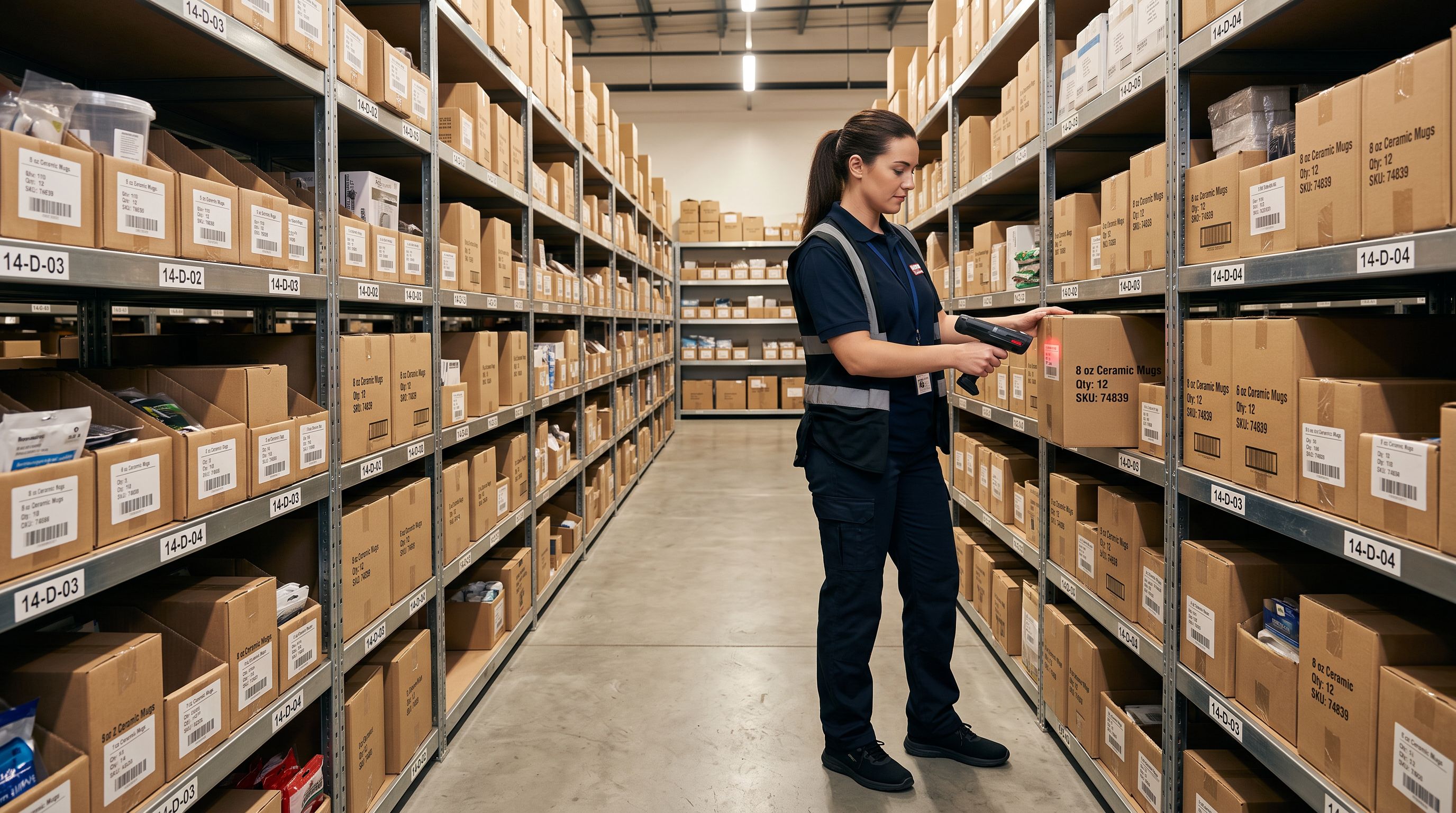
A furniture retailer spends six months writing custom product descriptions for their 40 hero products. Each description is specific: the exact timber species, the joinery technique, the weight capacity, the lead time for custom sizing. A new team member opens Store Scanner to fill in missing descriptions for the 300 recently imported supplier products. They select Replace mode, do not apply a collection filter, and run the scan across the entire catalogue. Within minutes, all 340 products have new AI-generated descriptions. The custom-written copy for the 40 hero products is gone.
This is a genuine data-loss scenario, not a recoverable error the app warns against. Store Scanner Replace mode does exactly what it says: it replaces the description for every product it scans. Without a collection filter applied, that means every product in the catalogue. The app has no confirmation dialog that lists which manually edited descriptions will be overwritten. It replaces and moves on.
What Was Lost and What Can Be Recovered
The immediate question after an accidental Replace run is whether the overwritten descriptions can be restored.
Shopify does not keep a revision history of product description fields. Once a description is overwritten via API, the previous content is not recoverable from Shopify admin. There is no "undo" button in Shopify's product editor for bulk changes. The Shopify admin activity log shows that products were updated but does not store the previous field values.
Importier's Import History is the recovery path. Every Store Scanner run is logged in Import History with:
- The date and time of the run
- The number of products processed
- A revert option that sends the previous description back to Shopify for each product in that batch
The revert works because Importier records the description that existed on each product before the replacement was made. It stored the before-state at the time of the scan, then sent the new description to Shopify. The before-state is retained in Import History for up to 20 snapshots.
If the accidental Replace run is within the 20 most recent Import History entries, the previous descriptions are recoverable. Open Import History, find the entry for the accidental run (identified by date, time, and product count), and use the revert function. Importier sends the previous description back to Shopify for each product in that specific batch.
Step-by-Step Recovery Using Import Undo
The recovery process is straightforward if acted on quickly, before subsequent imports push the accidental run out of the 20-snapshot window.
- 01Open Import History in Importier. Import History logs every import, Store Scanner run, and FAQ Generator run with date, time, product count, and source. Find the entry for the accidental Replace run. It will show the date and time it ran, and the number of products it processed.
- 02Confirm this is the correct entry. Check the timestamp matches when the accidental run happened. Check the product count matches what you expected the run to touch. An accidental full-catalogue run typically shows a product count close to your total catalogue size.
- 03Click the revert (undo) option on that entry. Importier sends the previous description back to Shopify for each product in the batch. This is a targeted revertonly the products in that specific run are affected. Products that were correctly updated by other means since that run are not touched.
- 04Verify recovery on your most important products. Open Shopify admin and check 5-10 products that had custom-written descriptions. Confirm the original content is restored. Pay particular attention to the hero products with the most bespoke copy.
- 05If the original descriptions are restored correctly, the recovery is complete. If the Import History entry is not present (more than 20 runs have happened since the accidental run), proceed to the manual recovery section below.
If Import History No Longer Has the Entry
Once more than 20 Import History snapshots exist, older entries are no longer available for revert. For accidental runs that happened before 20 subsequent imports occurred, recovery requires the original source content.
Potential sources for the original descriptions:
- The original supplier CSV or data source if the descriptions were imported from a file that is still available. Re-importing the original file with descriptions included restores them.
- A Shopify CSV export taken before the accidental run. If the store has regular exports used for backup purposes (either manually or via a scheduled export), the Body HTML column in that export contains the descriptions as they were at export time.
- Third-party backup apps (some Shopify merchants run periodic data backups via apps in the Shopify App Store). Check whether a backup predating the accidental run exists.
- The Shopify export presets in Importier include a "Descriptions Only" preset. If you ran a descriptions export before the accidental run, that export file contains the previous descriptions.
- Google's cached version of the product pages if the products were indexed. Google's cache stores the page as it was indexed, which may include the previous description text. This is a last resort and only works for products that were publicly visible and recently crawled.
If none of these sources are available, the original descriptions cannot be recovered. The only path forward is rewriting the affected descriptions, either manually or with AI generation assisted by whatever product information can be retrieved.
Preventing accidental overwrites in the future
Three Settings That Prevent This Problem
An accidental full-catalogue Replace run is preventable with a single setting change before each Store Scanner session. Three approaches protect manually edited descriptions from being overwritten.
Option 1: Use a collection filter before running Replace mode.
The most reliable protection is to organise products into collections that map to content ownership. Manually edited, custom-written descriptions go into a "No-AI" or "Custom Content" collection. Store Scanner runs are filtered to exclude this collection, or to include only the "Needs Descriptions" collection.
Importier's collection filter in Store Scanner applies before the scan. Set it to the collection containing supplier-imported products that need AI descriptions, and the scan will not touch products outside that collection. The 40 furniture hero products in their own collection remain untouched regardless of how many times Store Scanner runs on the rest of the catalogue.
Option 2: Use the short-description threshold to protect existing content.
Store Scanner's short-description filter surfaces products whose descriptions are below a specified word count. Setting this threshold to 20-30 words means only products with very short or missing descriptions enter the replacement queue. Products with substantial existing descriptions (including manually written hero copy at 200+ words) are excluded from the scan results automatically.
This approach works without requiring collection organisation. It is less precise than a collection filter (a supplier product with a short existing description would still be replaced) but for catalogues where most manually written descriptions are substantially longer than AI-generated or supplier copy, the threshold provides meaningful protection.
Option 3: Use Append mode instead of Replace mode for incremental additions.
Replace mode is the correct choice when descriptions need to be completely rewritten from source. It is often the wrong choice for adding supplementary content to products that already have acceptable descriptions.
The Store Scanner append mode adds content after the existing description rather than replacing it. For workflows where the goal is to add FAQs, compliance language, or supplementary copy to products that already have acceptable body text, Append mode preserves the existing content. Using Append mode by default for shared catalogues where some products have custom copy reduces the risk of an accidental Replace run.
Protecting Hero Products With a Dedicated Collection
The most robust long-term protection for manually written descriptions is collection-based content governance. The principle: any product with descriptions that must not be overwritten belongs in a collection that Store Scanner is instructed to exclude.
Set this up once and it applies to every future Store Scanner session:
- Create a Shopify collection called "Protected Content" or "Custom Descriptions".
- Add every product with manually written or third-party-edited descriptions to this collection.
- Before every Store Scanner run, apply the collection filter to exclude "Protected Content" (or include only the collections containing products that need new descriptions).
- When a new product gets a custom-written description, add it to "Protected Content" immediately.
According to Shopify's collection documentation, products can belong to multiple collections simultaneously. A product can be in both "Sofas" and "Protected Content" at the same time. The collection membership does not affect the product's visibility on the storefront; it is purely used as a filter selector in Store Scanner.
Import History retains a revert option for up to 20 Store Scanner runs. If an accidental Replace run is within this window, the previous descriptions are recoverable without manual rewriting.
Setting Up Store Scanner Safely for a Shared Catalogue
For teams where multiple people have access to Importier, a shared configuration approach reduces the risk of accidental Replace runs:
- Document which collections contain protected content in a shared reference accessible to anyone who uses Store Scanner. A brief note in the team's process docs prevents the next new team member from repeating the same mistake.
- Default to Append mode for routine content additions. Reserve Replace mode for explicit rewrite tasks where the intention to overwrite existing content is deliberate.
- Use the short-description threshold as a secondary safety gate. Even with Replace mode selected, a threshold set to 50+ words means products with substantial existing descriptions will not appear in the scan results for replacement.
- Run a test scan on one collection before applying to the full catalogue. Store Scanner shows a preview of affected products before the replacement is pushed to Shopify. Reviewing this list for unexpected entries (products with custom copy that shouldn't be in the run) takes seconds and catches the error before it happens.
Key Takeaways for Store Scanner Replace Mode
Replace mode is the right tool for overwriting supplier descriptions, placeholder copy, and short or missing descriptions at scale. The risk is applying it without scope control on a catalogue that contains manually written content.
- Import History provides a recovery path for up to 20 runs: find the entry for the accidental run by date, time, and product count, and use the revert option to restore previous descriptions for every product in that batch.
- Recovery window closes after 20 subsequent imports: act on recovery as soon as the accidental run is discovered. The longer the wait, the more likely subsequent runs push the entry out of the revert window.
- A collection filter is the most reliable prevention: place manually edited products in a dedicated collection and exclude it from every Store Scanner session. The setup takes minutes and applies permanently.
- The short-description threshold protects content without requiring collection setup: products with substantial existing descriptions are excluded from the replacement queue automatically when the threshold is set appropriately.
- Append mode preserves existing content by default: for teams where Replace mode accidents are a recurring risk, defaulting to Append mode for most Store Scanner sessions removes the risk entirely for products with existing descriptions.
Recover from an accidental Replace run and configure Store Scanner safely at importier.app.
Set up your first import in under five minutes.
Importier brings products into Shopify with AI descriptions, category metafields, and data enrichment on every run.