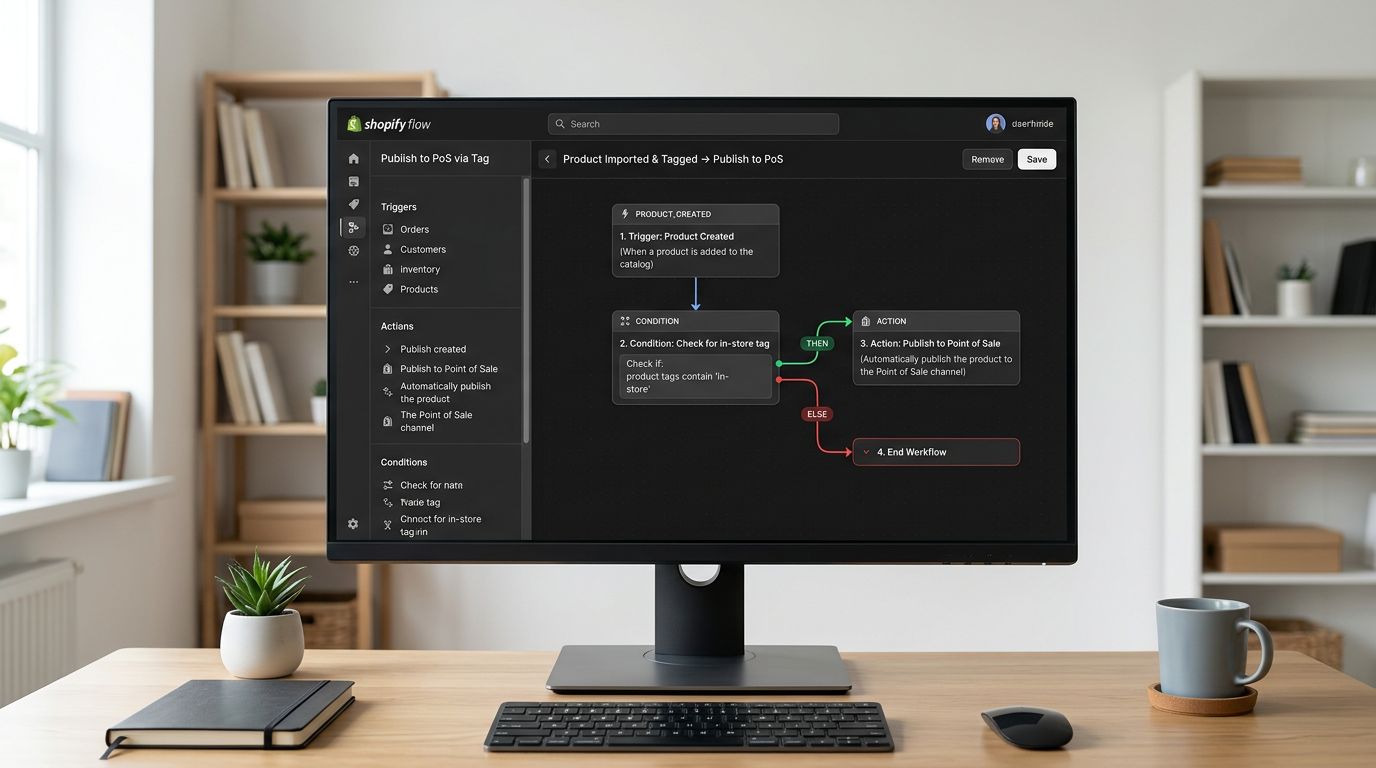
Why Imported Shopify Products Don't Track Inventory

On this page
A fashion accessories merchant imports 300 products from a supplier CSV. The products arrive in Shopify looking correct: titles, prices, descriptions, and images all mapping to the right fields. The merchant runs a sale campaign six weeks later. A best-selling handbag sells its last unit at 11 PM. Seven more customers purchase the same bag before the merchant wakes up. Eight orders, zero stock, and seven customers who expect fulfilment.
When the merchant investigates, the cause is not a stock level error. All 300 imported products have inventory tracking disabled. Shopify never decremented the stock counter when units were purchased because the products were never configured to track inventory. The setting was missing at import, defaulted to off, and the merchant did not notice until overselling occurred at scale.
What "Don't Track Inventory" Means in Practice
Inventory tracking in Shopify controls whether the platform decrements stock when orders are placed and whether products show as sold out when stock reaches zero.
When inventory tracking is enabled ("Shopify tracks this product's inventory"), Shopify:
- Decrements the available quantity every time an order is placed
- Shows products as sold out or unavailable when inventory_quantity reaches zero (unless "Allow customers to purchase out-of-stock" is enabled)
- Allows stock adjustments, purchase orders, and inventory transfers to flow through the product's history
- Reports accurate available quantity to connected sales channels (Google Shopping, Facebook Commerce, point-of-sale)
When inventory tracking is disabled ("Don't track inventory"), Shopify:
- Never decrements stock regardless of how many orders are placed
- Always shows the product as available on every sales channel
- Returns null from its API for the inventory_quantity field, even if a stock number appears in admin
- Excludes the product from inventory reports and low-stock alerts
The null API return value is the part that surprises merchants who use connected integrations. A merchant who sets a stock level of 50 in Shopify admin on a "Don't track" product sees 50 in the admin panel. A connected 3PL integration, a fulfilment app, a purchasing system, or a stock monitoring tool that reads inventory_quantity via the Shopify API sees null, as if no stock data exists at all. Downstream integrations that treat null as "unknown" rather than "50" will not trigger automatic reordering, may skip the product in fulfilment routing, or may flag it as a data anomaly requiring manual review.
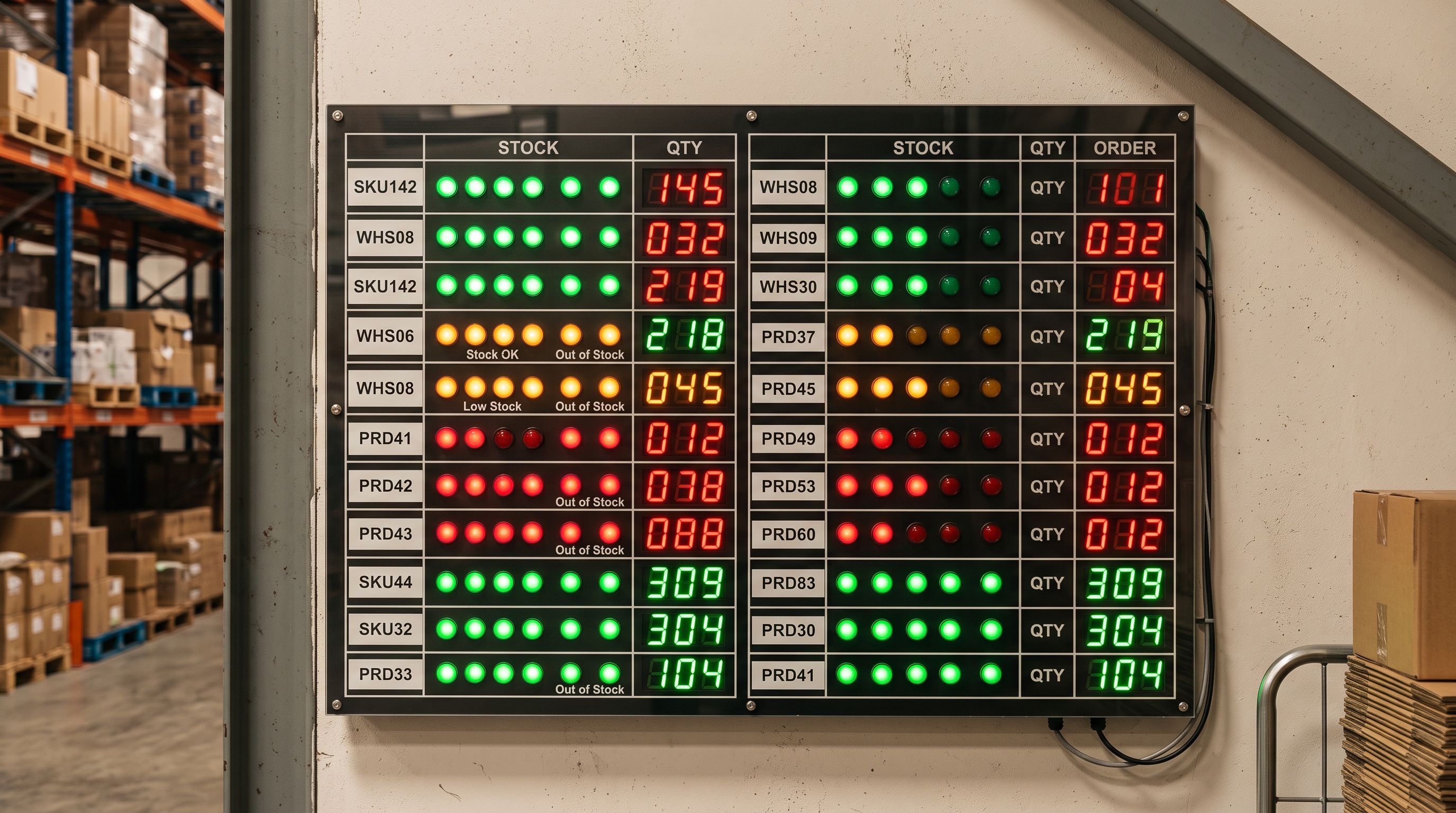
Why Imports Default to No Inventory Tracking
The root cause is Shopify's API default combined with supplier file format conventions.
When a product is created via Shopify's Admin API (which all third-party import tools use), the inventory_management field defaults to null if not explicitly set. Null means "Don't track inventory." The only way to enable tracking is for the import to explicitly send inventory_management: "shopify" for each product.
Supplier CSV files almost never include an inventory_management column. Supplier data is designed for B2B purchasing and fulfilment: it includes product codes, descriptions, prices, weights, and dimensions. The column that tells Shopify to track inventory is a Shopify-specific operational field, not a product attribute. Suppliers have no reason to include it.
Import tools that read supplier CSVs column-by-column find no inventory_management column in the file and have two options: default to "shopify" (enable tracking) or default to null (don't track). Many tools default to null because it is the safer assumption for merchants who are importing product data without intending to manage live inventory; a wholesale merchant building a catalogue may not want oversell protection on every product. The conservative default is applied uniformly, and merchants who do need inventory tracking do not realise it was not set until a stock issue occurs.
Shopify's own native CSV import has the same gap. The Shopify CSV import format requires the "Variant Inventory Tracker" column to be set to "shopify" explicitly. A supplier CSV without this column imports all products with tracking off.
Identifying Which Products Have Tracking Disabled
Before fixing the problem, the merchant needs to know which products are affected. Two methods work:
Method 1: Shopify admin filter. In the Products section of Shopify admin, the inventory filter options include "Inventory not tracked." Selecting this filter shows every product in the store with tracking disabled. For a clean store where all products should be tracked, this list shows the complete scope of the problem.
Method 2: Shopify CSV export. Export all products from Shopify admin. In the exported CSV, the "Variant Inventory Tracker" column shows "shopify" for tracked products and is empty for untracked products. The export makes it easy to see exactly how many products need correction and gives a file that can be modified and re-imported to fix the tracking setting in bulk.
For a store where tracking was disabled across hundreds of products at import, the Shopify export-and-reimport approach is the fastest correction path. Export all products, open the CSV, filter for rows where "Variant Inventory Tracker" is blank, add "shopify" to those rows, and re-import the corrected CSV.
- 01Export all products from Shopify admin as a CSV. In Products, click Export, choose All products, and download the file.
- 02Open the exported CSV and find the Variant Inventory Tracker column. Filter or sort by this column to identify rows where the value is blank (these are the untracked products).
- 03Add 'shopify' to the Variant Inventory Tracker column for every blank row. Do not change this column for products that already have a value.
- 04Set the Variant Inventory Policy column to 'deny' for rows where you want the product to go out of stock when inventory reaches zero. Leave it as 'continue' if the product can be ordered even when out of stock.
- 05Re-import the corrected CSV via Shopify admin (Products > Import). This updates only the inventory fields for existing products matched by Handle; it does not create duplicates or overwrite other product fields.
After re-import, confirm that the Shopify admin now shows "Tracked by Shopify" for the affected products and that the inventory quantity field is editable and functional.
Setting inventory tracking correctly at import time
How Importier Sets Inventory Tracking at Import
Importier's import wizard includes an inventory settings step that runs before products are pushed to Shopify. This step explicitly configures inventory_management for every product in the batch.
The merchant selects the inventory tracking mode for the import. Options include:
- Shopify tracks inventory: enables tracking on all imported products. Shopify will decrement stock when orders are placed and respect the oversell setting.
- Don't track inventory: leaves tracking disabled. Appropriate for merchants importing digital products, print-on-demand items, or service products that never go out of stock.
For merchants importing physical product catalogues, selecting "Shopify tracks inventory" at this step prevents the overselling problem from occurring in the first place. The setting applies to every product in the import batch automatically, regardless of what columns the supplier file contains.
The same step sets the default stock quantity for imported products. Common approaches:
- Set to 0 with "Don't allow oversell": products import as out of stock. The merchant manually adjusts stock levels before activating the products. Useful when the merchant is staging a catalogue before receiving the first shipment.
- Set to a specific quantity: products import with a specified starting stock level. Useful for merchants who know their opening inventory quantity at the time of import.
- Set to 0 with "Allow oversell": products show as in stock regardless of inventory quantity. Useful for drop-ship merchants who do not hold physical stock and fulfil from supplier inventory without tracking at the Shopify level.
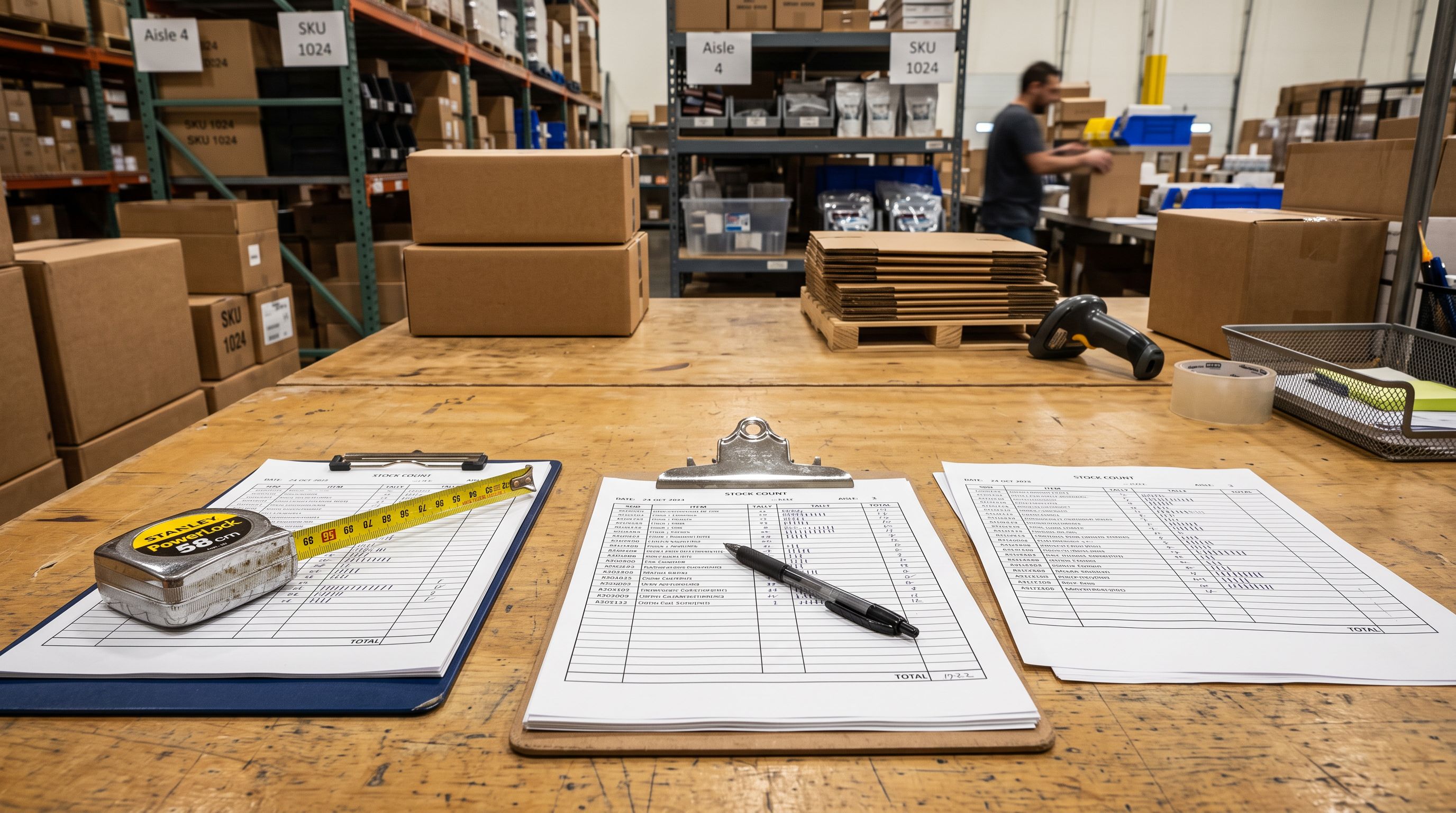
Inventory Tracking and Shopify Sales Channels
Inventory tracking interacts with every connected sales channel. This is a dimension merchants frequently overlook when diagnosing why a particular channel is behaving unexpectedly.
Google Shopping: products with inventory tracking disabled do not send inventory_quantity signals to the Google Merchant Centre feed. GMC marks these products as always available, which is accurate for products with no tracking. However, when a merchant enables tracking later and stock runs out, GMC requires a re-crawl cycle (typically 24-72 hours) before it reflects the sold-out status in Shopping listings. During this window, the product remains visible in Shopping even though it cannot be purchased on the storefront.
Facebook and Instagram Commerce: the Facebook catalogue sync reads Shopify's inventory_quantity field. Products with tracking disabled show null quantity to Facebook. Facebook treats these as in stock by default. When tracking is enabled and stock drops to zero, Facebook requires a catalogue re-sync before removing the product from Facebook Shopping.
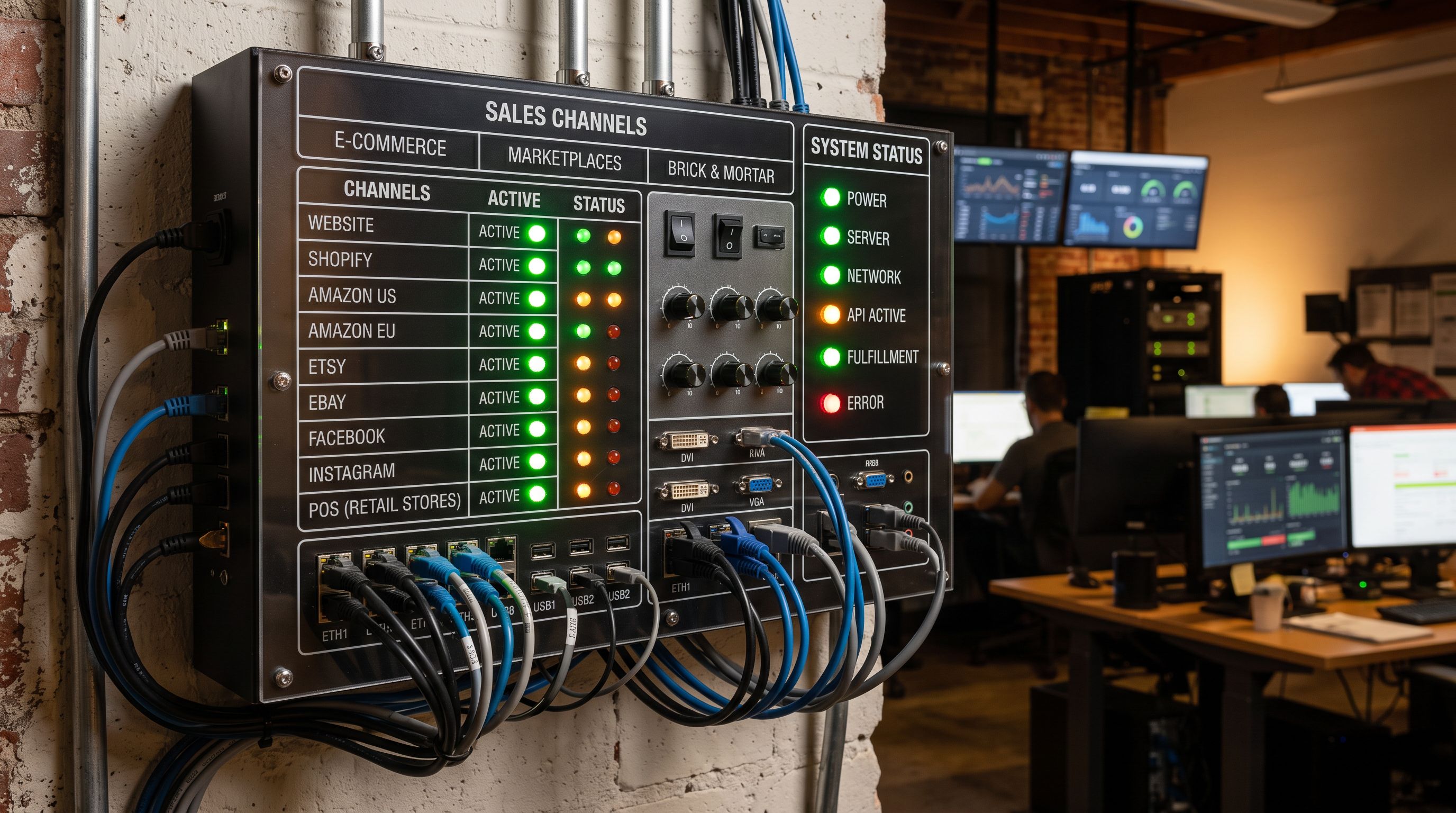
Shopify POS: in-store purchases at physical retail locations decrement inventory in real time only if tracking is enabled. A product purchased via POS with tracking disabled does not decrement the store's online inventory; the quantities reported to the Shopify admin and to connected systems remain unchanged regardless of in-store sales.
According to Shopify's inventory management documentation, inventory tracking is the foundation of accurate multi-channel stock reporting. All of Shopify's built-in stock protection features (sold-out display, low-stock alerts, inventory transfer tracking, and purchase order management) require tracking to be enabled at the product level.
An imported product with tracking disabled shows a stock quantity in Shopify admin but returns null from Shopify's API. Connected integrations see null and cannot trigger reordering, fulfilment routing, or stock alerts, regardless of what the admin panel displays.
Setting Initial Stock After Enabling Tracking
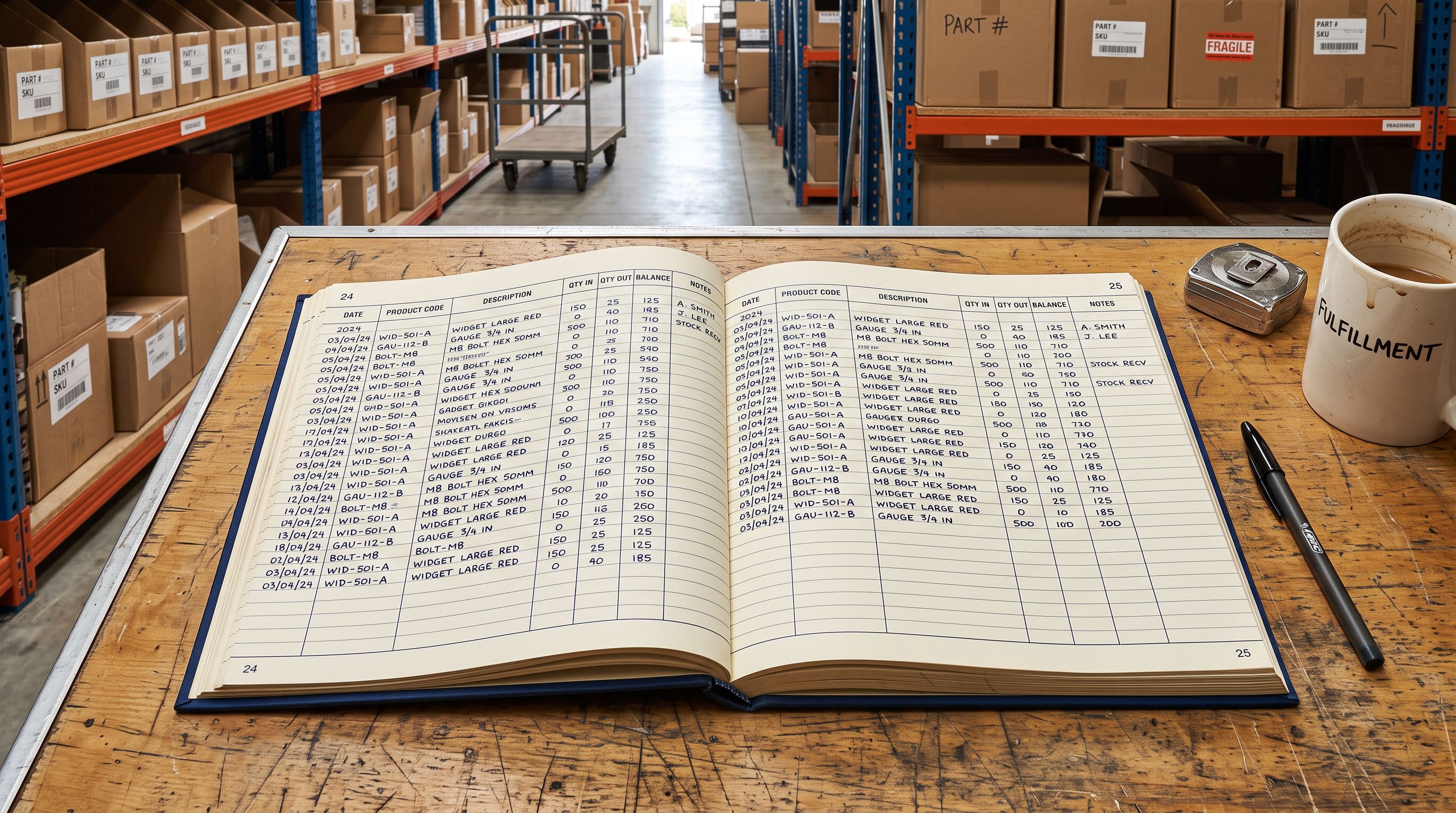
Enabling inventory tracking on previously untracked products does not automatically set a starting stock quantity. Shopify leaves the inventory_quantity at zero when tracking is first enabled via API or reimport. The merchant must set actual stock levels separately.
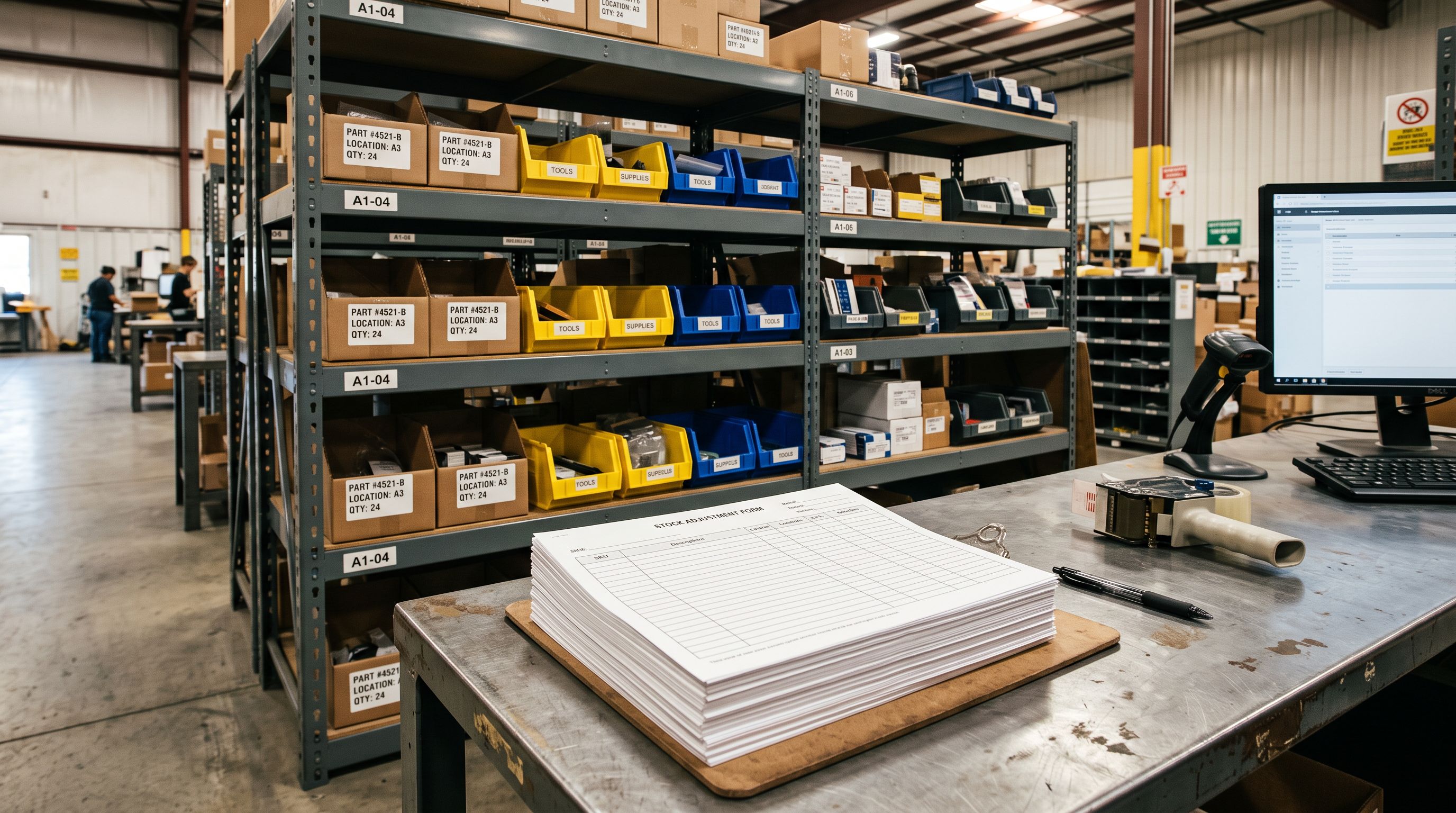
For a batch of products just enabled for tracking:
- Shopify admin bulk edit: in the Products section, select all affected products, click Edit products, and use the inventory column to set stock quantities. For catalogues under 50 products, this is the most direct approach.
- Shopify CSV inventory update: export products, set the quantity in the "Variant Inventory Quantity" column, and re-import. The re-import updates stock levels without affecting other product fields.
- Importier stock quantity import: when the merchant has supplier stock data in a CSV (with product codes and quantities), a stock-only import maps the supplier's quantity column to Variant Inventory Quantity and updates the affected products in one operation.
The critical step is confirming that the stock levels reflect actual available inventory before the products are visible to customers. Setting tracking to "Shopify tracks" on a product that has sold zero units does not affect existing orders. But enabling tracking with a stock level of 0 and "Don't allow oversell" will immediately prevent new purchases on that product. This is the intended behaviour if the product is genuinely out of stock, but will incorrectly block purchases if the merchant has physical stock that was not yet entered.
Key Takeaways for Shopify Import Inventory Tracking
Inventory tracking defaults to off for products created via import. Setting it correctly at import time prevents overselling, broken integrations, and the manual correction work that follows a gap discovery weeks after launch.
- The default is always "Don't track": unless the import explicitly enables tracking, every product imported via CSV or API is created without inventory tracking. Shopify never decrements stock on orders and always shows these products as available.
- The API returns null, not the admin quantity: a stock number entered in Shopify admin on an untracked product is not accessible via API. Connected integrations, 3PL systems, and fulfilment apps that read inventory_quantity via the API see null for untracked products, which breaks automated reordering and fulfilment routing.
- Fix existing products via CSV re-import: export all products, set "Variant Inventory Tracker" to "shopify" for untracked products, and re-import. This corrects the tracking setting without overwriting other product data.
- Set tracking at import time in Importier's import wizard: the inventory settings step sets inventory_management explicitly for the entire batch before products reach Shopify. Selecting "Shopify tracks inventory" at this step prevents the problem from occurring.
- Enable tracking before setting stock quantities: enabling tracking on previously untracked products sets inventory_quantity to zero at the API level. Set actual stock quantities after enabling tracking, before the products are live to customers.
Fix inventory tracking across your Shopify catalogue at importier.app.
Set up your first import in under five minutes.
Importier brings products into Shopify with AI descriptions, category metafields, and data enrichment on every run.