Shopify BFCM Emergency Fixes: Bulk Catalogue Updates When Black Friday Is Days Away

On this page
A homewares merchant runs 200 products in a BFCM sale. On Monday morning before Black Friday, they discover the compare-at price column was never populated in their October import. The sale badge is not showing. Google Shopping is displaying the full retail price. The campaign goes live Thursday at 6am.
It is Monday at 9am. Four days, 180 products, and one very specific problem.
This is a BFCM catalogue emergency: not a preparation failure from three months ago, but an operational problem discovered under launch pressure. The fix requires a targeted bulk import that touches only the compare-at column, leaves everything else intact, and completes before Thursday morning.
The Three Most Common BFCM Catalogue Emergencies
Most BFCM catalogue problems fall into one of three categories. Identifying which category applies determines which tool to reach for first.
Compare-at price missing or wrong
The compare-at field is what creates the sale badge and drives the strikethrough price. Shopify's Google Shopping integration reads it to determine whether a product is on sale. A product without a populated compare-at field shows no discount signal anywhere. Products with an incorrect compare-at (lower than the current price, or the same as the current price) show unexpected sale badges or none at all.
This is the most fixable BFCM emergency because the data already exists: you know what the original retail prices are. The fix is a targeted price-only reimport using Importier's export-and-reimport workflow.
Descriptions that do not speak to BFCM intent
AI-generated descriptions from a June import were written for a customer browsing a product at full price. A customer arriving from a BFCM ad in November has different context: they know it is a sale event, they are comparing quickly, and they want confirmation that this product is the right purchase.
Not every product needs a description refresh before BFCM. The products that do are your top 20 to 40 by expected BFCM traffic. Selective regeneration for those products, not a whole-catalogue rewrite, is the correct approach under time pressure.
Google Merchant Centre disapprovals discovered mid-campaign
A Shopify merchant pushing products to Google Shopping via the Shopify Google channel can trigger disapprovals at any time. BFCM is when disapprovals hurt most: you are paying for traffic to products Google has flagged as ineligible, and those products do not appear in Shopping results.
Common BFCM disapproval triggers include price mismatches (your import set a compare-at lower than the current price, causing Google to flag it as misleading), missing GTINs (barcode column populated with internal SKU codes rather than actual barcodes), and GMC-non-compliant titles (supplier import left ALL CAPS in product titles, which Google rejects).

Fix 1: Compare-At Price Bulk Update
How to Bulk Update Compare-At Prices Before Black Friday
The export-and-reimport workflow for compare-at prices is a targeted, non-destructive operation: it changes the price columns and nothing else. All descriptions, images, metafields, tags, and variants remain intact.
Step 1: Export affected products
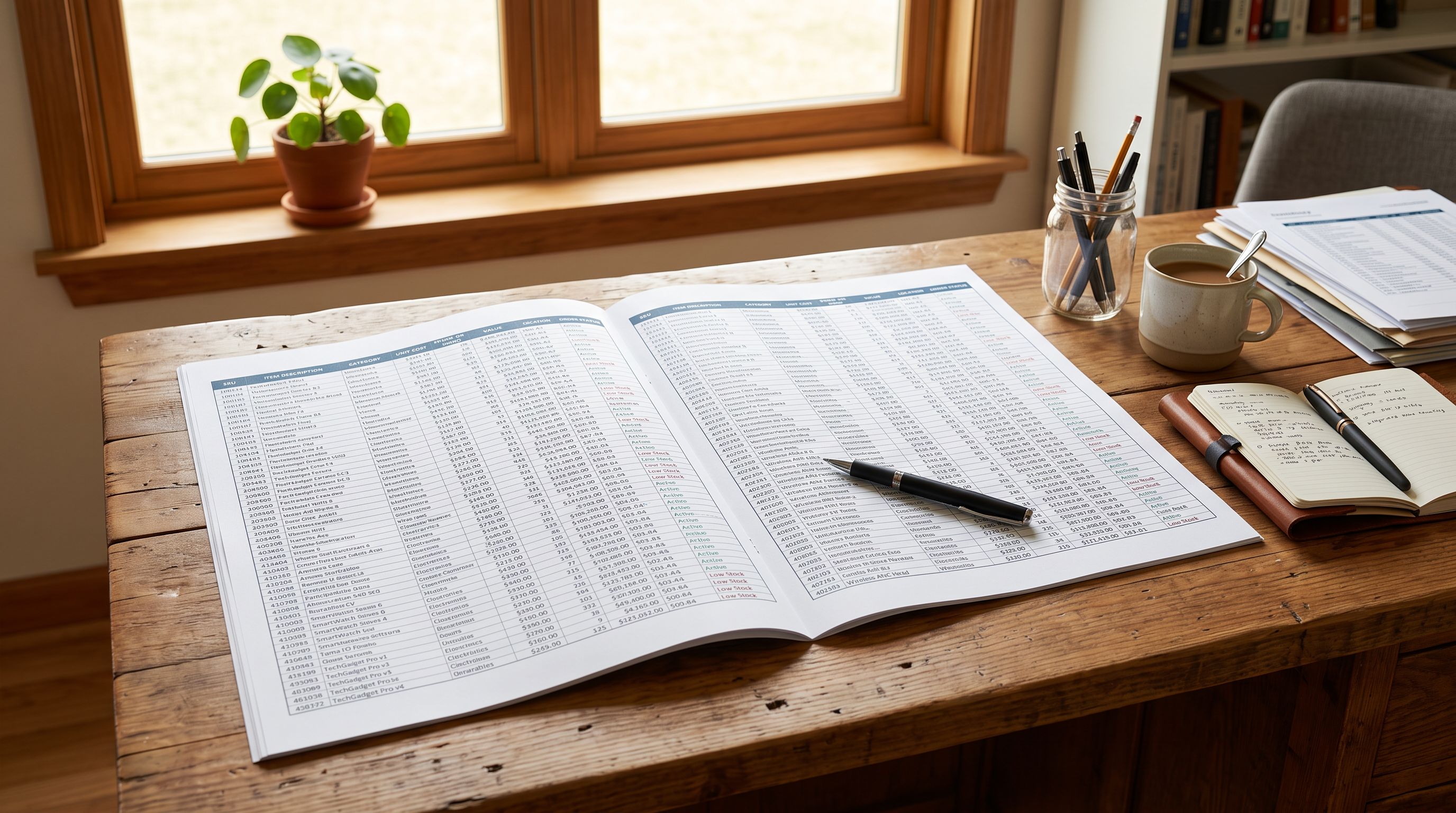
Use Importier's Pricing export preset to export only the products you need to fix. If your BFCM sale applies to a specific Shopify collection, filter the export by that collection. If it applies to a tag (for example sale:bfcm-2026), filter by that tag instead. The Pricing preset exports Handle, Title, Variant SKU, Price, and Compare At Price: exactly the columns you need.
Step 2: Build the fix file
Open the exported CSV. For each affected product row, add the correct value to the Compare At Price column. The Compare At Price should be the full retail price that applies before the sale discount: if a product normally sells at $89 and your BFCM price is $59, the Compare At Price is $89 and the Price is $59.
One rule that prevents a common error: Compare At Price must always be higher than Price. If Compare At is lower than or equal to Price, Shopify does not display a sale badge and Google flags the product for price integrity review.
Step 3: Import the fix file
Import the modified CSV. During the column mapping step, confirm that Handle maps to Handle, Price maps to Price, and Compare At Price maps to Compare At Price. No other columns need to be present.
A price-only reimport changes only the price fields. Product descriptions, variant inventory, images, and metafields are not touched because they are not in the import file.
Importier matches products by Handle and updates only the fields present in the import file. A row with Handle, Price, and Compare At Price will update those three fields on the matching product without overwriting the description that took three months of AI generation to get right.
For the homewares merchant with 180 products and one compare-at column to fix, this workflow takes 20 to 30 minutes end-to-end.
The bulk compare-at price guide covers the full compare-at mechanics, including how to handle products with multiple variants at different original prices, and what to do when your sale starts and ends at different times across product categories.
Fix 2: Targeted Description Refresh
Refreshing Descriptions for Your Top BFCM Products
A whole-catalogue description regeneration before BFCM is not a practical emergency fix: it takes too long and touches too many products that do not need to change. The targeted approach identifies the 20 to 40 products with highest expected BFCM traffic and refreshes only those.
Identifying the right products to refresh
Your BFCM ad targeting tells you which products you are promoting most heavily. Your Shopify analytics from last year's BFCM (or from the most recent sale event) identify your highest-converting products. Start with those two lists combined.
Use Importier's Store Scanner to identify which of those products have descriptions under 150 words, descriptions that contain the phrase "contact us" or other pre-import placeholder text, or descriptions that lack any specification data for comparison-heavy product categories.
Running selective AI regeneration
With the 20 to 40 target products identified, run AI description generation using Importier's batch mode on that filtered set. Select the description style that fits the product category. For categories where customers compare specifications at sale time (electronics, homewares, tools), Technical or Benefits-First styles produce better BFCM descriptions than Emotional Storytelling.
At Scale plan (200 products per billing month), a batch of 40 descriptions consumes 40 of your monthly allowance. At Enterprise (5,000+ products), the same batch is negligible.
Import Undo as the safety net
If the regenerated descriptions miss the mark on any product, whether too generic, missing a specification, or wrong tone for the category, Import Undo reverts the entire batch in one operation. You do not need to manually restore individual descriptions.
Every import session is logged in Importier's Import History with date, time, file name, and product count. The BFCM description batch appears as a named entry. If you regenerate on Tuesday and decide on Wednesday that the Tuesday batch was wrong, one click restores the Monday state.
The export, fix, and reimport workflow guide covers how to combine export presets with targeted reimports for situations where only part of your catalogue needs to change.

Fix 3: Google Merchant Centre Disapprovals
Fixing GMC Disapprovals Before They Kill Your BFCM Campaign
Google's policies require that prices shown in Shopping ads match the price on your product page. During BFCM, price changes are frequent, and feed propagation takes 24 to 48 hours. A disapproval that triggers Wednesday morning may not be resolved before Friday's peak traffic.
The three most common BFCM disapproval causes, and how to fix each:
Price mismatch disapprovals
A product showing $59 on the website but $89 in the Google feed (because the feed has not yet refreshed since your sale started) triggers a price mismatch flag. The fix is not an Importier issue; it is a Shopify Google channel refresh cadence issue. Force a feed refresh through the Google channel settings as soon as your BFCM prices go live. Shopify's Google channel documentation explains how to trigger a manual sync and how frequently automated syncs run by default.
What Importier can fix is the compare-at price integrity issue that causes a different kind of price flag: when Compare At Price is set lower than Price, Google reads the product data as having an inconsistent on-sale signal and may disapprove the listing. The bulk compare-at price fix described above resolves this.
Missing GTIN disapprovals
Google's shopping policies require a valid GTIN (barcode) for most product categories. Products that were imported with internal SKU codes in the Barcode field rather than actual GTINs are likely already in your disapproval list. BFCM is when this becomes expensive.
For products without a valid barcode in your supplier data, Google's Merchant Centre product data specification lists the exemptions: products that are definitively custom-made, vintage, or one-of-a-kind can use identifier_exists: false in the supplemental feed. For standard manufactured products, Importier's barcode lookup can fill GTINs where your supplier data has none.
ALL CAPS title disapprovals
Supplier CSVs frequently contain product titles in ALL CAPS for internal catalogue purposes. Google rejects titles with ALL CAPS beyond a single word (trademarked brand names are the exception). A title like "BRUSHED BRASS TABLE LAMP 52CM COASTAL STYLE" fails GMC review.
Importier's Title Optimizer with the Google Merchant Centre preset converts ALL CAPS titles to Title Case, applies the 150-character limit, and front-loads the product type for Google's parsing. Running the Title Optimizer on your affected products exports corrected titles that you can reimport via a title-only update.

The Import Undo Backstop
BFCM emergency fixes happen under pressure and with limited time to verify. The risk of a bulk change is that fixing one thing breaks another: you correct compare-at prices but accidentally wipe descriptions because you had an extra column in the file; you regenerate titles but the GMC preset overwrites a product handle.
Import Undo is the operational backstop that makes emergency bulk changes less risky. Every import session, whether a full catalogue import or a 40-product price fix, is logged in Import History with an undo option. Importier retains up to 20 snapshots.
Before running any BFCM emergency fix, confirm in Import History that the batch you are about to run will appear as a named entry. After the import completes, spot-check three to five products in Shopify Admin to verify the change applied correctly and nothing unexpected changed. If something is wrong, Import Undo reverts the entire batch before the problem compounds.
The Import Undo guide covers the scope of what can be reverted, the 20-snapshot limit, and what to do if the import you need to undo has already been overwritten by a subsequent import session.
- 01Export and diagnoseUse Importier's Pricing export preset to identify compare-at price gaps; use the SEO Audit preset to identify title compliance issues; use Store Scanner to flag thin descriptions on BFCM-promoted products
- 02Build targeted fix filesCreate a minimal import file that contains only the columns you need to change: price columns for price fixes, title column for title fixes; never include a description column in a price-only fix file
- 03Run the import and review the previewImportier's column mapping preview shows what will change before committing; confirm the mapping is correct and the row count matches your expected scope
- 04Spot-check in Shopify AdminAfter the import completes, open five of the affected products directly in Shopify Admin and verify the change applied correctly to each one before assuming the whole batch succeeded
- 05Force Google channel refreshAfter price changes are confirmed in Shopify, trigger a manual feed refresh through your Google channel settings so Shopping ads reflect the corrected prices as soon as possible
- 06Use Import Undo if neededIf the spot-check reveals unexpected changes, use Import Undo in Import History to revert the batch before the error propagates to Google Shopping or becomes visible to customers
What a Four-Day BFCM Fix Timeline Looks Like
The homewares merchant with the compare-at price problem has four days. Here is how that maps to the workflow above.
Monday (Day 1): Export the 180 affected products with the Pricing preset. Review the exported file to confirm the issue scope: are all 180 products missing compare-at, or only a subset? Build the fix file with correct compare-at prices from your pricing spreadsheet. Run the import Monday afternoon. Spot-check 10 products in Shopify Admin before close of business.
Tuesday (Day 2): Confirm the sale badge is showing correctly on spot-checked products. If you are running Google Shopping ads, check the Google Merchant Centre for any new disapprovals triggered by the compare-at update. If price mismatch flags have cleared, force a full feed refresh.
Wednesday (Day 3): Review the top 20 products by expected BFCM traffic. If any have descriptions that need refreshing, run selective AI regeneration now. You have one day before launch to catch any regeneration errors before they go live.
Thursday (Day 4, launch day): No imports unless a critical error surfaces. Launch the campaign. Monitor Shopify Admin and Google Merchant Centre for the first two hours. Import Undo is available if something unexpected emerges, but a well-checked Tuesday state should hold through launch.

- Compare-at prices fixed product by product in Shopify Admin: 180 products, 2 to 3 minutes each, totalling 6 to 9 hours of manual work before Thursday
- Description refresh requires opening each product individually, rewriting, and saving; impractical for even 20 products under BFCM time pressure
- GMC disapprovals addressed manually: find the flagged product, open Admin, fix the field, wait for feed refresh; no systematic way to find all affected products quickly
- No audit trail: impossible to know exactly what the catalogue looked like before you started fixing; no rollback if a fix creates a new problem
- Each fix session is isolated; no way to know which changes came from BFCM prep vs earlier imports
- 180 compare-at prices fixed in one import run: export, add the column, reimport. Twenty to 30 minutes total, no product-by-product editing
- Store Scanner identifies which of your BFCM-promoted products have thin descriptions; batch AI generation runs on the filtered set in minutes
- SEO Audit export preset surfaces ALL CAPS titles, description length issues, and GMC compliance gaps across the full catalogue in one CSV
- Import Undo retains 20 snapshots; any BFCM fix batch is reversible before it compounds
- Import History logs every session with date, file, and product count, providing a full audit trail of what changed and when during the pre-BFCM window
For merchants who want to avoid BFCM emergency mode entirely, the pre-BFCM catalogue preparation guide covers the June-to-October preparation timeline: when to run the catalogue audit, when to fix descriptions and GTINs, and when to set compare-at prices so they are correct when the campaign goes live.
The export, fix, and reimport workflow guide covers the full mechanics of targeted bulk edits for any situation, not just BFCM.
Try Importier free at importier.app.
Set up your first import in under five minutes.
Importier brings products into Shopify with AI descriptions, category metafields, and data enrichment on every run.