Shopify Product Description Template: Apply One Format Across Your Entire Catalogue

On this page
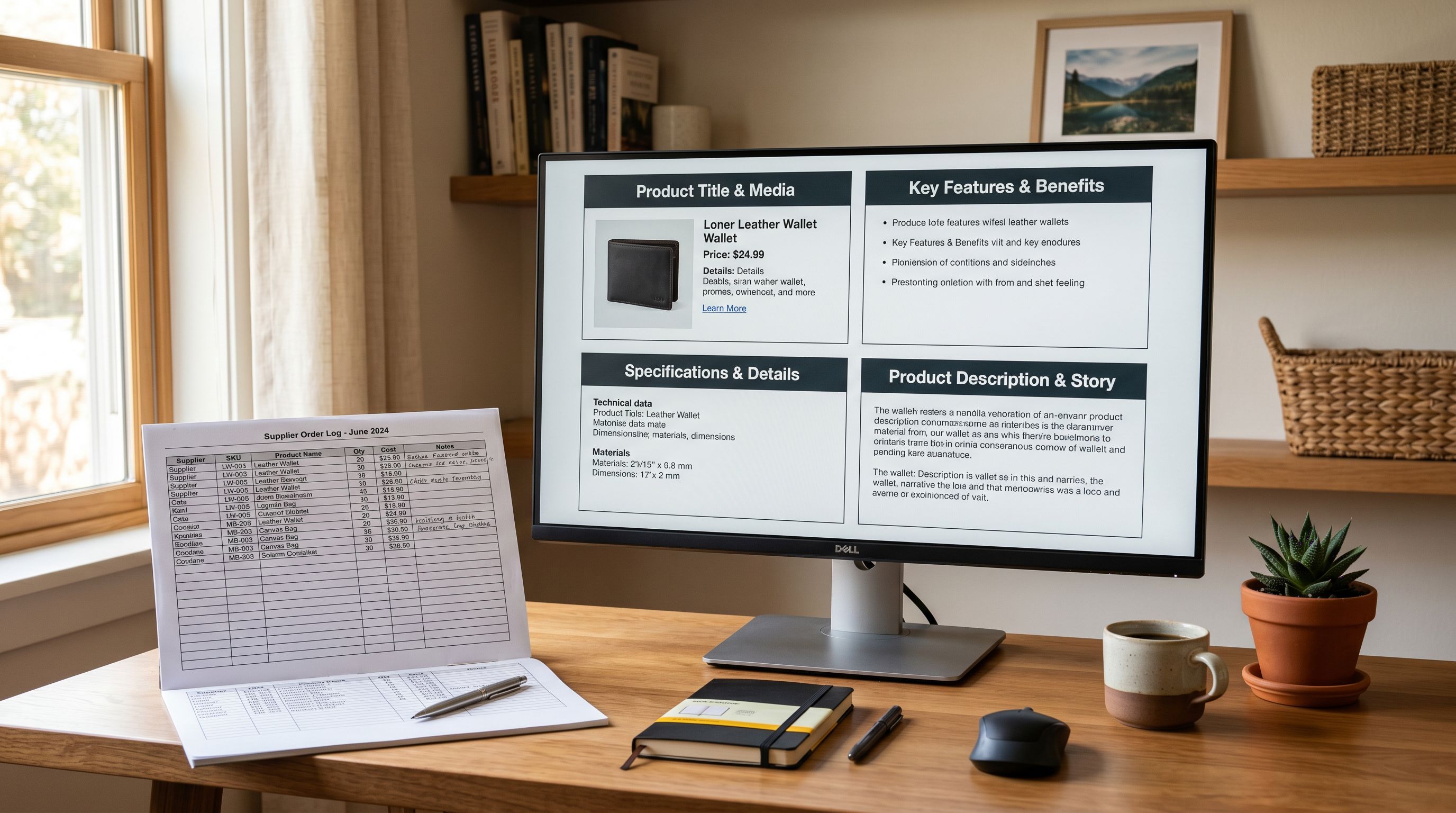
One of the most common description problems in Shopify stores is not missing descriptions. It is inconsistent ones. A product added last year has four sections. A product added last week has two. Products written by different team members follow different structures. Products imported from a supplier CSV arrived with flat, unstructured text. The result is a catalogue where every product page feels like it was written for a different store.
Product description consistency matters for two reasons. Buyers develop expectations about where information lives. And search engines reward pages where structured, specific content consistently addresses what buyers are searching for.
Importier's Custom description style lets you define exactly which sections appear in every AI-generated product description, and in what order. You set the template once. Every product in your catalogue, whether you are running a new import or updating existing products through the Store Scanner, gets a description structured exactly the way you have configured it.
The Problem
Why Unstructured Descriptions Underperform
Most catalogues accumulate descriptions from multiple sources over time. Some products were written manually by staff. Some arrived via supplier CSV with whatever text the supplier included. Some were copied from a marketplace listing. Some were generated by AI tools with no structure constraints.
Each source produces a different format. The manual descriptions might follow a narrative approach. The supplier copy might be a dense paragraph of specifications. The marketplace copy might open with a promotional sentence and close with shipping information. None of them share a consistent structure.
The practical result: a buyer looking for dimensions on your product pages has to search for them differently on every page. A buyer comparing two products has no reliable way to find comparable information in the same place across both. The store feels unpolished, even if individual descriptions are reasonable in isolation.
Custom Sections
What Custom Sections Do
Importier's Custom description style gives you a template-based approach to AI description generation. Instead of letting the AI determine what content to include and in what order, you specify the section headings and the AI writes the content for each one.
You define between 1 and 10 section headings. These become the structural skeleton of every description generated in that run. The AI writes the content for each heading based on that product's specific attributes (title, vendor, product type, tags, and any other available data), but the sections themselves are fixed.
The section order is fully configurable. Importier supports 24-plus permutations of the standard section set, meaning you can reorder sections without constraint. A B2B supplier might want: Product Overview first, Technical Specifications second, Certifications and Standards third. A consumer brand might want: What It Is first, Why You Need It second, How to Use It third, What's Included last.
Both configurations run on the same AI infrastructure: 18-plus models across four plan tiers, 156 expert personas across 43 industry categories, and 5 tone options. The Custom style adds template structure on top of all of that.

Designing Your Template
The right section structure depends on what your buyers need to make a purchase decision, and what information you reliably have for every product.
Start with your buyers' questions. What does a buyer need to know before purchasing? For a consumer electronics product: what it does, which devices it is compatible with, what is in the box, and any warranty information. For a food product: what it tastes like, its ingredients, nutritional information, and how to store or prepare it. For industrial components: specifications, material certifications, compatible standards, and lead times.
Only include sections you can fill for every product. A Certifications section is only useful if your products actually have certifications to list. A Use Cases section only adds value if the product's use cases differ meaningfully from what the title already says. Sections that would be left blank or filled with generic filler content are better omitted.
Order sections by purchase priority. The most important information for the purchase decision should appear first. For most products, this is what the product does and for whom. Specifications, care instructions, and ancillary details come after the core value proposition has been established.
A practical starting template for most general retail categories:
- 01Product OverviewWhat it is and the primary reason someone would buy it
- 02Key FeaturesThe three to five attributes that differentiate this product
- 03SpecificationsDimensions, weight, materials, capacity, or other measurable attributes
- 04What's in the BoxComponents, accessories, and documentation included
- 05Compatibility and RequirementsWhat the product works with, or what the buyer needs to use it
This five-section template covers the core purchase information for most physical products without over-engineering the description.
Applying Your Template
Running Custom Sections Across Your Catalogue
Once you have defined your section headings and order, applying them is the same process as any Importier description generation run.
For new imports. During the 14-step import wizard, select Custom as your description style and configure the section headings before running the import. Every product in the import file arrives in Shopify with a description structured according to your template. For a 500-product import, that is 500 consistently structured descriptions generated in minutes. A copywriter taking 15 minutes per description would spend 125 hours on the same task.
For existing catalogues. The Store Scanner identifies products with missing or thin descriptions and generates new ones in a single pass. Set the style to Custom, define your sections, and every product the scanner flags gets a description following your template. Replace mode overwrites existing content with the newly structured version; Append mode adds your sections after any existing content already there.
Filtering for targeted runs. You do not have to apply the template to the entire catalogue in one operation. Importier's filtering lets you target by collection, SKU pattern, or barcode. If you have already written descriptions for your bestselling products and only want the template applied to the rest, you filter to the uncovered products. If you want a different template structure for different product categories (electronics vs apparel, for instance), you run the generator twice with different section configurations, each targeting the relevant collection.
Brand Voice Integration
Combining Custom Sections with Brand Voice
Custom Sections defines what information appears in each description and in what order. Brand Voice defines how that information is expressed: the vocabulary, the phrases to avoid, the personality, and the example copy.
Running both together gives you complete control over the output:
- Custom Sections ensures every description covers the same information in the same order
- Brand Voice ensures that information is expressed in your store's tone, using your preferred vocabulary and avoiding language that conflicts with your brand
For a premium outdoor equipment brand, the combination might produce descriptions that always cover Overview, Key Features, Materials and Certifications, and Care Instructions (in that order) while consistently using active vocabulary emphasising durability and outdoor performance, avoiding promotional language, and always referencing the brand's sustainability commitments.
For an agency managing multiple client stores, the Custom Sections template might vary by client (a medical supplier has different section requirements than a fashion retailer), but each client's Brand Voice is configured separately so the output never bleeds between accounts.
The combination of structured templates and brand-tuned vocabulary is what separates AI-generated descriptions that feel on-brand from those that feel generic.
Maintaining Consistency as Your Catalogue Grows
The Custom Sections template is not a one-time fix. It is a standard that can be applied to every new product that enters your catalogue.
For merchants using Scheduled Imports to bring in regular supplier feeds, the template and Brand Voice settings are saved with the schedule configuration. Every batch of new products that arrives through a scheduled import uses the same section structure without any additional setup. New products are consistently described from day one.
For merchants who add products manually or through ad hoc imports, setting the Custom Sections template as the default in Importier means new descriptions are always generated to that standard, rather than defaulting to whichever style happened to be selected last.

Choosing Your Approach
Custom Sections vs Fixed Styles

Importier's other six description styles (Standard, Technical Gadget, Emotional Storytelling, Benefits-First, Sensory-Rich, Ingredient Spotlight) each have a predefined structure optimised for a specific product category and buyer context. They work well when the AI-determined structure is appropriate for your product type and your store does not need a specific information hierarchy.
The Custom style is the right choice when:
- Your brand has a specific description structure that differs from the standard approaches
- You operate in a regulated or technical category where specific sections (Certifications, Safety Warnings, Compliance Standards) are mandatory
- You are an agency maintaining content consistency across client stores with specific brief requirements
- You sell across multiple product categories and want consistent structure regardless of category-specific styling differences
- Your buyers are B2B purchasers who need product information in a specific order for procurement workflows
For merchants who are not sure which approach to take, starting with the most relevant fixed style and seeing how the output reads is a practical first step. Moving to Custom Sections makes sense once you have a clear view of what your specific template should be.
Try Importier free at importier.app
Related Articles
Set up your first import in under five minutes.
Importier brings products into Shopify with AI descriptions, category metafields, and data enrichment on every run.