Shopify Products Not Showing After Import: Why It Happens and How to Fix It

On this page
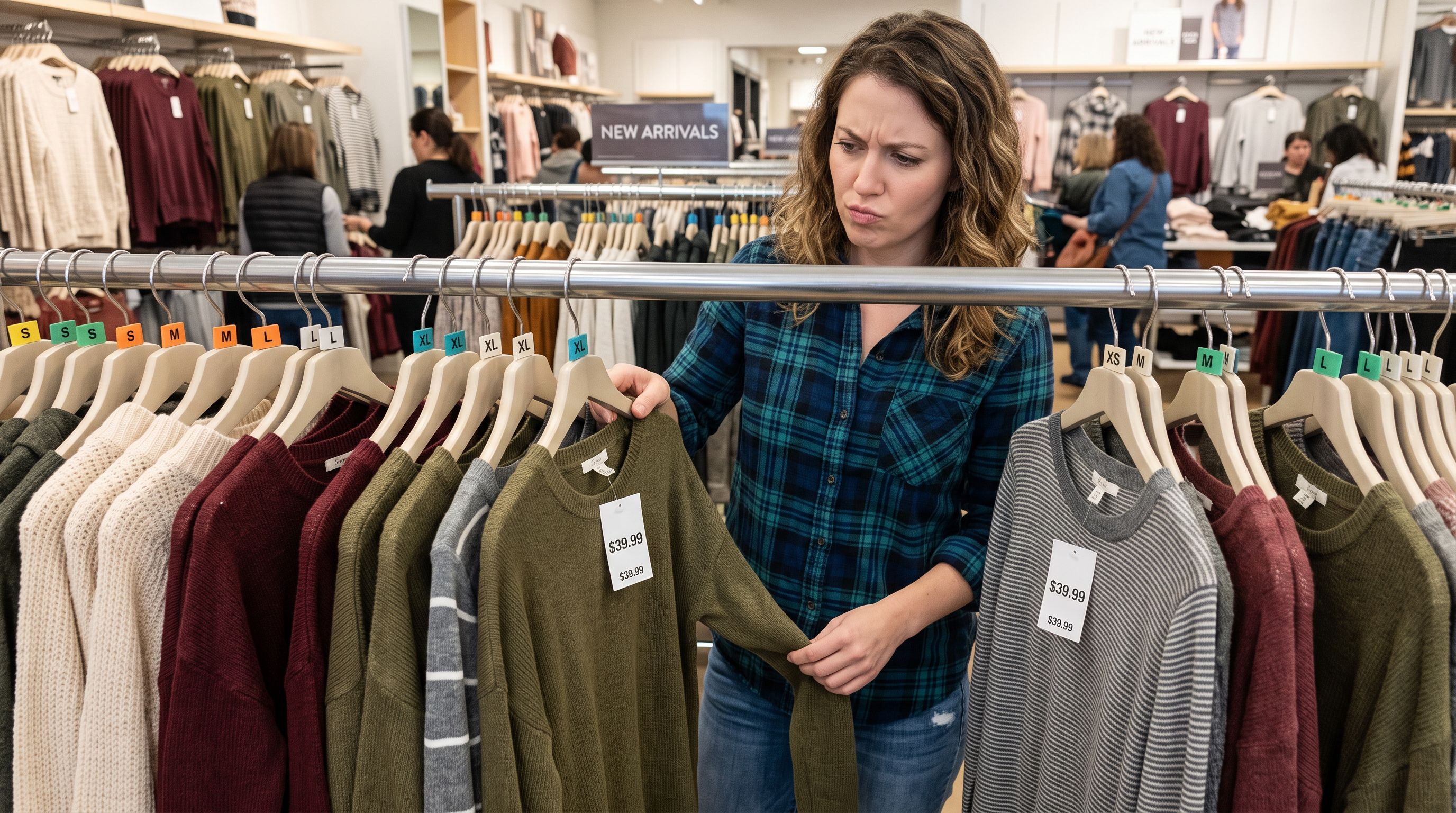
The import finishes. Shopify confirms it succeeded. You open the storefront and the products are not there. Or they are there, but showing as separate products instead of grouped variants. Or they show but without images, or buried in a collection they were never supposed to be in.
This is one of the most frustrating outcomes of a Shopify import because the confirmation message gives no indication that anything went wrong. The import ran. Shopify accepted the file. But the storefront does not reflect what you expected.
There are five distinct reasons this happens. Each one has a specific fix.
1. Products Were Imported as Drafts
The most common reason imported products do not appear in the storefront is that they arrived with a draft status instead of active.
Shopify's native CSV importer has a Published column. If that column contains FALSE or is left blank, every product in the import arrives in draft mode. Draft products exist in your admin but are not visible to customers on the storefront or in any collection.
This often happens when a supplier CSV includes a Published or Status column with their own values (stock status codes, internal flags) that Shopify reads as FALSE during import. It also happens when the Published column is simply absent from the CSV and Shopify defaults to draft for safety.
The fix for existing draft products is straightforward: in Shopify admin, go to Products, filter by Unavailable (which shows drafts), select all, and use the bulk action to change status to Active. For a large catalogue this takes a few minutes. For a 500-product import it is tedious but not complex.

The fix going forward: configure the import settings to mark all products as Active during import. Importier's 14-step import wizard includes a Product Status configuration step where you choose Active, Draft, or Archived for all products in the import batch. You make that decision once before the import runs rather than fixing it manually product by product afterwards.
2. Variants Are Showing as Separate Products
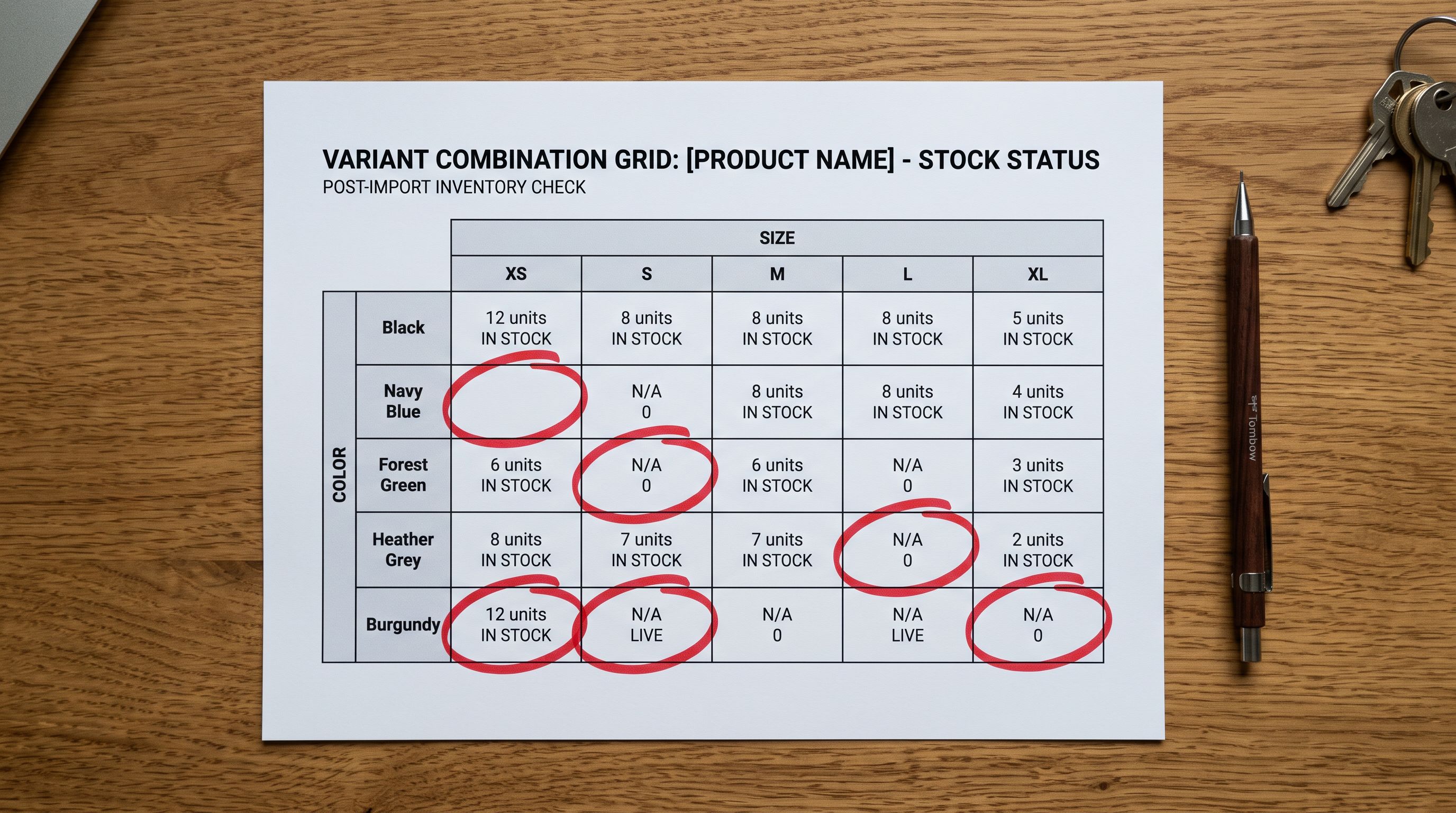
The second common scenario: you imported 50 products, but Shopify is showing 200 separate listings because each colour or size variant landed as its own product instead of being grouped.
Shopify groups variants by the Handle column. Products with the same Handle value are grouped together as variants of one product. Products with unique Handles are treated as separate products. Supplier CSVs almost never format their data the way Shopify expects.
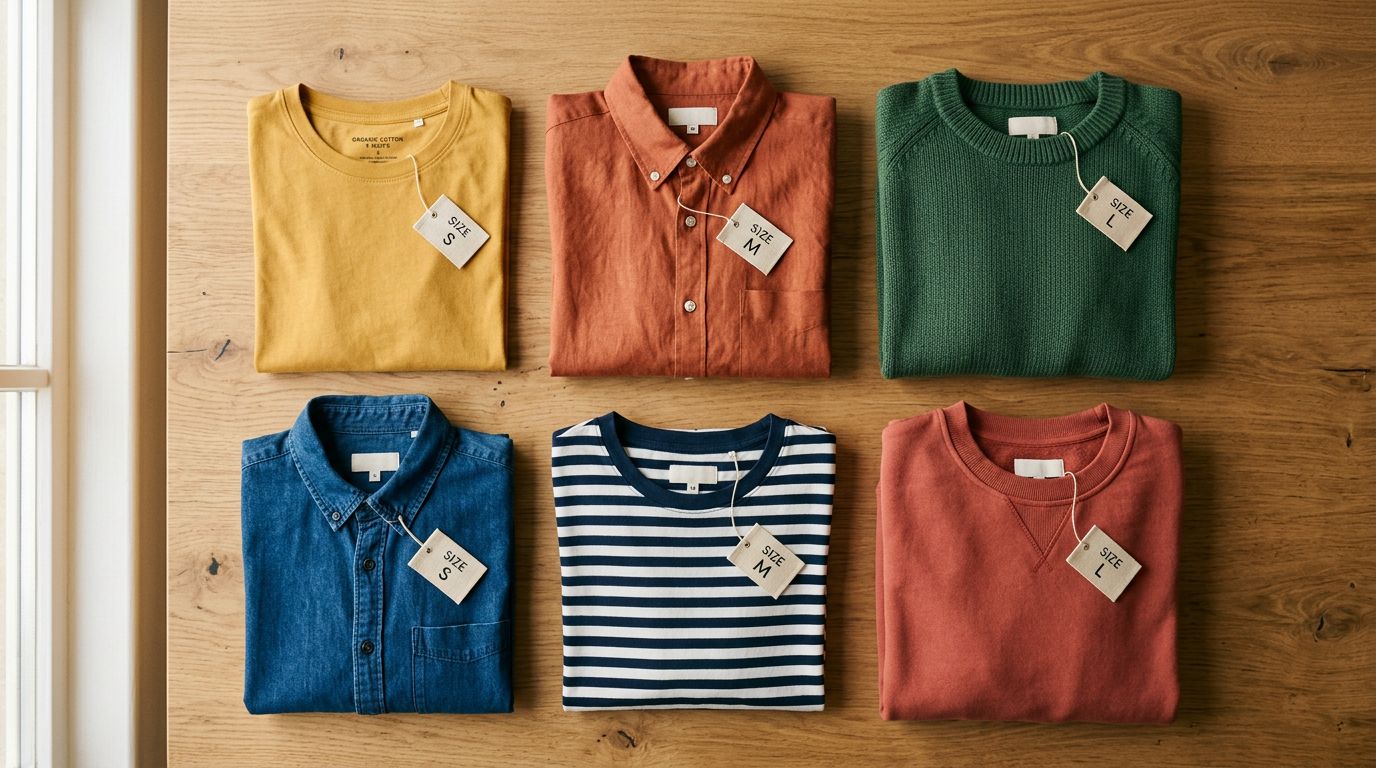
A supplier might send one row per product with size and colour in separate columns (Size: S, M, L, XL in Column D; Colour: Red, Blue in Column E). Shopify's importer does not understand this structure. It sees one product row per size/colour combination and imports each as a separate product.
The manual fix is restructuring the supplier CSV before import: writing correct Handle values so that all variants of the same product share one Handle, then formatting the option and variant rows in the exact Shopify CSV structure. For a 50-product catalogue with 4 variants each, this restructuring takes 2-4 hours. For a 500-product catalogue it is a full day's work.
Importier's Smart Variant Detection addresses this during import rather than requiring pre-processing. The detection layer applies 150+ regex patterns across 15+ industries to identify which rows belong together as variants and restructures them automatically. For fashion, electronics, supplements, homeware, and most other categories, the pattern library handles supplier CSV structures without manual preparation.
For ambiguous cases where patterns alone cannot determine the grouping with confidence, Importier's AI variant analysis evaluates the product data before the import runs. The import preview step then shows you how products and variants have been grouped so you can verify the structure before committing anything to Shopify.
3. Products Are Showing Without Images
Products that imported correctly but are showing without images in the storefront have a broken image reference in the import data.
Shopify's CSV importer accepts image URLs in the Image Src column. When those URLs are valid and publicly accessible, Shopify downloads and stores the images at import time. When they are not, Shopify imports the product without an image and does not flag this as an import error in the confirmation.
This happens in several ways. Supplier CSVs often include relative file paths (images/product-name.jpg) that only work on the supplier's internal system. Some suppliers include Google Drive sharing links (drive.google.com/file/d/...) which do not resolve to a direct image URL and cannot be imported this way. CDN URLs from another Shopify store work at import time but break if the source store removes or re-hosts the images later.
For marketplace imports (Amazon, AliExpress, eBay, Walmart), image URLs are scraped from the marketplace listing at import time. If the import runs and the listing's image URLs have restrictions or short expiry times, the images fail to attach.
Importier handles marketplace images by downloading them during the import process and uploading them to your store's own Shopify media storage. The images become local copies attached to the product rather than external URL references. For Google Drive images, Importier's Google Drive image import reads shared folder links directly and matches images to products by filename or naming convention.
4. Products Are Imported But Not Assigned to Any Collection
Products with Active status and correct variant grouping can still be invisible on the storefront if they are not assigned to any collection.
Shopify does not automatically add imported products to collections unless you have Smart Collections set up with conditions that match the imported products. Manual collections never receive imported products automatically. If your storefront navigation links to collections rather than the All Products page, a customer browsing your store has no way to reach a product that is not in a collection.
This is particularly common when importing from a new supplier whose products do not match existing Smart Collection conditions, or when the supplier CSV does not include the tags, product types, or vendor values that your collection rules filter on.
The fix is collection assignment after import. In Shopify admin, go to the collection, click Add Products, and filter by the vendor or product type of the recently imported batch. For automated collections, check the collection rules and verify that the imported products' tags and types satisfy at least one rule.
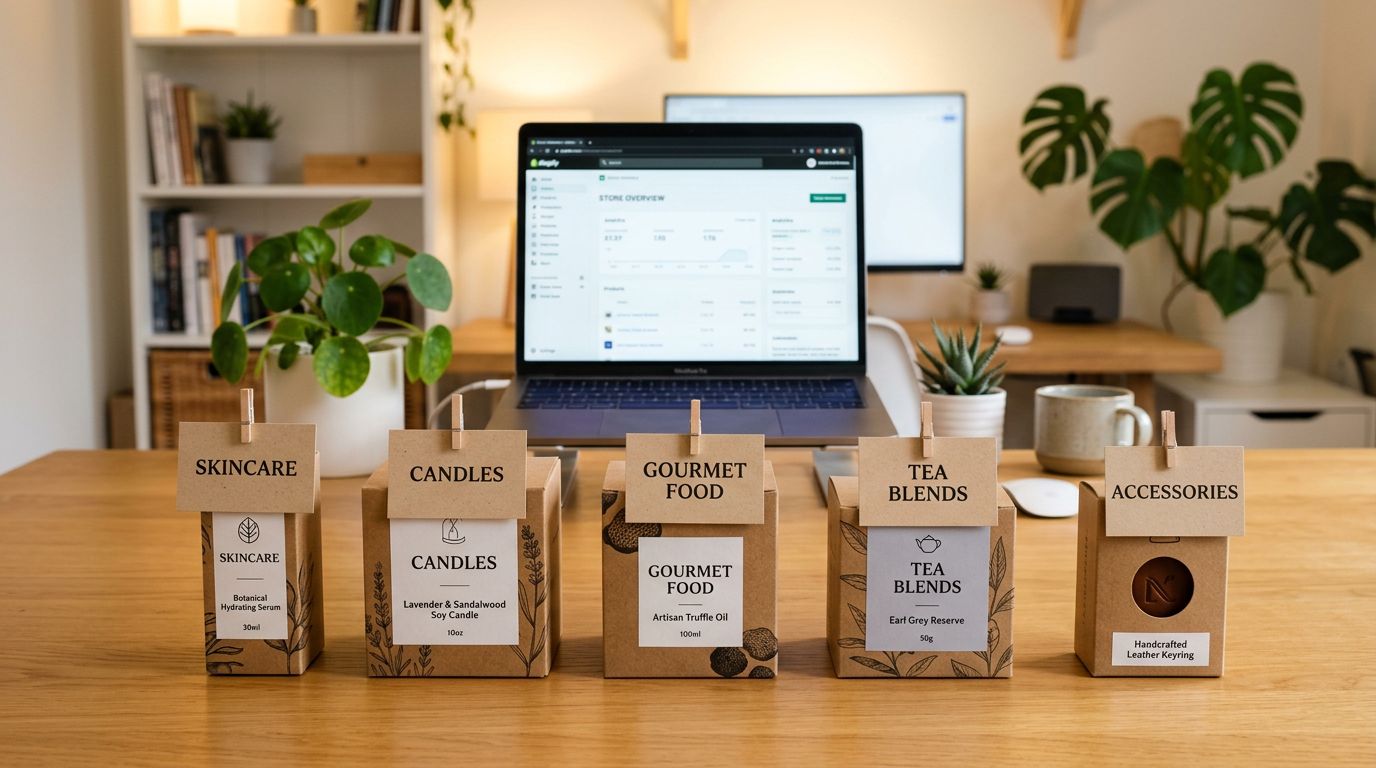
Importier's data enrichment step fills the Product Type field during import using AI classification based on the product title and description. Enriched Product Type values that match your Smart Collection rules mean products land in the correct collections automatically rather than requiring manual assignment. For catalogues where the supplier CSV has no Product Type column, enabling enrichment during the import wizard fills this field before products are created in Shopify.
5. Handle Conflicts Creating Duplicates or Skipping Products
The Handle column in Shopify's CSV must be unique per product. If a Handle in your import CSV matches a Handle that already exists in your store, Shopify updates the existing product rather than creating a new one. If you intended to import a new product and instead overwrote an existing one, the storefront shows the updated existing product rather than a new one, and your product count does not increase by the expected amount.
The opposite problem is two products in the same import batch sharing a Handle when they should be separate products. Shopify groups them as variants of one product instead of creating two independent products.
Both issues are structural errors in the source CSV that Shopify's importer accepts without warning. The import runs successfully from Shopify's perspective, but the outcome does not match what was intended.
Importier's import preview surfaces these conflicts before the import commits. The preview shows the products as they will appear in Shopify after import: their titles, variant groupings, images, and statuses. Products that would update existing items rather than create new ones are identifiable before you click Confirm. Adjustments happen at the CSV level before the import runs rather than requiring an undo operation after the fact.
How to Fix a Bad Import That Has Already Run
If products have already imported incorrectly and you need to reverse the changes, Importier's Import Undo works against the batch that caused the problem.
Every import run through Importier is logged in the Import History panel with the date, time, filename, and product count. Open Import History, find the batch you need to reverse, and run the Undo operation. Importier removes all products from that batch from Shopify, restoring the store to its pre-import state. Importier retains up to 20 import snapshots, and the download link for the original import file remains available for 60 days.
Import Undo does not affect existing orders. Products that were in orders before the undo runs are not affected, and the undo targets only the products created or modified in that specific import batch.

For imports run through Shopify's native CSV importer rather than Importier, there is no undo option. Each product must be found and deleted individually, or reverted to its previous state by re-importing the correct version. For a large import this is a significant time cost. Switching to Importier's wizard for future imports gives you both the preview step (preventing errors before they land) and the Import Undo option (reversing them if they do).
Running the Next Import Without These Problems
The pattern across all five issues is the same: Shopify's native importer accepts the file and reports success, but does not validate the import against what you intended to achieve. It has no preview, no variant detection, no status configuration, and no undo.
Importier's 14-step wizard adds the validation layer that the native importer lacks. Every import runs through column auto-mapping (so supplier column names do not need to match Shopify's format), Smart Variant Detection (so variant structure is resolved before products are created), a status configuration step (so products arrive as Active rather than Draft), and a preview step (so you see the result before committing).
When an import does go wrong despite those checks, Import History gives you a one-click path back to the pre-import state.
Try Importier free at importier.app
Related Articles
Set up your first import in under five minutes.
Importier brings products into Shopify with AI descriptions, category metafields, and data enrichment on every run.