# Zen Cart to Shopify Migration: Product Catalogue Guide
> Zen Cart to Shopify migration requires column remapping and category ID lookup. Here is how to move your product catalogue without manual reformatting.
- Published: 2026-07-17
- Author: Importier Team
- Category: Import Guides / Platform Migrations
- Canonical: https://www.importier.app/blog/zen-cart-to-shopify-migration
---
A home goods merchant running a Zen Cart store since 2009 decides to migrate to Shopify. Their product catalogue has 2,800 products across 94 categories built up over fifteen years. They export the catalogue from Zen Cart, open the CSV, and drag it into Shopify's native importer. The importer rejects the file immediately: column names don't match, images are listed as filename references rather than URLs, and the category field contains numbers rather than names.
This is the standard entry point for a zen cart to shopify migration. The export file itself is structurally intact: it contains all the product data. What it does not contain is data in a format Shopify can read without intervention.
This guide covers what the Zen Cart export actually contains, why Shopify's native importer rejects it, and how to complete the zen cart to shopify migration without reformatting thousands of spreadsheet cells by hand.
## Why Zen Cart Merchants Move to Shopify
[Zen Cart](https://www.zen-cart.com/) is an open-source ecommerce platform descended from osCommerce. It launched in 2003 and remains in active development, but its user base has been in long-term decline as hosted platforms have taken market share. Most merchants still on Zen Cart today are running stores they built a decade or more ago; stores that predate the modern Shopify ecosystem and the norms of current ecommerce design.
The reasons for leaving are consistent. Zen Cart requires a hosting environment, a PHP/MySQL configuration, and ongoing maintenance. Every plugin (Zen Cart calls them "plugins" or "zc_install modules") risks compatibility issues with core updates, and there is no central marketplace equivalent to Shopify's App Store with standardised compatibility signalling. Security patches require manual server-level application.
For merchants whose Zen Cart stores are functional but whose product catalogues have grown to a size that makes migration feel daunting, the switch rarely happens until the technical debt of maintenance exceeds the perceived effort of migrating. By the time migration begins, the catalogue is often both large and old: products with descriptions written in 2010, images resized for early 2000s screen widths, and category structures that made sense when the store launched but have never been cleaned up.
Zen Cart product catalogues migrating to Shopify in 2026 are often 10-15 years old. The product descriptions were written before modern SEO practices, frequently contain inline HTML from WYSIWYG editors of that era, and sometimes include outdated pricing references or product features that no longer apply. The migration is both a technical data transfer and a content refresh opportunity.
## What a Zen Cart Export Contains
Understanding the Zen Cart CSV export format prevents surprises after the import runs.
A standard Zen Cart product export uses column names drawn from the database table structure. Common field names include `v_products_name`, `v_products_description`, `v_products_price`, `v_products_quantity`, `v_products_model`, `v_products_image`, `v_categories_name`, and `v_master_categories_id`. None of these match Shopify's required column names (`Title`, `Body (HTML)`, `Variant Price`, `Variant Quantity`, `Variant SKU`, `Image Src`).
The category field is the most significant structural problem. Zen Cart stores category assignments as numeric IDs from its database. The `v_master_categories_id` field in the export contains values like "14", "52", or "108" rather than "Kitchen Equipment", "Men's Shoes", or "Garden Tools". These numbers are internal database references that have no meaning outside the Zen Cart installation. A merchant with 94 categories and 2,800 products cannot simply drop this field into Shopify's Product Type column and expect correct category assignment.
Images present a parallel problem. Zen Cart stores images as relative paths to its `/images` directory: `leather-shoes-01.jpg`, `cookware/cast-iron-pot-350ml.jpg`. These are filesystem references from the web server, not URLs. They do not resolve to anything once removed from the Zen Cart environment.
Zen Cart's [product attributes system](https://docs.zen-cart.com/user/products/attributes/) handles variants through a separate attribute and option-value structure. Standard Zen Cart exports typically do not include the attribute combinations as rows within the main product export; they require a separate export or a custom database query. A merchant with 400 products that each have size and colour options may export 400 product rows with no indication that any of them have variants, then discover the attribute data is absent from the file entirely.
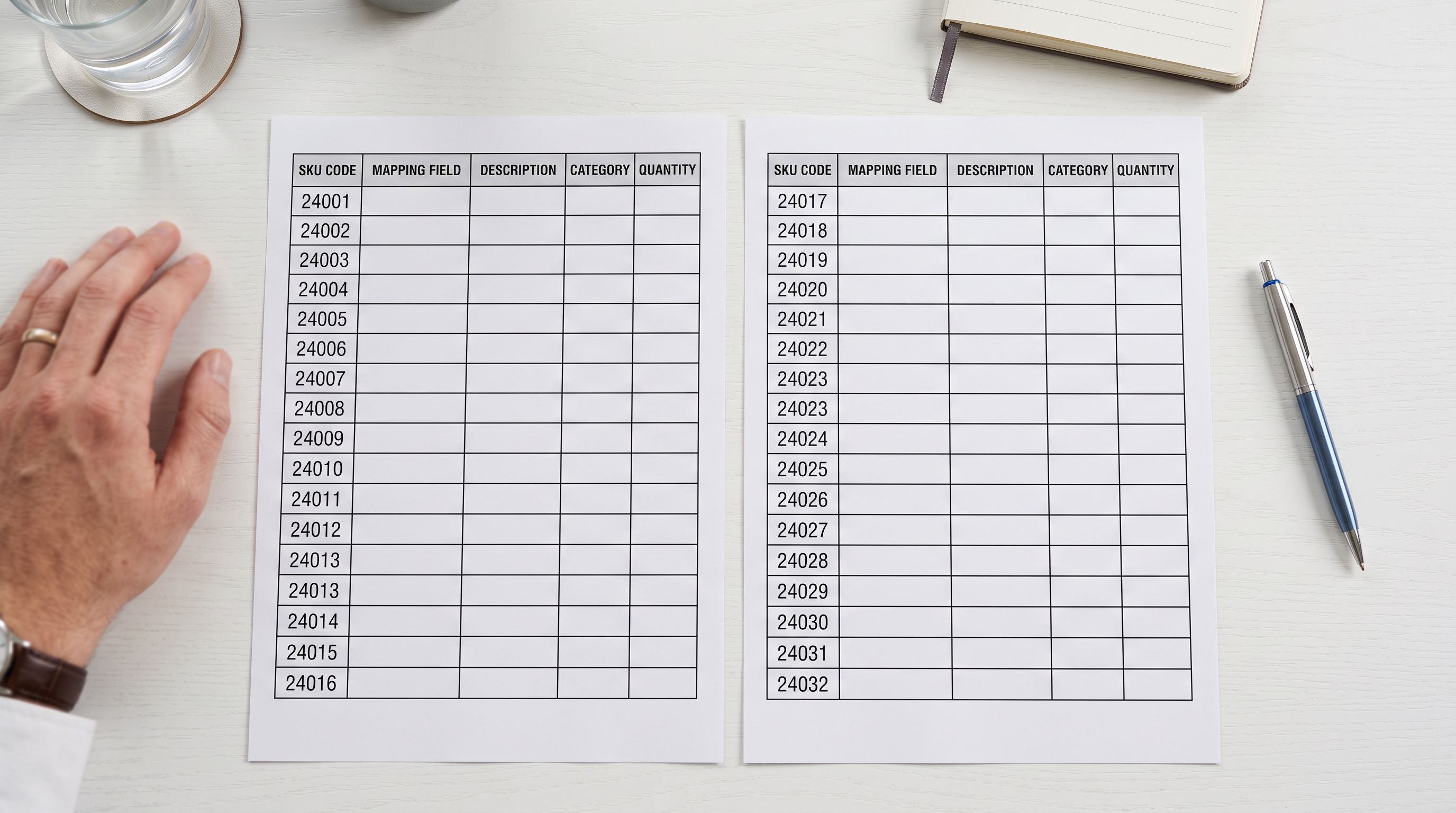
Product model numbers in Zen Cart (`v_products_model`) function as internal stock codes: "ZC-SHOE-001", "KIT-POT-350", "GAR-HOE-LG". These are not the same as GTINs or manufacturer barcodes. Zen Cart does not have a dedicated barcode field in its standard schema; most installations store GTIN data either in a custom field, in the description text, or not at all.
## Why Shopify's Native Importer Rejects Zen Cart Files
Shopify's built-in CSV importer accepts files that match its specific column schema precisely. It requires `Title`, `Handle`, `Body (HTML)`, `Vendor`, `Type`, `Tags`, `Published`, and variant-specific columns including `Variant SKU`, `Variant Price`, `Variant Quantity`, and `Image Src` for images.
When a Zen Cart export lands in Shopify's native importer, the mismatch is immediate. Column names do not correspond to Shopify's expected fields, so the importer either rejects the file or, in some configurations, ignores all columns it cannot match and creates empty product shells with only the fields that happened to align.
There is no column mapping step in Shopify's native importer. You provide a file in Shopify's exact format or the import produces incorrect output. This is not a Shopify limitation specific to Zen Cart; it applies equally to WooCommerce, PrestaShop, and other platform exports. But Zen Cart's column naming convention is further from Shopify's expected format than most, because Zen Cart's field names reflect its database schema directly rather than any commerce-neutral naming standard.
## Zen Cart to Shopify Migration: Column Mapping
The technical barrier to a zen cart to shopify migration is the column mapping: Zen Cart's field names to Shopify's required field names, combined with the data transformations needed for categories and images.
A Zen Cart export and a Shopify CSV import template contain the same underlying product data. The migration work is translating between the two schemas, not finding the data.
Importier's column mapper presents the Zen Cart export columns alongside Shopify's target fields and lets the merchant define which source column feeds which target field. `v_products_name` → Title. `v_products_description` → Body (HTML). `v_products_price` → Variant Price. `v_products_model` → Variant SKU. Once the mapping is defined, Importier saves it for subsequent imports from the same export format. The second import from Zen Cart applies the same mapping without re-entry.
For categories, the mapping step requires a lookup table. The merchant provides a file or inline mapping that translates numeric category IDs to text labels (14 → "Kitchen Equipment", 52 → "Men's Shoes"). This is a one-time effort: export the category list from Zen Cart's admin panel (Catalog → Categories/Products), which gives ID-to-name pairs, and supply that as the category lookup during Importier's column mapping step. Once mapped, Importier assigns the correct Product Type text to every product based on its category ID.

For images, the migration requires re-hosting before import. Zen Cart's image paths need to become accessible URLs. The standard approach is to upload the Zen Cart `/images` directory to a cloud storage service or CDN and construct the URL prefix during the column mapping step. If the original images are at `https://cdn.example.com/images/leather-shoes-01.jpg`, Importier's URL prefix field prepends the domain to each relative path from the export, converting filesystem references to resolvable URLs during the import process.
## AI Description Refresh During Migration
A zen cart to shopify migration is the natural moment to address description quality across the catalogue.
Zen Cart product descriptions from legacy installations commonly present two distinct problems. The first is formatting: descriptions written in Zen Cart's WYSIWYG editor contain inline HTML tags, deprecated `` and `` elements, and table-based layouts that render incorrectly on modern storefronts. The second is content: descriptions written in 2010-2012 often reference product features or specifications that are no longer accurate, use terminology that has shifted, or were written as brief supplier descriptions rather than buyer-facing content.
Importier's AI description generation can rewrite descriptions across the full catalogue at import. Rather than carrying fifteen-year-old supplier text into the new Shopify store, the merchant selects a description style and persona appropriate to their product categories, and Importier generates current, well-structured product descriptions from the available product data (title, type, model number, and any attribute data the Zen Cart export includes).

## Variant Data in the Zen Cart to Shopify Migration
Zen Cart's attribute system is separate from its main product table. If the attributes export is available, Importier can process it alongside the main product export to create properly grouped Shopify products with variants. If only the main product export is available and attributes were not exported, Importier imports the base products and leaves variant assignment for a second pass once the attribute data is retrieved.
For merchants where Zen Cart's attribute export is unavailable or incomplete, [Importier's variant detection](https://importier.app/blog/shopify-product-variant-detection) can infer variant structure from product title patterns. Products named "Cotton T-Shirt - Small", "Cotton T-Shirt - Medium", "Cotton T-Shirt - Large" in the main export are grouped automatically under a single Shopify product with Size variants. This covers the most common case where Zen Cart attributes were not consistently used, but products were named with variant suffixes instead.
The [WooCommerce to Shopify migration guide](https://importier.app/blog/woocommerce-to-shopify-migration) covers similar column mapping challenges for another platform that uses non-Shopify field names. The [PrestaShop to Shopify migration guide](https://importier.app/blog/prestashop-to-shopify-migration) addresses the category ID problem in a different form: PrestaShop also uses numeric category IDs in its exports that require a lookup table during migration.

## GTIN and Barcode Data
Zen Cart's standard schema does not include a barcode field. Most Zen Cart installations store GTIN data in one of three places: as a custom product field added by a plugin, embedded within the product model number using a combined format, or not at all.
For merchants whose Zen Cart catalogue lacks GTINs across a significant portion of products, Importier's barcode lookup searches by product name and brand to find and populate GTINs during or after import. For a 2,800-product catalogue where GTINs are absent, barcode lookup commonly resolves 50-70% of products without manual research per item. GTINs matter for the Shopify store's Google Merchant Centre feed eligibility, and products without them are excluded from enhanced Shopping features.
The [OpenCart to Shopify migration guide](https://importier.app/blog/opencart-to-shopify-migration) covers the GTIN gap in that platform's exports, which follows the same pattern as Zen Cart. The [3dcart to Shopify migration guide](https://importier.app/blog/3dcart-to-shopify-migration) addresses a related legacy platform where barcode data is similarly inconsistent.
## Key Takeaways
A zen cart to shopify migration is a data translation project before it is a Shopify configuration project. The product data exists; the work is mapping it from Zen Cart's schema to Shopify's format.
Key points:
- Zen Cart exports use database-derived column names (`v_products_name`, `v_products_model`) that do not match Shopify's required fields. A column mapping step is required before any import can succeed.
- Category data in Zen Cart exports is stored as numeric IDs, not text labels. A category lookup table translating IDs to names is required during the column mapping step.
- Product images in Zen Cart exports are relative filesystem paths, not URLs. Images need to be re-hosted and a URL prefix added during import to make them accessible as Shopify image sources.
- Zen Cart's product attributes (variants) are stored separately from the main product table. Confirm whether the attributes export is available before starting the migration; without it, variants require a second pass or title-pattern-based inference.
- Fifteen-year-old product descriptions in legacy Zen Cart stores commonly contain outdated content and deprecated HTML. AI description generation at import time addresses both problems simultaneously, refreshing the full catalogue in one pass rather than product by product.
- Importier's column mapper saves the Zen Cart mapping after the first import. Subsequent imports from the same export format for catalogue updates during a transition period, applying the same mapping automatically.
Migrate your Zen Cart product catalogue at [importier.app](https://importier.app). The column mapper, category lookup, and AI description generation are available on the Growth plan and above.