# Shopify Wholesale Only Products Import for B2B Catalogues
> Importing wholesale-only products to Shopify without configuring publication channels correctly puts trade prices in your retail storefront. How to structure it right.
- Published: 2026-08-24
- Author: Importier Team
- Category: Import Guides / File Imports
- Canonical: https://www.importier.app/blog/shopify-wholesale-only-products-import-b2b
---
A homewares brand launches a trade programme for interior designers and small retailers. They import 60 wholesale-priced products to Shopify: case packs, bulk bundles, and trade-only colourways unavailable to retail customers. Two hours after the import, three retail customers email asking why they can see "$18.00 (minimum order 12 units)" items on the website when they try to buy one. The import completed without errors. The problem was not in the data. It was in the publication settings.
A shopify wholesale only products import requires a different publication configuration than a retail catalogue import. When wholesale products land on the Online Store sales channel at trade prices, retail customers see pricing that makes no sense to them, and the merchant's retail price positioning is compromised. Getting the channel configuration right before the import commits is faster than correcting 60 live products after the fact.
There are two publication settings that matter for wholesale-only products, and most merchants only set one. Publishing to the Online Store but excluding from Search and Discovery hides the products from search results but leaves them accessible via direct URL. That is not a private trade catalogue: it is an unlisted retail page. The correct configuration for a private B2B catalogue is to not publish to the Online Store at all, either keeping products as Draft or assigning them to a dedicated B2B publication.
## What "Published" Actually Controls in a Shopify Import
Shopify's product import treats the Published column as a toggle for the Online Store sales channel only. A product imported with `Published: TRUE` appears on the Online Store: in collections, in search results, in the sitemap, and via direct URL. It is also submitted to any connected Google Shopping or Meta catalogue feed. A product imported with `Published: FALSE` (or no Published column at all, which defaults to Draft) does not appear anywhere on the Online Store.
Most wholesale import problems start with a supplier CSV or internal product spreadsheet that does not include a Published column. Shopify's native importer defaults to Draft for new products in this case. Third-party import tools vary: some default to Draft for safety, some to Published to match the source file's intent.
The deeper problem is that merchants often assume "I need these products in Shopify" means they should be published. For a retail catalogue, that is correct. For a wholesale-only B2B catalogue, published means visible to everyone, including retail customers who find the products via Google, via collections that match the product's tags, or via site search.
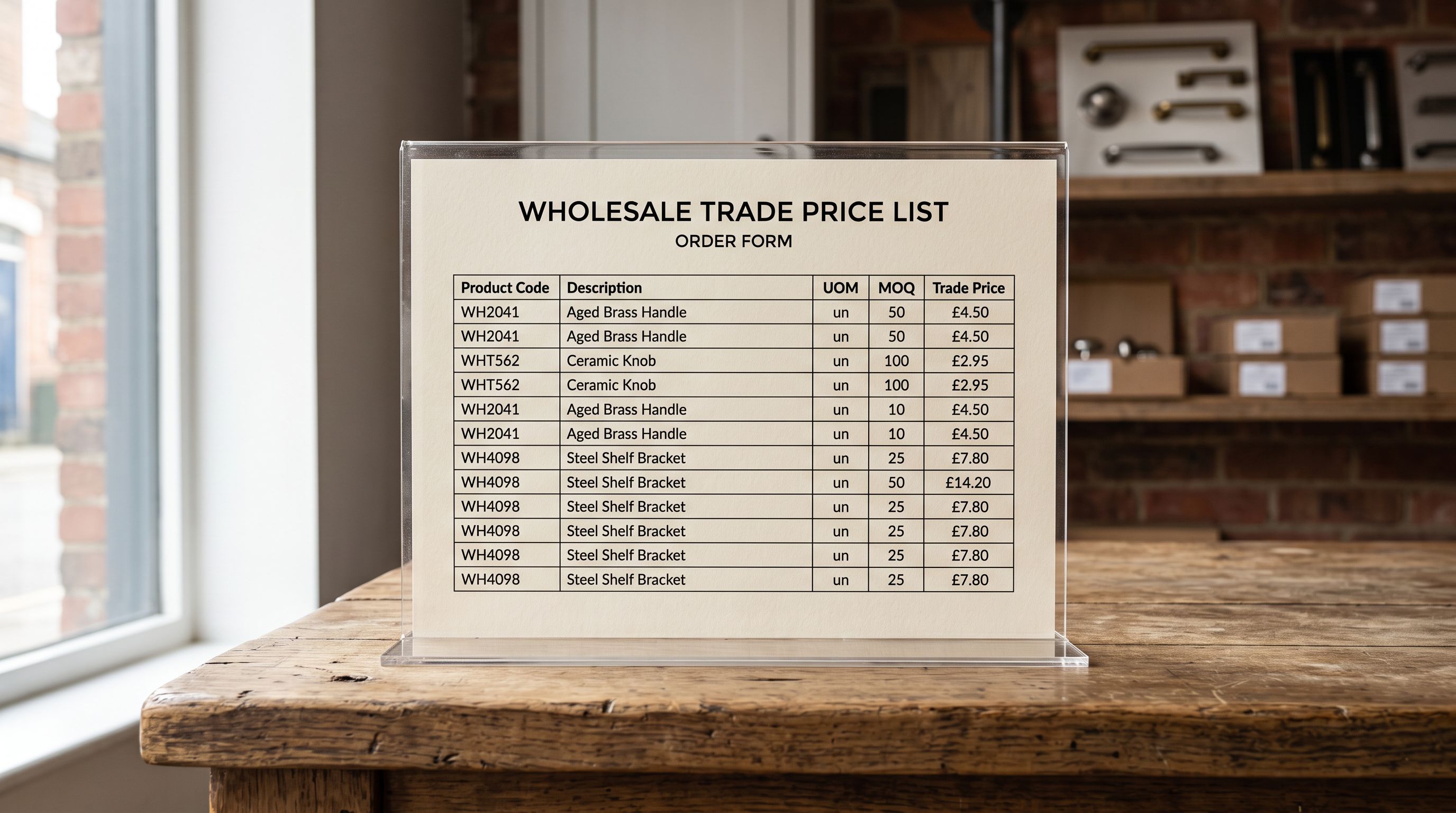
The correct import outcome for wholesale-only products depends on the merchant's B2B setup:
- **Shopify Plus with B2B:** import to the B2B publication only, not the Online Store. B2B publications are only visible to logged-in company accounts.
- **Non-Plus with a wholesale app (Bold B2B, Wholesale Club, etc.):** import as Draft, then the wholesale app controls visibility for trade-account customers.
- **Non-Plus with a password-protected wholesale section:** import as Draft, then publish to a custom wholesale collection that sits behind a Locksmith or password gate.
- **Non-Plus without a wholesale app:** keep products as Draft and share direct product URLs with trade customers individually.
In all four cases, the import should not publish to the Online Store.
## Building the Wholesale Import File Correctly
The wholesale catalogue import file differs from a retail import in three structural ways: publication status, tagging, and pricing.
**Publication status.** The simplest approach is to import all wholesale products with `Published: FALSE` (or to set the import's publication setting to Draft before pushing). This keeps every product off the Online Store regardless of what the source file specifies. After the import, the merchant publishes products to the appropriate B2B publication or wholesale gate manually or in bulk.
**Tagging for segmentation.** Wholesale-only products need tags that distinguish them from retail inventory in Smart Collections, collection rules, and third-party app configurations. Common tag conventions: `wholesale`, `trade-only`, `b2b`, `min-qty-12`. These tags serve two purposes: they allow the wholesale app or theme logic to identify trade products, and they prevent the products from appearing in retail Smart Collections that use tag-based rules.
The import file should include a dedicated Tags column with the wholesale tag applied to every wholesale product row. Importier carries these tags through the import unchanged, so the wholesale segmentation is applied from the first moment the products exist in Shopify.
**Pricing and quantity minimums.** Wholesale pricing structure depends on the merchant's B2B model. Some merchants use a single wholesale price per product (straightforward: Variant Price column carries the trade price). Others use quantity-tiered pricing (12 units at $18, 24 units at $16, 48 units at $14). Shopify's native variant structure can represent quantity tiers as separate variants: "Variant: 12-Pack, Price: $18.00", "Variant: 24-Pack, Price: $16.00". The import file creates one row per quantity tier under the same product Handle.

According to [Shopify's B2B overview documentation](https://help.shopify.com/en/manual/b2b/overview), B2B catalogues on Shopify Plus allow merchants to create company-specific price lists that override retail prices for logged-in B2B buyers without needing a separate product catalogue. For merchants on non-Plus plans, the quantity-tier variant approach is the most common way to represent wholesale pricing in Shopify's standard product model.
## Why Descriptions for Trade Buyers Are Different
The description style for wholesale products serves a different buyer than retail copy does. An interior designer selecting product lines for a fit-out does not need emotive language about how a ceramic vase "transforms a living space." They need dimensions, finishes, lead times, case pack quantities, minimum reorder levels, and country of origin.
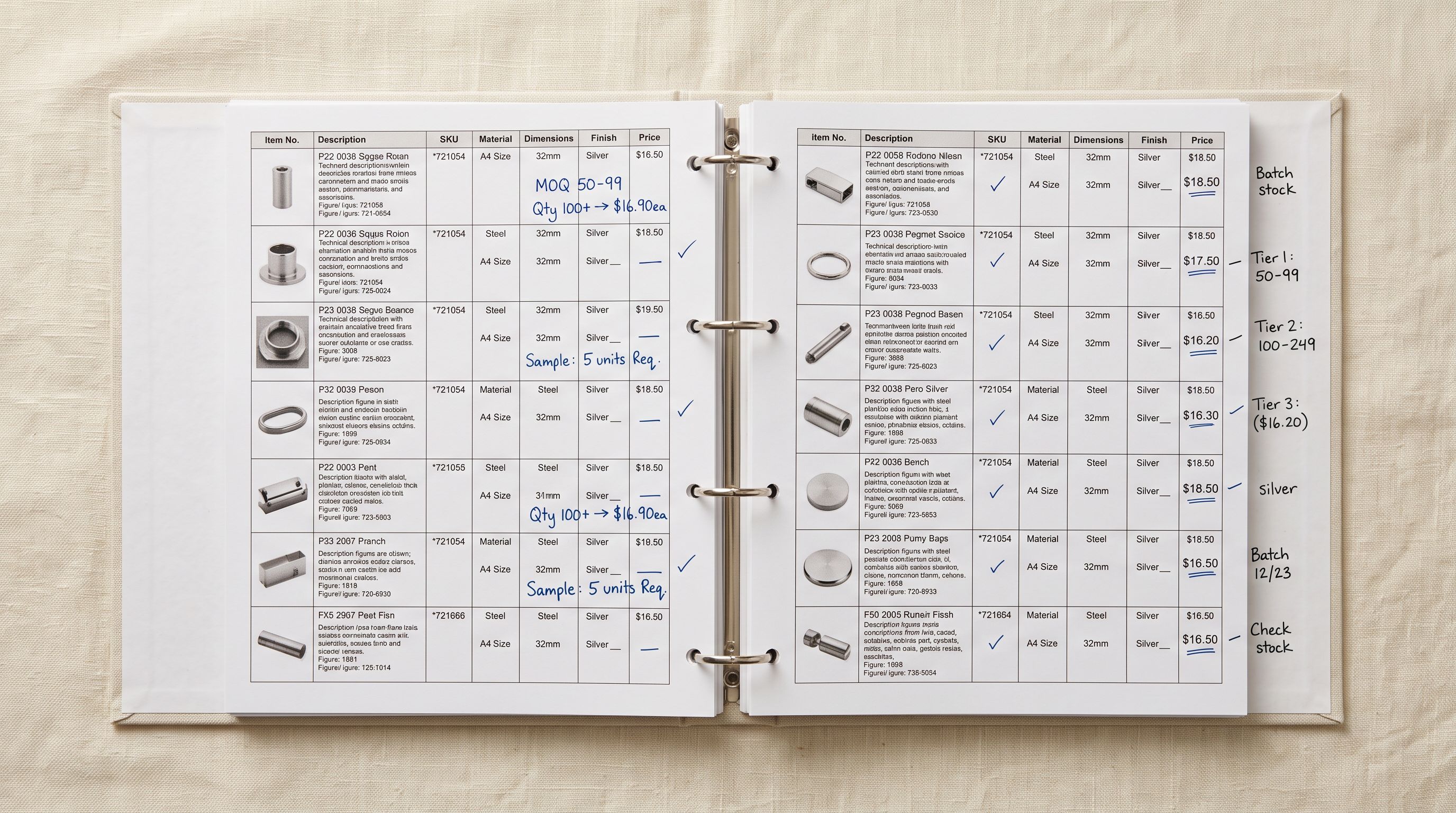
Importier's Technical Specification description style generates copy structured for procurement decisions: materials and grade, dimensions with tolerances, finish options by SKU, case pack and pallet quantities, and lead time parameters. For a wholesale accessory line, this produces descriptions that answer the questions a buyer asks before placing a trade order, not the questions a retail customer asks before adding to cart.
A retail description sells the outcome. A trade description provides the specification. The same product needs different copy depending on whether the reader is a customer or a buyer.
For trade buyers who are themselves building retail product pages, accurate specification data from the wholesale description feeds directly into their own import files. A ceramics brand supplying 40 independent retailers benefits from trade descriptions that include the exact product title, dimensions, and material description they expect their retail stockists to use, reducing the support load from retailers who need to ask for this information separately.
Enrichment context for wholesale descriptions should include: base material and any relevant grades or certifications (food-safe glaze, FSC-certified timber), case pack quantity and individual unit dimensions, country of manufacture, standard lead time from order to dispatch, and any MOQ conditions. The Technical Specification style uses this context to generate structured, factual copy appropriate for a trade catalogue.
According to [Shopify's product publishing documentation](https://help.shopify.com/en/manual/products/manage-products/publishing), each product can be published independently to individual sales channels. This means wholesale products can be added to a B2B publication or wholesale app-controlled channel without appearing on the Online Store, even after they are imported as Draft. The channel configuration is managed product-by-product or in bulk from Shopify admin after the import completes.
## Managing Ongoing Wholesale Catalogue Updates
Wholesale catalogues are not static. New season lines arrive, discontinued products need removing, and pricing adjustments happen at contract review periods. A homewares brand running a trade programme might update 20-30 products per season and add 10-15 new wholesale SKUs.
The correct import workflow for ongoing wholesale updates differs from an initial catalogue load. For new SKUs, the same draft-publication import profile applies. For price updates on existing wholesale products, a re-import with updated Variant Price values updates prices without touching descriptions or tags, as long as the import file uses the same product Handles as the original.
Importier's [Import Profiles](https://importier.app/blog/shopify-import-profiles) save the column mapping, publication settings (Draft), wholesale tags, and description style selected for the initial wholesale import. When the next season's wholesale price list arrives, the merchant uploads it to the saved profile and the settings apply automatically. The [Import History](https://importier.app/blog/shopify-add-new-products-weekly) records which products were updated in which import session, providing an audit trail for wholesale account managers who need to confirm which SKUs were current at a given date.

For Shopify Plus merchants, the B2B catalogue and company-specific price list configuration sits outside Importier's scope; those are configured in Shopify admin's B2B settings after the products exist. Importier's role is ensuring the products arrive in Shopify with the correct structure (draft status, wholesale tags, quantity-tier variants, trade-appropriate descriptions) so the B2B configuration step is building on a solid foundation rather than correcting import errors.
## Key Takeaways for a Shopify Wholesale Only Products Import
Getting the channel configuration right at import time prevents wholesale pricing from appearing in the retail storefront, and ensures the B2B segmentation structure is in place from day one.
- **Import as Draft, not Active:** wholesale products should not land on the Online Store. Set the publication status to Draft before pushing. Configure B2B channel access after the import, not before.
- **Published-but-hidden-from-search is not a private trade catalogue:** a product published to the Online Store but excluded from Search and Discovery is still accessible via direct URL, Google index cache, and sitemap. The correct setting is Draft or a dedicated B2B publication, not a hidden retail page.
- **Apply wholesale tags at import time:** consistent tags (wholesale, trade-only, b2b) applied to every wholesale product row segment the catalogue for Smart Collections, wholesale apps, and theme logic from the moment the products exist in Shopify.
- **Use quantity-tier variants for minimum order quantities:** wholesale pricing tiers (12-pack at $18, 24-pack at $16) are best represented as separate variants rather than described in the product description, where they cannot be read by price rules or wholesale app conditions.
- **Technical Specification descriptions serve trade buyers:** wholesale buyers need specifications, dimensions, case pack data, and lead times. Consumer-facing emotive copy does not serve a procurement decision.

Import your wholesale catalogue with the correct publication settings, segmentation tags, and trade-buyer descriptions at [importier.app](https://importier.app).