# Shopify Vendor Field Blank After Import: Fix the Google Shopping Gap
> A blank Shopify Vendor field after import causes Google Shopping brand disapprovals. How to map supplier Brand columns and prevent the gap at import time.
- Published: 2026-08-22
- Author: Importier Team
- Category: Store Management / SEO & Discoverability
- Canonical: https://www.importier.app/blog/shopify-vendor-field-import
---
A sporting goods retailer imports 180 products from a fitness equipment supplier. The import completes without issues. Every product has a title, description, images, price, and weight. Three weeks later, the merchant checks their Google Merchant Centre account and finds 140 of their 180 products disapproved with the same error: "Missing required attribute: brand [brand]".
The products are not missing a brand. The fitness equipment comes from well-known manufacturers. The supplier CSV included a "Manufacturer" column with the brand name for every product. The problem is that "Manufacturer" did not map to Shopify's Vendor field during import. Every product landed in Shopify with a blank Vendor field. When Shopify sent the product data to Google's Shopping feed, the brand attribute was empty. Google disapproved every product that requires a brand.
A blank shopify vendor field after import is one of the most commercially damaging import gaps because it directly blocks Shopping ads revenue, not just organic product visibility.
## What the Vendor Field Does in Shopify
In Shopify, the Vendor field is the product's brand or manufacturer. It appears in the product page, on the automatically created vendor collection page, and in the storefront's filtering and search results when vendor-based filters are enabled.
The Vendor field also feeds into marketplace integrations. When Shopify syncs products to the Google channel, Shopify's Vendor value maps to the brand attribute in the Google Merchant Centre feed. When Shopify syncs to the Facebook/Instagram catalogue, Vendor maps to the brand field there too. [Shopify's product documentation](https://help.shopify.com/en/manual/products) covers the Vendor field and how it appears on product pages and in storefront search.
This mapping is automatic. There is no separate "brand" field in Shopify's product model. Vendor is the field that fulfils the brand requirement across all downstream channel integrations.
Google's Shopping feed specifies brand as a required attribute for products in most categories, including all Apparel and Accessories subcategories, all Electronics subcategories, and most Home and Garden subcategories. For products without a GTIN (global trade item number), brand is always required because it is the primary identifier alongside MPN. Products with a blank brand attribute in the feed receive automatic disapproval in any category that requires it. "Missing required attribute: brand [brand]" is consistently one of the top three most common Merchant Centre feed errors. It is not a warning; it is a hard disapproval that prevents the product from appearing in Shopping results or Shopping ads. [Google's Shopping Content API reference](https://developers.google.com/shopping-content/reference/rest/v2.1/products) documents the brand attribute specification and the categories in which it is required.
## Why the Vendor Field Is Blank After Import
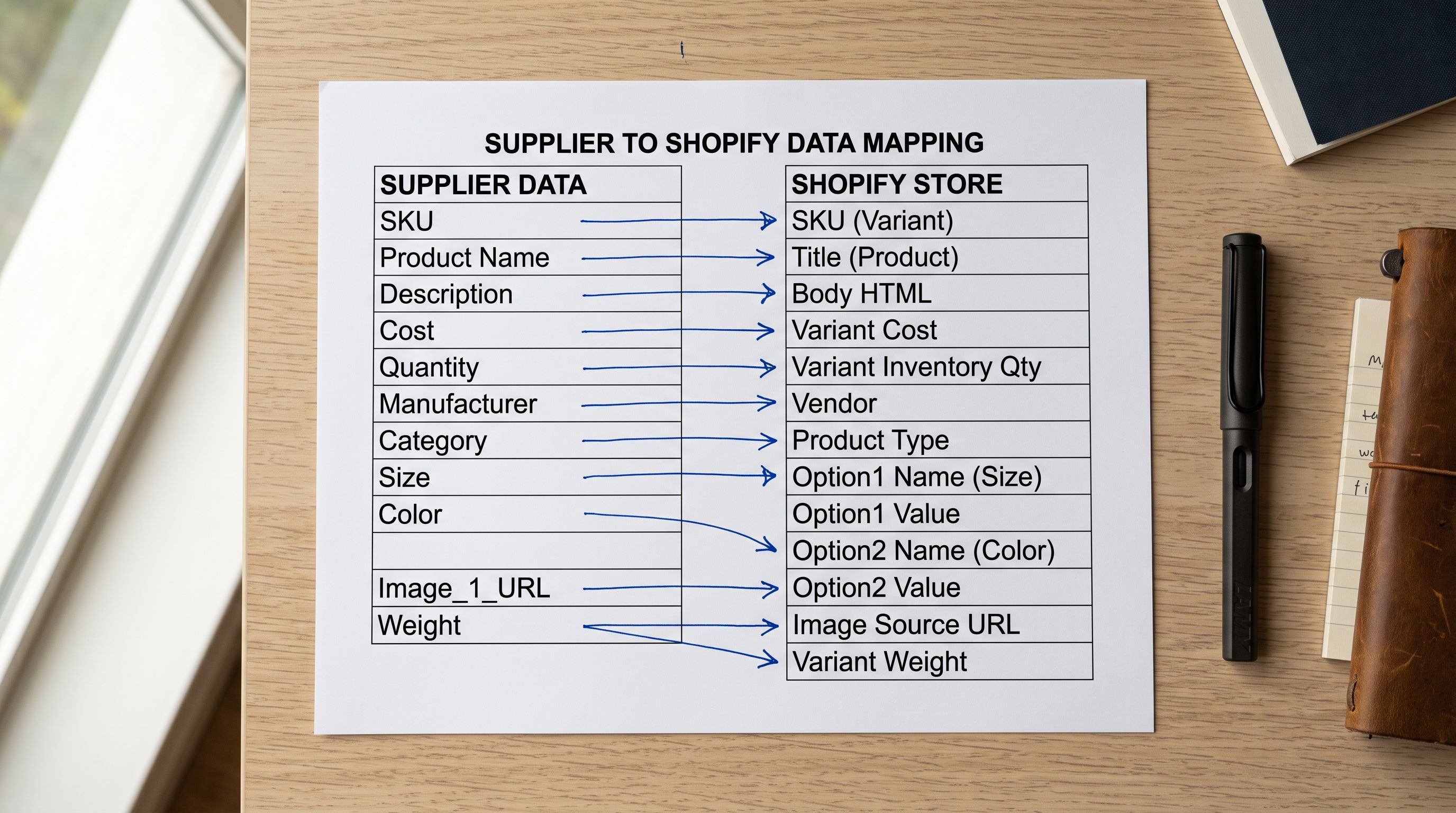
Supplier CSVs do not follow Shopify's field naming convention. Shopify's import format expects a column named "Vendor". Supplier systems use their own naming:
- "Manufacturer"
- "Brand"
- "Brand Name"
- "Supplier"
- "Made by"
- "Maker"
- "Producer"
When a CSV contains a "Manufacturer" column and the import tool does not have a mapping rule translating "Manufacturer" to Shopify's "Vendor", the column is either ignored or mapped to a tag or custom field. The products import with all other fields populated and the Vendor field empty.
A second cause is supplier CSVs that genuinely have no brand column. Drop-shipping feeds and wholesale price lists from large distributors often omit the manufacturer because they carry products from hundreds of brands. The distributor's data export is optimised for their own inventory system, not for the merchant's storefront needs.
## What Breaks When Vendor Is Blank
**Google Shopping disapprovals.** For product categories that require brand, a blank Vendor field in Shopify means a blank brand attribute in the Merchant Centre feed. The products receive automatic disapproval. They do not appear in Shopping search results or Shopping ads. For a merchant running Google Shopping campaigns, this means zero impressions and zero revenue from affected products until the disapprovals are resolved.
**Vendor collection pages are empty or missing.** Shopify automatically creates a collection page for each vendor value used in the store. A sporting goods store with products from Reebok, Nike, and Adidas has three automatic vendor collection pages. When products import with a blank Vendor field, there is no vendor value to generate a collection from. Products with blank vendor do not appear on any vendor collection page.
**Brand filtering does not work in storefront search.** Shopify's storefront filtering lets customers filter by vendor (brand) when the theme supports it. Products with a blank Vendor field are excluded from the vendor filter: they appear under "No brand" or are hidden from the filter entirely, depending on the theme's handling.
**Marketplace attribution is missing.** On Facebook and Instagram Shopping, the brand field appears on the product card. A blank brand on the product card reduces merchant credibility and customer confidence, particularly for products where the manufacturer brand is the primary purchasing signal.
A blank Vendor field after import does not fail quietly. It causes immediate Merchant Centre disapprovals and removes products from Shopping ads until the field is corrected and the feed re-validates.
## How to Find Which Products Are Affected
In Shopify admin, go to Products and use the filter "Vendor: is empty". This shows every product in the store with a blank Vendor field.
For a recent import batch, the count of blank-vendor products should match the number of products in that import. If 180 products were imported and 180 show empty Vendor, the entire import was missing the field mapping.
For larger catalogues with products imported over time from multiple suppliers, the blank Vendor filter shows only the affected batch rather than the full catalogue, provided previous imports mapped the Vendor field correctly.
## Three Ways to Fix Existing Products
**Option 1: Shopify admin bulk edit for single-brand batches.** If all affected products are from one manufacturer, select them using the vendor filter and use bulk edit to set Vendor for the selection. For 180 products all from the same brand, this takes under two minutes.
**Option 2: CSV export-edit-reimport for multi-brand batches.** Export the affected products using Importier's Full Shopify CSV preset filtered to empty-vendor products. Open the CSV, add a Vendor column, fill in the correct manufacturer for each row, and reimport using the column mapping step to confirm the Vendor column maps to Shopify's Vendor field. Use update mode (not create mode) to overwrite the existing products rather than create duplicates.
**Option 3: Importier Store Scanner bulk update.** The Store Scanner identifies all products with blank Vendor and lets the merchant apply values in bulk. For catalogues where the correct vendor can be determined from the product title or existing tags (common when products from one manufacturer share a naming pattern), the Store Scanner can apply the correct Vendor value across the affected products without a CSV export-import cycle.
After correcting the Vendor field, the Google Merchant Centre feed re-syncs automatically on Shopify's next scheduled sync (typically every 24-48 hours). Alternatively, trigger a manual re-sync in the Google channel settings. Products that previously had a blank brand will re-submit to Merchant Centre with the correct value. Google processes the updated attributes and re-approves the products, typically within 24-72 hours for standard categories.
## Preventing Blank Vendor at Import Time
Importier's column mapping step addresses all three causes of blank Vendor at import time.
**For supplier CSVs with a non-standard column name.** In the column mapping step, every column in the source CSV is displayed alongside the Shopify field it should map to. A supplier column named "Manufacturer" or "Brand Name" maps to Shopify's "Vendor" field with a single selection. Importier saves the mapping: the next import from the same supplier applies the same "Manufacturer" to "Vendor" translation automatically without re-mapping.
**For supplier CSVs with no brand column.** When the source file has no brand or manufacturer column, the Vendor field cannot be mapped from the file. The merchant can set a default Vendor value for the entire import in the import settings. A default value applies to every product in the batch: a wholesale clothing importer who sources exclusively from one brand can set that brand as the default Vendor for all 180 products in the import, even though the supplier CSV has no brand column.
**The Import Review step as a quality check.** Before any product reaches Shopify, the Import Review shows every product with its mapped field values. The Vendor column is visible for each product. An empty Vendor column in the review step is the earliest possible detection point: catching it before the push means fixing it in seconds rather than running a post-import cleanup cycle.
Read more about [how Importier's column mapping step works for non-standard supplier columns](https://importier.app/blog/shopify-import-column-mapping) for the complete workflow of mapping any source column to any Shopify field.
Fixing a blank Vendor field is straightforward once identified. Preventing it at import time with a saved column mapping profile eliminates the 24-72 hour re-approval wait on every future import from the same supplier.
## Key Takeaways
A blank shopify vendor field after import directly causes Google Shopping disapprovals because Google's feed maps Shopify's Vendor field to the required brand attribute. For most product categories, brand is a required field: blank means disapproved.
- **Why it happens:** supplier CSVs use "Manufacturer", "Brand", or "Brand Name" instead of Shopify's "Vendor"; without a column mapping rule, the value never reaches the Vendor field.
- **Three things that break:** Google Shopping disapprovals (brand required in most categories), missing vendor collection pages, and blank brand filtering in storefront search.
- **Find affected products:** Shopify admin filter "Vendor: is empty" shows the full scope immediately.
- **Fix existing products:** bulk edit in admin for single-brand batches, CSV export-edit-reimport for multi-brand batches, or Importier Store Scanner for catalogues where vendor can be inferred.
- **Prevent it at import time:** Importier's column mapping step maps "Manufacturer" or "Brand" to Shopify's Vendor field; the mapping saves automatically so the next import from the same supplier applies it without re-configuration.
- **Re-approval timeline:** after correcting the Vendor field and syncing the feed, Google re-approves the affected products within 24-72 hours.
Read more about [Importier's export presets for auditing missing Vendor across your full catalogue](https://importier.app/blog/shopify-export-presets): the Tags preset exports vendor alongside product type and tags for a full attribution review in one CSV.
Fix your Shopify Vendor field at [importier.app](https://importier.app).