# Shopify Variants Missing After Import: Diagnosis and Fix
> Some variant combinations go missing after a Shopify import. Here is how to diagnose which are absent, why it happened, and how to fix or prevent it next time.
- Published: 2026-08-04
- Author: Importier Team
- Category: Import Guides / File Imports
- Canonical: https://www.importier.app/blog/shopify-variants-missing-after-import
---
A homeware merchant imports 80 products. Each comes in 4 colours and 3 sizes (12 variant combinations per product, 960 across the catalogue). The import completes without errors. Two days after launch, a customer emails to say they cannot order Ocean Blue in XL. The merchant opens the product in Shopify admin and finds the size options vary by colour: Slate Grey shows S, M, and XL. Sand and White show S and M only. Ocean Blue shows S only. Six of 12 expected combinations exist. The other six are simply absent.
The shopify variants missing after import problem is more common than most merchants expect, and more varied in cause. Variant combinations can disappear at import for four distinct reasons, and each one requires a different fix. Treating them all the same leads to re-importing entire catalogues when only a handful of rows were missing from the source file.
## The Four Causes of Missing Variant Combinations
**Missing rows in the source CSV**
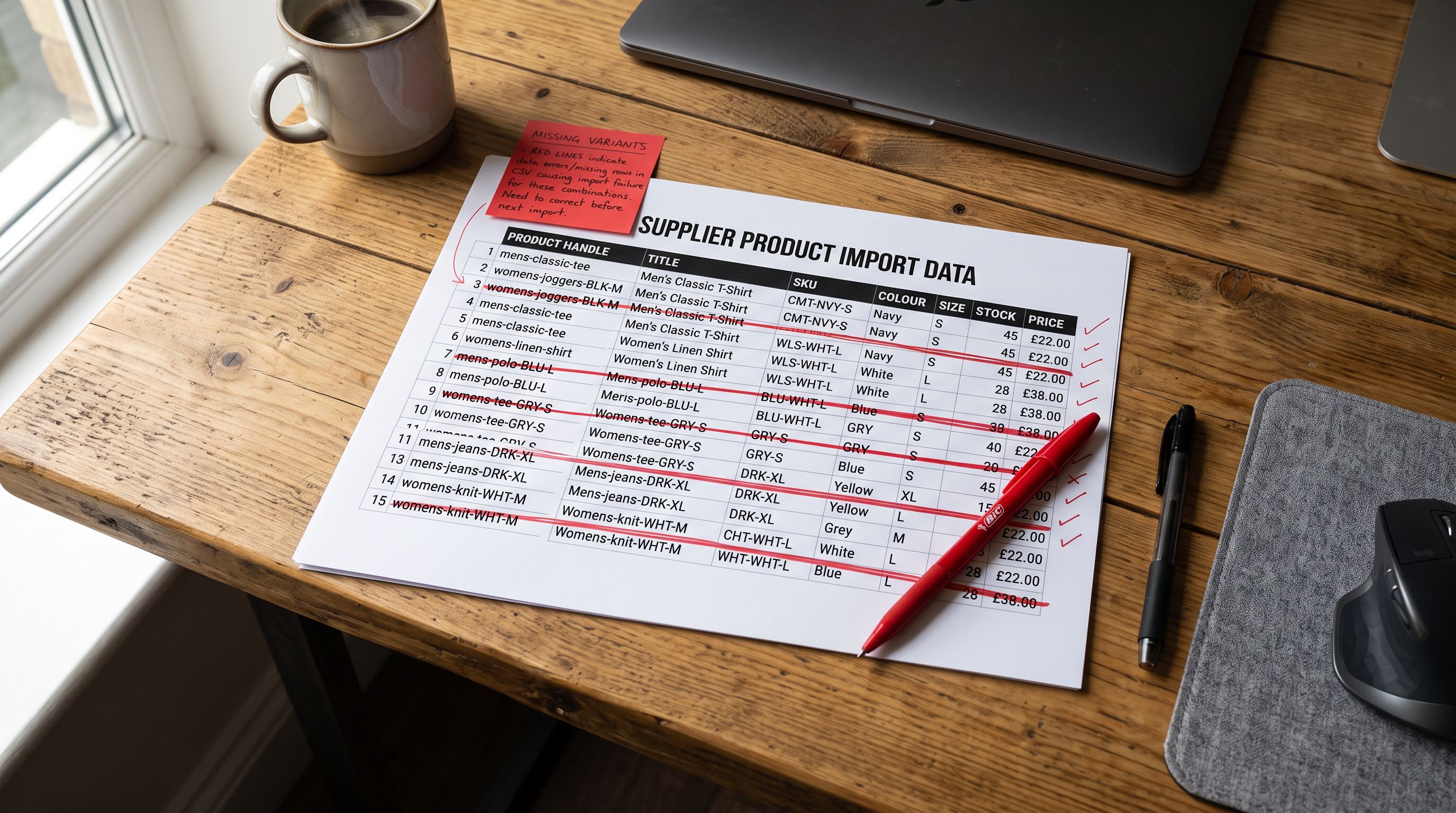
Shopify creates exactly the variant combinations present in the import file. If a supplier CSV omits a size and colour combination because that item was discontinued, out of stock at the time of export, or never added to the supplier's system, the import produces exactly that incomplete set. The merchant expects a full grid; the supplier sent a partial one.
This is the most common cause. A supplier export system that filters by "in-stock only" silently removes discontinued or zero-stock combinations from the file. The resulting import looks correct in its column structure but is incomplete in coverage.
**Option value string inconsistency**
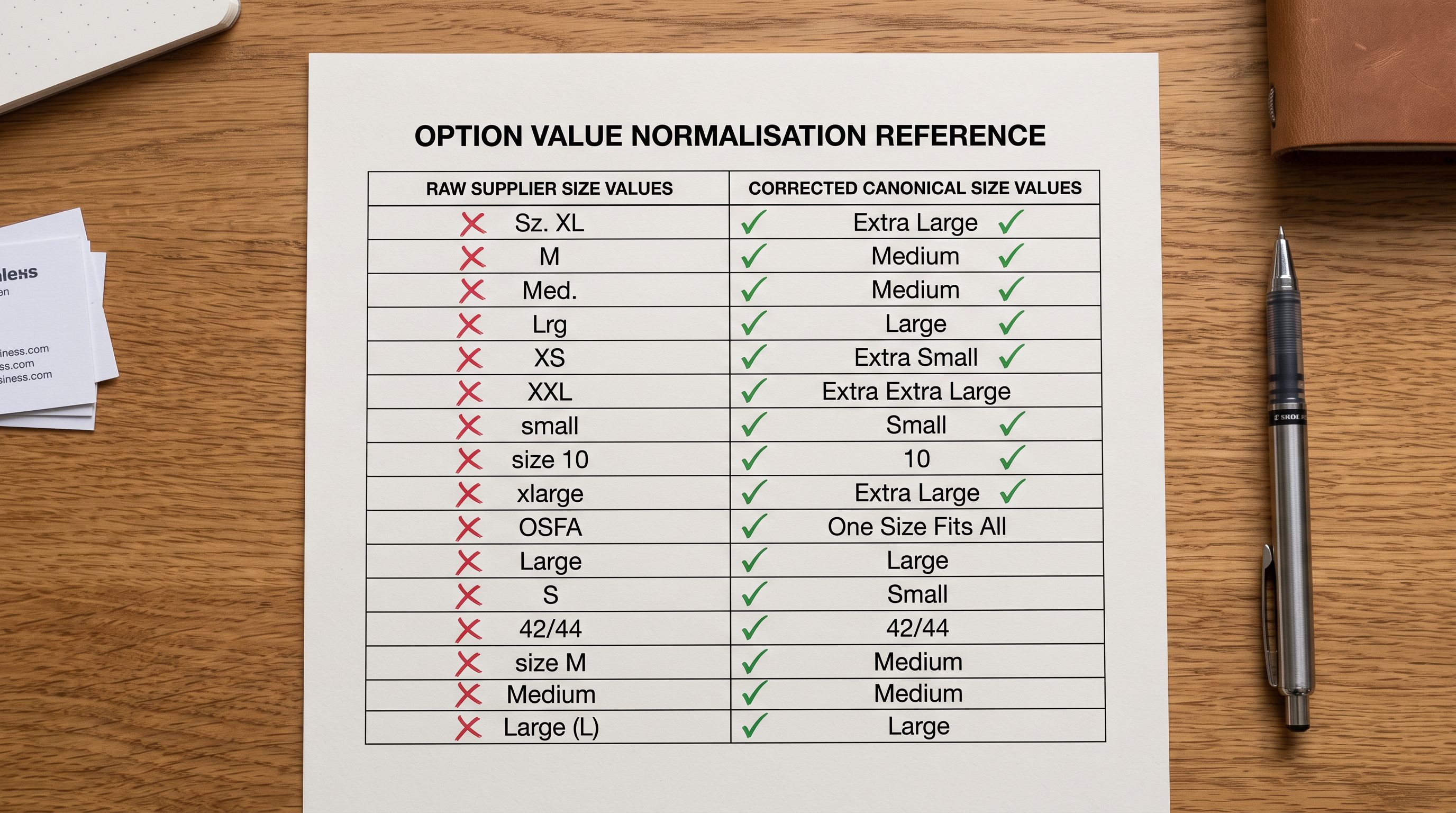
Shopify matches variant options by exact string. "XL", "X-Large", "Extra Large", and "X Large" are four distinct option values, not four spellings of the same thing. If the supplier CSV uses different strings for the same size across different products or across different rows of the same product, Shopify creates separate option values for each string.
The result is a product that appears to have more options than intended. A colour and size product with 4 colours and 3 sizes appears to have 4 colours and 5 sizes, because "L", "Large", and "Lg" all became separate values in the variant selector. Some combinations exist under "L", others under "Large", and customers browsing for Large find fewer products than the catalogue contains.
**Shopify's 100-variant ceiling**
Each Shopify product is limited to 100 variant combinations. A product with 5 colours, 4 sizes, and 6 graphic designs (120 combinations) exceeds this limit. Shopify processes the import file in row order and stops creating variants when it reaches 100. The remaining 20 combinations in the file are silently ignored.
Shopify does not return an error when a product exceeds 100 variants during import. The import completes with a success status. The missing combinations are simply absent from the product. If the import file had 120 variant rows for a single product, Shopify created 100 of them and ignored the rest, with no indication of which 20 were dropped. The only signal is a variant count in Import History that is lower than the expected combination total.
**Handle grouping failure**
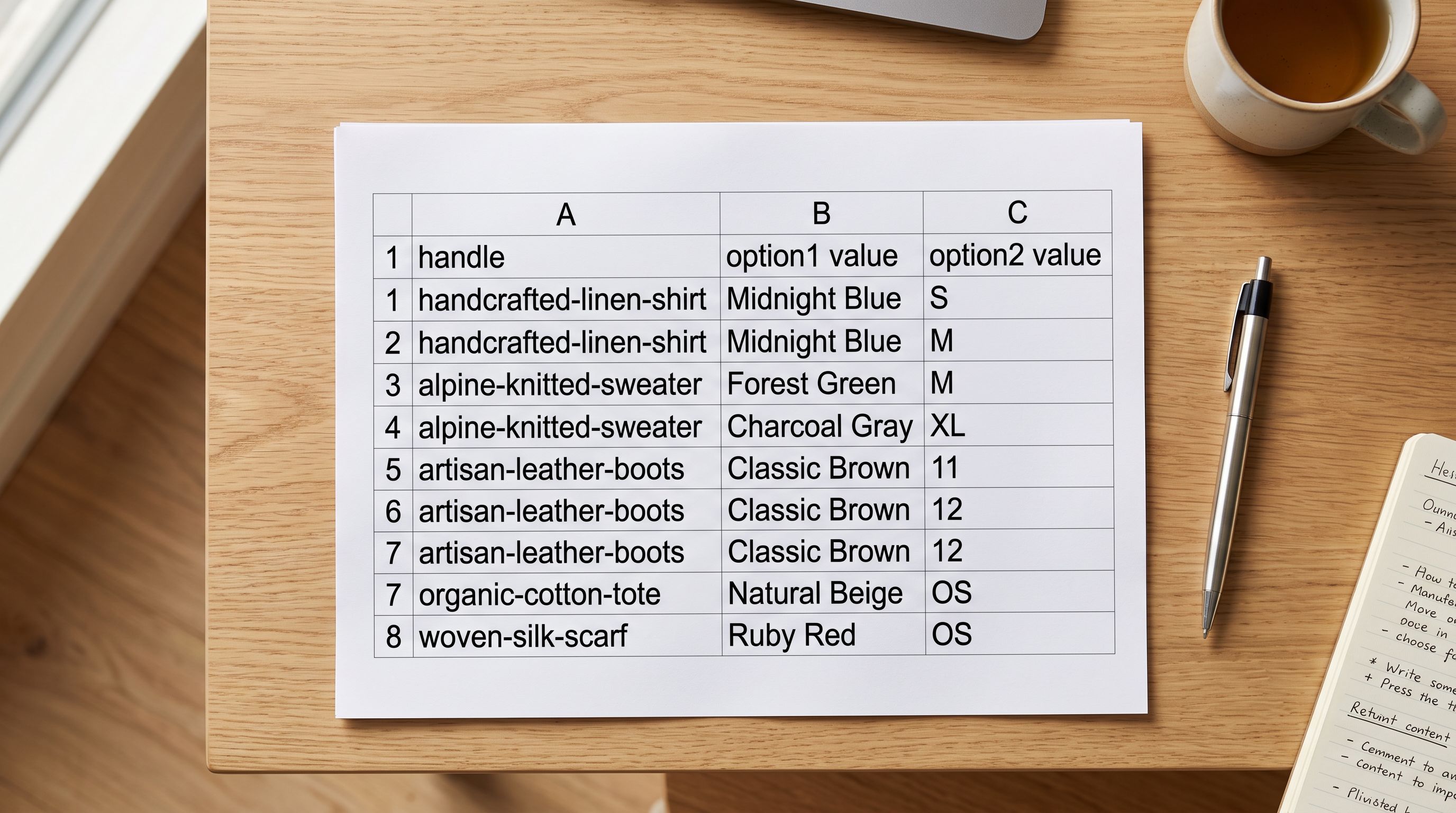
Shopify groups variant rows into a single product using the Handle column. Rows with the same Handle value become variants of the same product; rows with different Handles become separate products. If the import file has inconsistent Handle values across what should be one product ("blue-cotton-dress" for some rows and "blue-dress-cotton" for others), Shopify creates two separate products instead of one product with all the colour variants.
This looks like missing variants but is actually split products. The fix is different: locating and merging the split records, not adding missing variant rows.
## Diagnosing Which Combinations Are Absent
The diagnosis starts with Import History, which records the product count and variant count for every import batch. If the expected variant count is 960 (80 products multiplied by 12 combinations each) but Import History shows 744, the deficit is 216: an average of 2.7 missing combinations per product.
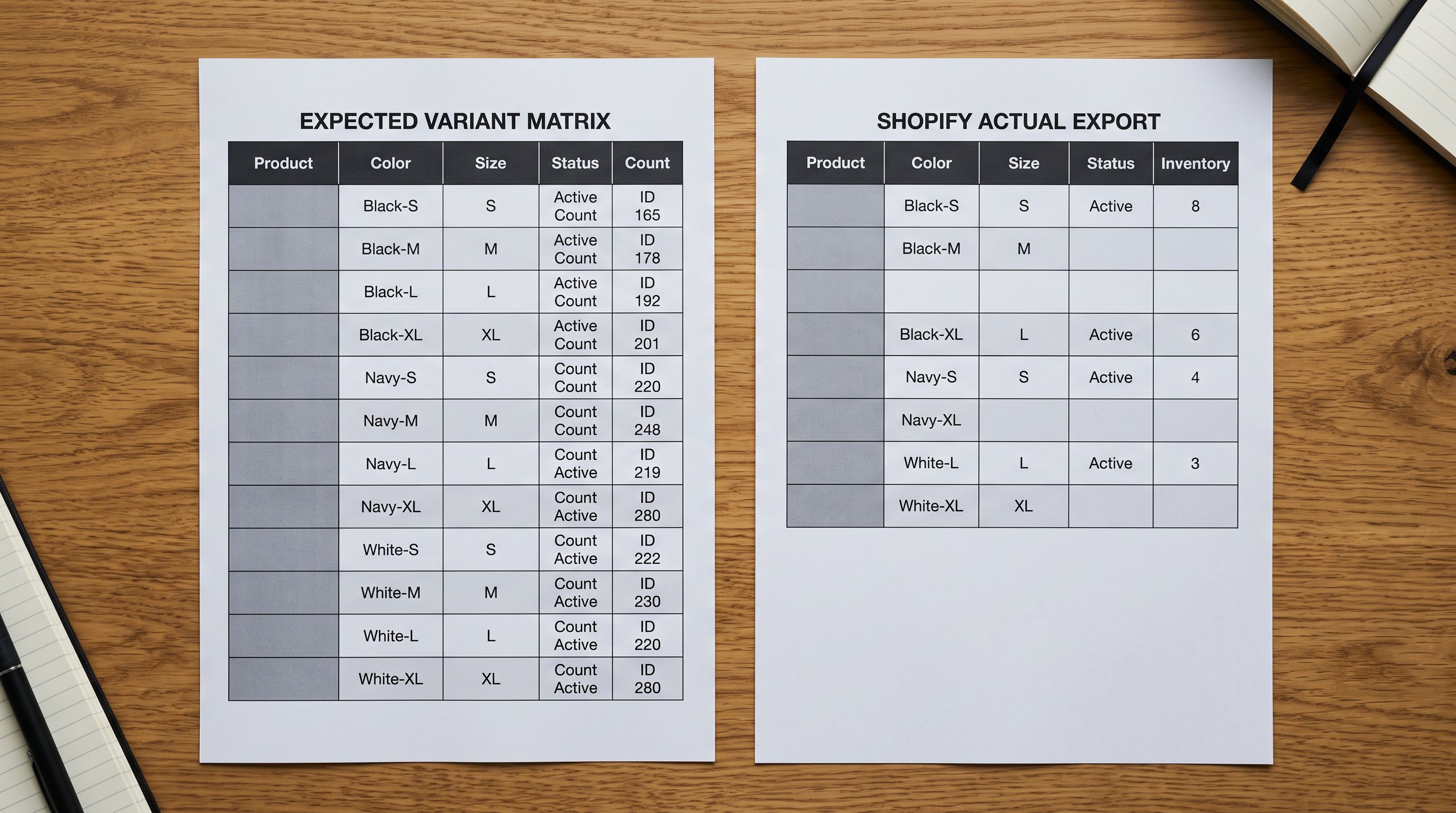
To find which specific combinations are absent, export the affected product's current variant data using Importier's export feature with the Variants preset. This produces a CSV with one row per variant combination, including Option1 Value, Option2 Value, and Option3 Value columns.
Open the original import file alongside the export. For each product Handle, list every combination of option values that should exist as a grid. Compare the export against that grid. Rows present in the expected grid but absent from the export are the missing combinations.
A product's variant set in Shopify contains only what the import file contained, or what was manually added since. The Variants export is the ground truth for what currently exists. Comparing it against the expected grid is the only reliable way to find missing combinations without checking each product page manually.
For the string inconsistency cause, the diagnosis is different. Sort the Option Value columns in the export. Rows with "L", "Large", and "Lg" in the same column are immediately visible as separate entries. They are not the same size; they are three distinct values that Shopify treats independently.
For the 100-variant ceiling: if Import History shows exactly 100 variants for a product that should have more, the ceiling is the cause. The import file's 101st through final rows for that product were ignored.
## Adding Missing Variants Without Re-Importing Everything
Once the missing combinations are identified, the fix depends on how many are absent.
**For fewer than 10 missing combinations**: add them directly in Shopify admin. Open the product, go to the Variants section, and use Add variant to enter each missing combination with its option values, price, SKU, barcode, and inventory quantity. This is the fastest path when only a handful of combinations are absent.
**For 10 or more missing combinations**: prepare a partial import file. Create a CSV containing only the missing rows, using the same product Handle and the correct option values with all required fields populated. Import this file as a new batch. Importier matches rows to existing products by Handle and adds the missing variants without touching existing ones. The six combinations that imported correctly remain unchanged; the six missing ones are added.
This partial import approach also fixes the string inconsistency problem. Identify all variant rows using incorrect strings ("Lg" instead of "L"), correct them in the source file to the canonical value, and import only those rows. The corrected rows merge into the existing product, adding properly named variants without disrupting the product's other data.
## Preventing Variant Gaps Before the Import Runs
Importier's 14-step import wizard shows distinct values for each option column in the column mapping step, before the import commits any data to Shopify. If the Option2 Value column shows "S", "M", "L", "Large", "Lg", and "XL" when only 3 sizes are expected, that inconsistency is visible at the point when it costs nothing to fix. A quick edit to the source file and a re-upload resolves it. The same inconsistency found after 80 products are live requires exporting, correcting, and re-importing corrected rows for every affected product.
**Audit option columns before uploading**
Before importing, open the supplier CSV and check each option column. In a spreadsheet, use a pivot table or "Unique values" function on each option column to see all distinct strings. Three sizes should produce three distinct values. Five or six values mean the supplier's data is inconsistent.
Normalise all values to a canonical vocabulary before uploading. For size, pick one convention: abbreviation (S, M, L, XL) or full word (Small, Medium, Large, Extra Large), and apply it uniformly to every row. For colour, use consistent title case across all products.
**Verify the combination count stays under 100**
Before importing any product with three option dimensions, calculate the maximum combination count. 5 colours multiplied by 4 sizes multiplied by 5 styles equals 100, exactly at Shopify's limit. Adding one more value to any dimension pushes the product over the ceiling and causes the last combinations to be dropped silently.
Per [Shopify's product variant API reference](https://shopify.dev/docs/api/admin-graphql/latest/objects/ProductVariant), the 100-variant ceiling applies at the product level. If any product approaches or exceeds this limit, evaluate whether the third option dimension should be separate products rather than additional variants. Importier's guide to [whether variants or separate products are the right structure](https://importier.app/blog/shopify-variants-vs-separate-products) covers the decision framework in detail. The 100-variant ceiling is one of the primary forcing factors.
**Check Import History after every batch**
After any import, confirm the variant count in Import History matches the expected total. If the file had 120 variant rows for a single product and Import History shows 100 variants for that product, the ceiling was hit. Do not wait for a customer to report a missing combination: the count discrepancy is the first and fastest signal.
## When Missing Variants Signal a Structural Problem
Sometimes variant combinations are absent not because of an import error but because the product structure itself is wrong. A product approaching 100 combinations is a signal to reconsider whether all those options should live under one product.
[Shopify's variant management documentation](https://help.shopify.com/en/manual/products/variants) describes variants as representing the same item in different configurations. A hoodie in 4 colours and 5 sizes is one item in different configurations. A product in 5 colours, 4 sizes, and 6 graphic designs (where each graphic design has its own name, its own description hook, and its own search query) is closer to 6 separate products that happen to share a silhouette.
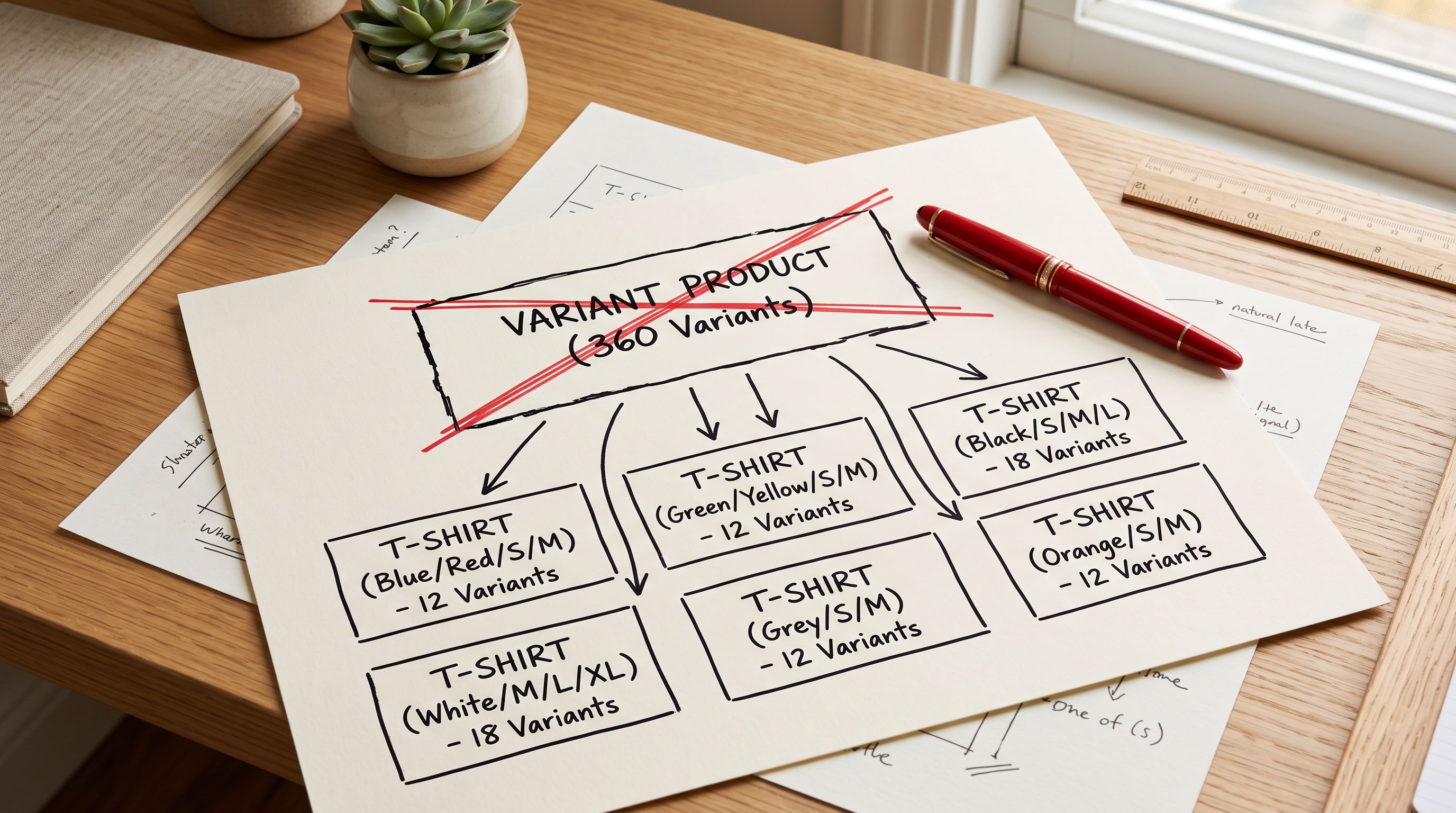
When the 100-variant ceiling is the cause of missing combinations, the better fix is often to separate by the third option dimension rather than to add the missing rows. Six graphic designs become six products, each in 4 colours and 5 sizes (20 variants each). All 120 combinations are importable, each product can carry a description specific to the design, and no combination is silently dropped at import.
## Key Takeaways
Missing variant combinations after a Shopify import have four distinct causes. Identifying the right one before acting avoids unnecessary full re-imports and post-launch cleanup.
- Missing combinations after a Shopify import come from four causes: missing rows in the source file, option value string inconsistencies (exact-string matching treats "L", "Large", and "Lg" as three separate options), Shopify's 100-variant ceiling (silently stops at 100 with no error), or Handle grouping failure producing split products instead of variants.
- Shopify's 100-variant ceiling is the most difficult cause to detect because the import reports success regardless. The only signal is Import History showing a variant count lower than the expected combination total for a product.
- Export the affected product's variants using the Variants preset, then compare against the expected option grid to find exactly which combinations are absent. This is faster than checking each product page individually.
- Missing combinations can be added via a partial import file containing only the missing rows with the correct Handle; existing variants are unaffected.
- The column mapping step in Importier's 14-step import wizard shows distinct option values from the source file before any data is committed. Catching a string inconsistency at that step costs nothing. Catching it after 80 products are live costs hours of corrective work.
- If a product is approaching 100 variant combinations, the third option dimension is often better modelled as separate products, each with its own description, its own conversion path, and no ceiling risk.
Verify your variant counts in Import History after every batch at [importier.app](https://importier.app). A count that does not match the expected total is the earliest signal that something went missing.