# Shopify Variant Option Naming: Consistent Size and Colour
> Inconsistent variant names break Shopify filters. Standardise size, colour, and material option labels at import time for clean collection facets.
- Published: 2026-09-16
- Author: Importier Team
- Category: Import Guides / File Imports
- Canonical: https://www.importier.app/blog/shopify-variant-option-naming-standards
---
A women's clothing merchant imports from three suppliers: one based in China, one in Australia, one in the UK. Without shopify variant option naming standards applied at import, the Size filter on the Shopify collection page shows fourteen options after all three imports complete: S, Small, SMALL, SM, 6, 8, 10, 12, XS/S, One Size, OS, Extra Small, Extra-Small, and XS. A customer searching for a small dress filters for "Small" and sees 31 products. Filtering for "S" shows 28 different products. Filtering for "SM" shows 12 more.
There are no duplicates. They are genuinely different products from different suppliers. But a customer has no way to know that "Small" and "S" refer to the same size: Shopify's filter treats them as separate options with separate product pools.
This is the root of the problem. The products are correct. The variant detection is correct. But without a consistent naming convention applied at import time, every supplier's internal size system becomes its own isolated filter silo.
## Why Variant Option Names Control Filter Behaviour
Shopify's collection filter and faceted search treat each unique variant option value as a distinct entry. "Small" and "S" are two separate values in Shopify's data model. When a customer uses the size filter, Shopify returns products where at least one variant has that exact value. A product with "S" as its size option does not appear in results for "Small", even if both represent physically identical sizes.
This matters at scale. A merchant with 500 products across four suppliers may have eight different representations of "medium" in their catalogue. Customers using the size filter see a fragmented list that requires them to select multiple values to find all the products that would fit, assuming they even know to look for the alternatives.
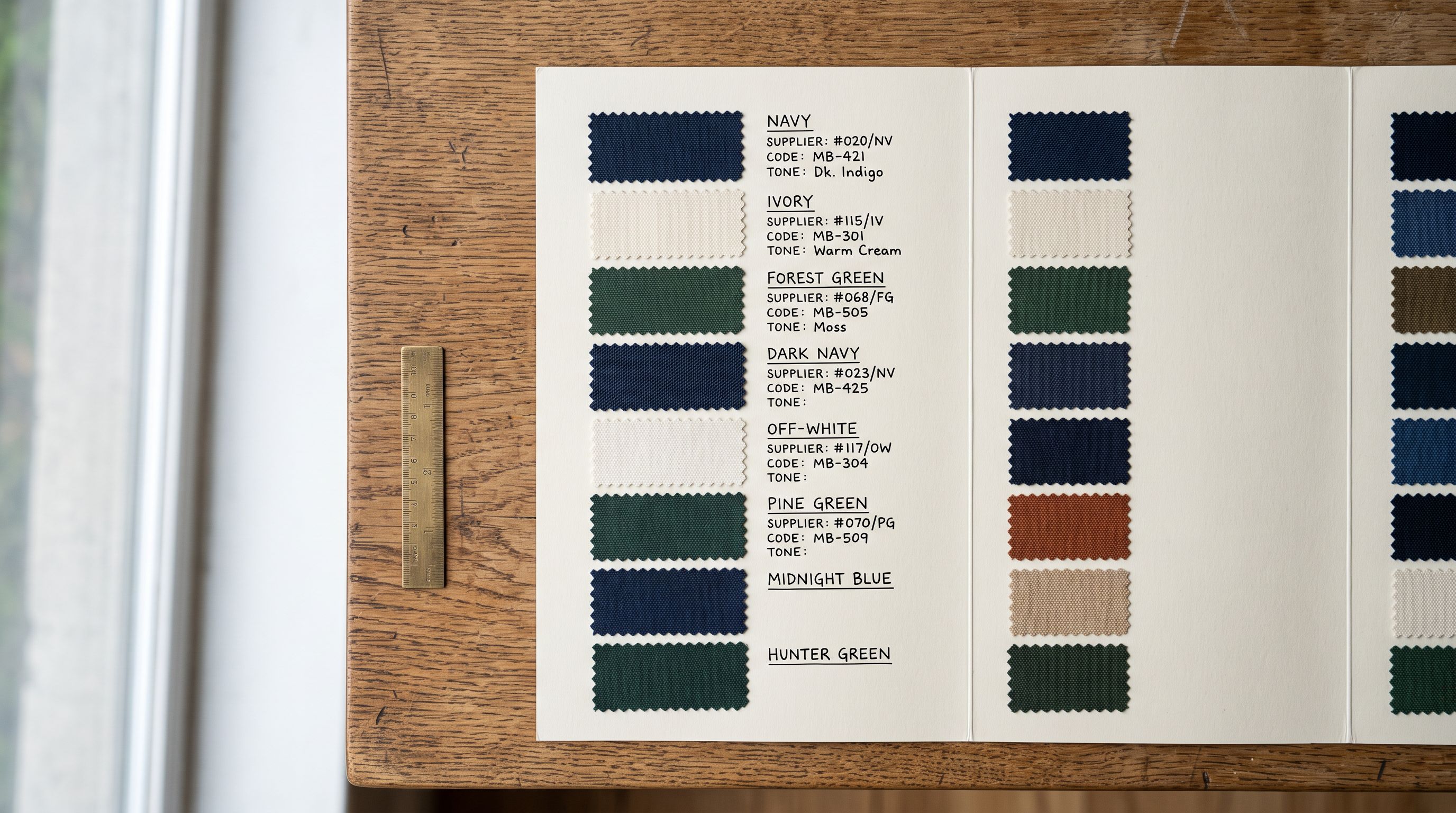
The same problem applies to colour options. A supplier who exports "Navy Blue" creates a separate filter entry from a supplier who uses "Navy" or "Dark Navy" or "Ink Blue". A customer looking at the colour filter sees four distinct options that all represent the same colour. The faceted navigation (designed to speed up product discovery) creates confusion because customers must click through near-duplicate values to browse the full available colour range.
Each unique variant option value is a distinct filter entry in Shopify's collection navigation. Two products with identical physical sizes but different option labels ("Small" and "S") appear under different filter selections. Shopify has no built-in setting to merge option aliases into a single filter value. The standardisation must happen at import time, before the values enter the catalogue.

## How Inconsistency Enters at Import Time
Supplier CSV files reflect each supplier's internal naming conventions. A UK supplier uses UK size terminology (8, 10, 12, 14). A Chinese supplier may use international size codes (XS, S, M, L). A domestic Australian supplier may use abbreviations (SM, MD, LG, XL). None of them are wrong; they are each internally consistent. The inconsistency is between them, and it compounds with every supplier added.
Standard import workflows map supplier columns to Shopify option fields without transforming the values. If a supplier column "Size" contains "SM", the import maps "SM" to the Shopify size option value. The import is technically correct: it transferred exactly what was in the source file. The result, however, is a catalogue where size labels reflect each supplier's preference rather than a consistent merchant standard.
The problem multiplies over time. A merchant sourcing from five suppliers across two years accumulates size values from five different naming systems. A full audit of their Shopify size filter might reveal 20 or more distinct values for what the merchant conceptually sells in four sizes.
Material labels follow the same pattern. One supplier lists "Cotton" as the fabric type. Another uses "100% Cotton". A third uses "Pure Cotton". A fourth uses the European textile fibre composition code "CO". In the Shopify material filter, these appear as four separate options that are effectively the same product attribute.

## Building a Shopify Variant Naming Standard
A variant naming standard is a lookup table: for each option type (size, colour, material), a list of supplier-used values and their corresponding canonical values that will appear in Shopify's collection filter.
A size naming standard for a women's clothing merchant might look like this:
**Canonical size values:**
- XS (maps from: XS, Extra Small, Extra-Small, 4, 36, EU36)
- S (maps from: S, SM, Small, SMALL, 6, 38, EU38)
- M (maps from: M, MD, Medium, MEDIUM, 10, 40, EU40)
- L (maps from: L, LG, Large, LARGE, 12, 42, EU42)
- XL (maps from: XL, Extra Large, Extra-Large, 14, 44, EU44)
The canonical values are what the merchant wants displayed in the Shopify size filter. Every supplier variant name maps to one canonical value. This lookup table lives in the merchant's import documentation and is applied at import time, not after the fact.
The canonical list should be built from the merchant's filter design, not from supplier data. Decide what the filter should show (XS, S, M, L, XL) and then map all supplier variants to those values. Starting from supplier data and trying to consolidate later is harder because it requires re-importing products after the values have already entered Shopify.

## Applying Shopify Variant Naming Standards at Import with Importier
Importier's column mapping handles supplier-to-canonical value translation as part of the import configuration. The import profile captures the value mapping for every future import from that supplier, so the naming standard applies automatically on every subsequent run.
For colour options, canonical naming matters for swatch display. Shopify's Online Store 2.0 colour swatches use the option value to look up the swatch colour. A swatch defined for "Navy" does not display for a product with "Navy Blue" as the colour option: the value must match exactly. Applying the canonical colour standard at import time prevents missing swatches on the collection page.
## Shopify Variant Option Naming for Colour and Material
Colour naming for import requires two decisions: the canonical colour name visible to customers in the filter, and whether that canonical name matches the swatch definitions configured in the theme.
The most reliable approach is to build the canonical colour list from the swatch definitions first, then map all supplier colour terms to those canonical values. The swatch definitions are the constraint: the canonical values must match exactly.
**Canonical colour standard examples:**
- Navy (maps from: Navy Blue, Dark Navy, Ink Blue, Marine, Midnight Blue, Indigo Blue)
- Ivory (maps from: Cream, Off White, Bone, Ecru, Natural, Oyster White)
- Forest Green (maps from: Dark Green, Bottle Green, Hunter Green, Pine Green, Sage)
For material labels, the standard balances customer-readable language with supplier technical formats. The canonical material option should reflect the actual composition accurately: AU consumer protection law requires fibre content labels to be correct, and a product labelled "Cotton" that is 65% polyester creates a compliance problem regardless of what the supplier's file said.
**Canonical material standard examples:**
- 100% Cotton (maps from: Cotton, Pure Cotton, CO, Cotton 100, C100)
- Cotton Blend (maps from: Cotton/Poly, Cotton Polyester, CO/PES, 55% Cotton, 65% Cotton)
- Linen (maps from: Lin, 100% Linen, Pure Linen, LI)
## AI Descriptions That Use Standardised Option Names
Once the variant naming standard is applied at import time, AI description generation references the canonical option values. Importier's AI description personas generate content based on the product data present in the import file, including the normalised variant option values that enter Shopify after mapping.
A product imported with canonical size option values "XS/S/M/L/XL" generates descriptions that reference the filter-ready size range. The description does not need manual editing to align with the collection filter because the option values used in generation match the option values stored in Shopify exactly.
For colour options, AI descriptions generated after colour normalisation use the canonical colour name. A product imported with canonical colour "Forest Green" generates a description that mentions forest green, matching the colour filter that customers use to find that product. Before normalisation, a product with "Bottle Green" might generate a description that references a colour term that does not appear in the filter at all.
The size filter showing fourteen options instead of five is not a Shopify limitation. It is a record of every import that ran without a naming standard applied.

## Retroactive Standardisation for Existing Catalogues
A catalogue that already has inconsistent option values requires a retroactive cleanup before filters are useful. The approach depends on catalogue size and how well the existing products can be grouped by vendor or collection.
**Export and re-import:** export all products using Importier's Full Shopify CSV preset, which includes current variant option values. In the export file, apply the canonical mapping using a find-and-replace or VLOOKUP formula against the canonical standard table. Re-import using Importier's update-existing mode, which matches on SKU or handle and updates only the fields that changed. The import updates the variant option values without touching titles, descriptions, prices, or images.
**Store Scanner batch update:** for smaller sets (under 100 products), filtering in Importier's Store Scanner by vendor or collection isolates the affected products. Batch operations can update variant option values across the filtered set. This approach works when the affected products can be clearly identified by an existing attribute and the value set is small enough to manage without a spreadsheet.
For a full retroactive standardisation across hundreds of products, the export-and-re-import path is more reliable. The export file allows a complete audit before committing changes: any mapping errors are visible in the spreadsheet before the re-import runs, rather than discovered after 400 products have been updated.

According to [Shopify's product variant documentation](https://help.shopify.com/en/manual/products/variants), Shopify stores up to three option types per product. Each option value is stored per variant: a product with three sizes and four colours has twelve variant records, each carrying both a size option value and a colour option value. Retroactive standardisation must update every variant record, not just a top-level option type definition, which is why a full re-import produces more reliable results than manual editing.
According to [Shopify's storefront filter documentation](https://help.shopify.com/en/manual/online-store/themes/customizing-themes/filter-and-search), collection filters are built dynamically from the variant option values present in the catalogue. Merchants who standardise option values before enabling filters see clean filter lists from day one. Merchants who enable filters before standardising see fragmented filter lists that require cleanup after the fact: the cleanup requires updating live product data rather than pre-import files.
The same import profile that captures the column mapping for a supplier also captures the value normalisation for that supplier's option fields. The [shopify-import-variant-detection](/blog/shopify-import-variant-detection) article covers how Importier's variant detection identifies which columns represent size and colour options; the naming standard applies on top of that detection step to translate the values from the supplier format to the canonical format. And because the import profile captures both the detection configuration and the value mapping, the [shopify-supplier-data-standardisation](/blog/shopify-supplier-data-standardisation) workflow for normalising other data fields (titles, vendor names, product types) runs in the same profile save as the option naming standard.
## Key Takeaways
- **Shopify treats each unique variant option value as a distinct filter entry.** "Small" and "S" are different filter options: a customer selecting one does not see products with the other. Standardisation must happen before values enter the catalogue.
- **Supplier CSV files reflect each supplier's internal naming conventions, not the merchant's filter standard.** A standard import maps values without transforming them. The naming standard is a merchant-side lookup table applied at import time.
- **Build the canonical option list from the filter and swatch definitions first, then map supplier values to it.** This ensures canonical values match exactly where Shopify needs them: in the collection filter and in the colour swatch lookup.
- **Importier's import profiles capture the supplier-to-canonical value mapping for every future import.** Once the mapping is set for a supplier, every subsequent import from that supplier applies the naming standard automatically without re-entering the configuration.
- **Retroactive standardisation uses Importier's update-existing import mode.** Export current product data, apply the canonical mapping using a spreadsheet formula, and re-import to update only the variant option columns. Every variant record across all supplier imports is updated in a single batch.
Keep your collection filters clean and your swatch display accurate with every import at [importier.app](https://importier.app).