# Shopify Supplier Portal Import: No CSV File Required
> When your B2B supplier has a web portal and no CSV export, use Importier's URL import to extract product data from any product page and import to Shopify.
- Published: 2026-07-21
- Author: Importier Team
- Category: Import Guides / File Imports
- Canonical: https://www.importier.app/blog/shopify-supplier-portal-import
---
Supplier CSV files are becoming rarer. More B2B distributors and brand wholesalers have moved their trade catalogues to web portals: merchants log in, browse the catalogue, check stock, and place orders through a browser interface rather than downloading a spreadsheet. The benefit for the supplier is a live, always-current catalogue. The problem for the merchant is that there is often no "export as CSV" button. The shopify supplier portal import challenge is extracting that product data without a file.
Pasting product data by hand from a supplier portal is how most merchants handle this today. It takes the same amount of time as manual entry from any other source, which means a 200-product seasonal catalogue from a portal-based supplier costs the same 15-20 hours of manual work as it would from a paper catalogue. The URL import workflow eliminates that.
## What a Supplier Portal Looks Like
Most supplier portals share a common structure: a login page, a catalogue organised by category, individual product pages with photos and specifications, and an order basket. The individual product page is the key. It contains the product title, pricing, images, variant options (size, colour, finish), SKU or catalogue number, and usually a product description written for trade buyers.
That product page is a URL. And a URL is something Importier can read.
When you paste a product page URL, Importier reads the page and extracts: product title, price, available variants, images, and the description text currently on the page. The extraction is not a manual copy-paste: Importier reads the underlying data, not a screenshot. Variant options (size, colour, material) are detected and grouped into the Shopify variant matrix automatically.
The extracted data is not published directly to Shopify. It flows through the same import wizard as any other source format: you review the extracted fields, configure the AI description rewrite, and push only after confirming the output.
## Scenario 1: Individual Product URLs (Small Batches)
For a small batch of 10-40 products, the workflow is direct: browse the supplier portal, copy each product page URL, paste the list into Importier's URL import field, and run the import.
Importier processes the URLs in parallel. Each product page is read, product data extracted, and the result queued for AI description generation. For 20 products from a distributor portal, the extraction and AI generation completes in a few minutes, after which you review the batch and push to Shopify.

This workflow suits restocking scenarios: a merchant adds a new supplier's hero products before committing to a full catalogue import. Paste 15 URLs, review the output, publish the products, and evaluate supplier quality before ordering the full range.
## Scenario 2: Category Page Batch Import
Some supplier portals list products on category pages with pagination: a lighting distributor's portal might have a page at `portal.example.com/category/pendant-lights` showing 40 pendant light products.
Importier can read a category page URL the same way it reads individual product URLs. Paste the category page URL, and Importier reads the product listings on that page, extracts each product's data, and queues them for the import wizard. For portals where category pages list products with their prices and variants visible (not just thumbnails that require clicking through), this is the fastest batch approach.
For portals where the category page only shows product thumbnails with no pricing or variants visible until you click through, the category page approach is less complete. In that case, the individual product URL list (Scenario 1) or the PDF invoice approach (Scenario 3) produces better extraction results.
## Scenario 3: PDF Invoice Fallback

Not every supplier portal has individual product pages. Some run portals that are essentially order forms: you select quantities from a table, submit, and receive a PDF invoice or price list. The individual product data lives in the PDF, not on a web page.
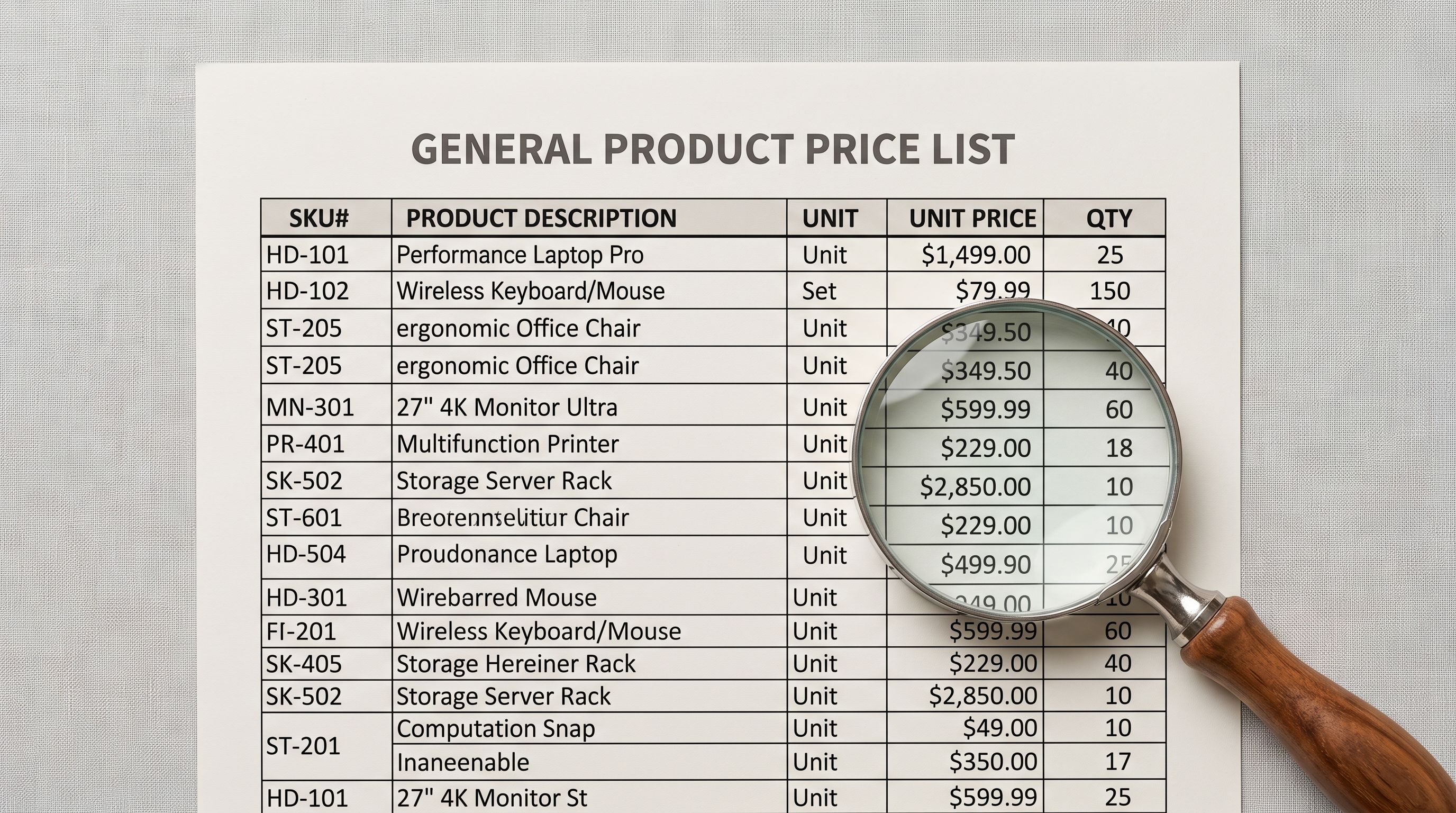
Importier's PDF import handles this case. Upload the supplier's PDF price list or product catalogue, and the AI reads the document structure: it identifies product rows, extracts titles, SKUs, prices, and specifications, and queues the data for the import wizard. The PDF extraction is not perfect for every layout. A complex multi-column PDF with embedded images may require some manual correction after extraction, but for standard supplier price lists with a table or list structure, it covers the essentials reliably.
The PDF route also applies when the supplier portal requires a login that restricts page access to authenticated sessions. Because Importier reads publicly accessible URLs, a portal that serves product data only to logged-in users is not directly importable via URL. Export a PDF price list or product catalogue from the portal and use the PDF import instead.
The URL import and PDF import are not separate tools: they are two entry points into the same 14-step wizard. Once the data is extracted, the variant detection, AI generation, and review process is identical regardless of the source format.
## What Happens to the Extracted Data
Whether the source is a URL or a PDF, the extracted data passes through the same processing chain:
**AI description rewrite.** The supplier's portal description is written for trade buyers: specification-heavy, written in the supplier's voice, and often missing the benefit-led framing that retail customers expect. The AI rewrite generates a retail-ready description from the extracted source data, applying your Brand Voice settings. The supplier description is the input, not the output.
**Variant detection.** Portal product pages often list variants in formats that differ from Shopify's. "Available in: S, M, L, XL (3 colours)" becomes a 12-row variant matrix in Shopify. Importier's variant detection reads the variant options from the portal page and builds the matrix. You review the result before pushing.
**Image import.** Images are downloaded from the supplier portal's URLs at import time. If the portal serves high-resolution images (which most do for trade buyers), those images are used directly. You do not need to download and re-upload them manually.
The full workflow from URL list to Shopify-published products is covered in the [product import workflow guide](https://importier.app/blog/shopify-product-import-workflow). For merchants importing from multiple suppliers (some with portals, some with CSV files, some with PDFs), the [importing from multiple suppliers guide](https://importier.app/blog/shopify-import-multiple-suppliers) covers how to manage different source formats in parallel.
Shopify's [product data requirements](https://help.shopify.com/en/manual/products/add-update-products) document the fields that are required for a product to be fully functional across all sales channels. The URL import extracts what is available on the supplier's page; if a required field (such as weight for shipping) is not on the product page, you add it during the review step in the wizard.
For merchants whose supplier portal import is part of a larger quarterly or seasonal ordering cycle, the [URL import guide](https://importier.app/blog/shopify-url-product-import) covers the URL extraction workflow in more detail, including handling portals with varied page structures and extracting products from marketplace-style listing pages.
Shopify's own [CSV import guide](https://help.shopify.com/en/manual/products/import-export/import-products) covers the alternative file-based path. For suppliers that send a CSV alongside their portal, the file import is often faster than URL extraction; the portal URL workflow is specifically for situations where no file export exists.
## Shopify Supplier Portal Import: Key Takeaways
- A supplier web portal without a CSV export is not a blocker. The URL import reads any publicly accessible product page and extracts the data that would otherwise require manual copy-paste.
- Three portal scenarios: individual product URLs (small batches), category page URLs (where the page lists products with data), and PDF invoice fallback (for login-gated portals or portals with no individual product pages).
- The extracted portal data flows through the same 14-step wizard as any other import source: AI description generation, variant detection, and review before push.
- AI description rewriting replaces trade-buyer portal copy with retail-ready descriptions in your Brand Voice. The supplier's description is the source data, not the published output.
- If the supplier portal requires a login to view product pages, export a PDF price list and use the PDF import instead.
- Seasonal updates from portal-based suppliers are handled by re-running the URL list, with no manual re-entry required.

Start importing from your supplier portal at [importier.app](https://importier.app). URL import is available on all paid plans.