# Shopify Store Scanner SKU Pattern: Filter by Supplier Code
> Use Importier's Store Scanner SKU pattern filter to run AI description passes on one supplier's products without building temporary Shopify collections.
- Published: 2026-08-28
- Author: Importier Team
- Category: Agentic Commerce / AI Product Descriptions
- Canonical: https://www.importier.app/blog/shopify-store-scanner-sku-pattern
---
A Shopify distributor manages 640 products across six wholesale suppliers. Each supplier assigns their own SKU convention: ACME products use the prefix ACME-, BOLT products use BOLT-, VERDE products use VERDE-001 onwards. This week, ACME sent updated product specifications for their full range after a rebranding exercise. The distributor needs to regenerate AI descriptions for ACME's 110 products using the new brand context, without touching the other 530 products.
The problem is structural. The store has no collection that maps to ACME's product range. The closest is a Hardware collection that contains both ACME and BOLT products. Creating a temporary collection called ACME-Rebrand just to run an Importier Store Scanner pass, then deleting it afterwards, is extra admin for a one-time operation.
Importier's Store Scanner SKU pattern filter solves this without any collection setup. Enter "ACME-" in the SKU pattern field and the scanner shows only the 110 products whose SKUs begin with that prefix. The AI description pass runs against exactly those products; everything else is untouched.
The SKU pattern filter in Importier's Store Scanner does not require Shopify collections, tags, or product type groupings to segment a batch. If your products share a common SKU prefix by supplier, product line, or warehouse code, that prefix becomes the targeting criterion for a description pass.
## Why SKU Patterns Are Reliable Supplier Identifiers in Shopify Store Scanner
Most wholesale distributors receive SKU conventions from their suppliers rather than creating their own. A supplier who has been assigning stock codes for fifteen years will not change their convention because a merchant asks them to. The result is a Shopify store where SKUs carry implicit supplier information that Shopify's native catalogue management never exposes as a filter.
Shopify's bulk editing and collection tools work on collections, product type, vendor, and tags. None of these map cleanly to SKU prefix conventions unless the merchant has already maintained vendor fields correctly for every product. In practice, vendor fields drift: they get left blank during quick imports, a supplier changes their trading name, or a product gets reclassified under a house brand.
The SKU prefix rarely drifts in the same way. A supplier who ships with the prefix BOLT- will ship every product in their catalogue with that prefix because their warehouse management system generates it. This makes the SKU pattern the most stable identifier for targeting a supplier's products in a Store Scanner pass.
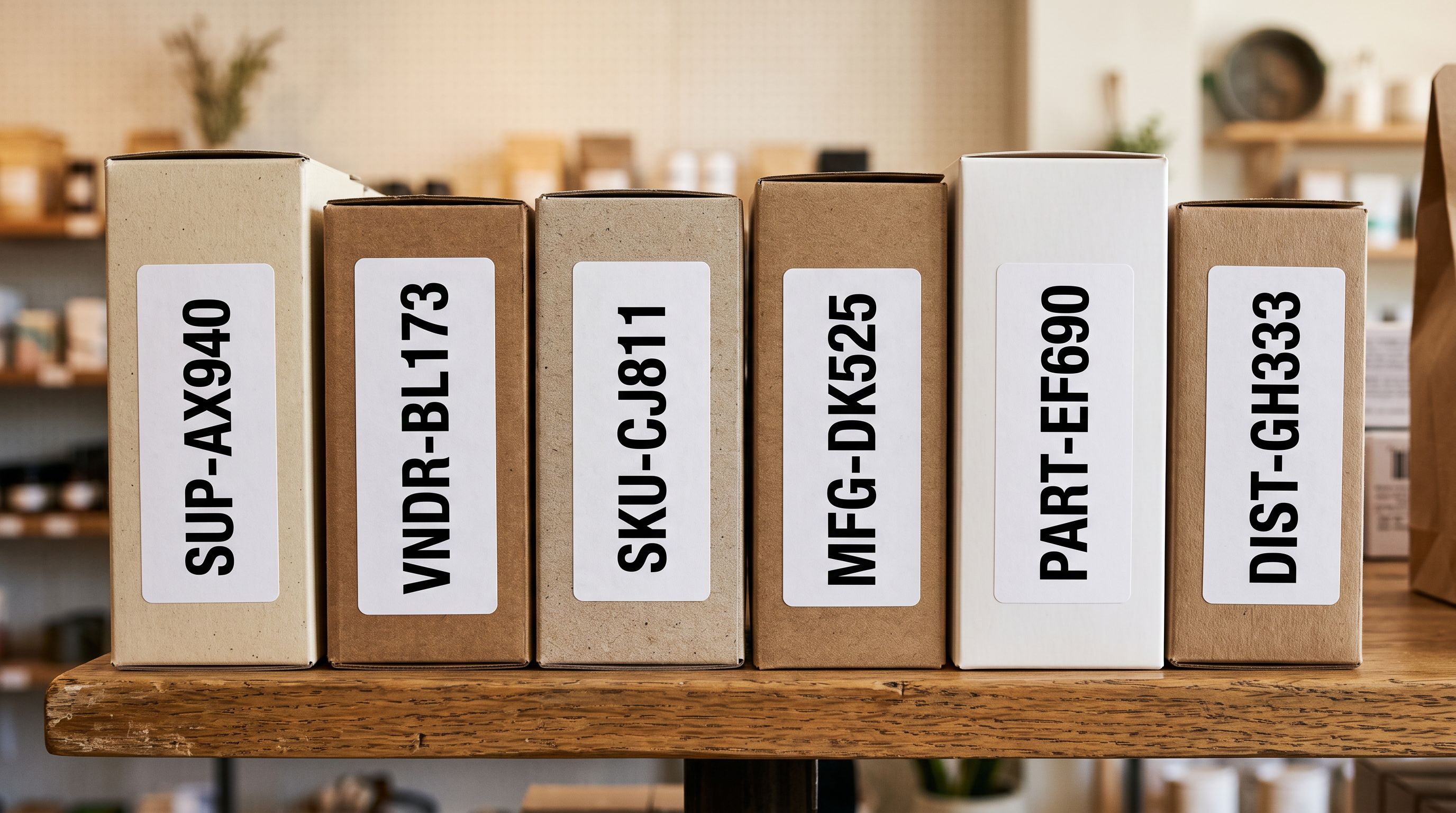
According to [Shopify's guidance on product SKUs](https://help.shopify.com/en/manual/products/details/sku), a SKU can contain any alphanumeric string the merchant chooses, which means supplier codes, product line identifiers, and warehouse location prefixes can all be embedded directly in the SKU field. A merchant who imports with that convention in place builds a filtering capability into their entire catalogue at import time, without any additional setup.
Importier's [Shopify Store Scanner](https://www.importier.app/blog/shopify-store-scanner) reads every product currently in your Shopify store and applies AI description generation based on the active filter. The SKU pattern field accepts a prefix string: entering "BOLT-" returns all products whose SKU field begins with "BOLT-". The match is applied to the primary SKU of each product, not to variant-level SKUs individually, so a product with variants (BOLT-001-S, BOLT-001-M, BOLT-001-L) appears once in the results with its parent product rather than three times as three variants. The description pass runs at the product level and writes one description per product.
## Shopify Store Scanner SKU Pattern Filter: Step-by-Step Setup
The key advantage of this workflow is that the AI settings applied in step 4 are specific to this supplier's product context. Running a second pass for a different supplier, say VERDE-, lets you configure different settings including a different persona and different enrichment context, without the settings from the first pass affecting the second.

This is the workflow that a [collection-based Store Scanner pass](https://www.importier.app/blog/shopify-store-scanner-collection-filter) does not replicate cleanly. A collection contains products from multiple suppliers; applying one AI persona to a mixed collection produces descriptions that fit some products well and feel generic for others. The SKU filter applies one persona to one supplier's range in a single targeted pass.
A Store Scanner SKU pattern pass is how a distributor maintains supplier-appropriate description quality across a multi-supplier catalogue without manually segmenting products into separate collections for every description update.
## When the Barcode Pattern Filter Works Better Than SKU Pattern
Some product catalogues do not have meaningful SKU conventions because the merchant or their import tool assigned SKUs automatically at import time. A randomly generated SKU like "SHP-00412" carries no supplier information. In these cases, the Store Scanner's barcode pattern filter offers an alternative targeting method.
Barcodes carry manufacturer information in their structure. A standard EAN-13 or UPC-A barcode begins with a GS1 company prefix assigned to the manufacturer. According to [GS1's GTIN identification standards](https://www.gs1.org/standards/id-keys/gtin), the company prefix identifies the organisation that assigned the barcode, which is typically the brand owner or manufacturer rather than the retailer or distributor selling the product. For a merchant who sources from a single manufacturer with a consistent GS1 prefix, the barcode prefix is as reliable a targeting criterion as a SKU prefix.
The barcode pattern field in Importier's Store Scanner accepts a prefix string in the same way the SKU pattern field does. Entering "5901234" returns all products whose barcode begins with "5901234", which would correspond to a specific manufacturer's GS1 company prefix.
The SKU pattern filter is the right choice when:
- Your supplier assigns meaningful, consistent SKU prefixes across their entire range
- You import from the same supplier repeatedly and maintain SKU conventions across batches
- Products from the same supplier appear across multiple collections
The barcode pattern filter is the right choice when:
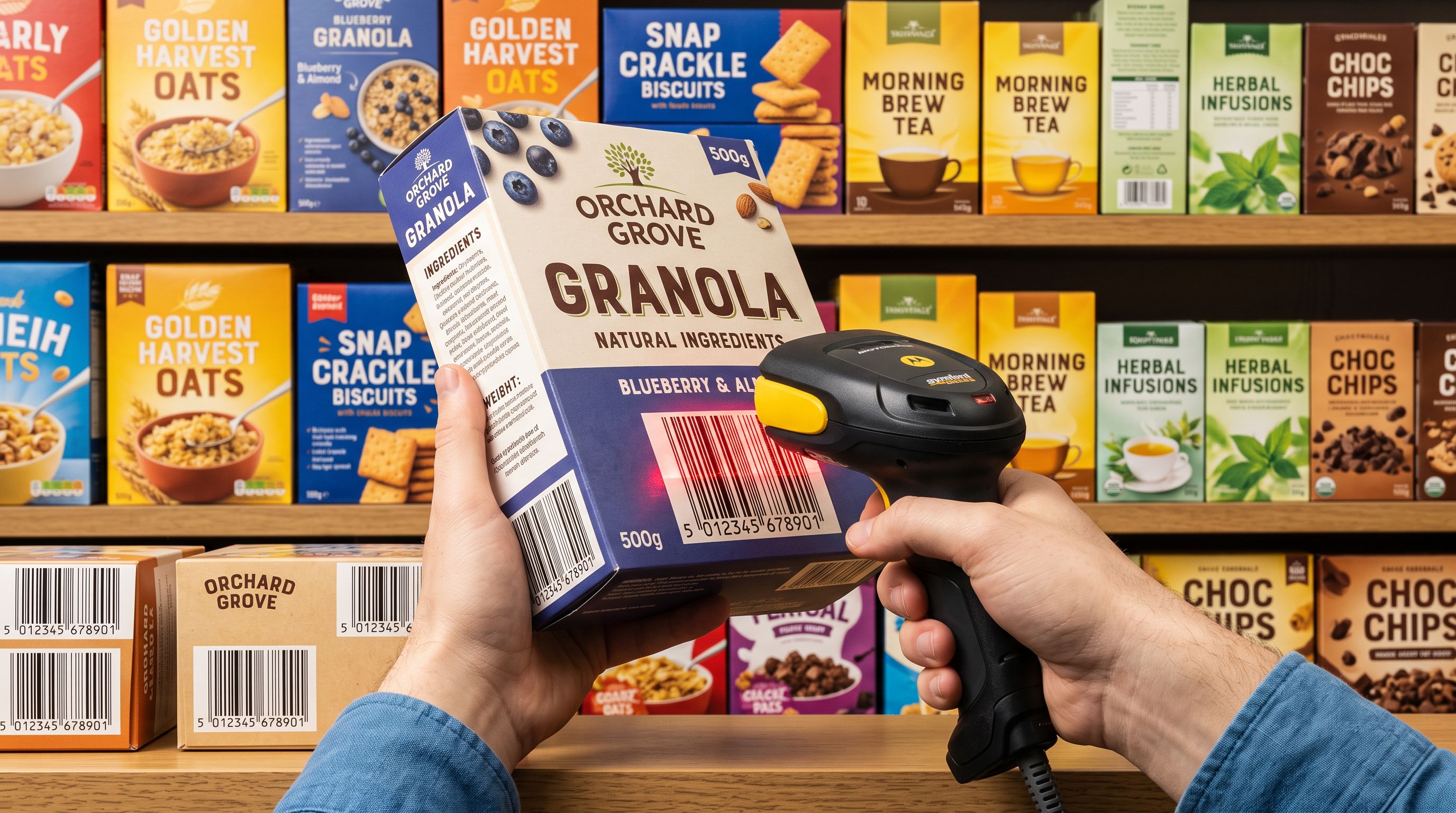
- SKUs were assigned by your import tool rather than your supplier and carry no supplier information
- Products from a single manufacturer share a GS1 company prefix in their EAN or UPC barcodes
- You need to target by product origin rather than by internal stock code
## Multi-Supplier Pass Sequence: One Supplier at a Time
A distributor managing six suppliers can run the [Store Scanner append mode](https://www.importier.app/blog/shopify-store-scanner-append-mode) in sequence, one supplier at a time, using different AI settings for each. This produces the highest-quality descriptions across a mixed catalogue because each supplier's products receive a description written in the context of that supplier's product category and audience.
A typical sequence for a hardware distributor:
- Pass 1: ACME- filter, enrichment context "industrial safety equipment, ACME brand positioning, professional tradespeople audience"
- Pass 2: BOLT- filter, enrichment context "electrical components and cable management, precision engineering audience"
- Pass 3: VERDE- filter, enrichment context "eco-certified outdoor and garden products, sustainability-focused consumer audience"
Each pass takes ten to twenty minutes for 100 products. After the third pass, every supplier's product range has descriptions written in the context of that supplier's product category, rather than a single generic persona applied to the entire 640-product store.
The Import History records each pass separately with the filter applied, the product count, the AI model used, and the timestamp. A distributor running multiple supplier passes in sequence can review the history to confirm which supplier's range was updated on which date and re-run any individual pass if a supplier sends revised product data.
## Key Takeaways for Shopify Store Scanner SKU Pattern Filtering
Multi-supplier Shopify catalogues present one of the harder content quality challenges in ecommerce. The SKU pattern filter gives distributors and wholesalers a precise tool for maintaining supplier-appropriate description quality without restructuring the store's collection architecture.
- **Use the SKU prefix as a supplier identifier**: most wholesale suppliers assign consistent SKU prefixes across their full range. That prefix is the most stable targeting criterion in a multi-supplier store because it originates from the supplier's own warehouse system rather than the merchant's catalogue management.
- **Run one Store Scanner pass per supplier**: configure the AI persona, style, and enrichment context for each supplier's product category. Descriptions written in the context of a specific supplier's product range read more specifically than descriptions generated with one generic setting applied across the whole store.
- **Use barcode pattern when SKUs carry no supplier information**: the barcode pattern filter targets by GS1 manufacturer prefix, which identifies the product's origin independently of whatever SKU the merchant assigned at import time.
- **Run passes in sequence, not simultaneously**: each supplier pass uses different AI settings. Running them sequentially ensures the correct persona and enrichment context applies to each supplier's range without the settings crossing over.
- **Check Import History after each pass**: the Store Scanner logs every batch with the filter used, the product count, and the timestamp. For a distributor running multiple supplier passes in sequence, this history creates an audit record of which supplier's products were updated and when.
Generate AI descriptions for each supplier's products with targeted SKU pattern passes at [importier.app](https://importier.app).