# Shopify Store Scanner Barcode Filter for Supplier Products
> How Importier's Store Scanner barcode filter targets one supplier's products in a mixed catalogue, regenerating descriptions without touching other brands.
- Published: 2026-09-04
- Author: Importier Team
- Category: Store Management / Bulk Operations
- Canonical: https://www.importier.app/blog/shopify-store-scanner-barcode-filter
---
A home goods retailer stocks 1,800 products from 12 suppliers. One supplier, a European kitchenware brand, has just repositioned their product line, moving from "practical kitchen tools" to "professional-grade cookware for ambitious home cooks." All 180 of their products need updated AI-generated descriptions that reflect the new brand direction.
The retailer opens the Store Scanner in Importier. Without any filter, the scanner surfaces every product in the catalogue that has a missing or short description. Products from 12 different suppliers appear in one unsegmented batch. There is no obvious way to see which 180 products belong to the kitchenware brand. Running descriptions across the whole batch would apply the same prompt context and brand voice to products from a wine accessories supplier, a bathroom products brand, and a pet accessories range, none of which need to change.
The shopify store scanner barcode filter solves this. Entering the kitchenware brand's GS1 barcode prefix into the barcode filter field narrows the product selection to exactly their 180 products. The rest of the catalogue is untouched.
## What the Barcode Filter Does
The Store Scanner in Importier generates AI descriptions for existing Shopify products that have missing or short descriptions. Three filter fields control which products appear in the scan: collection, SKU pattern, and barcode pattern.
The barcode filter accepts any string pattern and applies it to the barcode field stored on each product variant in Shopify. A pattern of "501" matches products whose barcode starts with, contains, or matches "501" depending on how the filter is configured. The pattern can be as specific as a full barcode or as broad as the first few digits of the barcode prefix.
Products that do not match the barcode pattern are excluded from the scan entirely. The scanner runs only on matched products, and descriptions are generated and pushed only for that set. The rest of the catalogue is not affected.
The barcode filter reads from the barcode field on each product variant in Shopify, not the product's internal ID or handle. A product must have a barcode value stored in Shopify for the filter to match it. Products imported without barcodes return no results from a barcode filter.
## How GS1 Barcodes Identify Products by Manufacturer
Most branded retail products carry a GS1 barcode (the standard EAN-13 or UPC-A code printed on commercial packaging). According to [GS1's global barcode standards documentation](https://www.gs1.org/standards/id-keys/company-prefix), the GS1 company prefix embedded at the start of every barcode is assigned to a specific brand or manufacturer. When a company registers with GS1, they receive a company prefix of 7 to 9 digits. Every product barcode they create begins with that prefix.
This structure means that all barcodes from the same manufacturer share the same opening digits. A kitchenware brand with GS1 company prefix "5012345" will have every product barcode starting with "5012345." Their frying pans, their saucepans, their baking trays: all will carry barcodes beginning with "5012345."
For a multi-brand retailer whose Shopify catalogue contains products from multiple manufacturers, this prefix is the most reliable way to identify all products from a specific supplier. It requires no collection setup, no SKU convention, and no manual tagging. The barcode value on each product (the same code that was on the supplier's packaging) carries the manufacturer's identity in the first 7 to 9 digits.
Entering "5012345" in the Store Scanner barcode filter targets all kitchenware brand products and excludes everything else, regardless of how the retailer has organised their collections or named their SKUs.
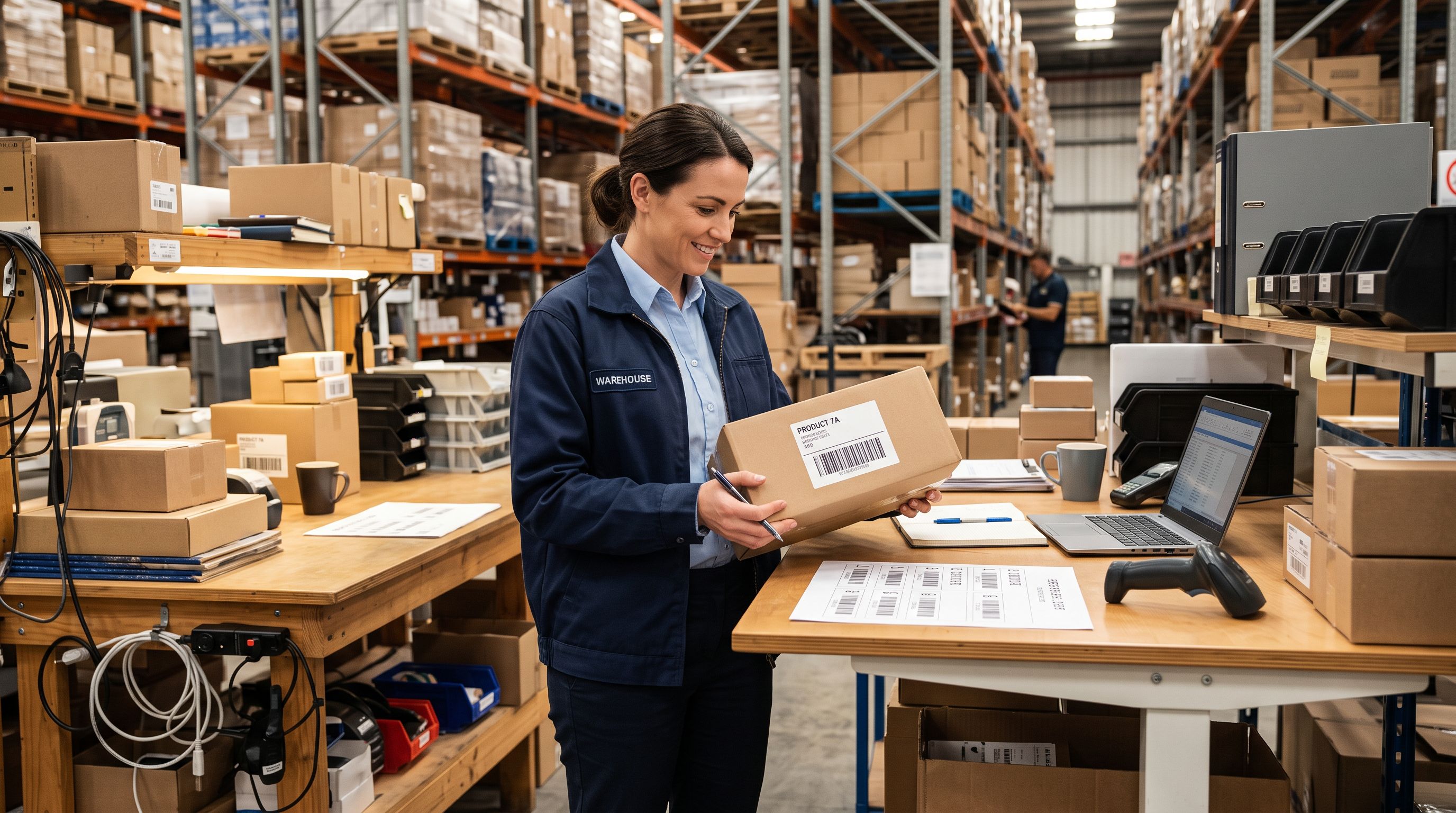
## Three Use Cases for the Barcode Filter
**Brand refresh after a supplier repositions**
When a supplier updates their brand positioning, tone, or messaging, every product in the retailer's catalogue from that supplier needs updated descriptions. The barcode filter identifies that supplier's full product set without the retailer needing to know how they are distributed across collections or which SKU prefixes they use. One barcode prefix, one filtered batch, one targeted description generation run.
For the kitchenware example: the retailer enters the supplier's GS1 prefix, adjusts the Brand Voice settings in Importier to reflect the new professional-grade positioning (adjusting the persona to match the updated tone, updating key phrases and avoid words), and runs the Store Scanner on the filtered batch. The 180 kitchenware products receive new descriptions; the other 1,620 products are unaffected.
**New sales channel preparation**
When onboarding a supplier's range onto a new channel (Google Shopping, a marketplace, or a B2B portal), those products need descriptions formatted for the channel's requirements. Google Merchant Centre requires concise, specification-forward descriptions that lead with product type, key attributes, and material. The retailer's existing descriptions may have been written for the storefront audience and not for Shopping format.
The barcode filter isolates the supplier's products for a channel-specific description run. The retailer can choose a description style (Technical Gadget or Benefits-First) and the GMC compliance mode in Importier's AI description settings, then run the Store Scanner only on the filtered set. The channel-ready descriptions are pushed to Shopify, updating only the supplier's product range.
**Compliance language update**
Regulatory changes or supplier compliance notifications sometimes require specific language to appear in product descriptions. A supplier may notify retailers that all their products must include safety certification references, country-of-origin statements, or materials disclosures. The barcode filter identifies all the affected products in the catalogue without the retailer having to compile a list manually.
## When Barcode Filtering Has Limits
The barcode filter works with whatever barcode values are stored in Shopify. Three situations reduce its effectiveness:
**Missing barcodes**: Products imported from supplier files that did not include a barcode column arrive in Shopify with no barcode value. The barcode filter cannot match them. Importier's data enrichment can fill missing barcodes for products where the barcode can be looked up from the product title and key details, but if the product is a private-label or generic item with no registered barcode, the filter will not find it. In these cases, a collection filter or SKU pattern filter is more appropriate.
**Non-GS1 barcodes**: Some suppliers, particularly smaller brands or private-label manufacturers, use internal barcode systems rather than GS1-registered barcodes. The prefix structure is specific to GS1. An internal supplier barcode of "IN-123456" does not have a meaningful shared prefix across products, so the filtering approach changes to a contains or starts-with pattern on whatever internal code the supplier uses.
**Multiple suppliers with overlapping barcodes**: In rare cases, two different suppliers may have barcodes that share opening digits without being related. A barcode filter on a 3-digit prefix might be too broad and capture products from a second supplier. Using more digits of the prefix (or switching to a full barcode for single-product targets) narrows the match to the intended supplier.
The [article on adding barcodes to Shopify products in bulk](https://importier.app/blog/shopify-add-barcode-to-products) covers how to fill missing barcode fields across a catalogue before using a barcode-based workflow.

The GS1 company prefix at the start of every branded product barcode is a manufacturer's identity encoded into their packaging, and the Store Scanner barcode filter reads it.
## Running Different Brand Voices for Different Suppliers
For multi-brand retailers, the practical value of the barcode filter extends beyond targeting the right products. It also creates a natural boundary for applying different Brand Voice settings to different supplier batches.
Importier's Brand Voice settings (persona, avoid words, key phrases, example phrases) persist across Store Scanner sessions but can be updated between runs. A retailer who stocks three kitchenware brands, each with distinct market positioning, can run three separate Store Scanner sessions with three different brand voice configurations:
- Session 1: GS1 prefix for Brand A (professional-grade, technical persona, specification-led) → 180 products
- Session 2: GS1 prefix for Brand B (home cooking, warm persona, family-focused) → 95 products
- Session 3: GS1 prefix for Brand C (sustainable cookware, materials-focused, eco-conscious persona) → 62 products
Each session's barcode filter ensures only the correct supplier's products receive descriptions. Each session's Brand Voice settings ensure the descriptions match that supplier's positioning. The result is a catalogue where each brand's products read distinctly and correctly, without any manual selection of individual products.
The [article on Shopify Store Scanner SKU pattern filtering](https://importier.app/blog/shopify-store-scanner-sku-pattern) covers the parallel workflow where supplier identification relies on SKU naming conventions rather than barcode values. For merchants whose SKU conventions already encode supplier identity (e.g., all ACME products have SKUs starting with "ACM-"), SKU pattern filtering achieves the same segmentation. For merchants whose SKU conventions do not encode supplier identity, the barcode filter is the more reliable approach.
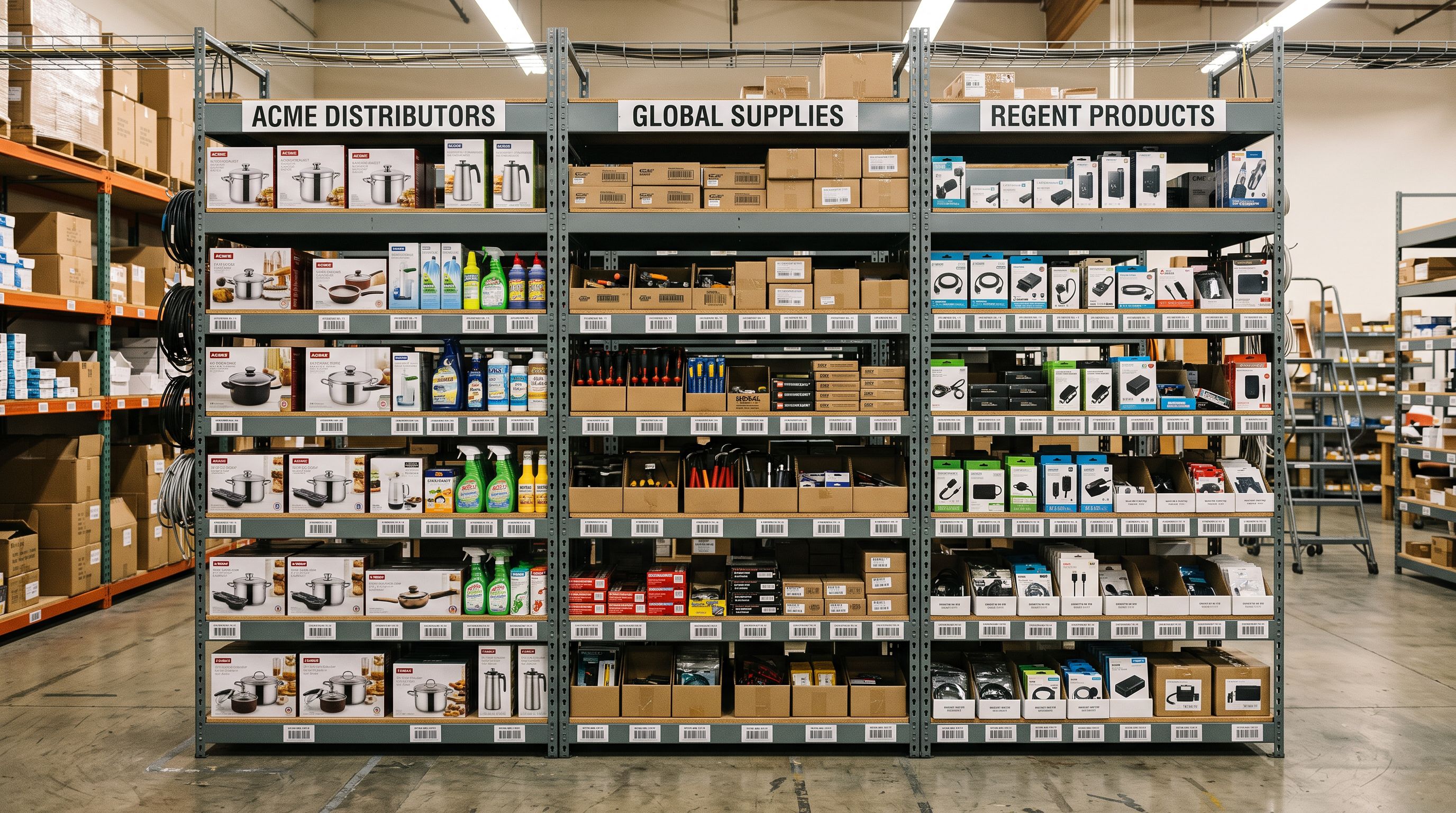
## Barcode Filter vs Collection Filter vs SKU Pattern Filter
The Store Scanner offers three filter types because different catalogue structures suit different filtering approaches. None is universally better: the right filter depends on how the catalogue is organised.

**Barcode filter**: Works from the manufacturer's own identifier encoded in the product's packaging. Requires barcode values to be present in Shopify. Does not require any catalogue organisation decisions by the retailer. Most reliable for identifying all products from a specific manufacturer, including products distributed across multiple collections.
**Collection filter**: Works from collection membership in Shopify. Requires collections to be set up and products assigned correctly. Most reliable when the retailer already organises their catalogue into supplier-based or category-based collections. Fails if a supplier's products are spread across multiple collections.
**SKU pattern filter**: Works from the internal SKU codes assigned by the retailer or supplier. Most reliable when SKU naming conventions encode supplier identity (e.g., all products from Supplier X have SKUs starting with "SX-"). Fails if SKU naming is inconsistent across the catalogue.
For a multi-brand retailer who inherited a catalogue from a previous operator with no consistent collection structure or SKU convention, the barcode filter is often the only filter that can reliably segment by manufacturer, because the barcode is a property of the product itself, not a property of how the retailer organised their Shopify store.
According to [Shopify's product details documentation](https://help.shopify.com/en/manual/products/details), the barcode field on a Shopify product is a free-form text field designed to hold EAN, UPC, or ISBN values. Any barcode value stored here is searchable and filterable within Shopify's own admin, and Importier's Store Scanner barcode filter reads from the same field.
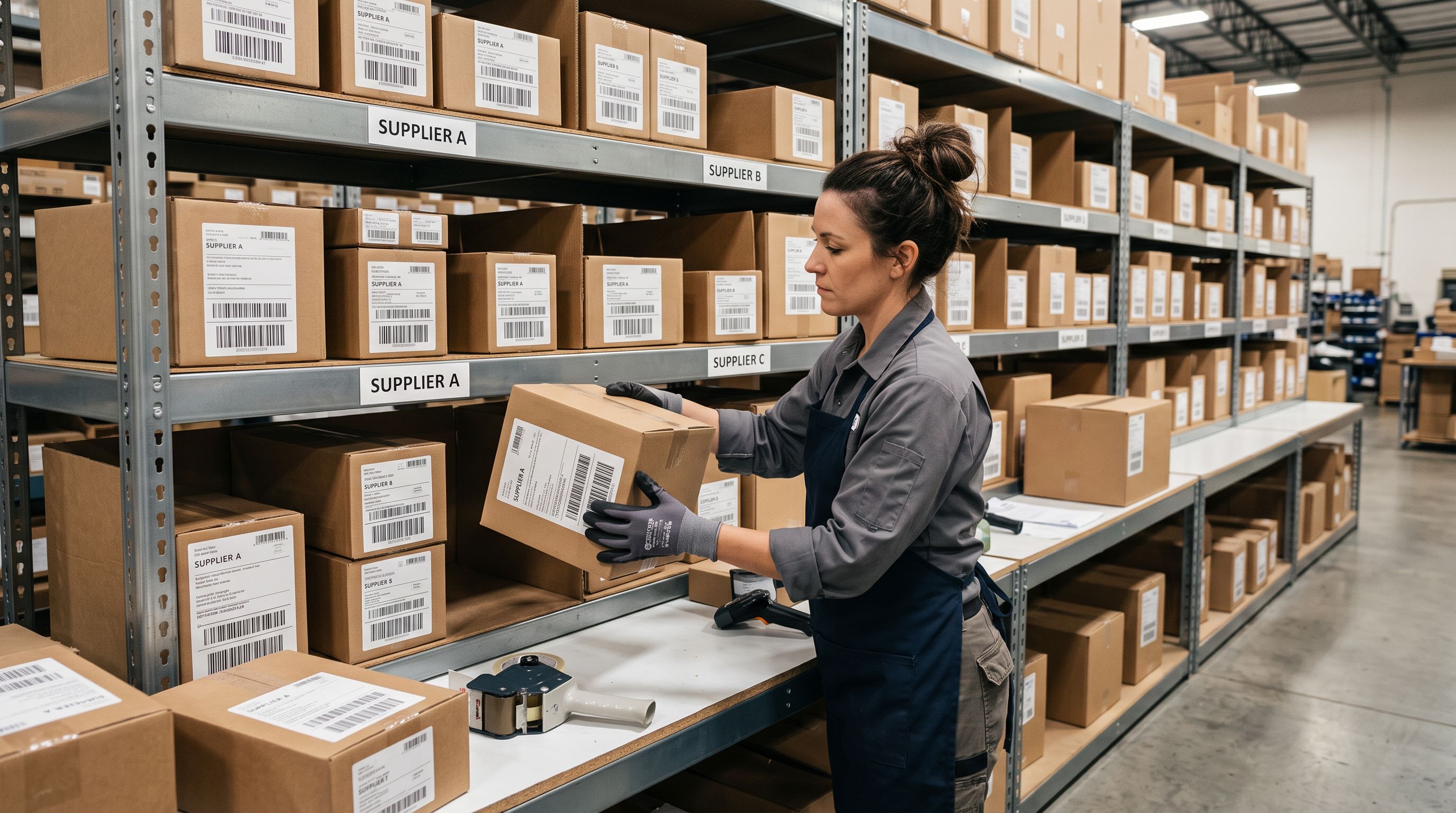
## Key Takeaways
- **The Store Scanner barcode filter accepts any barcode pattern** and narrows the scan to only matched products. A GS1 company prefix (the first 7-9 digits of an EAN barcode) is the most reliable way to target all products from a specific manufacturer.
- **GS1 barcodes encode the manufacturer's identity** in the prefix digits. All branded products from the same manufacturer share the same opening digits on every barcode they produce.
- **The barcode filter works without any catalogue organisation setup.** No collection structure, no SKU convention required. The barcode is a property of the product itself.
- **Products without barcodes in Shopify will not appear** in a barcode-filtered scan. Run barcode enrichment first if the supplier's products are missing barcode values.
- **Combine the barcode filter with Brand Voice settings** to run supplier-specific description sessions. Each filtered batch can have its own persona, avoid words, and key phrases.
- **When barcodes are absent or non-GS1,** use the collection filter or SKU pattern filter as alternatives. The right filter depends on how the catalogue is structured.
Regenerate descriptions for exactly the products that need updating at [importier.app](https://importier.app).