# Shopify Smart Collections Missing Products After Import
> Shopify smart collections stay empty after a supplier import because product type and tags are not mapped. Here is how to diagnose and prevent it.
- Published: 2026-07-11
- Author: Importier Team
- Category: Store Management / SEO & Discoverability
- Canonical: https://www.importier.app/blog/shopify-smart-collections-missing-products
---
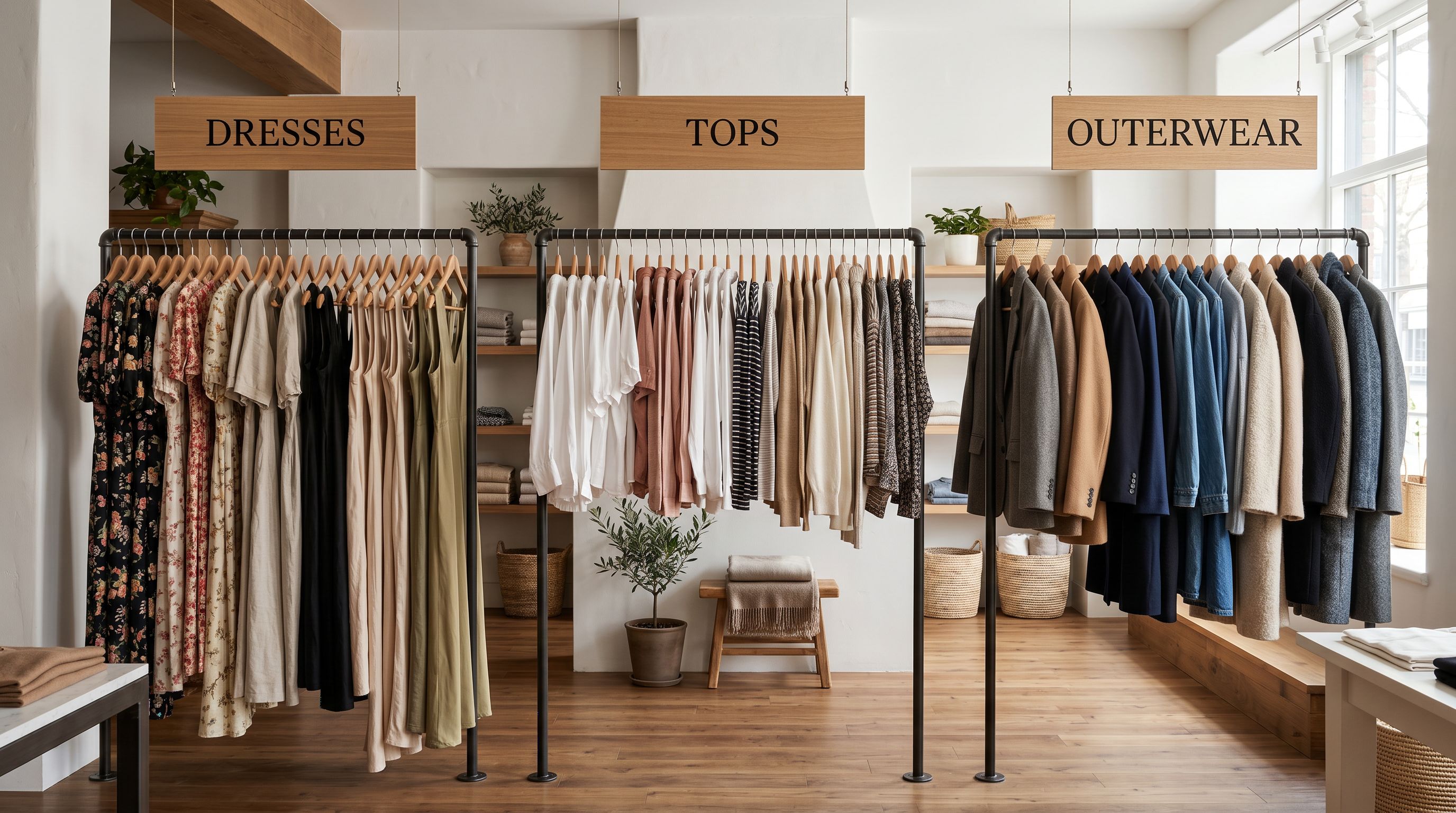
A fashion merchant sets up a smart collection called "Summer Dresses" with one condition: product type is "Dress." They import 120 dresses from a supplier catalogue. The collection stays empty. The products are live on the store. Customers can find them by searching, and they appear in the All Products page. But "Summer Dresses" shows zero items.
The products are not missing from the store. They are missing from the collection because the condition rule cannot match them. The import added 120 products with an empty product_type field. The collection rule looks for `product_type = Dress`. There is no match.
This is the smart collection membership problem. It is one of the most common causes of empty collections after a bulk import, and it happens because supplier catalogues are not formatted to satisfy Shopify's collection rule fields. Supplier files use their own category conventions. Shopify collection rules use specific field values. Without explicit column mapping at import time, the two do not connect.
## How Shopify smart collections evaluate products
Smart collections in Shopify work by evaluating every product in the store against a set of conditions. When a product matches the conditions, it appears in the collection automatically. When a condition changes and a product no longer matches, it is removed from the collection automatically.
The conditions a smart collection can use include:
- **Product type:** `product_type` is equal to a specific string. The most common collection condition. "All Dresses", "All Running Shoes", "All Supplements."
- **Product tag:** the product has a specific tag. Used to segment products that cross multiple categories: "Tagged with sale", "Tagged with new-arrival", "Tagged with seasonal-edit."
- **Vendor:** the product's `vendor` field equals a specific brand name. Used for brand-specific collections: "Vendor is Nike", "Vendor is The North Face."
- **Title contains:** the product title contains a specific word or phrase. Fragile; any title change breaks the match. Used sparingly.
- **Price conditions:** "price is greater than", "price is less than." Used for promotional collections.
The critical behaviour is that collection evaluation runs against the current state of the product record, not against what the product was supposed to be. A product imported with `product_type: ""` (empty) will never satisfy a `product_type is Dress` condition, even if the product is clearly a dress in every other respect.
Smart collection conditions do not fuzzy-match. A rule of "product type is Dress" will not match a product with product_type "Dresses" or "dress" (Shopify is case-insensitive for product_type, but "Dresses" and "Dress" are different strings). Every imported product must have field values that exactly match the collection conditions.
## Why imported products fail smart collection conditions
Supplier catalogue files are designed for buyers and purchasing systems, not for Shopify's data model. The way a supplier organises their data rarely maps cleanly to the fields Shopify's collection system depends on.
**Product type is the most common failure.** Supplier files use their own category conventions. A garment supplier may use: "Women's Dresses", "DRESS", "Womens Dress", "Category: Dresses", or simply nothing: the category is implicit because the catalogue is organised by section, not by column. None of these match the Shopify product_type value "Dress" that the collection condition expects.
Shopify's native CSV import template includes a `Type` column that maps to product_type. Most supplier files do not use this column name. Even when a supplier file has a category or department column, Shopify's importer does not recognise it as product_type. The column is either ignored or mapped to a custom metafield.
**Tags require explicit creation.** Supplier catalogues do not have a tags column. They do not tag products with "new-arrival" or "summer-2026" or "sale" because those are merchant-specific organisational choices, not supplier data. When a merchant imports a catalogue that relies on tags for collection membership, those tags need to be added either at import time or in a separate post-import step.
**Vendor inconsistency breaks vendor-based collections.** A supplier distributing multiple brands may list the brand name inconsistently across rows: "Nike", "NIKE", "Nike Inc", "Nike / Jordan". A vendor collection condition matches one specific string. Inconsistent vendor values produce partial collection membership that appears random.
## Diagnosing which condition is failing
Before fixing the collection, the merchant needs to confirm which field is causing the mismatch. The quickest check:
1. Open a product that should be in the collection.
2. In the Shopify admin product page, check the Organisation section: Product type, Vendor, and Tags.
3. In the Collections admin, open the smart collection and check the conditions panel.
4. Compare the field values on the product to the condition values in the collection.
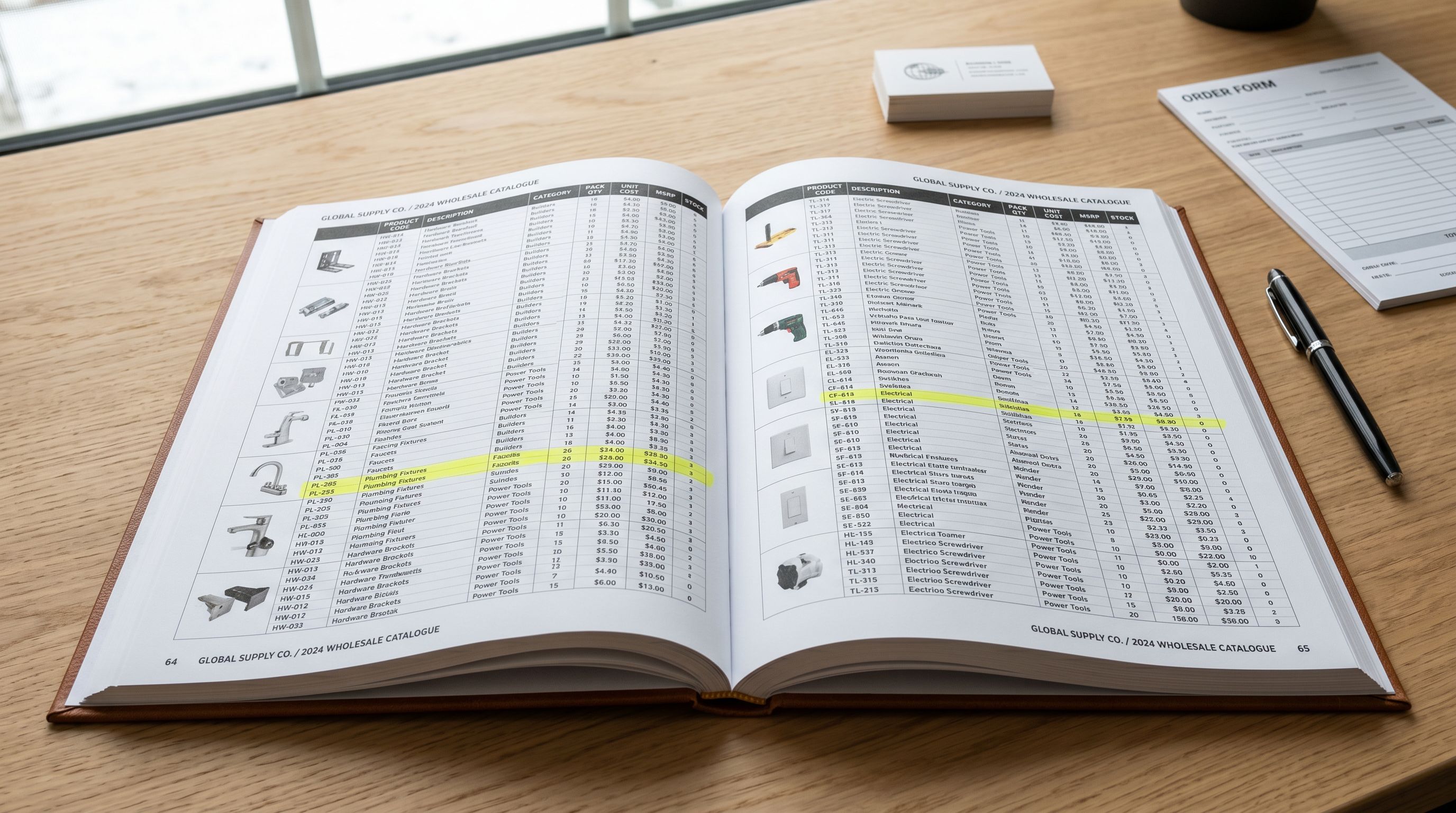
If product_type is empty on the product but the condition requires "Dress", that is the cause. If the product has product_type "Women's Dresses" but the condition requires "Dress", the values do not match, even though they describe the same thing.
This comparison reveals what needs to be corrected on the imported products before they will appear in the collection.
## Configuring Importier to populate collection fields at import
Preventing the smart collection problem requires mapping the correct fields during the import configuration step, before the import runs.
**Mapping product_type.** The supplier file's category, department, or product group column maps to Shopify's product_type field in Importier's column mapping panel. If the supplier uses "Women's Apparel" as the category for all dresses, that value maps to product_type with a normalisation step: the value "Women's Apparel" can be mapped to "Dress" for all products in this category segment, or the import can be split by category so each segment runs with a set product_type applied to every product in the batch.
For imports where all products are the same type, the product_type can be set as a fixed value for the entire batch in the import configuration step. A dedicated dress import with 120 rows sets product_type to "Dress" for every product without requiring a type column in the supplier file.
**Generating tags from product data.** When the supplier file has no tags column, Importier can generate tags from the product data available: category, material, colour, brand, and any attribute fields present in the file. A summer dress in navy and white, categorised as casual, receives tags "casual", "navy", "summer" from the AI tag generation step. These tags populate the product record at import and satisfy tag-based collection conditions immediately.

**Normalising vendor values.** When the supplier distributes multiple brands, the brand column in the supplier file maps to Shopify's `vendor` field. Normalising vendor values (converting "NIKE", "Nike Inc", "Nike / Jordan" to "Nike") ensures that vendor-based collections capture all products for the correct brand regardless of how the supplier formatted the brand name in their catalogue.
Read more about [how to configure product type, tags, and vendor fields to keep Shopify collections organised](https://importier.app/blog/shopify-product-collections).
## Fixing existing incorrectly-imported products
For products already imported with the wrong or empty product_type, tags, and vendor values, the Store Scanner provides a targeted update pass.
The Store Scanner can filter by a specific collection, tag, import date, or SKU pattern to identify the affected products. For a batch of 120 dresses imported with empty product_type, a Store Scanner run targeting those products sets product_type to "Dress" and generates the missing tags in a single pass. The products appear in the relevant smart collections immediately after the update is applied.
The Store Scanner approach is practical when fewer than 200 products need updating. For larger batches, running a corrected import session with the right column mapping applied is faster than the Store Scanner pass. The corrected import updates existing products (using SKU or barcode matching to identify them) rather than creating duplicates.
Read more about [how the Store Scanner updates existing product data and attribute fields](https://importier.app/blog/shopify-store-scanner).
## Which collection conditions work reliably with imported catalogues
Not all smart collection conditions are equally reliable after a bulk import. Some conditions are stable once set; others break when product data changes.
**Most reliable: product type and vendor.** These fields are set once at import time and rarely change. A product's type and vendor do not change when prices update or descriptions are regenerated. Collections built on product_type and vendor rules are stable long-term.
**Reliable with planning: product tags.** Tags are stable if they are applied consistently at import time. The risk is inconsistency: if some products in a batch receive a tag and others do not (because the tag generation depended on data that was missing for some products), the collection populates partially. Review the tag distribution after import before relying on tag-based collections.
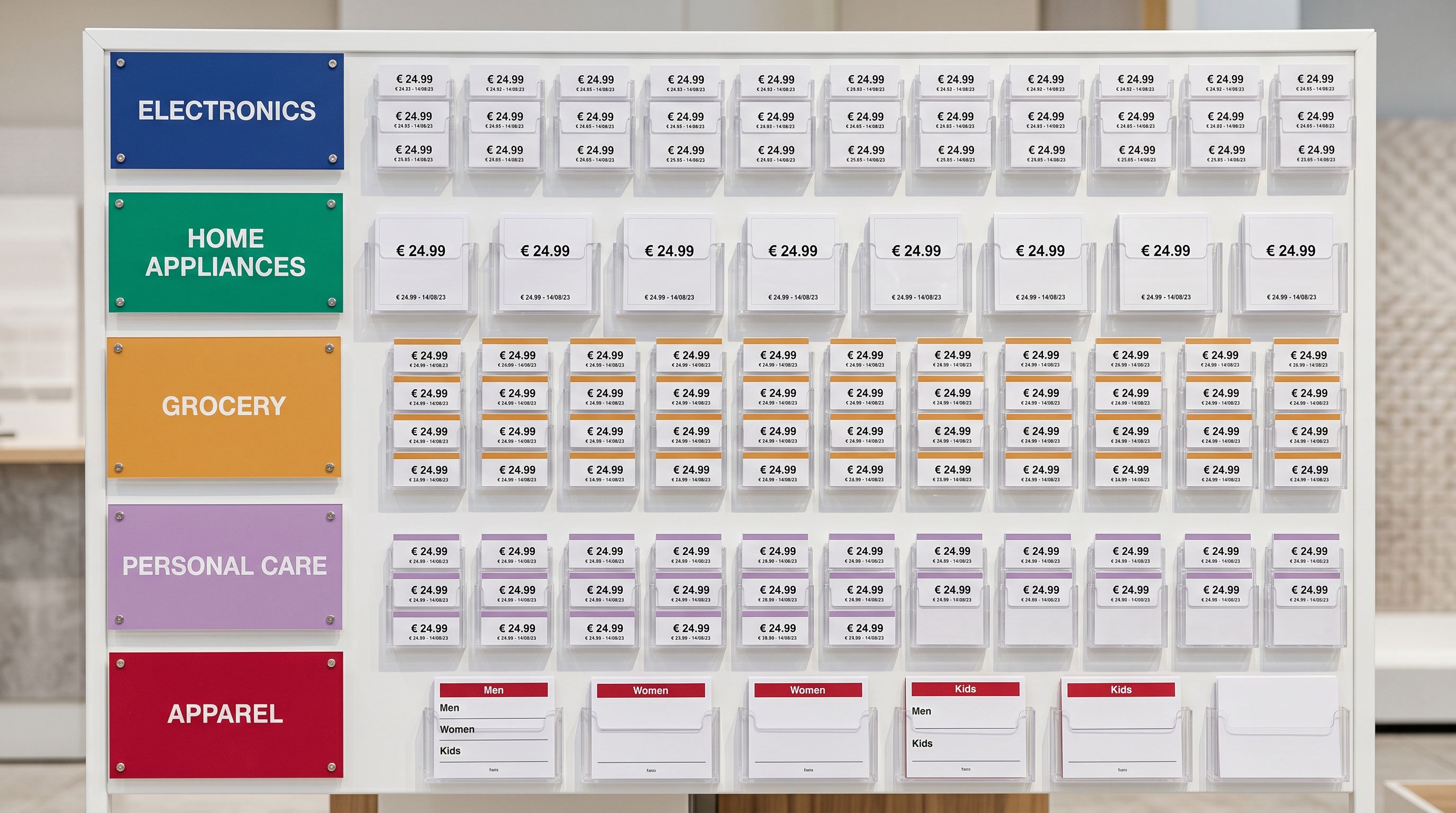
**Fragile: title contains.** Any title optimisation, bulk title edit, or description update that changes the title text breaks the title-contains condition. Avoid using title-contains conditions for important collections that depend on a reliable product count.
**Fragile for ongoing imports: price conditions.** When a merchant imports a weekly price update from a supplier, products move in and out of price-based collections every week. "Price less than $50" is a useful promotional collection for a sale, but a poor basis for a permanent category collection where the product count should be stable.
[Shopify's documentation on smart collections](https://help.shopify.com/en/manual/products/collections/automated-collections) explains how condition evaluation works and how to combine conditions using ALL versus ANY logic. A collection that requires ALL conditions (product_type is Dress AND vendor is BrandName) has stricter requirements than one requiring ANY (product_type is Dress OR tagged with dresses). Checking that your collection logic matches your intended product scope is worth doing after every major import.
[Shopify's product organisation guide](https://www.shopify.com/blog/how-to-organize-shopify-products) covers the broader strategy of product type and tag taxonomies for merchant catalogues. Aligning your import tag and product_type conventions to a planned taxonomy from the start produces a catalogue that is easier to navigate and easier to segment with smart collections over time.
A smart collection that stays empty after an import is not a Shopify bug. It is a data gap: the products exist in the store but their field values do not satisfy the collection conditions. Addressing that gap at import time, rather than correcting 200 products individually in the Shopify admin, is the approach that scales as product catalogues grow.