# Shopify Scheduled Imports for Supplier Price Updates
> Set up Shopify scheduled imports to apply supplier price updates weekly without manual intervention. How the lag window works and what to watch in Import History.
- Published: 2026-09-02
- Author: Importier Team
- Category: Store Management / SEO & Discoverability
- Canonical: https://www.importier.app/blog/shopify-scheduled-imports-supplier-price-updates
---
A wholesale fashion merchant receives a supplier price file every Monday morning. The file has 300 products: handles, SKUs, updated prices, and compare-at prices where applicable. Every Monday for two years, the same 45-minute process: download the file, open Importier, map the columns, review the batch, confirm the import, check that the prices applied correctly on five or six products, close the tab.
The process is not hard. It requires no skill. It happens at the same time, with the same file structure, every week. The only reason it is still manual is that no one has set it up to run automatically.
Shopify scheduled imports eliminate this class of recurring manual work. A merchant uploads the supplier's file format once, sets the frequency and run time, and the import runs unattended on the configured schedule. Price updates, inventory refreshes, new product additions: anything that arrives on a regular supplier schedule can be automated rather than manually triggered each time.
## What Shopify's Standard Import Tools Do Not Offer
Shopify's native import function is designed for one-time use. A merchant uploads a CSV, reviews the mapping, confirms the import, and the products update. There is no built-in scheduler. If the same import needs to run every Monday, the merchant runs it every Monday.
Third-party automation tools that integrate with Shopify through the API can schedule recurring data transfers, but they require API credentials, webhook configuration, and technical setup that most merchants do not want to manage. For a merchant who receives a new CSV from their supplier each week, the overhead of maintaining a custom automation often exceeds the time saved.
The practical gap is between what is technically possible (schedule any import via the API) and what is operationally feasible for a merchant who is not a developer. A scheduled import that requires API key rotation, webhook maintenance, and error monitoring is not actually automated; it is a slower form of manual work with more failure modes.
Importier's scheduled imports sit in this gap. The merchant configures the schedule inside the app: select the supplier file format they want to repeat, choose the frequency (once, daily, weekly, or monthly), set the run time using a 24-hour time picker, and confirm the timezone. Importier handles the rest.
## How Scheduled Imports Work in Importier
The first scheduled import run is the configuration run. The merchant uploads a representative supplier file, maps the columns in the field mapper (which columns contain the price, which contain the compare-at price, which contain the handle for matching existing products), and previews the batch output. This mapping is saved alongside the schedule.
Every subsequent run at the scheduled time processes a new file using the saved mapping. The merchant replaces the file in the schedule configuration when the supplier's format changes. The mapping does not need to be reconfigured unless the columns change.

For Scale plan merchants, Importier supports up to 2 active scheduled imports. For Enterprise plan merchants, up to 10 schedules can run concurrently. A Scale merchant can run a weekly price update from their main supplier and a monthly new-arrivals import from a second supplier at the same time. The [Shopify Plus product import guide](https://importier.app/blog/shopify-plus-product-import) covers how Enterprise merchants managing eight suppliers across eight different CSV formats use this to process each feed automatically each week without manual intervention.
## The Lag Window: Aligning Promotions with Import Timing
The most operationally significant aspect of scheduled imports is the lag window: the time between when a supplier updates their file and when those changes appear in the Shopify store.
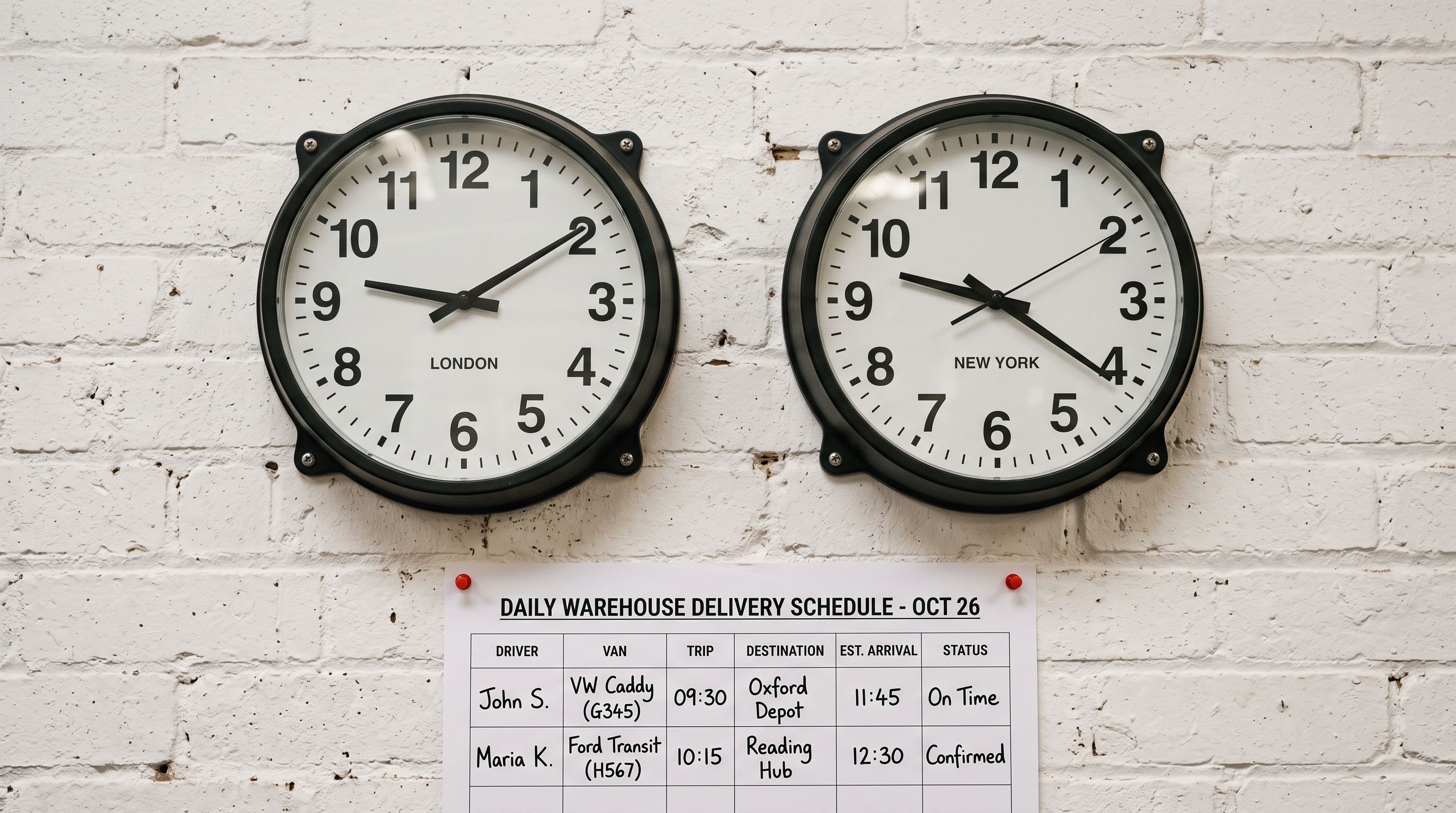
A supplier who sends a price update file every Monday at 6am AEST creates a lag window that matches the import schedule. If the import runs at 7am AEST, prices are live in the store by 7:10am. A merchant who sends a promotional email at 6:45am referencing those prices is sending an email before the prices are updated.
The lag window compounds at lower frequencies. A weekly schedule means a supplier change made on Wednesday will not appear in the store until the following Monday. A merchant advertising a mid-week supplier price drop as a promotion needs to either run a manual import outside the schedule or accept that the promotional price will not be live until the next scheduled run.
According to [Shopify's product import documentation](https://help.shopify.com/en/manual/products/import-export/import-products), prices update in Shopify as soon as an import completes and is accepted. The lag is between the supplier publishing their file and the import running, not between the import running and prices appearing in the store.
## Import History as the Verification Layer
A scheduled import that runs at 3am on a Monday is invisible to the merchant unless they check. The Import History log in Importier records every import: date and time, file name, product count processed, and whether the run succeeded or encountered errors.
Checking the Monday morning Import History entry takes less than two minutes and confirms that the scheduled run completed correctly before the week's trading begins. For a merchant whose scheduled import processes price updates for their full 300-product catalogue, a run that fails silently means the store is trading on last week's prices until someone notices.
Common failure modes for scheduled imports that appear in Import History:
- **File not found**: the supplier changed their delivery method or file location since the schedule was configured. The run logs a failure and leaves prices unchanged.
- **Column mismatch**: the supplier changed their file format (added or removed a column, or renamed a header). The saved mapping no longer matches the file structure. The run logs a partial or failed import.
- **Product handle mismatch**: the supplier changed their product identifiers. Products do not match existing Shopify products and create new products instead of updating existing ones.
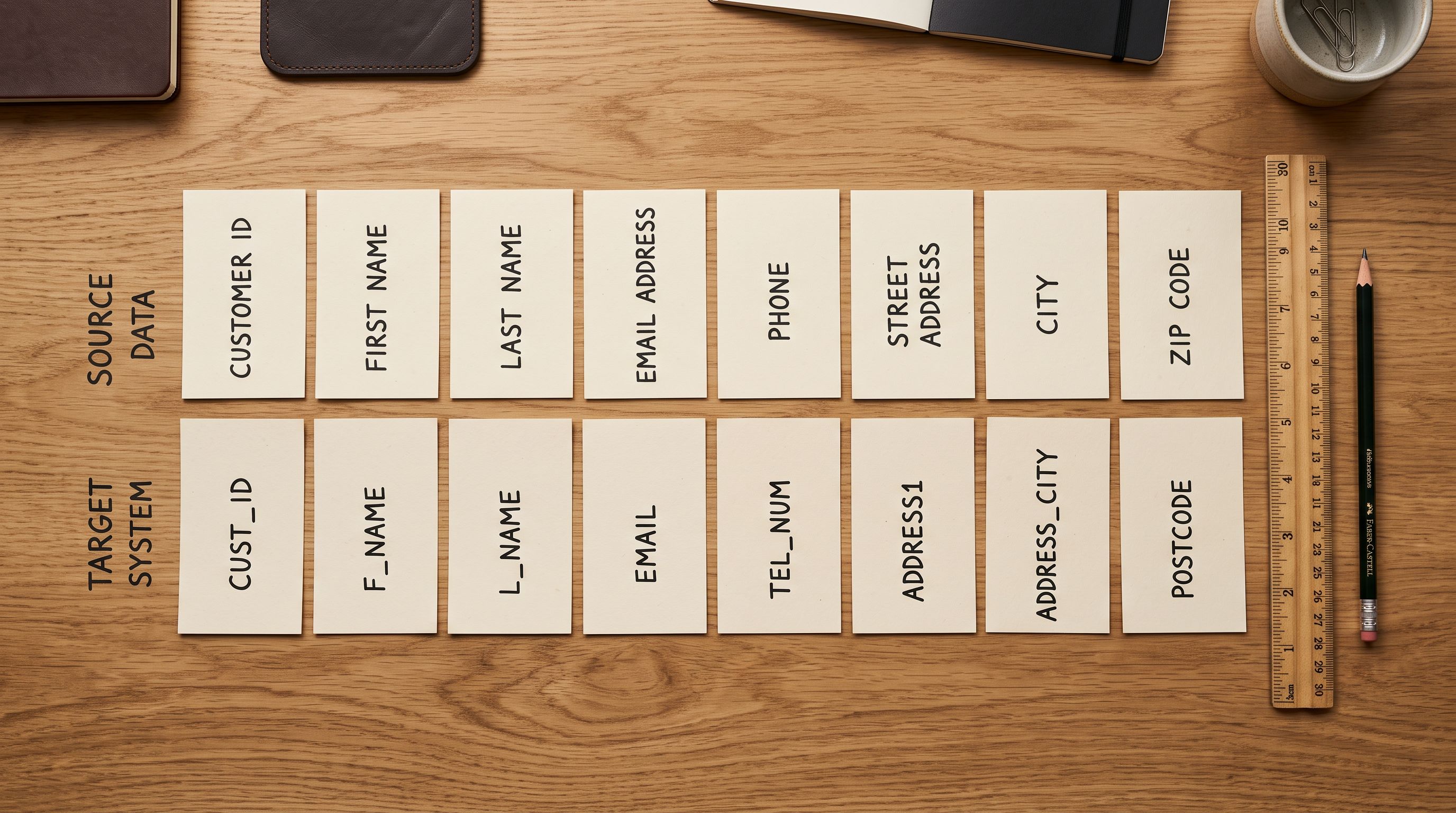
All three failure modes are visible in Import History immediately after the run. A merchant who checks Import History each Monday morning catches these before a customer notices a pricing discrepancy.
A scheduled import that fails silently is worse than no automation at all. Import History turns a silent failure into a visible log entry. The merchant's job is to check it.
The import undo feature in Importier's Import History covers an additional risk: a supplier file that contains incorrect prices (a supplier error, not an Importier error). If a weekly price update inadvertently sets 50 products to $0 or applies a wholesale price tier to a retail catalogue, the import undo function reverts all products from that batch to their previous state. The revert is batch-level: one action covers all products from the affected run.
## Setting the Run Time
The optimal run time for a scheduled import depends on two factors: when the supplier publishes their file and when the store's trading day begins.
For a supplier who publishes their Monday file at 5am AEST, a 6am scheduled import gives a one-hour buffer for the file to be available before the import reads it. Setting the run at 5:01am creates a race condition: if the supplier is five minutes late, the import runs on last week's file.
For a 24/7 online store, any run time that avoids peak traffic hours reduces the risk of price discrepancies between what a customer sees during browsing and what the product record holds during checkout. A 3am or 4am run window works for most Australian-based merchants.
According to [Shopify's inventory management guidance](https://help.shopify.com/en/manual/inventory), price changes take effect immediately when applied. A product whose price updates at 3am has the new price for any customer who loads the page after 3am.
The [shopify-import-resets-inventory-policy guide](https://importier.app/blog/shopify-import-resets-inventory-policy) covers a related consideration: ensuring that a scheduled price import does not inadvertently overwrite inventory policy settings that the merchant has configured separately. Mapping only the price columns in the field mapper (and not the inventory policy column) prevents scheduled imports from touching fields that are not part of the supplier's update.

## Key Takeaways
- **Scheduled imports eliminate recurring manual import work.** A weekly price update that currently takes 45 minutes of manual work runs unattended at a configured time. The time saving compounds: 45 minutes per week is 39 hours per year.
- **The lag window requires promotional alignment.** A scheduled import runs at a fixed time. Promotional emails, social posts, and ad campaigns referencing updated prices must be timed after the import completes, not before.
- **Scale plans support 2 scheduled imports; Enterprise supports 10.** A Scale merchant can run one weekly price update and one monthly new-arrivals import simultaneously. An Enterprise merchant can schedule imports from multiple suppliers at different frequencies.
- **Import History is the verification layer.** Check it after each scheduled run to confirm the product count and catch failure modes (file not found, column mismatch, handle mismatch) before they affect the trading day.
- **Import undo covers supplier file errors.** If a scheduled import applies incorrect prices from a supplier error, import undo reverts all products from that batch in one action.
- **Build a one-hour buffer between supplier file publication and the scheduled run time.** A supplier who publishes their file at 5am should not have an import scheduled at 5:01am. The buffer prevents the schedule from running on last week's file when the supplier is delayed.
Set up your first scheduled import at [importier.app](https://importier.app) and stop repeating the same manual process every week.