# Shopify Product Video Import: Bulk YouTube and Vimeo
> Product videos lift conversion on Shopify, but adding them manually across hundreds of products is impractical. Here is how to map them at import.
- Published: 2026-07-29
- Author: Importier Team
- Category: Import Guides / File Imports
- Canonical: https://www.importier.app/blog/shopify-product-video-import-bulk
---
A furniture merchant imports 350 products from a supplier who provides a data file, product images, and a spreadsheet of YouTube video URLs, one per product, each showing the piece assembled and in use. The data file and images import without issue. The video URLs are in a separate column that no standard Shopify product video import tool knows what to do with. The merchant adds the videos manually for the first fifteen products, calculates that the remaining 335 will take three weeks at that pace, and the video column sits unused.
Shopify product video import in bulk is a workflow that most merchants either skip or handle product by product. The conversion argument for not skipping it is substantial. According to [Wyzowl's state of video marketing research](https://www.wyzowl.com/state-of-video-marketing/), 87% of marketers report that video has directly increased sales. On product pages specifically, video lets a shopper see scale, movement, texture, and assembly in a way that even twelve product images cannot replicate. For furniture, clothing, tools, and anything with moving parts, video closes the gap between a product page and a physical showroom.
## What Shopify Supports for Product Video
Shopify supports two fundamentally different types of video media on product pages, and they behave differently in every respect: where they appear, how they are managed, and how they arrive in the product record.
**Type 1: Hosted product media videos**
Shopify's product media system supports video files (MP4, MOV, WebM) stored directly in the Shopify CDN. These appear in the product image gallery alongside photos; the merchant and shopper navigate between images and videos using the same gallery controls. Shopify processes the uploaded video, transcodes it for web delivery, and hosts it. There is no YouTube or Vimeo dependency.
Hosted product videos are attached via the product media API (Shopify's GraphQL Admin API `productCreateMedia` mutation). They are not part of the standard CSV import schema. A CSV import cannot attach a hosted video file to a product; the CSV format maps to product fields (title, description, price, images), not to the media API.
**Type 2: Embedded video via body HTML**
The second type is an embedded video player inserted into the product description HTML: a YouTube or Vimeo iframe in the body_html field. The video appears in the product description section of the product page, below the gallery and price, wherever the theme renders the description. It is not part of the product gallery.
This is the type that a CSV import workflow can map directly, because it goes into the body_html field as a standard HTML embed code. A supplier who provides YouTube video URLs is providing source material for this type of embed.
Hosted product videos (MP4 files in the Shopify CDN) appear in the product gallery. Embedded YouTube and Vimeo players go in the product description HTML. These are separate systems in Shopify. A standard CSV import can only map embedded videos via the description field. Hosted videos require the media API or an import tool with media API support.

## The Practical Problem With Manual Video Addition
Both video types require manual action at a per-product level in the standard Shopify admin workflow. For hosted videos, the merchant uploads the file through the product media panel, one upload per product. For embedded videos, the merchant pastes the iframe code into the description editor, one edit per product.
For a catalogue of 350 products, this is 350 separate admin sessions. Each one takes 2-4 minutes for a hosted video (navigate to product, open media panel, upload file, wait for processing, confirm) or 1-2 minutes for an embedded video (navigate to product, open description, switch to HTML mode, paste embed, save). The time cost ranges from 6 to 23 hours for the full catalogue.
The second problem is consistency. A merchant pasting 350 YouTube iframes manually will produce 350 variations in the embed code. Different iframe widths, different autoplay attributes, some with suggested video enabled, some without. This is difficult to audit and correct across a large catalogue.
The import path solves both problems: consistency of embed code and efficiency at scale.
350 products at 2 minutes each for video attachment is over 11 hours of admin work. The same task via import is a single column mapping step. The conversion lift from video is only worth chasing if the attachment workflow does not consume more time than the lift delivers.

## Shopify Product Video Import: Mapping YouTube and Vimeo URLs
For embedded video via body HTML, the import workflow maps a video URL column from the supplier's spreadsheet to HTML embed code in the product description.
The supplier file typically has one of two formats:
- A `video_url` column with the raw YouTube URL (e.g., `https://www.youtube.com/watch?v=dQw4w9WgXcQ`)
- A `video_embed` column with a pre-built iframe code
For raw URLs, the import needs to convert the URL to a properly formatted embed. YouTube's embed format replaces `youtube.com/watch?v=` with `youtube.com/embed/` and wraps it in an iframe with specified dimensions and attributes. Vimeo's format replaces `vimeo.com/` with `player.vimeo.com/video/`.
Importier handles this conversion at column mapping time. The merchant maps the supplier's video URL column to the product body HTML field and selects the embed format (YouTube, Vimeo, or raw iframe passthrough). The import generates a consistent iframe block for each product with the correct embed URL, a fixed responsive width, and no suggested video attribute (which typically sends shoppers away from the product page to competitor videos after the product video ends).
The generated embed is appended to the product description HTML, not replacing it. If the product already has a description, the video appears below the text content. If the description field is being generated by Importier's AI description generator in the same import run, the video embed is added after the AI content.
For suppliers who provide product data through a web catalogue rather than a downloadable file, Importier's guide to [importing products from a supplier website](https://importier.app/blog/shopify-import-products-from-supplier-website) covers how to extract structured product data, images, and supplementary columns from supplier pages.

## Handling Hosted Videos at Import
For merchants who want product videos in the Shopify media gallery rather than in the description, the import path is different. The supplier provides direct video file URLs (CDN-hosted MP4 files) rather than YouTube links, and the import tool needs to download those files and attach them via Shopify's media API.
This is the [approach documented in Shopify's product image and media API](https://shopify.dev/docs/api/admin-rest/latest/resources/product-image): the `src` parameter accepts an external URL, and Shopify fetches and re-hosts the file. The same pattern applies to video media via the GraphQL API: a `mediaContentType: VIDEO` with the external source URL triggers Shopify to fetch, transcode, and host the file.
Importier's import wizard supports media URL mapping in the column configuration step. When a supplier column contains direct video file URLs (ending in `.mp4`, `.mov`, or `.webm`), the import maps those as media attachments via Shopify's media API rather than as HTML embeds. The products receive gallery-integrated video media that behaves identically to manually uploaded video files.
The key distinction merchants need to make before configuring the import: is the supplier providing YouTube links (embedded video in description) or direct video file URLs (hosted gallery media)? The answer changes which mapping approach to use. Most supplier video links are YouTube links; direct video file hosting by suppliers is less common except in established wholesale relationships where the supplier also provides professional product media.

## Which Product Categories Benefit Most From Video
Video attachment at import is most valuable in categories where product behaviour, scale, or texture cannot be conveyed through static images alone.
**Furniture and home goods:** assembly sequences, scale demonstrations (furniture in a furnished room), and texture closeups (fabric weave, wood grain detail visible in motion) all require video to communicate accurately to online shoppers. A sofa that photographs well may feel cheap in person because the photography cannot show how the fabric moves. Video closes that gap.
**Tools and power equipment:** operational demonstration is often the strongest purchase trigger. A drill press, a sewing machine, or a power washer is easier to evaluate when the shopper can see it running. Video answers "how loud is it?" and "how fast does it work?" more effectively than any specification.
**Clothing and activewear:** movement is a core attribute of clothing that photography cannot show. How a dress moves on a walking model, how leggings sit during a squat, how a jacket blocks wind; these are purchase-relevant properties that video demonstrates and static images do not.
**Skincare and beauty:** application technique videos on product pages directly reduce returns from misapplication. A foundation applied with the wrong tool or technique looks different from what the shopper expected. A 30-second application video shifts the blame attribution for a product return from the product to the technique.
**Assembled products with many components:** flat-pack furniture, construction kits, modular shelving, and any product that arrives as components benefits from an assembly video on the product page. It reduces the return rate from shoppers who find the assembly too complex after purchase.
The same principle applies to product images: size, weight, and processing choices at import time affect both page load speed and search eligibility. Importier's guide to [Shopify product images and page speed](https://importier.app/blog/shopify-product-images-page-speed) covers how to manage image size and format in the import configuration step.
## Shopify Product Video Import Bulk: Key Takeaways
Getting shopify product video import bulk right means understanding the two video types Shopify supports and choosing the mapping approach that matches what your supplier provides.
- Shopify supports two types of video on product pages. Hosted videos (MP4 files) appear in the product media gallery alongside photos. Embedded YouTube and Vimeo players appear in the product description. These are separate systems and require different import approaches.
- A standard Shopify CSV import cannot attach hosted gallery videos; that requires the media API. CSV can map embedded video via the body_html field. Importier supports both: embedded video via embed conversion for YouTube and Vimeo URLs, and gallery media attachment via the Shopify media API for direct video file URLs.
- Manual video addition at scale is impractical. 350 products at 2 minutes each is over 11 hours. The import path maps a video URL column to the correct Shopify field in a single run. Consistency of embed settings is an automatic outcome.
- Disable suggested videos in YouTube embeds (append `?rel=0` to the embed URL). Suggested videos after a product video ends send the shopper off the product page to competitor products or unrelated content. Importier applies this by default when converting raw YouTube URLs to embed code.
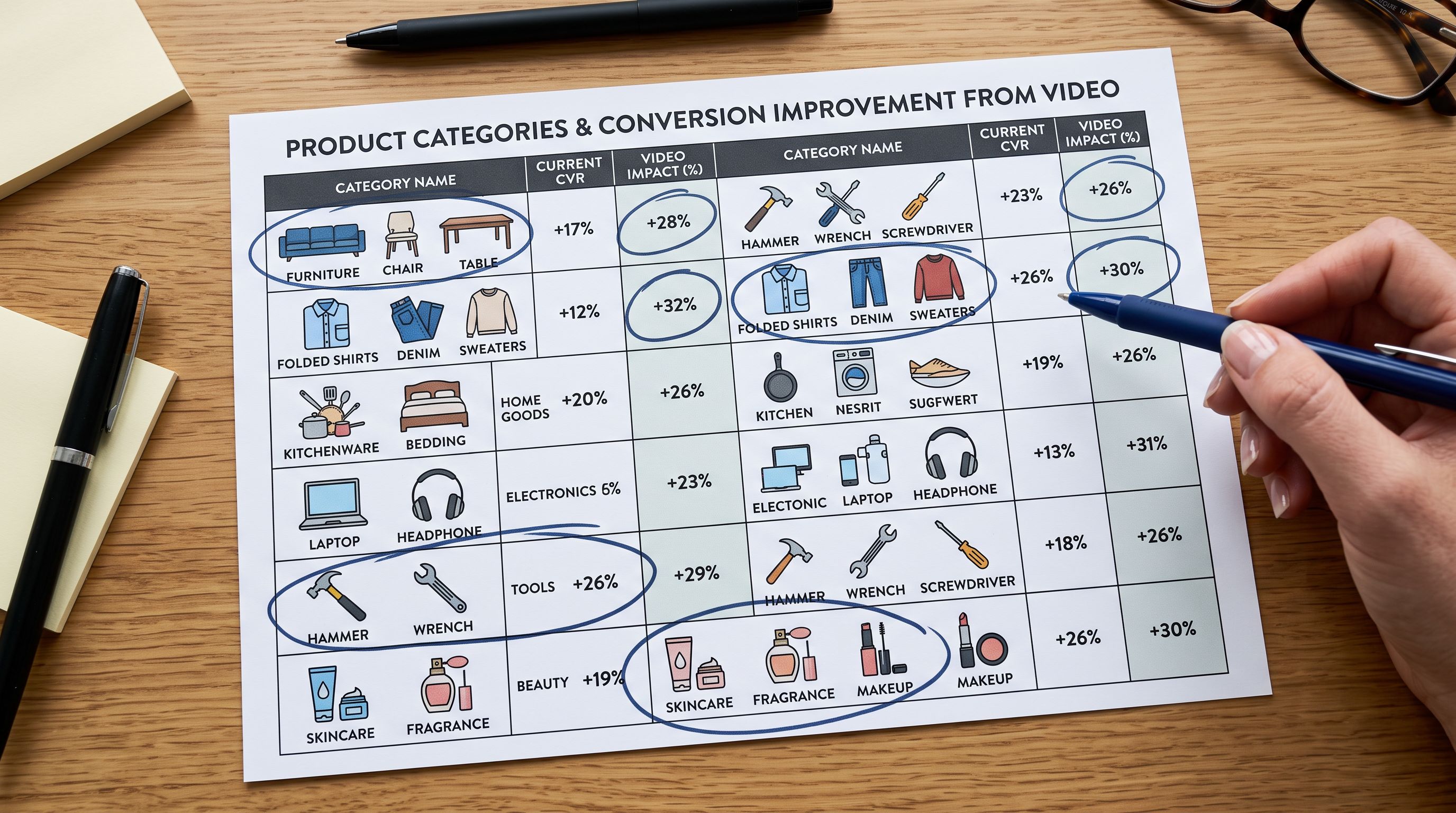
- The categories with the highest video conversion lift are those where behaviour, movement, or assembly cannot be conveyed through static images: furniture, tools, clothing, skincare application, and assembled products.
- For existing catalogues with YouTube or Vimeo links in a supplier spreadsheet, Importier's Store Scanner can apply video embeds across a subset of products by collection, vendor, or tag, without a full re-import.
Add video to your Shopify product catalogue at scale at [importier.app](https://importier.app). Map your supplier's video URL column to the correct Shopify media type in the import wizard and ship a video-enabled catalogue from day one.