# Shopify Product Barcode Import: Start With Just the UPC
> A packing list with barcodes and no descriptions is enough to build a Shopify catalogue. How shopify product barcode import works from day one.
- Published: 2026-08-19
- Author: Importier Team
- Category: Import Guides / Variants & Quality
- Canonical: https://www.importier.app/blog/shopify-product-import-from-barcode
---
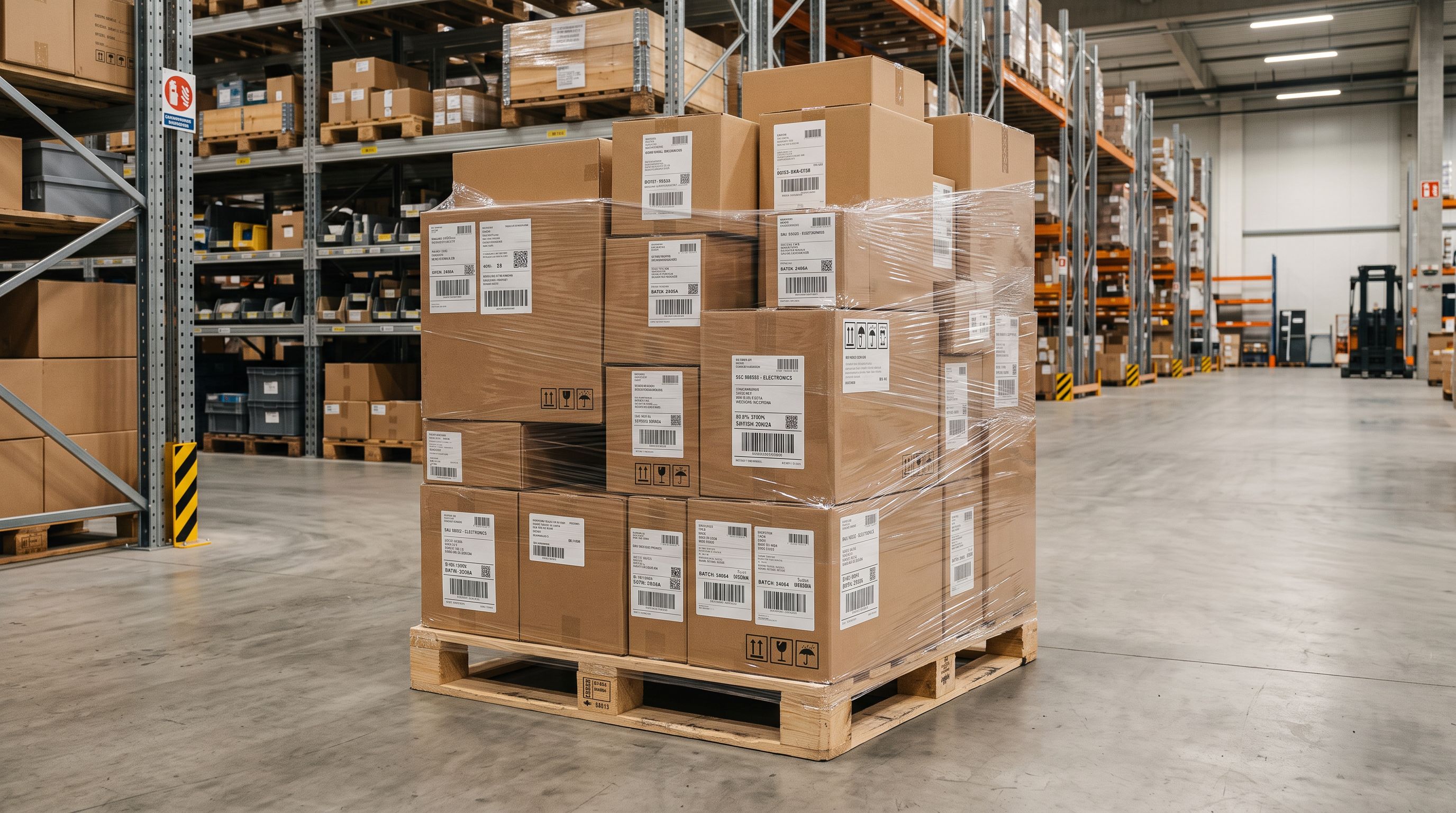
A liquidation buyer wins a pallet auction: 340 mixed consumer goods from a single supplier. The manifest lists quantity, condition, and barcode for each item. No titles, no descriptions, no images, no categories. The barcodes are GTINs (Global Trade Item Numbers): the same 13-digit codes on the original retail packaging. The buyer wants to list everything on Shopify within the week.
The traditional approach is to search each barcode manually, find the product on a retailer or manufacturer website, copy the title and description, download images, and enter it all into Shopify. At 5 minutes per product, 340 products takes more than 28 hours. At 10 minutes each, it takes 57 hours.
A shopify product barcode import using Importier's barcode lookup turns those 340 barcodes into complete product records in minutes, not days.
## What Barcode Lookup Does in a Shopify Product Barcode Import
Every retail product that has been sold commercially in a major market has its GTIN (also called a UPC in North America, EAN in Europe, or ISBN for books) registered in global product databases. [GS1's GTIN standard](https://www.gs1.org/standards/id-keys/gtin), which governs these codes globally, requires manufacturers to register product identification details at the point of GTIN issuance. Those databases record the product's title, brand, category, and often dimensions and weight. Some include descriptions and images.
When a merchant runs a shopify product barcode import through Importier's barcode lookup, the enrichment step takes each barcode in the import batch and retrieves the product record associated with that barcode. For a pallet of 340 consumer goods, the lookup runs across all 340 barcodes in a single enrichment pass, not one by one.
What comes back from the lookup:
**Product title and brand.** The official product name as registered by the manufacturer, including variant identifiers where they are embedded in the GTIN (many products use child GTINs per SKU variant, so a 500ml and 1L version of the same product have different GTINs with the size in the registered title).
**Product category.** GTINs are registered to a product category in the global taxonomy. This lets Importier pre-populate the product type field and apply the relevant Industry Pack automatically without the merchant selecting categories manually.
**Weight and dimensions.** Physical retail products have their weight and dimensions registered as part of GTIN registration (required for shipping systems and retail shelf space allocation). These fill the Shopify weight field, which feeds into shipping rate calculations.
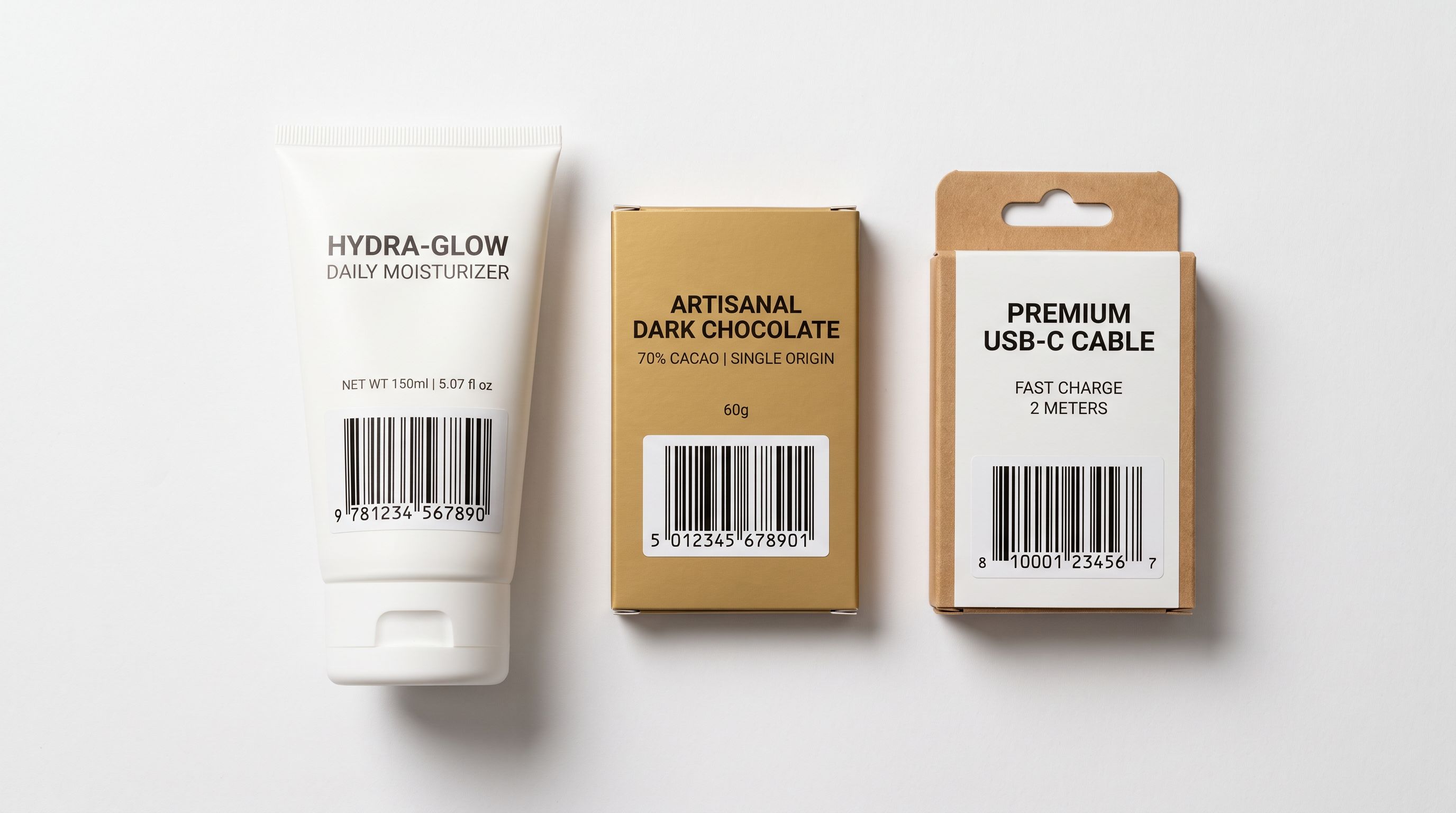
**Images.** Many product databases include the manufacturer's product photography. These are not always high resolution, but they are usually sufficient for listing purposes, especially for liquidation inventory where professional photography is impractical.
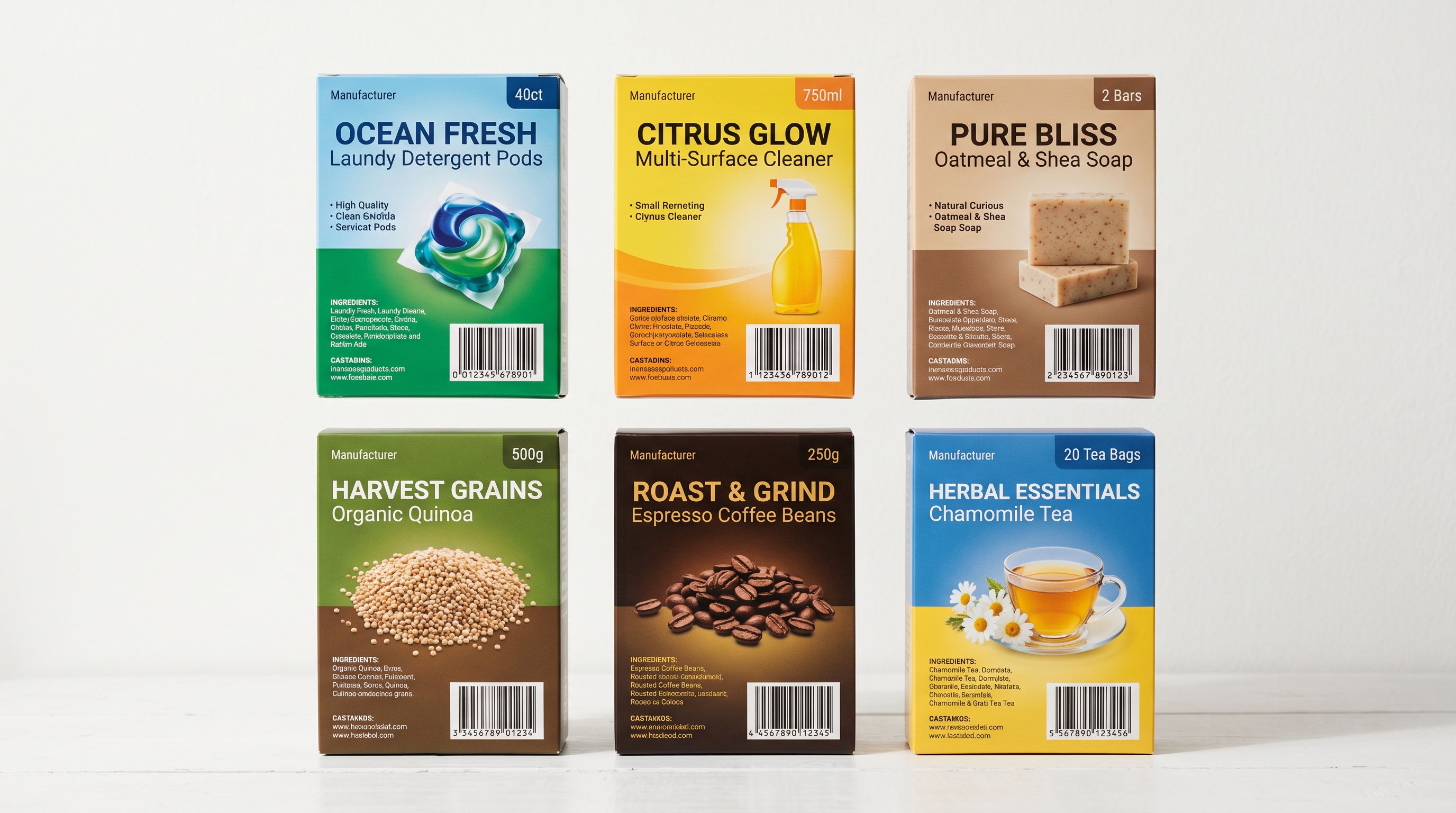
The GTIN system covers virtually all branded consumer goods sold through retail channels: food and beverage, personal care, household products, electronics, apparel, toys, and sporting goods. Private label products, custom-manufactured goods, handmade items, and some B2B products may not have registered GTINs. For those, barcode lookup returns partial data or no match, and the merchant needs to supply the product information directly.
## Why Liquidation, Wholesale, and Salvage Merchants Use This Approach
A shopify product barcode import is particularly useful for three merchant types who regularly receive inventory without accompanying product content:
**Liquidation and salvage buyers.** Liquidation pallets and truckloads come with manifests listing SKUs and barcodes, not marketing copy. The buyer often does not know exactly what they have bought until the pallet arrives. Running barcode lookup after receiving the inventory is the fastest way to identify, title, and describe everything for resale.
**Discount and off-price retailers.** Closeout buyers source end-of-line inventory from brands and distributors. The brand does not supply product content alongside the closeout stock; the buyer must create their own product pages. The original GTINs are still valid even for discontinued products, so barcode lookup retrieves the manufacturer's original product data.
**Secondhand and resale platforms.** Resellers who source from thrift stores, estate sales, or buy-sell-trade environments receive items with original packaging and barcodes intact. A reseller who processes 50 items per week can look up all 50 barcodes in one session rather than researching each individually.
In each of these cases, the merchant did not receive product content from a supplier, and manually researching each product is the only alternative to barcode lookup. The difference in time is significant at any volume above 20-30 products.
## How to Run a Shopify Product Barcode Import in Importier
The starting material for a barcode-based import is a CSV file with at minimum a barcode column. [Shopify's product import documentation](https://help.shopify.com/en/manual/products/import-export/import-products) shows the full set of columns the native CSV importer accepts. A typical liquidation manifest needs one additional column (quantity) mapped to Shopify's inventory quantity field, but the barcode column alone is enough to generate complete product records.
## What Happens When Barcodes Do Not Match
Not every GTIN in a liquidation or salvage batch will return a lookup result. The most common reasons:
**Products discontinued before broad GTIN registration.** Older products from before the 2000s may have barcodes that predate comprehensive digital registration. The barcode is valid but the product data was never entered into a searchable database.
**Private label products from retail chains.** Many supermarket and discount chain own-brand products use GTINs that are registered to the retailer rather than to a manufacturer. The GTIN resolves only if that retailer's product database is publicly accessible.
**Regional products.** A GTIN registered only in South Korea or Brazil may not appear in databases that prioritise English-language markets. The barcode is valid globally but the lookup returns no match.
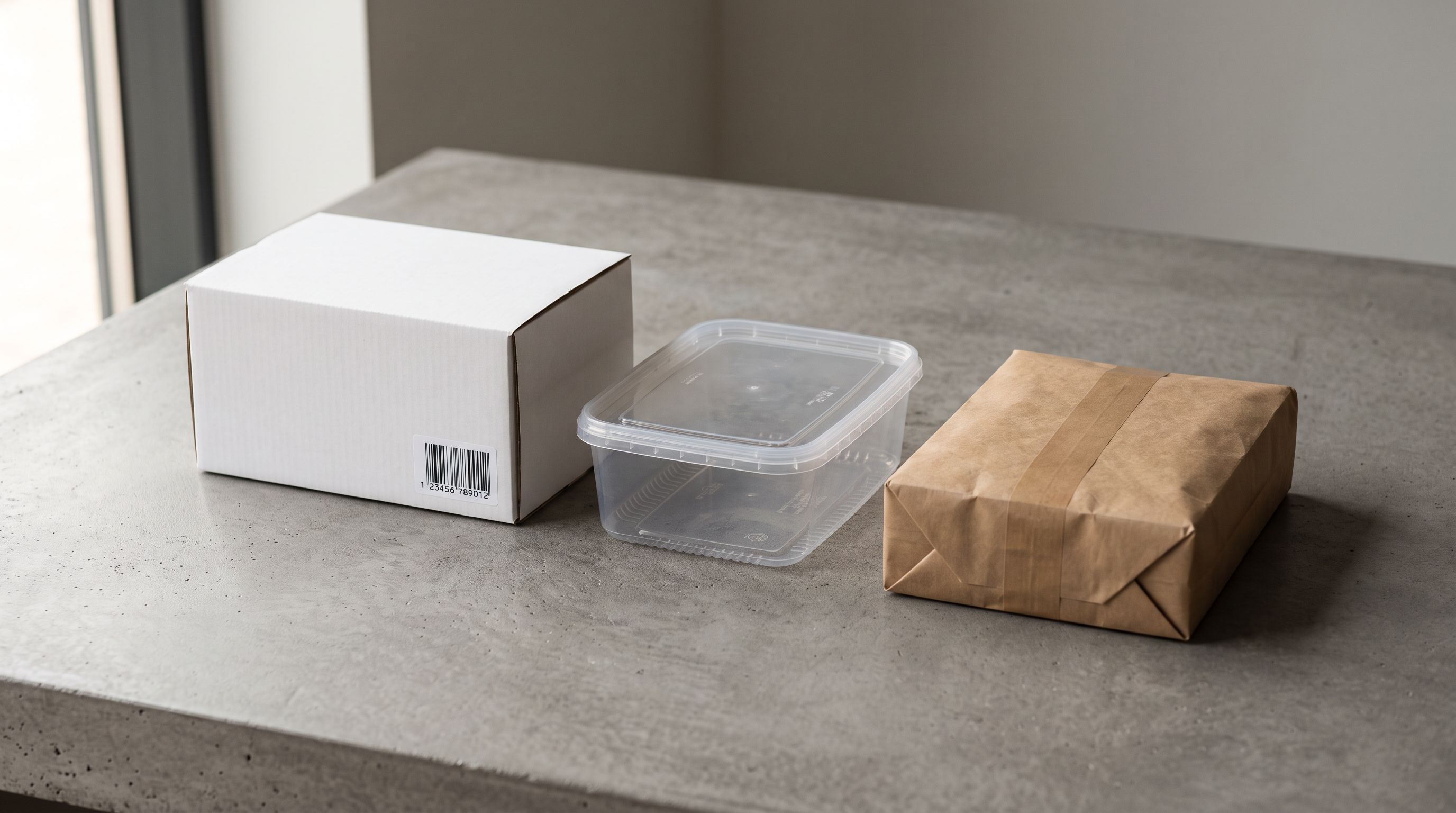
**Custom or B2B products.** Products manufactured for industrial or commercial customers often do not have GTINs at all, or have GTINs that are not publicly registered.
For barcodes that return no match, Importier flags those products in the Import Review step rather than silently creating empty product records. The merchant can enter the product information manually in the review step, skip that product and handle it separately, or create a placeholder listing to be filled later.
A batch of 200 liquidation products typically sees a match rate of 70-90% for branded consumer goods from the past decade. Products that do not match are identifiable in the review step before anything is pushed to Shopify.
A barcode is a product's unique identity. Every branded retail product has one, and most have had their details registered in searchable databases since the barcodes were printed. Barcode lookup reads that registration directly rather than relying on the merchant to manually source the same information.
## Generating Descriptions After Barcode Lookup
The product data returned by barcode lookup (title, brand, category, and weight) is enough for accurate AI description generation in Importier, but the descriptions produced are better when additional context is available.
For a liquidation buyer who knows their customer is looking for value and deals, adding a note to the enrichment context field before running AI generation changes how descriptions are framed. "Customer base: budget-conscious buyers seeking branded products at clearance prices" shifts the tone from a restatement of product specifications to value-oriented language that matches the merchant's positioning.
For a reseller who sources premium brand items, "Products are authentic branded goods in excellent used condition, sourced from authorised retail channels" gives the AI context to write descriptions that address the secondhand concern directly.
Read more about [how the enrichment context field guides AI description output](https://importier.app/blog/shopify-ai-enrichment-context-field) for a guide to the kinds of context hints that most improve AI generation accuracy for non-standard product sourcing scenarios.
Read more about [filling other missing product data fields alongside barcode lookup](https://importier.app/blog/shopify-product-data-enrichment) for the full enrichment workflow covering country of origin, HS codes, product type, and weight in a single pass.
## Key Takeaways
A shopify product barcode import using barcode lookup turns a packing list into a complete Shopify catalogue without manual product research. The GTIN registered by the manufacturer contains the title, category, weight, and often images needed to create a product page.
- **Barcode lookup retrieves the manufacturer's registered product data:** title, brand, category, weight, and often images are returned for most branded consumer goods with valid GTINs.
- **The workflow starts with just a barcode column:** upload a CSV containing barcodes, leave other product fields unmapped, and the enrichment step fills them from lookup results.
- **Match rates for branded consumer goods from the past decade are typically 70-90%:** unmatched barcodes are flagged in the Import Review step for manual handling before anything reaches Shopify.
- **Barcode data provides enough context for accurate AI descriptions:** the looked-up title, brand, and category give the AI what it needs. The enrichment context field adds positioning and audience tone.
- **The full import cycle for 200 products with barcode lookup takes under an hour:** versus 17-34 hours of manual research at 5-10 minutes per product.
Start your barcode-based import at [importier.app](https://importier.app).