# Shopify Product Import Errors: How to Diagnose and Fix Them
> Shopify imports that complete without errors can still produce wrong products. Here is how to diagnose and fix import errors without starting over.
- Published: 2026-07-25
- Author: Importier Team
- Category: Import Guides / File Imports
- Canonical: https://www.importier.app/blog/shopify-product-import-errors
---
A kitchenware merchant runs a 400-product import from a manufacturer's Excel file. The import completes. No error message appears. The merchant opens Shopify admin to find 287 products imported correctly, 85 products with missing images, and 28 products that should be variants of the same product imported as completely separate listings. A saucepan set that comes in 3-piece, 5-piece, and 7-piece configurations now exists as three separate products in the catalogue rather than one product with a set-size option. The shopify product import errors are invisible until someone manually reviews the catalogue.
The problem with most Shopify import errors is that they are silent. The import wizard reports completion, which merchants interpret as success. What actually happened is a partial success: some products imported correctly and others did not, with the failures appearing as wrong data rather than obvious error messages. A merchant who does not review the full output does not find the problem until a customer complains or a product search returns unexpected results.
## Why Import Errors Are Silent
Shopify's import process treats many data problems as acceptable input rather than errors. A row with a missing image URL imports without the image and counts as a successful import. A row where the colour value does not match any recognised variant does not trigger a failure; the product imports with that colour value as an attribute string. A row where the handle column is empty generates an auto-handle from the title and imports successfully.
This is not a bug. Shopify's design philosophy is to accept partial data and let merchants fill in what is missing. For an individual product created manually, that is sensible. For a 400-product import from a supplier catalogue, it means 85 products with missing images and 28 mishandled variant groups exist in the catalogue with no indication that anything went wrong.
The only way to find silent import errors is to inspect the output. For large catalogues, inspecting every product is not practical. The practical approach is to use the import tool's own reporting to identify which batches had problems and which product types were affected.
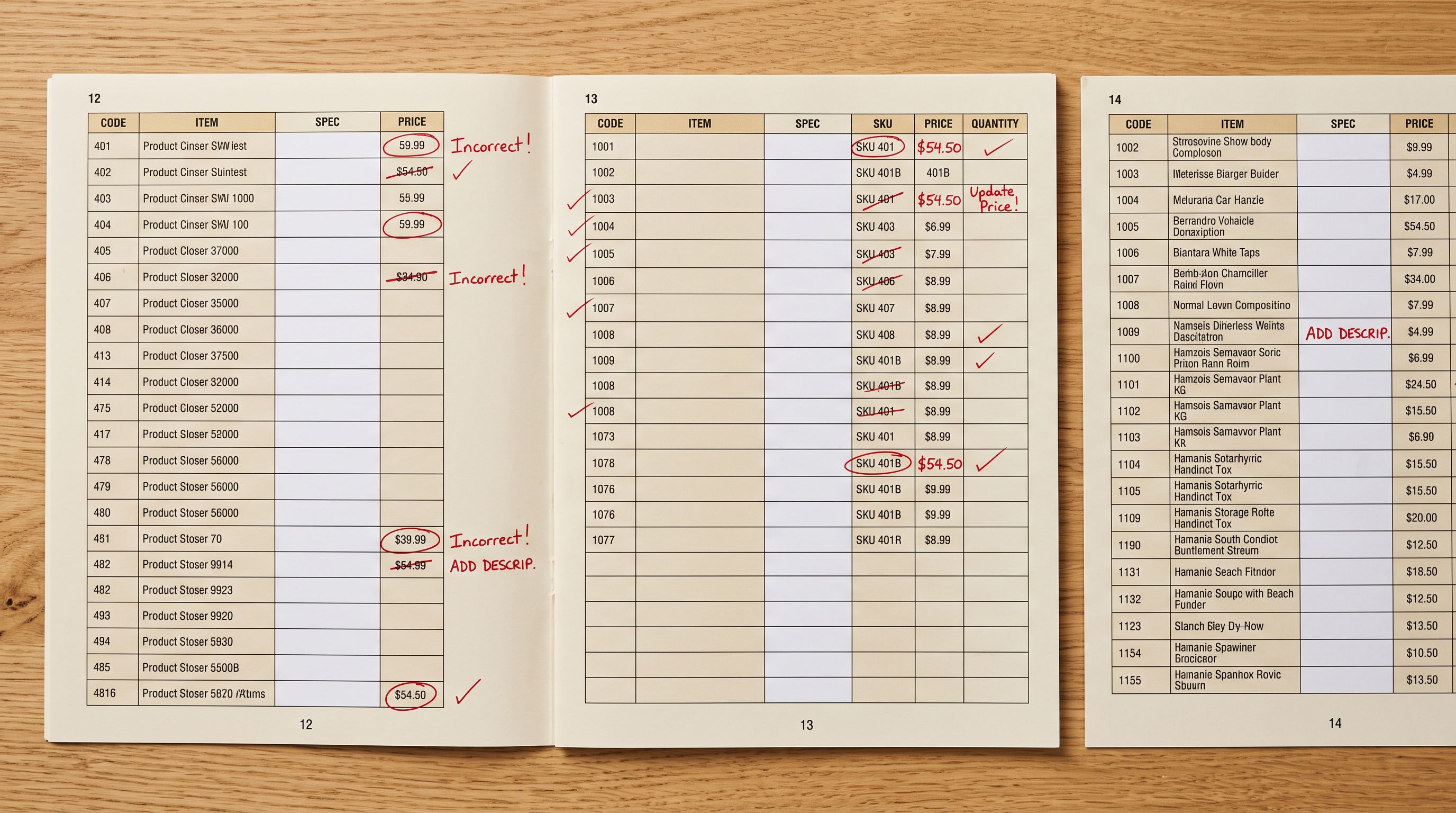
A missed image on 85 products means 85 products on your storefront with no primary image. A variant grouping failure on 28 products means 84 separate product listings instead of 28, each with 1/3 of the variants. Neither error triggers a notification. Both affect customer experience and search rankings from the moment the import completes.
## The Three Most Common Import Error Categories
Understanding which category an error falls into determines how to fix it.
**Mapping errors.** The import file has data in the right place, but the column heading does not match what the import wizard expects. A supplier's Excel file with a column called "Colour Code" does not automatically map to Shopify's Colour variant option. If the mapping is wrong, the data ends up in the wrong field or does not import at all. The product imports, but the colour information is absent or placed in a text field where it does not function as a variant.
Mapping errors are the most common source of silent failures. A supplier catalogue might use "SKU No." instead of "SKU", "Barcode EAN" instead of "Barcode", or "Product Type Category" instead of "Product Type". Each naming mismatch creates a mapping gap that the import fills with blank data rather than an error.
**Variant grouping failures.** Products that should be grouped as variants of a single listing import as separate products. This happens when the import cannot identify which rows belong together. The grouping logic depends on consistent handle values (in CSV imports) or on variant detection patterns that match the naming conventions in the file.
A saucepan set described as "3 Piece Set", "5 Piece Set", and "7 Piece Set" in one catalogue may use "3pc Set", "5pc Set", "7pc Set" in another. Variant detection patterns that match the first format do not recognise the second. The three rows import as three separate products.
**Image import failures.** Product images fail to import when image URLs are inaccessible, the file format is not supported, or the image file size exceeds Shopify's limits. These failures do not halt the import. The product imports without its image, and the image field is empty in Shopify.
Image failures are particularly common with supplier catalogues that use internal image servers requiring authentication. The URL in the catalogue file resolves when the supplier's team accesses it, but external requests from an import tool return a 403. The import logs the row as processed and moves on.

The import completing is not the same as the import succeeding. A 400-row import that processes every row can still produce 115 products with wrong or missing data, and the only record of which rows had problems is in the import log.
## Using Import History to Diagnose Errors
Importier's [Import History](https://importier.app/blog/shopify-import-history) records every import batch with the file name, date, product count, status, and error detail. For diagnosing shopify product import errors, Import History is the first tool to check.
Each Import History entry shows:
**Batch status.** A batch that completed with all products processed shows a green status. A batch with partial failures shows the count of products that completed and the count that did not. A batch where variant grouping produced unexpected results shows a grouping warning with the affected product titles.
**Variant grouping warnings.** When the import processes rows that should form variants but cannot match them reliably, the Import History entry shows which products triggered the warning. For the saucepan set example: the entry shows "3 Piece Set", "5 Piece Set", and "7 Piece Set" as ungrouped products, with a note that the set-size pattern did not match across rows. The merchant can immediately identify the column formatting inconsistency and correct it before re-importing.
**Image failure counts.** The entry shows how many image URLs failed to resolve. For a 400-product import with 85 image failures, the entry shows which product rows had inaccessible image URLs. The merchant can identify whether the failures are from a single image server (suggesting an authentication or network issue) or scattered across multiple sources (suggesting individual broken URLs).
**Processing time and product counts.** For large catalogues, Import History shows whether the product count in the output matches the row count in the input file. A 400-row file that produces 372 products has 28 rows that did not create unique products, which points to either deduplication (the same product existing twice in the supplier file) or variant grouping that collapsed expected rows.

## The Import Undo Workflow for Batch Corrections
Correcting shopify product import errors after a partial import requires deciding whether to fix individual products in Shopify or undo the import and re-run it with corrected source data.
For small catalogues where only a handful of products have errors, fixing in Shopify admin is faster. For catalogues where the error affects a structural setting (variant grouping logic, column mapping, AI description style), undoing and re-importing produces consistent results across the whole catalogue.
Importier's [Import Undo](https://importier.app/blog/shopify-undo-product-import) removes the entire batch from Shopify in one action. Products are deleted, collections they were added to are updated, and the Shopify catalogue returns to the pre-import state. The undo does not require identifying each product individually. The merchant corrects the source file, re-runs the import with the corrected settings, and the catalogue reflects the corrected data.
For the variant grouping failure example: after Import Undo removes the 28 separate product listings, the merchant standardises the piece count notation in the source file from "pc Set" to "Piece Set" across all rows, re-runs the import, and the 28 products arrive as 9 correctly grouped products with set-size variants.
Import Undo removes products that were added in the batch regardless of whether they imported correctly or incorrectly. If the batch contained both correct and incorrect products, the undo removes all of them. For a mixed-result import, consider whether fixing individual incorrect products in Shopify is faster than undoing and re-importing the full batch.
## Fixing the Source File Before Re-importing
The correct source file fix depends on the error category.
**For mapping errors:** In Importier's import wizard, the column mapping step shows which source columns are mapped to which Shopify fields. Columns that are not mapped appear in the unmapped list. Before re-importing, either rename the columns in the source file to match what the wizard expects, or save a custom column mapping profile in the wizard with the supplier's naming conventions. A saved mapping profile means future imports from the same supplier use the correct mapping without requiring manual adjustment.
**For variant grouping failures:** The source file needs consistent notation for the attribute that defines the variant. If the piece count notation varies across rows, standardise it. If the variant attribute uses different capitalisations across rows ("Colour" in some rows, "colour" in others), normalise the capitalisation. According to [Shopify's CSV import guide](https://help.shopify.com/en/manual/products/import-export/import-products), variant rows are grouped by the `Handle` field: rows with the same handle value become variants of the same product. Ensuring consistent handle values across intended variant rows is the most direct fix for grouping failures.
**For image failures:** If the image URLs are inaccessible because they require authentication, the correct approach is to download the images from the supplier portal and host them on a publicly accessible URL before importing. Alternatively, import the products without images using the import wizard, then add images manually or via a second import pass after hosting the images correctly.

## Preventing Import Errors on Future Batches
The most reliable way to avoid shopify product import errors at scale is to validate the source file before running the full import.
**Save column mapping profiles.** After the first successful import from a supplier, save the column mapping configuration in Importier. The saved profile maps this supplier's column names to the correct Shopify fields. When the supplier sends an updated catalogue, the saved profile applies the same mapping automatically, reducing the chance of a mapping error on future imports.
**Run a [test import on 20 representative products](https://importier.app/blog/shopify-test-import-small-batch) before committing the full catalogue.** A 20-product test covers one product per variant type and one product per category, giving the import wizard enough data to surface mapping and grouping issues without committing the full catalogue. Errors found in a 20-product test take minutes to fix. The same errors in a 400-product import take hours.
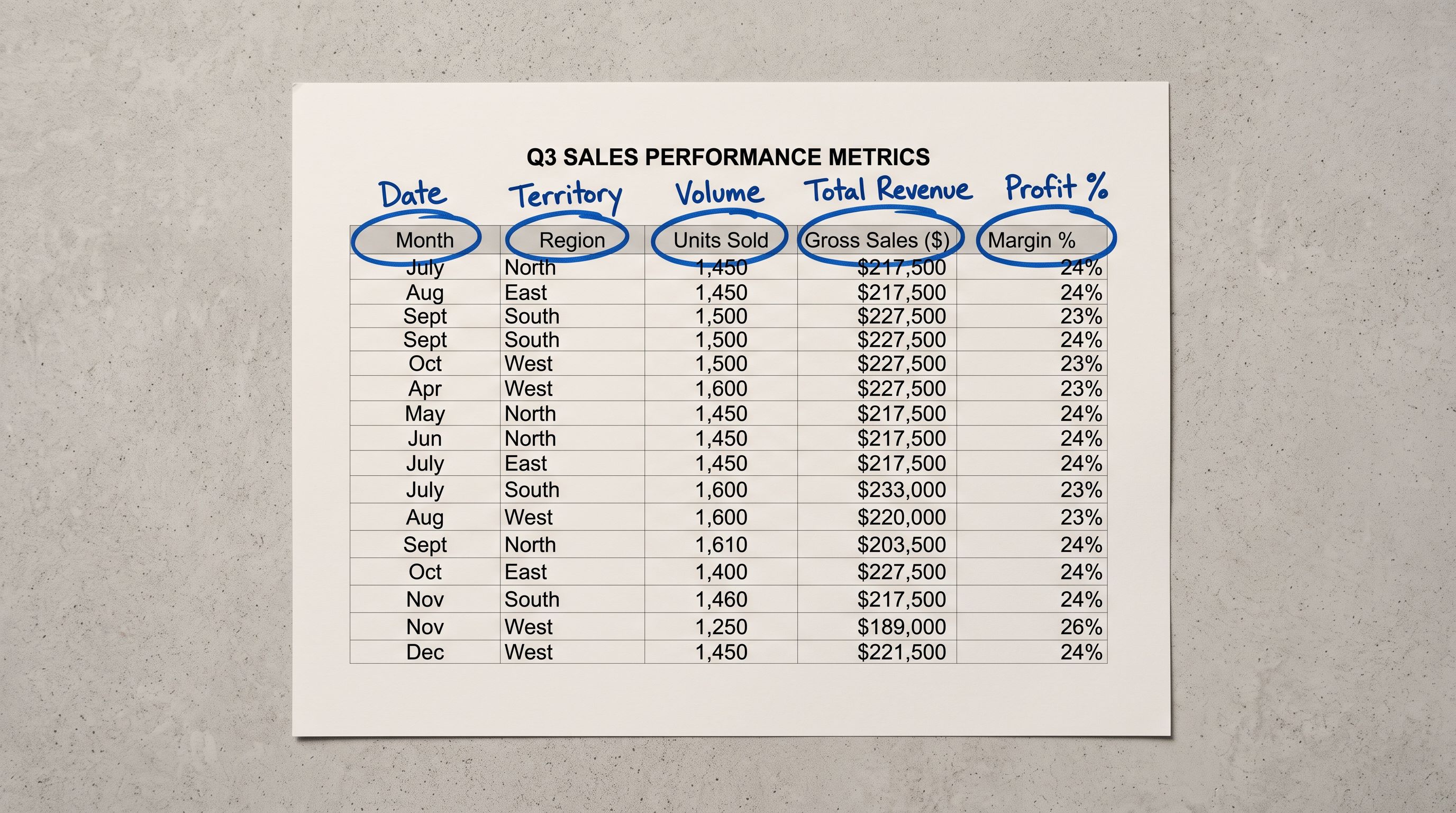
**Standardise variant notation in the source file.** Suppliers often export catalogues with inconsistent notation across product types. Before importing, review the variant columns (size, colour, configuration) and ensure consistent naming conventions. A find-and-replace in Excel or Google Sheets to standardise "pc Set" to "Piece Set" takes two minutes and prevents a grouping failure across dozens of products.
According to [Shopify's documentation on product variants](https://help.shopify.com/en/manual/products/variants), each product can have up to 3 option types (such as size, colour, and material) and up to 100 variants per product. An import that produces products exceeding the 100-variant limit will fail silently or truncate variants. For catalogues with high variant counts, check variant totals in the source file before importing.
## Shopify Product Import Errors: Key Takeaways
Shopify product import errors are rarely announced. The import completes, but the output contains wrong or missing data that only surfaces during review.
- Silent import errors fall into three categories: mapping errors (column names do not match expected field names), variant grouping failures (rows that should form variants import as separate products), and image import failures (inaccessible URLs produce products without images).
- Importier's Import History shows batch status, variant grouping warnings, image failure counts, and product totals for every import. Check Import History first when a completed import produces unexpected results.
- Import Undo removes the entire batch cleanly, returning the catalogue to its pre-import state. Use it when errors affect structural settings (variant grouping, column mapping) that require correcting the source file and re-importing, rather than fixing products individually in Shopify.
- For mapping errors: save a custom column mapping profile after fixing, so future imports from the same supplier use the correct mapping.
- For variant grouping failures: standardise the variant attribute notation across all rows before re-importing. Consistent handle values are the most direct fix for grouping failures in CSV imports.
- For image failures: identify whether failures are server-level (authentication) or URL-level (broken paths) from the Import History log, then host images on publicly accessible URLs before re-importing.
- A 20-product test import before committing a full catalogue catches mapping and grouping errors in minutes rather than hours.
Import your next catalogue at [importier.app](https://importier.app). Importier's Import History and Import Undo tools give you a clear record of every batch and a clean path to fix errors when they occur.