# Shopify Product Data Maintenance: When and What to Re-Import
> Prices drift and descriptions go stale. A field-by-field Shopify product data maintenance schedule covering prices, descriptions, and discontinued SKUs.
- Published: 2026-08-12
- Author: Importier Team
- Category: Store Management / SEO & Discoverability
- Canonical: https://www.importier.app/blog/shopify-product-data-maintenance
---
A homewares merchant launched their Shopify store two years ago with 320 products imported from their primary supplier. At launch, every price was correct, every description was accurate, and every product was available. Two years later: 38 products have been discontinued by the supplier but are still showing as active in the store. Prices on 140 products are eight months out of date. Sixty product descriptions reference a warranty period that the supplier changed from 24 months to 12 months in March. Three products have been reformulated and have different materials than what the descriptions say.
No errors were ever logged. No alerts were sent. The catalogue drifted one outdated fact at a time, invisible until a customer complained or a return was contested.
Shopify product data maintenance is the discipline of asking which fields decay over time, how fast each one decays, and what re-import cadence keeps the catalogue current. The answer is different for each field type.
## Why Product Data Decays After Import
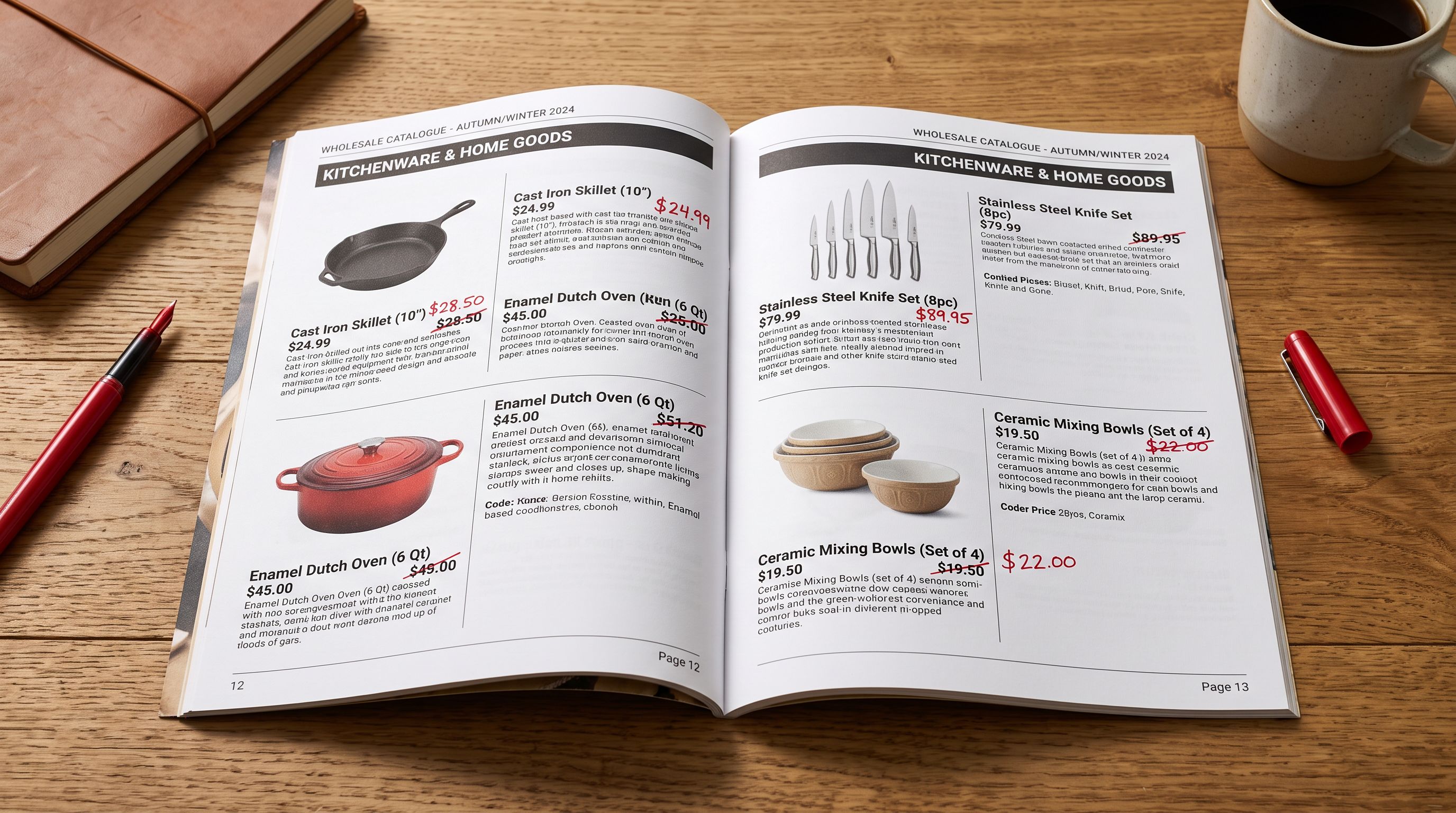
An import creates a snapshot. Shopify stores the product data as it existed in the source file at the moment the import ran. The source file continues to change after the import: the supplier's price list, the product catalogue, and the inventory feed all update independently of Shopify.
The gap between Shopify's stored data and the supplier's current data widens every day the import is not repeated. For fast-moving fields like price and inventory, the gap can become commercially significant within weeks. For slow-moving fields like product descriptions, the gap may take months or years to matter, but when it does, it affects every product in the category simultaneously.
Shopify stores the values from your import file at the moment the import ran. When the supplier changes a price, reformulates a product, or discontinues a SKU, Shopify does not know. Only a subsequent import with updated data closes the gap.
The speed of decay varies by field:
**Fast decay (weekly to monthly).** Prices and inventory levels change whenever the supplier updates their price list or ships new stock. A merchant whose supplier sends a new price list every quarter and whose stock levels fluctuate continuously needs to re-import these fields at least monthly, and ideally weekly for inventory.
**Moderate decay (quarterly to annually).** Product specifications, compliance certifications, warranty terms, and material composition change when a supplier reformulates or repackages a product. These changes are infrequent but significant when they occur. A quarterly re-import pass that checks descriptions against the current supplier specification sheet catches these before a customer relies on incorrect information.
**Slow decay (annually or as-needed).** Product titles, categories, and vendor assignments are stable. They rarely change unless the supplier rebrands or restructures their catalogue. A once-per-year check is usually sufficient.
**Discontinuation (ongoing).** Products that suppliers discontinue do not remove themselves from Shopify. They accumulate in the catalogue as ghost listings: technically active, not orderable, not appearing in the supplier's current file. Without a process to identify and archive discontinued products, the catalogue grows stale entries over time.
## Shopify Product Data Maintenance Schedule by Field Type
A practical shopify product data maintenance schedule treats each field type separately:
## Using Scheduled Imports for Recurring Field Updates
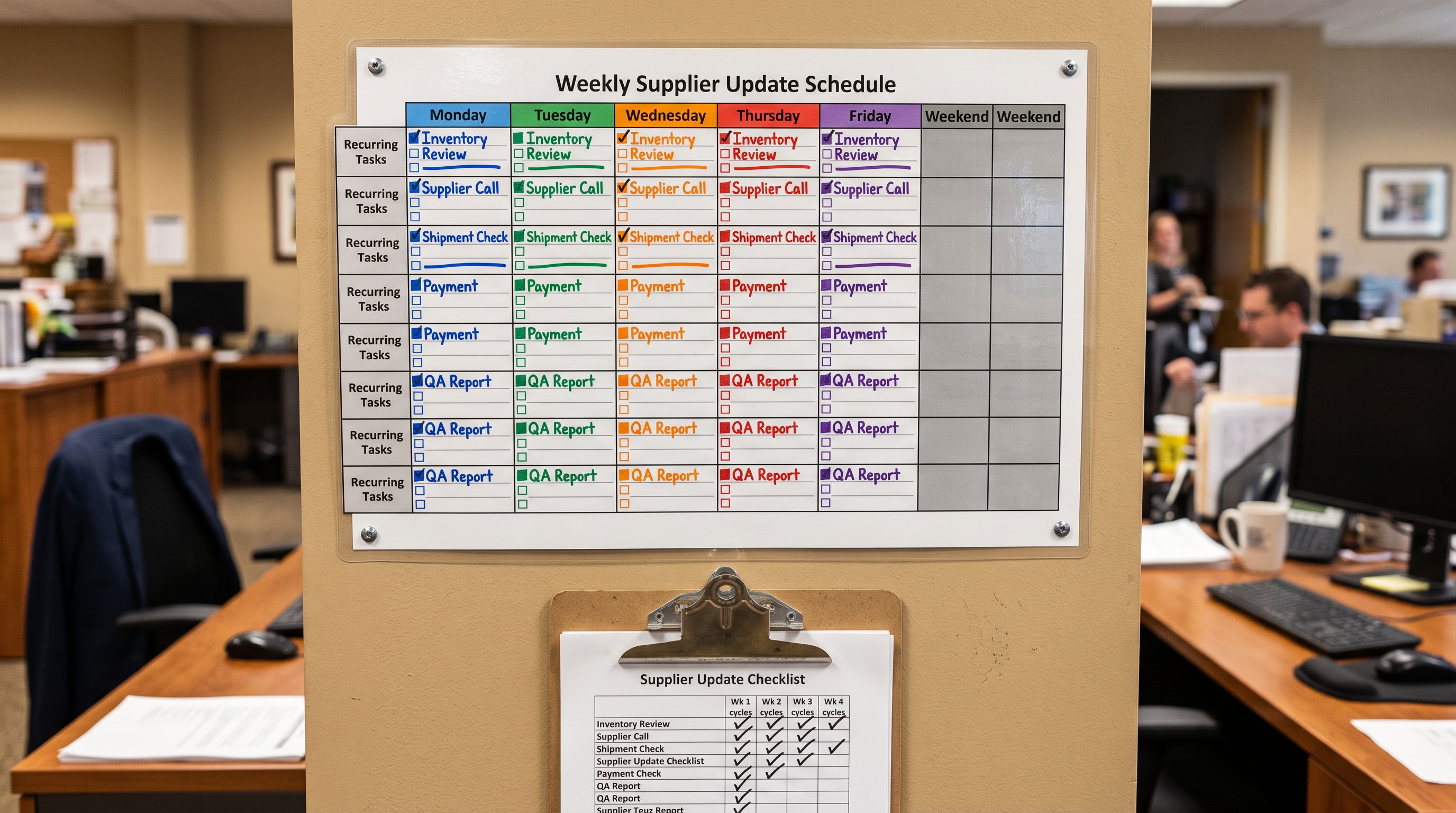
Importier's Scheduled Imports feature stores a complete import configuration, including source file, column mapping, match key, and AI settings, and runs it on a timer. For shopify product data maintenance, the most useful application is a recurring price and inventory update.
Scheduled Imports is available on paid Importier plans.
A practical setup for a merchant with one primary supplier and weekly price updates:
- **Schedule 1:** Price update. Source file from the supplier's weekly export. Column mapping: Handle (match key), Variant Price, Variant Compare At Price. All other fields: Do Not Import. Runs weekly on Monday morning. Takes under five minutes for 300 products.
- **Schedule 2:** Inventory update. Source file from the supplier's daily inventory feed. Column mapping: Handle or SKU (match key), Inventory Quantity. Location: the relevant warehouse location. Runs daily. Prices untouched.
The benefit of separate schedules over a single combined import is field isolation. If the supplier's inventory feed has a column mapping error that writes zero inventory to 200 products, the price schedule is unaffected. The error is contained to the inventory run and reversible using Import History undo.
For a merchant with three or four suppliers, each supplier gets its own price schedule with its own column mapping. The mapping is set once at schedule creation and does not need to be reconfigured for each subsequent run.
A maintenance schedule is not a set of recurring tasks. It is a set of configurations that run on a timer. The work happens once, at setup. Every subsequent run is automatic.
## Finding Stale Content with Export Presets and Store Scanner
For slow-decay fields like descriptions, the maintenance trigger is not a timer but a content audit. Importier's SEO Audit export preset identifies products that need attention without requiring a manual review of every product page.
The SEO Audit preset exports product title, description, meta title, meta description, word count, and primary keyword for every product in the catalogue. For a maintenance audit:
**Filter for short descriptions.** Products with under 100 words of description are candidates for regeneration. Short descriptions often indicate that the supplier provided minimal copy at import time and Importier's AI was not used to expand it, or that AI generation was used but the prompt was not specific to the product category.
**Search for outdated phrases.** Open the export in a spreadsheet and use a text filter to find descriptions containing the old warranty term, the discontinued material, or any phrase that reflects a supplier change made after the original import. The filter finds all affected products in one pass, with no need to review each product page individually.
**Run Store Scanner on flagged products.** Importier's Store Scanner accepts a list of products filtered by collection, vendor, or tag. For the products identified in the audit, run Store Scanner to regenerate descriptions using the current Brand Voice configuration and the most up-to-date product information. The regenerated descriptions replace the stale ones in a single targeted import.
The combination of SEO Audit export and Store Scanner passes turns a potential 300-product manual review into a filtered-list regeneration job. A quarterly audit typically finds 20-40 products that need attention, not the full catalogue. For a full walkthrough of selective field updates, the same field-isolation principle is covered in [how to import without overwriting your existing Shopify inventory](https://importier.app/blog/shopify-import-without-overwriting-inventory).
## Handling Discontinued Products
Discontinued products are the maintenance problem that accumulates most silently. A supplier removes a SKU from their active catalogue. The product remains in Shopify. The product remains active. Customers can view it. Some customers may add it to cart, attempt to order it, and receive either a backorder or a cancellation.
The identification method is straightforward: export Shopify's full product list with Handle and SKU, export the supplier's current active SKU list, and cross-reference. Products present in Shopify but absent from the supplier's current list are discontinued candidates.
Not every product absent from the supplier's current list is permanently discontinued. A product might be temporarily out of stock, on seasonal hold, or being reformulated. The cross-reference produces a candidate list for review, not an automatic archive list.
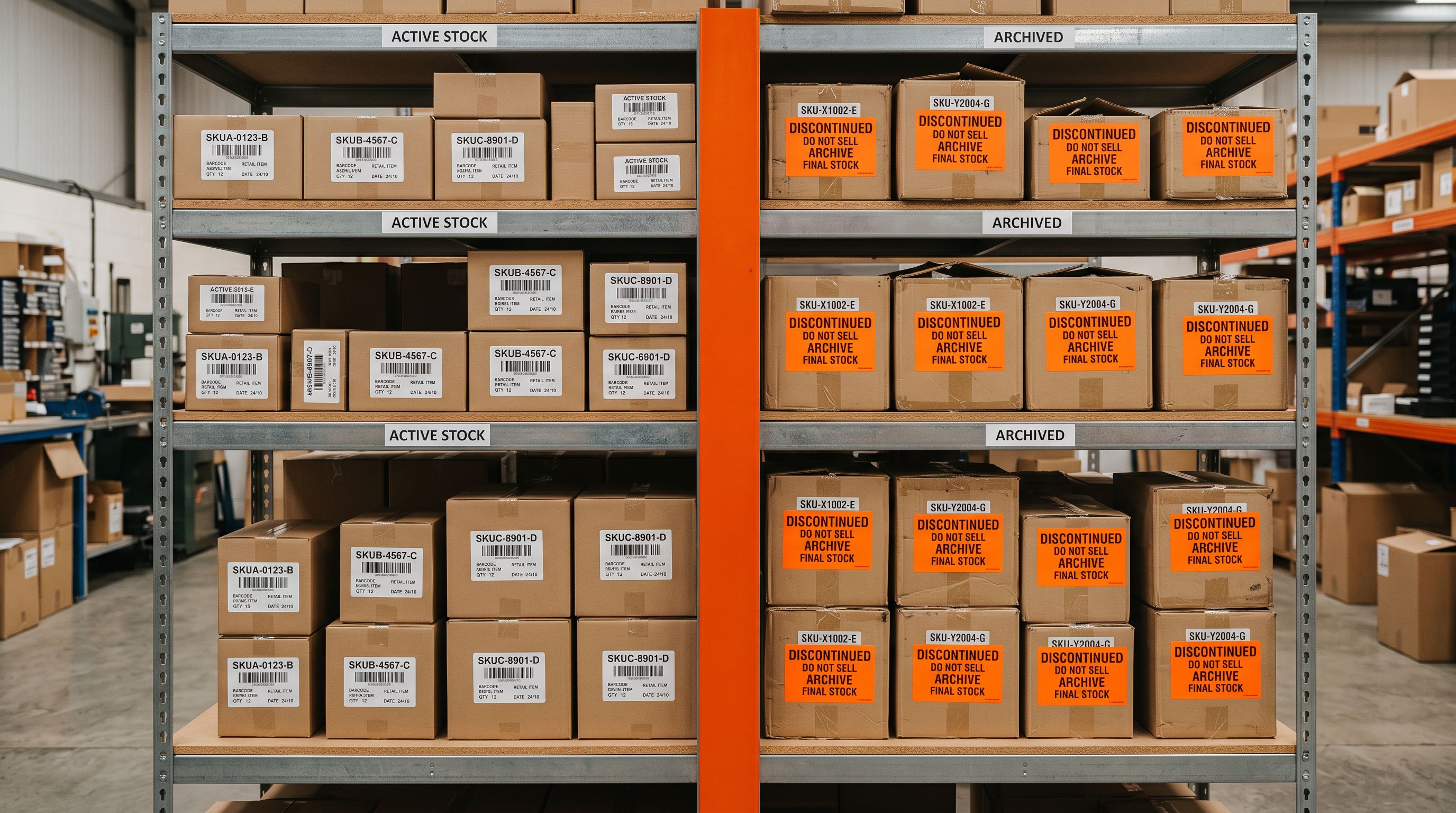
For confirmed discontinued products, the maintenance action is to set the product status to Draft (removing it from all sales channels and search) without deleting it. Deletion removes the product's URL history and breaks any existing internal links. Setting to Draft preserves the product record and URL while removing it from active inventory.
This status update can be applied via a selective import: a file with Handle and Status set to "draft", mapped with Handle as the match key and only Status imported. The import archives the full list of discontinued products in one run without touching any other field. According to Shopify's [guidance on managing product status](https://help.shopify.com/en/manual/products/add-update-products), setting a product to draft removes it from all active sales channels simultaneously.
## Import History as a Maintenance Audit Trail
Every scheduled import and manual re-import is logged in Importier's Import History with the date, time, file name, product count, and operator. For a catalogue with ongoing maintenance, Import History provides two capabilities that manual tracking cannot replicate.
**Coverage verification.** The import log confirms that each scheduled run completed and how many products were updated. If the weekly price schedule shows a product count of 0 for a particular Monday, that indicates the source file was not updated or was not accessible. The gap is visible and investigable.
**Rollback on error.** If a maintenance import writes incorrect data, Import History undo reverts the entire batch to its pre-import state. For a price update that wrote wrong values to 300 products, undo is a single action rather than a 300-product manual correction. The undo covers the most recent 20 import batches with files available for 60 days. Shopify's [product import documentation](https://help.shopify.com/en/manual/products/import-export/import-products) confirms that Handle is the match key for all product update imports, which is what allows Import History to associate each batch with the products it changed.
## Shopify Product Data Maintenance: Key Takeaways
Shopify product data maintenance is a field-by-field discipline, not a single periodic task. For merchants operating at enterprise scale, [Shopify product data standards for larger catalogues](https://importier.app/blog/shopify-enterprise-product-data-standards) covers the governance layer above the maintenance cadence described here. Each field type has a different decay rate and a different maintenance approach.
- **Prices and inventory decay fastest.** Set up Scheduled Imports for each supplier's price and inventory feeds. Map only the relevant fields with Handle as the match key so prices update without touching descriptions or images.
- **Descriptions decay slowly but at scale.** A quarterly SEO Audit export with a text filter finds every description containing an outdated term across the full catalogue in minutes. Store Scanner regenerates the affected products in bulk.
- **Discontinued products need explicit archiving.** Cross-reference Shopify's active product list against the supplier's current SKU list monthly. Set confirmed discontinued products to Draft via a selective status import to remove them from sales channels without deleting their URL history.
- **Scheduled Imports separate maintenance cadences.** A price schedule and an inventory schedule can run independently, isolating errors to the field type that caused them. An inventory mapping error does not affect prices when the schedules are separate.
- **Import History is the maintenance audit trail.** Every batch is logged with date, file, and product count. Undo reverts any batch that writes incorrect data. The log confirms that each scheduled run completed and identifies gaps where it did not.
Start your maintenance schedule before catalogue drift becomes a customer service problem at [importier.app](https://importier.app).