# Shopify POS Product Import and In-Store Catalogue Sync
> Online and POS catalogues drift when a Shopify import ignores channel and location settings. Here is how to sync them at import time with Importier.
- Published: 2026-08-08
- Author: Importier Team
- Category: Store Management / SEO & Discoverability
- Canonical: https://www.importier.app/blog/shopify-pos-product-import-in-store-catalogue-sync
---
A homeware retailer in Sydney opens an online Shopify store to complement their two physical locations. They import their 400-product catalogue from a supplier CSV. The import completes cleanly: all products show as active in Shopify admin. Then the problems start. POS staff at the Surry Hills store cannot find 60 of those products in the POS search, because those products were never published to the POS sales channel. Thirty clearance items that exist only in-store are now showing online and attracting orders the store cannot fulfil from the warehouse. The inventory counts show all 400 products assigned to the default "Shop location," even though their actual stock is split across the warehouse and two stores.
A single bulk import created three separate problems because Shopify's product catalogue and its channel and location settings are different layers. The import populated the product layer. The channel and location layers remained at their defaults.
## Why Shopify's Single Catalogue Creates Multi-Channel Complexity
Shopify runs a single product catalogue shared between the Online Store and [Shopify POS](https://help.shopify.com/en/manual/sell-in-person). A product exists once in Shopify's database. Its availability on each sales channel (Online Store, Shopify POS, Facebook Shop, and any other connected channel) is a separate setting applied on top of the product record.
This matters for product imports because importing a product as "active" publishes it to the Online Store by default. POS availability is a separate channel assignment that must be configured explicitly. A supplier CSV has no column for sales channel assignment. Every product in that CSV lands in the Online Store automatically. Whether it also appears in POS depends on a post-import configuration step that most merchants skip.
The same separation applies to inventory. Shopify tracks inventory per location. Each physical store, each warehouse, and each fulfilment centre is a [separate location in Shopify](https://help.shopify.com/en/manual/locations). A bulk import sets a quantity value for a product, but Shopify assigns that entire quantity to the default location: the first location configured in the store settings. If a retailer has a warehouse and two physical stores as three separate Shopify locations, an import that sets quantity=100 puts all 100 units at the default location and shows zero at the other two.
Importing a product as active makes it available on the Online Store. Publishing it to POS is a separate step. Assigning inventory to a specific store location is a third step. A single import that ignores channel assignment and location inventory leaves the POS catalogue incomplete even when every product shows as active in Shopify admin.
## What a Bulk Import Controls by Default
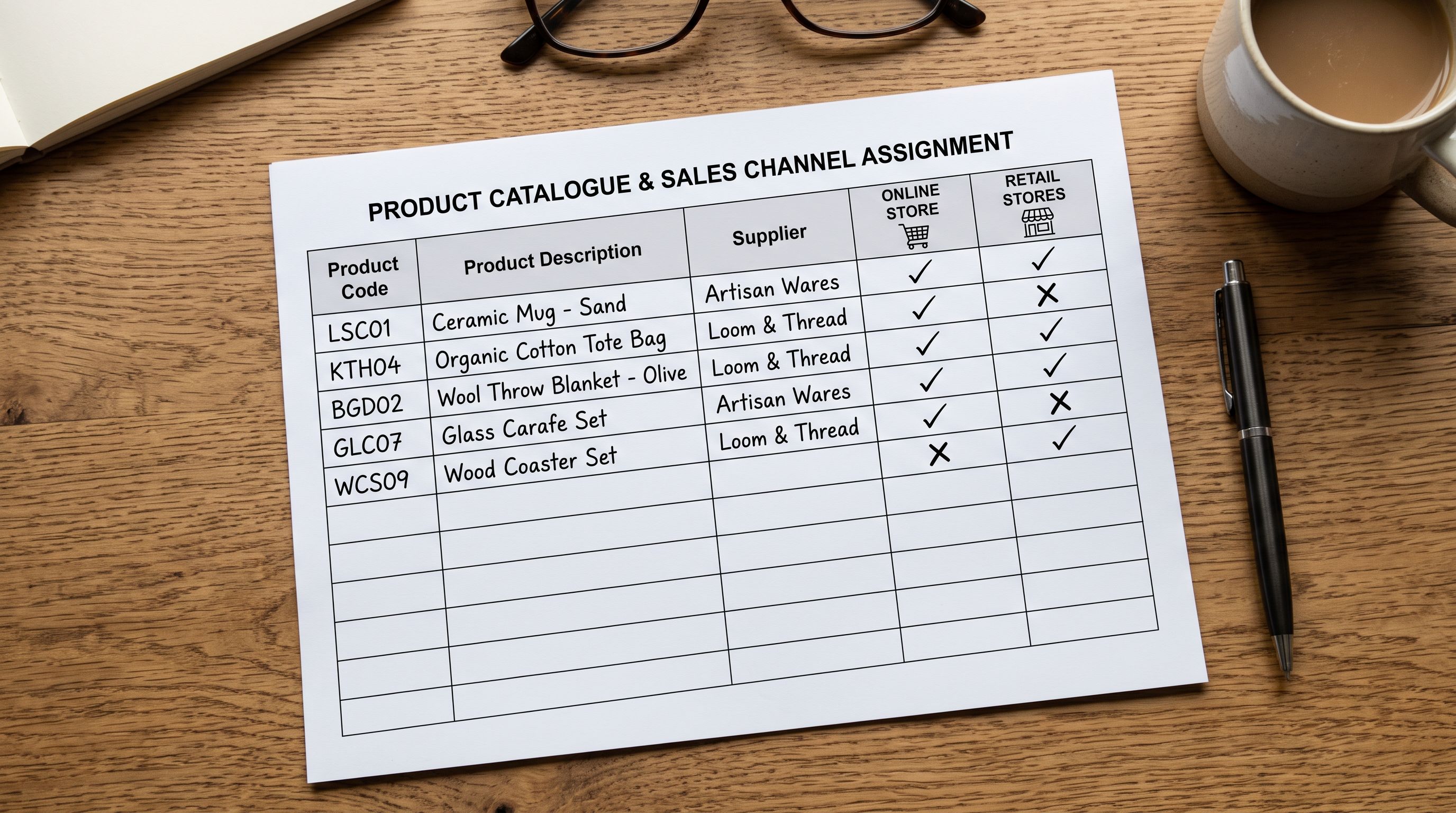
When a merchant imports products via CSV without explicit channel configuration, Shopify applies these defaults:
- **Products marked as active** publish to the Online Store immediately.
- **POS channel** is not assigned unless the import explicitly includes it. Products do not appear in POS product search.
- **Inventory quantity** is assigned to the store's default location. No other location receives stock.
- **Location availability** (whether a product is tracked at a specific location) follows the account's default inventory tracking settings.
These defaults exist for good reasons: most Shopify merchants run online stores only and do not need POS configuration. But for omnichannel retailers, the defaults actively misrepresent the stock position. A product that is "active" at zero inventory in location B is functionally unavailable to staff at location B, even though the product exists in Shopify and is searchable online.
## POS-Only Products: Handling In-Store Exclusives
Retailers with physical locations often carry products that should not appear online. In-store exclusives, discontinued items being cleared through the physical store, workshop or service bookings, and demonstration units are examples. These products need to be available in POS search but excluded from the Online Store.
In Shopify, this means publishing the product to the POS sales channel without publishing it to the Online Store channel. The product status is "active," but its channel visibility is restricted. A standard bulk CSV import cannot express this configuration. The closest a CSV import gets is setting `Published=FALSE`, which keeps the product as a draft, but that also hides it from POS.
A product published to POS but not the Online Store is active and findable by in-store staff, invisible to online customers, and correctly excluded from Google Shopping feeds. This is the correct state for in-store exclusives. A draft product achieves the invisibility but also breaks POS search.
The import approach for POS-only products requires a separate configuration pass after the initial import: publish these products to the POS channel manually, or use a bulk channel assignment tool after import. Importier's import wizard handles this as part of the channel selector step: merchants designate products or collections as POS-only at import time, so the correct channel assignment applies immediately without a follow-up operation.

## Inventory by Location: Why All Stock Lands in One Place
The default location problem is one of the most consistent pain points for omnichannel Shopify retailers doing bulk imports. Here is how it manifests.
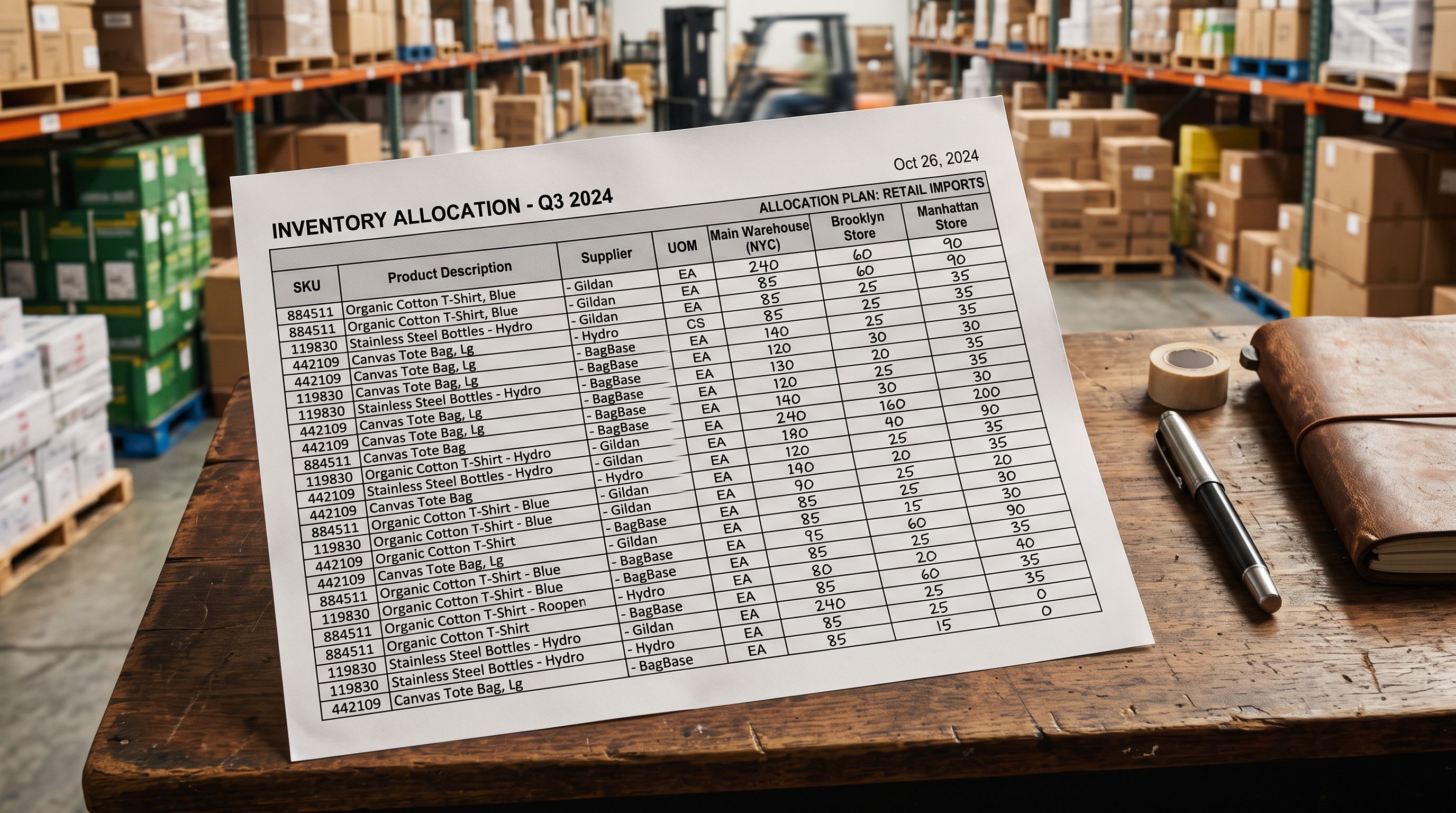
A retailer imports 200 products with quantities from a supplier CSV. Shopify assigns all inventory to "Warehouse Main" (their default location). Their two retail stores ("Surry Hills" and "Newtown") show zero stock for every imported product. POS at both stores displays every product as "unavailable at this location." Staff assume the products have not been imported. The operations manager spends a day manually transferring stock in Shopify admin, moving units from the warehouse to each store, for every newly imported product.
This is not a Shopify bug. It is the expected behaviour when an import file does not specify per-location inventory. Shopify cannot infer how a merchant wants to split stock across locations; it defaults to the primary location.
For retailers with multiple locations, the supplier CSV needs additional columns: one per location, showing the quantity available at each. Shopify's native import format does not support per-location inventory columns directly. The workaround using Shopify's native importer is a multi-step process: import the product, then use inventory adjustments or transfers to allocate stock. Importier's location mapping step at import time resolves this by accepting per-location quantity columns in the source file and mapping them to the correct Shopify locations during the import process.
## The Channel-Available vs Location-Inventory Distinction
This is the non-obvious detail that most documentation misses, and the one that causes the most operational confusion for omnichannel Shopify retailers.
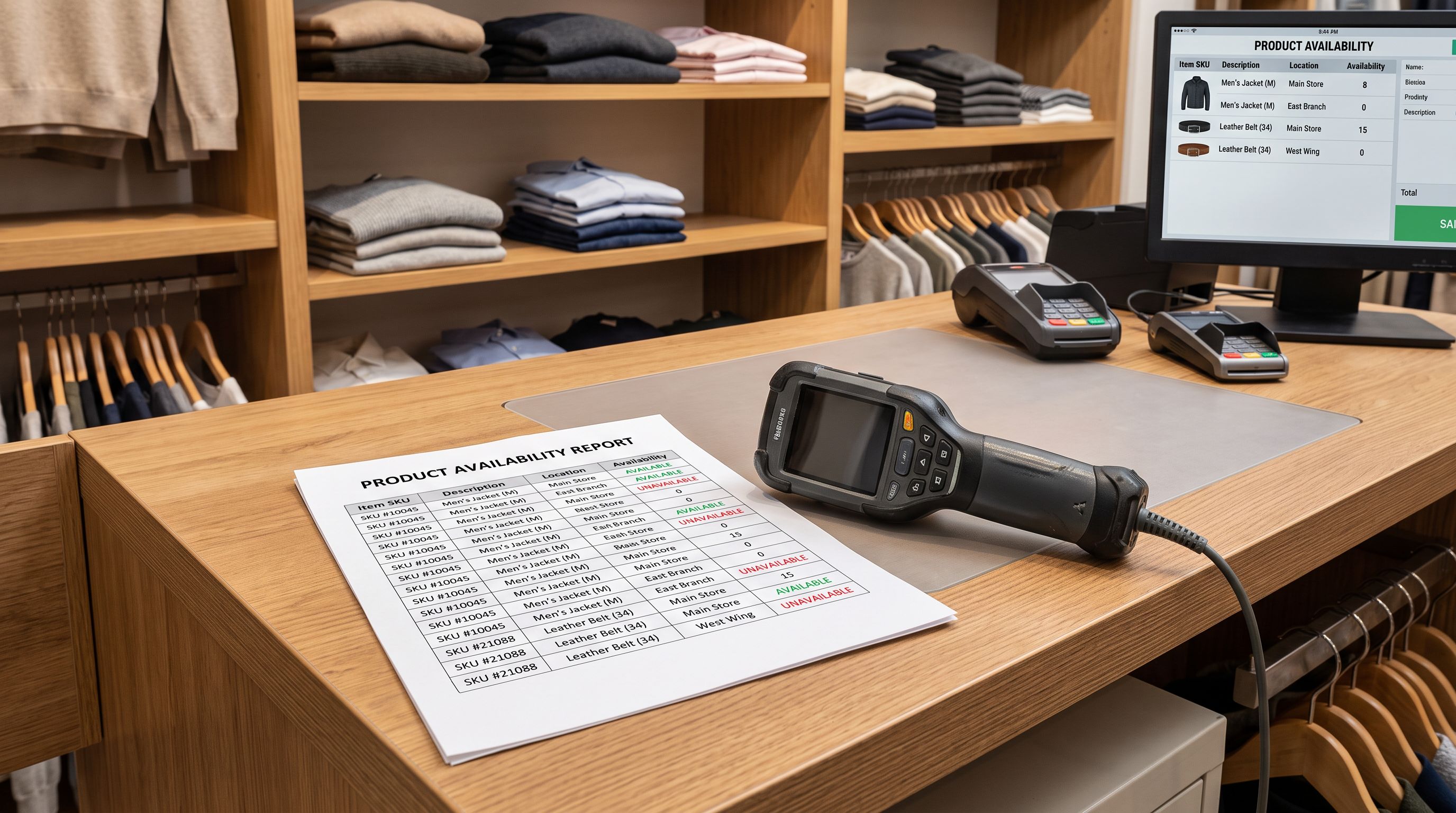
A product can be published to the POS channel (channel-available) but show as unavailable at a specific store (location-inventory at zero). These are two different states, and Shopify POS distinguishes between them differently depending on the version.
When a product is channel-available but has zero inventory at the current location, Shopify POS may show it in search results with an "unavailable" or "out of stock" indicator. Staff see the product, attempt to add it to a sale, and encounter the unavailability warning. In high-traffic retail environments, staff learn quickly that "unavailable" products cannot be sold and stop looking for them. When a product is genuinely in stock at that location but an import put all inventory elsewhere, those units effectively do not exist from the POS perspective.
The distinction matters for diagnosis. If staff report that a product "doesn't show in POS," the cause could be one of two separate problems:
1. The product is not published to the POS sales channel (channel assignment problem; fix is publishing to POS channel)
2. The product is published to POS but has zero inventory at that location (inventory allocation problem; fix is a stock transfer or corrective re-import with location quantities)
These require different fixes. Searching for the product in Shopify POS and seeing it listed as unavailable means the channel assignment is correct. Not seeing the product at all means the channel assignment is missing. After a bulk import that ignored both channel and location settings, a retailer may have both problems simultaneously across different products in the same catalogue.
## Importier's Multi-Channel Import for Omnichannel Retailers
Importier's 14-step import wizard separates channel configuration from product configuration, which is the correct architecture for omnichannel imports.
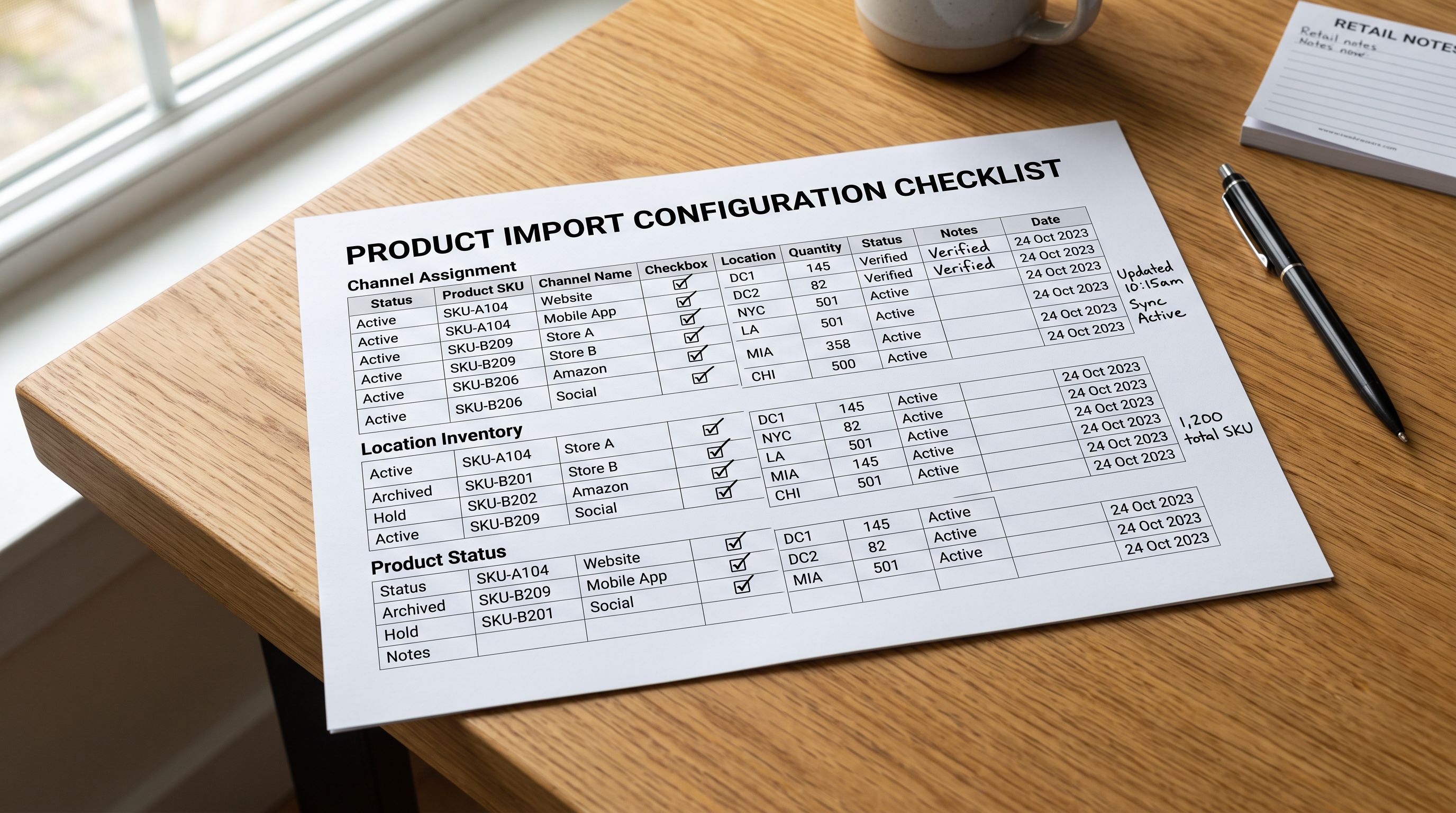
**Channel selector.** At the channel assignment step, merchants choose which sales channels receive each product or product group from the import. Options include Online Store only, Shopify POS only, or both. Products that should appear exclusively in POS are flagged at this step, not after the import completes. The configuration follows the product through the import rather than requiring a manual follow-up pass.
**Location inventory mapping.** The import wizard's inventory step shows all configured Shopify locations for the merchant's account. If the import file includes per-location quantity columns, Importier maps them to the corresponding locations. If the import file only has a single quantity column, the wizard allows the merchant to designate which location receives that quantity, rather than defaulting silently to the primary location.
**Import history by channel.** After import, the history view shows which products were published to which channels and at what quantities per location. For a retailer importing 400 products across three locations, this gives a complete record of the post-import state without opening each product individually.
The broader [multi-location inventory and product import workflow](https://importier.app/blog/shopify-multi-location-inventory-import) in Importier covers stock allocation and transfer configurations in detail. The channel assignment described in this article is the layer above inventory: it controls which channels see the product, while location inventory controls how much stock each channel's location has available.
## Key Takeaways
Shopify's single product catalogue is a feature for omnichannel retailers, but it requires import configuration that goes beyond the product record itself. A standard CSV import configures the product. Channel assignment and location inventory are separate layers that default to Online Store and primary location if not configured explicitly.
- **POS channel assignment is not automatic.** Importing a product as active publishes it to the Online Store. POS requires an explicit channel assignment at import time or as a post-import step. Products missing from POS search have a channel assignment problem, not a product status problem.
- **POS-only products need a channel restriction, not a draft status.** Setting a product to draft hides it from both Online Store and POS. Publishing to POS only (without the Online Store channel) keeps it in POS search while excluding it from online discovery and Google Shopping feeds.
- **Inventory defaults to one location.** A bulk import assigns all quantity to the default location unless the import file specifies per-location values. Retailers with multiple physical stores will see zero inventory at every location except one after a standard import.
- **Channel-available and location-available are distinct states.** A product can be published to POS and simultaneously unavailable at a specific store (because its inventory is at a different location). Staff seeing an "unavailable" warning in POS have a different problem than staff who cannot find the product in search at all.
- **Importier's channel selector and location mapping steps handle both at import time.** Merchants configure which channels receive which products and allocate inventory per location as part of the 14-step import wizard, removing the need for corrective configuration after the import completes.
- **Post-import verification matters for multi-channel imports.** Spot-check one product per location in Shopify admin and one POS-only product in the POS search after every multi-channel import. The [products imported as drafts](https://importier.app/blog/shopify-products-imported-as-drafts) article covers how to diagnose and bulk-fix publication status problems across a catalogue when they are caught after the fact.
Configure channel and location settings at import at [importier.app](https://importier.app).