# Shopify Missing Product Type After Import: What to Fix
> Importing products without a Product Type breaks smart collections, Google Shopping feeds, and storefront filters. How to fix and prevent it.
- Published: 2026-08-20
- Author: Importier Team
- Category: Store Management / SEO & Discoverability
- Canonical: https://www.importier.app/blog/shopify-missing-product-type-after-import
---
A women's fashion retailer imports 240 products from a supplier CSV. The import completes without errors. Every product appears in the Shopify admin with a title, description, price, and images. The merchant sets up a smart collection called "Dresses" using the condition "Product type is equal to Dresses". The collection stays empty.
Three days later, a customer emails asking why the store has no Dresses category. The merchant opens the admin and finds every imported product has a blank Product Type field. The smart collection condition fires on product type. With no product type on any product, the condition matches nothing.
A shopify missing product type after import is one of the more disruptive import problems because it is invisible at import time. The import reports success. The products appear to be complete. The damage only becomes visible when collections stop working, Google Shopping feeds get disapproved, or storefront filters return no results.
## Why Product Type Is Missing After Import
There are three common causes.
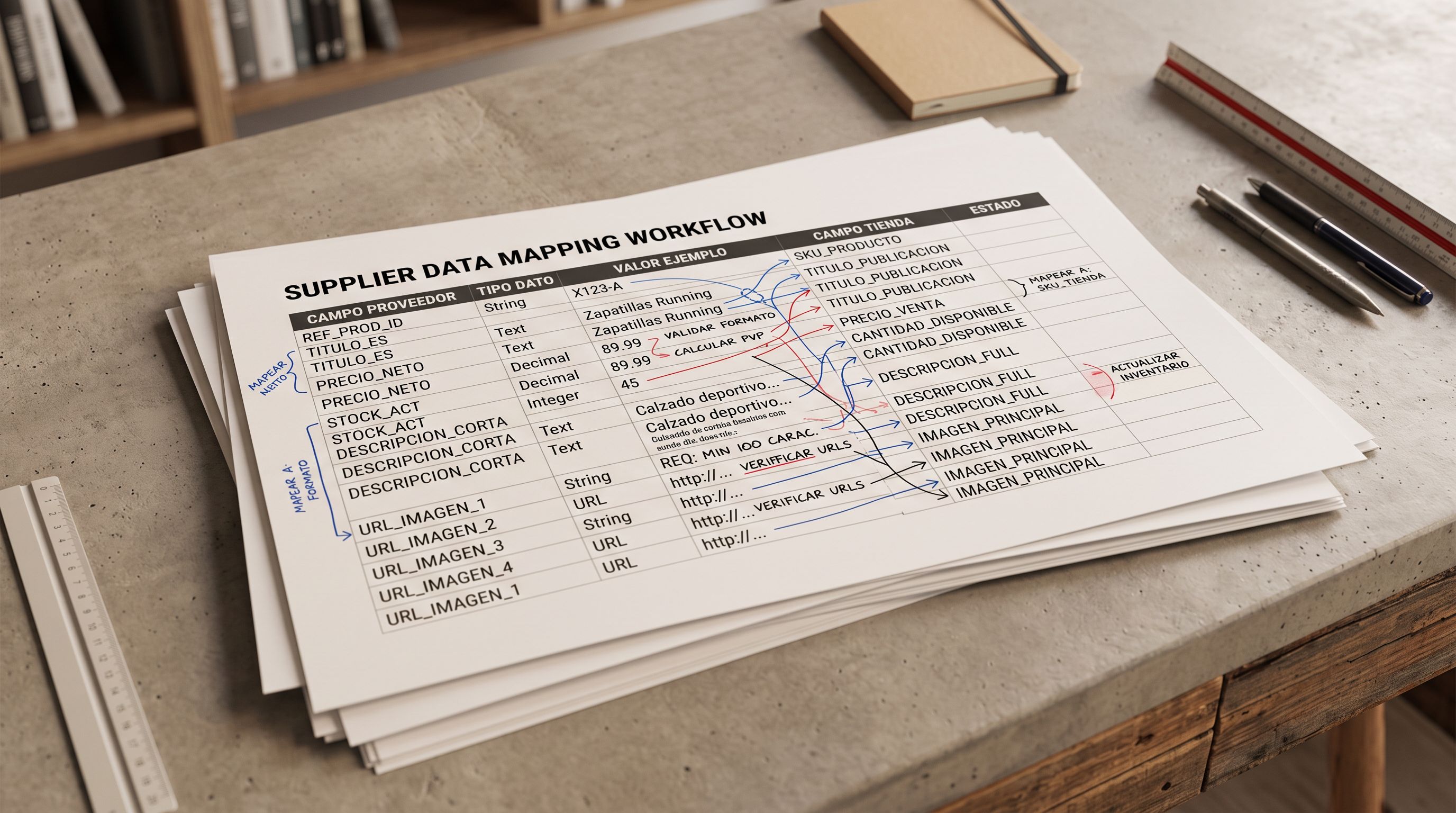
**The supplier CSV uses a different column name.** [Shopify's product import format](https://help.shopify.com/en/manual/products/import-export/import-products) expects a column named "Type". Supplier CSVs often use "Category", "Product Category", "Department", "Classification", or "Item Type" for the same data. Shopify's native importer sees no column named "Type" and leaves the Product Type field blank for every product.
**The supplier CSV has no category column at all.** Some suppliers send product data as a flat list: title, SKU, price, barcode, images. No categorisation. If the source data does not include a category field, it cannot be mapped to Shopify's Product Type regardless of how the import is configured.
**The column was mapped incorrectly during import.** In an import wizard with a column mapping step, the "Category" column may have been mapped to Tags or to a custom field rather than to Type. The products import with all other fields populated, but Type is blank.
Shopify's Product Type field and Google Merchant Centre's product_type attribute are related but not the same thing. Shopify's Product Type is a plain text field you control: "Dresses", "Running Shoes", or anything you choose. Google's product_type attribute in the Shopping feed is also a text field that accepts the merchant's own categorisation. Both serve as the merchant's label for what the product is. They are different from google_product_category, which requires a specific numeric ID from Google's official product taxonomy. A missing Shopify Product Type means a missing product_type in the Shopping feed, which affects how Google understands and categorises your products.
## What Breaks When Product Type Is Missing
**Smart collections stop working.** Smart collections that use "Product type is equal to [value]" as a condition match zero products when Product Type is blank. This is the most immediately disruptive consequence: an entire product category becomes invisible to customers even though the products exist in the admin.
**Google Shopping feed classifications are degraded.** When Shopify sends product data to the Google channel, the product_type field in the feed is sourced from Shopify's Product Type. A blank Product Type means a missing product_type in the feed. [Google's Shopping Content API documentation](https://developers.google.com/shopping-content/reference/rest/v2.1/products) lists product_type as a recommended attribute. Missing or inconsistent product_type values reduce Google's confidence in product categorisation, which can affect Shopping ad placement and approval rates.
**Storefront collection filters do not show the product type option.** Storefront filtering on Shopify Online Store themes uses available product type values to build the filter menu. When products have no product type, the Product Type filter option either does not appear or returns no results when clicked.
**Reporting and analytics are incomplete.** Shopify's built-in product reports group by product type. A catalogue with blank product types produces a single "No product type" bucket that contains everything, making the report useless for understanding which categories drive revenue.

## Identifying Which Products Are Affected
Before fixing, confirm the scope. In Shopify admin, go to Products and filter by "Product type: is empty". This shows every product with a missing product type in the current catalogue.
For a recently imported batch, the count should match the number of products in that import. If 240 products were imported and 240 show empty product type, the entire import was missing the field.
If previous products have product types and only the new batch is blank, the problem is specific to the import configuration rather than the catalogue overall.
## How to Fix Existing Products
**Option 1: Shopify admin bulk edit.** In Products, select all affected products using the filter for empty product type, then use the bulk edit action to set Product Type for the selection. This works when all the affected products belong to a single product type. For a catalogue with multiple types across the blank products (e.g., Dresses, Tops, and Jackets all missing their type), bulk edit applies one value to the entire selection, requiring multiple passes.
**Option 2: CSV re-import with the correct mapping.** Export the affected products using Shopify's native export or Importier's Full Shopify CSV preset. Add a "Type" column with the correct product type values for each product. Re-import with the update set to overwrite existing products. This approach handles multiple product types in a single re-import, and allows bulk-filling product types using formulas if the products have patterns in their names or other fields that indicate their type.
**Option 3: Importier Store Scanner bulk update.** Importier's Store Scanner identifies all products in the Shopify store that are missing a product type and lets the merchant apply product type values in bulk. For catalogues where the product type can be inferred from the product title or existing tags, the Store Scanner can apply the correct value to each product without a CSV export-import cycle.
A blank Product Type field is not a minor gap. It breaks collections, degrades feed quality, and hides products from storefront filters. Fixing it is worth prioritising over other post-import cleanup tasks.
## Preventing It at Import Time
The most reliable fix is not to let the problem reach Shopify in the first place. Importier's import wizard addresses all three causes of missing product type.
**For supplier CSVs with a non-standard column name.** In the column mapping step, Importier shows every column in the source file and lets the merchant map each one to the corresponding Shopify field. A supplier column named "Category" maps to Shopify's "Type" field with a single mapping selection. Importier saves the mapping per import profile, so the next import from the same supplier uses the same mapping without re-configuration.
Read more about [how column mapping handles non-standard supplier column names](https://importier.app/blog/shopify-import-column-mapping) for the full workflow of mapping any source column to any Shopify field.
**For supplier CSVs with no category column.** When the source data has no category field at all, the product type cannot be mapped from the file. Importier addresses this through Industry Packs. Selecting the relevant Industry Pack during import applies industry-standard product type values based on the product content. A women's apparel Industry Pack includes product type mappings for dresses, tops, jackets, and other categories that Importier assigns based on the product title and description. The product type is populated at import time without requiring the merchant to manually set it for each product.
**The Import Review step as a quality check.** Before any product reaches Shopify, Importier's Import Review step shows every product with its mapped field values. The Product Type column is visible for every product. If a product shows an empty Type field in the review step, the merchant can add it before pushing. Catching the gap at review time costs a few minutes of editing; catching it after the import takes orders of magnitude longer to fix.
## Product Type and Google Shopping Feed Quality
Google's Shopping feed receives product data from Shopify's Google channel. The product_type field in the feed corresponds directly to Shopify's Product Type field. When Product Type is blank on import, the feed sends empty product_type values to Google.
An empty product_type is not grounds for automatic feed disapproval: Google's required attributes for Shopping are GTIN, title, description, image link, link, price, and availability. But product_type is a recommended attribute that Google uses to understand what the product is and how to classify it within Shopping categories.
Products with missing product_type values rely entirely on google_product_category (the numeric taxonomy ID) for classification. If google_product_category is also missing or incorrect, Google has no reliable signal for what the product is and will either classify it loosely or deprioritise it in Shopping results.
For Importier merchants who use Industry Packs, the metafield attributes include the relevant google_product_category values for each product type. The Product Type field is populated at import time, and the category metafields provide the numeric taxonomy values needed for the Shopping feed. Both fields arrive in Shopify correctly in a single import pass, rather than requiring a separate fix-up step.

Setting up the column mapping correctly at import time removes the need for any post-import fix-up. The supplier's category column becomes Shopify's Product Type before a single product lands in the admin.
## Key Takeaways
A shopify missing product type after import breaks smart collections, degrades Google Shopping feed quality, and prevents storefront filters from working. The problem is silent at import time and only surfaces when collections and feeds are checked.
- **Three causes:** supplier CSV uses a different column name (Category instead of Type), supplier CSV has no category data, or the column was mapped to the wrong Shopify field during import.
- **Three things that break:** smart collections that use product type as a condition stay empty, Google Shopping feed sends empty product_type values, and storefront collection filters return no results.
- **Fix existing products** using Shopify's admin bulk edit for single-type batches, CSV export-edit-reimport for multi-type batches, or Importier's Store Scanner for catalogues where product type can be inferred.
- **Prevent it at import time** using Importier's column mapping step to translate non-standard supplier column names to Shopify's Type field before any product is pushed.
- **Industry Packs fill the gap** when the supplier CSV has no category column at all: the pack assigns product type values based on product content during the import pass.
Read more about [what happens when smart collections stay empty after an import](https://importier.app/blog/shopify-smart-collections-missing-products) for the full picture of collection conditions and why imported products can bypass them.
Fix missing product types at [importier.app](https://importier.app).