# Shopify Import Special Characters: Fix Garbled Text
> Accented characters in product titles and descriptions turn to garbled text after a Shopify CSV import. Here is why it happens and how to fix it before importing.
- Published: 2026-07-26
- Author: Importier Team
- Category: Import Guides / File Imports
- Canonical: https://www.importier.app/blog/shopify-import-special-characters
---
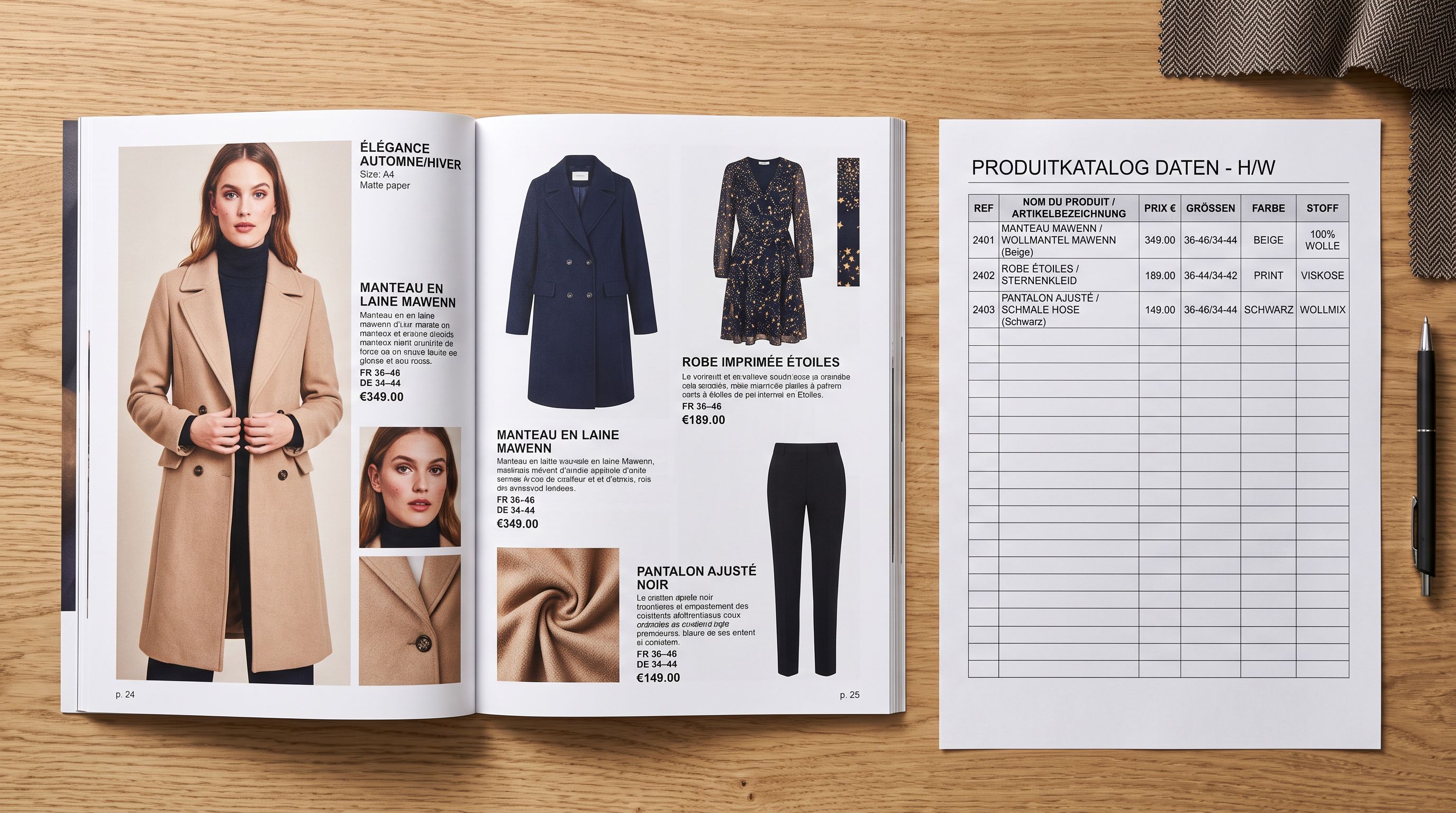
A French fashion merchant imports 300 products from a Parisian supplier. The supplier exports their product list from their inventory management system, which produces a CSV file. The import runs without errors. No warnings, no failed rows. When the merchant opens Shopify admin to check the results, every product name and description containing an accented character shows garbled text. "Robe Élégante" has become "Robe Élégante". "Façade" is now "Façade". The fabric composition "Soie 100%" is unaffected because it contains no accented characters. But 200 of the 300 products need corrections before the store can open.
The cause is not corrupted data. The supplier's file is correct. The problem is a character encoding mismatch: the file was saved in one encoding and read in another, turning every non-ASCII character into a predictable sequence of gibberish.
Understanding shopify import special characters problems requires understanding how text encoding works and where the mismatch enters the import pipeline.
## Why Shopify Import Special Characters Go Wrong
Every character stored in a file is represented as one or more bytes. A character encoding is the rulebook that maps bytes to characters. The letter "A" is byte 65 in most encodings and is never a problem. The accented letter "é" is where encodings diverge.
**UTF-8** is the web standard. It represents "é" as two bytes: 0xC3 followed by 0xA9. Most modern software, including Shopify's import system, reads CSV files assuming they are UTF-8 encoded.
**Windows-1252** (also called CP-1252) is an older Microsoft encoding that was the default in Windows for Western European languages. It represents "é" as a single byte: 0xE9. Microsoft Excel on Windows still saves CSV files in Windows-1252 by default when the user clicks File → Save As → CSV.
When Shopify reads a Windows-1252 byte 0xE9 as if it were UTF-8, it looks for a valid two-byte sequence. 0xE9 followed by a space or the next character forms an invalid UTF-8 sequence, so the browser or display layer often substitutes the replacement character or attempts to interpret nearby bytes as a multi-byte character. The result is the string "é" appearing where "é" should be.
This is the core of every shopify import special characters problem that involves European languages: the file is Windows-1252, Shopify expects UTF-8, and every character outside the ASCII range (bytes above 127) produces garbled output.
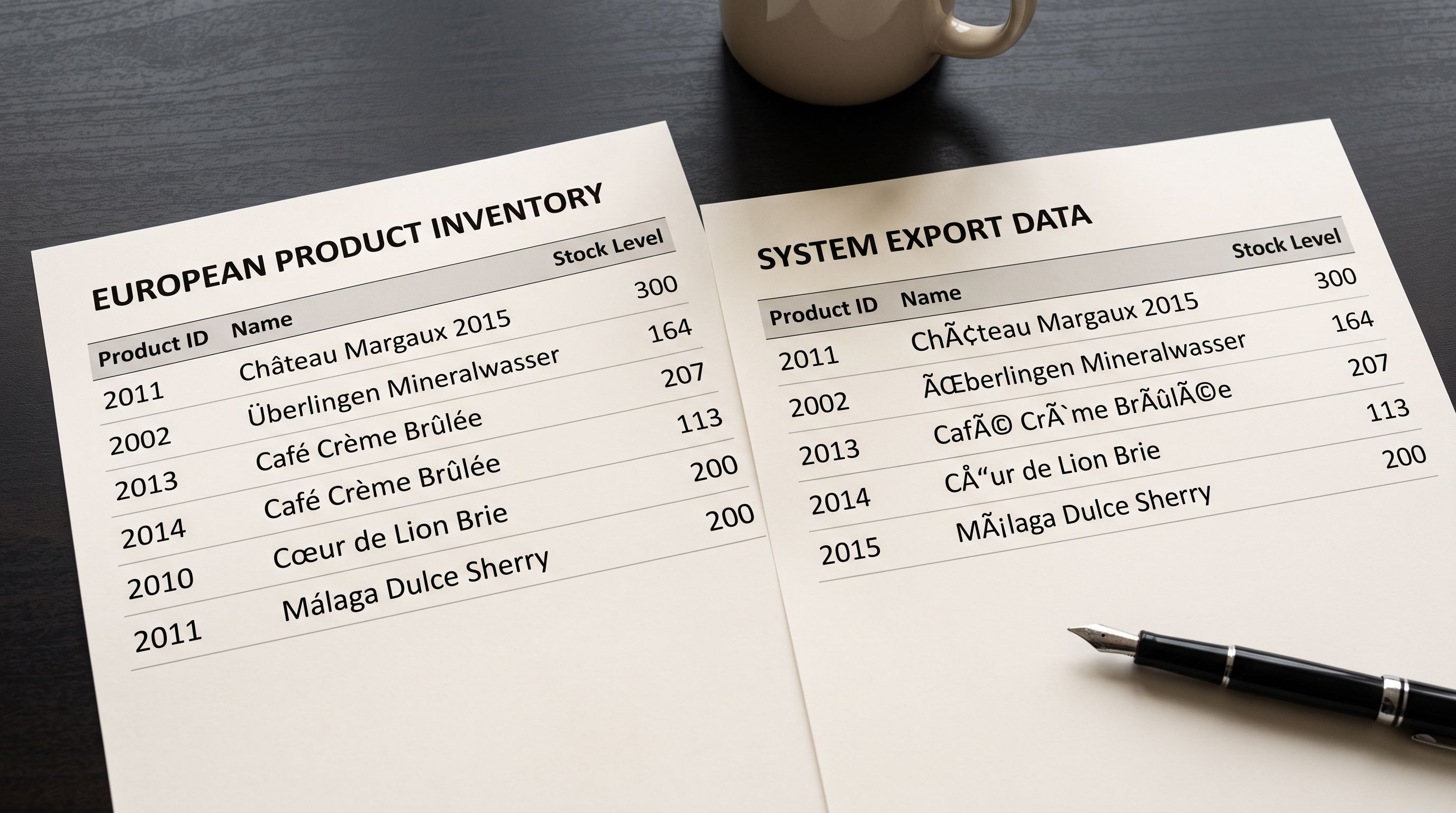
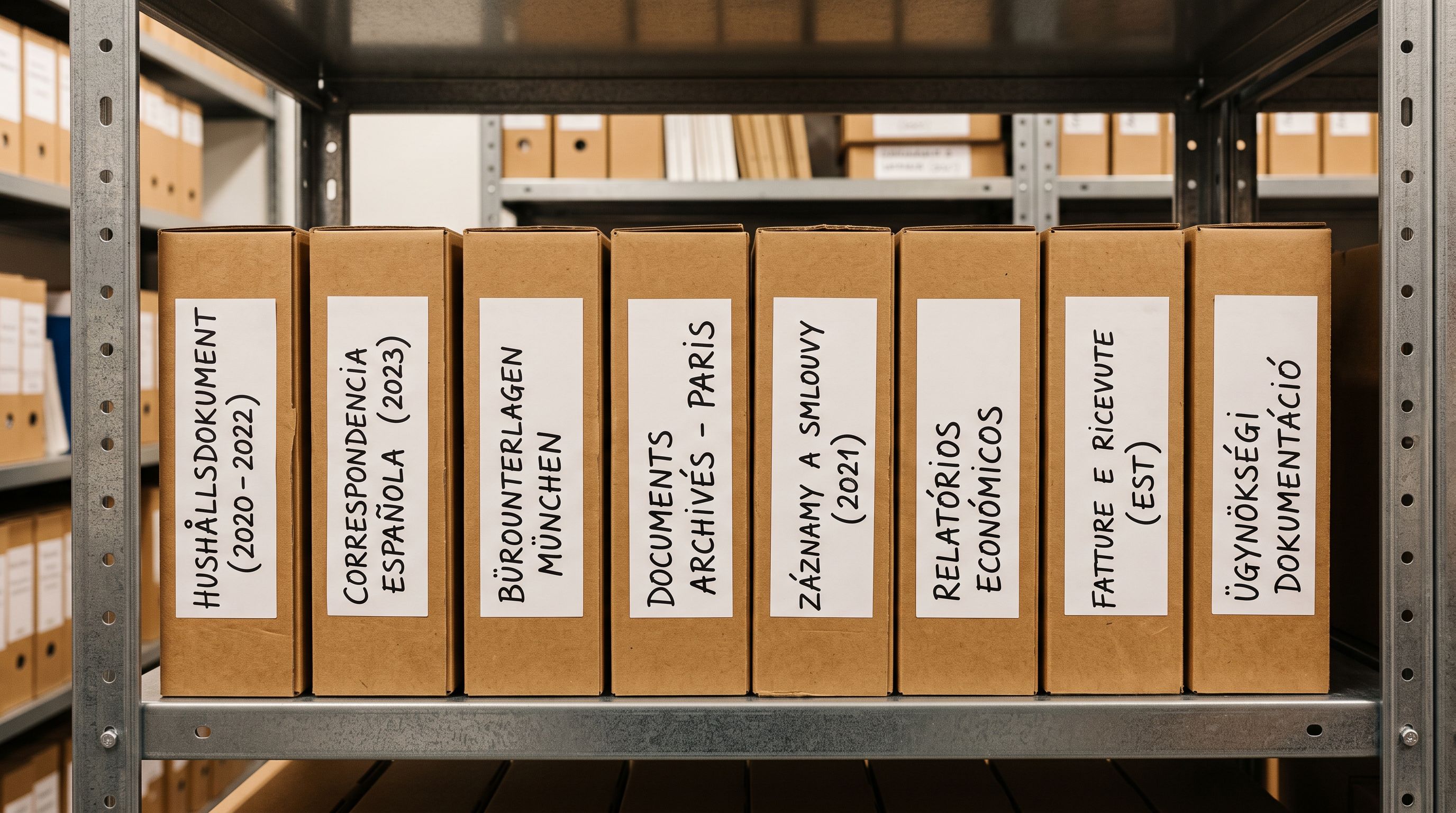
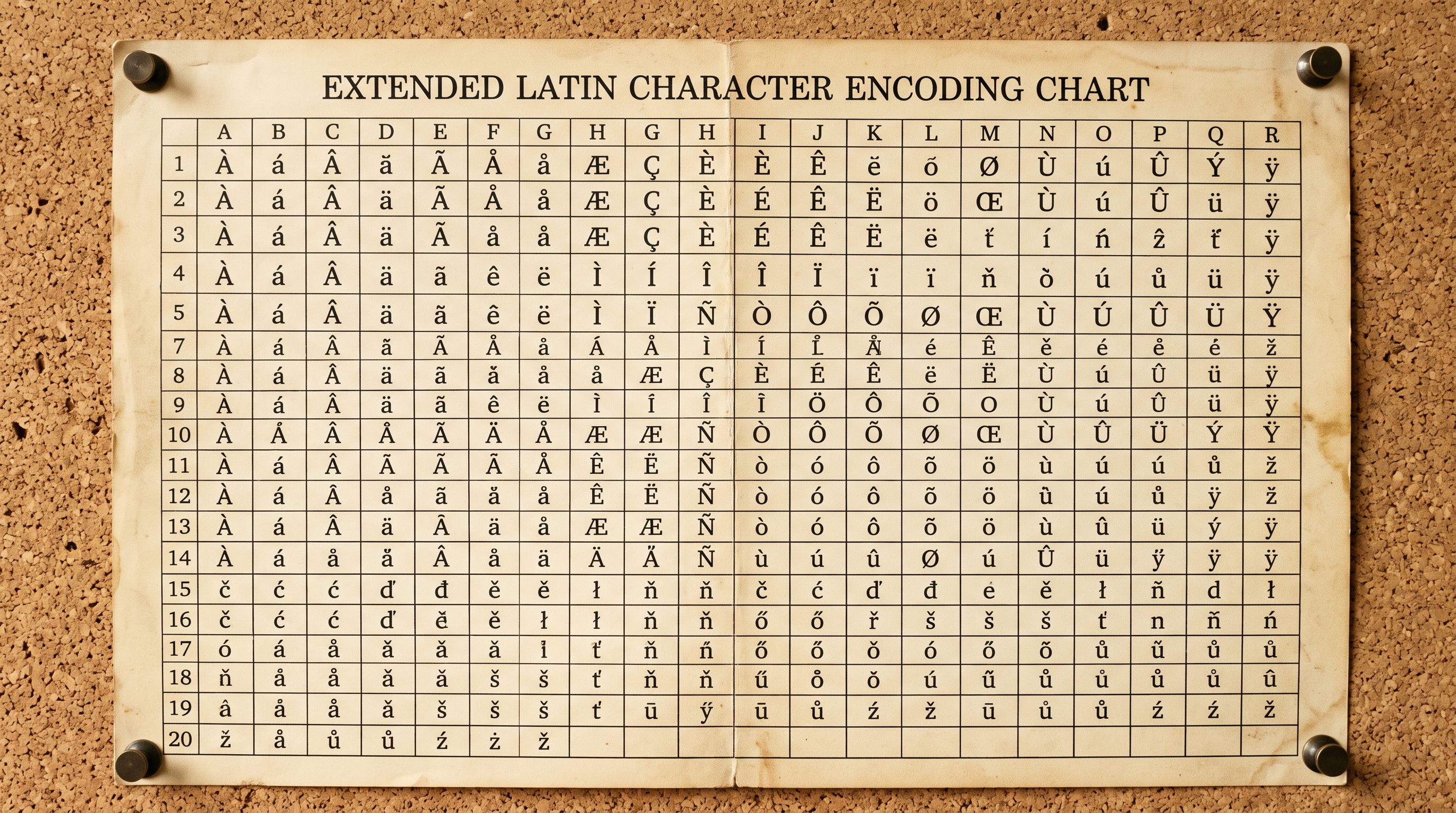
Windows-1252 encoding problems appear in any product catalogue that uses characters outside the 26-letter Latin alphabet. French (é, à, ç, ü), German (ä, ö, ü, ß), Spanish (ñ, á, é), Portuguese (ã, ç, ó), Italian (à, è, ì), and Nordic languages (ø, å, æ) are the most common. Catalogues from suppliers in these regions that use Excel as their export tool are the most likely source of Windows-1252 encoded files.
## The Predictable Mojibake Pattern
The garbling that results from a Windows-1252-to-UTF-8 mismatch is not random. It follows a completely predictable pattern that can be used to identify an encoding problem without opening the file in a hex editor.
The term for this garbled output is mojibake (文字化け), a Japanese portmanteau meaning "character transformation." The pattern emerges because UTF-8 uses 0xC3 as the first byte of many two-byte sequences for Latin extended characters. When a Windows-1252 byte sequence is read as UTF-8, 0xC3 appears as "Ã" and the following byte appears as the character that byte represents in Latin-1.
Common mojibake substitutions from Windows-1252 read as UTF-8:
- "é" (0xE9) becomes "é"
- "è" (0xE8) becomes "è"
- "à" (0xE0) becomes "Ã "
- "ü" (0xFC) becomes "ü"
- "ö" (0xF6) becomes "ö"
- "ä" (0xE4) becomes "ä"
- "ç" (0xE7) becomes "ç"
- "ñ" (0xF1) becomes "ñ"
- "É" (0xC9) becomes "É"
- "Ü" (0xDC) becomes "Ãœ"
The diagnostic marker is the letter "Ã" appearing before a lowercase letter or punctuation in product titles or descriptions. If a merchant opens Shopify after an import and sees "Ã" scattered through their product data, the file was Windows-1252 and Shopify read it as UTF-8. The fix is not to correct 300 individual products. It is to fix the encoding of the source file and re-import.
A second common encoding mismatch involves UTF-8 with BOM (Byte Order Mark). Some tools prefix UTF-8 files with a three-byte signature (0xEF 0xBB 0xBF) that marks them as UTF-8. When software that does not expect the BOM reads the file, the BOM bytes appear as a visible character (typically "") at the beginning of the first cell in the first row. This causes the column header in the first column to be read as "Title" instead of "Title", which means Shopify does not recognise the Title column and creates products with blank titles.
Seeing "Ã" in product titles after a Shopify import is a precise diagnostic signal. It means the source file was Windows-1252 encoded and the import system read it as UTF-8. Every character above ASCII 127 in the original file has produced this pattern.
## Where the Encoding Problem Enters the Pipeline
Understanding where encoding problems originate determines the fastest fix.
**Excel saving as CSV** is the most common source. When a supplier exports their catalogue from any database or ERP system to Excel and the merchant then saves as CSV, Excel's default on Windows is Windows-1252 for European locales. The supplier did nothing wrong and the data is correct in the XLSX file. The problem appears in the CSV that Excel produces.
**Accounting and ERP exports** are the second common source. Legacy inventory systems often export in Windows-1252, ISO-8859-1, or ISO-8859-15 rather than UTF-8. The export option exists but requires the user to select "Unicode (UTF-8)" explicitly, and many suppliers' operations staff do not know to do this.
**Google Sheets to CSV** does not have this problem. Google Sheets always saves CSV files as UTF-8. A supplier who exports directly from Sheets produces a file Shopify can read without encoding issues.
**Database exports** from modern systems (MySQL, PostgreSQL, MongoDB) are almost always UTF-8. SQL-based exports from well-maintained databases rarely produce encoding problems.
The fix depends on where in the pipeline the merchant has access:
- If the supplier provides XLSX, open in Google Sheets (File → Import → Upload) and download as CSV from there. Google Sheets preserves the original characters and exports UTF-8.
- If the supplier provides CSV, open it in a text editor that shows the encoding (VS Code, Notepad++, Sublime Text) and resave as UTF-8.
- If using Excel, choose "CSV UTF-8 (comma-delimited)" in the Save As type dropdown instead of "CSV (comma-delimited)". This option was added to Excel in 2016 and is present in all modern versions.

## How to Confirm the Encoding Before Importing
The fastest confirmation tool is a text editor that displays the file encoding. VS Code shows the encoding in the status bar (bottom right corner). Opening a Windows-1252 CSV in VS Code shows "Windows 1252" in the status bar. Opening a UTF-8 file shows "UTF-8". The encoding can be changed in the editor and the file resaved.
For merchants without a developer's toolkit, a reliable alternative is to open the CSV in Google Sheets before importing:
1. Open a blank Google Sheet
2. File → Import → Upload → select the CSV
3. In the import options, set "Convert text to numbers, dates, and formulas" to No
4. Click Import data
5. Check a product title that should contain accented characters. If it shows correctly (é appears as é, not é), the encoding was either already UTF-8 or Sheets corrected it on import
6. Download as CSV from Sheets (File → Download → Comma-separated values)
7. Import the downloaded CSV into Shopify or Importier
Google Sheets is reliable because it detects encoding automatically on import and stores data internally as Unicode. The CSV it exports is always UTF-8.
According to [the W3C's guidance on character encoding](https://www.w3.org/International/questions/qa-what-is-encoding.en), UTF-8 is the recommended encoding for all web content and data exchange because it can represent every character in every language without encoding conflicts. Shopify's import system follows this recommendation by treating CSV files as UTF-8 by default.
## How Importier Handles Shopify Import Special Characters
Importier's import wizard reads the file encoding before displaying the preview. The preview step shows a sample of product data from the actual file, so encoding problems become visible before any products are written to Shopify.
For a merchant who uploads a Windows-1252 CSV, the preview step will show the garbled "é" sequences in the product title column. The merchant can cancel, re-encode the file, and re-upload. The [column mapping step](https://importier.app/blog/shopify-import-column-mapping) that follows the preview is not reached until the data sample looks correct.
This is different from Shopify's native CSV import, which commits the import before the merchant can review the data. By the time the encoding problem is visible (in the products list), 300 products with garbled titles are already in Shopify. Correcting them requires either editing each product individually, running a corrected re-import to overwrite the garbled data, or using Importier's Import Undo to remove the entire batch and start again with the corrected file.
Importier also handles the UTF-8 BOM issue: if the first row's first column header includes the BOM bytes, Importier strips them and reads the header as the intended column name. A CSV that a naive UTF-8 reader would treat as having a column called "Title" is read as "Title" after BOM stripping.
For suppliers who consistently provide Windows-1252 files, Importier's saved import profiles store the column mapping for recurring imports. Once the encoding issue is resolved and the correct mapping is confirmed, subsequent imports from the same supplier use the saved profile without requiring re-mapping.
## Other Special Character Problems in Shopify Imports
Encoding mismatch is the most common cause of garbled characters, but two other special character problems appear frequently.
**HTML entities in descriptions.** Some supplier systems export product descriptions with HTML entities: `&` instead of `&`, `<` instead of `<`, `©` instead of `©`. When imported, these appear as literal strings in the Shopify product description rather than being rendered as the intended characters. The fix is to decode the entities in the source file before importing: find-and-replace `&` with `&`, `<` with `<`, and so on. Importier's preview step shows the description as it will appear in Shopify, so literal entity strings in the preview indicate an entity-decoding step is needed.
**Smart quotes and typographic characters from Word or Pages.** Descriptions copied from Microsoft Word or Apple Pages often contain typographic characters that look like standard punctuation but are not: " " (curly quotes, Unicode 0x201C and 0x201D) instead of " (straight quote, ASCII 34), and ' ' (curly apostrophes) instead of ' (straight apostrophe). These characters import correctly as Unicode in UTF-8 files and display correctly in most browsers. They become a problem only in CSV files that are later read by systems expecting plain ASCII, for example some feed management tools that export to Google Merchant Centre. If this causes downstream problems, a find-and-replace in a text editor to convert curly punctuation to straight punctuation before importing resolves it.
**Zero-width characters.** Descriptions copied from websites sometimes contain invisible zero-width space characters (Unicode 0x200B) or zero-width no-break space characters (Unicode 0xFEFF when not at the start of the file). These characters are not visible but cause search matching problems: a product title "Blue Widget" with a zero-width space embedded in "Widget" is not the same string as "Blue Widget" without it. Shopify search, collection rules, and metafield matching all treat them as different strings. A text editor that shows invisible characters can identify and remove them.
The UTF-8 BOM (byte order mark) is the most surprising encoding problem because it is caused by a file that is technically UTF-8. The BOM is not wrong. It is a valid marker. The problem is that Shopify's CSV parser (and many other CSV parsers) does not expect it and reads it as data. The result is that the first column header has invisible bytes prepended, making the column unrecognisable. Excel's "CSV UTF-8 (comma-delimited)" option includes the BOM; Notepad++'s "Encode in UTF-8 without BOM" option does not. For maximum compatibility, save CSV files as UTF-8 without BOM.

## Shopify Import Special Characters: Key Takeaways
Shopify import special characters problems follow a predictable pattern that makes them diagnosable and fixable before re-importing.
- The most common cause is a Windows-1252 encoded CSV read as UTF-8. Every character outside the ASCII range (any accented letter, currency symbol, or special punctuation) produces garbled output.
- The diagnostic marker is "Ã" appearing in product titles or descriptions after import. This pattern is not random: each garbled sequence corresponds to a specific original character and is fully reversible by correcting the encoding.
- The fastest fix is to open the source file in Google Sheets (which detects encoding automatically) and download a fresh CSV, or to resave the CSV as "UTF-8 without BOM" in VS Code, Notepad++, or Excel's UTF-8 CSV option.
- Importier's preview step shows the product data sample before any products are created in Shopify. Encoding problems appear in the preview, allowing the merchant to cancel, correct the file, and re-upload before 300 garbled products are committed.
- UTF-8 BOM causes the first column header to be read with invisible bytes prepended, making the column unrecognisable. Save as UTF-8 without BOM for maximum compatibility.
- HTML entities in descriptions (`&`, `<`, `©`) appear as literal strings rather than the intended characters. Decode entities in the source file before importing.
- For suppliers who consistently provide Windows-1252 files, Importier's saved import profiles preserve the corrected mapping, so subsequent imports from the same supplier do not require re-diagnosis.
Fix your supplier's CSV encoding before the next import at [importier.app](https://importier.app). Importier's preview step shows exactly what will land in Shopify, so encoding problems are visible before they reach your products.