# Why Shopify Products Import Without a SKU (and What Breaks)
> Shopify products imported without a SKU field break update imports, Google Merchant feeds, and fulfilment. Here is how to fix and prevent it.
- Published: 2026-08-10
- Author: Importier Team
- Category: Import Guides / File Imports
- Canonical: https://www.importier.app/blog/shopify-import-products-missing-sku
---
A fashion retailer imports 380 products from their supplier's Excel file. The import completes without errors. Product titles, descriptions, prices, and images all transfer correctly. Three weeks later, they attempt a price update import. The supplier's new price file uses "Item Code" as the identifier column. The import runs, finds zero matches, and creates 380 new products. Their store now has 760 products: 380 originals with blank SKU fields and 380 new duplicates.
The original import created Shopify products with missing SKU fields because the supplier's "Item Code" column header did not match the expected "Variant SKU" field name. The import wizard left the column unmapped. The merchant had no indication anything was wrong. The products looked correct in Shopify admin. The blank Variant SKU field sat invisible until the first update import.
## Why Shopify products import without a SKU
A Variant SKU field in Shopify requires a deliberate mapping at import time. Import tools auto-map columns based on their header names. A column called "Variant SKU" or "SKU" maps automatically. A column called anything else does not.
Supplier export files use their own naming conventions. The same data that should become a Variant SKU arrives under headers including:
- Item Code, Item #, Item No.
- Part Number, Part No., Part #
- Product Code, Prod Code
- Reference, Ref, Ref No.
- Article Number, Art. No.
None of these auto-map to Variant SKU. They appear in the import wizard as unmapped columns, or they map to a custom metafield if the tool attempts a nearest-match. The result is that the Variant SKU field in Shopify remains blank for every imported product.
Four other common causes lead to the same outcome:
**Supplier files have no identifier column.** Some supplier exports are designed for catalogue browsing, not system-to-system data transfer. The file contains titles, descriptions, images, and prices, but no internal identifier. Without a source column to map, there is no SKU to import.
**The merchant skips the mapping screen.** Import wizards present the column mapping step as routine. Merchants focused on description and price accuracy often confirm the defaults without checking whether an SKU column was found and mapped. The default for an unrecognised column is typically "unmapped", leaving the SKU field blank.
**The import tool does not support Variant SKU as a destination field.** Some lightweight CSV importers handle product-level fields (title, description, price) but do not expose variant-level fields like Variant SKU or Barcode. The merchant cannot map to what the tool does not offer.

**The barcode column was present but not mapped to the right field.** A Barcode column in Shopify is separate from Variant SKU. Mapping a barcode to Variant SKU leaves the Barcode field empty and vice versa. Both fields can serve as match keys for future imports, but only if populated independently.
In Shopify's data model, Variant SKU belongs to each product variant, not the product itself. A product with three size variants has three separate SKU fields. Import tools that operate only at the product level will not populate Variant SKU regardless of what column you map.
## What breaks when Shopify variant SKUs are blank
A blank SKU field is invisible in Shopify's storefront. Customers never see it. The damage is operational and compounds over time.
**Update imports fail to match products.** The most common match key for update imports is Variant SKU. When you receive a new price file from your supplier and attempt to update your existing products by SKU, every product with a blank SKU returns zero matches. The import tool treats them as new products and creates duplicates, or it skips the batch. The [Shopify import SKU mismatch](https://importier.app/blog/shopify-import-sku-mismatch) article covers what happens when the match key does not align. When the match key is entirely absent, the failure is more direct: every product looks like a new addition.
**Google Merchant Centre rejects products without identifiers.** Google's product data specification requires that products in Merchant Centre feeds include either a GTIN (barcode), an MPN (manufacturer part number), or both. For products without these, Google requires the `identifier_exists` attribute set to `false`. Most Shopify-to-Google feed connectors pull the Variant SKU or Barcode field to populate the feed's identifier fields. A blank Variant SKU means the connector sends products without identifiers. Merchant Centre then returns "Missing required attribute: gtin" or "Invalid GTIN" disapproval notices.
According to [Google's product data specification](https://support.google.com/merchants/answer/7052112), GTINs are required for any product a brand manufactures (as opposed to custom or one-of-a-kind items). Merchants who import catalogue products from suppliers and leave the SKU and Barcode fields blank will see portions of their feed disapproved on every submission.
**Fulfilment integrations cannot match orders to warehouse stock.** Third-party logistics providers and fulfilment apps use Variant SKU to match incoming orders to physical inventory locations. When an order arrives for a product with a blank SKU field, the fulfilment system may fail to locate the item. The order fails to route, requires manual intervention, or ships the wrong item.
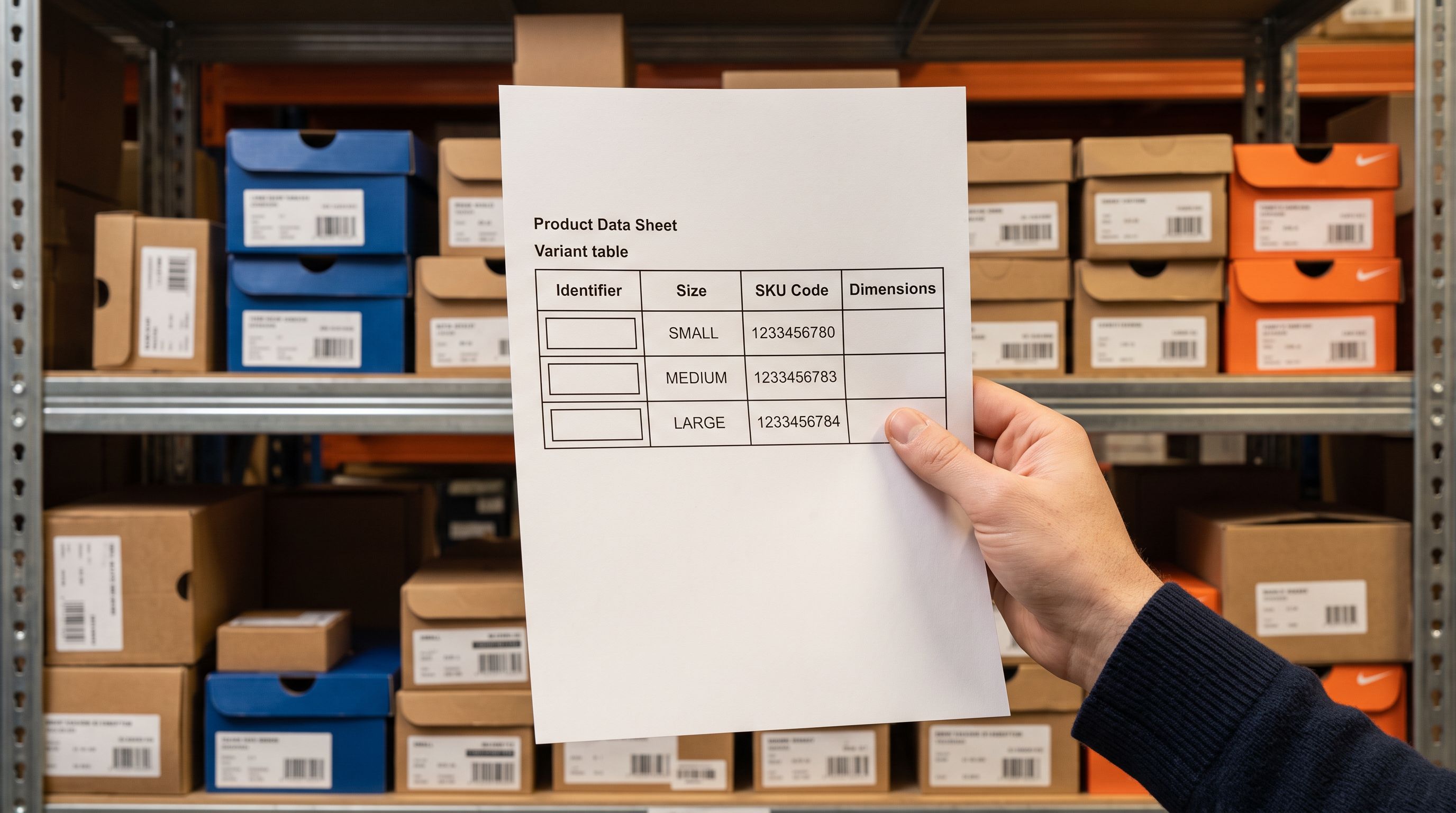
**Inventory management and reordering break.** Merchants who use reorder apps or inventory management tools rely on Variant SKU to correlate a Shopify product variant with its warehouse counterpart or supplier catalogue entry. Blank SKUs make that correlation impossible.
## How to find products with blank SKUs in Shopify admin
Shopify's admin does not include a native filter for "Variant SKU is empty." There is no button to generate a list of SKU-less products. Three approaches work:
**Export and filter in a spreadsheet.** Go to Shopify admin, navigate to Products, and export your catalogue as a CSV using Shopify's [product import and export](https://help.shopify.com/en/manual/products/import-export/import-products) tool. Open the CSV in a spreadsheet application. Filter the "Variant SKU" column for blank cells. The resulting rows are products without SKUs. For a 500-product catalogue this takes around five minutes.
**Check a recent import batch in Importier's Import History.** If you know which supplier file introduced the blank SKUs, Import History shows every product in that batch. Cross-reference the batch against a current export to identify which products still have blank SKU fields.
**Use Shopify's bulk editor.** Navigate to the Products list in Shopify admin, select all products, and open the bulk editor. Add the "SKU" column to the editor view. Rows with blank cells are products missing a SKU. This approach is practical for catalogues under 100 products. For larger catalogues, the export approach is faster.
## Three approaches to fix blank SKUs
Once you know which products have blank SKUs, there are three ways to populate them.
**Option 1: Export, add SKUs, and re-import.**
Export your product catalogue from Shopify admin as a CSV. In the "Variant SKU" column, enter the correct SKU for each blank row. Use your supplier's item code, part number, or an internal numbering scheme you control. Save the file. Re-import using Importier, mapping the Variant SKU column to the Variant SKU field and using Handle as the match key. Because the export contains Shopify Handles, the re-import updates existing products rather than creating duplicates.
When running this re-import, use Importier's column mapping screen to confirm that Handle is set as the match key and that only the Variant SKU (and Barcode, if you are adding that too) column is mapped. Set every other column to "Do not import." This prevents accidental overwrites of fields you did not intend to change, following the same principle covered in [preventing inventory overwrites during imports](https://importier.app/blog/shopify-import-without-overwriting-inventory).

**Option 2: Bulk edit in Shopify admin.**
Shopify admin's bulk editor lets you select multiple products and edit fields in a spreadsheet-style interface directly in the browser. You can add or edit Variant SKU fields without leaving admin. This is practical for catalogues under 50 products. For larger catalogues, the export-and-re-import approach is faster and less error-prone.
**Option 3: Use the supplier's identifier from the original file.**
If you still have the original supplier file, locate the column that should have become the SKU (typically Item Code, Part No., or Reference). Build an update file with two columns: Handle (from a Shopify export) and Variant SKU (from the supplier file), matching rows by product title or another shared field. Import the update file using Importier, mapping Handle as the match key and Variant SKU as the field to update. This preserves the supplier reference as the SKU, keeping future update imports aligned with the supplier's file format.
## Preventing blank SKUs at import time with Importier
The column mapping screen in Importier's 14-step import wizard is where blank SKUs are prevented. When you import a supplier file, every column from the source file is listed alongside its proposed Shopify destination. Importier auto-maps columns whose headers match known field names. For columns with unfamiliar headers such as "Item Code", "Part No.", or "Ref", the wizard shows them as unmapped.
At that point, the merchant has a visible decision: map this column to Variant SKU, or leave it unmapped and accept a blank SKU field for every product in the batch.

A blank Variant SKU in the import preview is the only moment where the problem is free to fix. After the import confirms, you are in recovery mode.
For merchants who receive regular supplier files in the same format, Importier lets you save the column mapping as a named profile after configuring it correctly. The profile stores which column maps to which Shopify field and which columns are excluded. On the next import of a file with the same headers, loading the saved profile applies the same mapping automatically, so "Item Code" always maps to Variant SKU without requiring a manual review on every import run.
## When the supplier file has no identifier column at all
Some supplier catalogues are designed for human browsing, not system-to-system data transfer. They contain titles, descriptions, images, and prices, but nothing that functions as a unique product identifier.
In this case, the merchant must create SKUs before or after import. Common approaches:

**Generate a SKU scheme during import preparation.** Before importing, add a SKU column to the supplier's file using a spreadsheet formula: category abbreviation, product attributes, and a sequence number. A product titled "Ceramic Planter, Natural 180mm" in the Home and Garden category might receive SKU "HG-PLANT-NAT180-001". Apply the formula to all rows before importing. The result is a stable, human-readable identifier that makes future imports, fulfilment, and inventory management reliable.
**Request an identifier column from the supplier.** If you have an ongoing relationship and receive regular updates, asking the supplier to include an Item Code or Part Number in their exports is worth the conversation. Suppliers who export to multiple retailers often have an internal identifier they do not include in consumer-facing files by default.
**Use Shopify's Handle as a temporary match key.** Shopify creates a URL-safe Handle for every product at creation time, derived from the product title. The Handle is unique within your store and can serve as a match key for update imports. It does not put a value in the Variant SKU field, but it makes future updates possible until you can assign proper SKUs.
## Key takeaways
Products imported to Shopify with missing SKU fields are not broken at import time. They look correct in the admin. The damage accumulates invisibly: update imports fail or duplicate, feed disapprovals arrive in batches, and fulfilment errors surface on individual orders. By the time the pattern is clear, hundreds of products need manual SKU entry.
- **Auto-mapping only works when column headers match exactly.** Supplier columns named "Item Code", "Part No.", or "Reference" do not auto-map to Variant SKU. They appear as unmapped in the import wizard and the SKU field stays blank for every product in the batch.
- **Check the import preview for Variant SKU values.** If the Variant SKU column shows blank in the preview before you confirm the import, the mapping is not set correctly. Fix it before confirming, not after 300 products import without SKUs.
- **Update imports that use SKU as a match key will create duplicates instead of updating.** When the match key field is blank, every product looks like a new addition. The import creates new records instead of updating existing ones.
- **Google Merchant Centre requires GTINs or MPNs for most catalogue products.** A blank Variant SKU and Barcode field means your feed connector has no identifiers to submit. Merchant Centre will flag these as "Missing required attribute: gtin."
- **Named mapping profiles prevent recurrence.** Once you configure the mapping from your supplier's identifier column to Variant SKU, save it as a named profile in Importier. The profile applies the same mapping on future imports from that supplier.
- **Fixing blank SKUs in bulk requires a Handle-based re-import.** Export your current catalogue, add SKU values to the blank rows, and re-import with Handle as the match key. Existing products update rather than duplicate.
Map supplier identifier columns to Variant SKU correctly on every import at [importier.app](https://importier.app).