# Shopify Import File Template: Prevent Column Mapping Errors
> Build a Shopify supplier import file template that prevents column mapping errors: required fields, format rules, and per-supplier Importier profiles.
- Published: 2026-09-25
- Author: Importier Team
- Category: Import Guides / File Imports
- Canonical: https://www.importier.app/blog/shopify-import-file-template-supplier
---
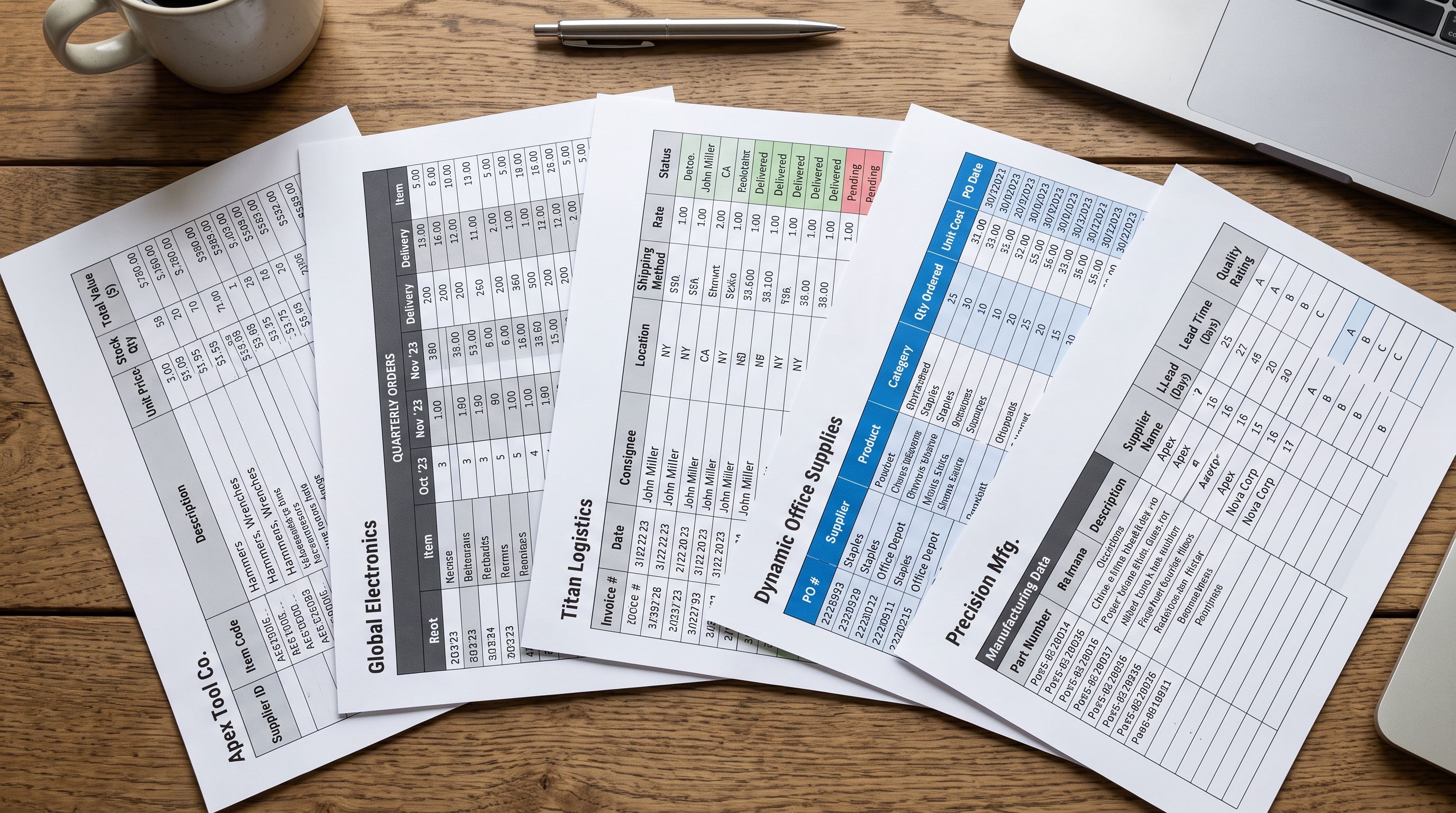
A pet supplies retailer onboarded six new suppliers in one quarter. They sent each supplier an email asking for "a product spreadsheet with all your items." Six spreadsheets came back in six different formats: three in Excel with merged header rows, one as a tab-delimited TXT file, one with the SKU in the column where product titles were expected, and one with 47 columns where only 8 mapped to anything Shopify recognised. The column mapping work for all six files took three days. The first import of the TXT file produced 280 products with the SKU as the title field and the actual product name sitting in the body text.
The problem was not the import. The problem was the absence of a supplier file request template before the first file was requested.
## Why Supplier Files Create Column Mapping Problems
Every supplier exports from their own product information management system, ERP, or stock management software. Those systems were built for the supplier's internal operations. They were not built with Shopify's field structure in mind.
As a result, the column names reflect the supplier's terminology rather than Shopify's. Fields the merchant needs (GTIN, product type, variant options) may be absent entirely because the supplier's system does not track them. Fields that exist in both systems carry different labels: the supplier's "Item Name" is what Shopify calls "Title", their "Retail Price" may include tax, and their internal "Category Code" cannot be used as a Shopify Product Type without transformation.
[Shopify's CSV product import format](https://help.shopify.com/en/manual/products/import-export/using-csv) defines a specific set of field names and value formats that the platform expects. When a supplier file uses different field names and formats, every import requires manual column mapping to bridge the gap. Manual column mapping takes time, introduces errors, and must be repeated for every new file from that supplier unless the mapping is saved as a profile.
The supplier file request template eliminates the mapping gap at its source. Instead of asking suppliers for "a product spreadsheet", merchants send suppliers a blank template with the exact column headers, formats, and example values the import requires. The supplier fills in the template rather than exporting from their internal system in their own format.
Column mapping errors are the most common cause of failed or malformed imports. They are also the easiest category of import problem to prevent, because they originate before the file is created.
## The Five Columns That Cause the Most Import Failures
Before building a template, it helps to understand where column mapping errors concentrate. Five columns account for the large majority of import failures across suppliers in different categories.
**Price.** When the price column contains a currency symbol ($), thousand separator (1,200.00), European decimal format (1200,50), or non-numeric text such as POA or TBC, Shopify reads the field value as zero. A batch of 400 products where 12 rows had dollar signs in the price column imports with 12 zero-price products. The import succeeds; the prices are wrong. Catching zero prices requires post-import QA on every batch.
**Handle or SKU used as title.** Supplier files often have the product code or internal SKU in the first data column, with the actual product name in a later column. When the first column maps to Shopify's Title field by position rather than by name, every product imports with its SKU as the title. This error is nearly impossible to catch visually on large batches and requires a re-import to correct.
**Product Type.** Supplier category codes cannot be used directly in Shopify's Product Type field. Internal codes such as `WMN-ACC`, `4002-B`, or hierarchical strings such as `Home > Furniture > Chairs > Office` produce a Product Type value that matches no collection rule, no filter facet, and no [product type taxonomy](https://importier.app/blog/shopify-product-type-taxonomy) the merchant has defined. The products import correctly and are immediately invisible in all collections and filters.
**Variant Option columns.** Suppliers who store each size or colour as a separate row use a column to carry the option value. That column may be named `Size_Code`, `Option 1`, `Attribute 2`, or something that reflects internal system conventions. Without knowing which column contains the variant option and what its Shopify equivalent is, Importier's variant grouping either creates one product per row or groups incorrectly across unrelated products.
**Image URLs.** Supplier-provided image URLs that point to their internal CDN or staging environment often resolve only within the supplier's network. An image URL that works during the supplier's QA process returns a 403 or 404 at import time, producing products with no attached images. The supplier cannot detect this problem because the URLs work from their side.

## Building the Supplier File Request Template
The example row is the most important element of the template. Every format rule in the world cannot be absorbed as quickly as a working example. The supplier copies the format from the example row, not from the instructions.
A supplier who sees a working example in row 1 reproduces that format. A supplier who reads a format description in row 1 interprets it.
For catalogues with variant products, the template should include enough example rows to show the variant structure clearly. If a dress comes in three sizes, the template should show three rows for that dress: same Title, same description, same images, different values in the `Option1 Value` (Size) and `Variant SKU` columns. A supplier who has never exported in this format needs to see the pattern, not just the column names.

## What to Confirm Before the First File Arrives
The template covers file structure. Three questions must be answered separately before the first import runs.
**Variant structure.** Ask: "If this product comes in three sizes and two colours, how many rows will appear in your spreadsheet?" The answer reveals whether the supplier uses row-per-variant (six rows for the dress with three sizes and two colours) or flat format (one row per product with option values in separate columns). Both formats work in Importier, but the mapping and variant grouping configuration differ. Knowing the structure before the file arrives means the profile is configured correctly on the first import rather than discovered during the column mapping step.
**Update cadence and delta vs full exports.** Monthly full exports and weekly delta files require different profile strategies. A full export replaces the entire batch; a delta file adds to or updates existing products. Importier's update mode handles both, but the import profile should be configured for the expected file type from the start rather than adjusted each time.
**GTIN availability.** Google requires GTINs for product listings in Google Shopping campaigns, and [Google's merchant data specification](https://support.google.com/merchants/answer/7052112) lists barcode as a required attribute for products that have assigned GTINs. Ask each supplier whether barcodes are available in their system and, if so, which column contains them. Add the column to the template before the first file is sent. Retrofitting a barcode column into an established import process requires re-collecting data that the supplier already had.
## Maintaining Per-Supplier Import Profiles
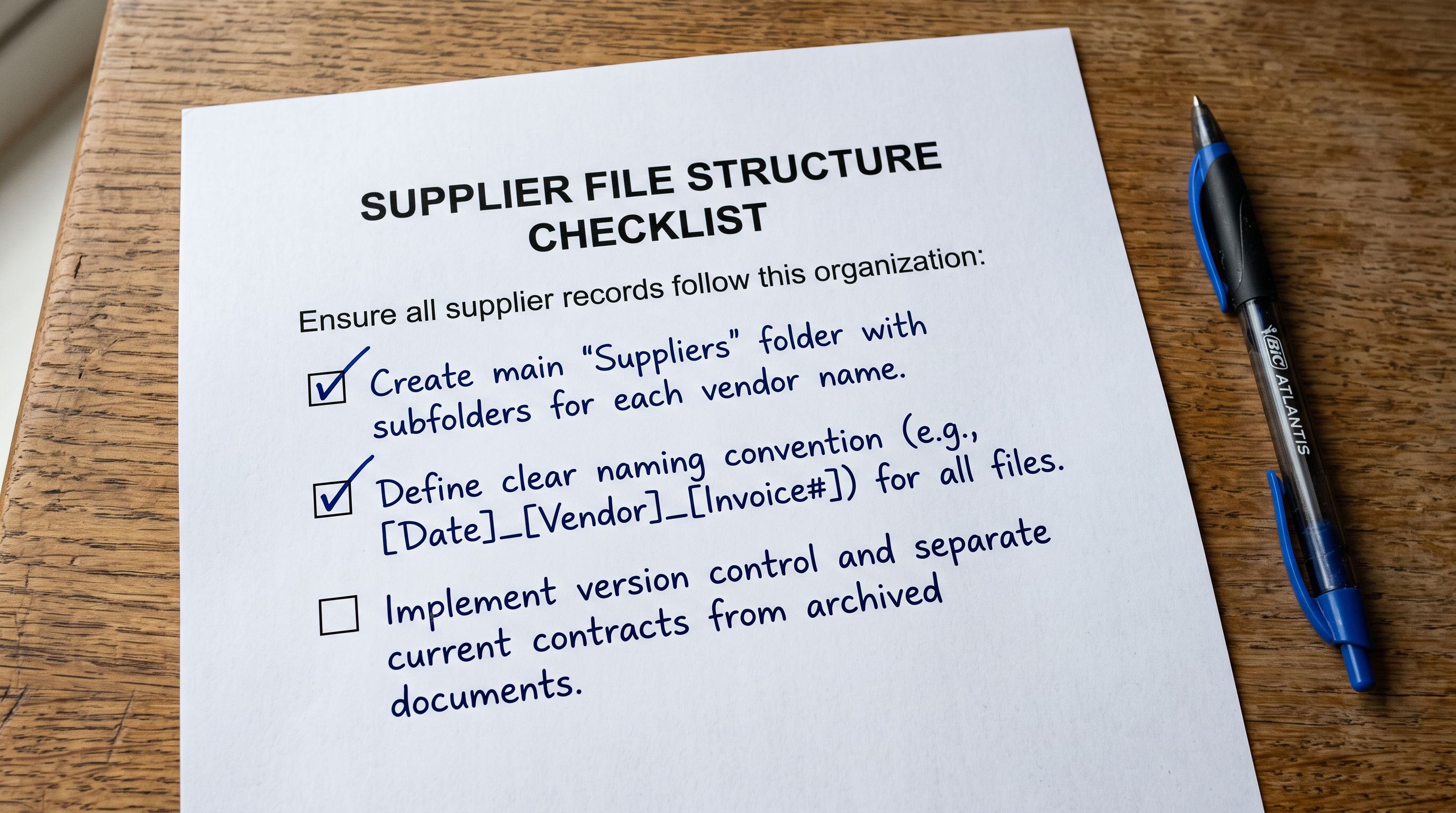
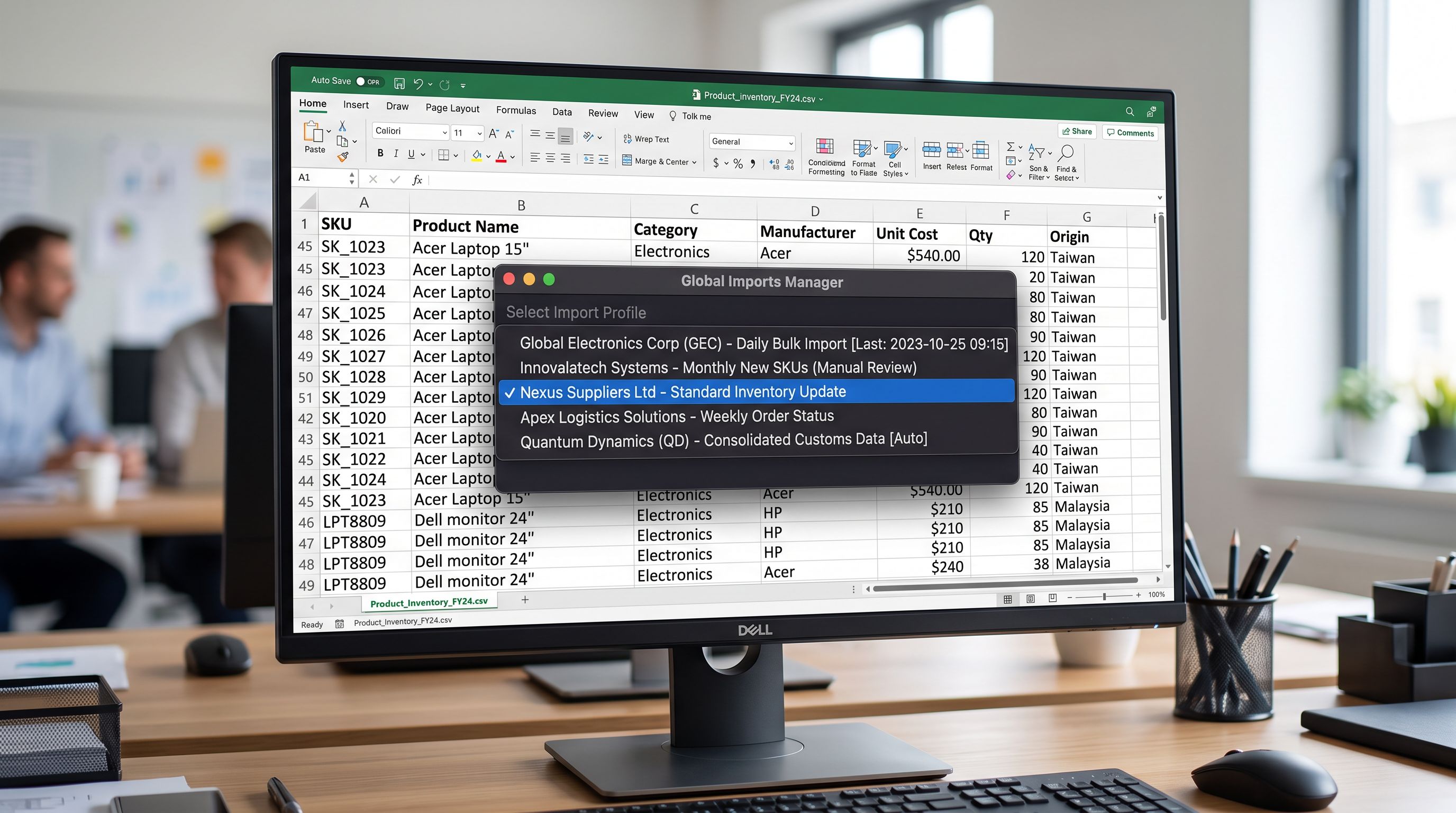
Once the first file from a supplier has been correctly mapped and imported, save the mapping as a named import profile in Importier. The profile stores the column mapping, any fixed values applied to the entire batch (a fixed Vendor value, a fixed Product Type override for a supplier whose categories are too inconsistent to map individually), and the variant grouping pattern for that supplier's format.
The profile eliminates re-mapping on every subsequent import. When the same supplier sends their next file, load the profile, select the file, and import. The mapping from the previous run applies without any column configuration.
A naming convention that includes the supplier name and file format makes the correct profile unambiguous at import time. `RunTech CSV Monthly` and `RunTech XLSX Seasonal` are clearer than `Profile 1` and `Profile 3`.
For suppliers who occasionally send files with extra or rearranged columns, the [import template library](https://importier.app/blog/shopify-import-template-library) covers how Importier handles column-order changes across saved profiles and when a profile update is needed versus a one-off mapping override.
## Updating Templates When Shopify Changes
The supplier file request template is a living document. When Shopify adds a new required field, changes a field format, or a sales channel integration requires additional product data, the template needs updating.
The fields most likely to require additions:
**GTIN or Barcode** is the most frequently missed field. If the supplier has barcodes and the template did not initially request them, add the column and re-send the updated template on the next regular communication cycle.
**Country of Origin** is required for international shipping declarations on Shopify Markets and for Google Shopping in several regions. If the merchant uses either, add this column to the template before the first international shipment rather than as a correction after customs documentation creates the need.
**Shopify's Standard Product Type** (the built-in 5,000-category taxonomy used for Shopify Markets and metafield filtering) is separate from the Product Type field and is not supplier-provided. It is populated from the merchant side during import. This field does not need to be in the supplier template, but understanding the distinction prevents confusion when configuring the column mapping for the supplier's internal category column versus Shopify's standard taxonomy field.
When the template is updated, update the per-supplier import profiles in Importier at the same time. A new column in the template has no effect on existing imports until the profile maps it to the correct Shopify field.
The pet supplies retailer's three-day mapping exercise became a 20-minute profile setup after the first file from each supplier was imported using the template. All six subsequent monthly imports from those suppliers ran through saved profiles. None required column re-mapping.
Try Importier free at importier.app.