# Shopify Import Cost Price: Fix $0 Profit Reports
> Products imported to Shopify without cost data show $0 margin on every profit report. Here is how to map cost at import and fix existing products in bulk.
- Published: 2026-07-26
- Author: Importier Team
- Category: Import Guides / File Imports
- Canonical: https://www.importier.app/blog/shopify-import-cost-price
---
A jewellery merchant imports 350 products from a wholesale supplier. The supplier's CSV includes a "Cost" column with the unit cost for each item, ranging from $4 to $140. The import completes without errors. Titles, descriptions, prices, and images all arrive correctly. Six months later the merchant runs their first quarterly profit analysis. Every single product shows 0% margin. Six months of orders on record, and Shopify has no cost data for any of them.
The "Cost" column in the supplier CSV was never mapped to Shopify's cost field during import. It landed in Shopify with a retail price and no cost attached, so every profit and margin calculation since day one has been wrong.
This is the shopify import cost price problem: a silent data gap that does not produce an error on import, does not affect how the product displays or sells, and only surfaces when someone tries to read the financial data that was never written.
## Why Shopify's Cost Field Matters for Profit Reports
Shopify's cost field (displayed as "Cost per item" on the product variant page) is the foundation for every margin and profit calculation in the Shopify admin and in connected analytics tools.
When cost is populated, Shopify calculates and displays:
- **Gross profit** per order (revenue minus total cost of goods sold)
- **Margin percentage** per product variant
- **Profit by product report** under Analytics → Reports
- **Inventory value** (units on hand multiplied by cost)
When cost is missing, every one of these calculations returns zero or becomes unavailable. The Analytics → Finances summary still shows revenue correctly, but profit and margin columns are blank. A merchant who relies on Shopify's built-in reports for quarterly accounting, tax filing, or purchasing decisions is working with incomplete data.
The cost field is also used by Stocky (Shopify's inventory management app) for purchase order calculations and reorder point suggestions. A product without a cost cannot participate in accurate purchase order planning.
Importantly, missing cost data does not generate a warning anywhere visible in Shopify. A product with no cost set looks identical to a product with cost set, except in the reports.
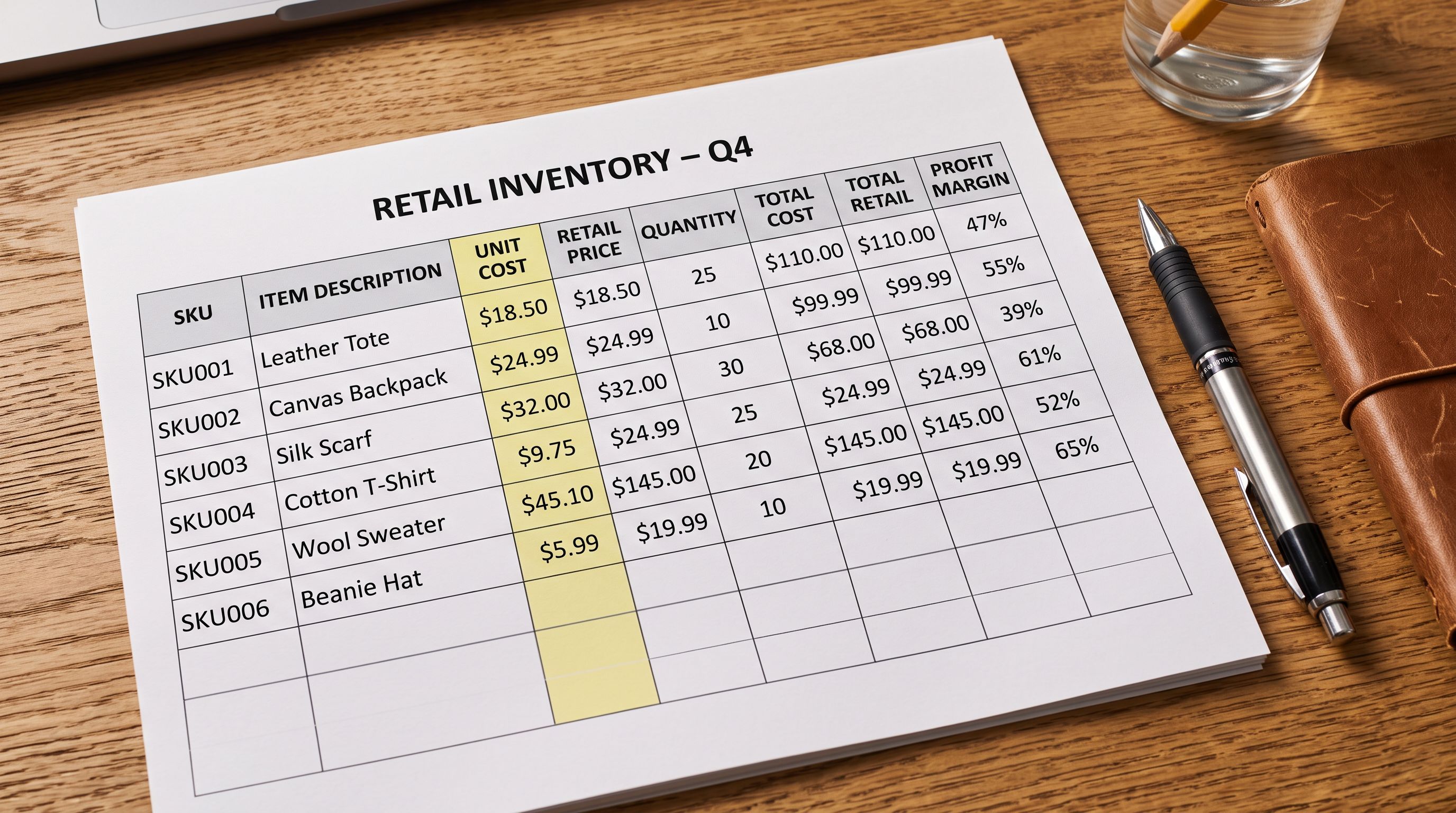
A product imported without cost data is not broken in any visible sense. It sells correctly, fulfils correctly, and appears in every product list. The gap only surfaces in profit reports, and by then weeks or months of order history have accumulated with no recoverable cost data for those orders.
## Why Shopify Import Cost Price Goes Missing
The root cause is naming inconsistency. Shopify's native CSV format uses the header `Variant Cost` for the cost field. Most supplier CSV exports do not use that name. The same data appears under dozens of different column headers depending on the supplier:
- `Cost`
- `Cost Price`
- `Unit Cost`
- `Buy Price`
- `Trade Price`
- `Wholesale Price`
- `COGS`
- `Purchase Price`
- `Landed Cost`
- `Invoice Price`
When a merchant imports using Shopify's native CSV importer, only a column named exactly `Variant Cost` maps to the cost field. A column named `Cost Price` is silently ignored. No warning, no error, no prompt to map the unrecognised column.
Third-party import tools vary in how they handle this. Some attempt to match common cost column names automatically. Others treat unrecognised columns as custom attributes or drop them. Few prompt the merchant to confirm where cost data should land before committing the import.
A second cause is supplier CSV exports that simply do not include cost data. Trade catalogues designed for general distribution sometimes omit cost because cost is commercially sensitive and varies by customer relationship. Pricelist PDFs from suppliers often show retail or RRP pricing only, not cost. In these cases the merchant needs to source cost data separately and merge it with the import file before importing.
A third cause is multi-currency purchasing. A merchant buys in USD from a US supplier but runs their Shopify store in AUD. The supplier's CSV lists costs in USD. If the merchant imports those figures directly without converting, the cost field holds USD amounts but Shopify interprets them as AUD amounts, producing incorrect margin calculations in Shopify's reports.

## How to Detect Missing or Wrong Cost Data
The quickest check: open Shopify admin, go to Analytics → Reports, and look at the Profit by product report. If the Margin column shows 0% or is unavailable for products that have been selling, cost data is missing.
A more targeted check: open any product in Shopify admin, click on a variant, and scroll to the Pricing section. The "Cost per item" field shows the stored cost. If it is blank, no cost was imported for that variant.
For a bulk check, use the [Importier Export](https://importier.app/blog/importier-export-presets) Pricing preset. It exports all products and variants with their current retail price, compare-at price, and cost per item. Filter the exported CSV for rows where the cost column is empty: that is the complete list of variants with missing cost data.
According to [Shopify's analytics documentation](https://help.shopify.com/en/manual/reports-and-analytics/shopify-reports/profit-report), the profit report requires cost data to calculate margin. A blank cost is treated as $0, which is why margin reads as 0% rather than as unknown.
A product that has sold 400 units with no cost recorded does not retroactively gain cost data when you fix it. Orders already placed and fulfilled retain whatever cost value was stored at the time (which was zero). Only future orders reflect the corrected cost.
## Mapping Cost Correctly at Import Time
Importier's 14-step import wizard includes a column mapping step where every column in the incoming file is matched to a Shopify field or marked as custom. The wizard auto-detects common cost column names and proposes the mapping before the import commits.
For a supplier file with a `Cost Price` column, the mapping step shows `Cost Price → Variant Cost (suggested)` and asks for confirmation. The merchant reviews the proposal alongside a sample of the actual values. Seeing real dollar amounts in the preview makes it straightforward to confirm the mapping is correct before 350 products are written to Shopify.
The confirmation step exists because cost is a sensitive field. Auto-mapping a retail price column to cost (because both contain dollar amounts) would produce incorrect margins. The wizard shows the column name, the sample values, and the proposed destination field side-by-side so the mapping is explicitly approved rather than assumed.


## Fixing Existing Products with Missing Cost Data
For products already in Shopify with no cost data, the fix is a targeted cost update import. The goal is to write the correct cost to each variant without touching anything else : no handle changes, no description overwrites, no price changes.
The workflow uses Importier's Pricing export preset to create the source file:
1. Export all products using the Pricing preset. The export includes product title, SKU, barcode, current retail price, compare-at price, and cost per item. Products with missing cost show a blank cost column.
2. Open the exported file alongside the original supplier CSV (or current supplier pricelist). Use VLOOKUP on SKU to pull cost values from the supplier file into the export file's cost column. For 350 products, this takes 10 minutes rather than entering each cost manually.
3. Delete all columns except the ones needed for the update: SKU (or barcode), and cost. A narrower import file is faster to review and less likely to accidentally overwrite data.
4. Import the cost-only file through Importier's wizard. The wizard matches incoming rows to existing Shopify products via SKU or barcode. Only the cost field updates; every other product attribute (title, description, price, handle, images, metafields) stays exactly as it is.
## Currency and Landed Cost Considerations
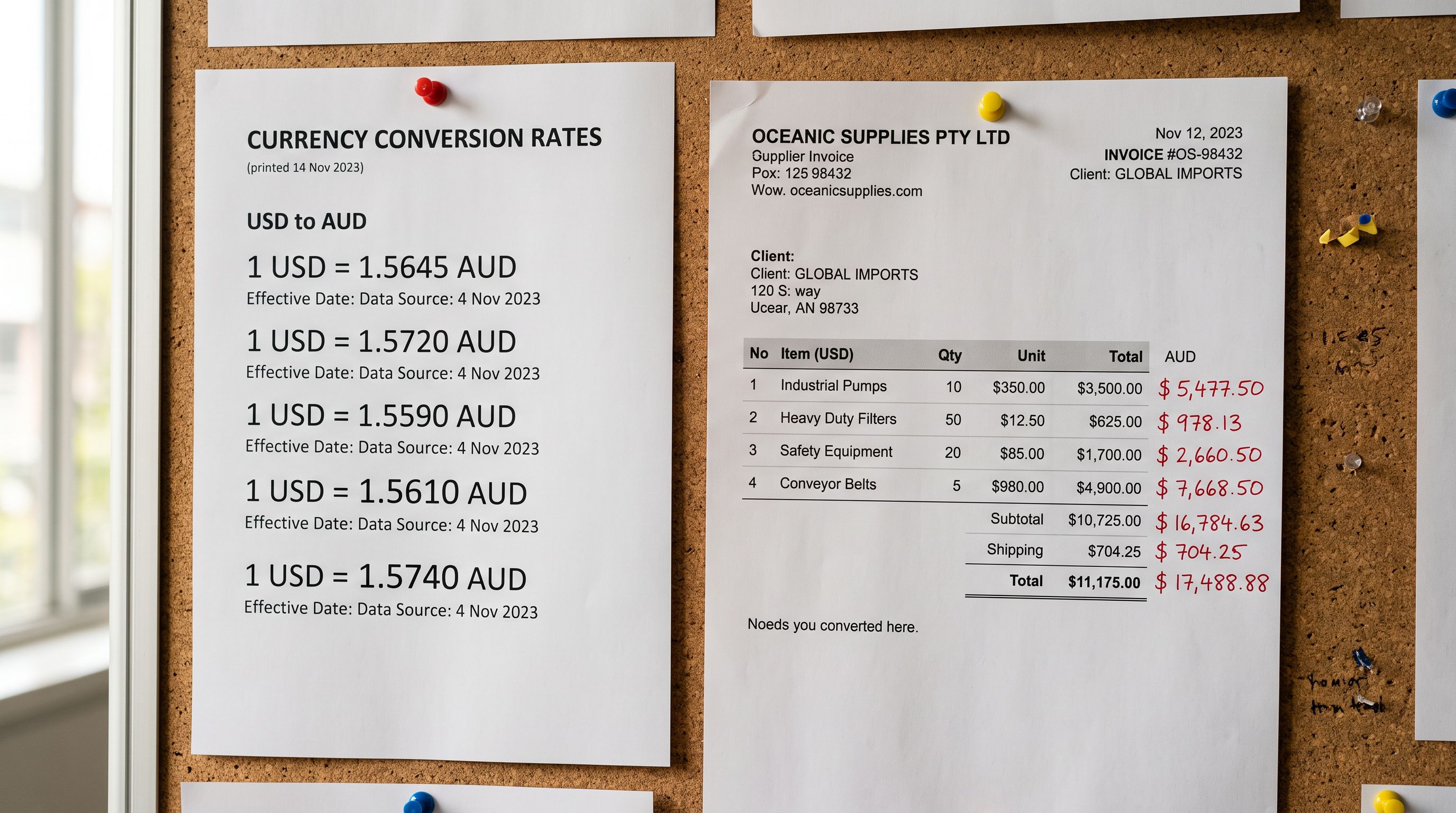
When the supplier's cost is in a different currency, the cost field must be in the store's default currency. Shopify does not apply currency conversion to the cost field: it stores whatever value you import as the cost in the store currency.
For a store operating in AUD importing costs from a USD supplier, the conversion should happen in the import file before uploading. Add a calculated column: `=supplier_cost_usd * current_exchange_rate` for each row. Import the converted column as cost. Update the exchange rate column whenever a new supplier catalogue arrives and the rate has changed.
Landed cost (the total cost including shipping, customs duties, and handling) is a more accurate margin input than invoice cost alone, especially for imported goods. If a product costs $10 from the supplier but $14 by the time it reaches the warehouse (shipping $2, duties $1.50, handling $0.50), using $10 as the cost overstates margins by nearly 30%.
Some merchants maintain a landed cost multiplier per supplier (for example, 1.4× for a supplier whose average landed cost adds 40% to invoice cost) and apply it in the import file: `=invoice_cost * landed_cost_multiplier`. This is done in the file before import; the Variant Cost field in Shopify holds the final number.
Past orders do not retroactively update when cost data is added. The profit report reflects cost as it was at the time each order was placed. If you import cost data for 350 products today, orders from the past six months still show $0 cost. Those historical figures cannot be corrected inside Shopify's reports; they require external accounting reconciliation. Only orders placed from the correction date forward will show accurate margins.
## Shopify Import Cost Price: Key Takeaways
The shopify import cost price problem is silent at import time and only becomes visible when financial reports return $0 margins. Addressing it at the column mapping step when importing avoids months of uncorrectable historical data gaps.
- Shopify's cost field is named `Variant Cost` in its native CSV format. Supplier files rarely use this exact name, so mapping requires explicit confirmation during the import wizard's column mapping step.
- Missing cost data does not affect how products display, sell, or fulfil. It only affects profit reports, inventory valuation, and margin calculations, all of which silently return zero.
- To detect missing cost data: check Analytics → Reports → Profit by product for 0% margin products, or open any variant's Pricing section and look for a blank "Cost per item" field.
- For products already in Shopify with missing cost: export using the Pricing preset, add cost values via VLOOKUP from the supplier's pricelist, and re-import as a cost-only update. SKU or barcode matching updates cost without touching any other product data.
- Cost values in the import file must be in the store's default currency. Convert supplier costs from foreign currencies before importing. Shopify does not apply exchange rate conversion to the cost field.
- Past orders do not update when cost data is added. Only orders placed after the correction date will show accurate margins in Shopify reports.
Import your product catalogue with correct cost data at [importier.app](https://importier.app). Importier's column mapping step explicitly confirms where supplier cost columns map before committing, so cost data arrives correctly on the first import.