# Shopify BFCM Tag Cleanup: Remove Without Breaking Collections
> Remove BFCM tags from Shopify products without breaking automated collections. Audit rules first, then bulk-remove and replace via reimport.
- Published: 2026-11-23
- Author: Importier Team
- Category: Store Management / SEO & Discoverability
- Canonical: https://www.importier.app/blog/shopify-bfcm-tag-cleanup
---
# Shopify BFCM Tag Cleanup: Remove Promotional Tags Without Breaking Collections
After BFCM, every Shopify catalogue carries a set of tags that served their purpose during the sale and now need to go: `bfcm-2026`, `flash-sale`, `doorbusters`, `cyber-monday`, `limited-time`. Leaving them in place pushes products into promotional context they no longer belong in. Removing them carelessly empties automated collections.
The risk is structural. Shopify's automated collections use tag conditions to determine which products belong. A collection called "BFCM Deals" is built on a rule like "product tag is equal to bfcm-2026". That collection empties the moment the tag is gone from the last product. But the same mechanism applies to permanent collections that happen to use a tag that also appeared on BFCM products. If your "Winter Coats" automated collection uses the tag `season:winter`, and your BFCM products also carried `season:winter`, removing tags carelessly can touch collections you did not intend to change.
The solution is an audit-first workflow: identify which tags power automated collection rules before you remove anything, then remove only the tags that are purely organisational and have no collection dependency.
## Why Bulk BFCM Tag Removal Can Break Shopify Collections
[Shopify's automated collections](https://help.shopify.com/en/manual/products/collections/automated-collections) evaluate membership conditions in real time. When a product tag is added or removed, Shopify immediately re-evaluates which automated collections the product belongs to. There is no delay and no warning. A product that loses a tag powering an automated collection disappears from that collection instantly.
This matters most in two scenarios after BFCM.
The first is intentional: your BFCM collection was built on `bfcm-2026` and you want it to empty. Removing that tag is the right action.
The second is accidental: a tag that you categorise as "promotional" actually appears as a condition in a permanent collection. This is common with tags like `sale`, `clearance`, `discounted`, or `seasonal-offer`. A merchant who bulk-removes all sale-related tags may inadvertently empty a "Clearance" collection that uses `clearance` as its membership condition, even though they did not intend to touch that collection.
The other structural risk is case sensitivity. Per Shopify's tag documentation, [tag values are case-sensitive](https://help.shopify.com/en/manual/shopify-admin/productivity-tools/using-tags) in automated collection conditions. A collection rule that checks for `BFCM-2026` does not match a product tagged `bfcm-2026`. This means tags that look identical in a CSV may actually be treated as different values by the collection engine. Before removing tags, verify the exact casing of each tag in both the product data and the collection condition.
When you reimport a Tags column to Shopify, it replaces the entire tag set for each product row: it is not additive. To remove just the BFCM tags, you must export all existing tags, edit out only the tags you want gone, and reimport the complete remaining set. Importing a file with only the new tags will delete every other tag on the product.
## Auditing Which Tags Power Collections Before Removing Anything
The audit takes about 15 minutes. In Shopify admin, navigate to Products → Collections. Filter by collection type to show only Automated collections. For each automated collection, open it and review the conditions panel. Note every tag value that appears as a condition.
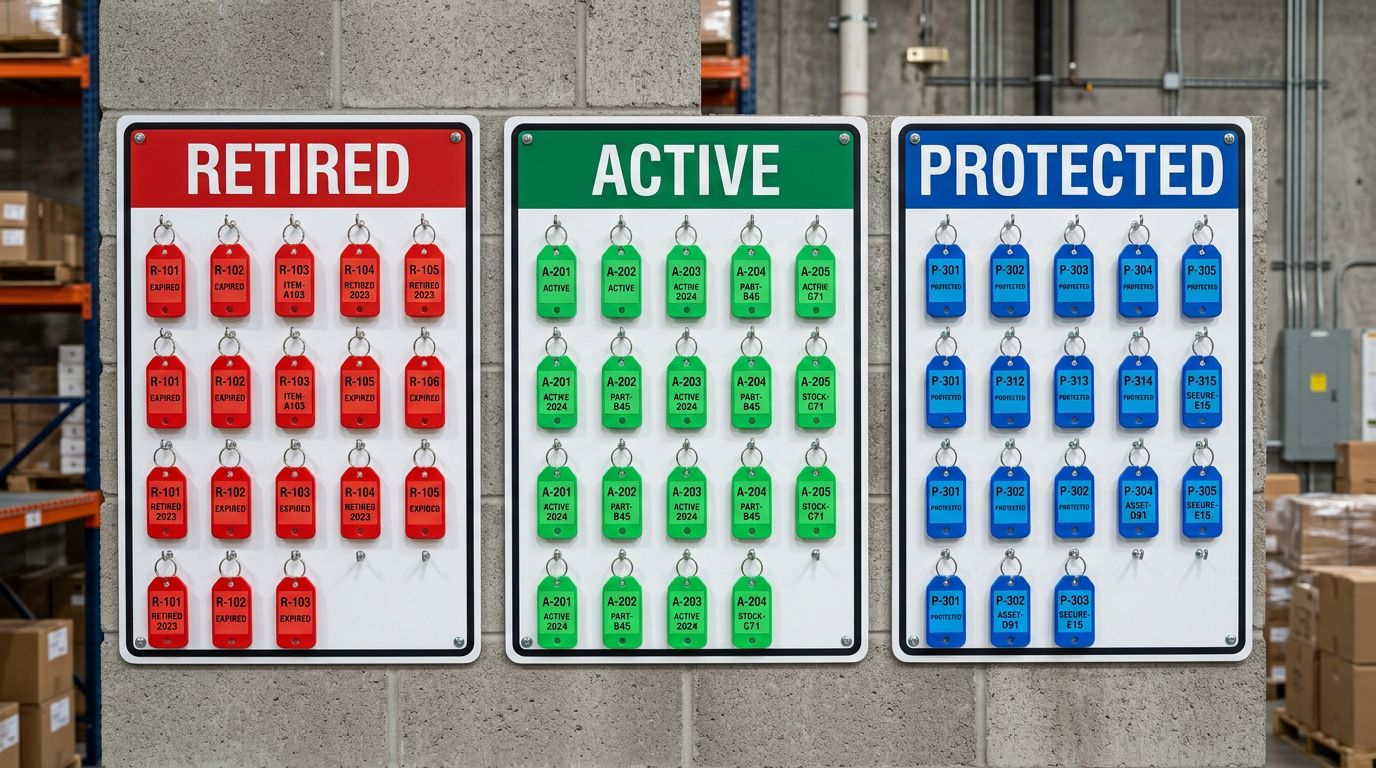
Build a protected tags list from this audit. Any tag that appears in an automated collection condition is protected: do not remove it in the bulk operation, even if the tag also appears on BFCM products.
Common BFCM tags that are safe to remove (rarely power permanent collections):
- `bfcm-2026`, `bfcm`, `black-friday-2026`, `cyber-monday-2026`
- `flash-sale`, `doorbusters`, `limited-time`, `sale-ends-sunday`
- `bfcm-featured`, `homepage-promo`, `sale-badge`
Tags that frequently power permanent collections and should be audited before removal:
- `sale`, `clearance`, `discounted`, `on-sale`
- `season:winter`, `season:autumn`, `seasonal`
- Any tag using the `type:`, `material:`, `vendor:`, or `category:` prefix
If a BFCM product carries both `bfcm-2026` and `sale`, and your permanent "Sale" collection uses the condition `tag is equal to sale`, removing both tags would break that collection. Remove only `bfcm-2026` and leave `sale` in place.

## How the Tags Column Replacement Works in Importier
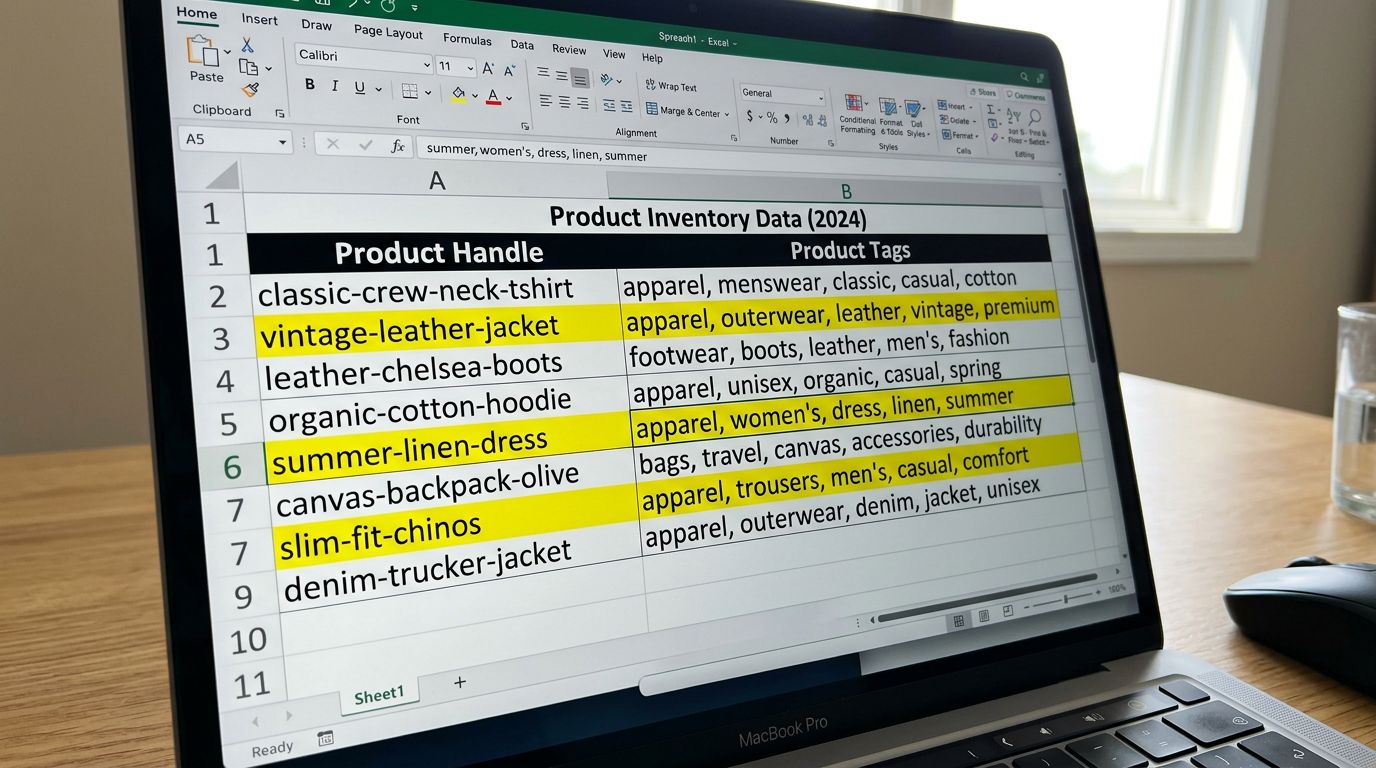
Importier's Tags export preset outputs one row per product variant with the Handle column and the full Tags string in a single comma-separated cell. A product with five tags appears as: `bfcm-2026, flash-sale, type:apparel, material:cotton, season:winter`.
To remove `bfcm-2026` and `flash-sale` from that row while keeping the others, you edit the cell to: `type:apparel, material:cotton, season:winter`. When you reimport this file, Shopify replaces the product's tags with exactly what is in the cell for that row.
The practical risk is column editing errors. A spreadsheet with 300 rows of comma-separated tags is prone to corruption if you use a broad find-and-replace that clips adjacent tag values. The safest approach is to use a spreadsheet function that splits the tags into individual cells, removes the target tags, and joins the remaining values back into a single comma-separated string. In Google Sheets or Excel, this takes two helper columns and a JOIN formula.
For merchants who want to do this without formula work, the alternative is to edit a filtered subset. Filter the Tags CSV to show only rows that contain `bfcm-2026` (using a data filter on the Tags column), then perform the edit on that filtered set. This limits the editing surface to only the rows that actually need changing.
The reimport file needs only two columns: Handle and Tags. It does not need price, inventory, or any other product data. Importier maps only the columns present in the import file, so the import updates tags and leaves everything else untouched.
An audit-first tag cleanup takes 15 minutes of collection review before the import. Skipping that review can empty a live collection instantly, and there is no undo.
## Swapping BFCM Tags for Christmas Tags in the Same Import
Some products that carried BFCM promotional tags should transition directly to Christmas-2026 context. These are typically gift-eligible products that were promoted during BFCM and remain relevant for the Christmas selling season. Rather than running two imports, the same Tags CSV edit handles both operations.
For a product row with `bfcm-2026, flash-sale, type:homewares, season:winter`, the edit becomes: `christmas-2026, type:homewares, season:winter`. The BFCM tags are removed and `christmas-2026` is added in the same cell edit, which then flows through in the single import run.
This is worth doing in December specifically because Shopify automated collections built on `christmas-2026` will immediately gain these products once the tag is applied. If you have a "Christmas Gifts" collection that uses the condition `tag is equal to christmas-2026`, every product that gains this tag in the import joins the collection instantly.
The swap also matters for downstream systems. Email platforms that query your Shopify catalogue for products to include in gift guides pull tag data at send time. A product that still carries `flash-sale` in December will be excluded from Christmas gift guide queries that filter by `christmas-2026`, and may appear in flash-sale email segments that are no longer relevant.
## What Breaks If You Skip the Audit
The article on [why Shopify imports remove product tags](https://importier.app/blog/shopify-import-removes-product-tags) covers the Tags column replacement mechanism in detail, specifically the scenario where a stale export is used for a reimport and wipes a tag taxonomy built after the export date. The same mechanism is what makes the BFCM tag cleanup powerful and what makes it dangerous if the editing step is rushed.
Three things break silently if the tag audit is skipped:
**Automated collections empty without warning.** Shopify does not send an alert when a collection reaches zero products. A permanent "Clearance" or "Winter Sale" collection that empties because a protective tag was removed will stay empty until someone notices in the storefront or admin.
**Email marketing segments stop matching.** If your Klaviyo or Omnisend flows segment by tag, removing a tag that a segment condition uses will cause those flows to stop delivering to affected products. No error, no bounce; the segment simply returns fewer matches.
**Navigation filters disappear.** Collection page filters built on tag facets (using Shopify's built-in filter functionality or a third-party filter app) are powered by the tags currently on products. Remove all instances of a tag from a product set and that filter value disappears from the filter panel. A "Flash Sale" filter option that shows in December is a customer-facing problem.
## Key Takeaways
- Shopify automated collections evaluate tag conditions in real time. Removing a tag that powers a collection empties that collection immediately. Run a 15-minute collection audit before any tag removal to build your protected tags list.
- Shopify tag conditions are case-sensitive. `BFCM-2026` and `bfcm-2026` are distinct values in collection rules. Verify exact casing when auditing collection conditions against your product tag data.
- When reimporting a Tags column, Shopify replaces the full tag set for each product row, not just the tags you changed. Export all existing tags first, edit only the tags you want gone, and reimport the complete remaining set.
- Handle the BFCM-to-Christmas swap in the same CSV edit. Remove `bfcm-2026` and add `christmas-2026` in the same cell for products that transition directly into Christmas context. One import run handles both operations.
- After the import, verify collections immediately. The BFCM collection should drop to zero or expected count. Permanent collections using protected tags should be unchanged. Spot-check 3-5 products for correct tag sets.
Run your Tags export and bulk cleanup at [importier.app](https://importier.app).
## Related Articles
- [Why Shopify Imports Remove Product Tags and How to Prevent It](/blog/shopify-import-removes-product-tags)
- [Post-BFCM Product Data Cleanup: Fix What BFCM Left Behind](/blog/shopify-post-bfcm-product-data-cleanup)
- [Shopify Christmas Gift Set Bundle Import](/blog/shopify-christmas-gift-set-bundle-import)